[5.0] How to Delete Contacts

[5.0] How to Delete Contacts

The following steps will allow you to delete some or all of your contacts in the HailTrace app.  

You will need one of the following roles to delete contacts:
  1. Account Owner
  2. Asset Admin
  3. DealTrace Admin

Mobile App

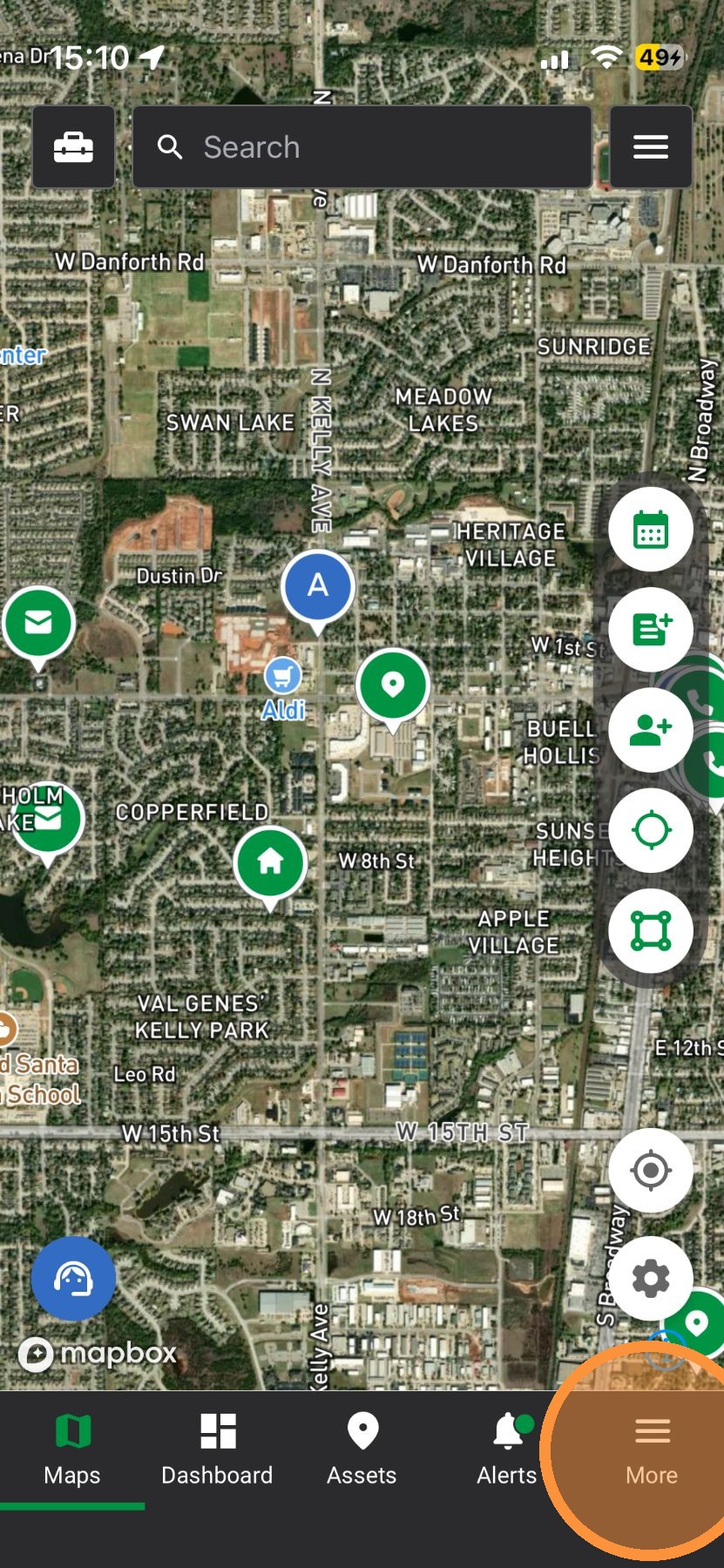
1. Tap More page

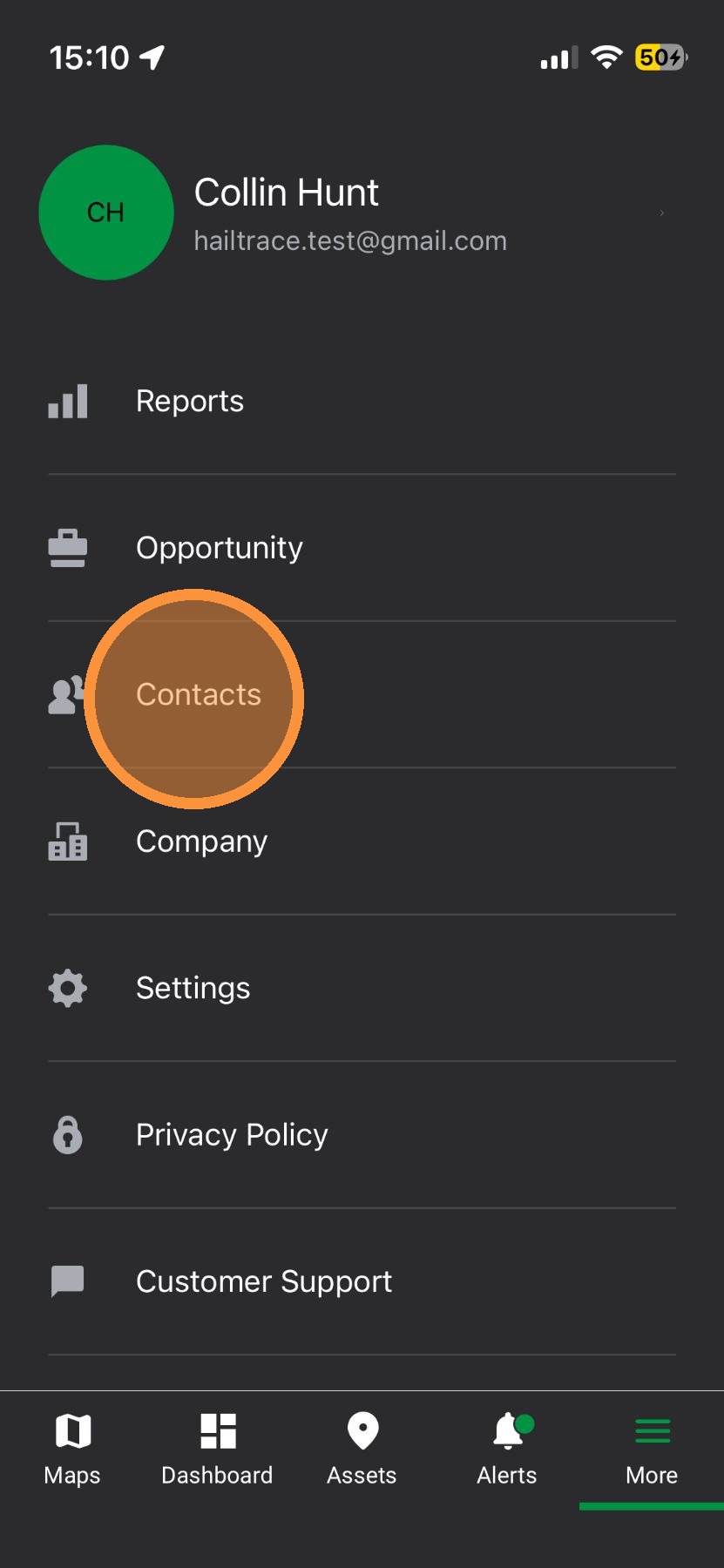
2. Tap "Contacts" page

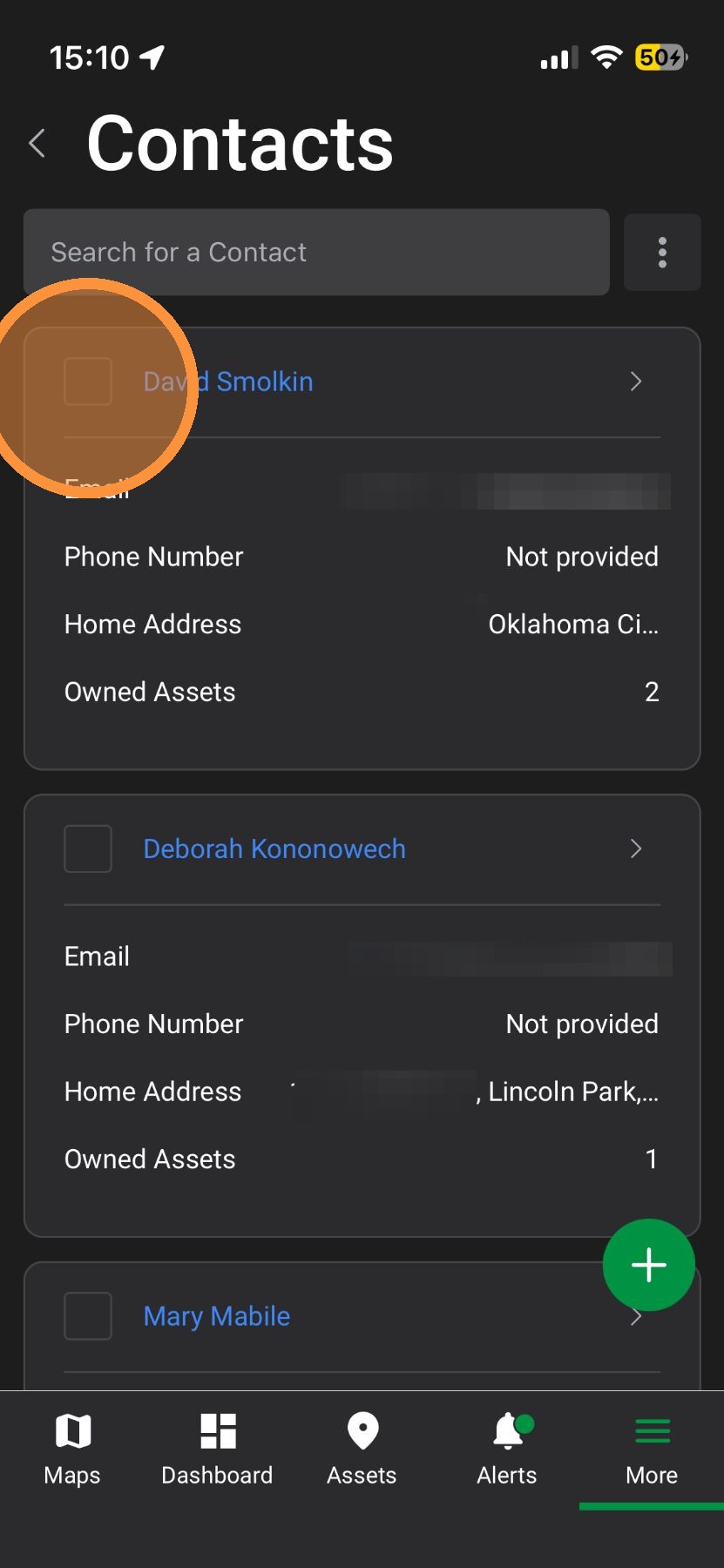
3. Select any number of contacts to delete (skip this step if you plan to delete ALL contacts)

4. Tap "Action" button
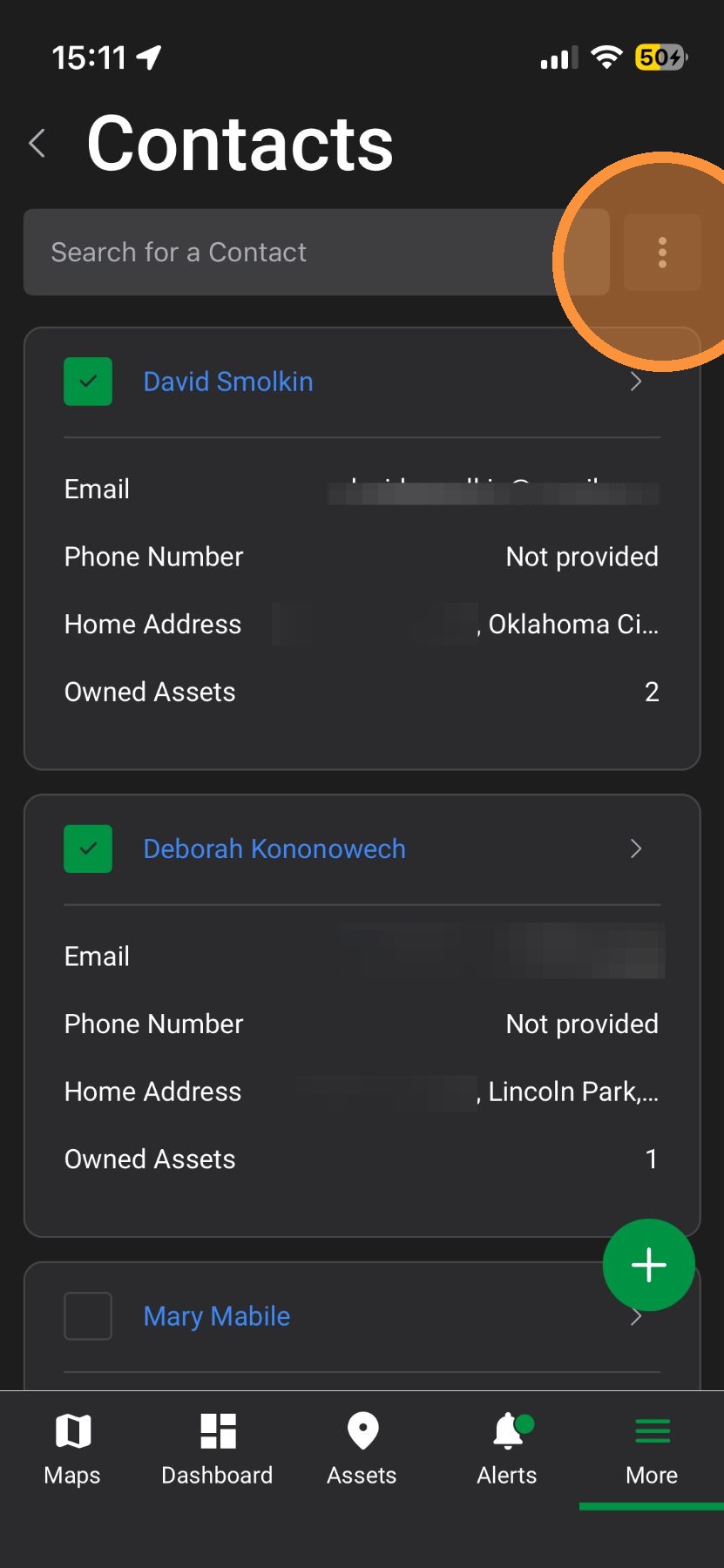

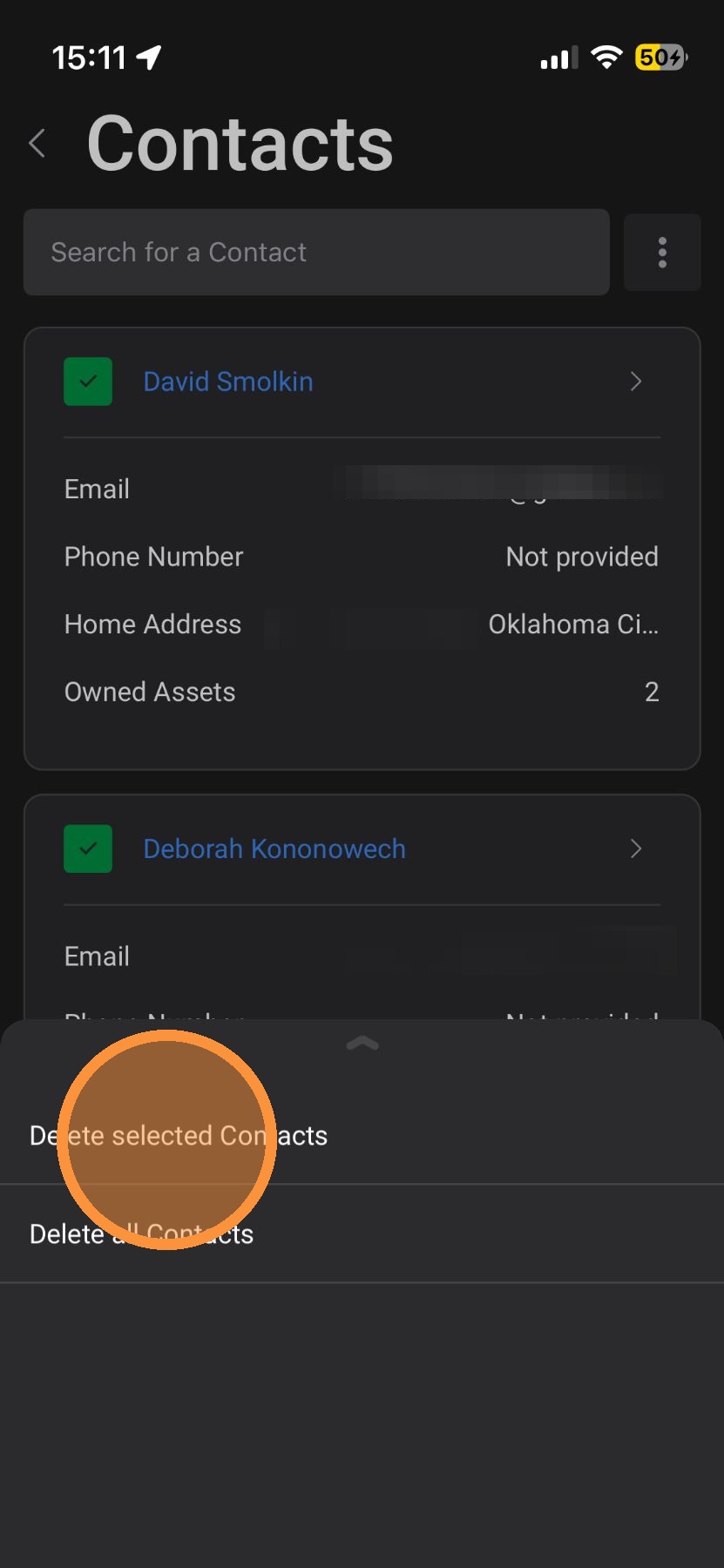
5. Select "Delete selected contacts" or "Delete all contacts"

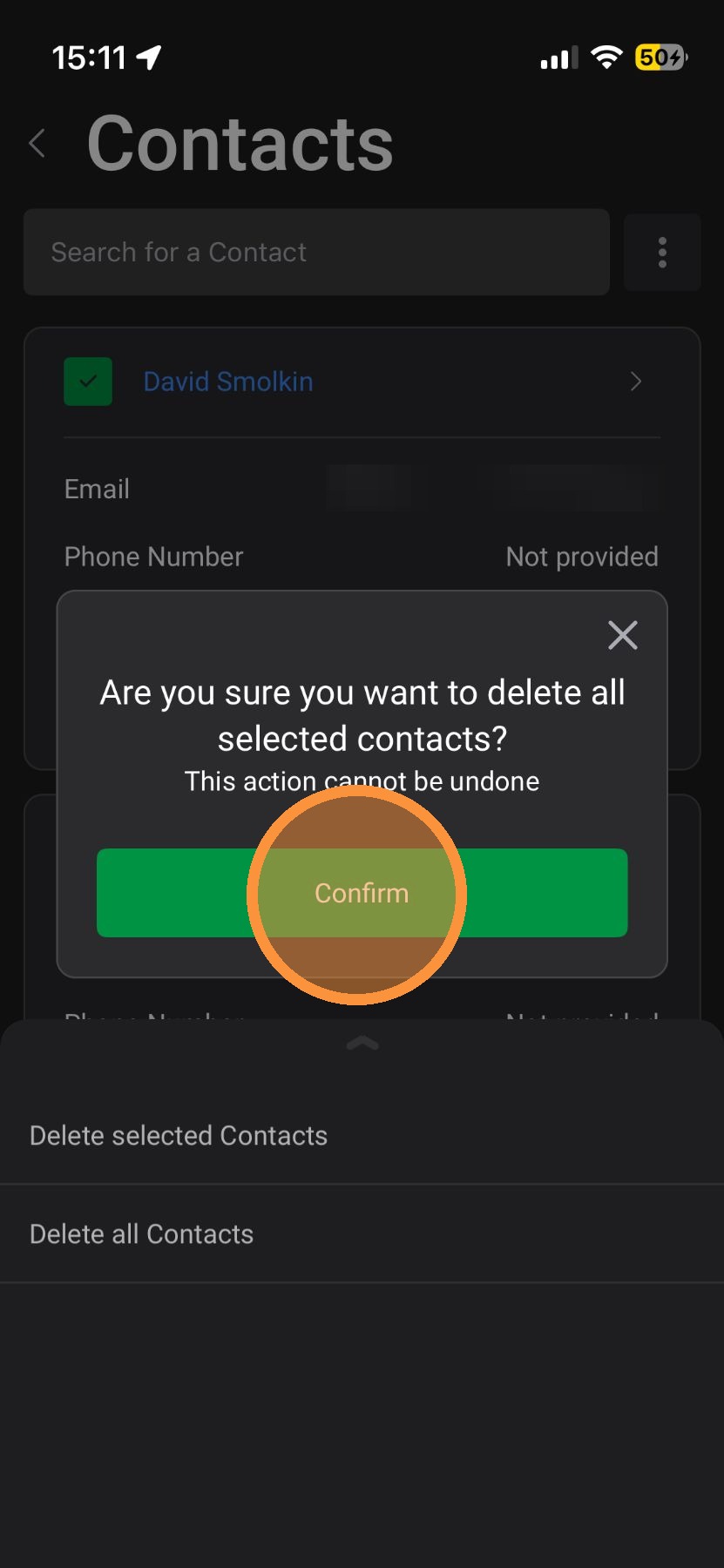
6. Tap "Confirm"

Browser App

1.  Select the Contacts page


2.  Select Contact(s) to be deleted (skip this step if you plan to delete ALL contacts)


3.  Click the Action button under "Create Contact"


4.  Select one of the following: Delete Selected or Delete All


5.  Type "CONFIRM" and click Confirm


    • Related Articles

    • [5.0] How to Create an Asset, Contact, & Opportunity

      When dropping a pin or tracking a lead in the HailTrace app, you can create an Asset, Contact, and Opportunity at the same time. This helps you track the door knock, start monitoring the property for future storm with Impacted Assets, and work the ...
    • [5.0] Create Custom Fields for Contacts, Assets, and Opportunities

      Custom Fields let you collect the information that matters most to your company. They can be used on Contacts, Assets, and Opportunities. The app already includes standard fields, such as names, addresses, phone numbers, asset details, opportunity ...
    • [5.0] Export Company Contacts & Assets

      Use the company-wide export to download all contacts and assets for every client in your HailTrace account outside of the app. Click Company Settings along the left-hand bar Select Export Data Click "assets" and select Assets or Contacts Select the ...
    • [5.0] How to Create Custom Roles

      The app comes with several pre-set roles that work well for most companies. But every company runs a little differently, and you may need a role that is not already built into the app. A Custom Role lets you choose the exact permissions a user needs ...
    • [5.0] Edit Sub-users' Personal Info, Access, and Roles

      Account Owners and users with an Admin role can update sub-user accounts as needed. This includes changing a user’s personal information, app access, roles, and permissions. Use this when a team member changes positions, needs access to more tools, ...