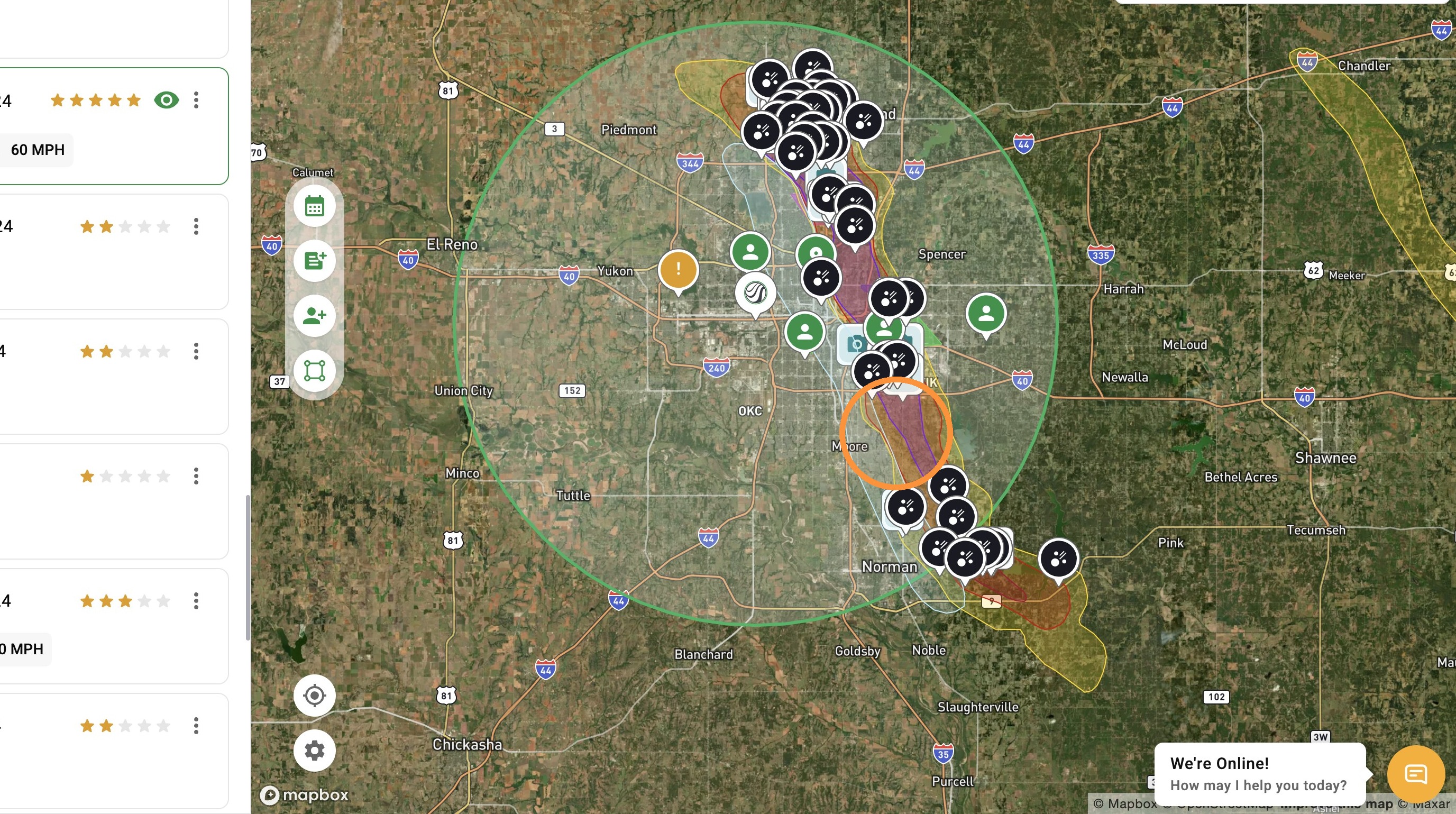
[5.0] How To Find Storms & Activate A Weather Event
There are two ways to locate and download a weather event, depending on your need:
- Search by Storm Date
- Ideal for those who want to find a specific day of storms
- Search by Recent Storms
- Ideal for those who want to find a list of recent events inside your subscription
- Search by a Area or City
- Ideal for those who want to find a list of storms in a specific area
Mobile App
Search by Storm Date
1. Tap the "Maps" page
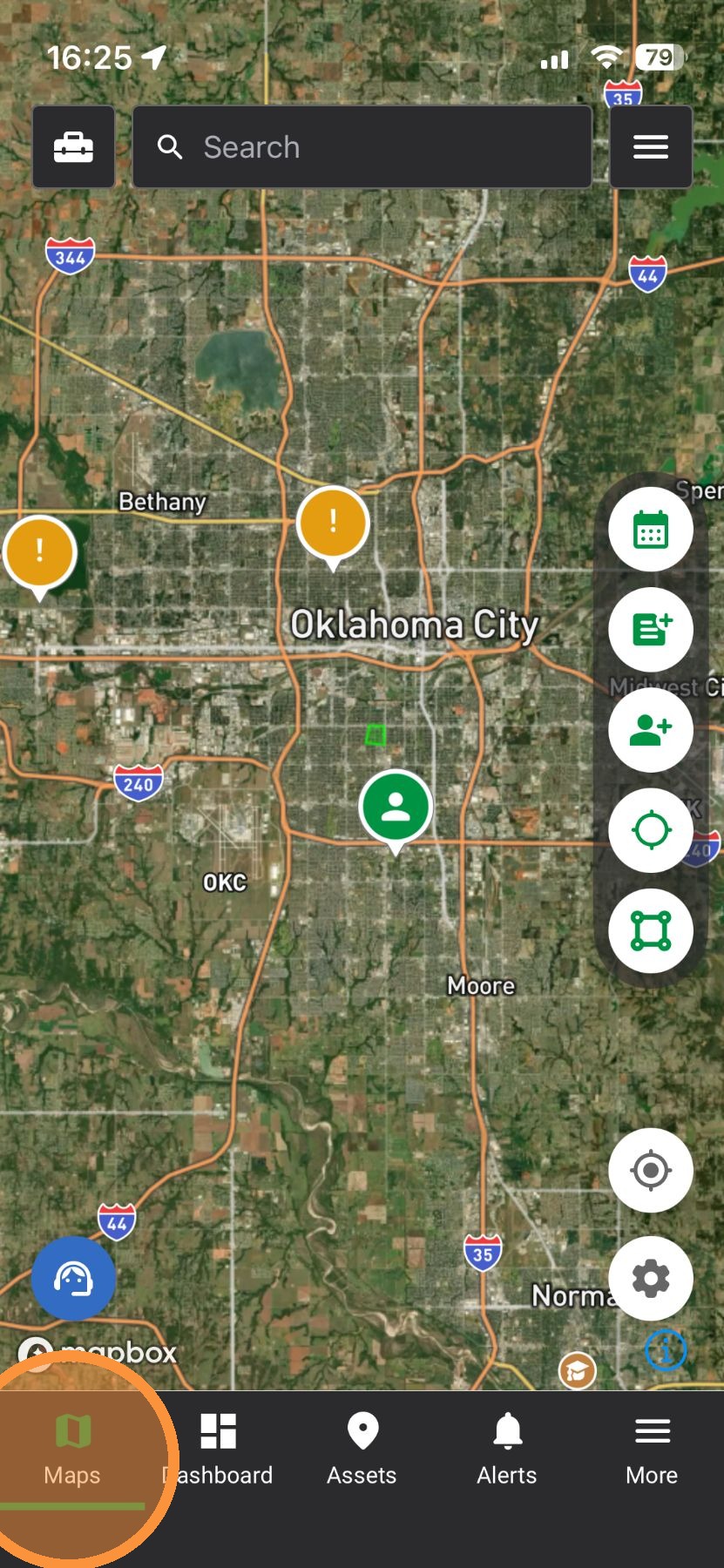
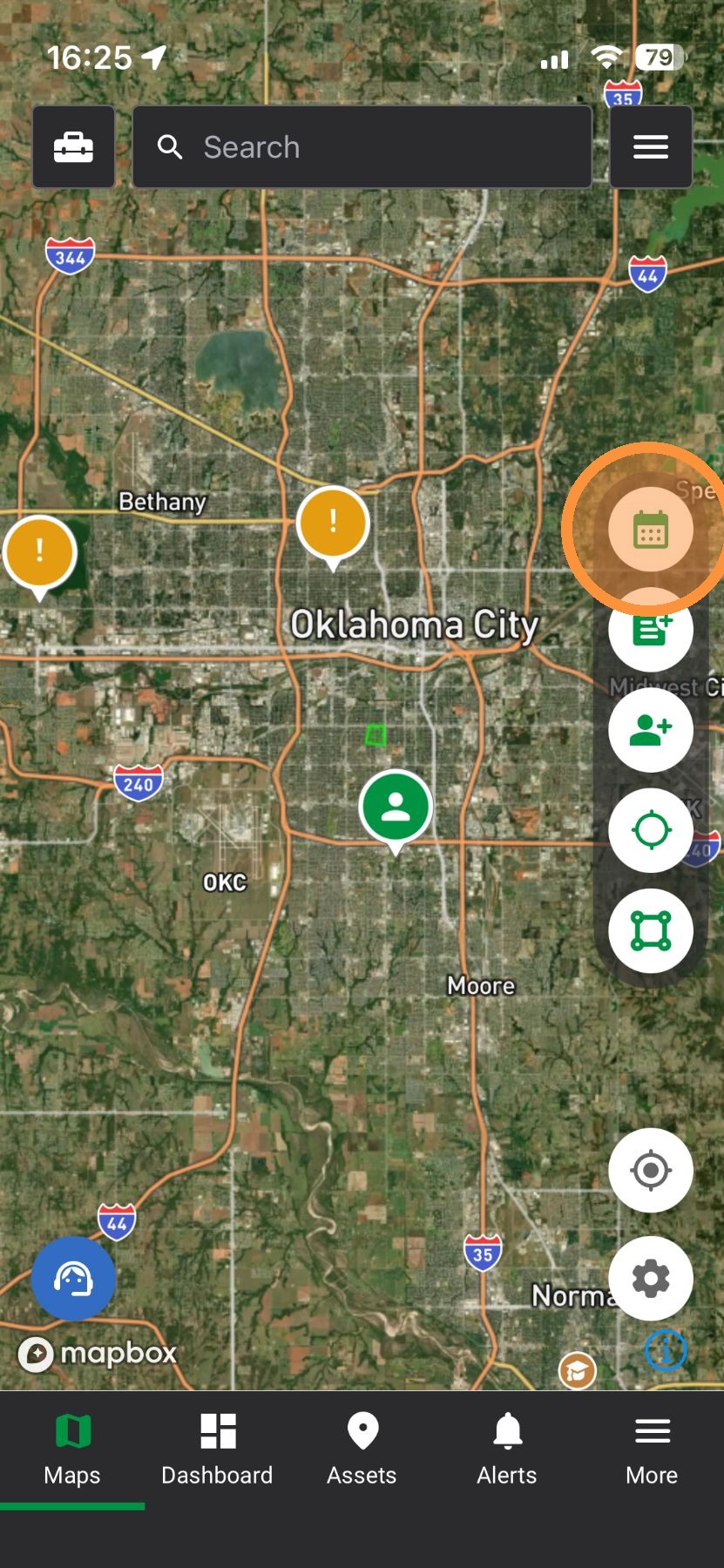
2. Event Date Picker: Pick a date to find storms fast.
3. Tap to select the month
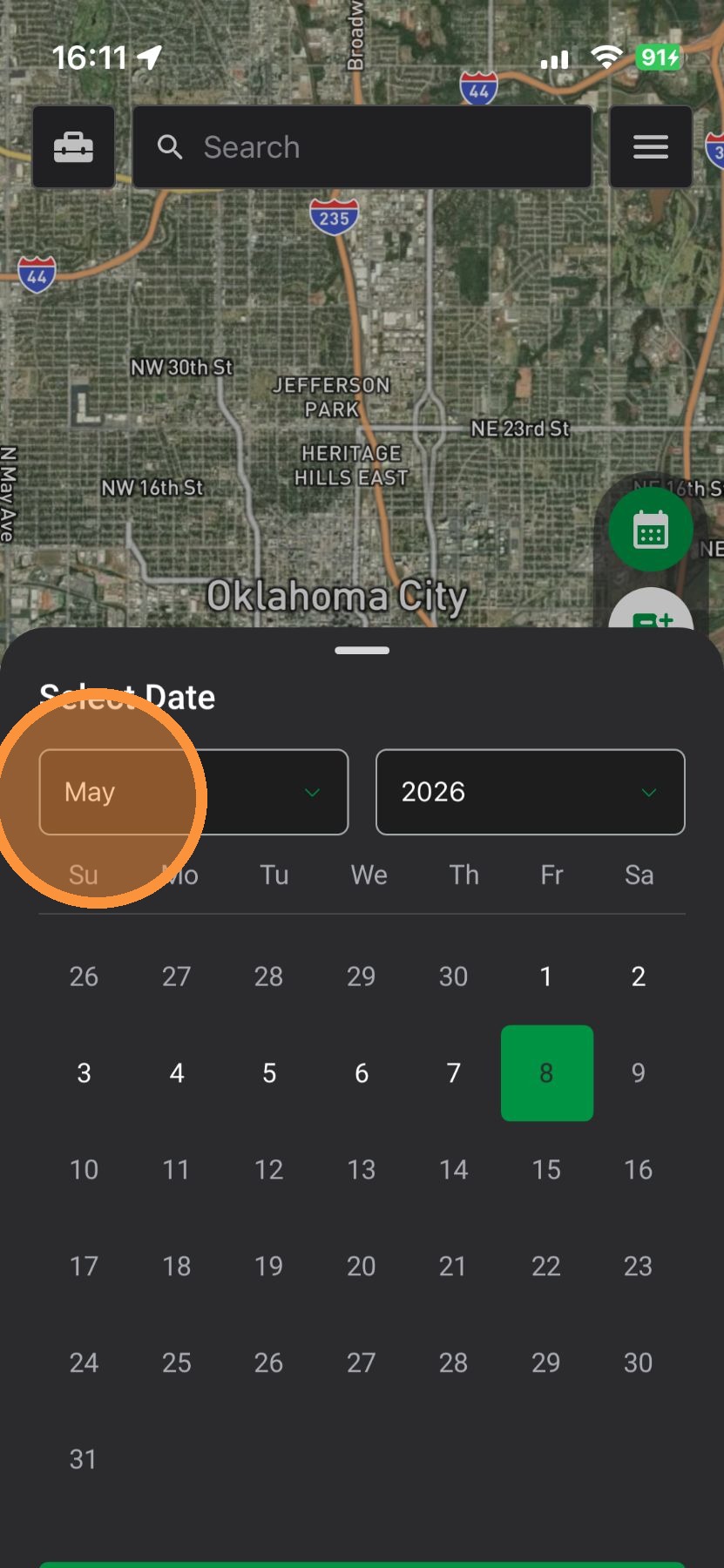
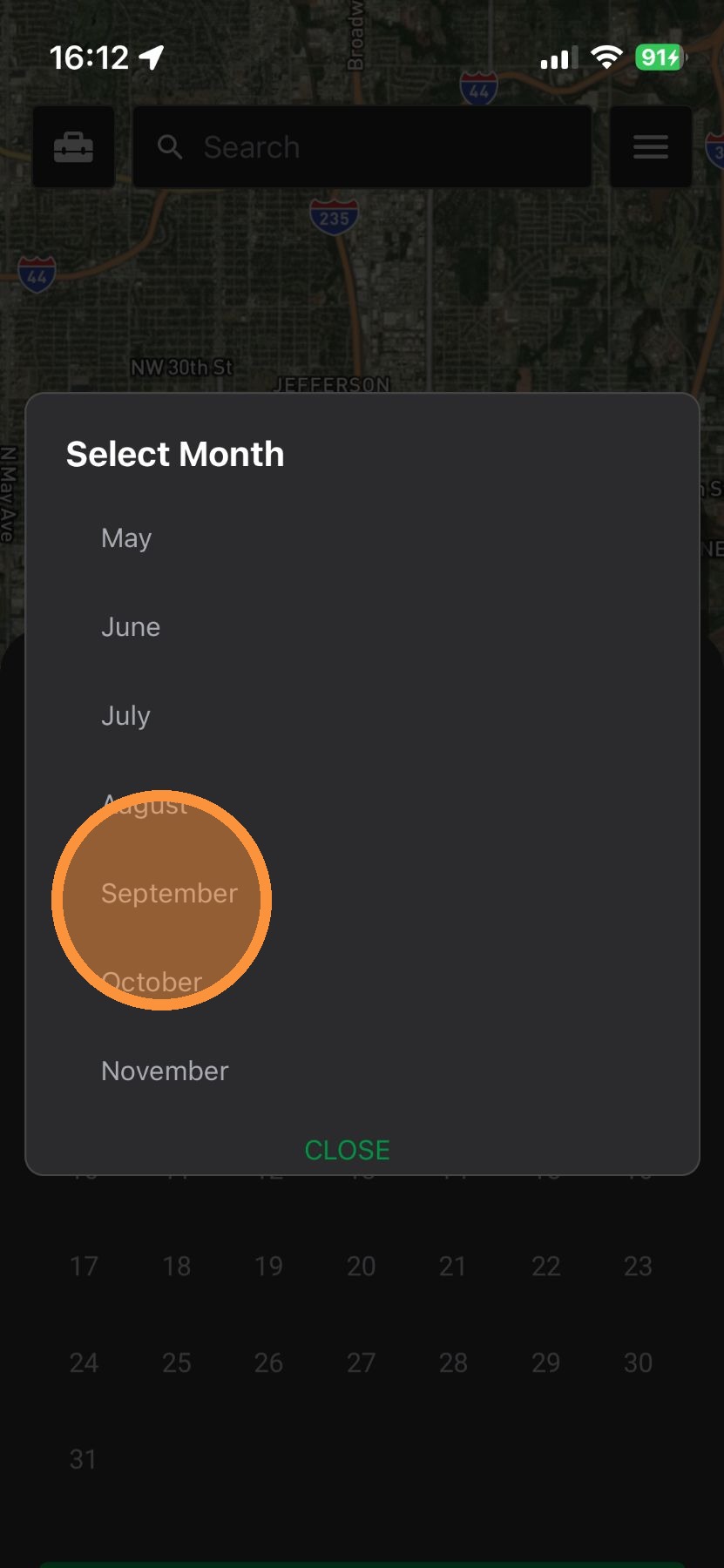
4. Tap the month
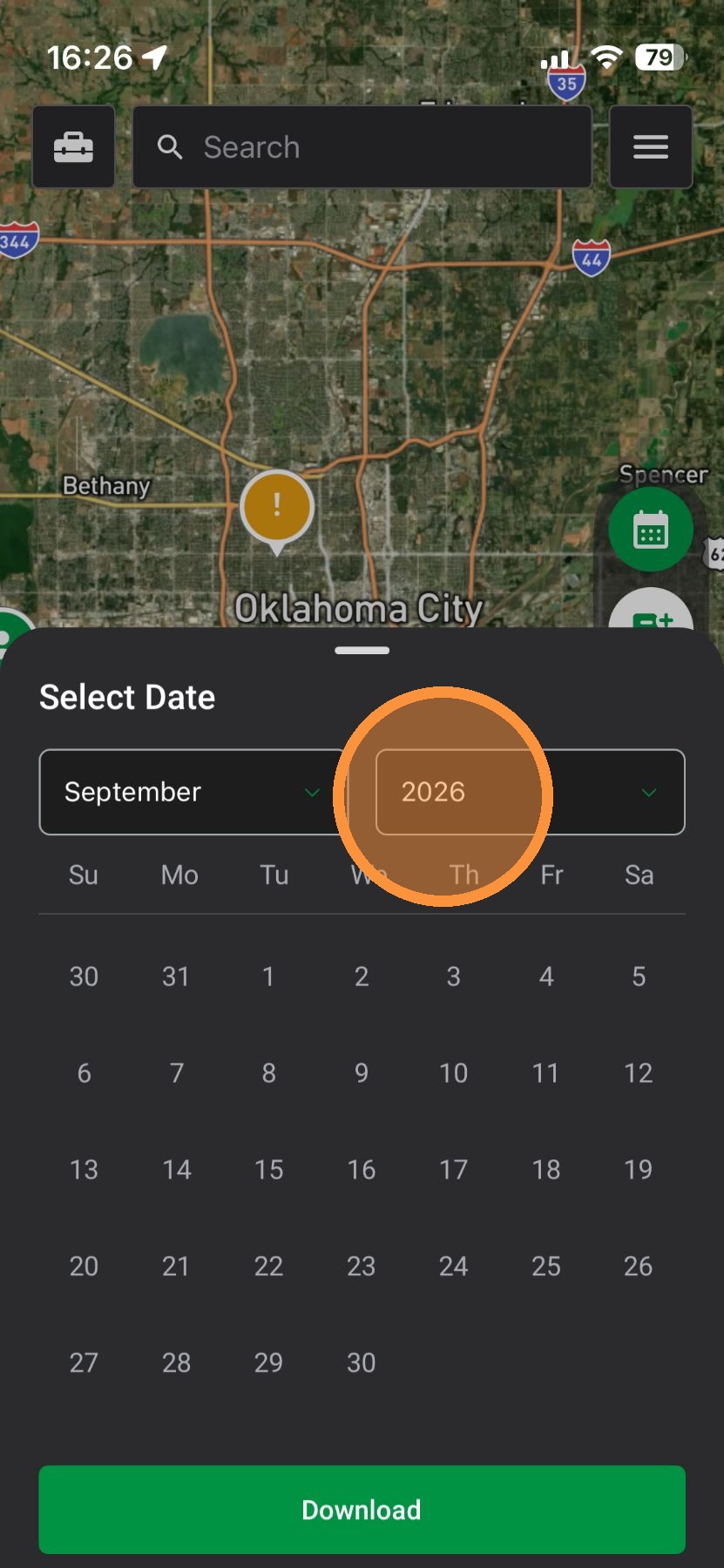
5. Tap to select a year
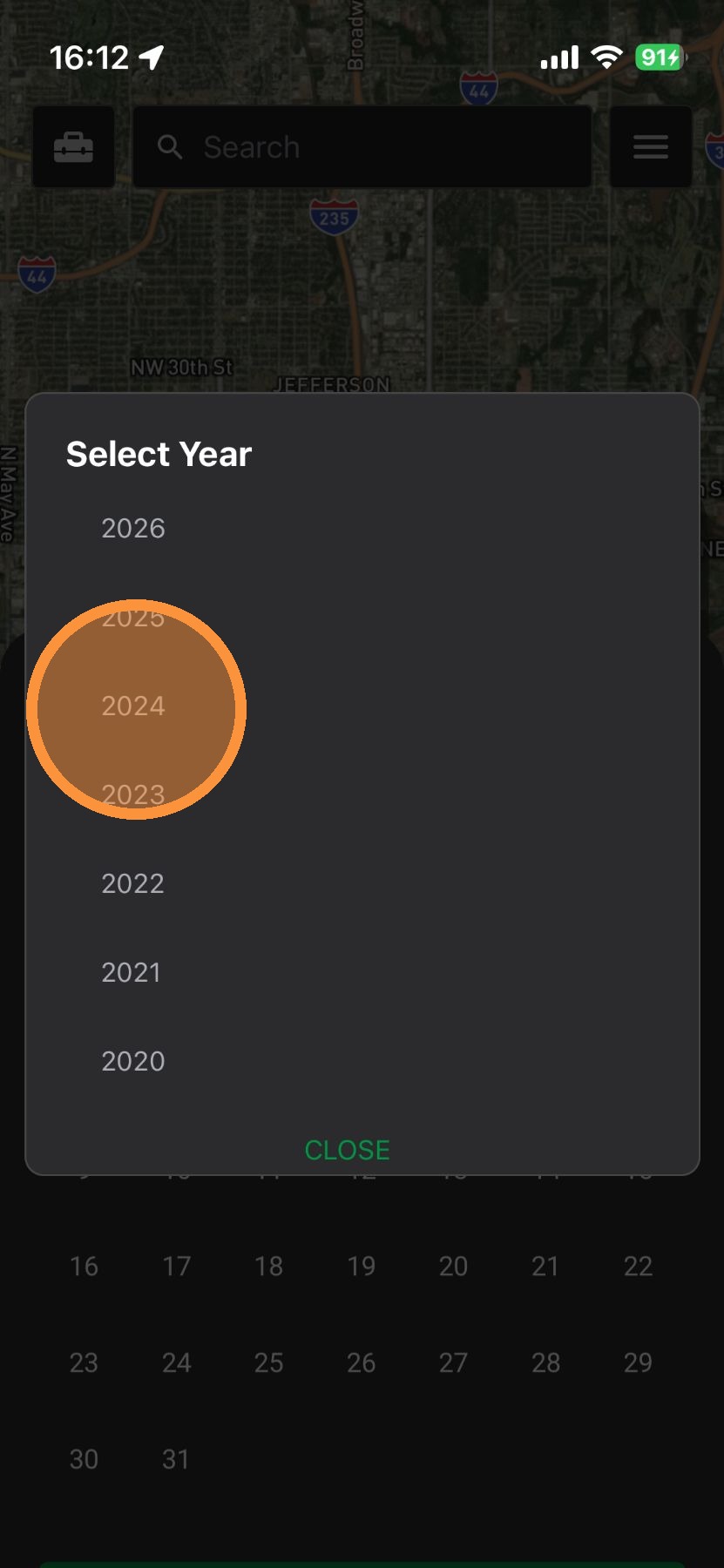
6. Tap the year
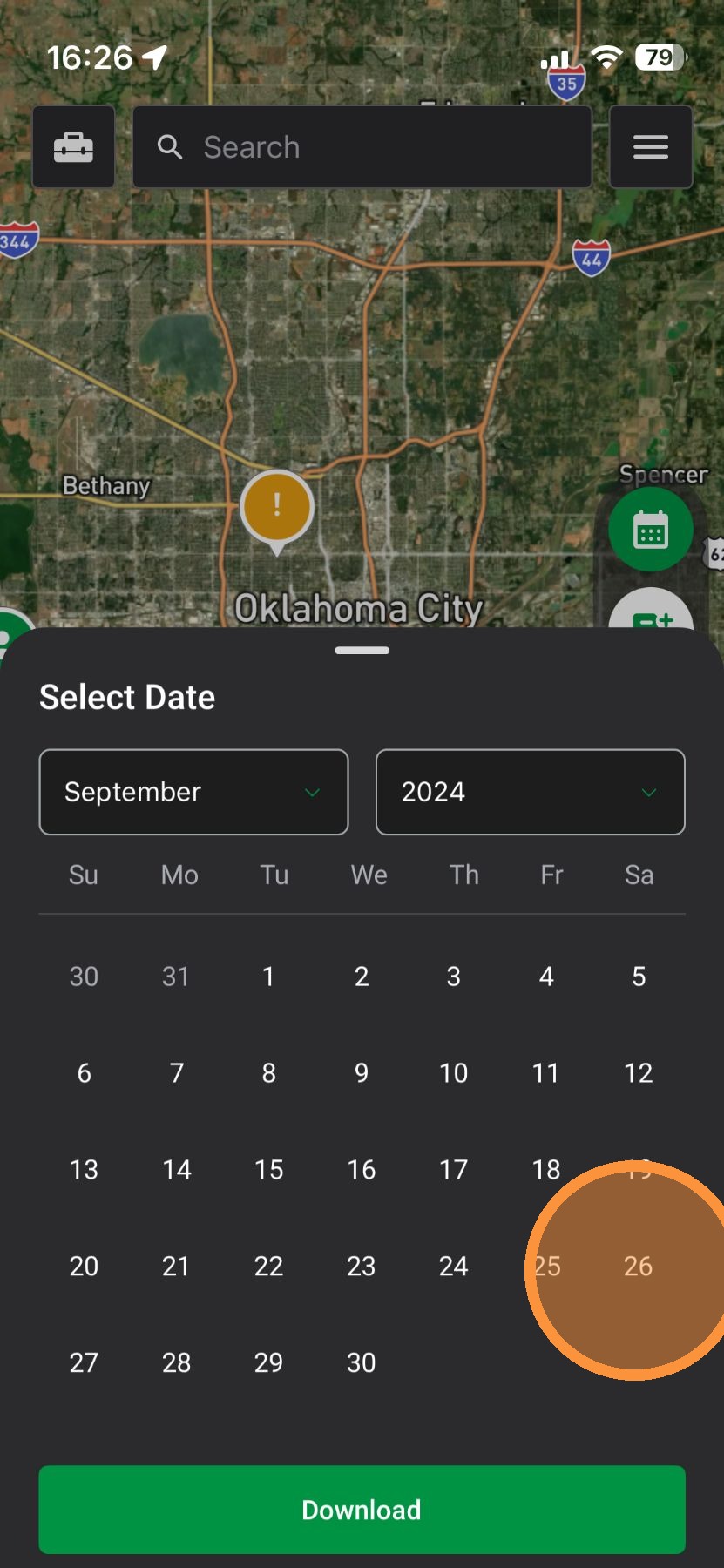
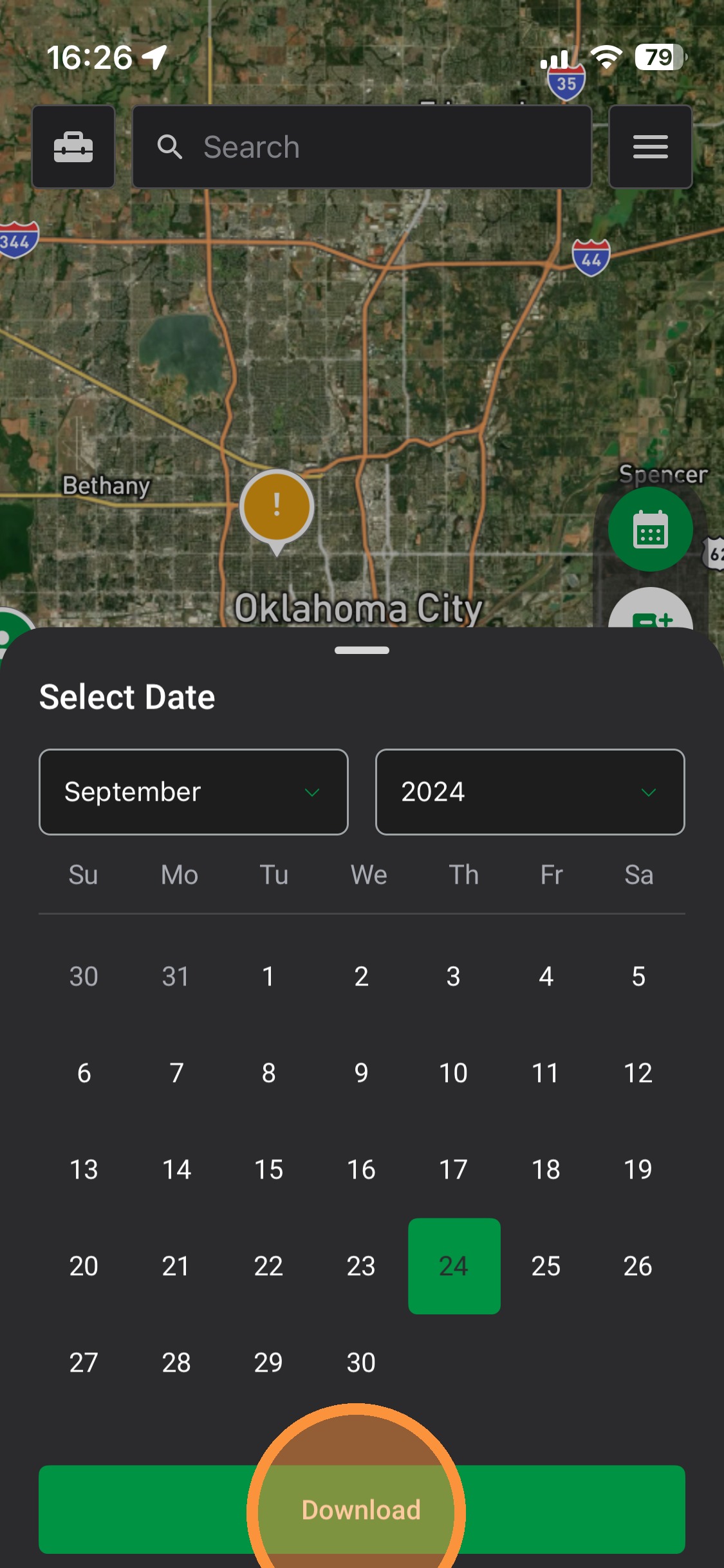
7. Tap the date
8. Tap Activate the Weather Event
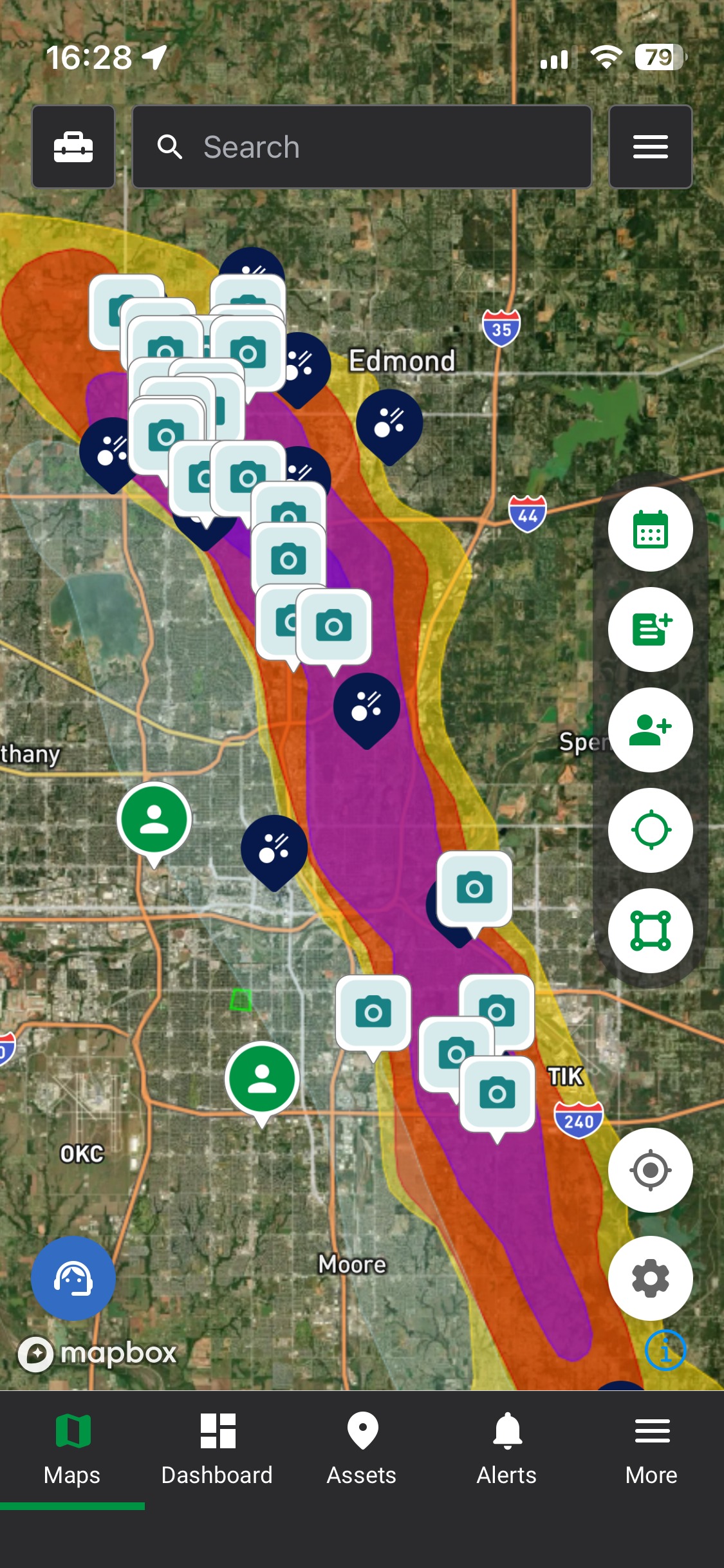
9. Find impacted areas and start working the storm
Search by Recent Storms
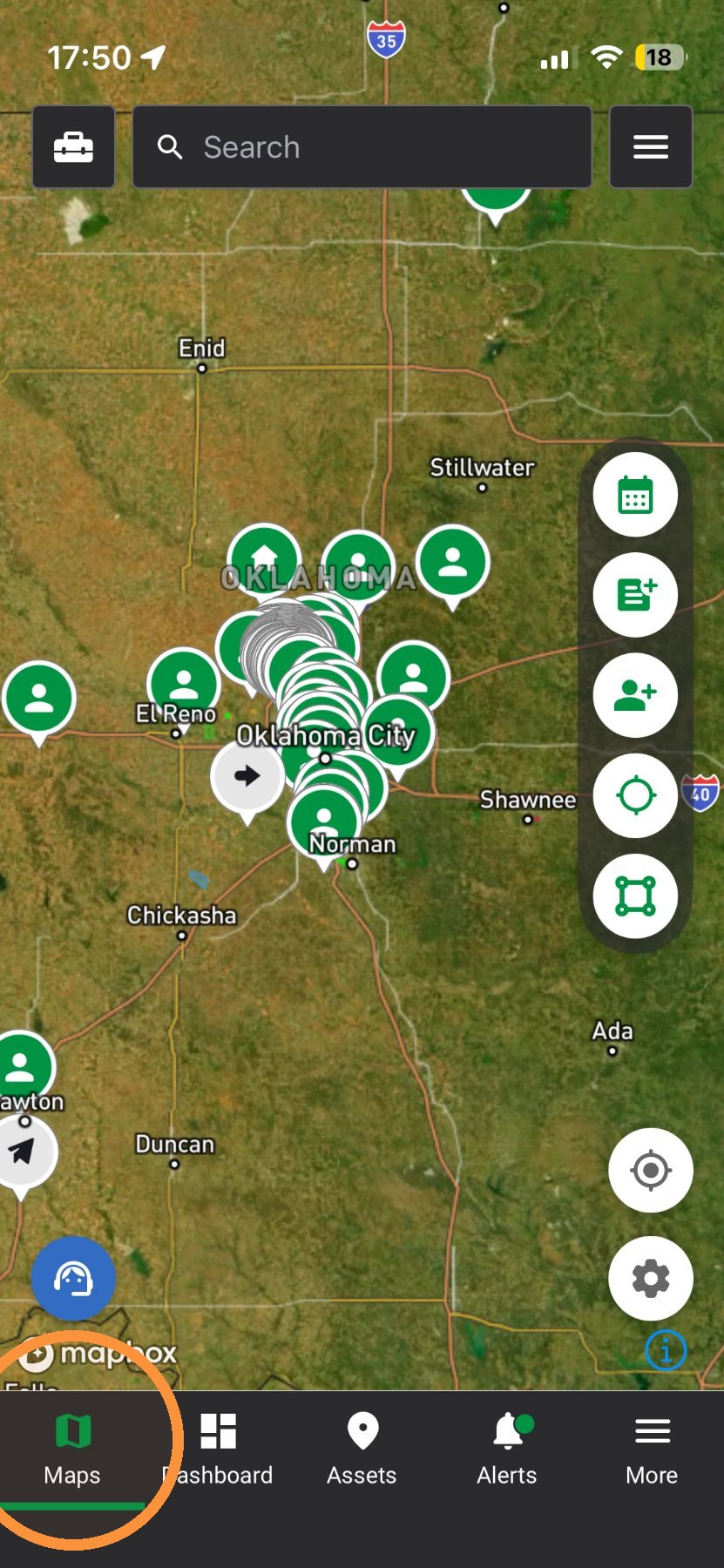
1. Tap the "Maps" page
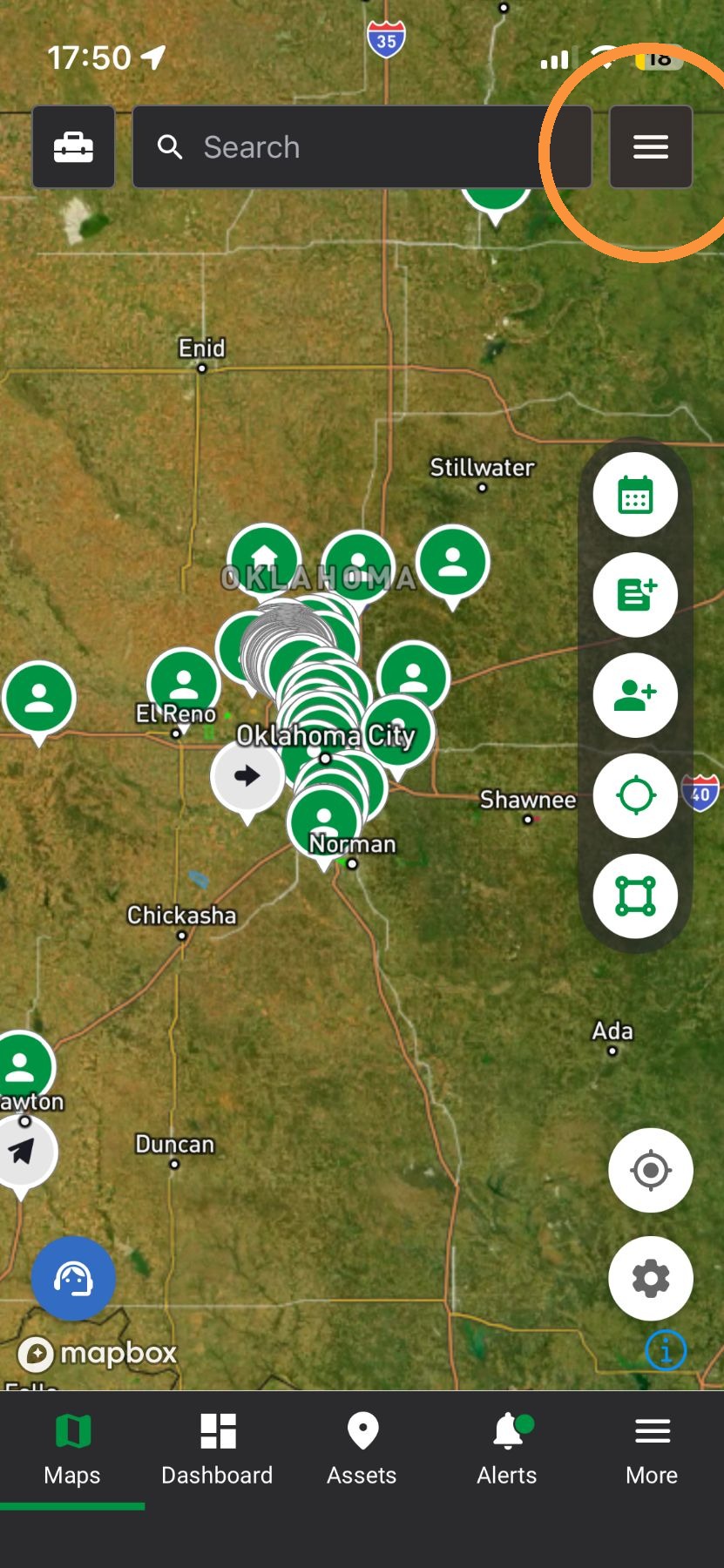
2. Tap "Navigation" panel
3. Tap "Weather" panel
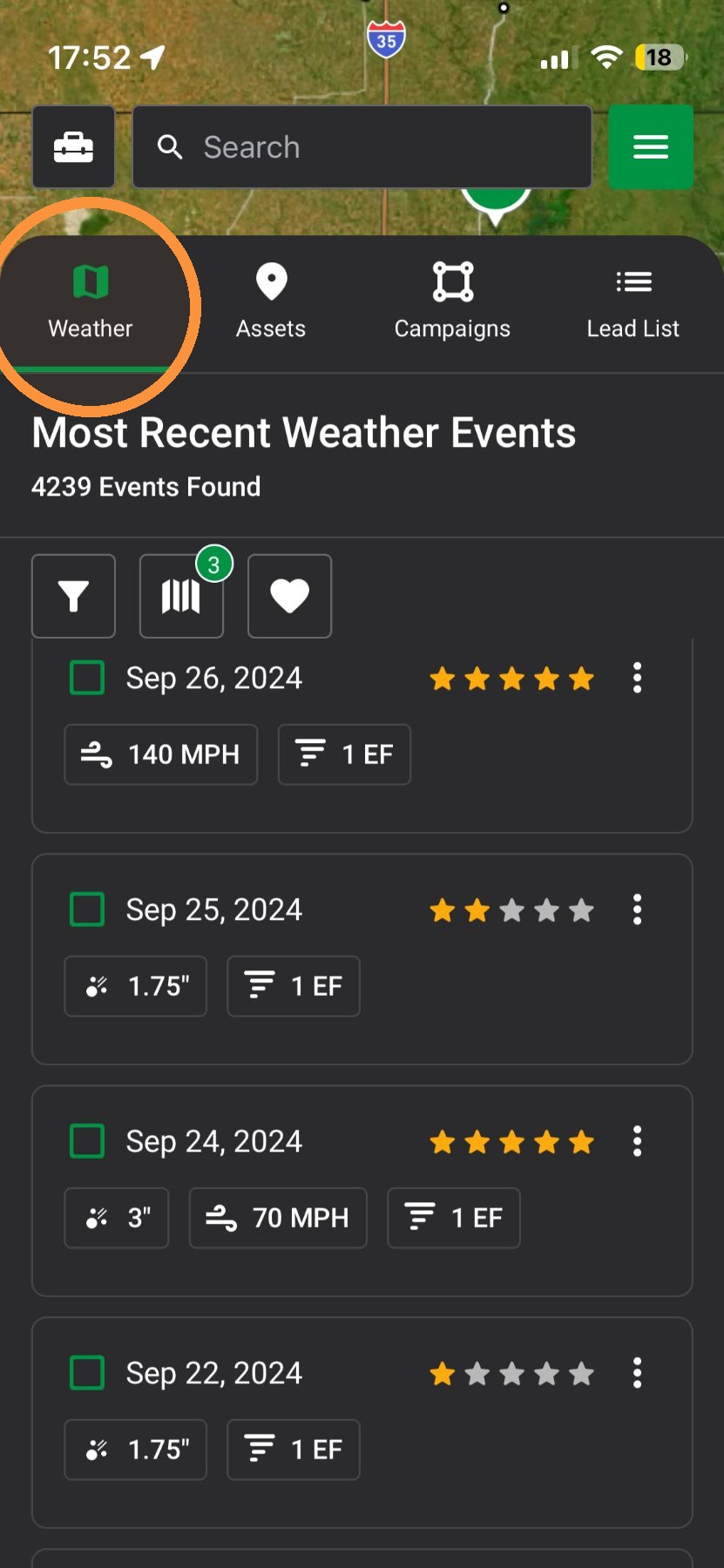
4. Find and load any number of recent weather events
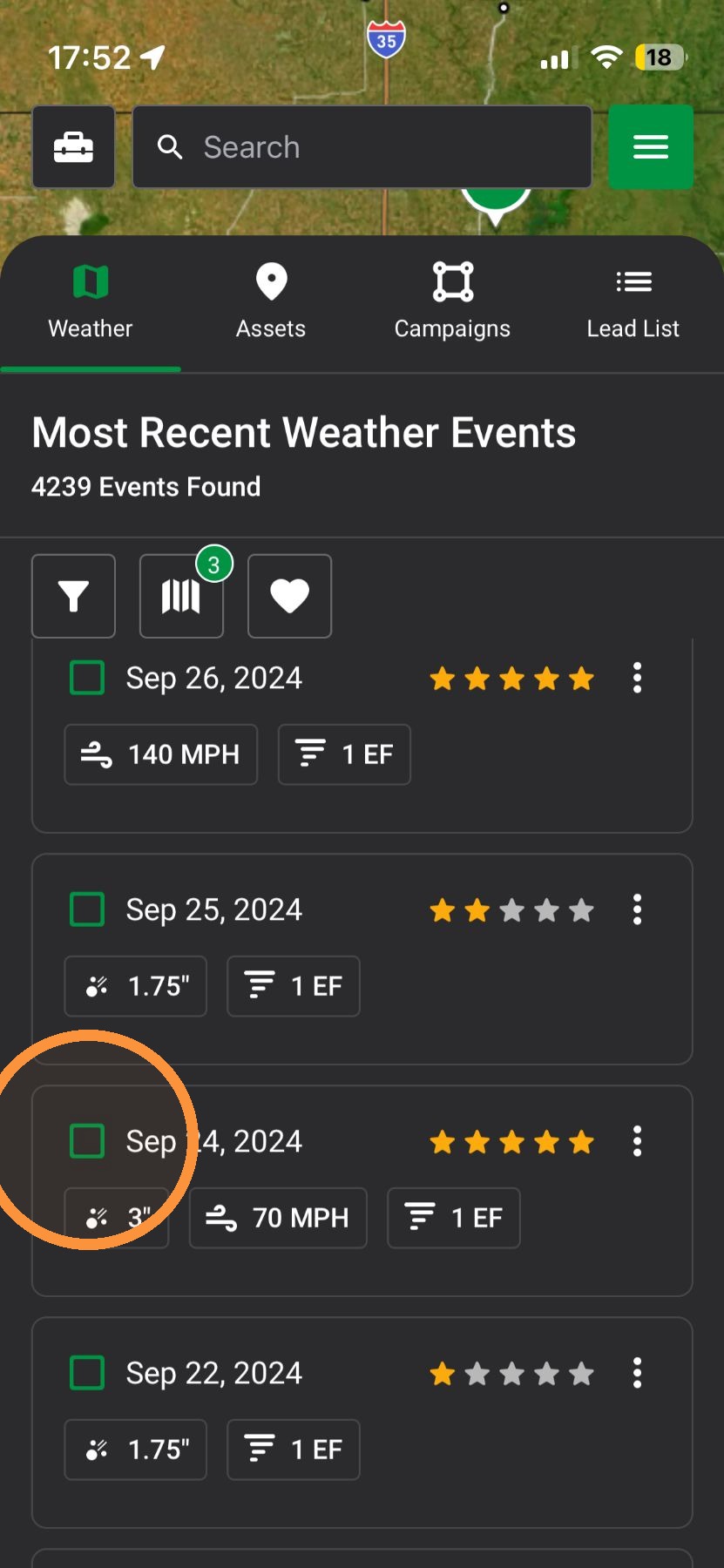
5. Swipe down to close the navigation panel
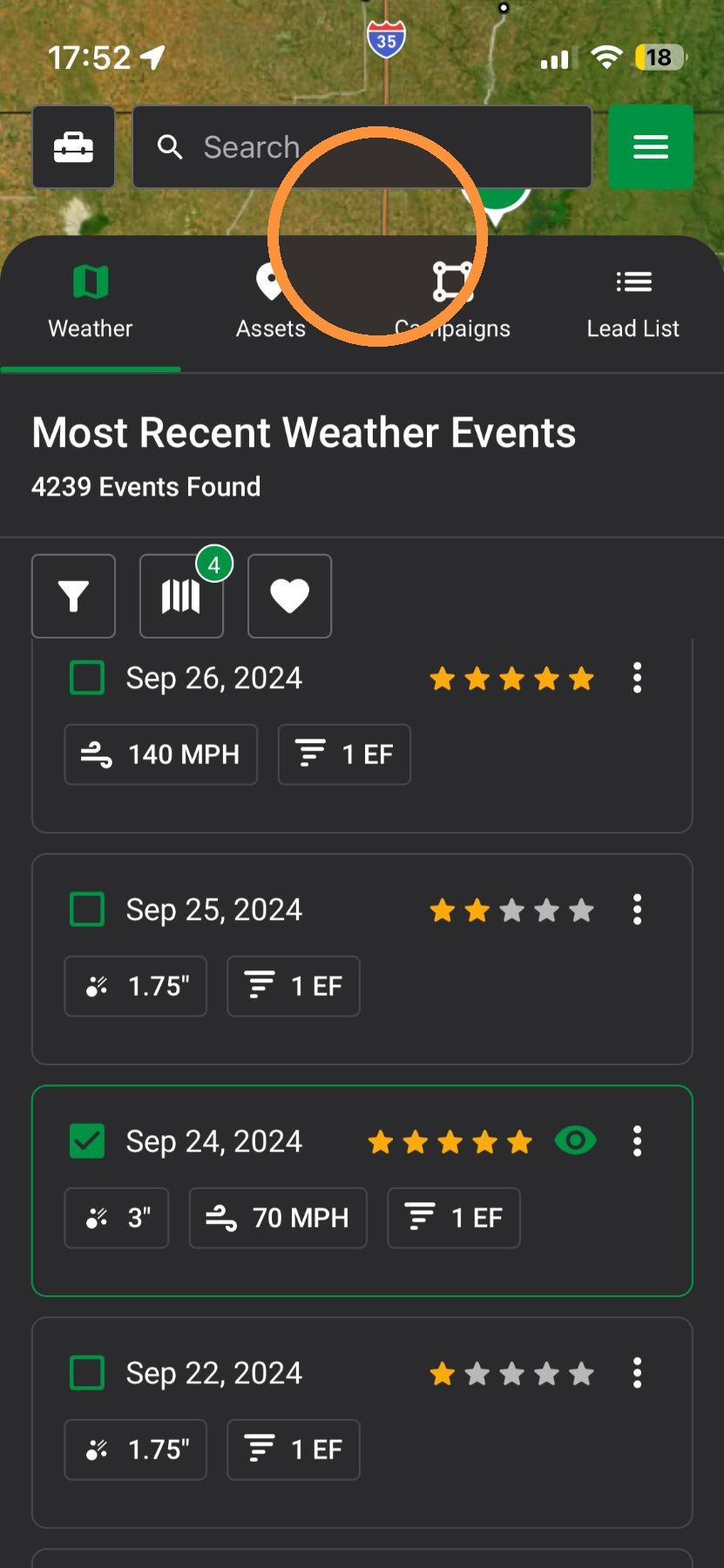
6. Find impacted areas and start working the storm
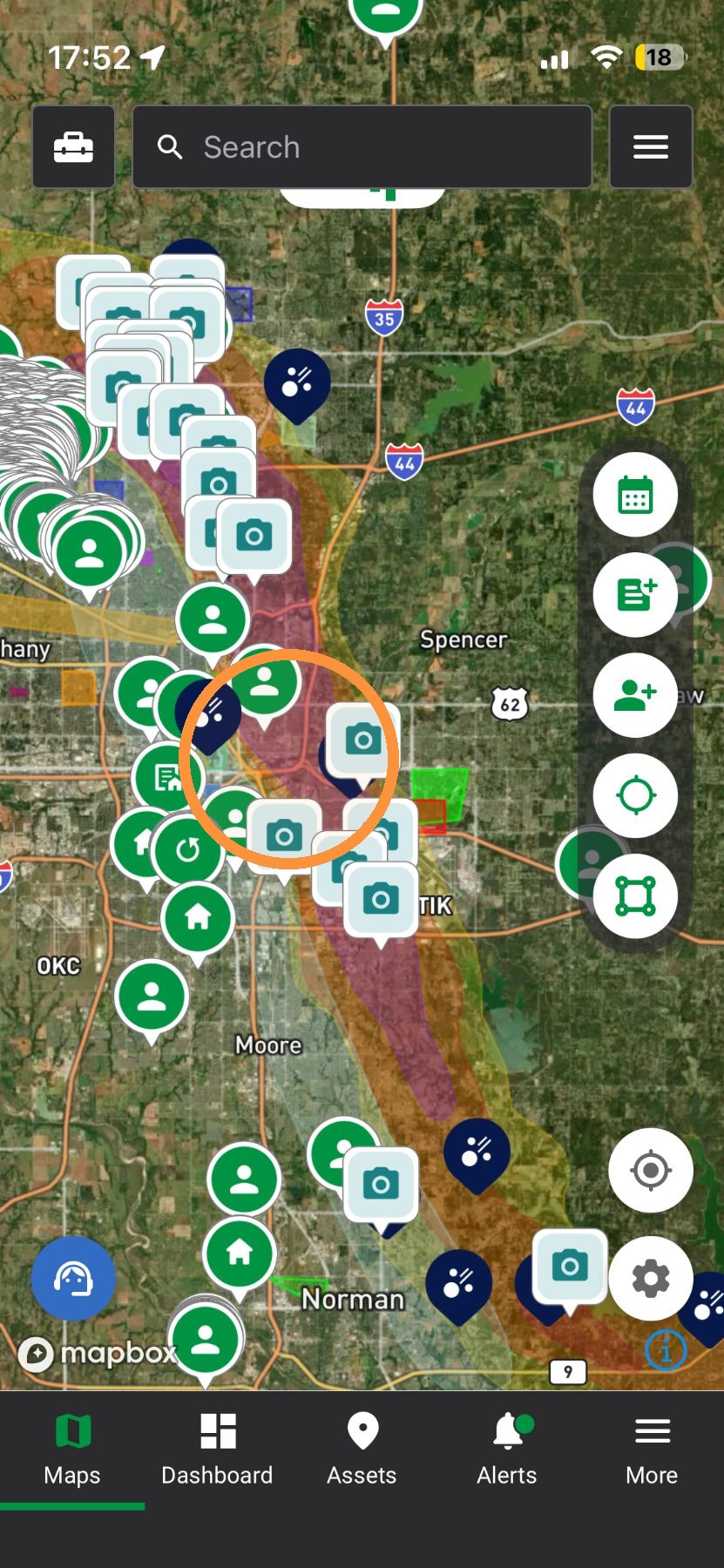
Search by Area or City
1. Tap "Maps" page
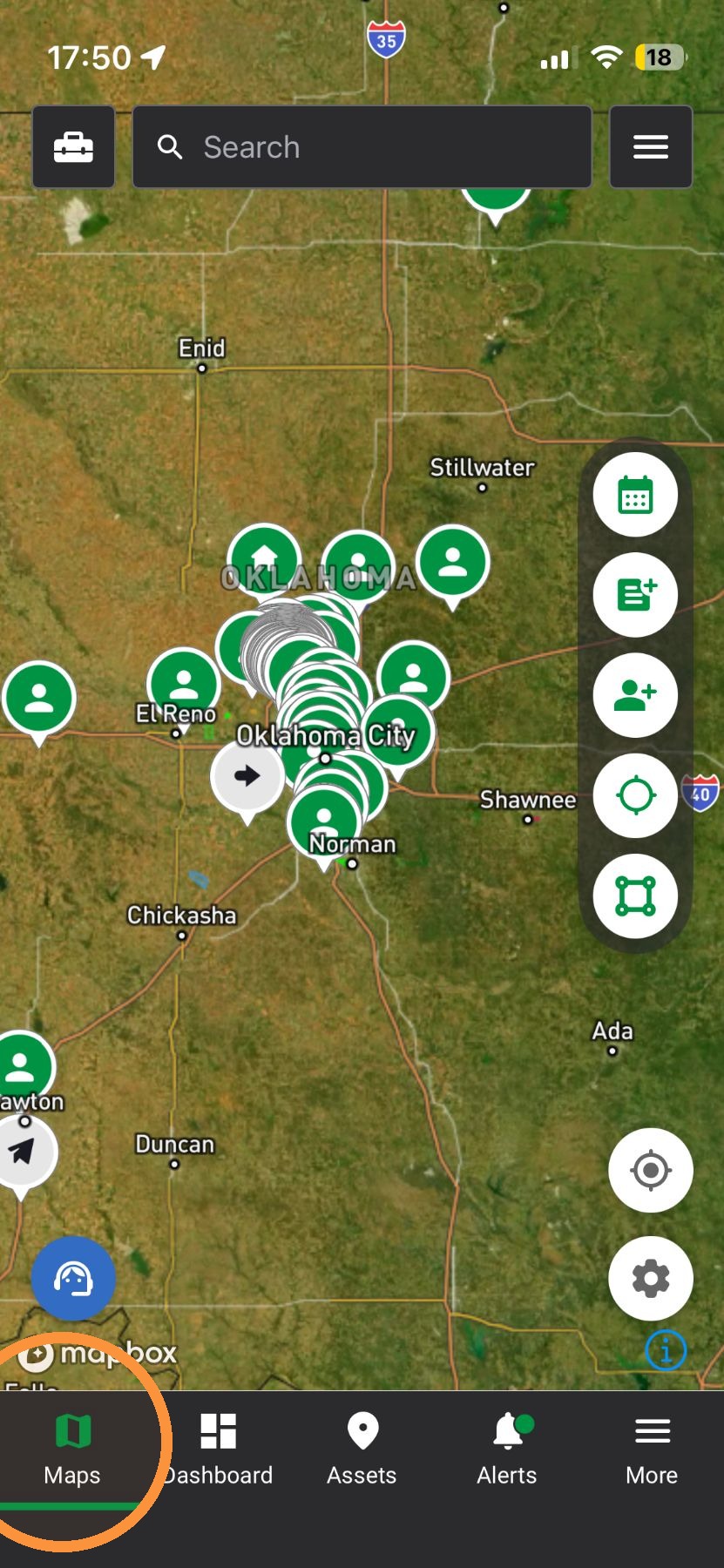
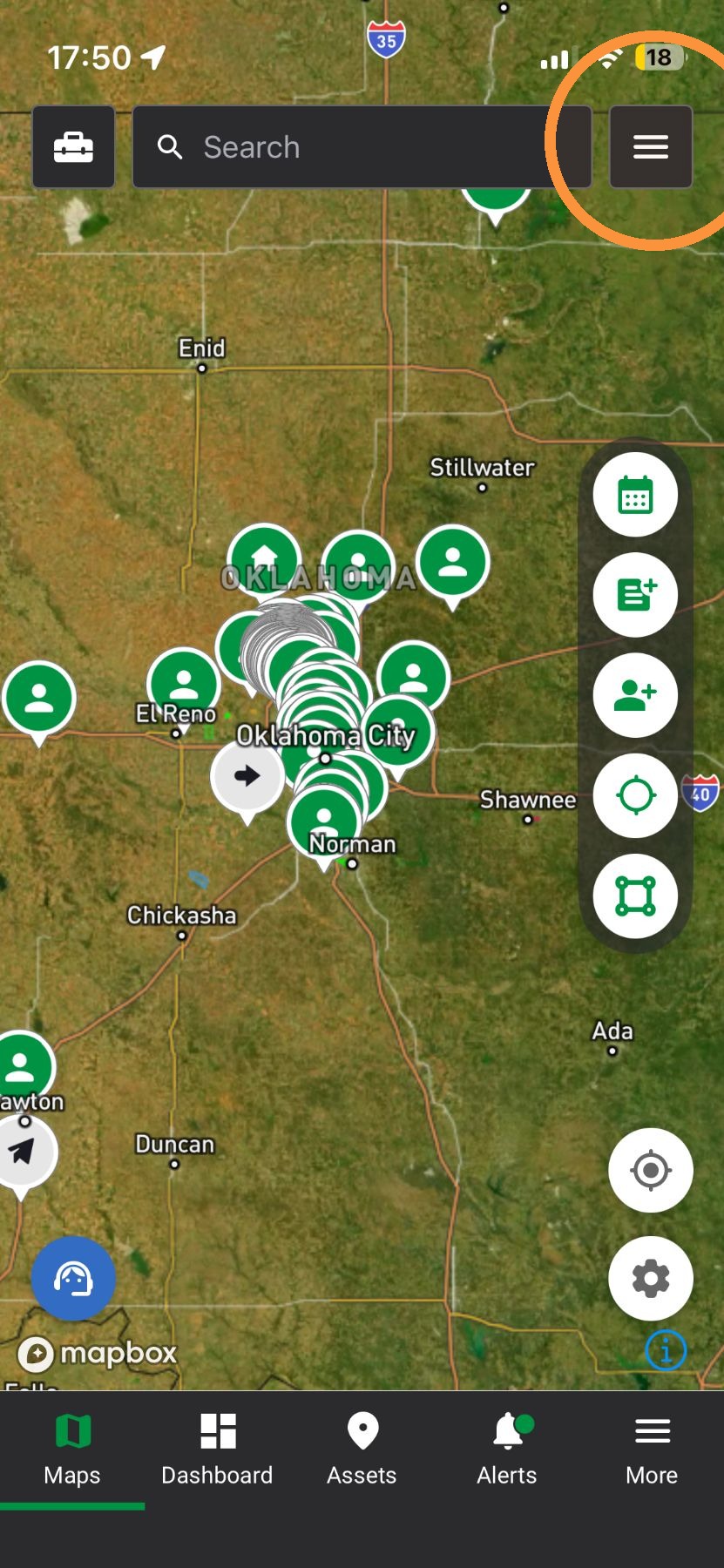
2. Tap "Navigation" panel
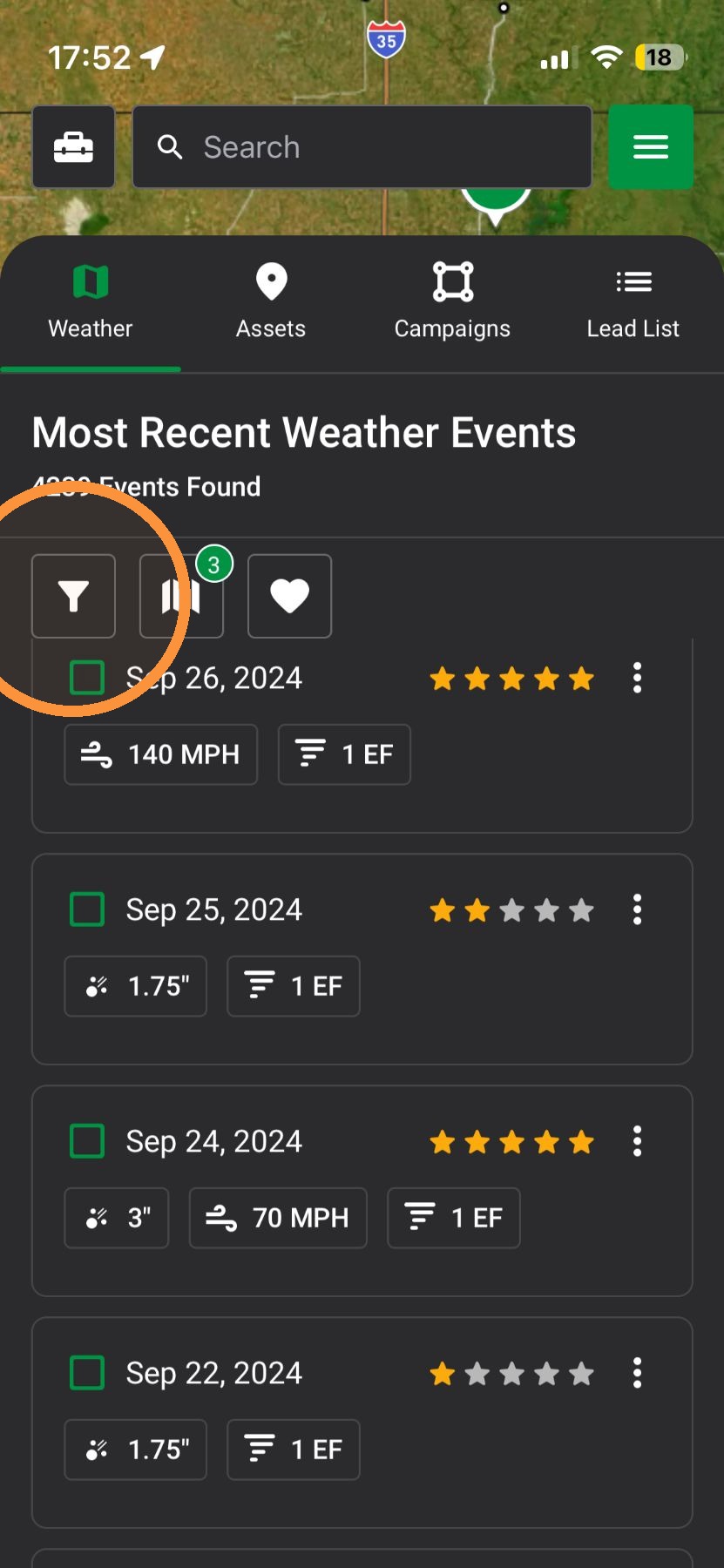
3. Tap "Map Filter"
4. Tap to enable the "Radius" filter
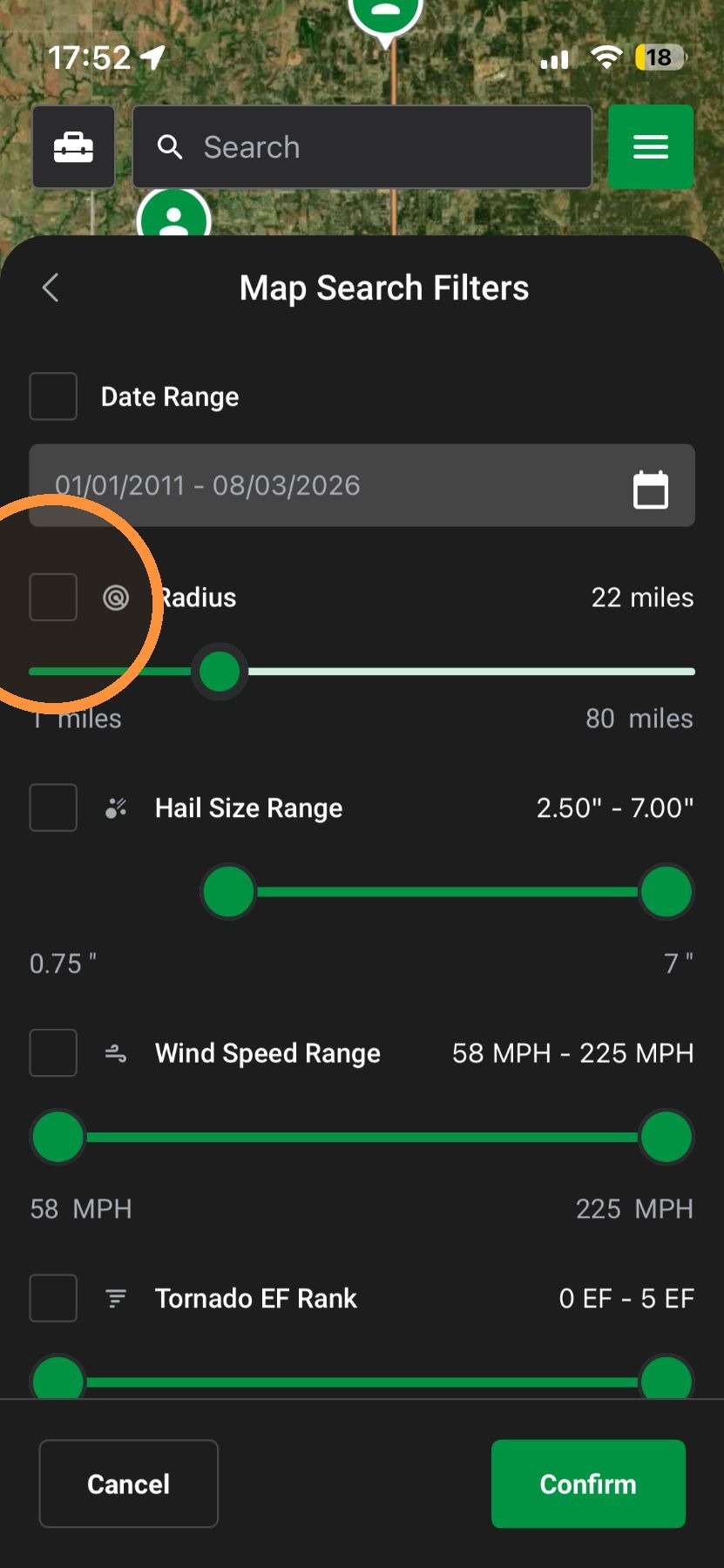
5. Adjust how large of a search area you want
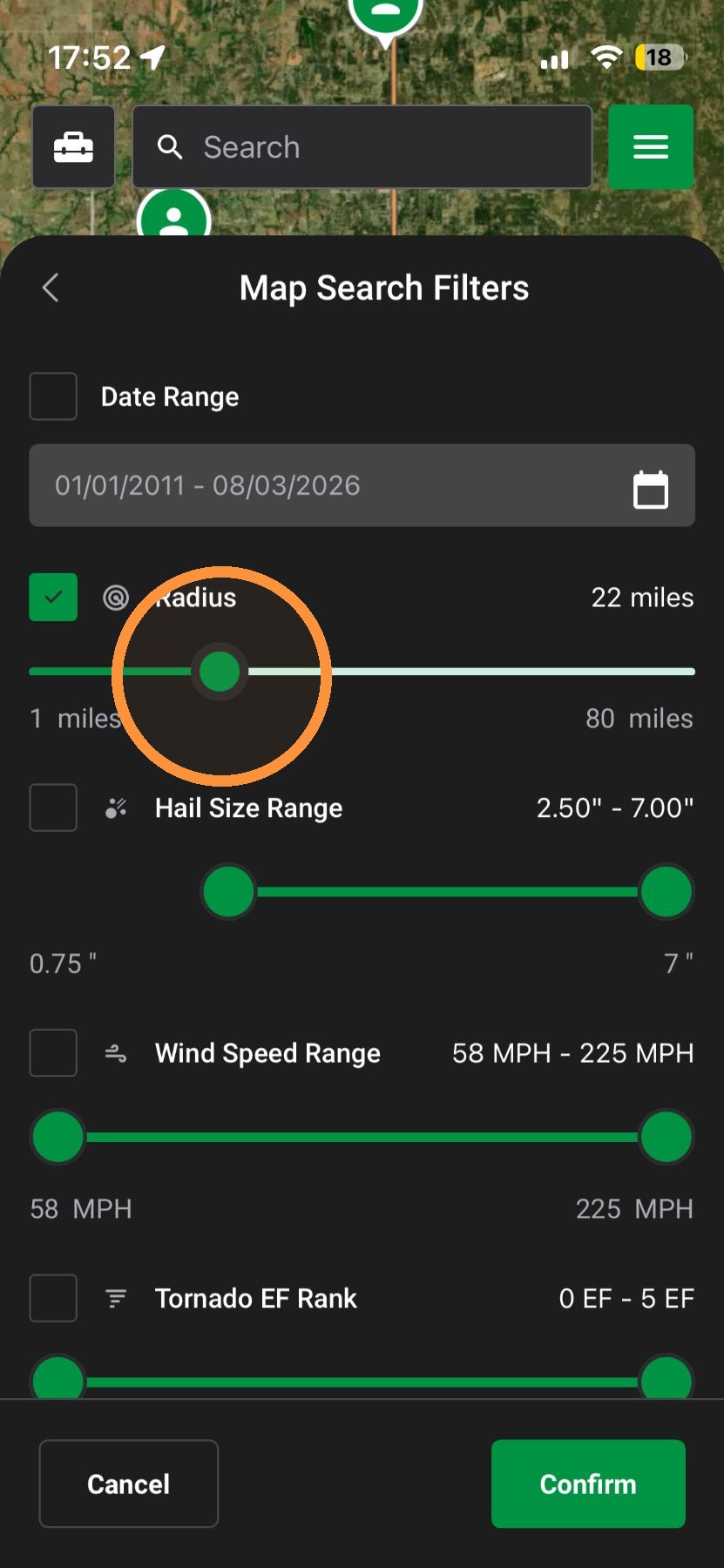
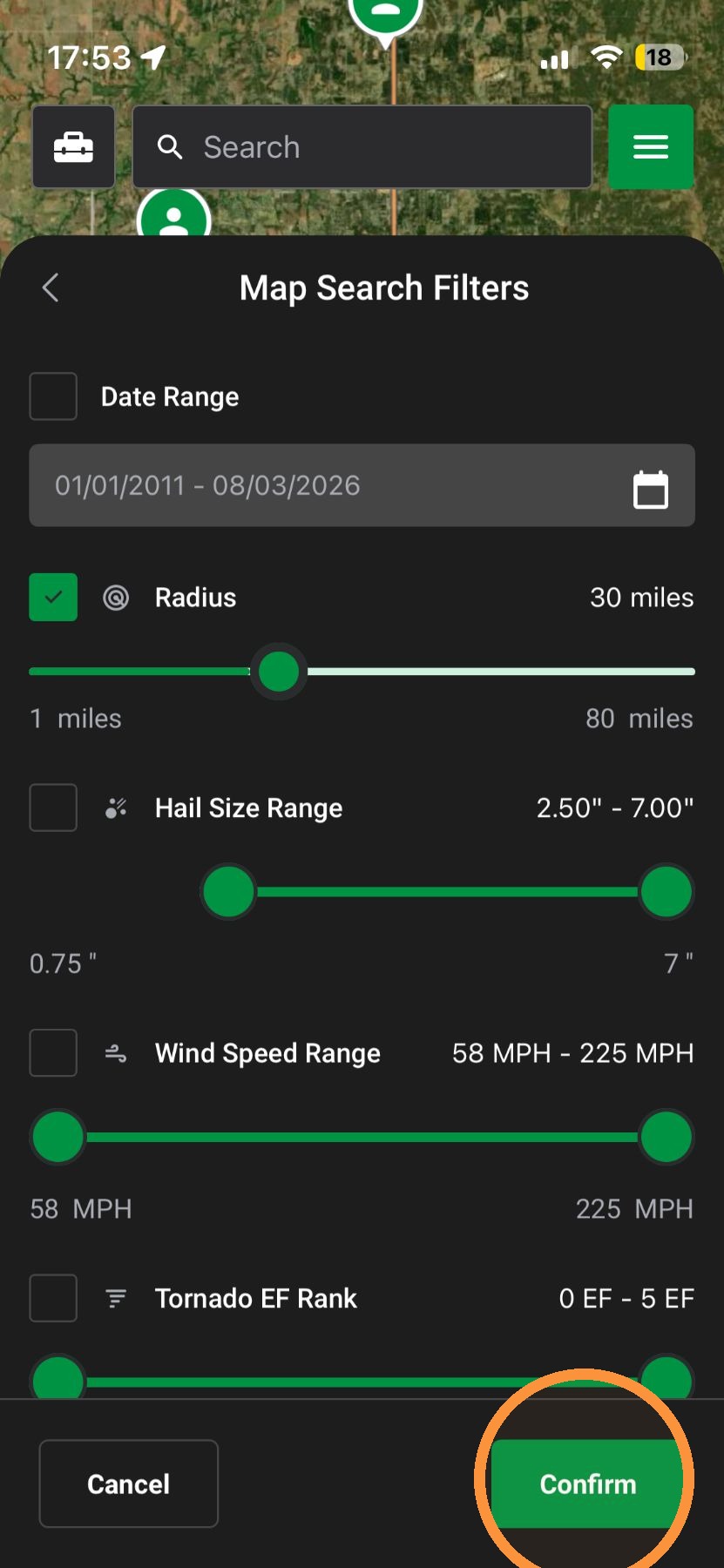
6. Tap Confirm
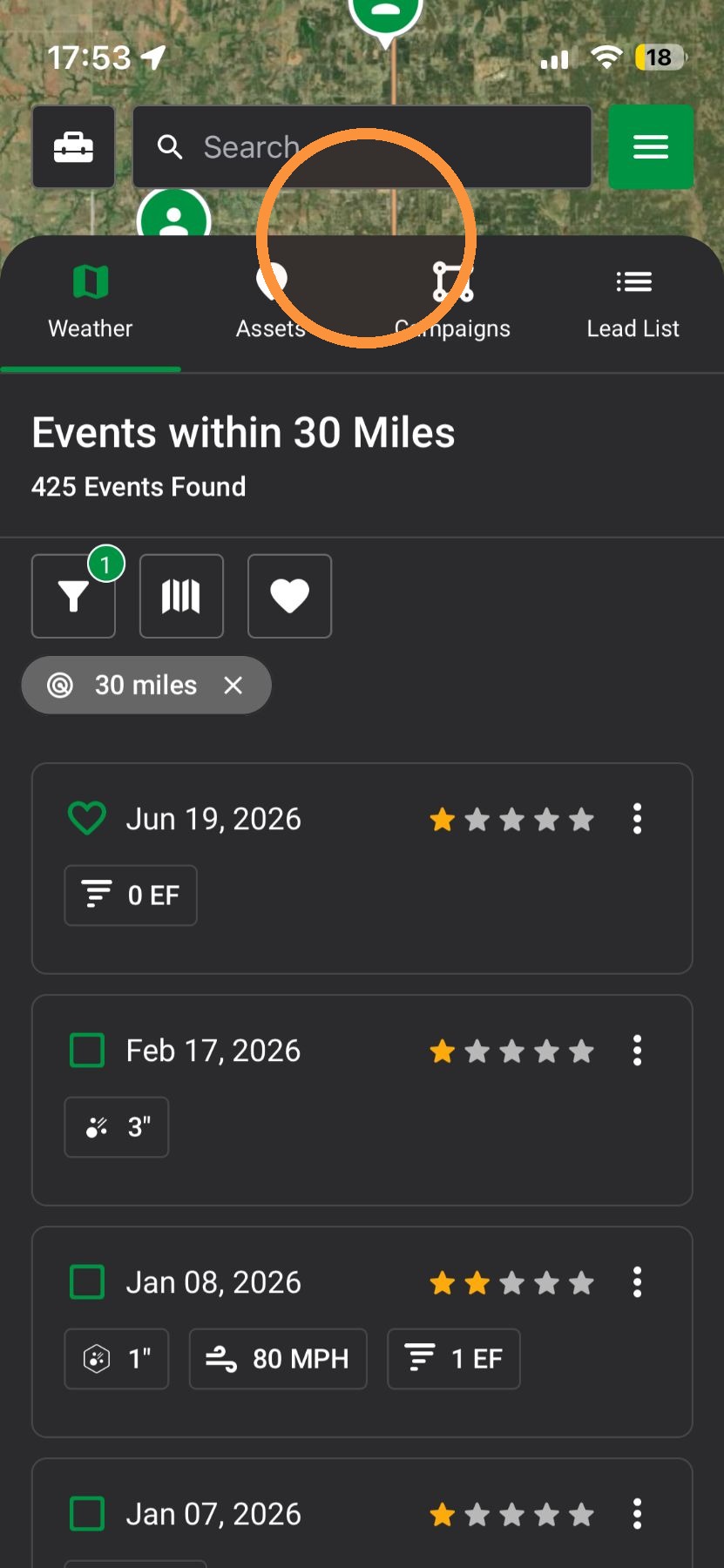
7. Swipe down to close the navigation panel
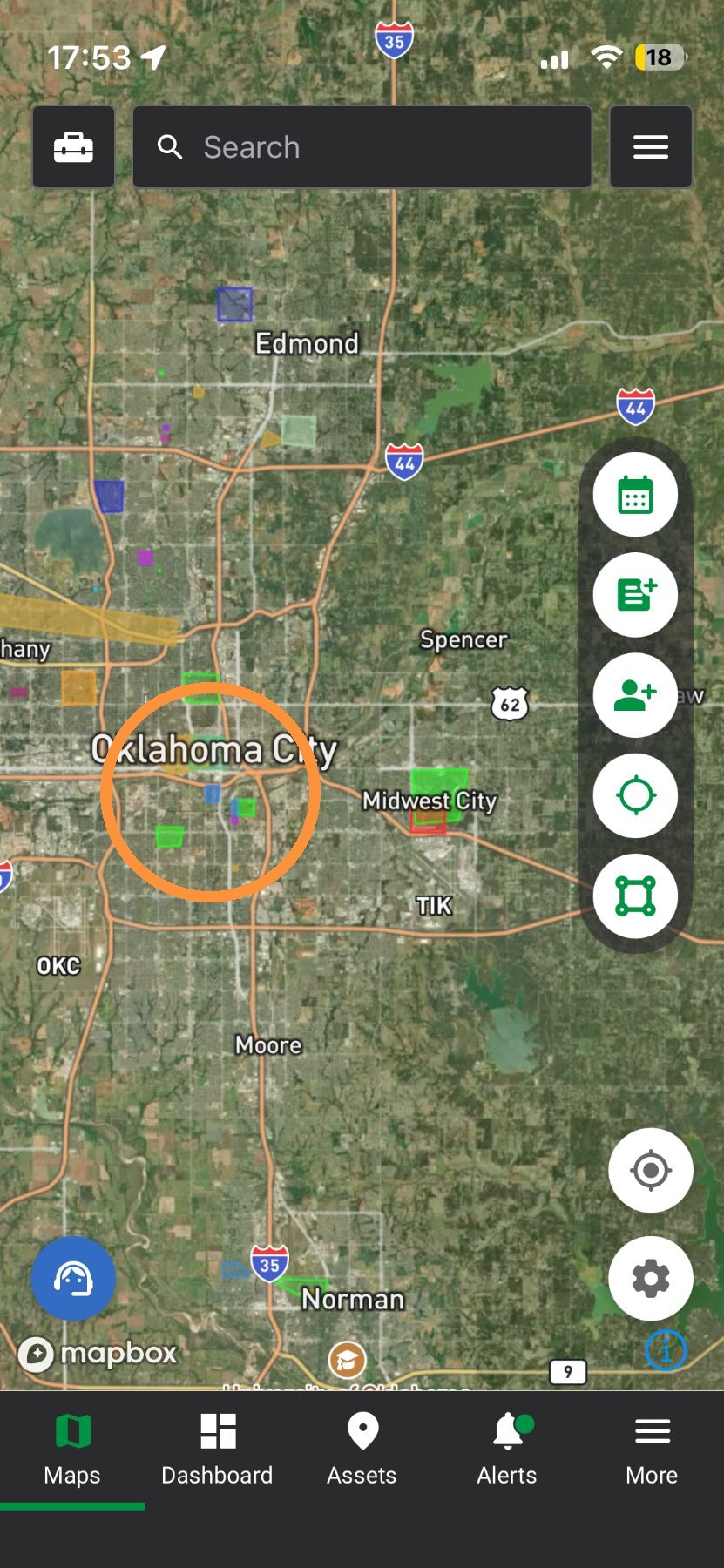
8. Tap where you want to place the radius and search for storms

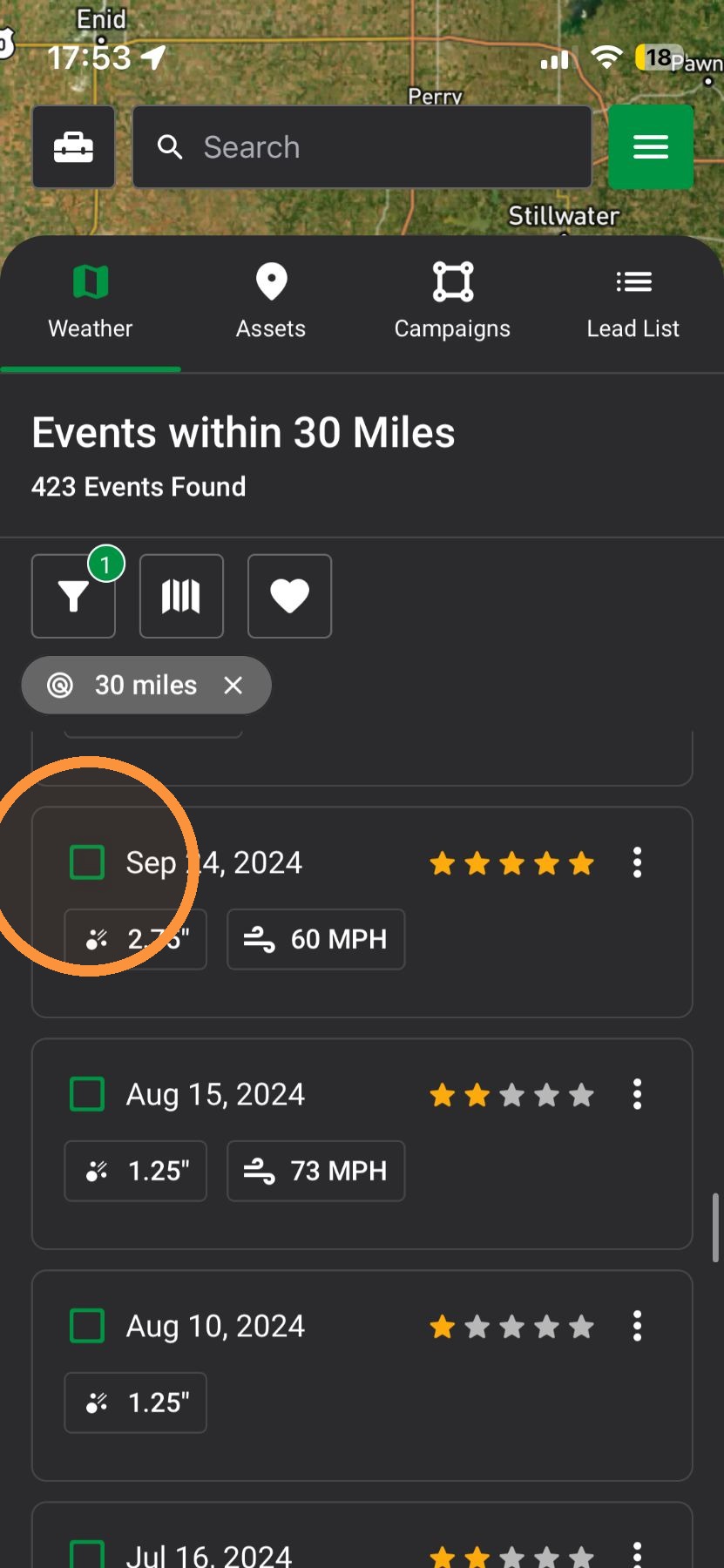
9. Tap the "Navigation" panel again
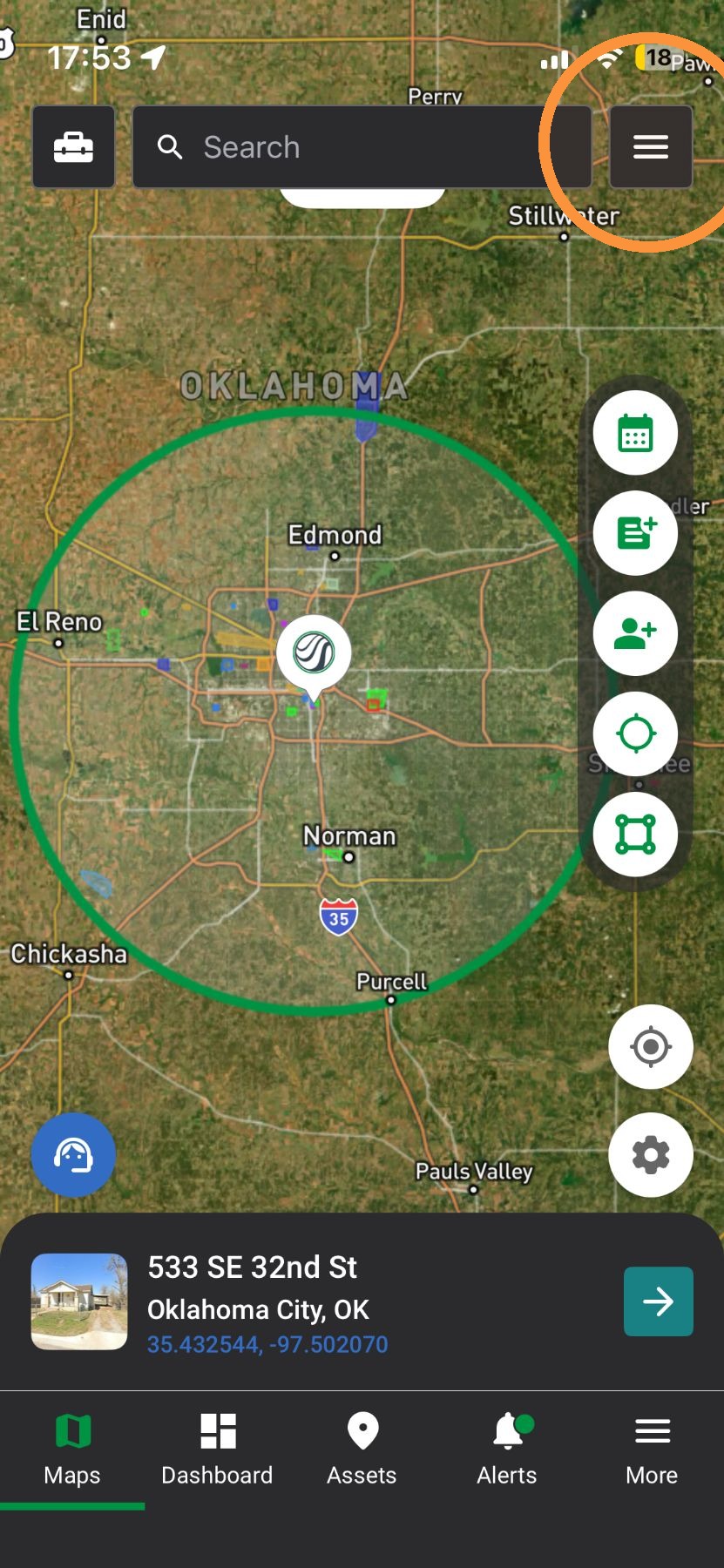
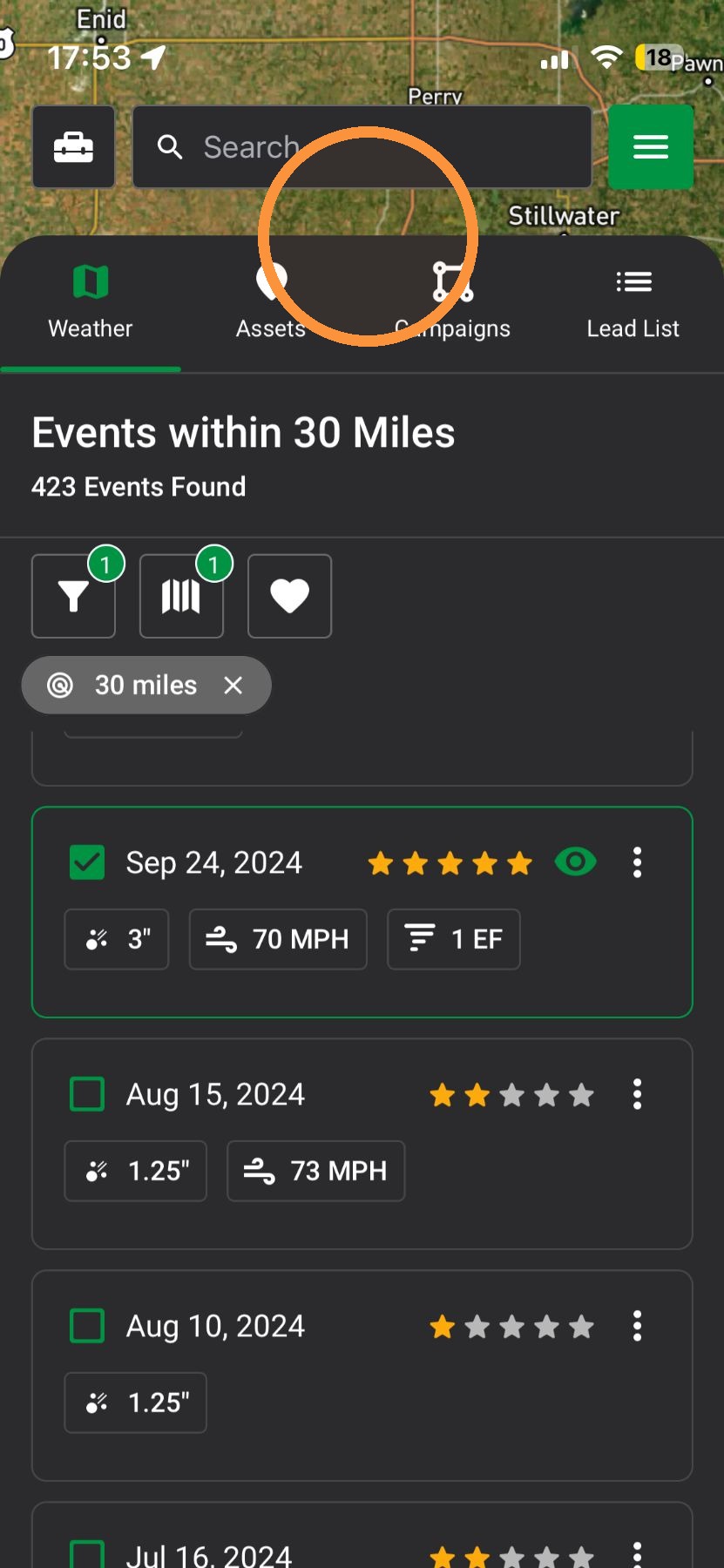
10. Load any number of weather events inside your radius
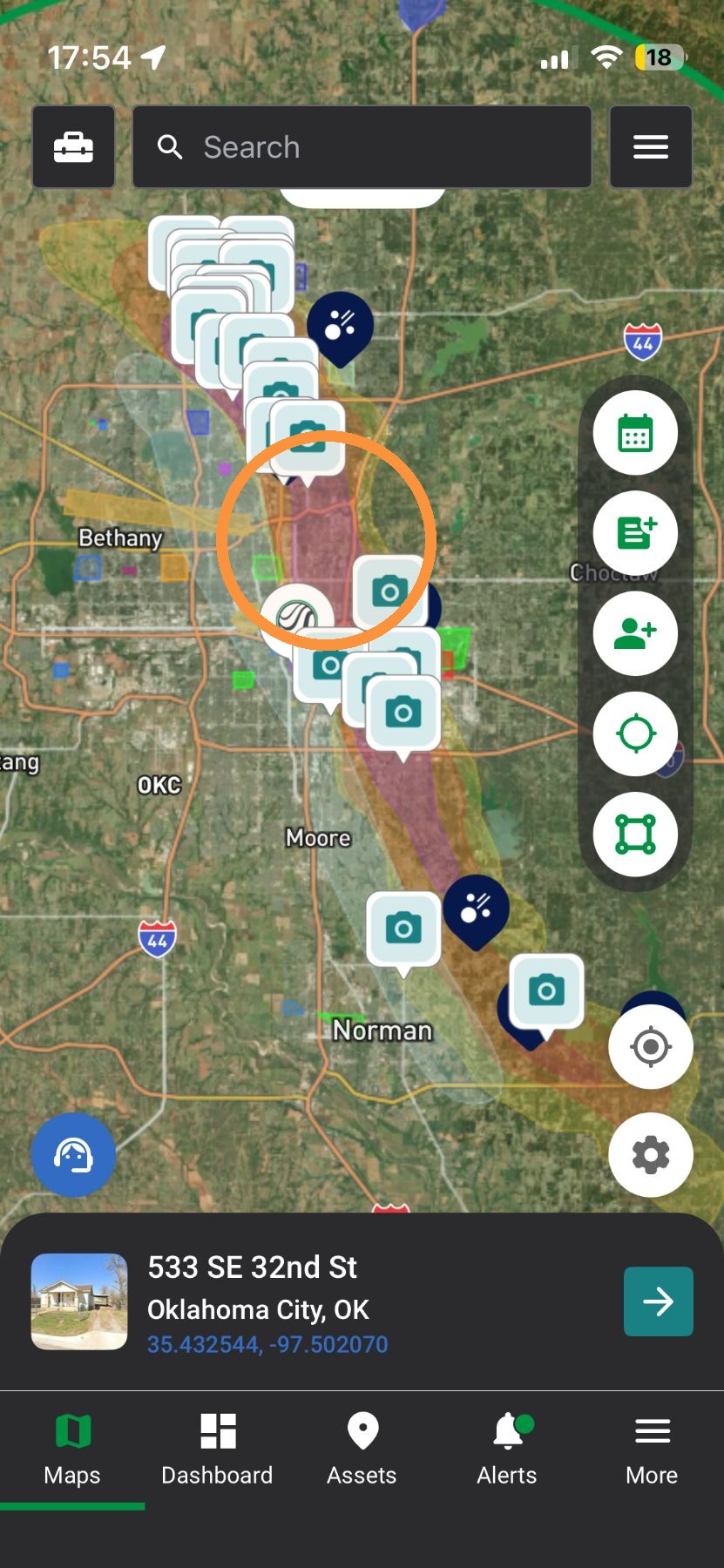
11. Swipe down to close the navigation panel
12. Find impacted areas and start working the storm
Browser App
Search by Storm Date
1. Click "Maps" page
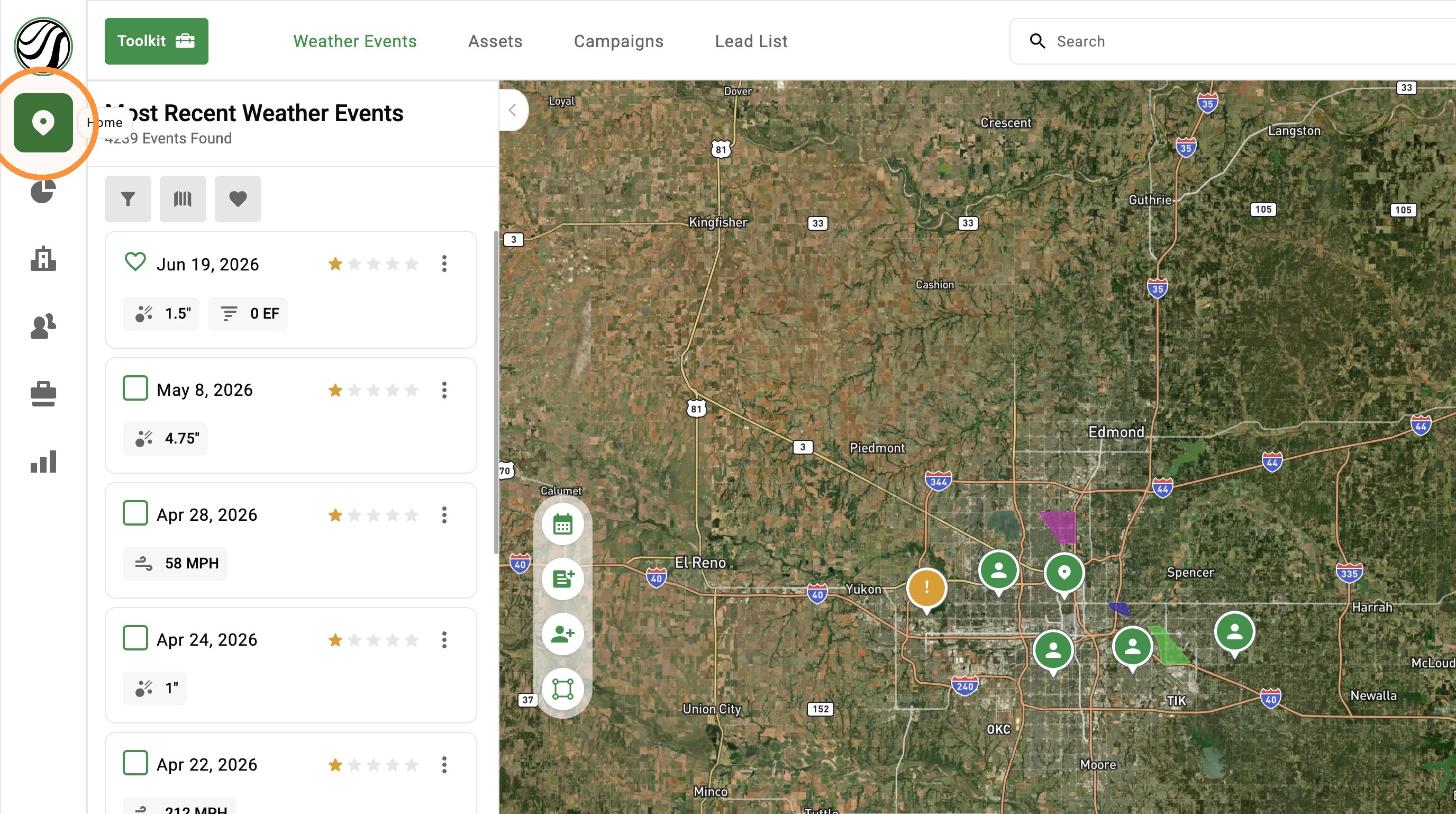
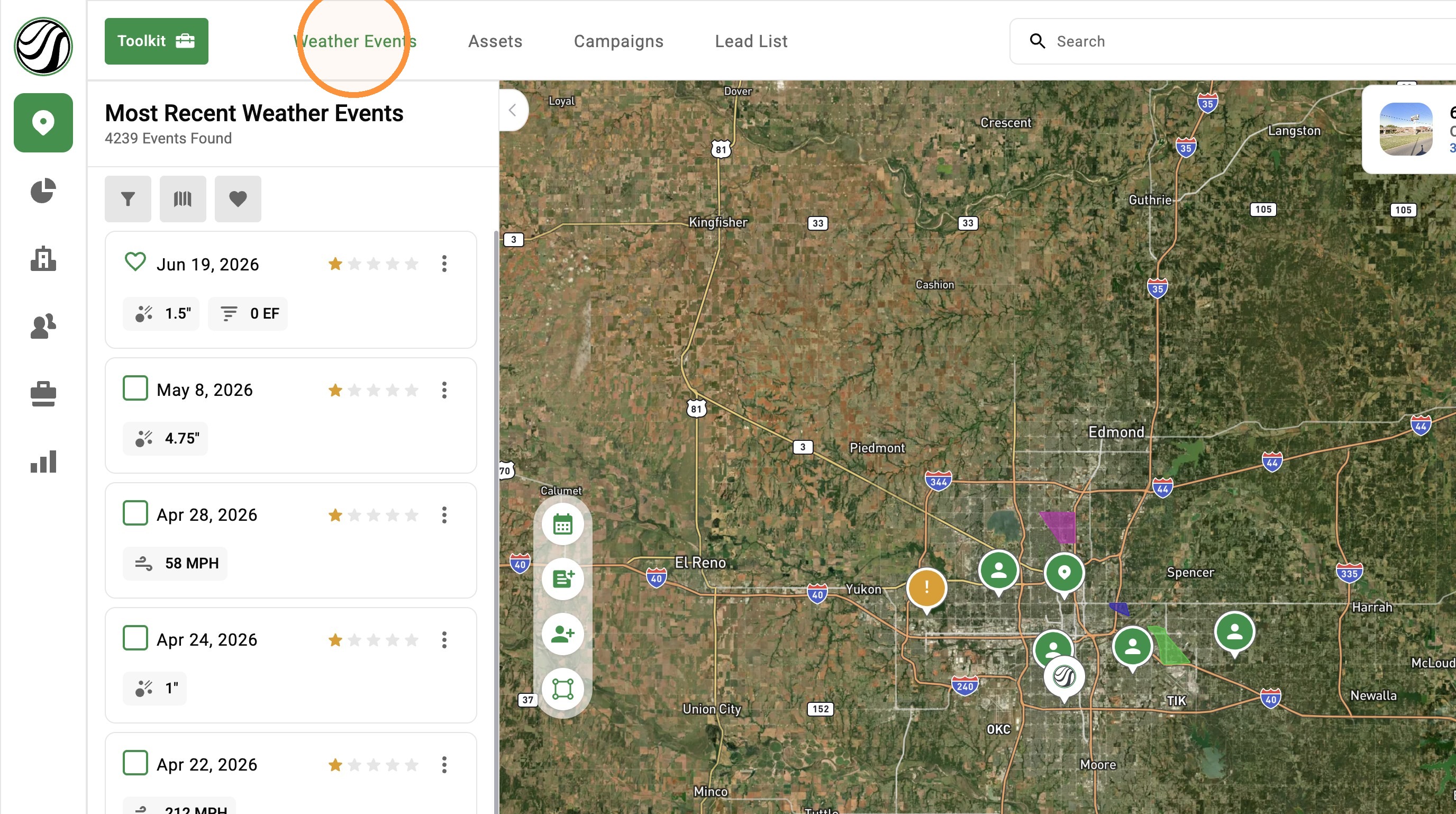
2. Click "Weather Events"
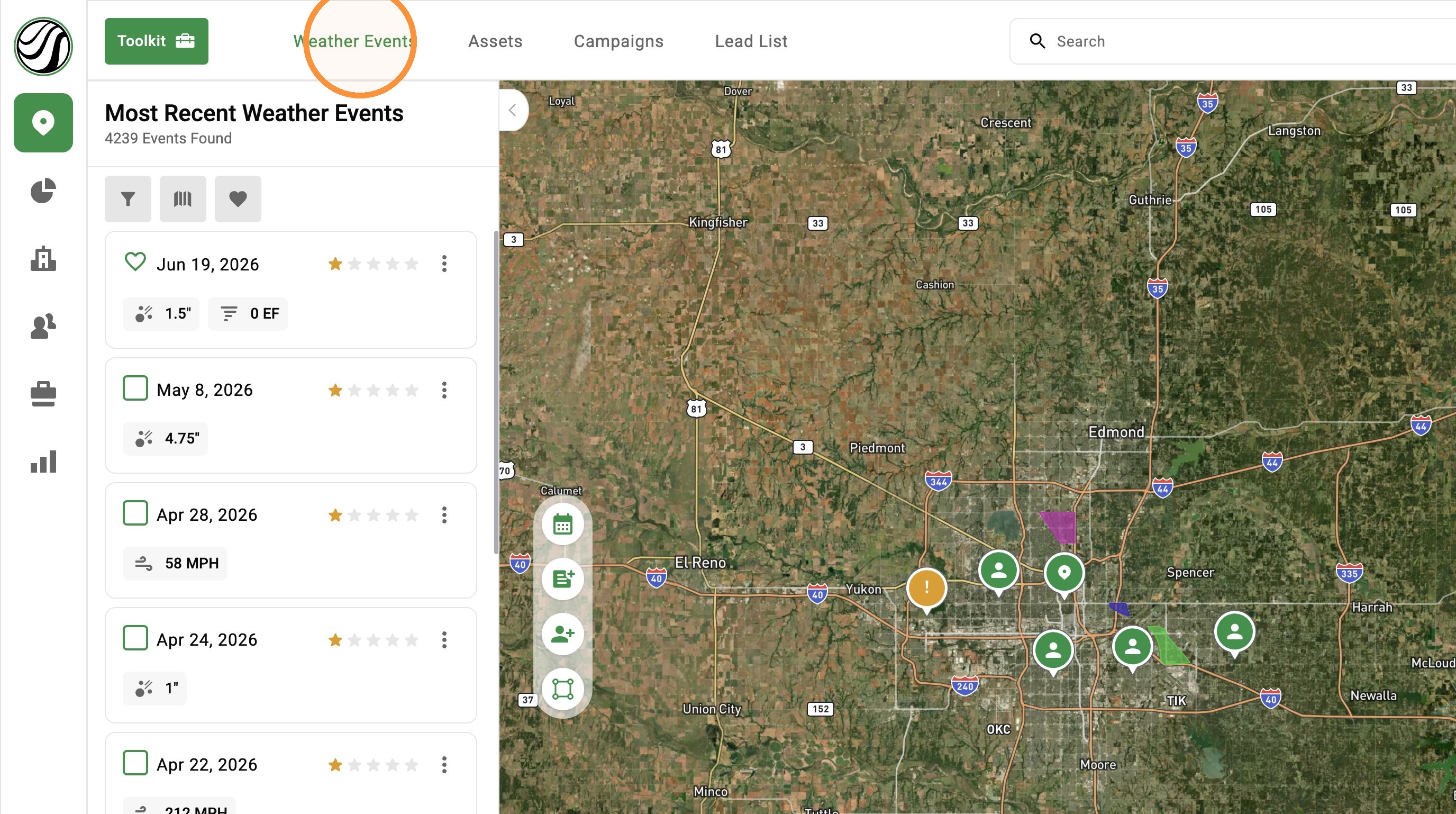
3. Click Calendar button
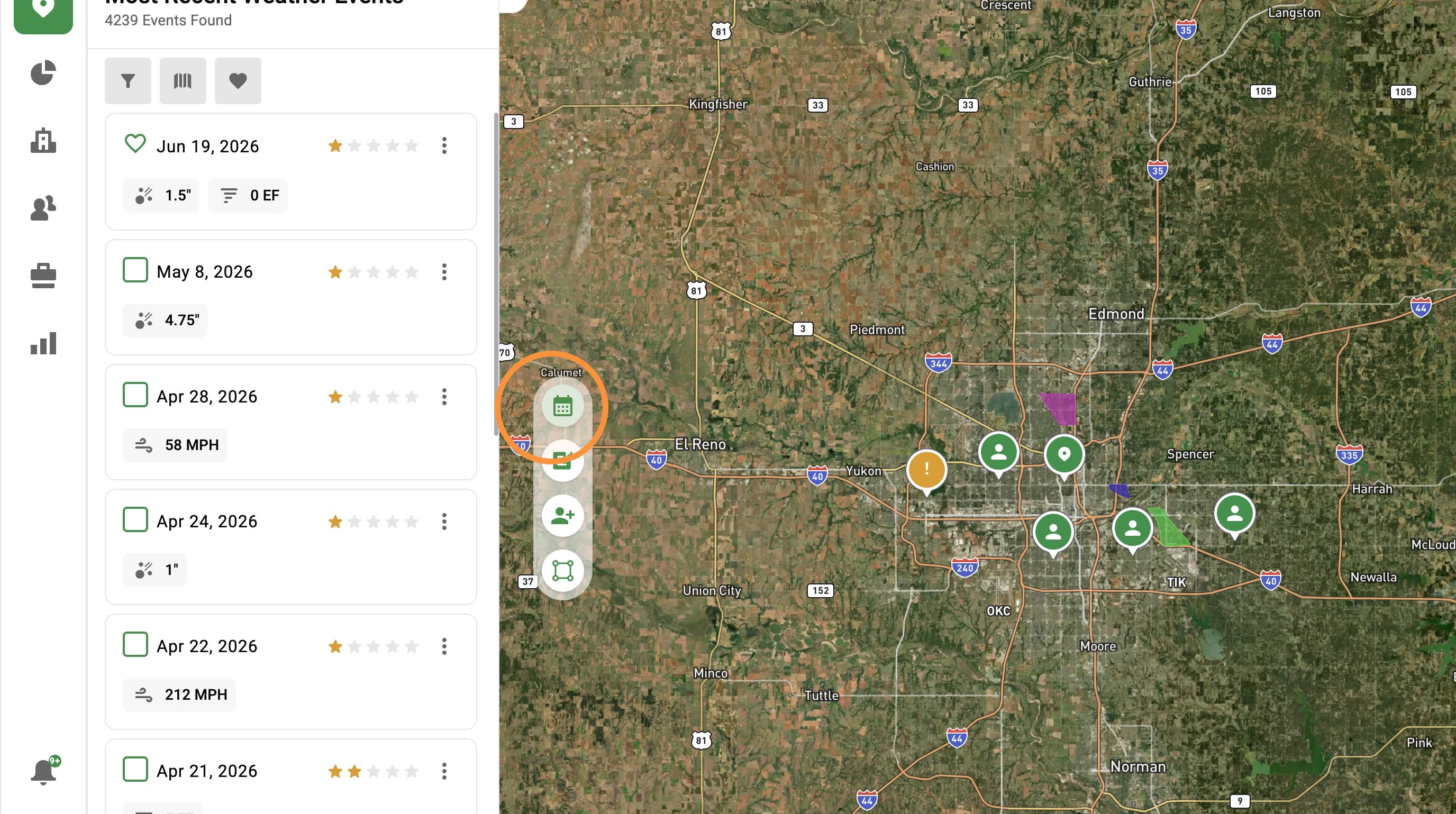
4. Select a month
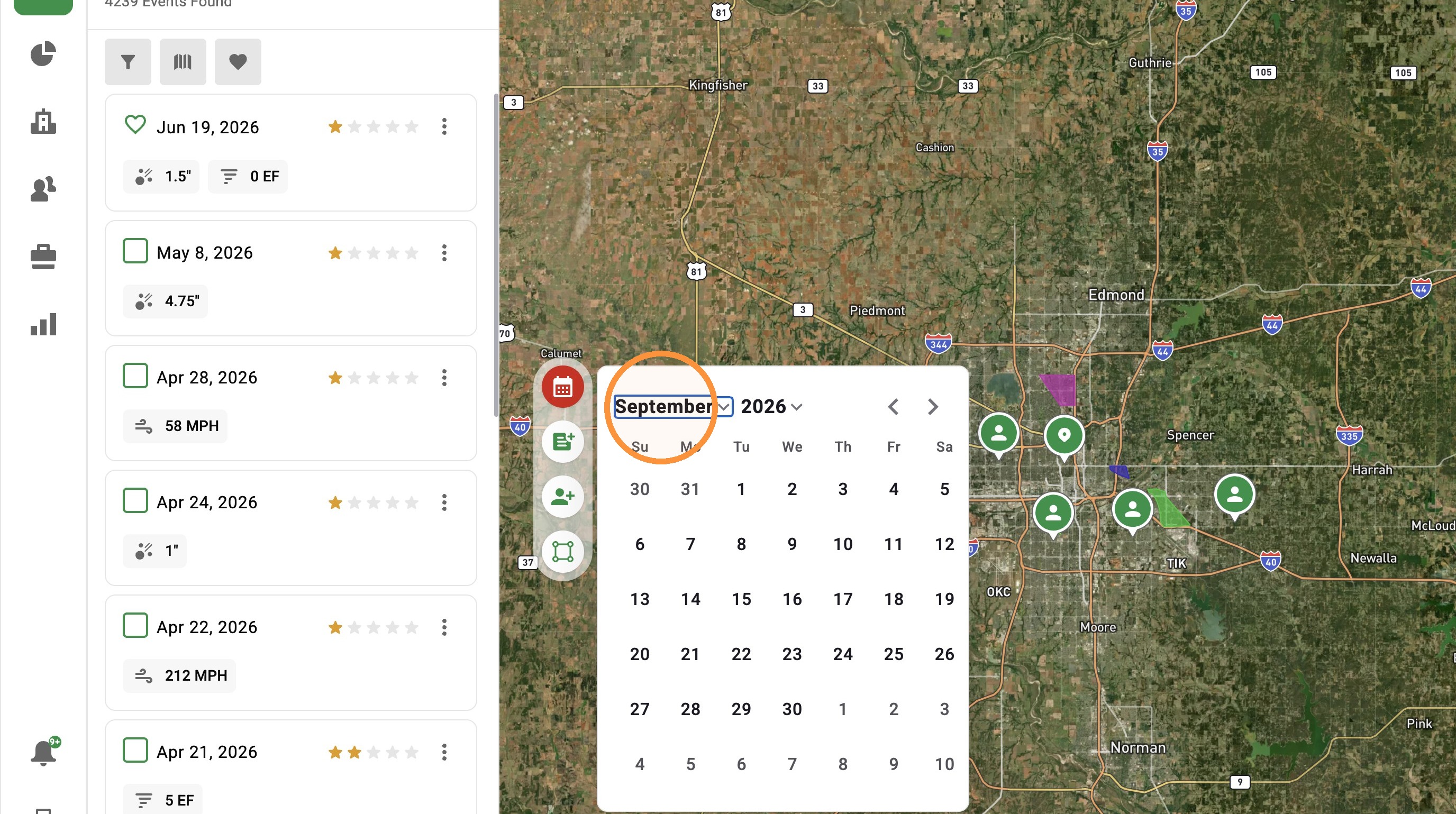
5. Select a year
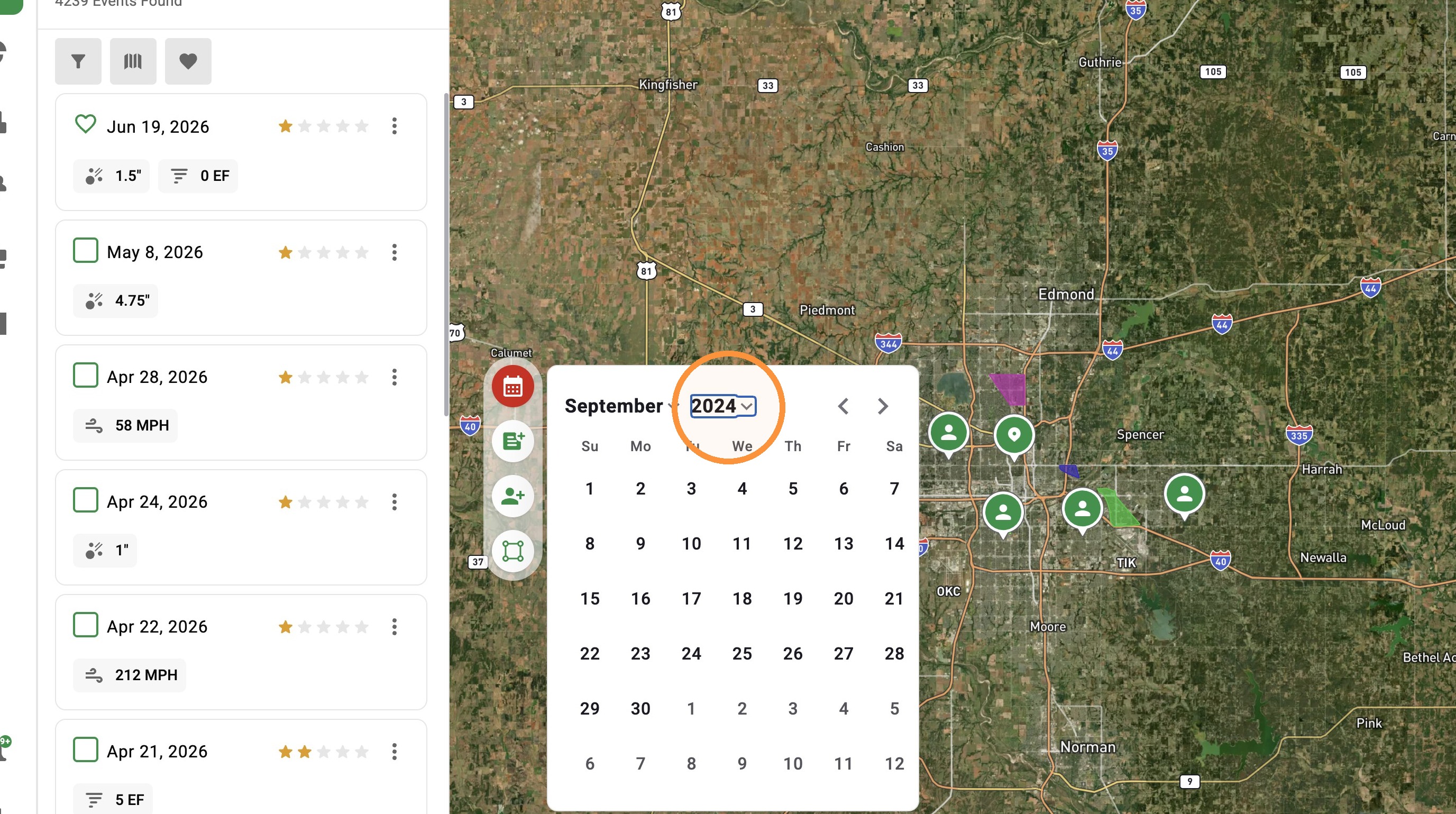
6. Select a date
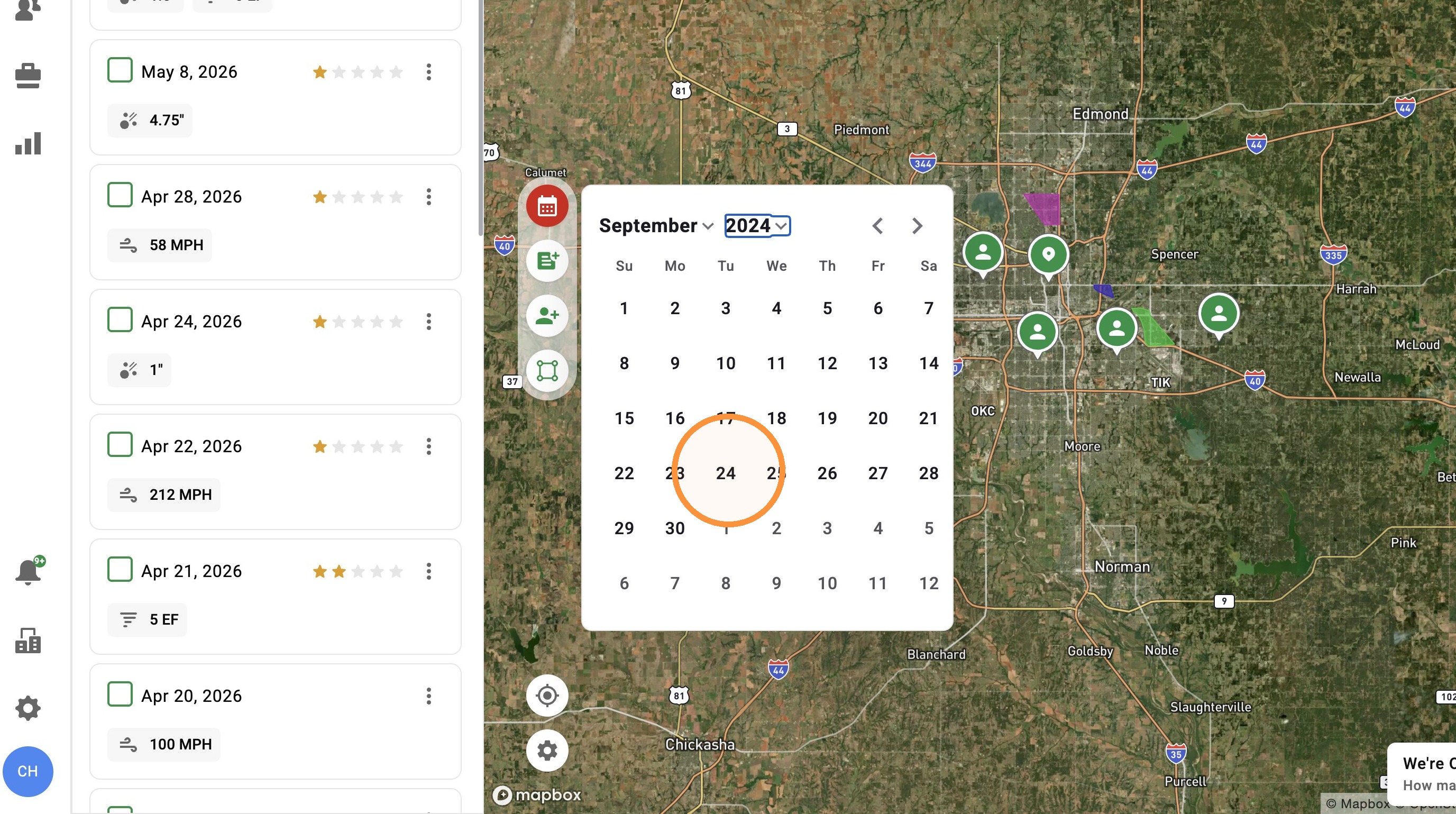
7. Start finding impacted areas within a storm
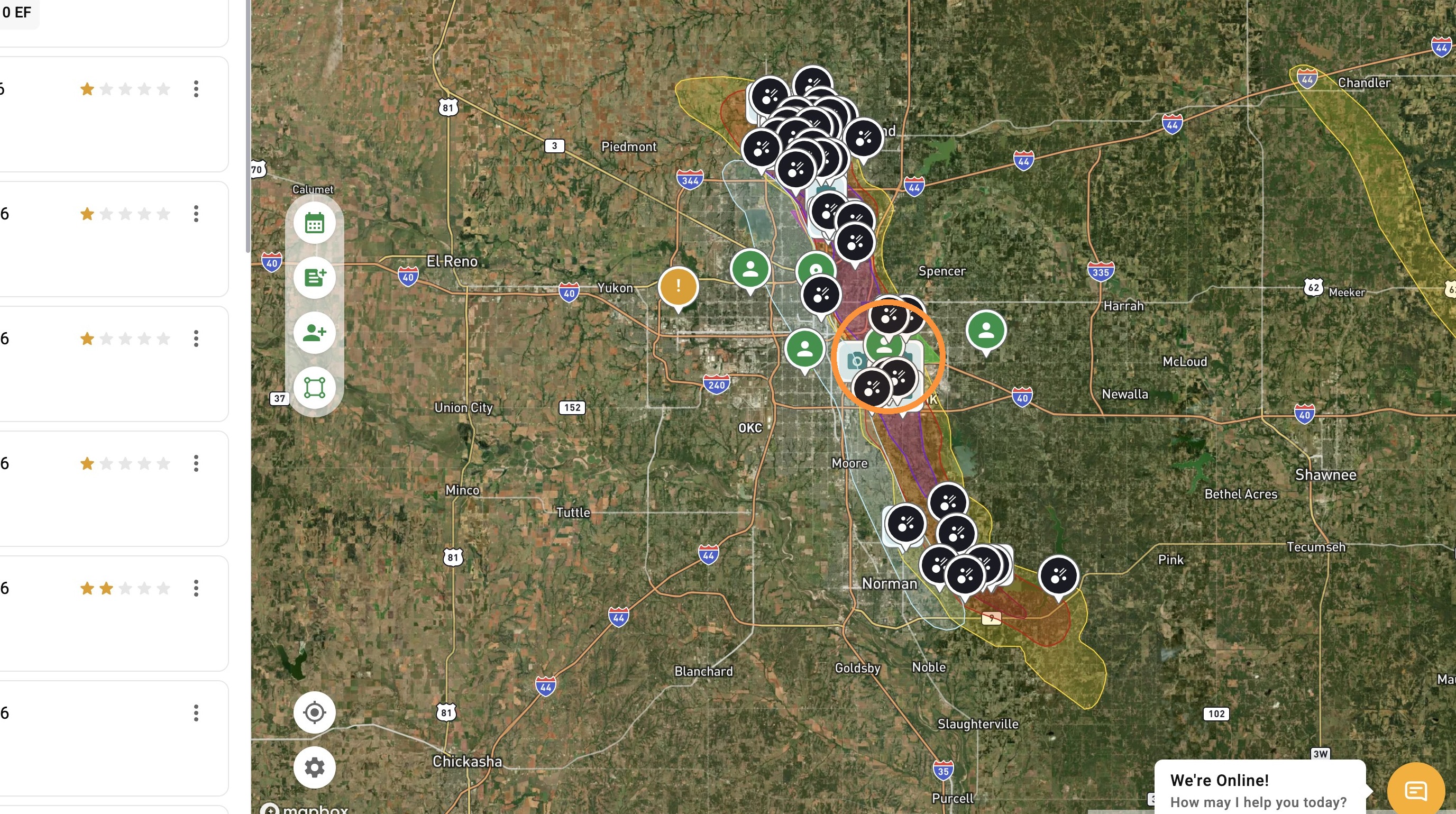
Search by Recent Events
1. Click "Maps" page
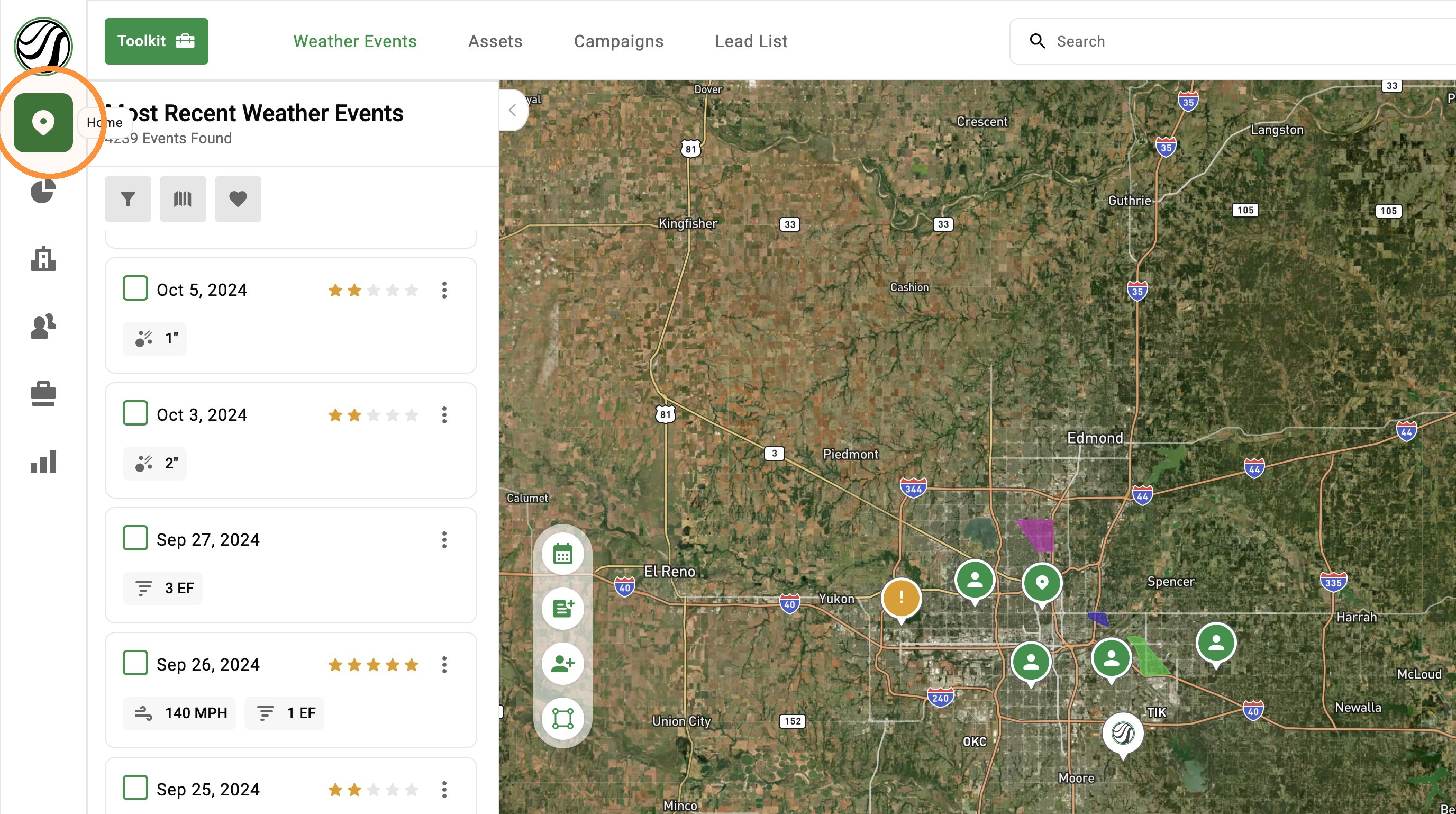
2. Click "Weather Events"
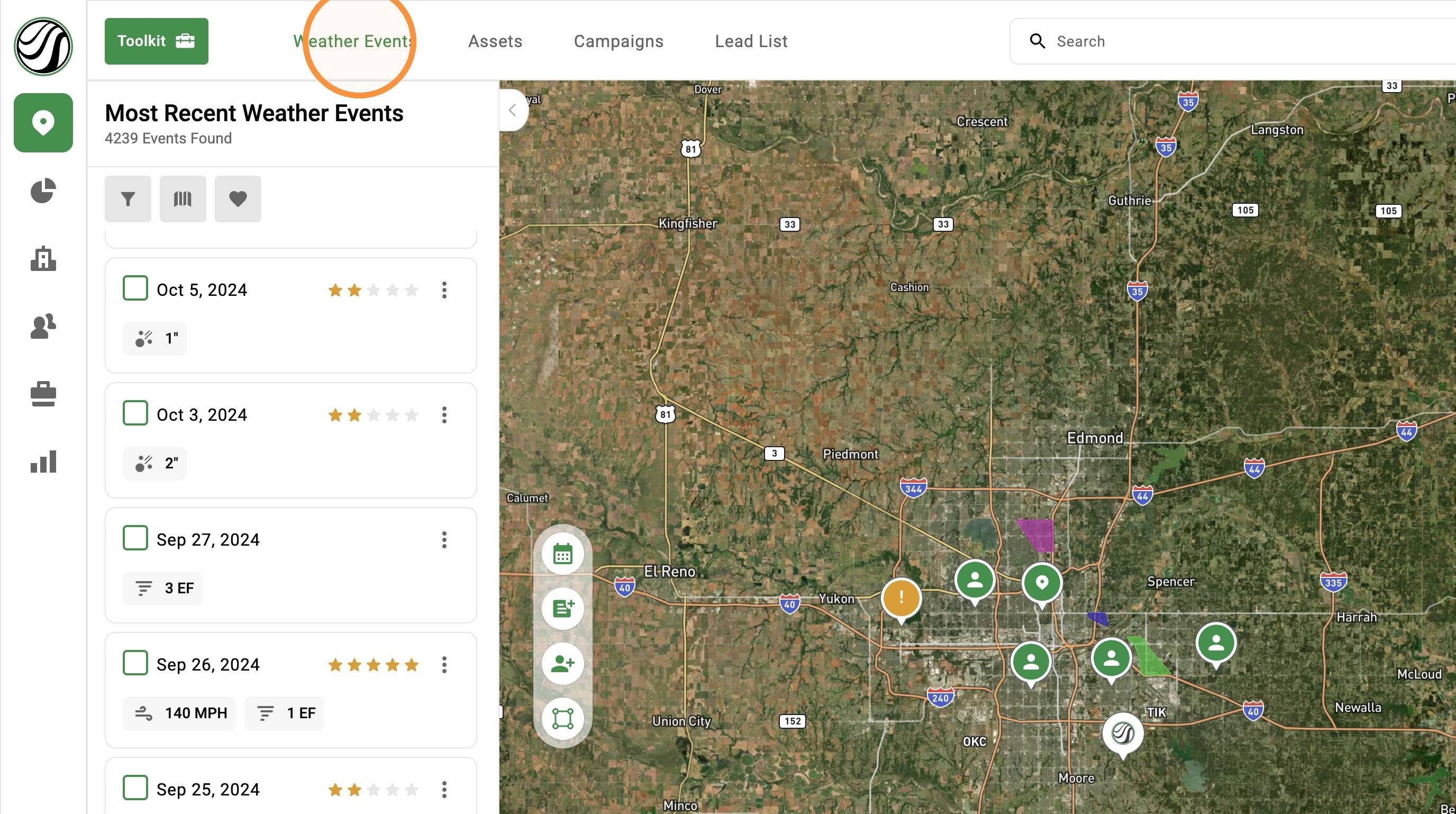
3. Find any number of recent weather events inside your subscription area
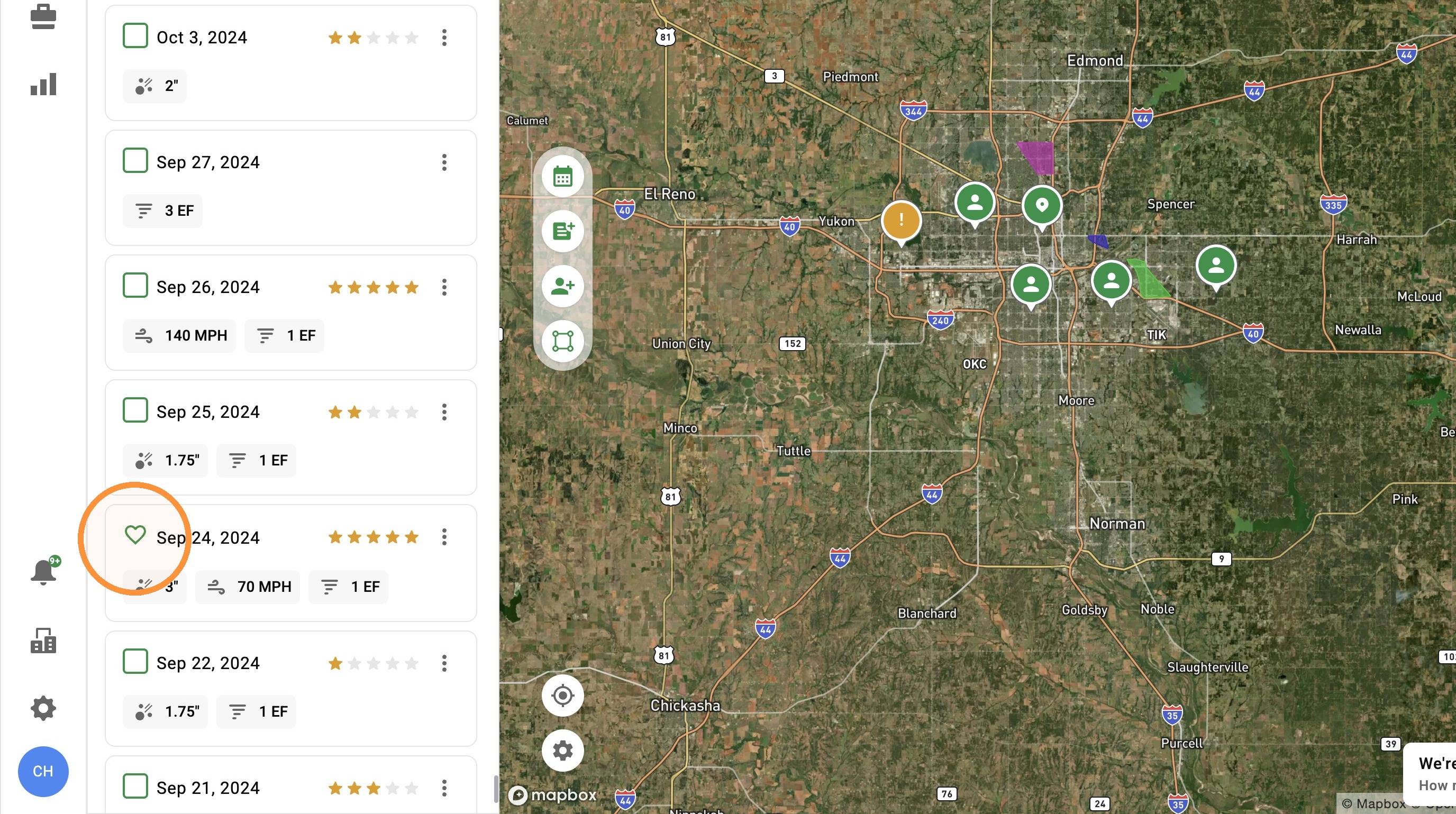
4. Start finding impacted areas within a storm
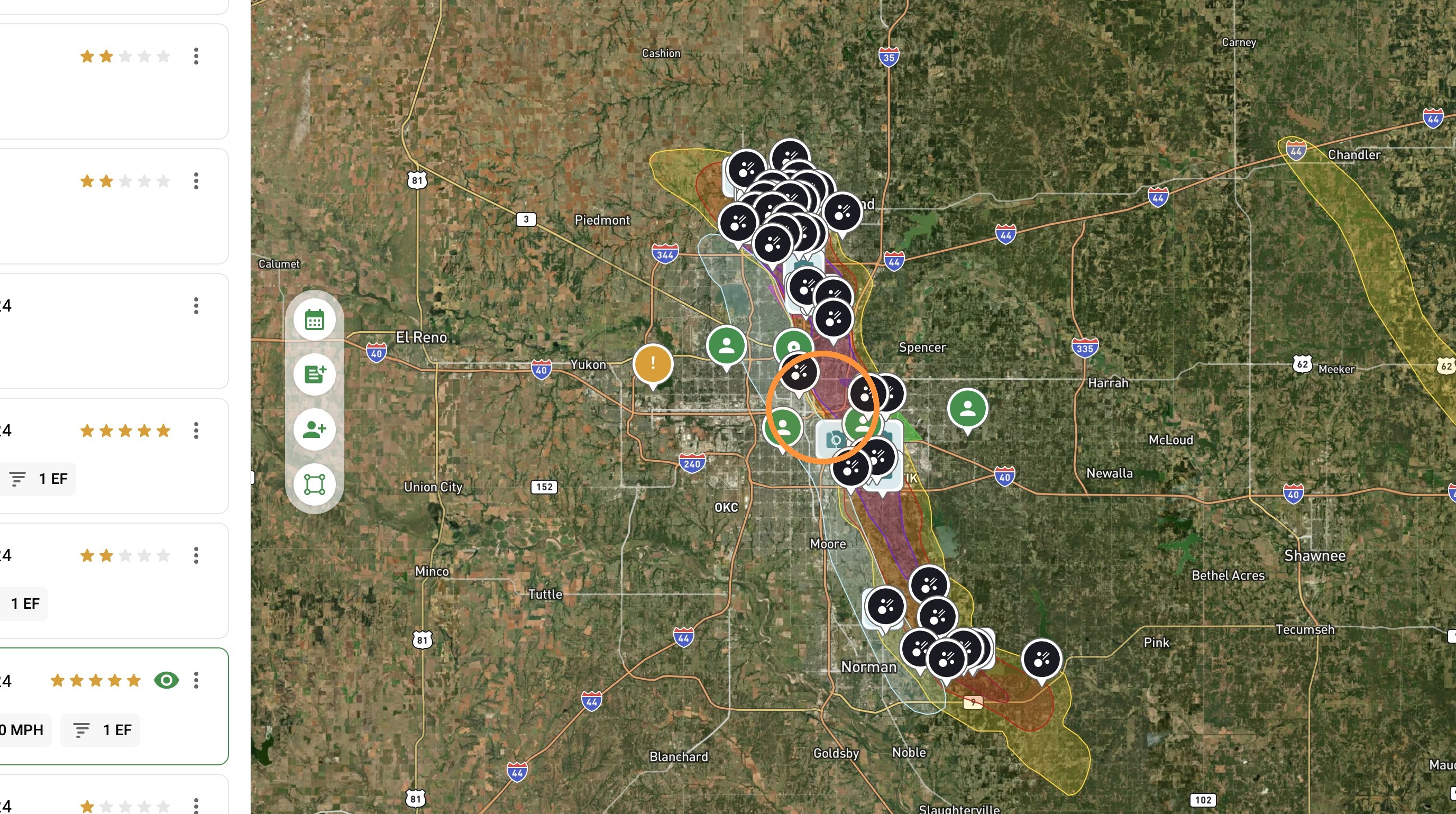
Search by Area or City
1. Click "Maps" page
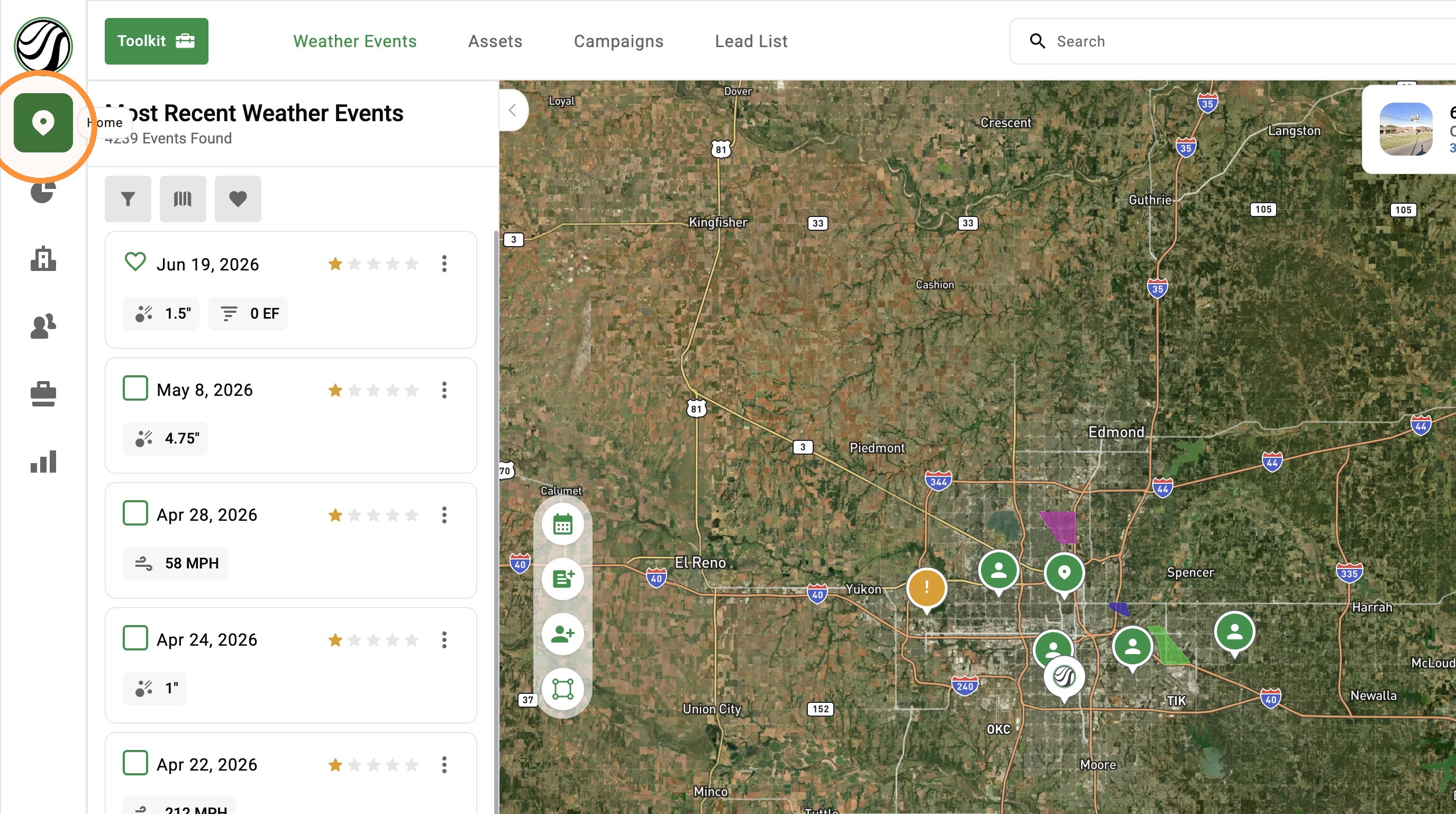
2. Click "Weather Events"
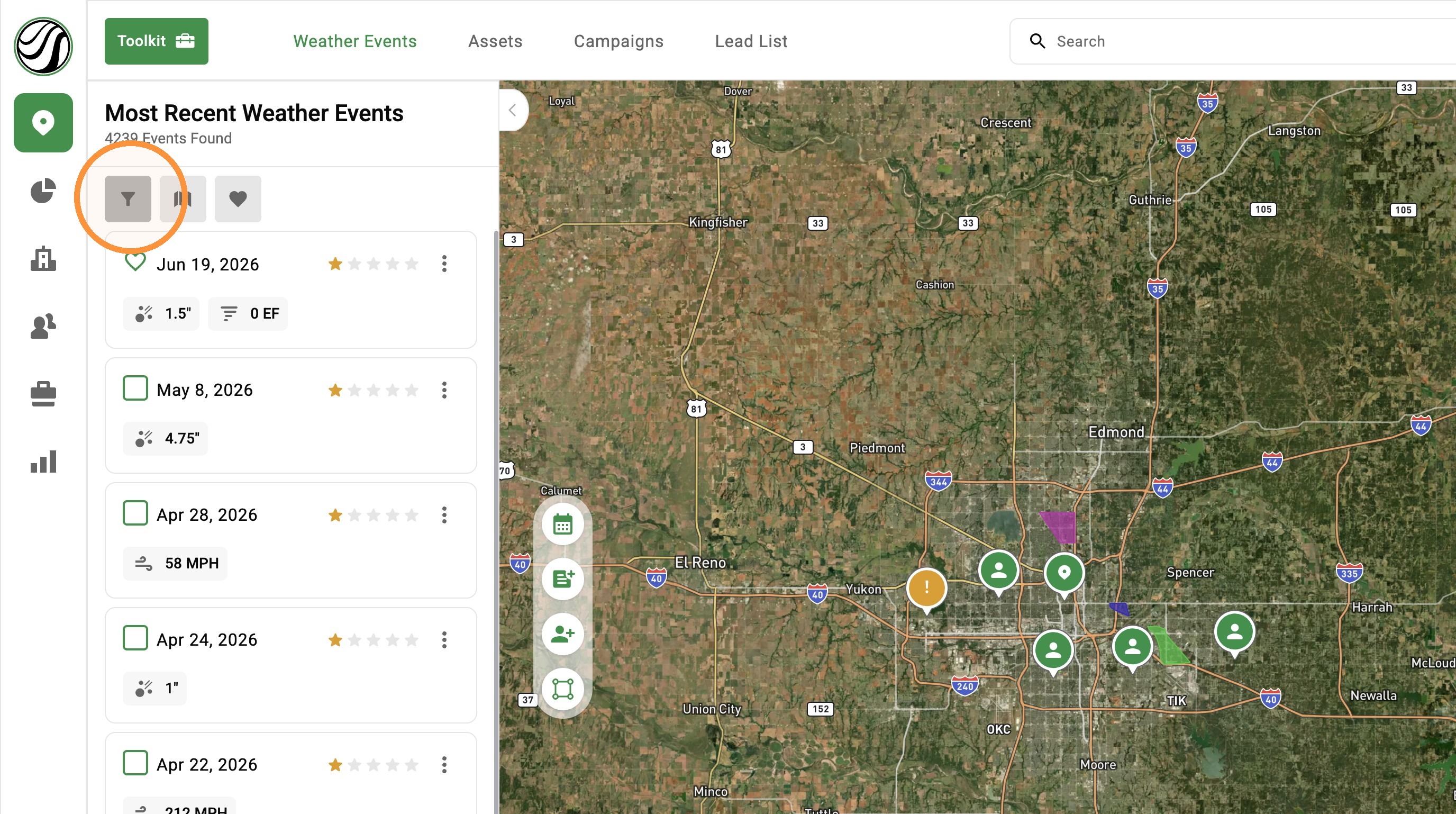
3. Click "Weather Event Filter"
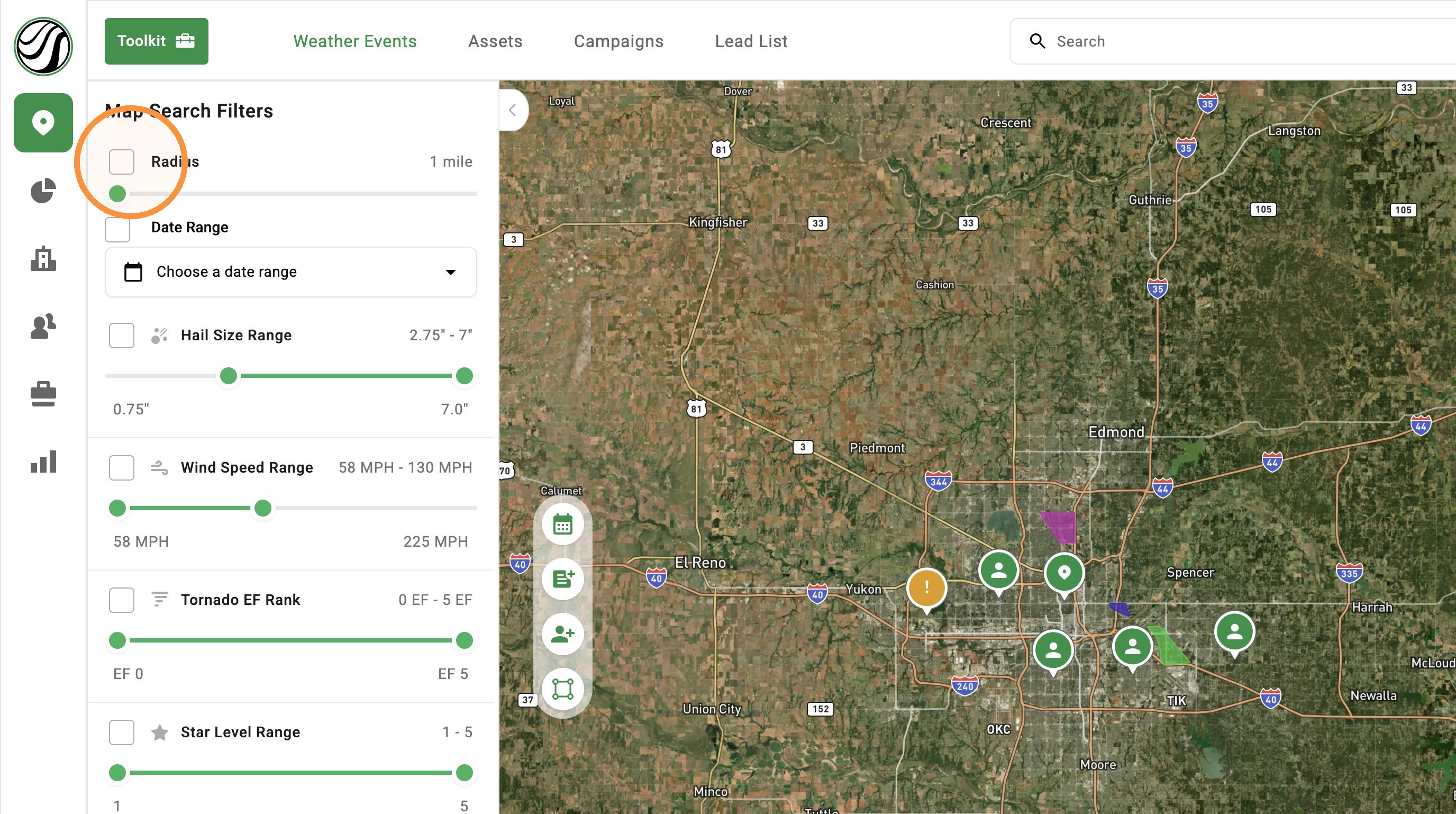
4. Enable "Radius" filter to search for storms in a specific area
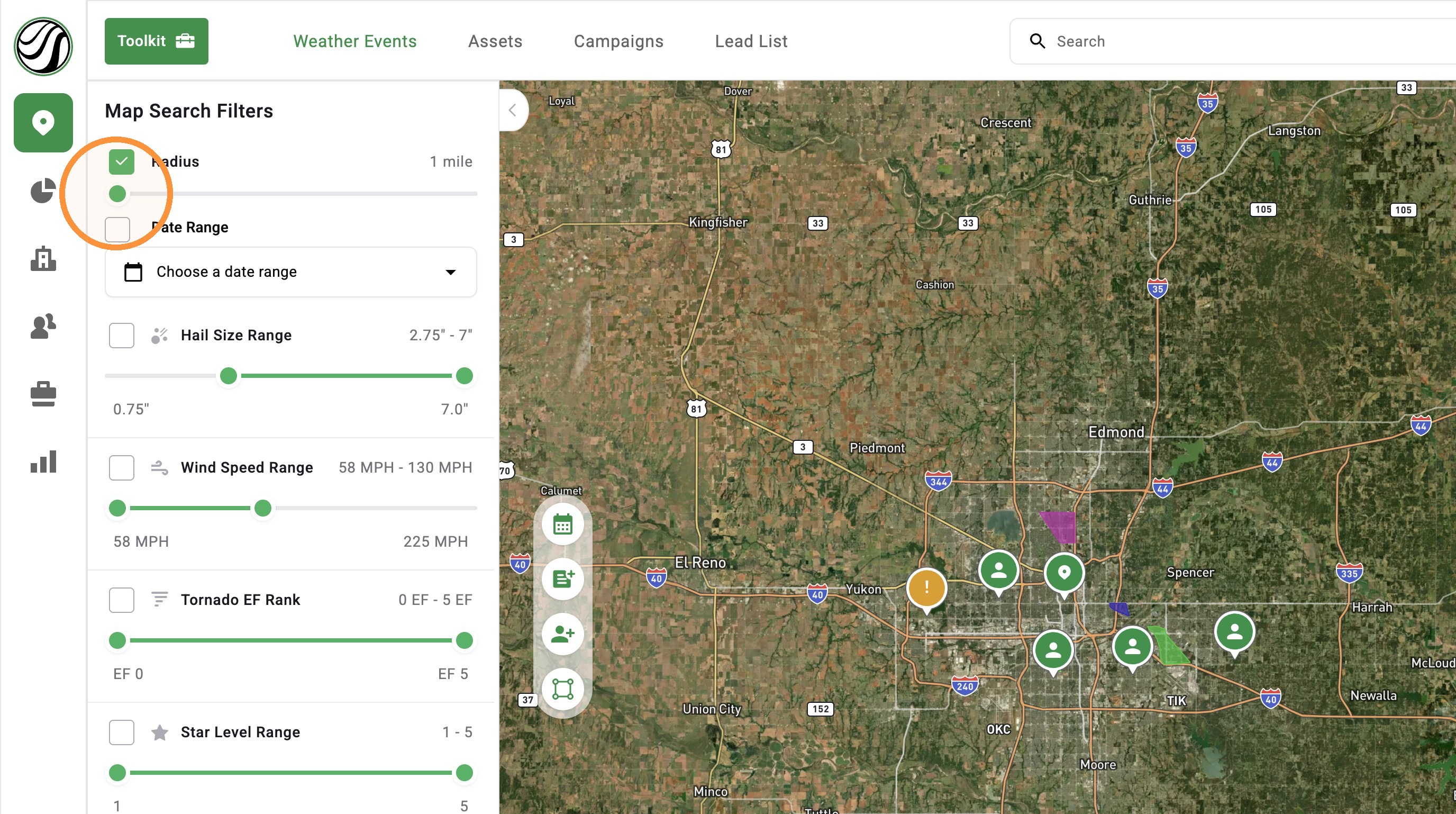
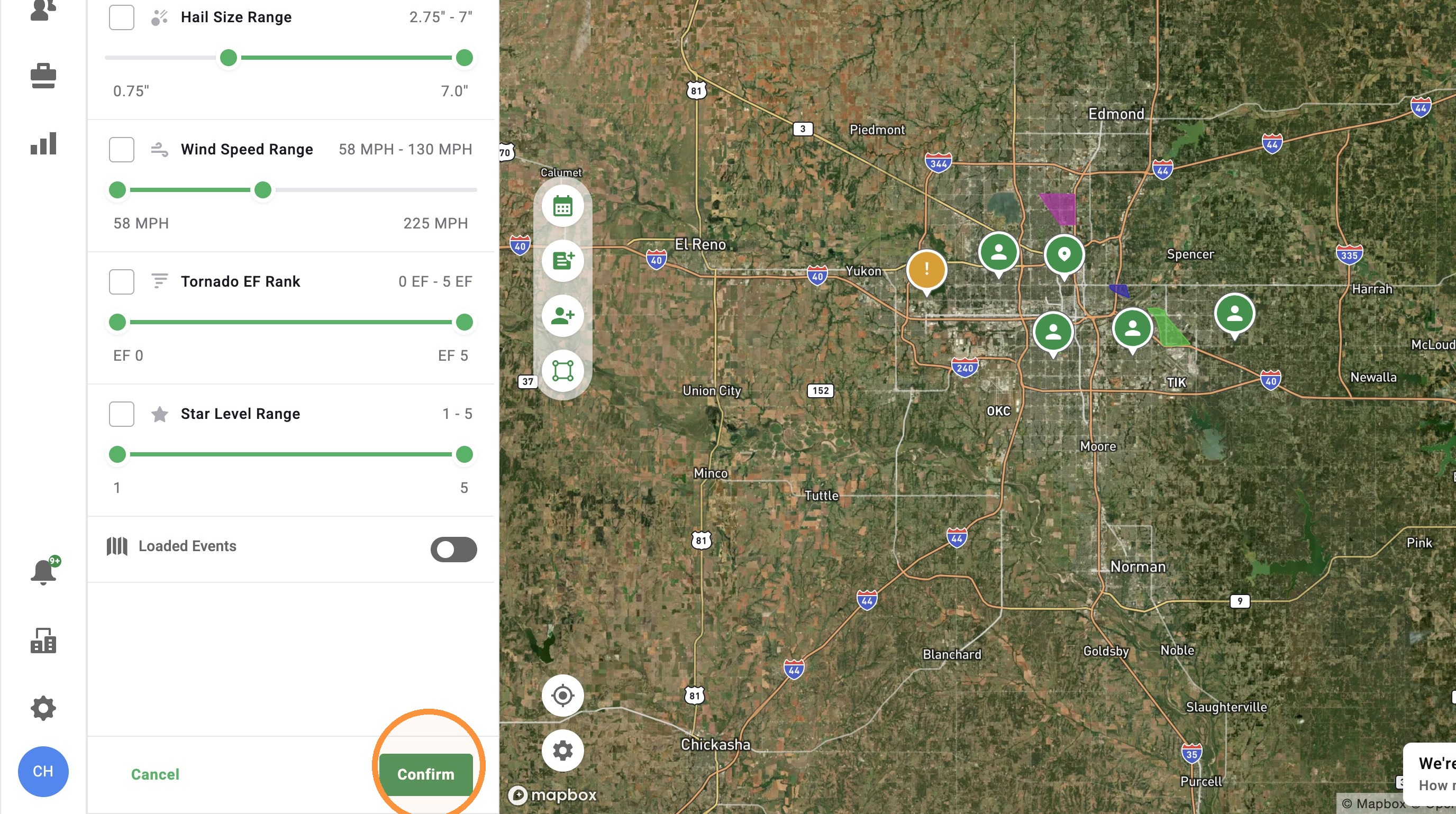
5. Adjust the size of the radius
6. Click "Confirm"
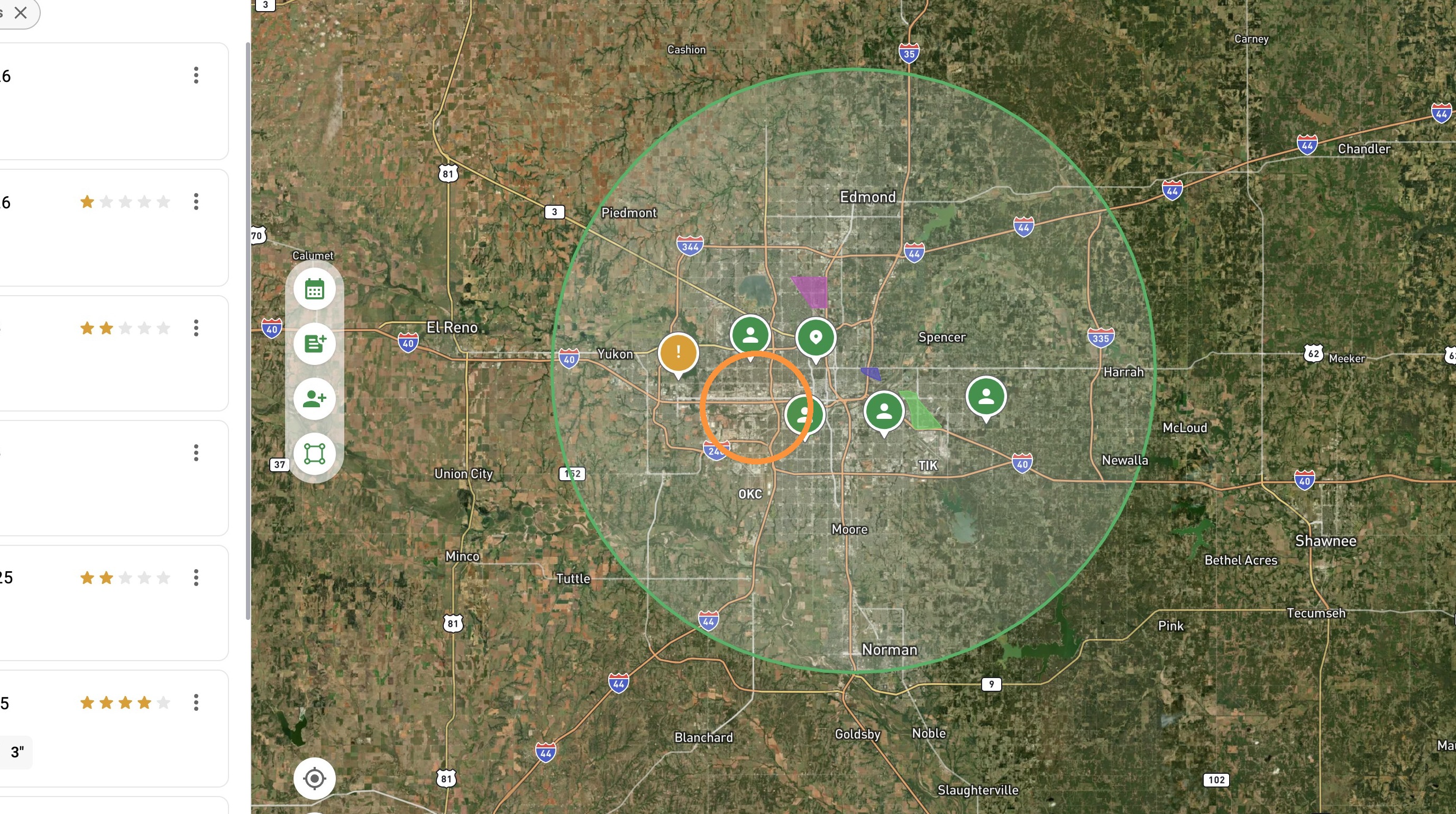
7. The radius will automatically re-center to where you are looking. Click on the map lock the radius in place
8. Enable any number of weather events
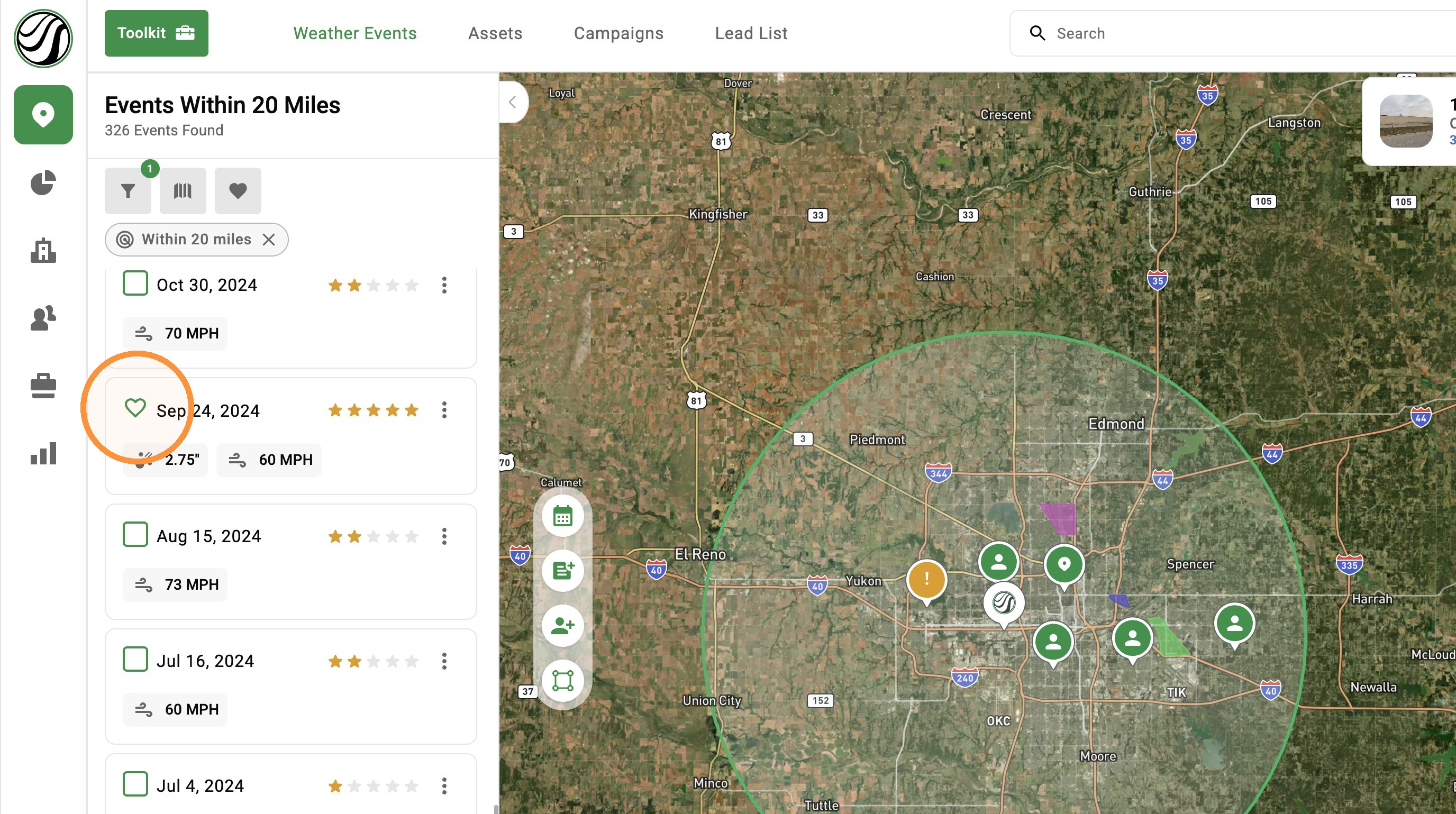
9. Start finding impacted areas within a storm