[5.0] How to Create an Asset, Contact, & Opportunity
When dropping a pin or tracking a lead in the HailTrace app, you can create an Asset, Contact, and Opportunity at the same time.
This helps you track the door knock, start monitoring the property for future storm with Impacted Assets, and work the deal through your opportunity pipeline.
 Role Requirements: To create Assets and Contacts, you need one of the following roles: Account Owner, Asset User, Asset Admin, DealTrace User, DealTrace Manager, or DealTrace Admin. DealTrace roles also give users access to create and manage Opportunities.
 Mobile App
Drop A Pin
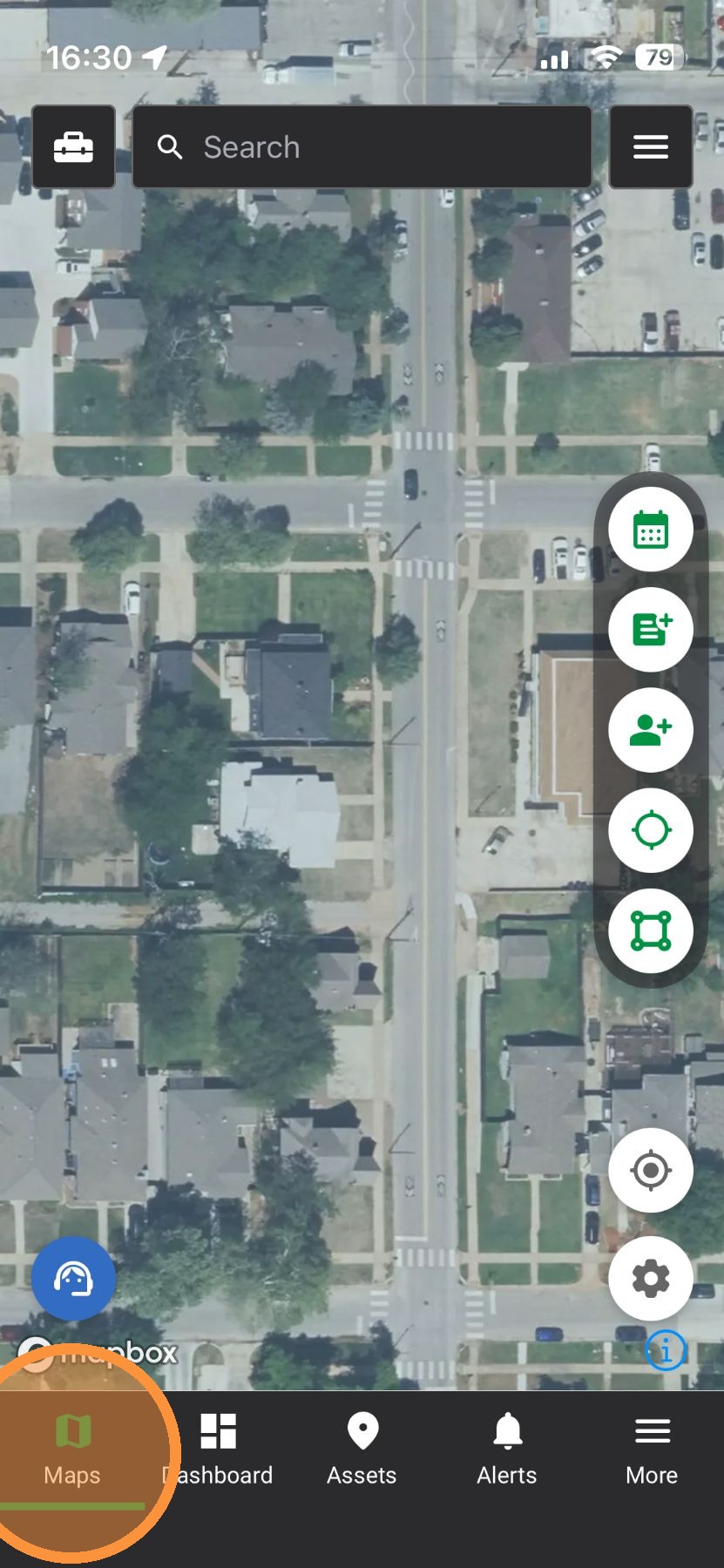
1. Tap "Maps" Page
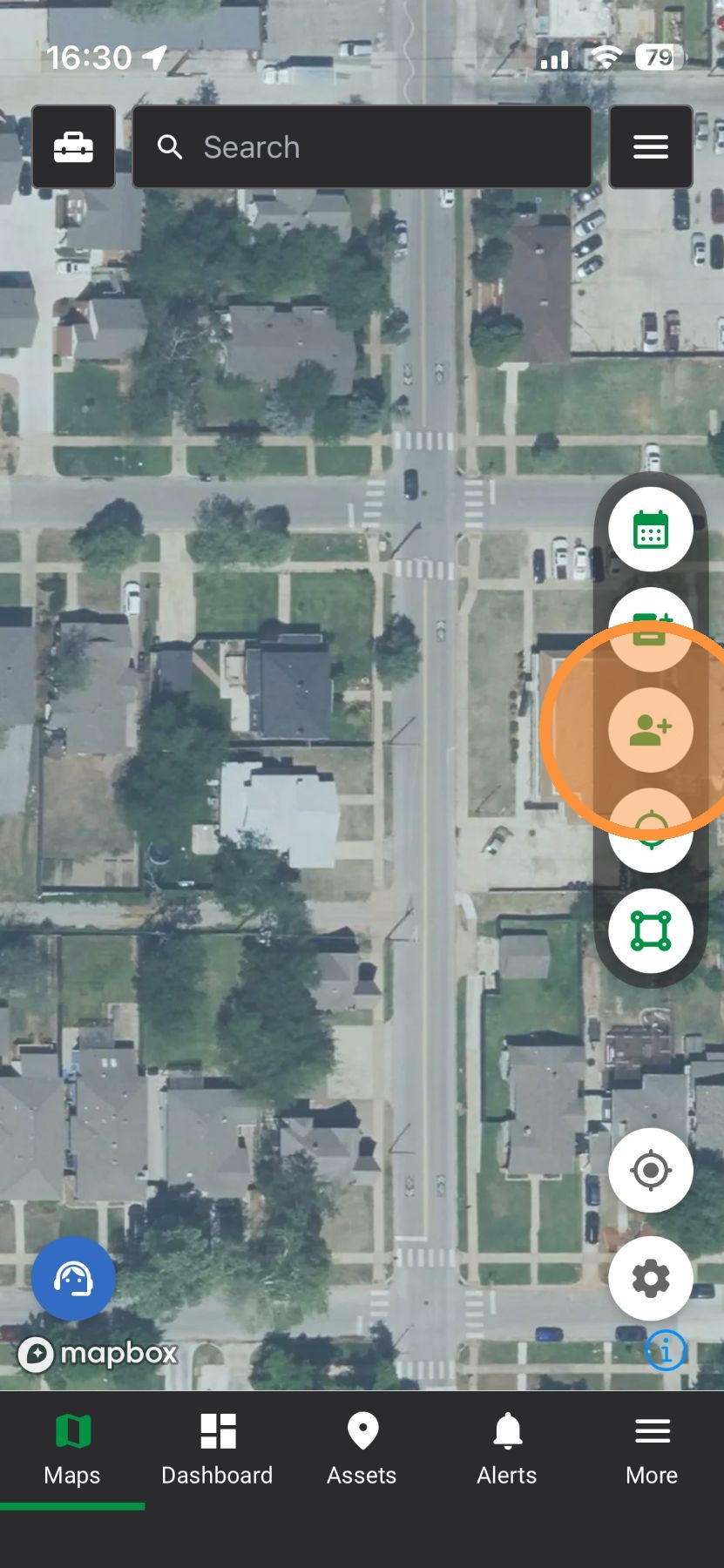
2. Tap "Create Asset"
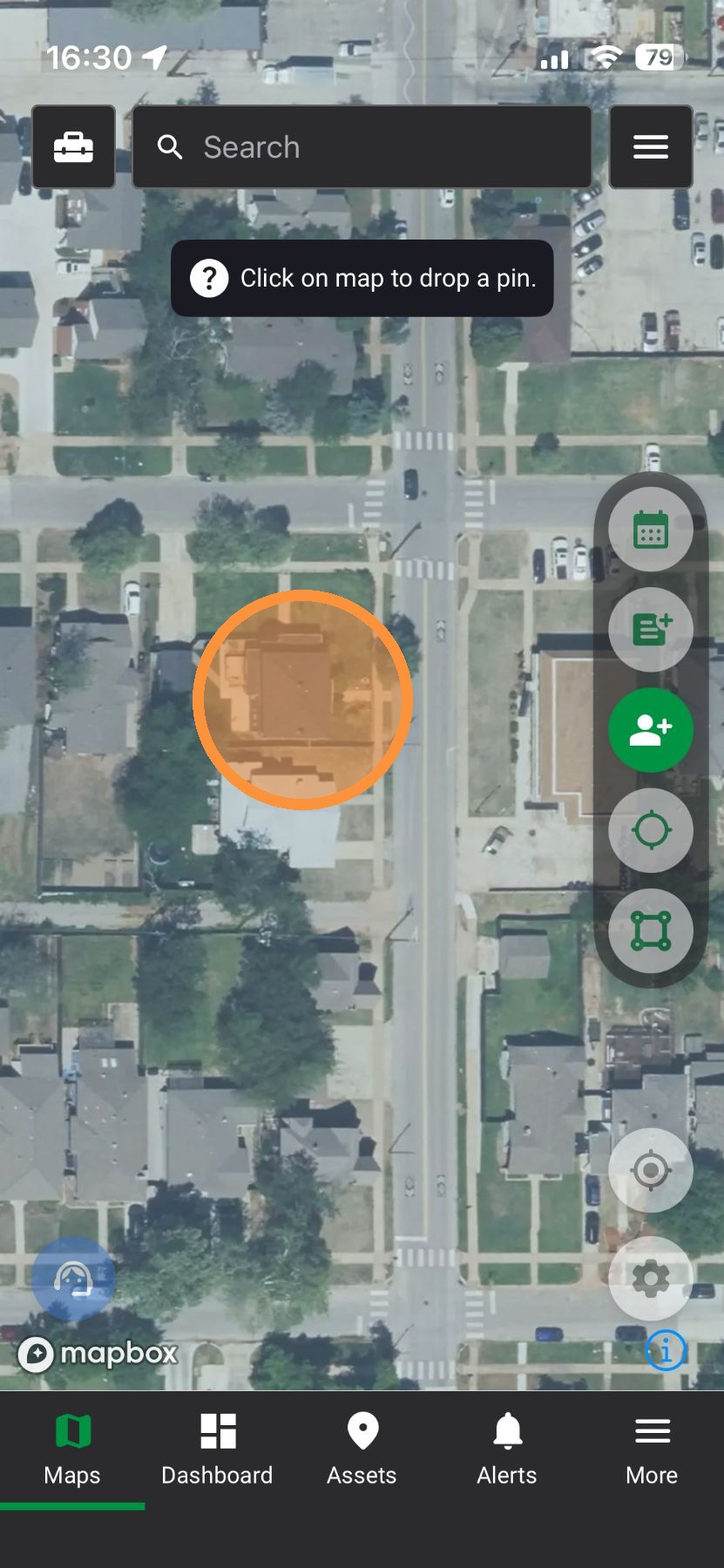
3. Tap an address
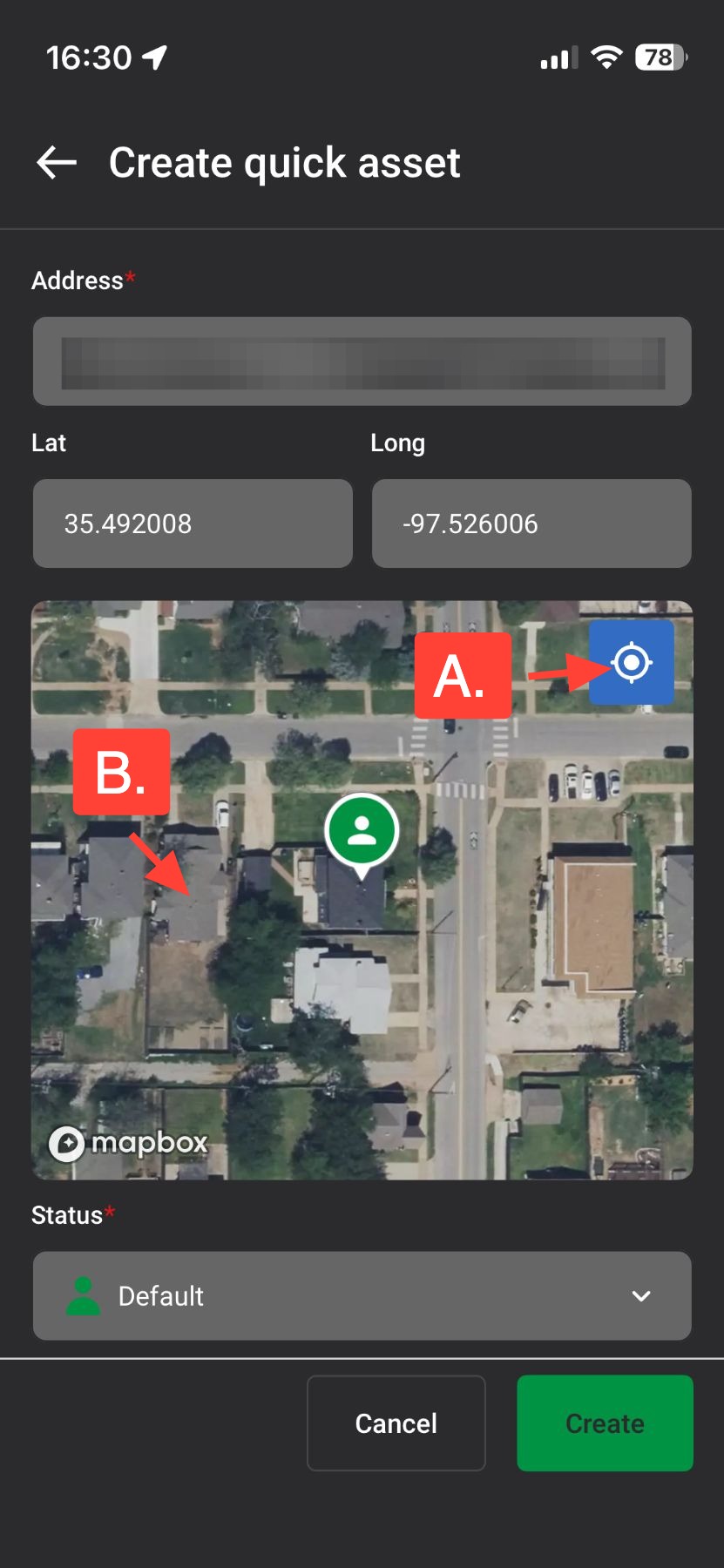
4. If the pin placement is incorrect, you can
A. Tap the blue "Location" button to place the pin at your location
B. Tap on the map adjust the pin.
5. If you have DealTrace, you can adjust the Status within your Opportunity Pipeline
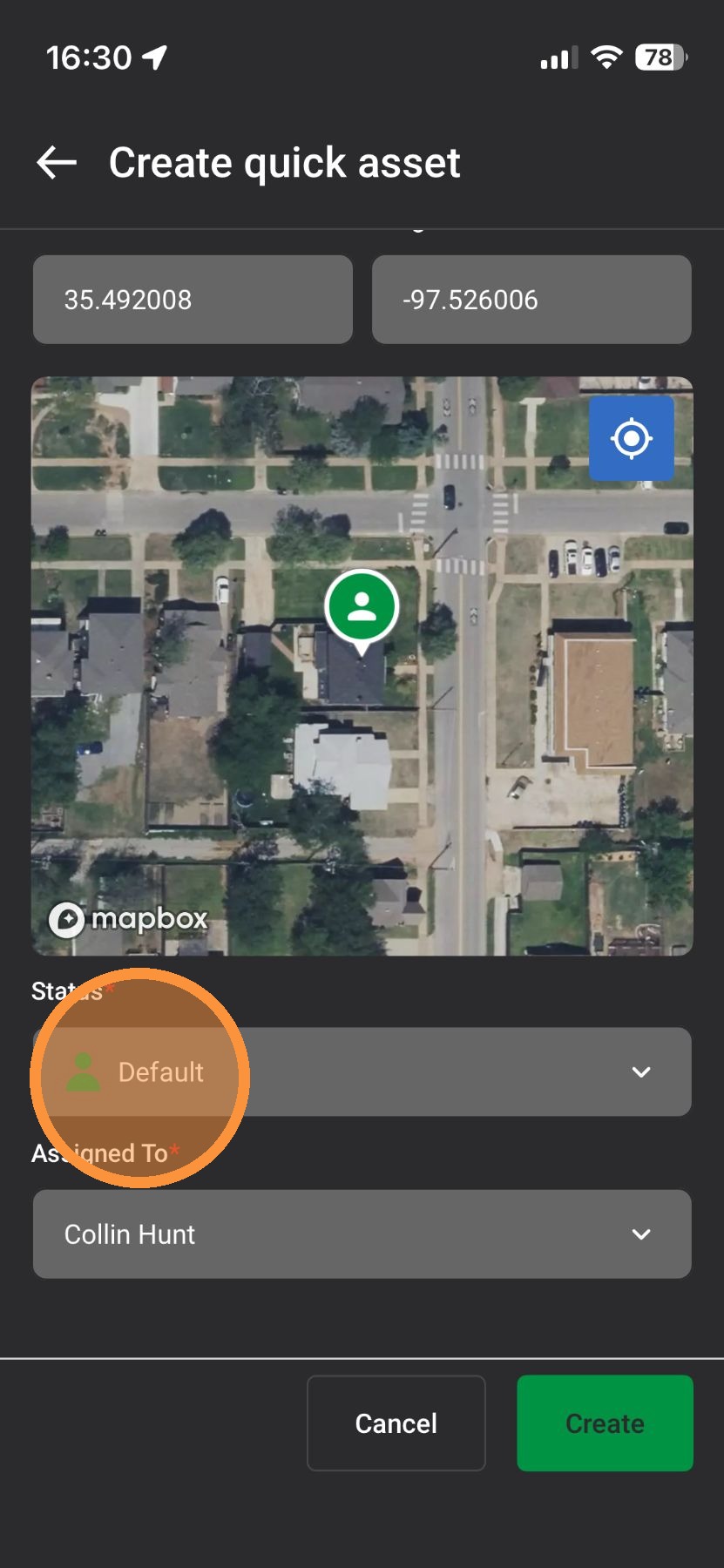
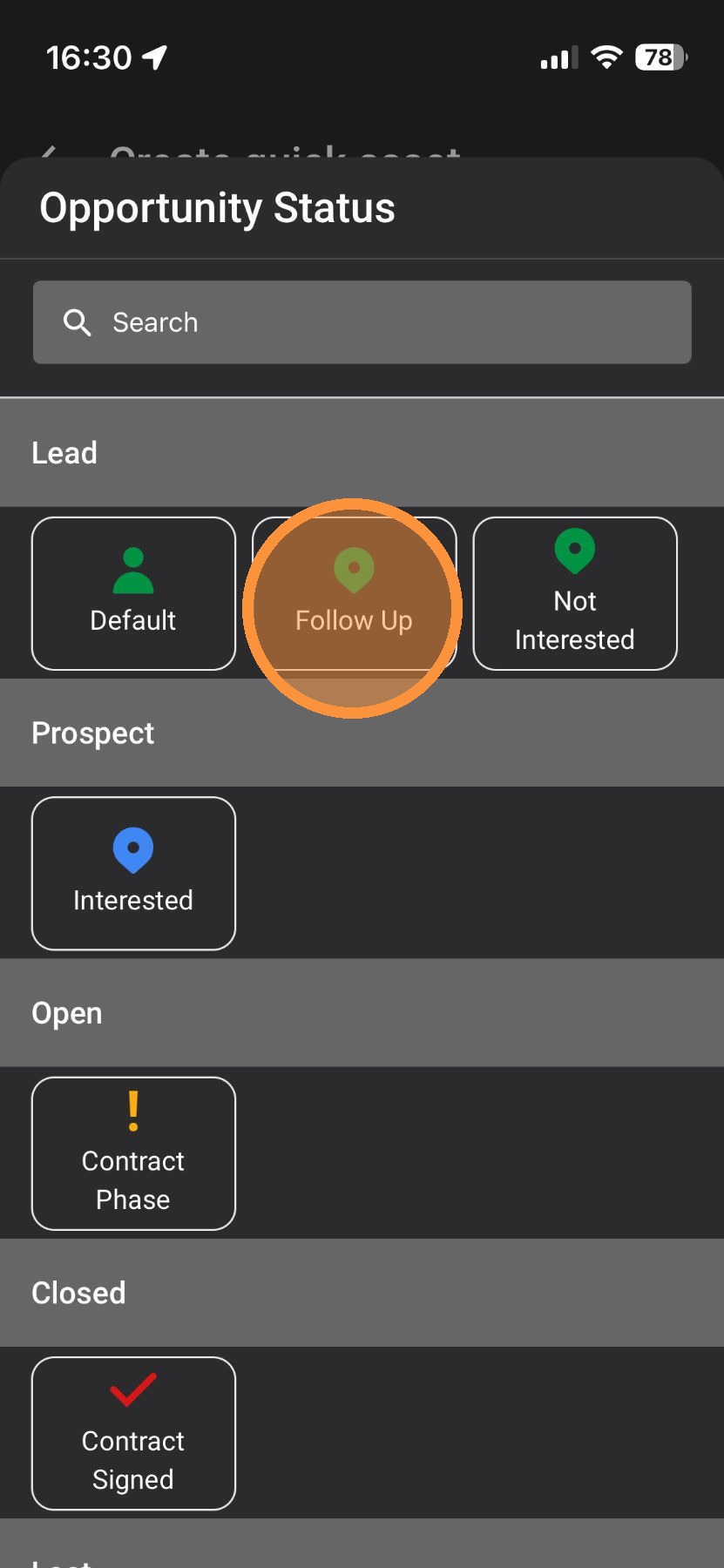
6. Tap a new Status
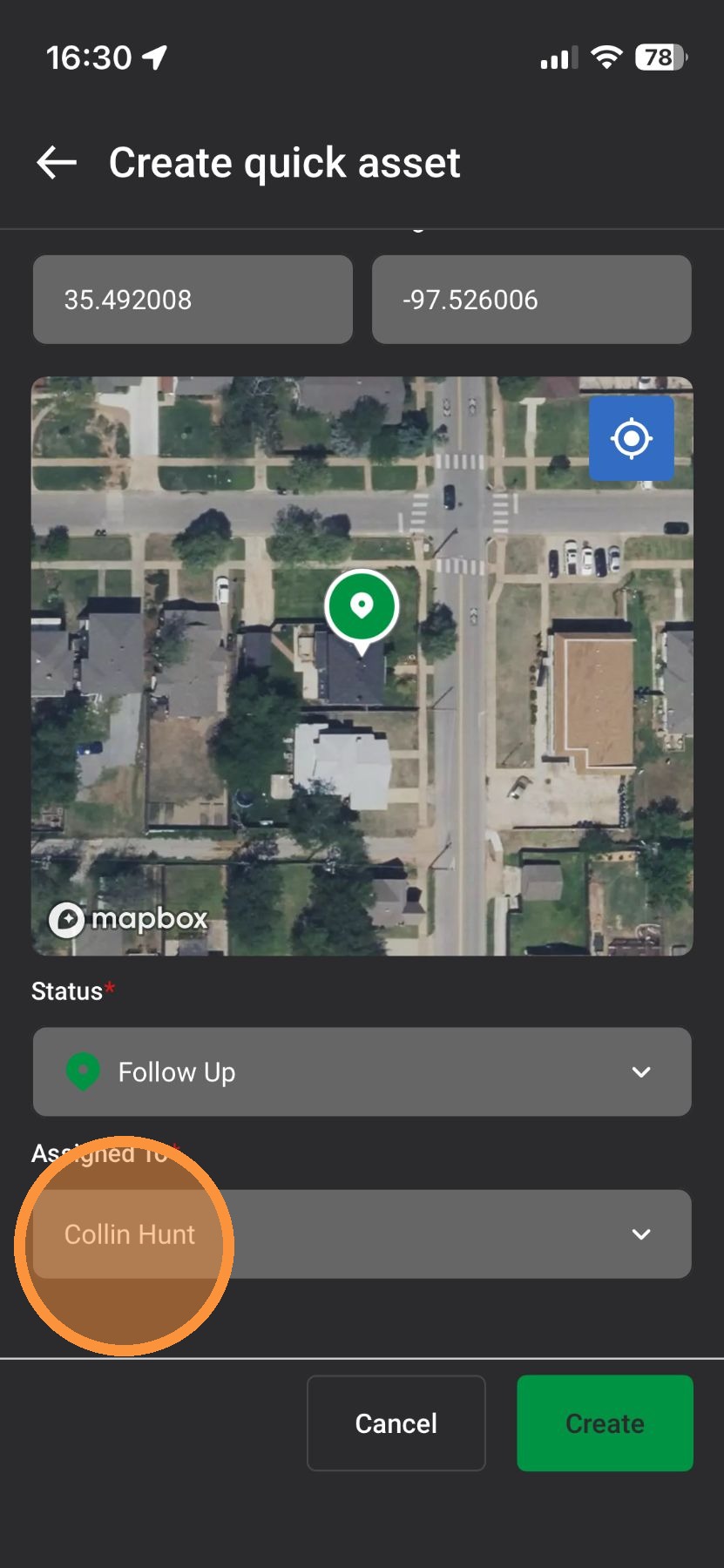
7. If you have DealTrace, you can assign the asset to other people on your team
8. Tap to select a person
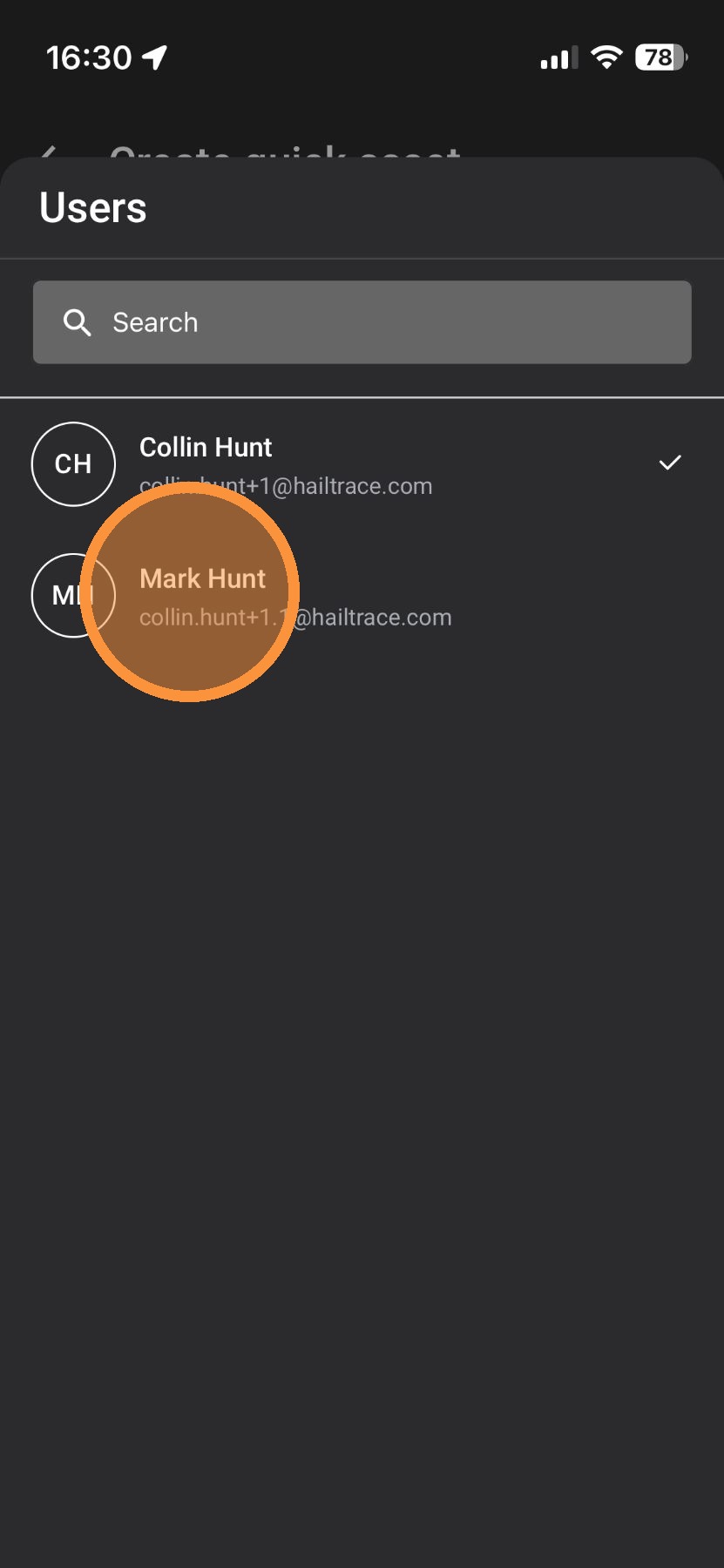
9. Tap "Create." You've created your asset!
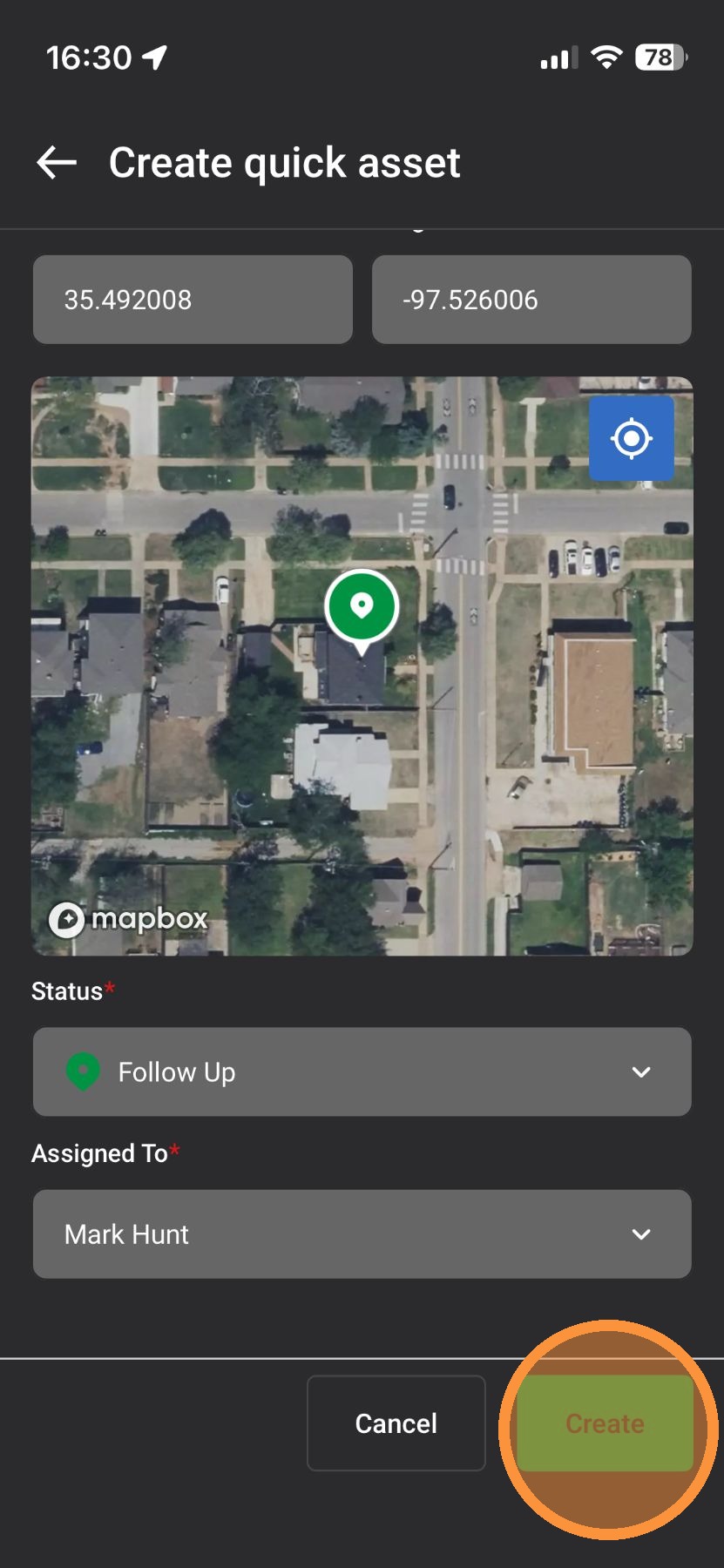
10. To add more details, such as the owner and the roof age, select "Edit Details"
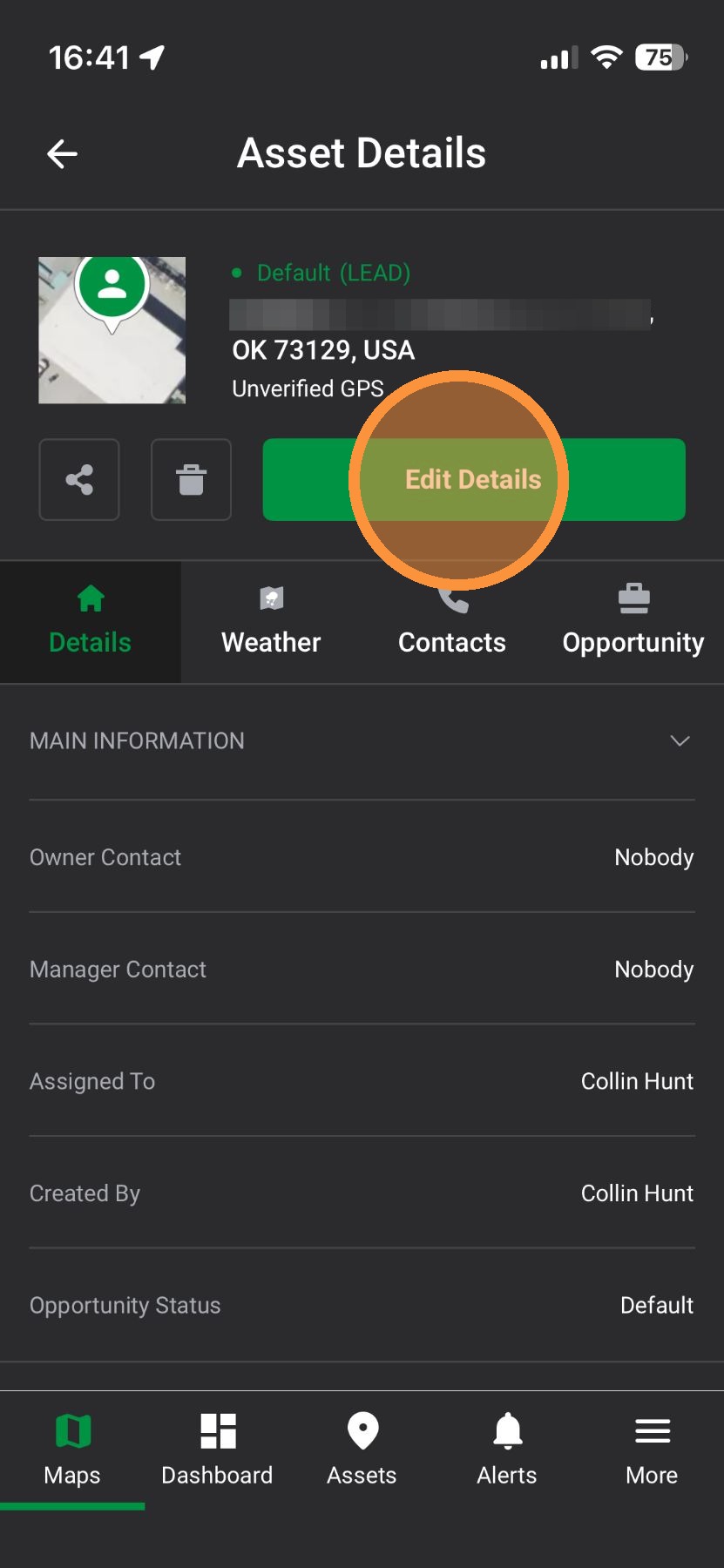
11. If needed, update the Opportunity Status & tap "Next"
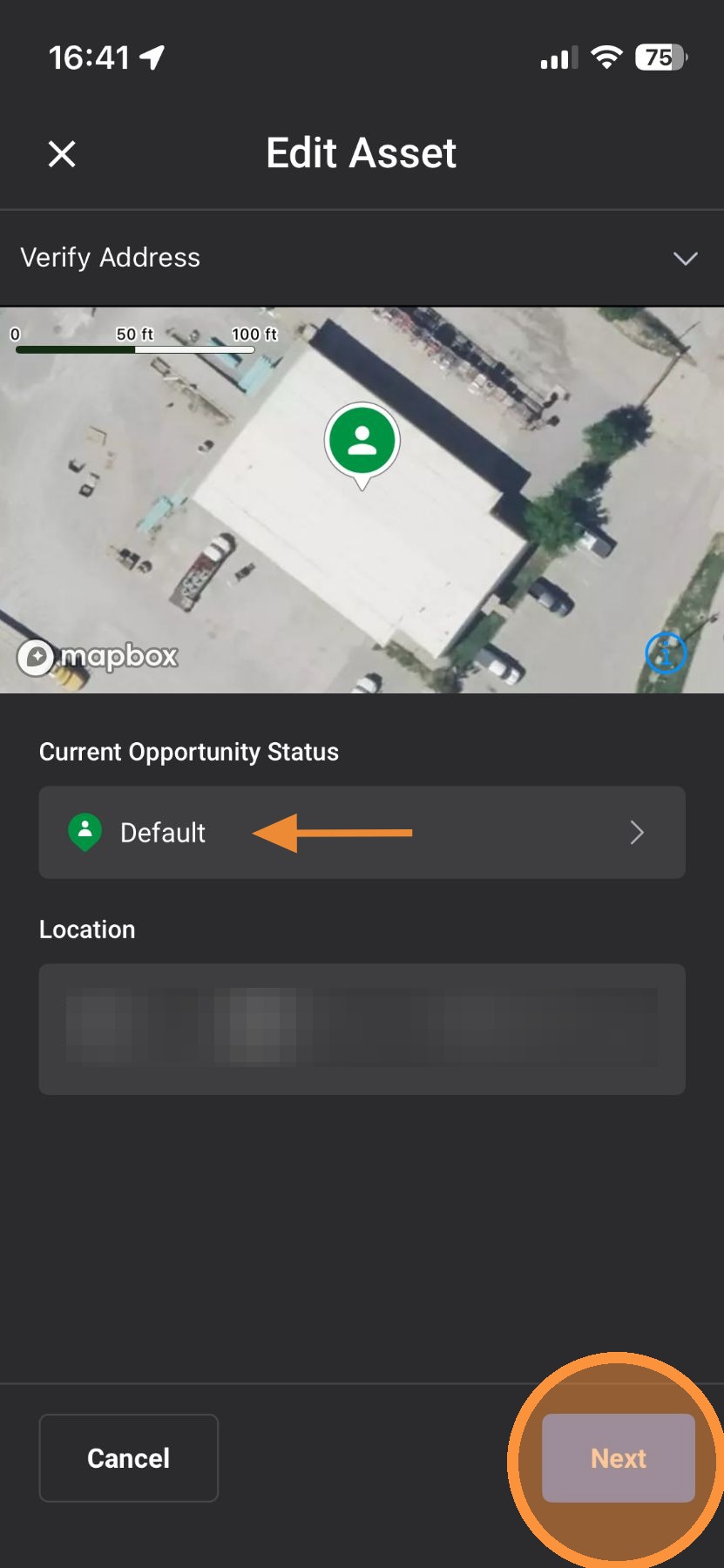
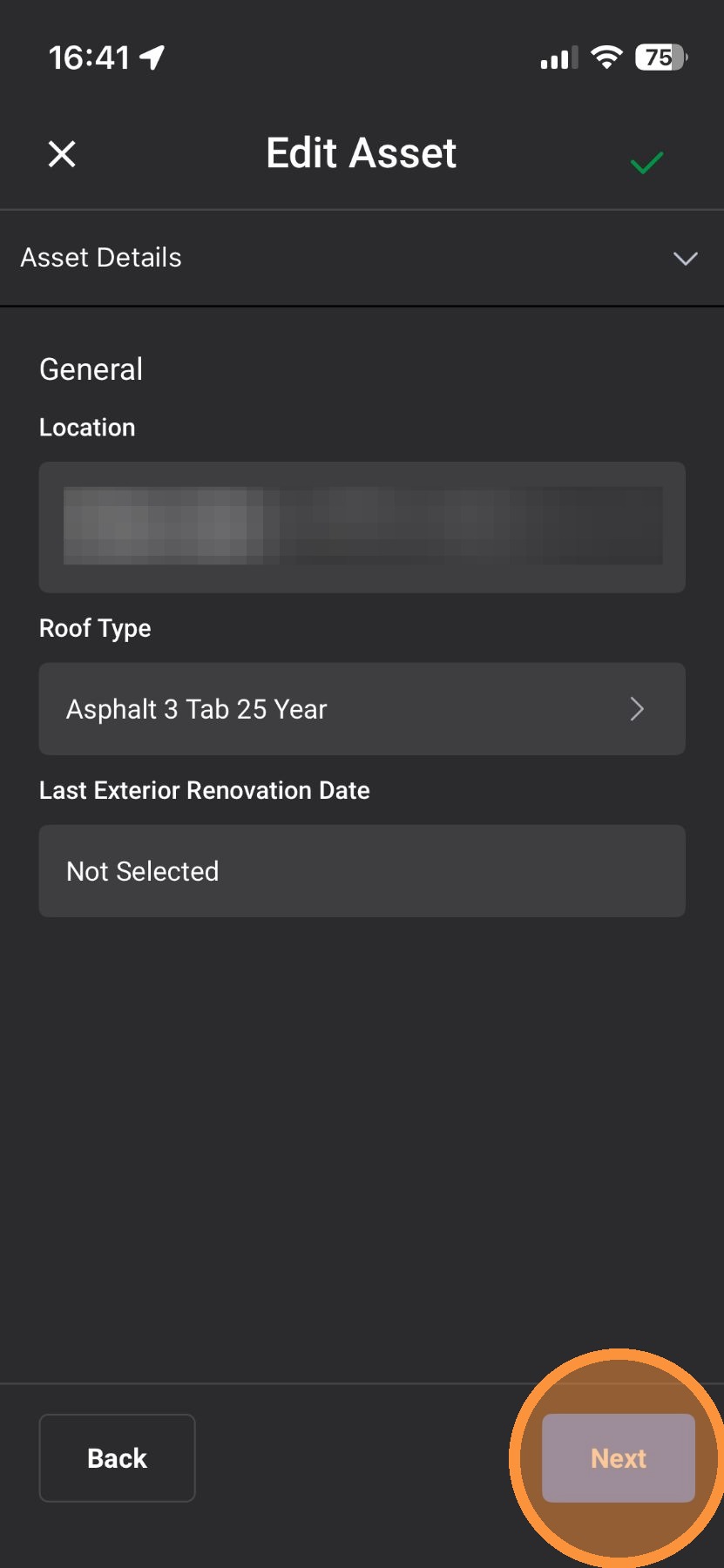
12. Under "Asset Details," you can add Roof Type and Last Exterior Renovation Date
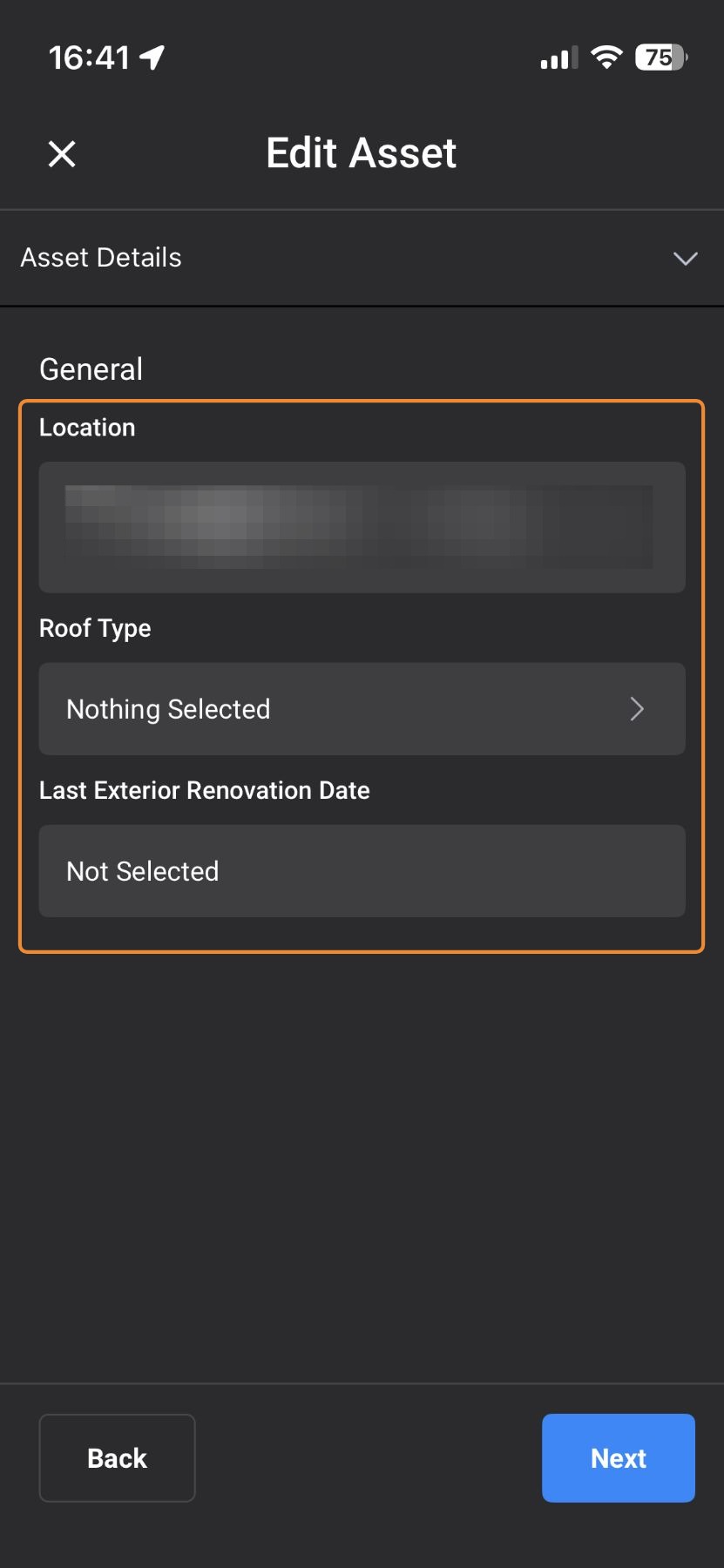
13. Tap "Next"
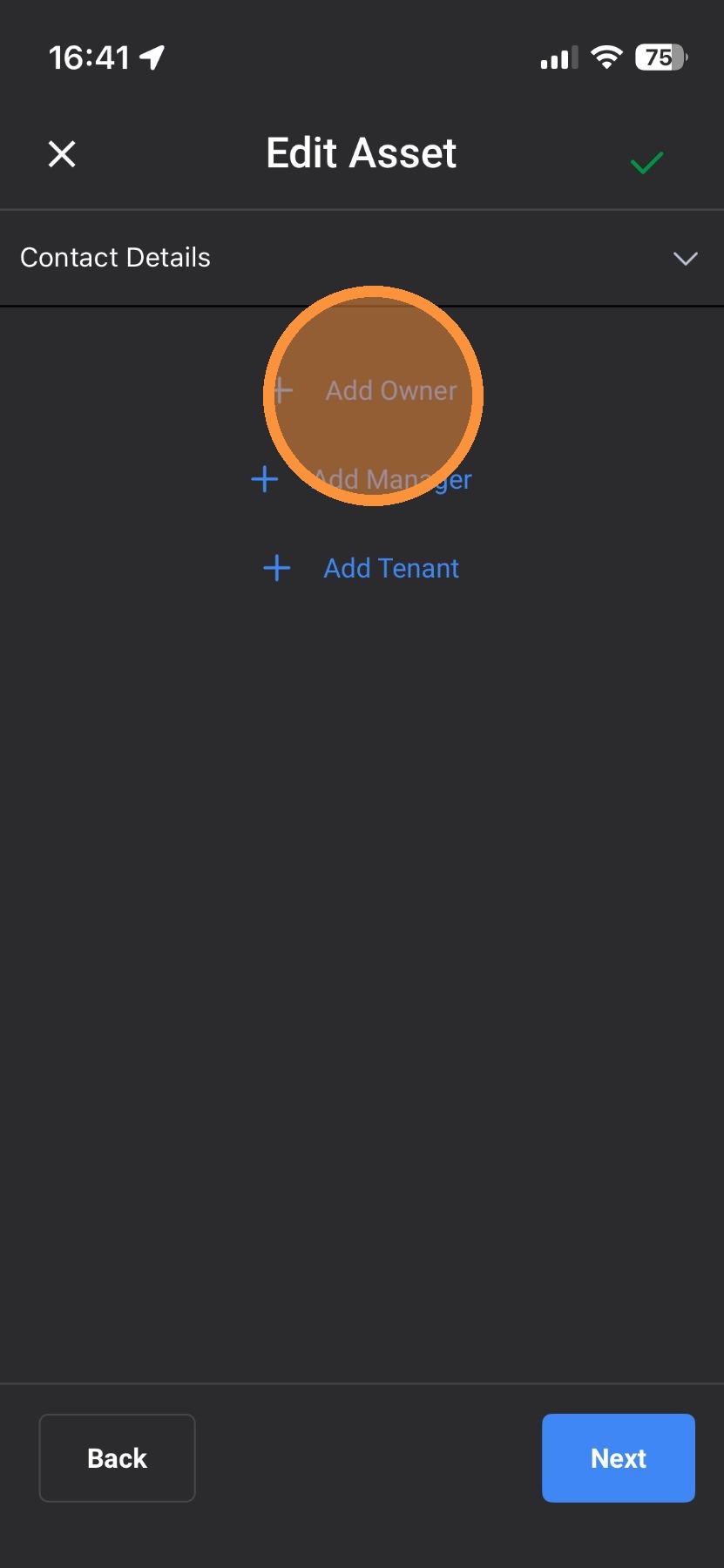
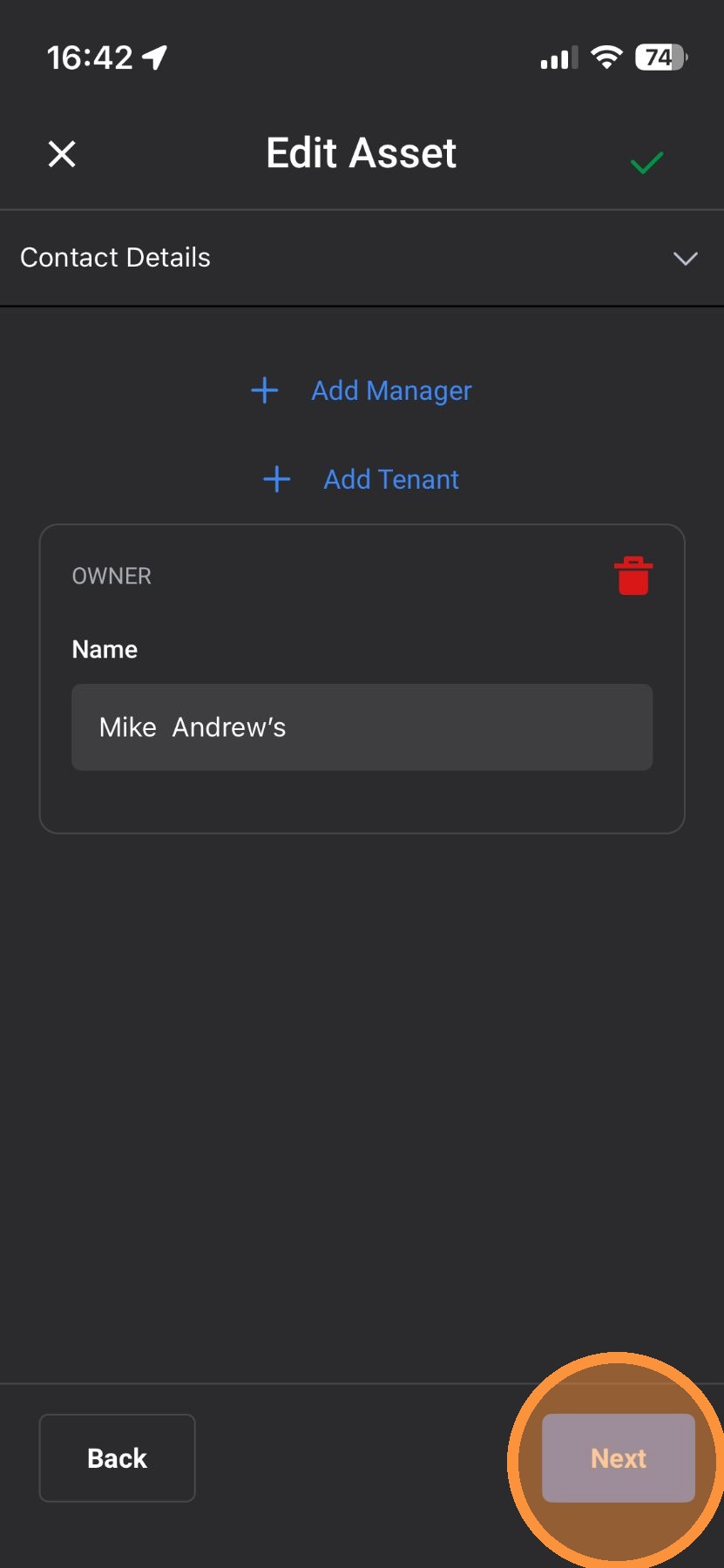
14. Under "Contact Details," add an Owner, Manager, or Tenant
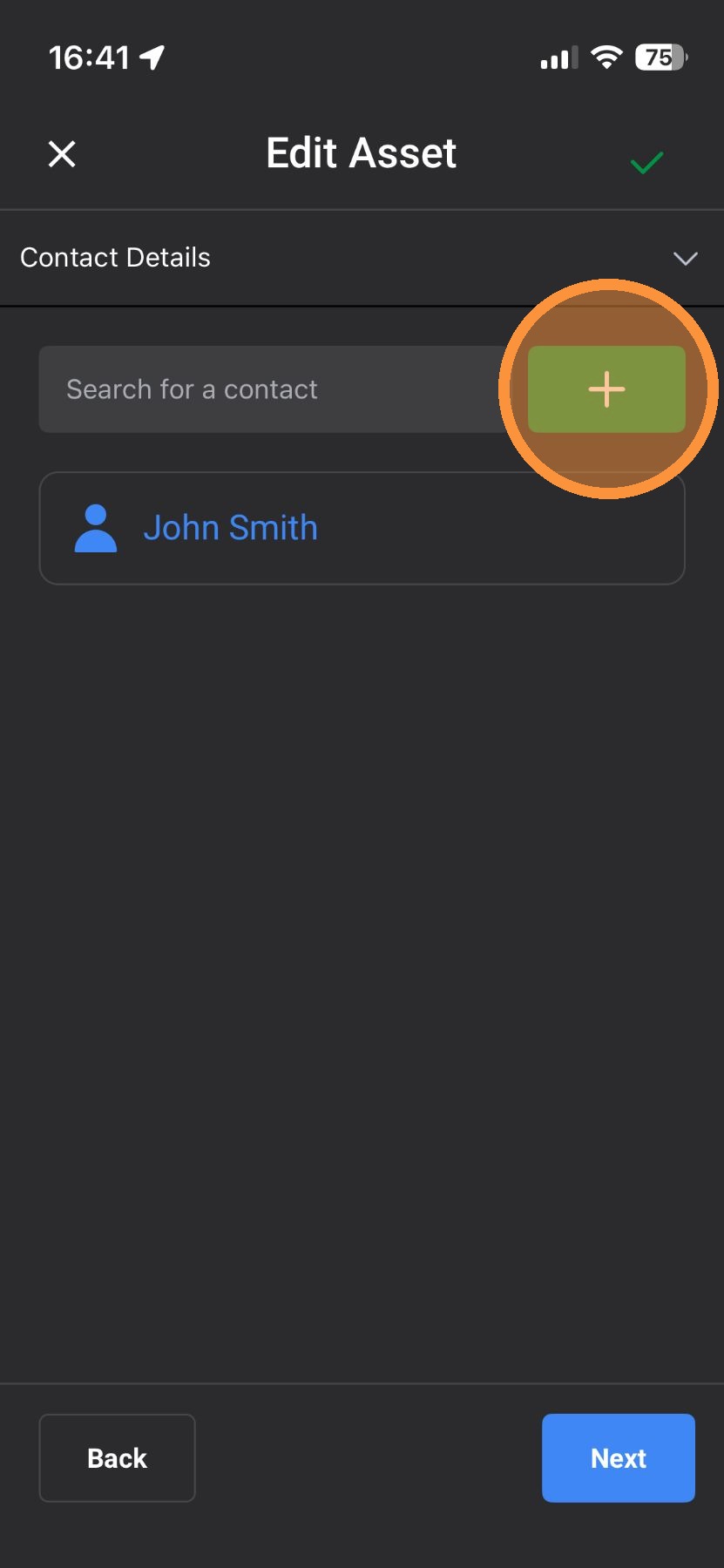
15. Tap "+" to create a new contact OR select a pre-existing contact
16. Add the Contact details
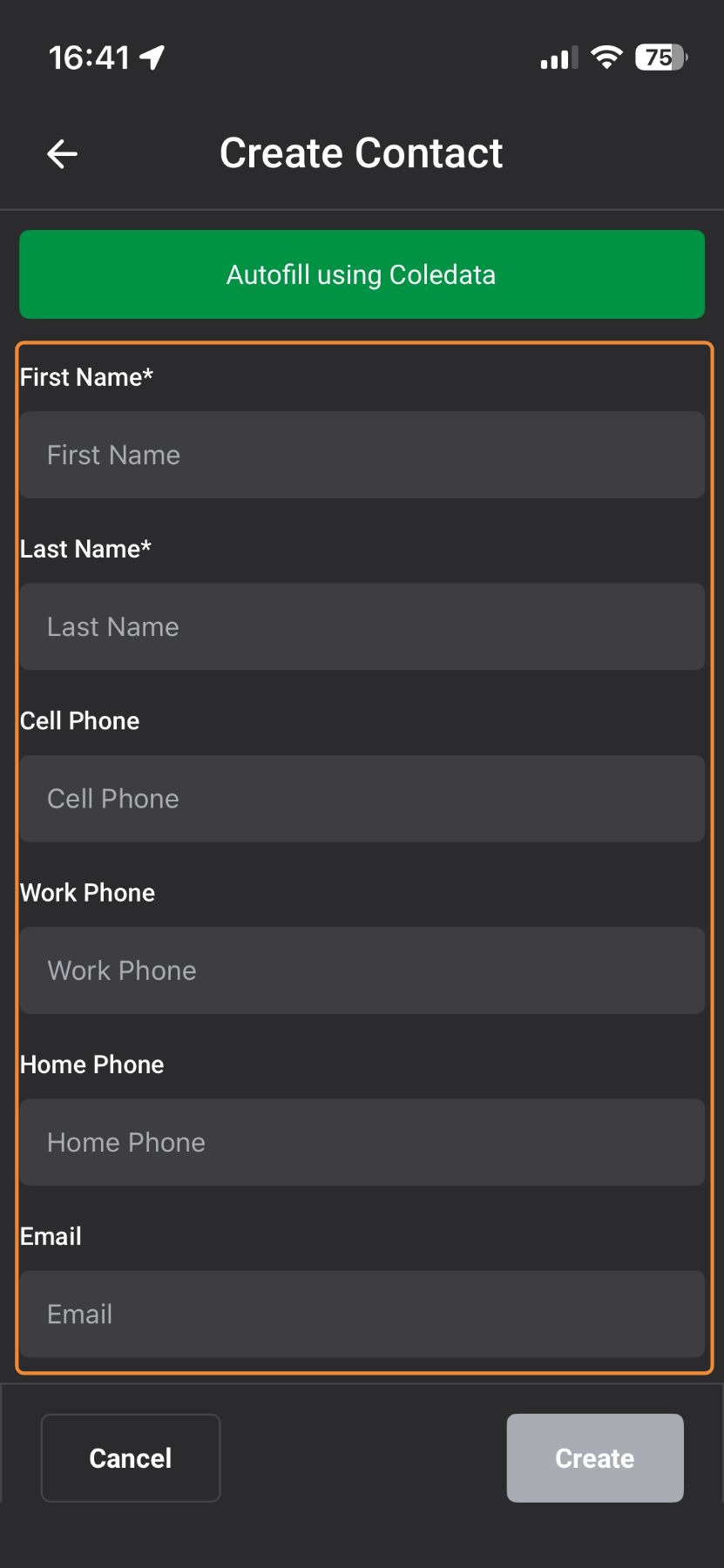
17. Tap "Create"
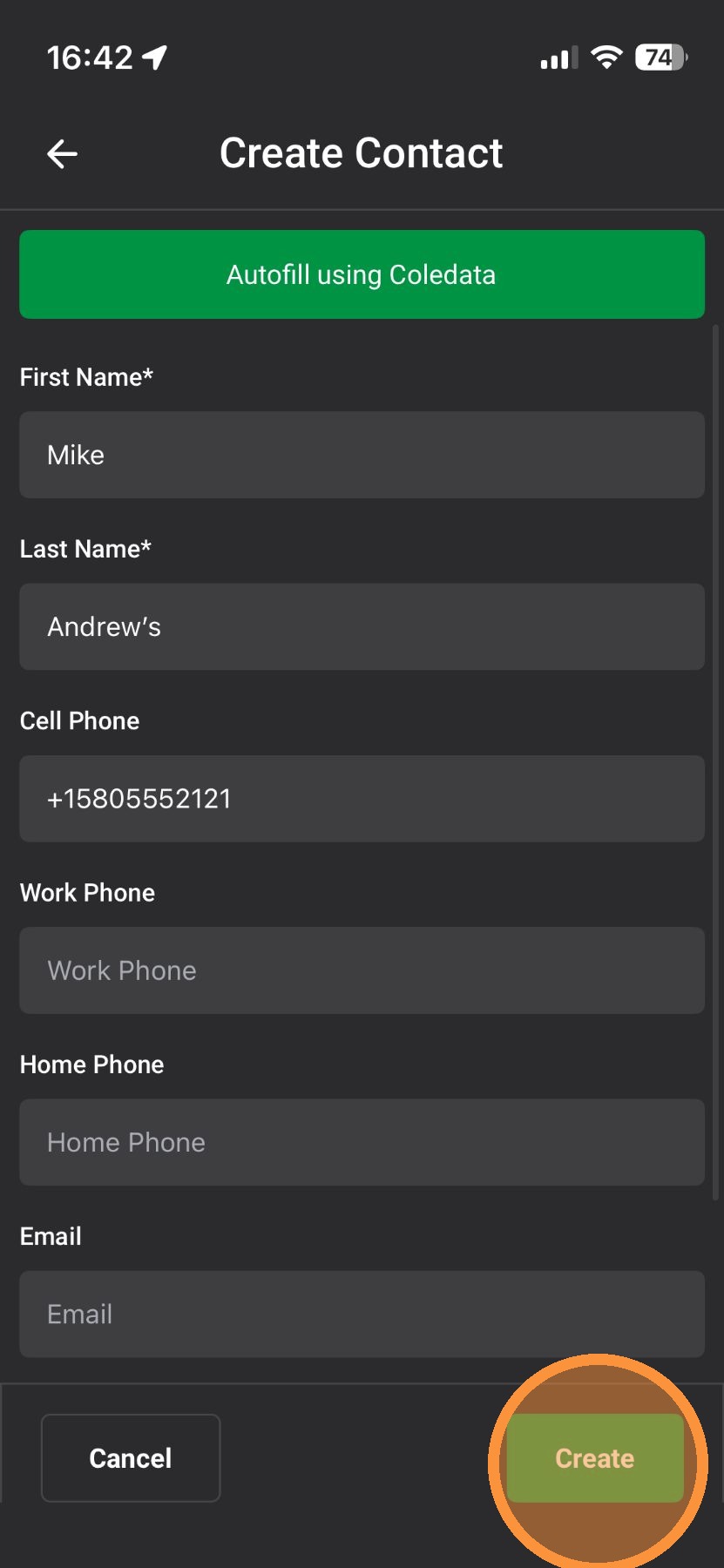
18. Add another contact or tap "Next"
19. If you have DealTrace, add Opportunity Details, such as a note, price of the roof, the priority level, and etc
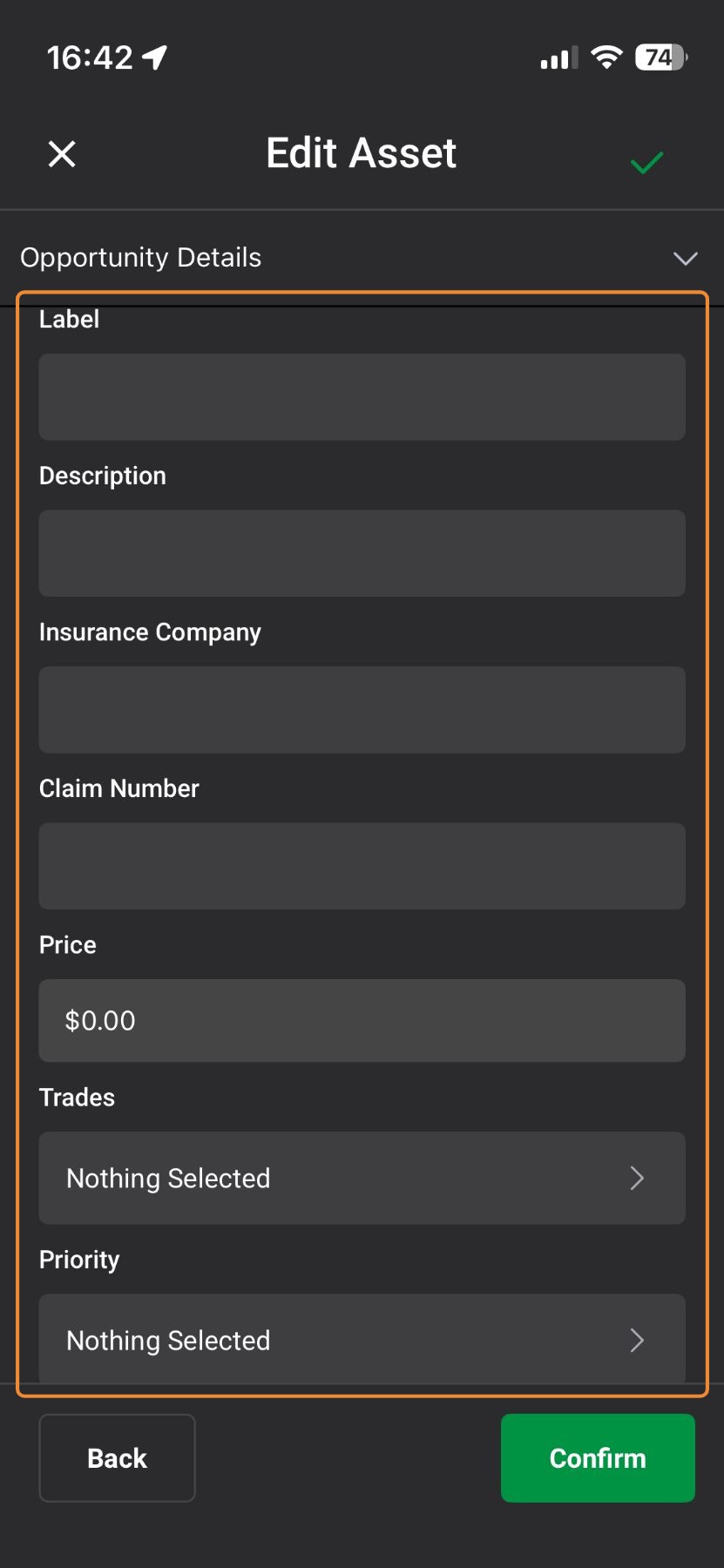
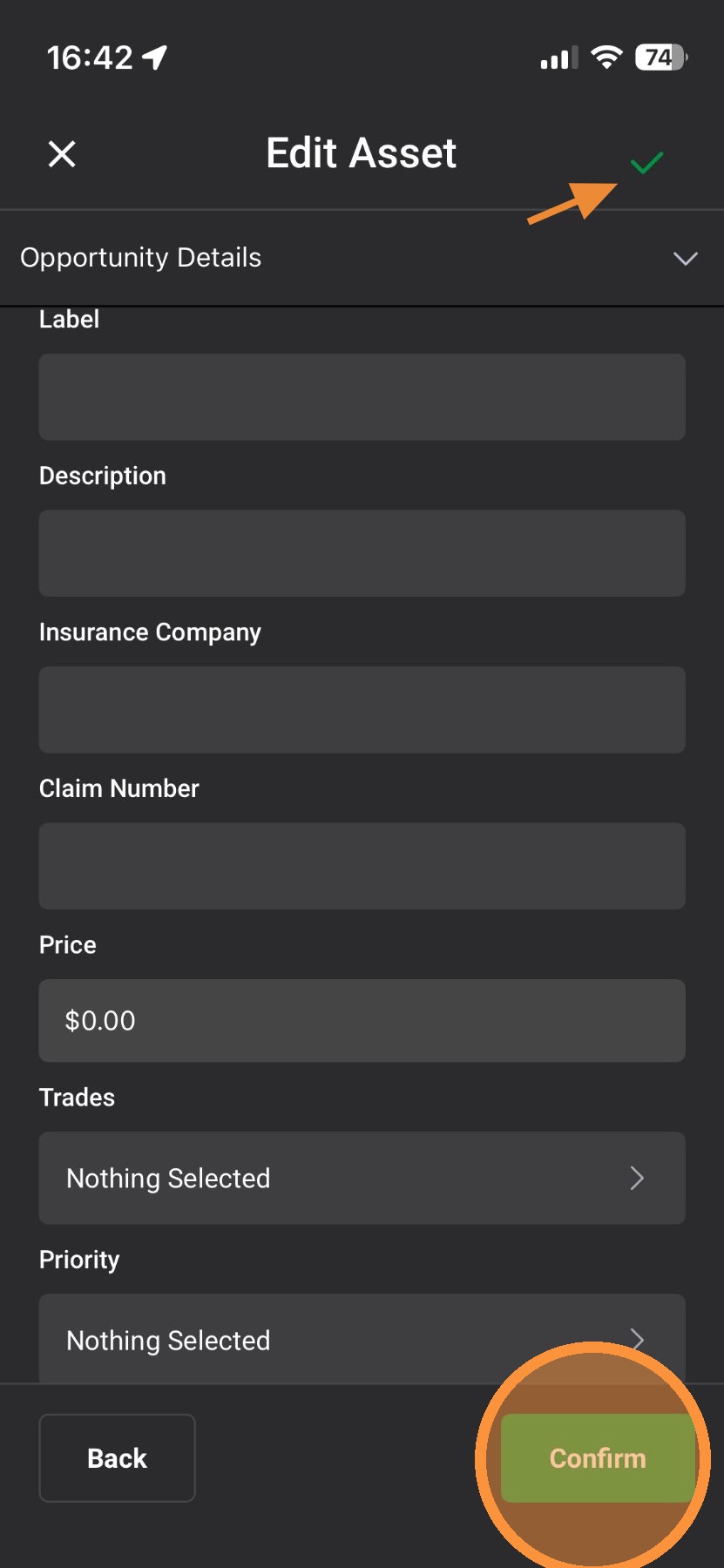
20. Tap "Confirm" and you are done!
*Note: At any point, tap the green check mark to save
Search For Address
1. Search for an address
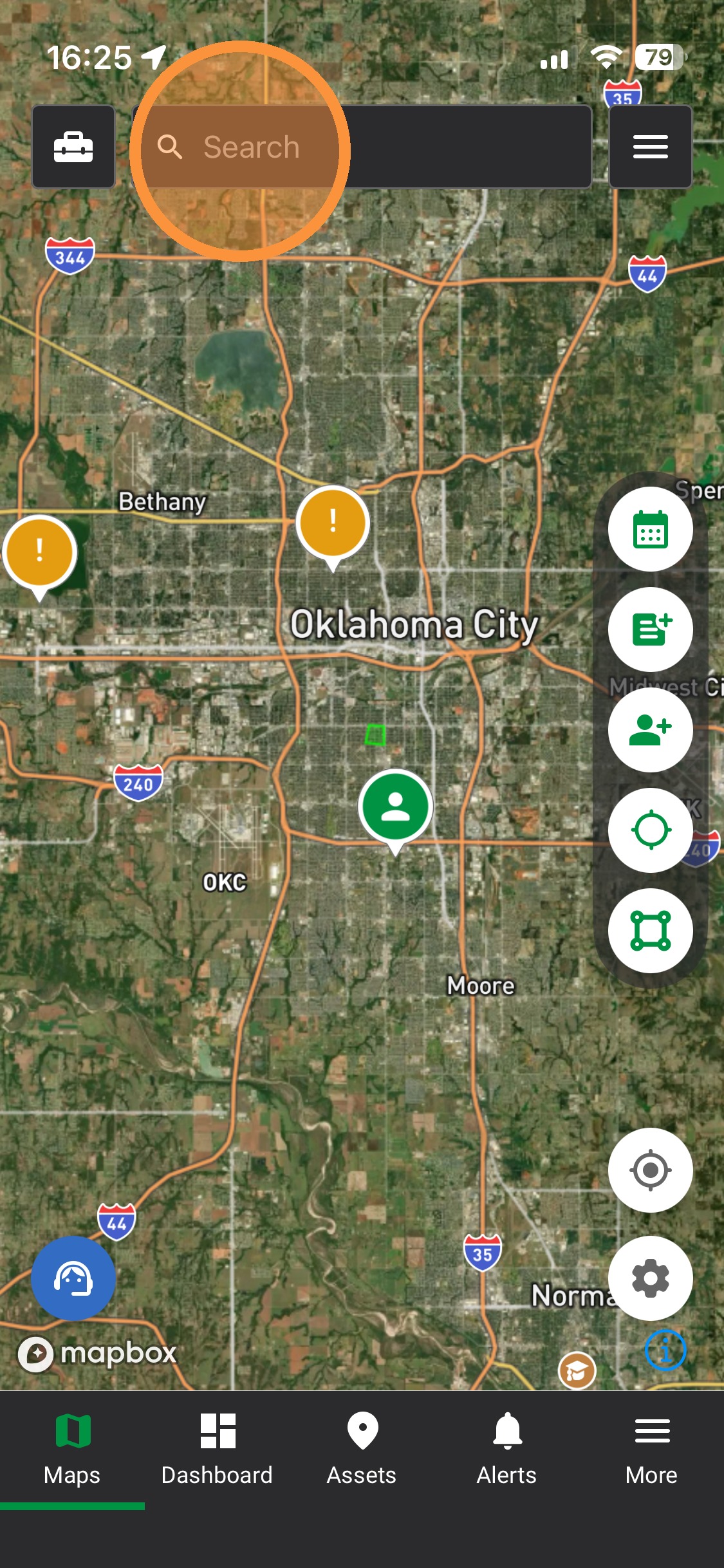
2. Tap the address
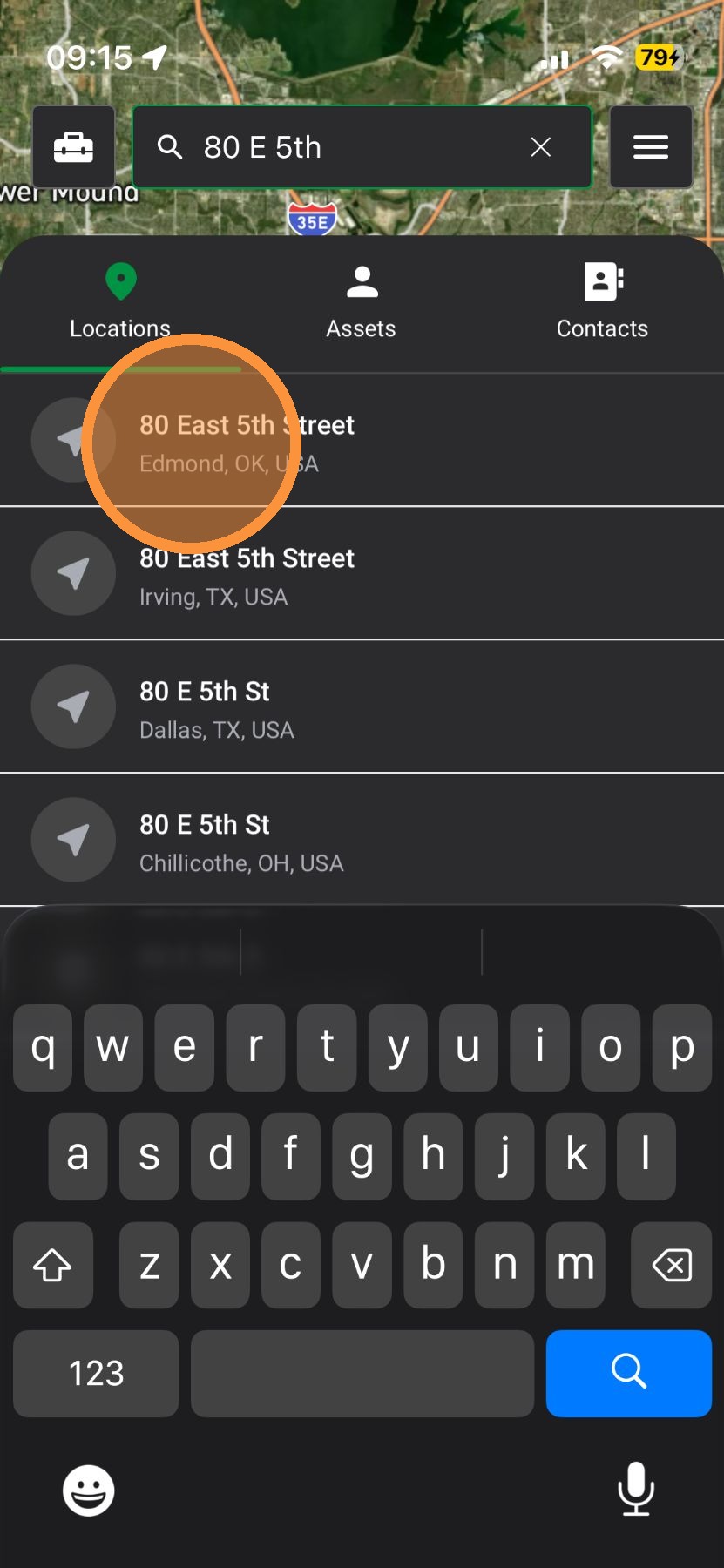
3. Tap "Create Asset"
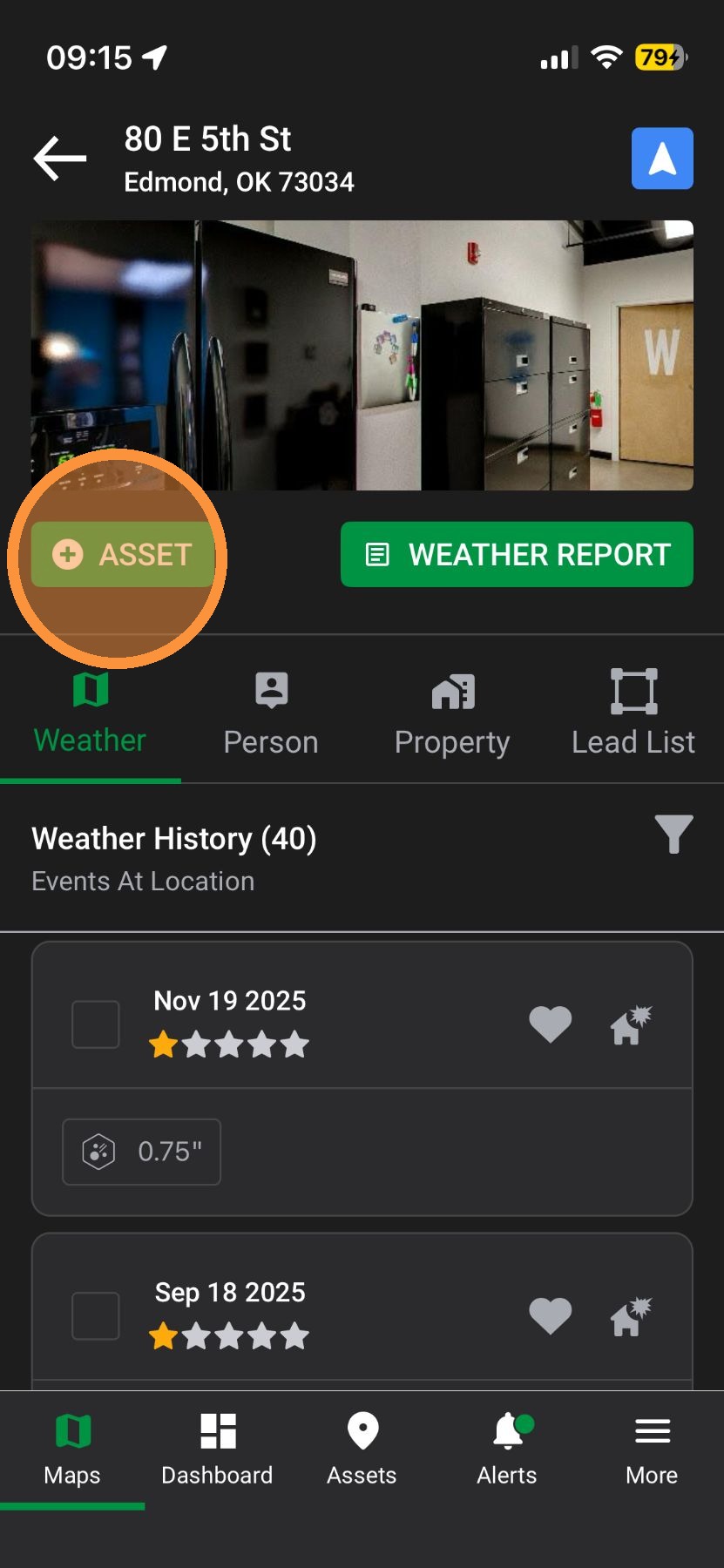
4. If the pin placement is incorrect, you can
A. Tap the blue "Location" button to place the pin at your location
B. Tap on the map adjust the pin.
5. If you have DealTrace, you can adjust the Status within your Opportunity Pipeline
6. Tap a new Status
7. If you have DealTrace, you can assign the asset to other people on your team
8. Tap to select a person
9. Tap "Create." You've created your asset!
10. To add more details, such as the owner and the roof age, select "Edit Details"
11. If needed, update the Opportunity Status & tap "Next"
12. Under "Asset Details," you can add Roof Type and Last Exterior Renovation Date
13. Tap "Next"
14. Under "Contact Details," add an Owner, Manager, or Tenant
15. Tap "+" to create a new contact OR select a pre-existing contact
16. Add the Contact details
17. Tap "Create"
18. Add another contact or tap "Next"
19. If you have DealTrace, add Opportunity Details, such as a note, price of the roof, the priority level, and etc
20. Tap "Confirm" and you are done!
*Note: At any point, tap the green check mark to save
Browser App
Drop A Pin
1. Click "Maps" Page
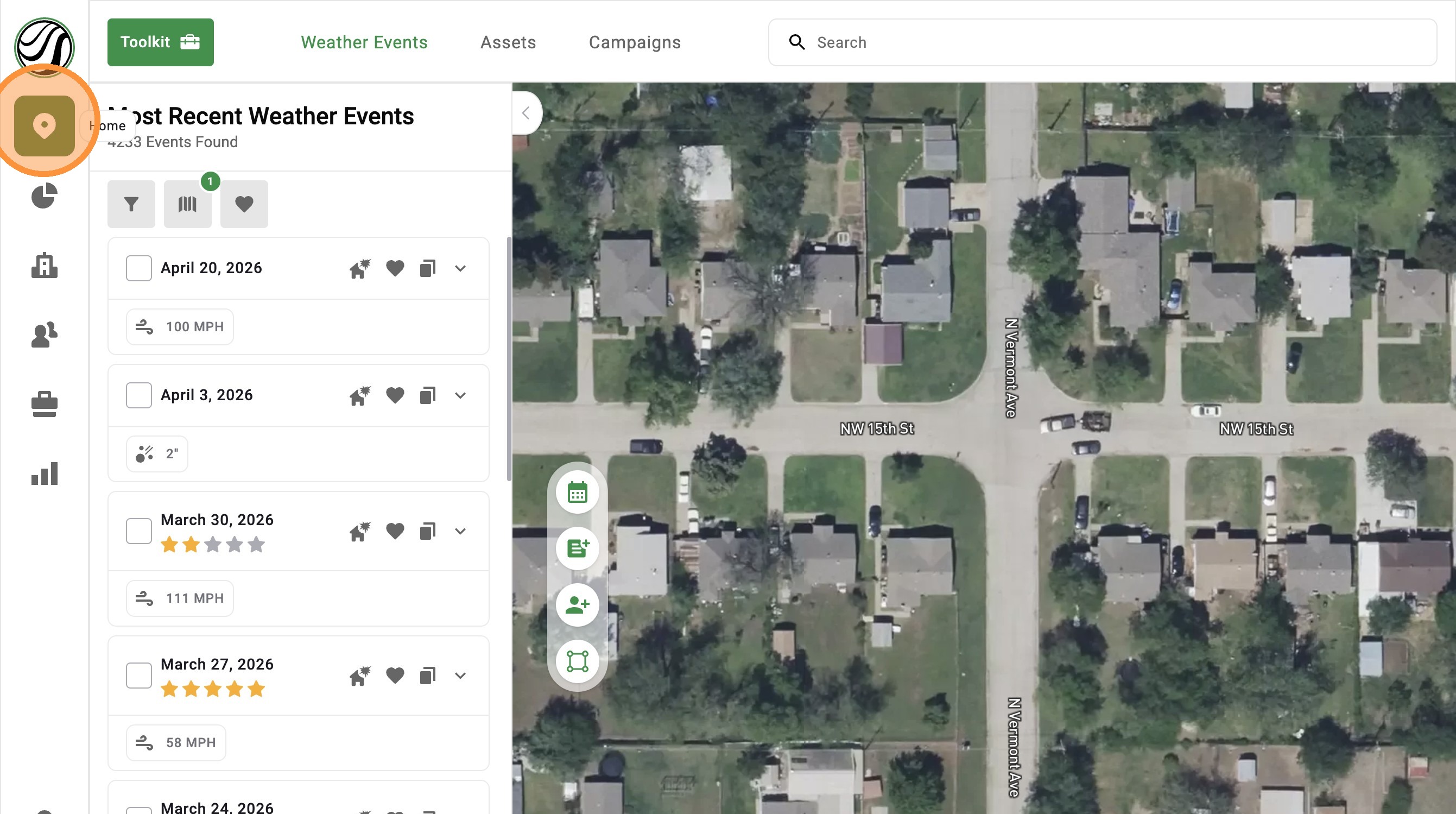
2. Click "Create Asset"
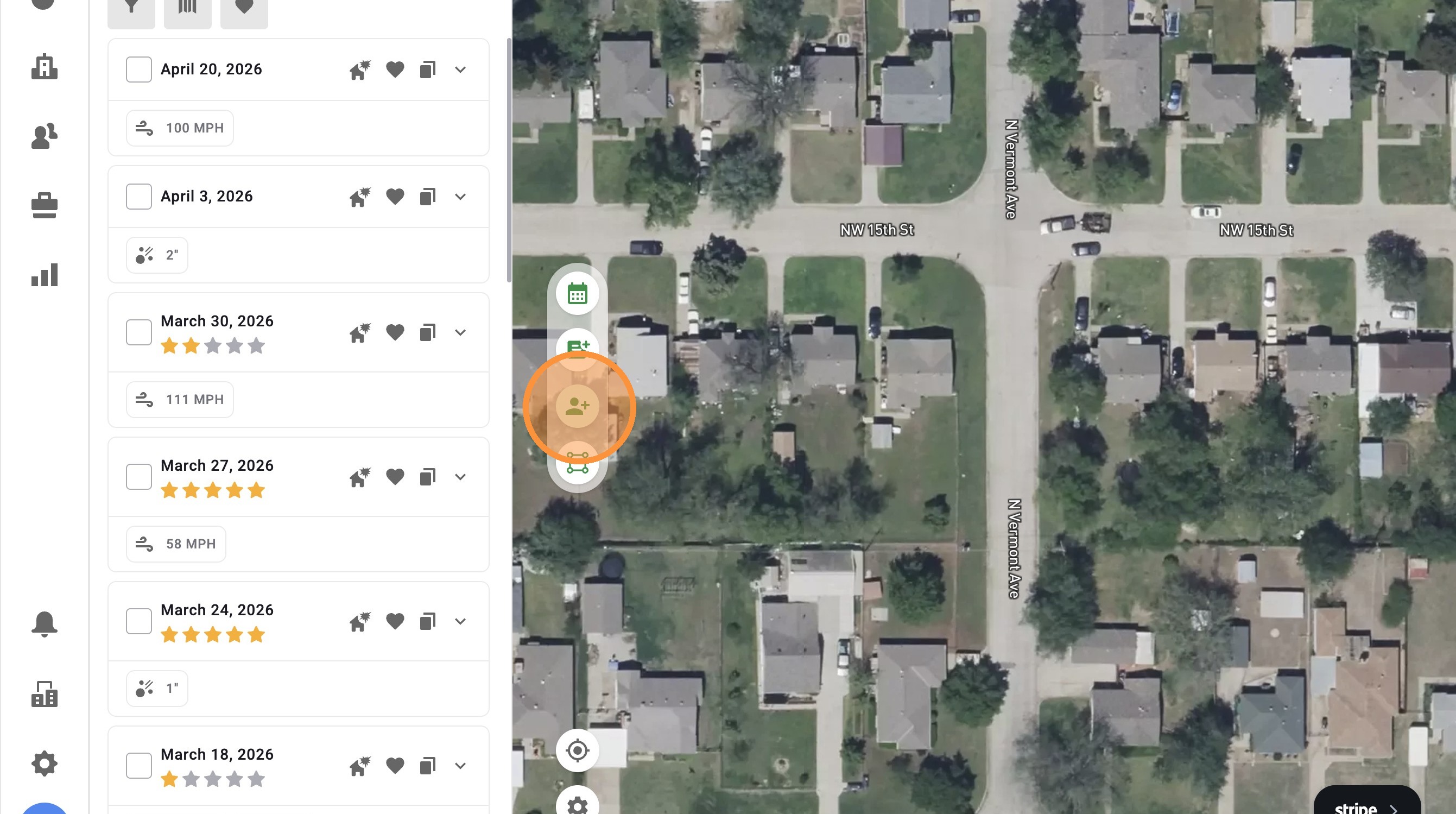
3. Click an address
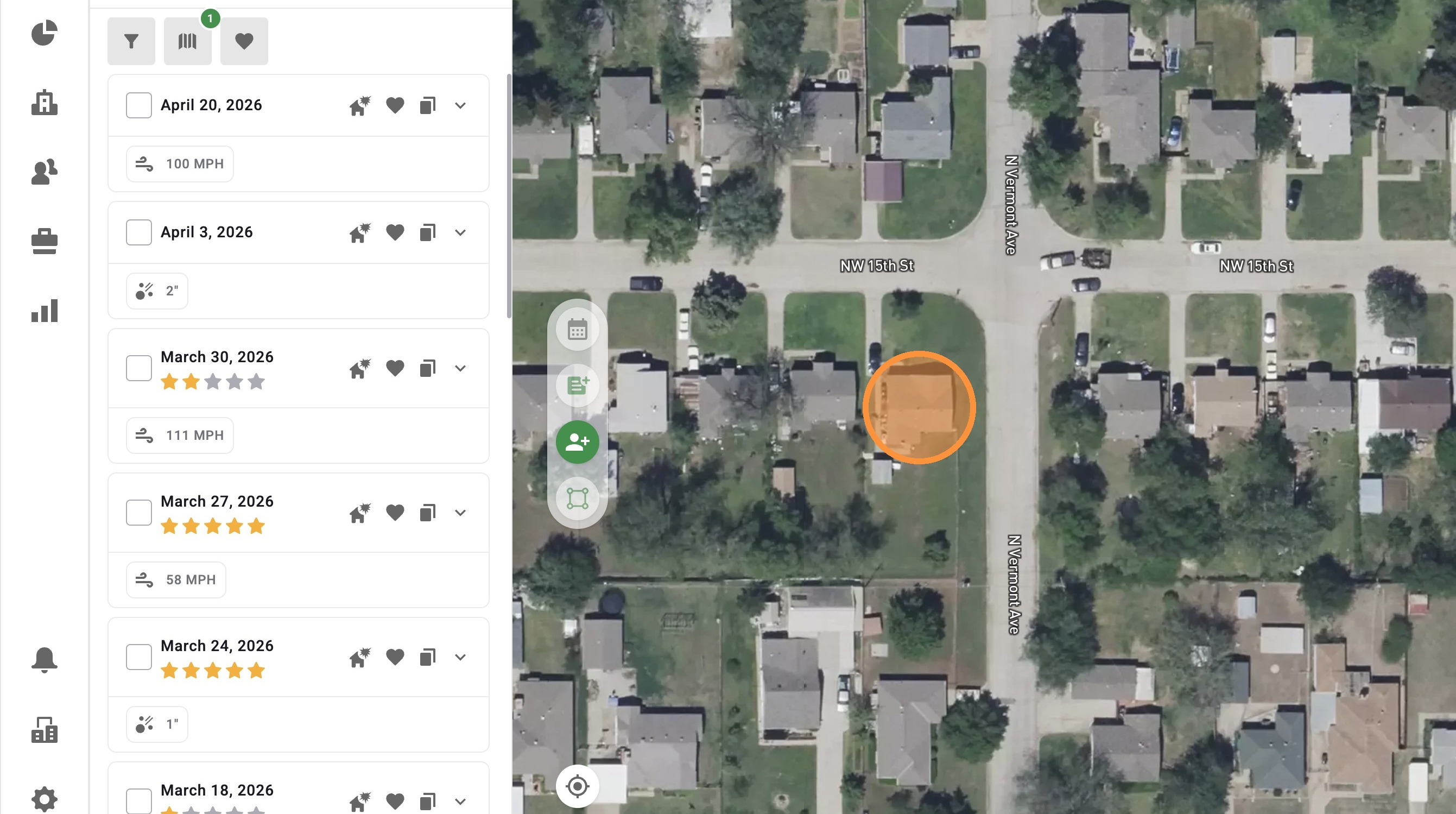
4. If the pin placement is incorrect, you can
B. Click the blue "Location" button to place the pin at your location
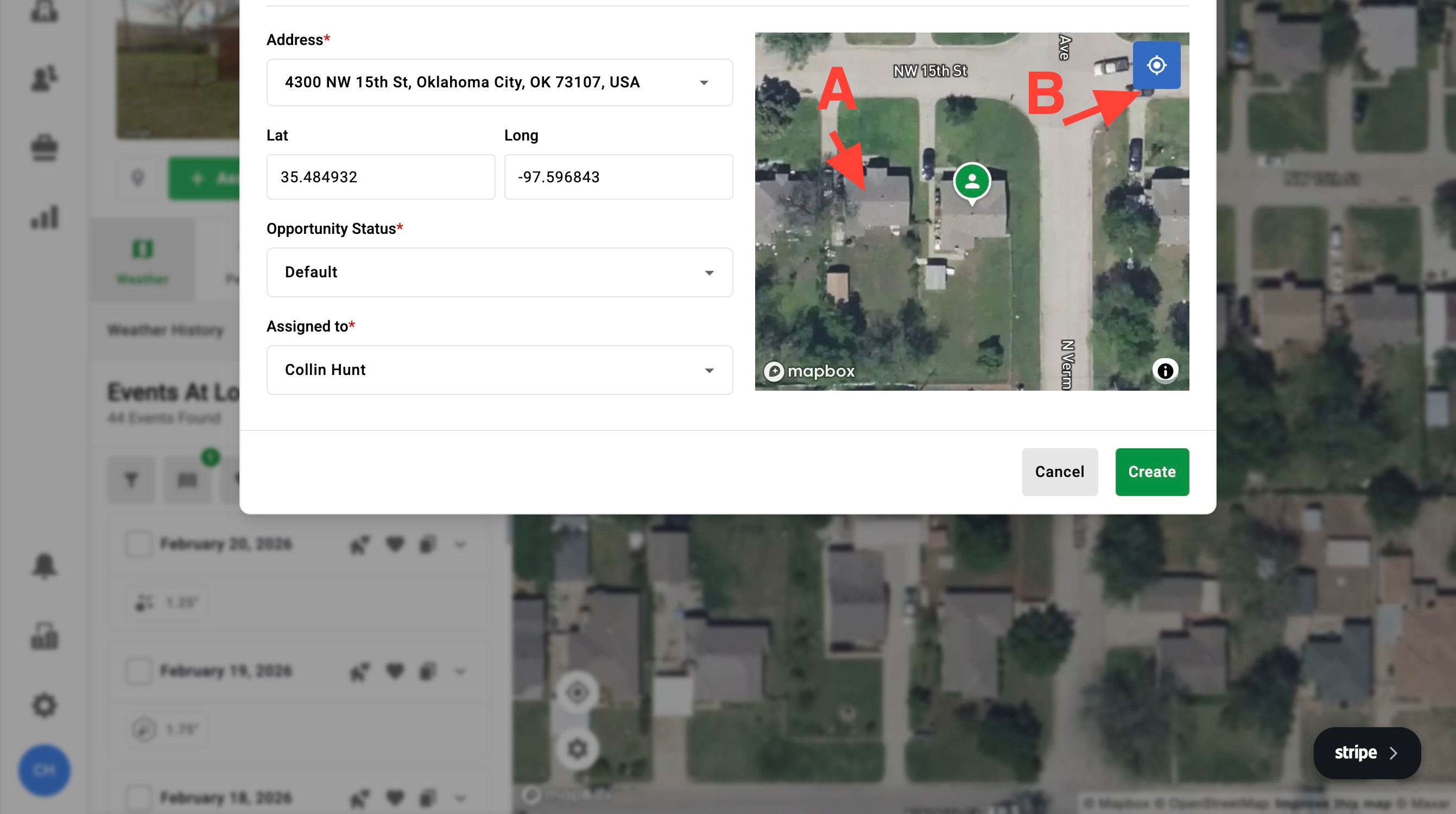
5. If you have DealTrace, you can adjust the Status within your Opportunity Pipeline
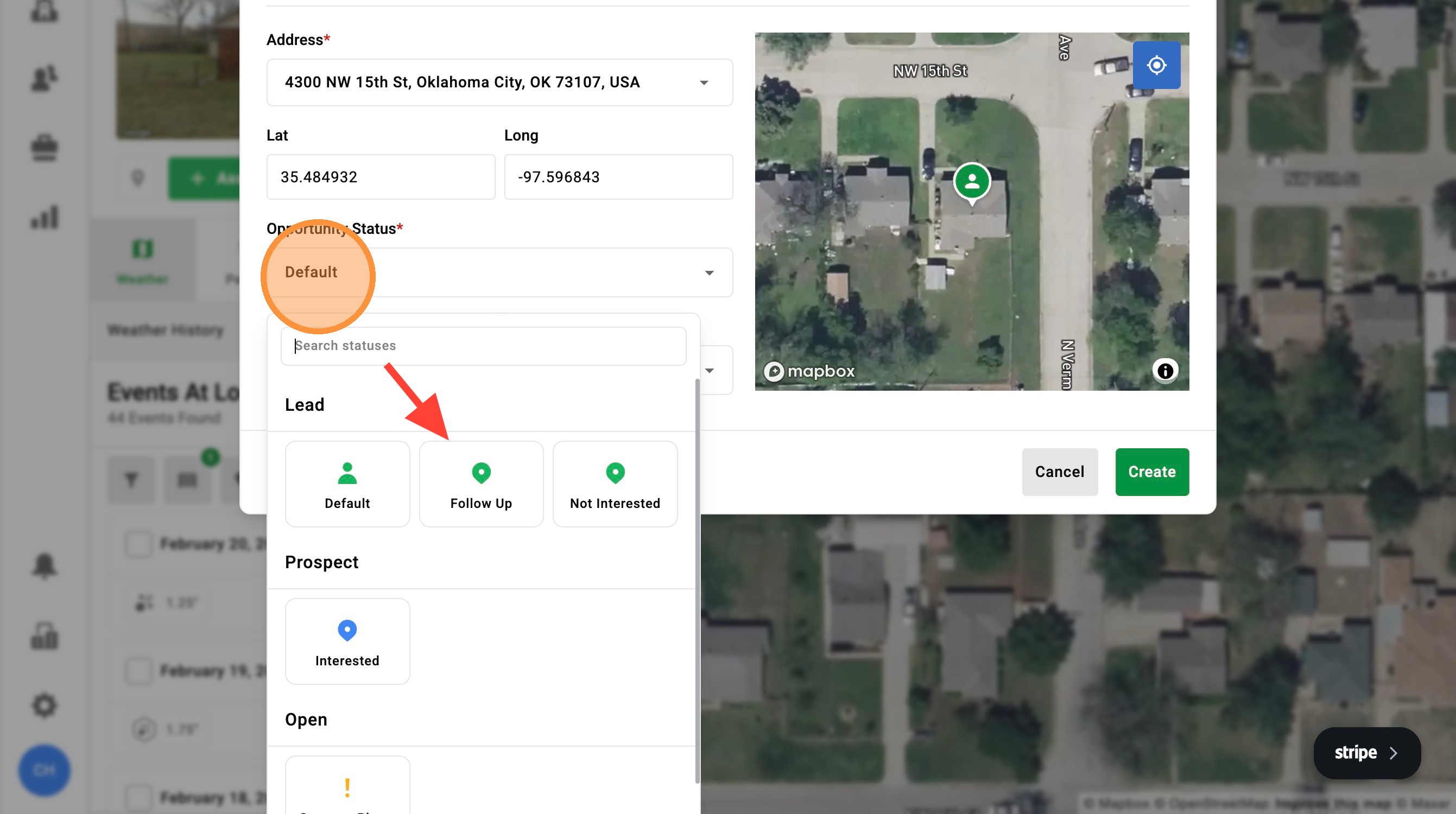
6. If you have DealTrace, you can assign the asset to other people on your team
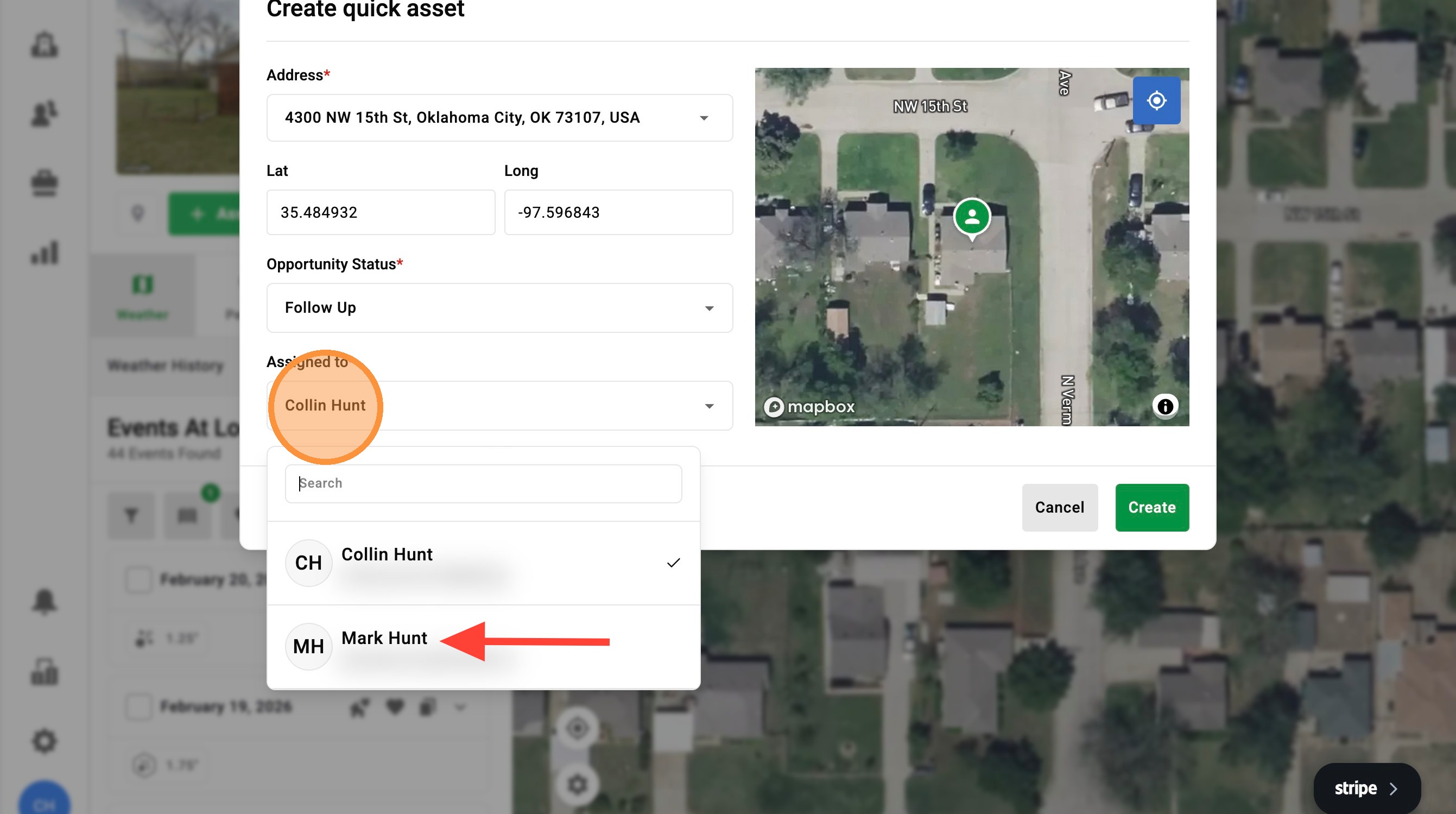
7. Click "Create." You've created your asset!
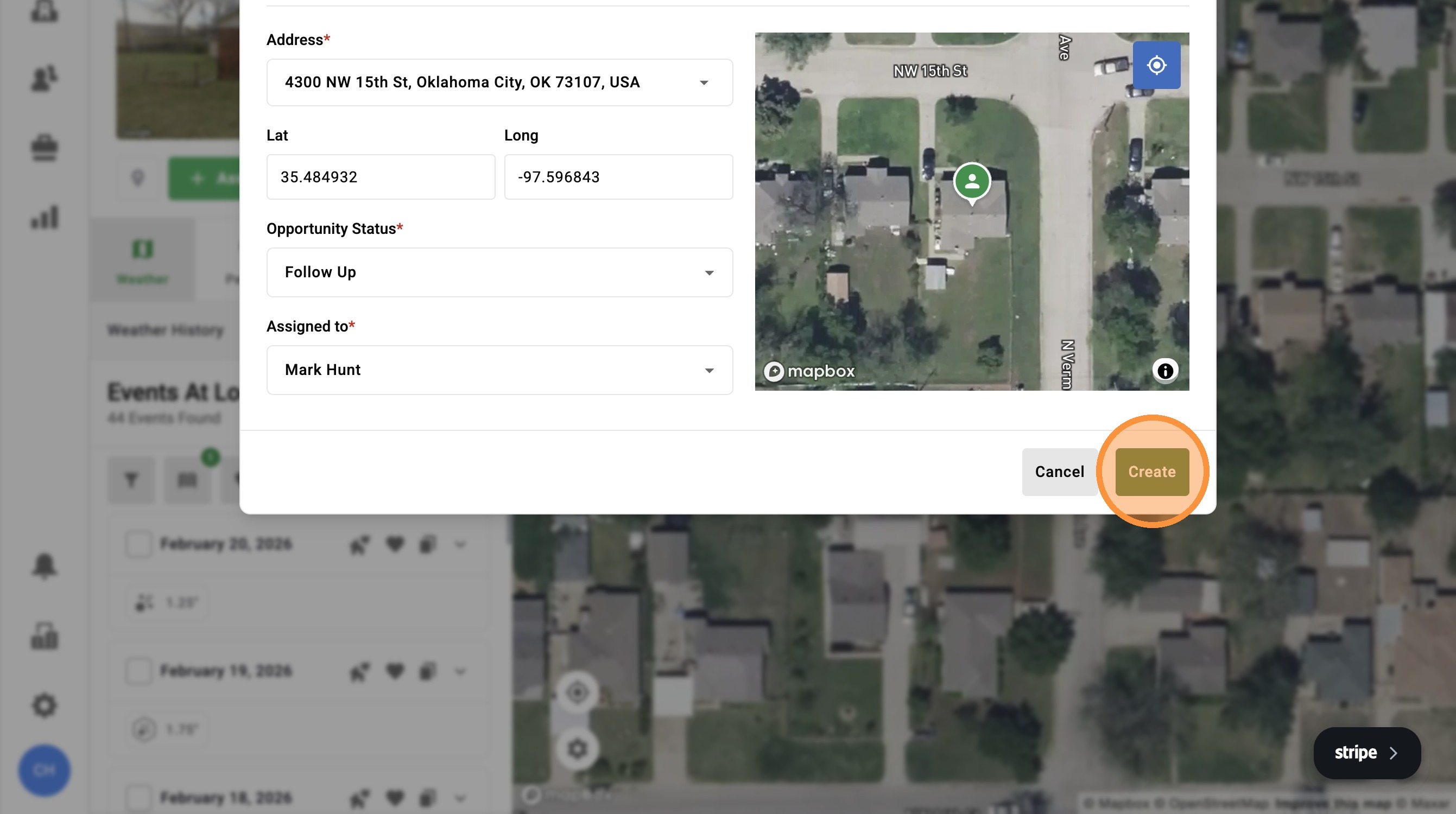
8. To add more details, such as the owner and the roof age, select "Edit Details"
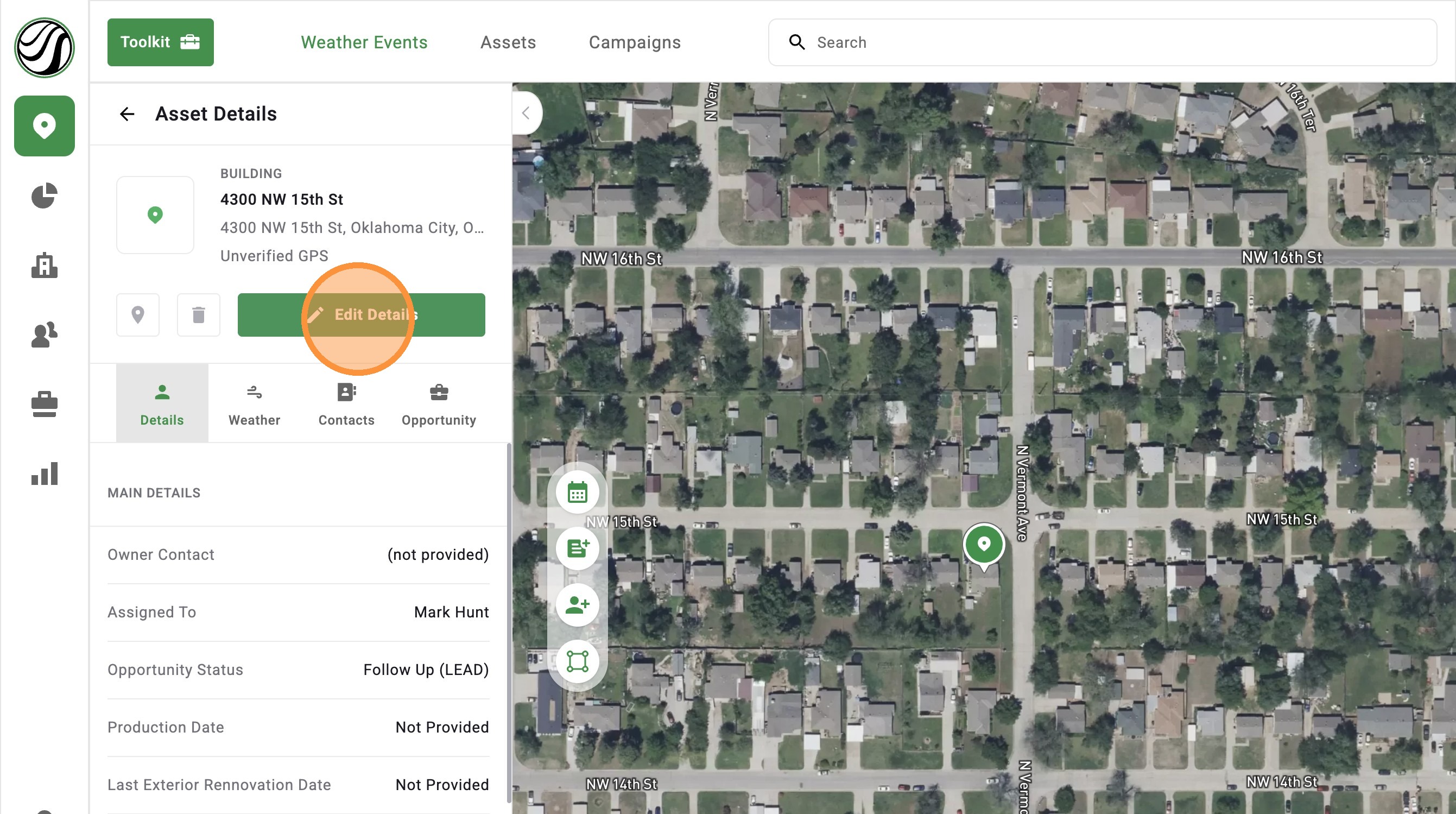
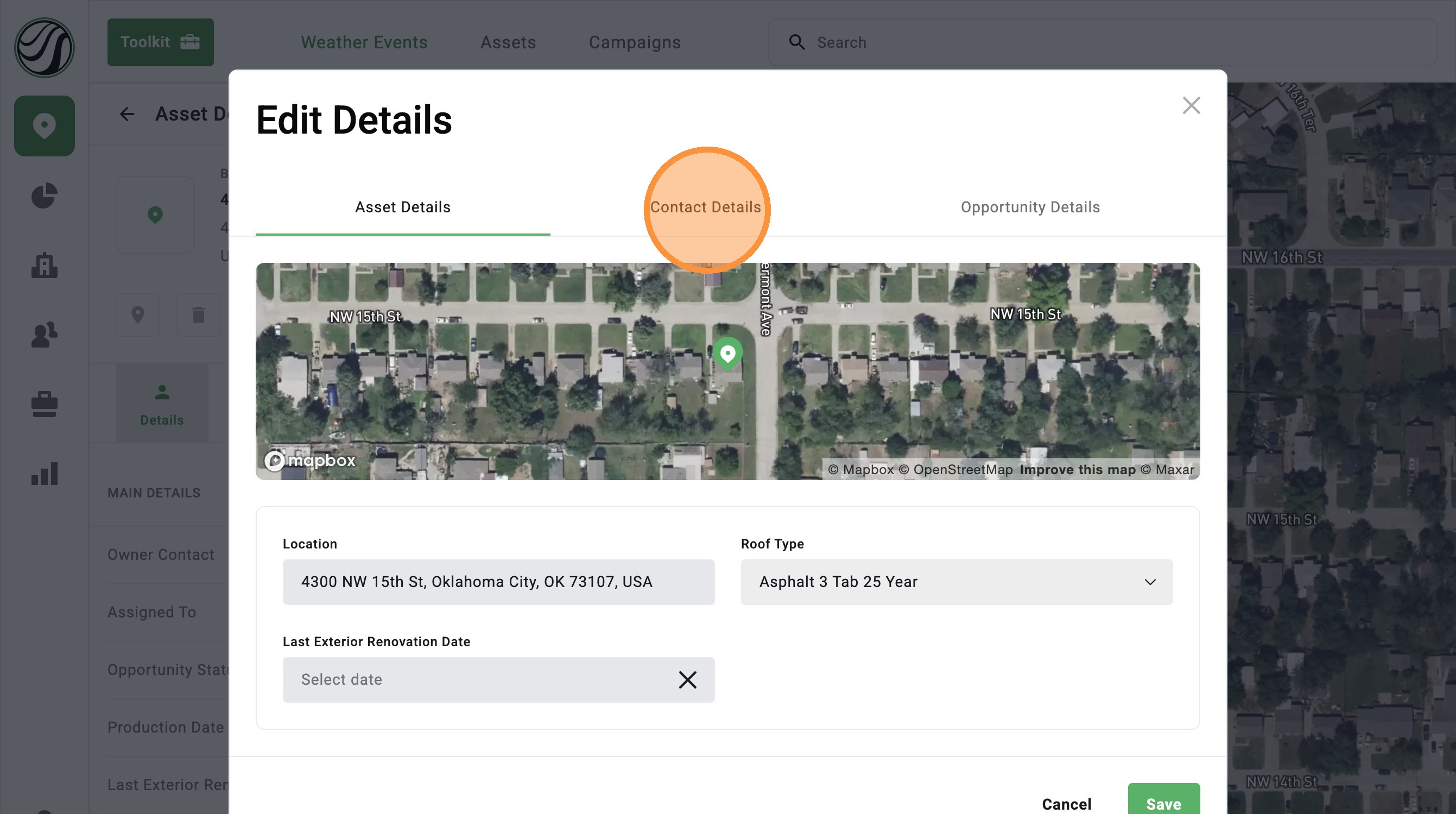
9. Under "Asset Details," you can add Roof Type and Last Exterior Renovation Date
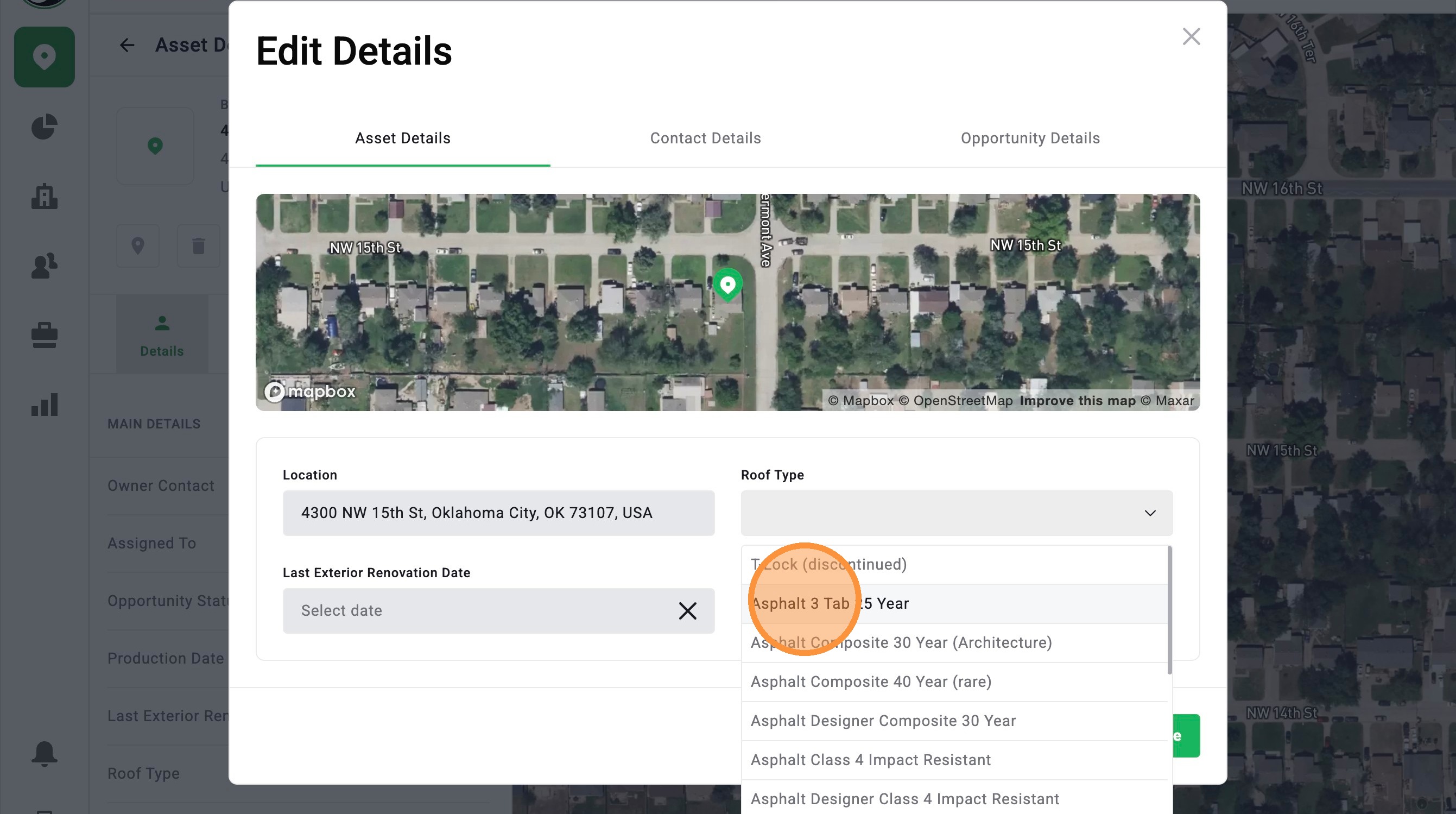
10. Click "Contact Details"
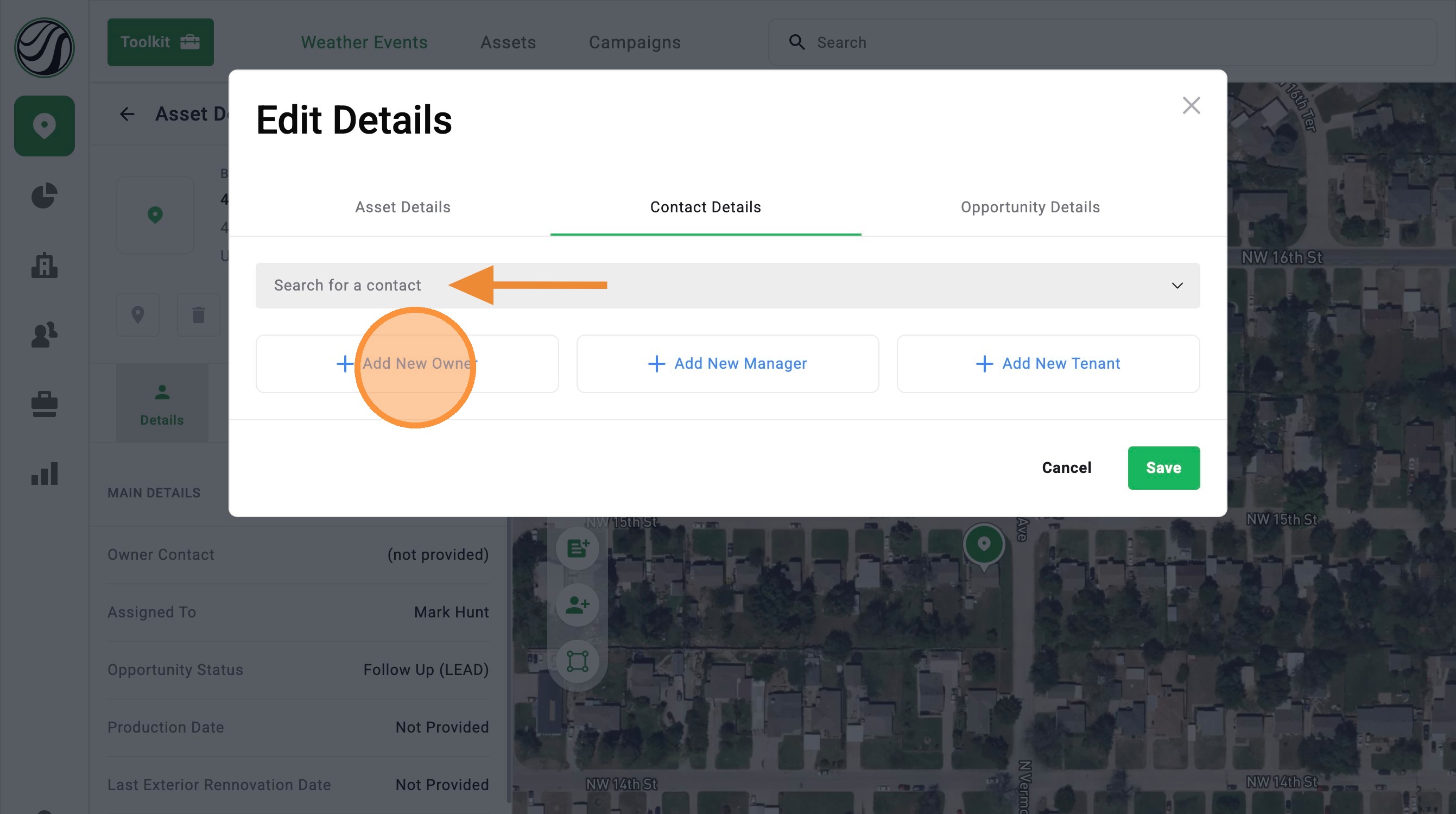
11. Search for a existing contact or add a New Owner, Manager, or Tenant
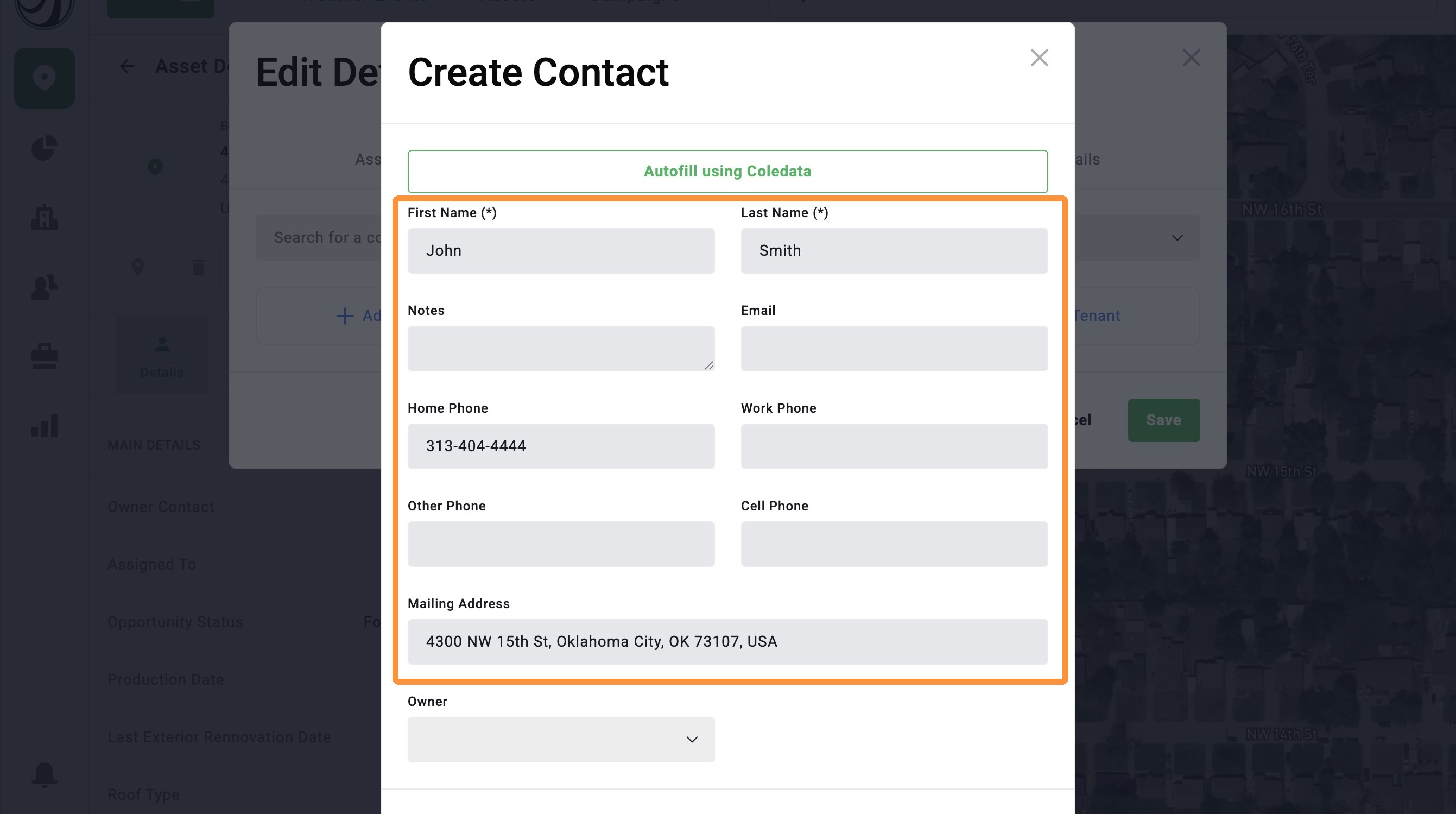
12. Add the Contact details
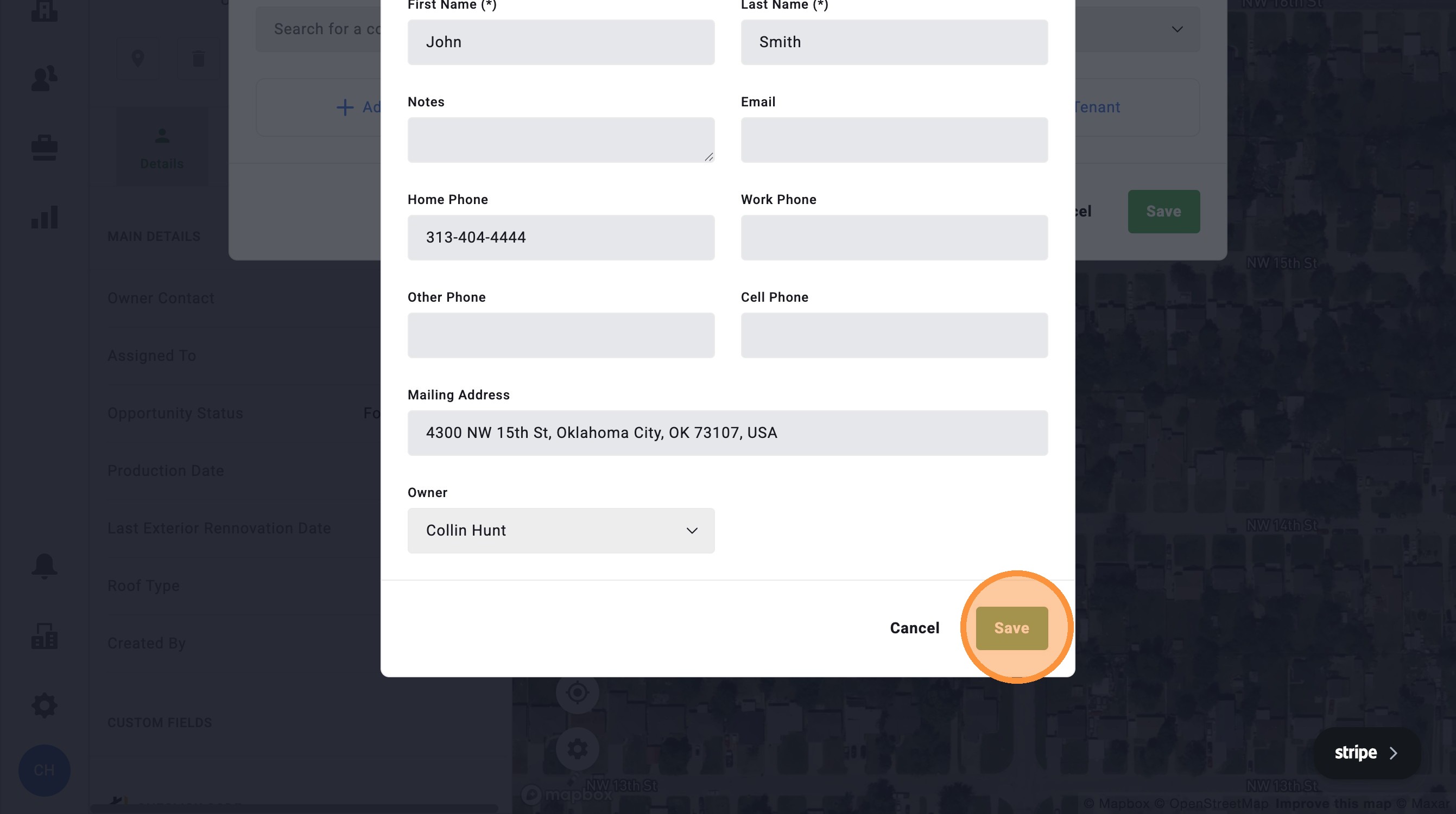
13. Click "Save"
14. Click "Opportunity Details"
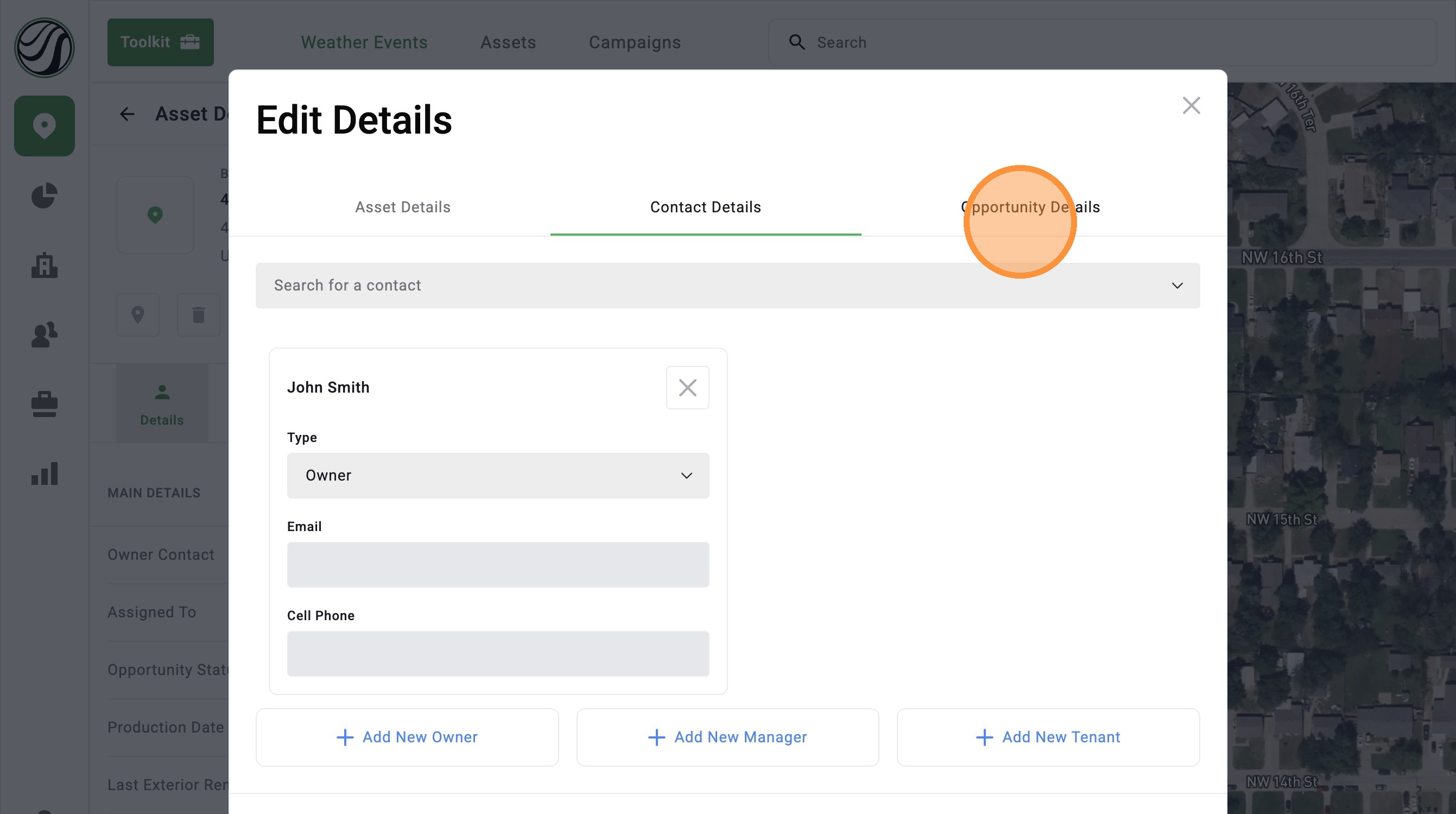
15. If you have DealTrace, add Opportunity Details, such as a note, price of the roof, the priority level, and etc
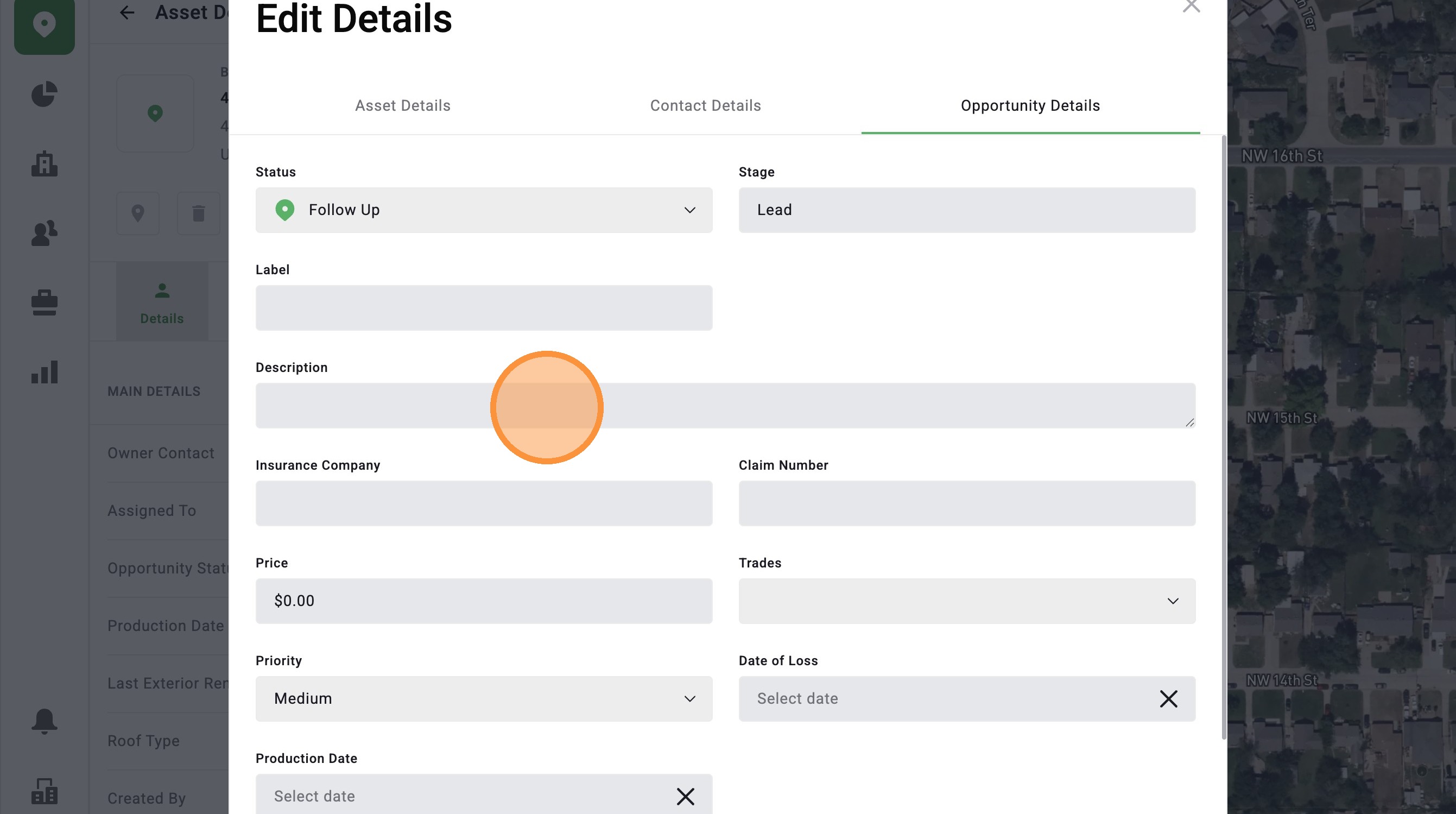
16. Click "Save"
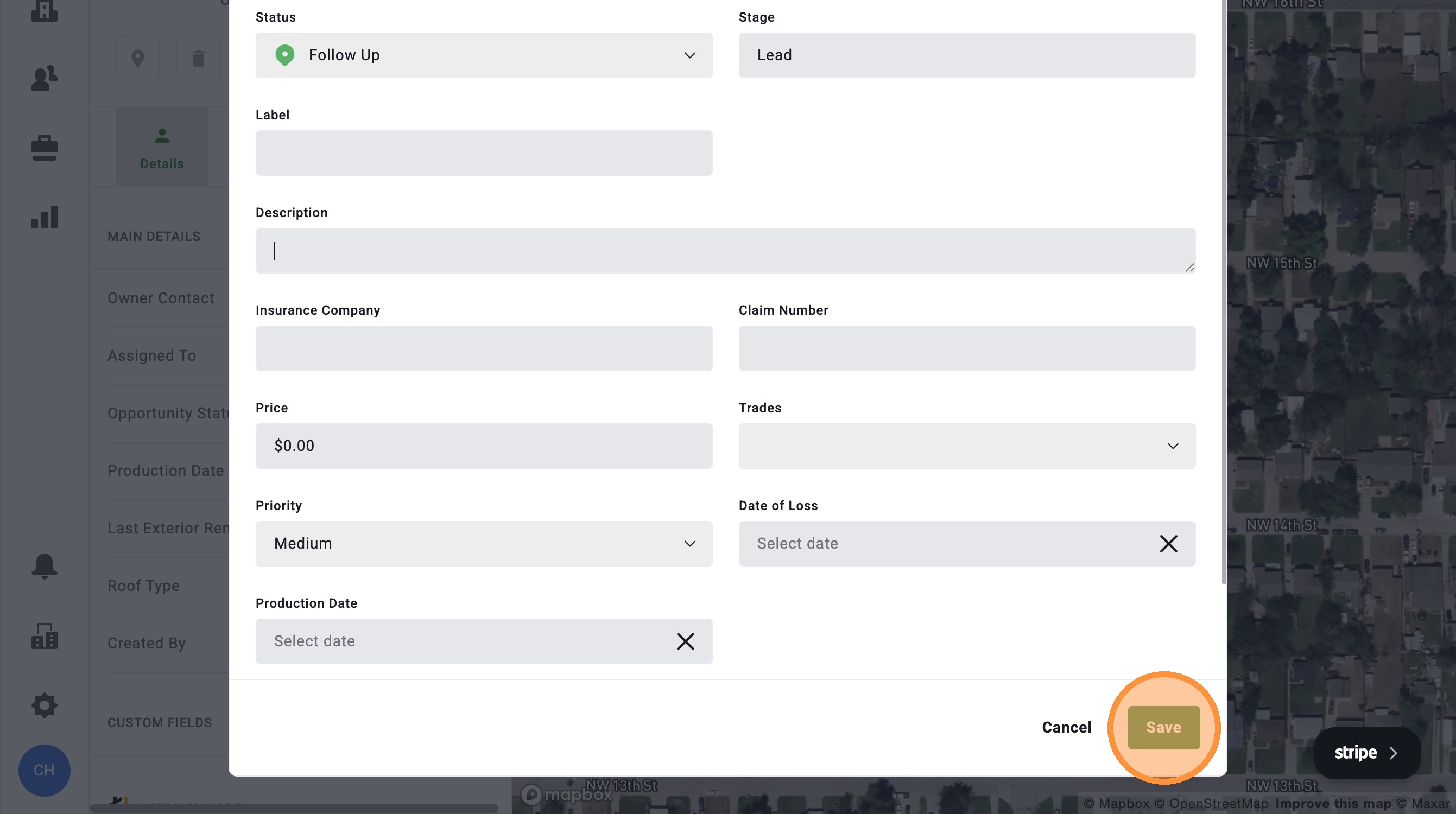
Search For Address
1. Click "Maps" page
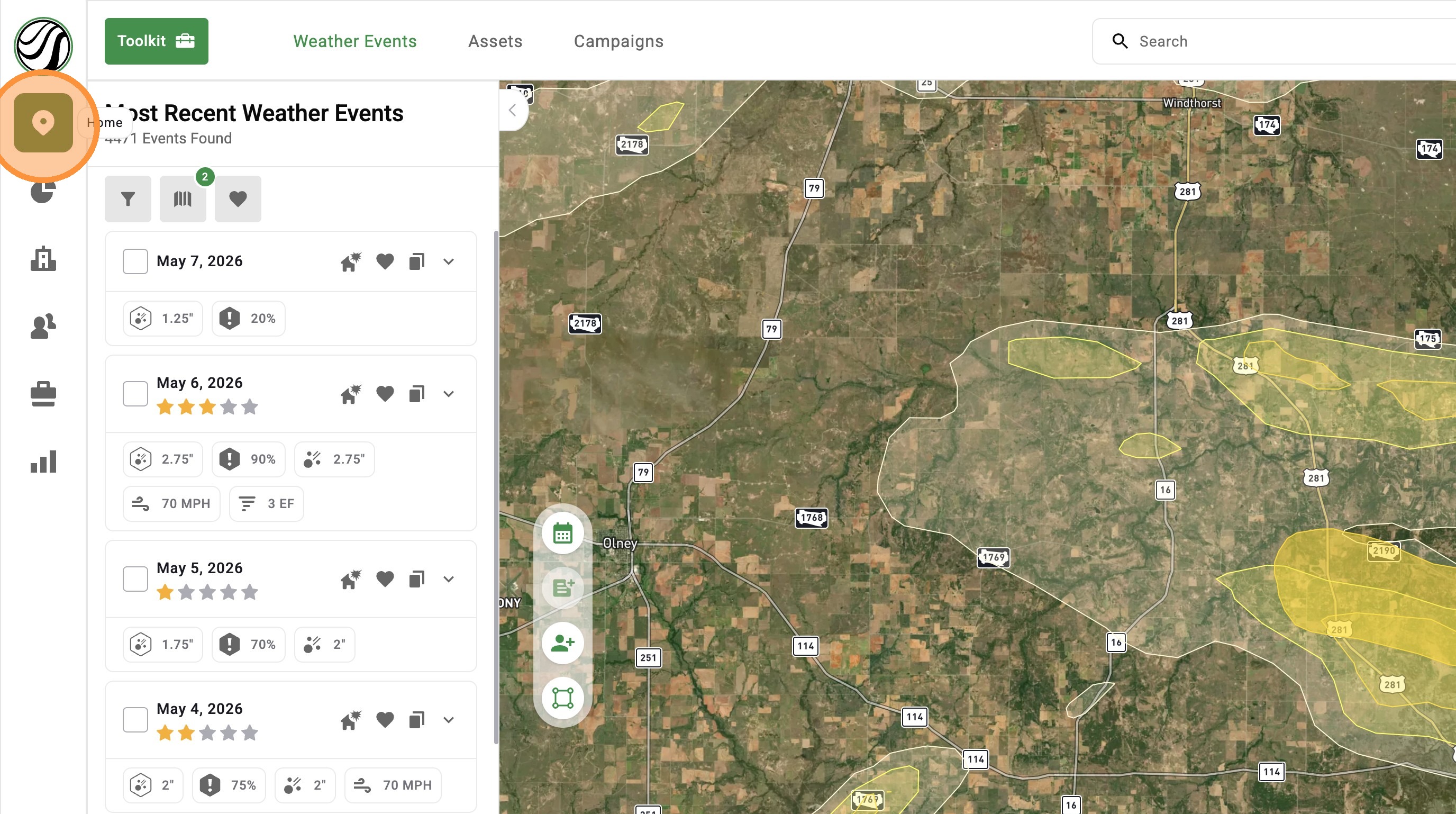
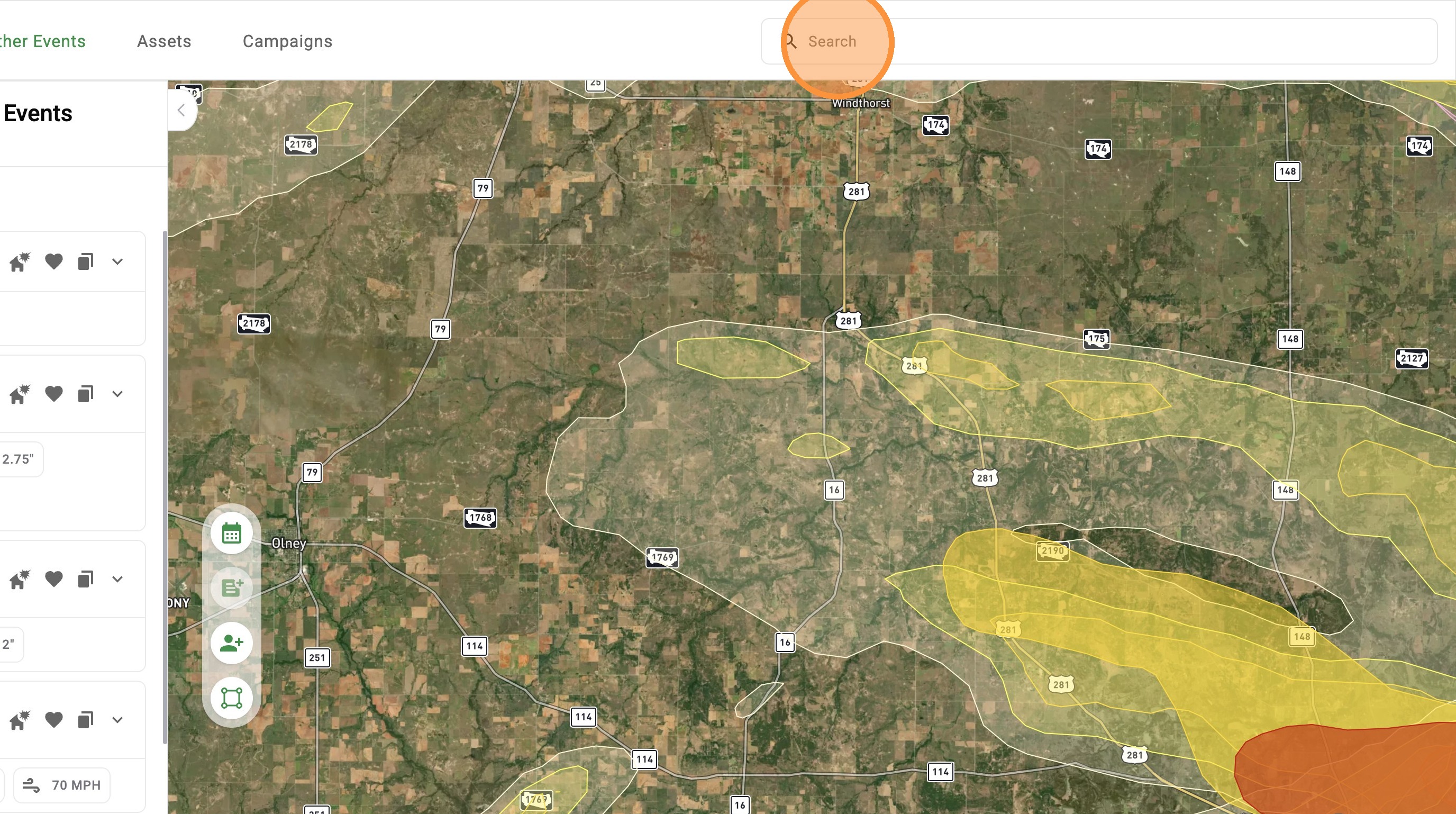
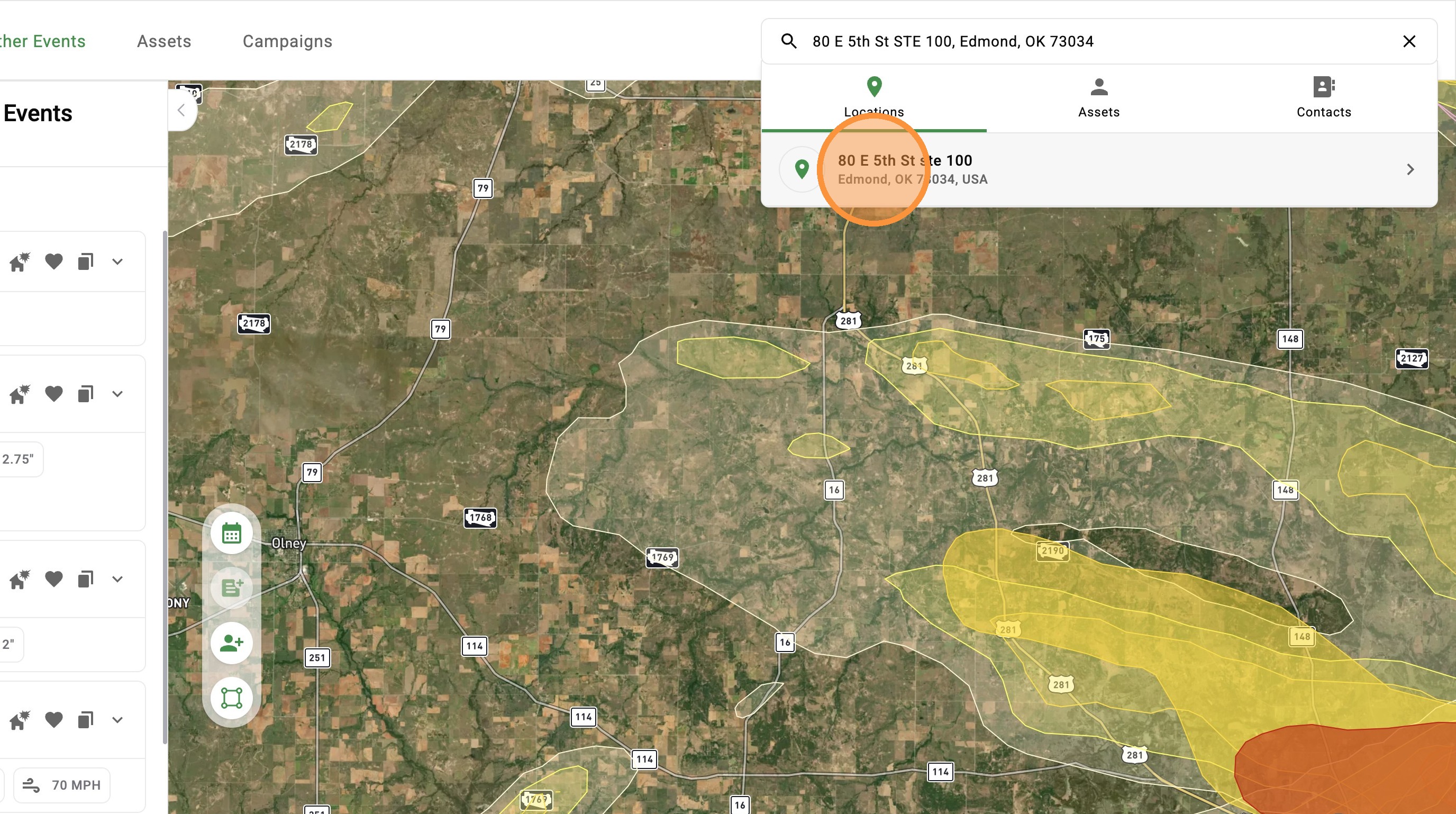
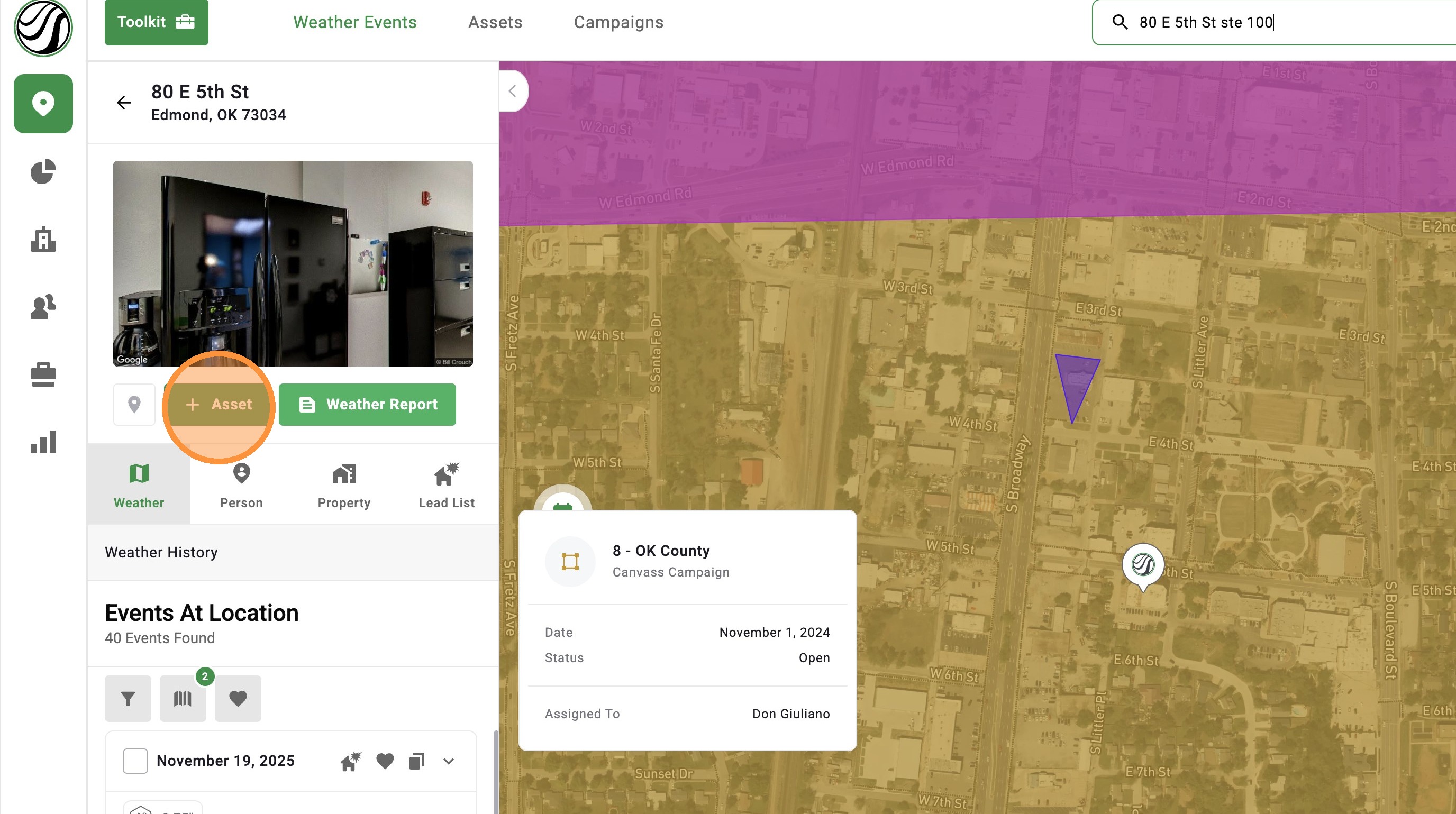
5. If the pin placement is incorrect, you can
B. Click the blue "Location" button to place the pin at your location
6. If you have DealTrace, you can adjust the Status within your Opportunity Pipeline
7. If you have DealTrace, you can assign the asset to other people on your team
8. Click "Create." You've created your asset!
9. To add more details, such as the owner and the roof age, select "Edit Details"
10. Under "Asset Details," you can add Roof Type and Last Exterior Renovation Date
11. Click "Contact Details"
12. Search for a existing contact or add a New Owner, Manager, or Tenant
13. Add the Contact details
14. Click "Save"
15. Click "Opportunity Details"
16. If you have DealTrace, add Opportunity Details, such as a note, price of the roof, the priority level, and etc
17. Click "Save"