[5.0] Impacted Assets: From a Selected Timeframe
Find assets impacted by hail, wind, or tornado events within a selected date range, helping you target the right leads with more refined search results.

Mobile App
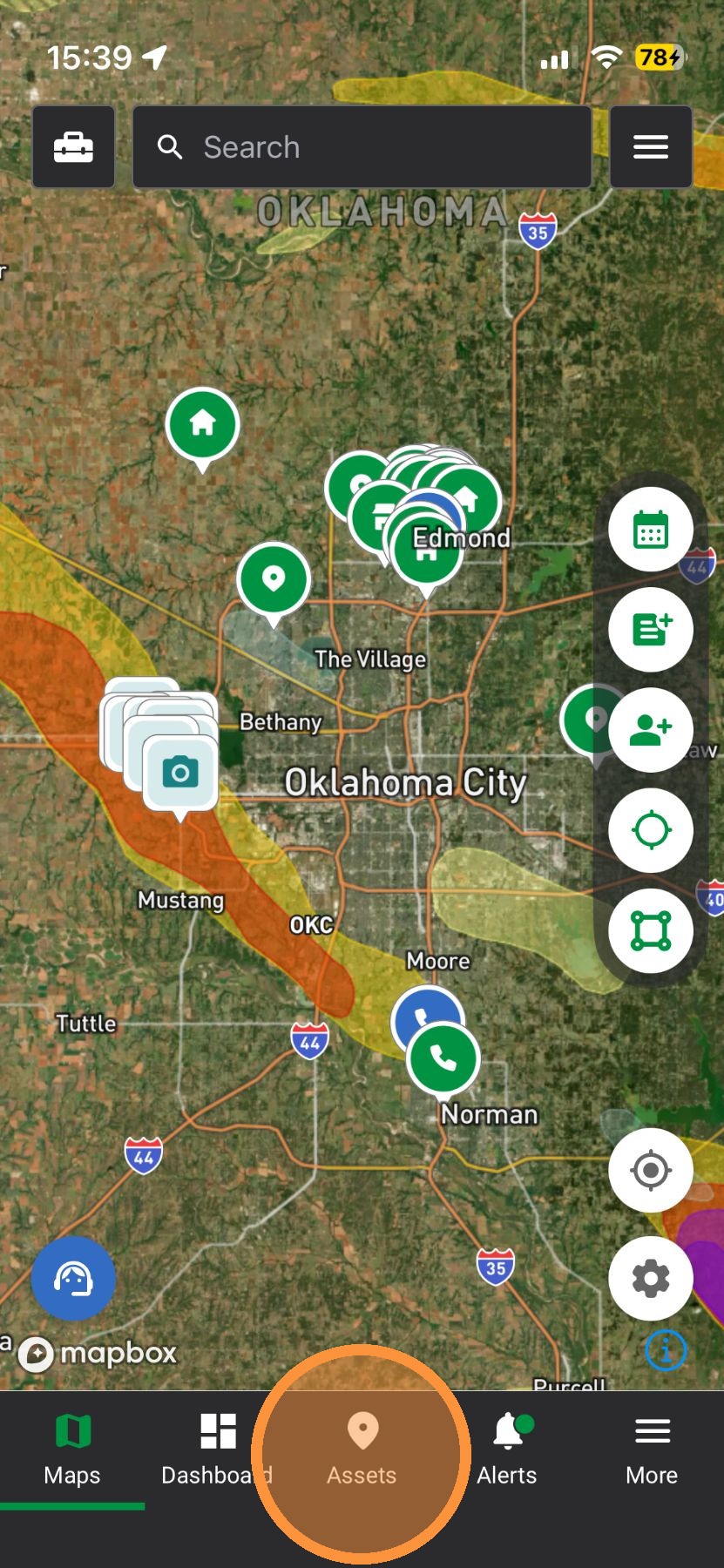
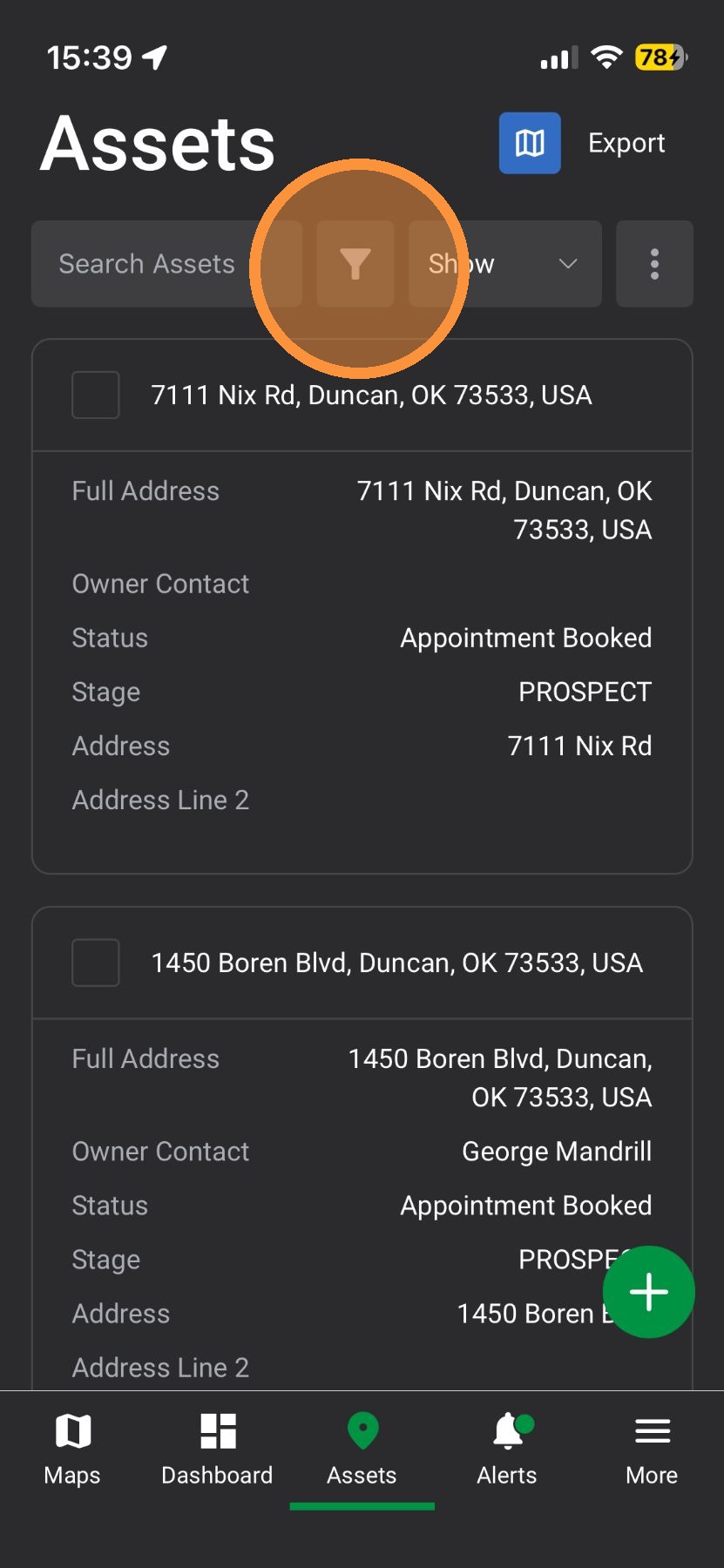
2. Tap "Asset Filters"
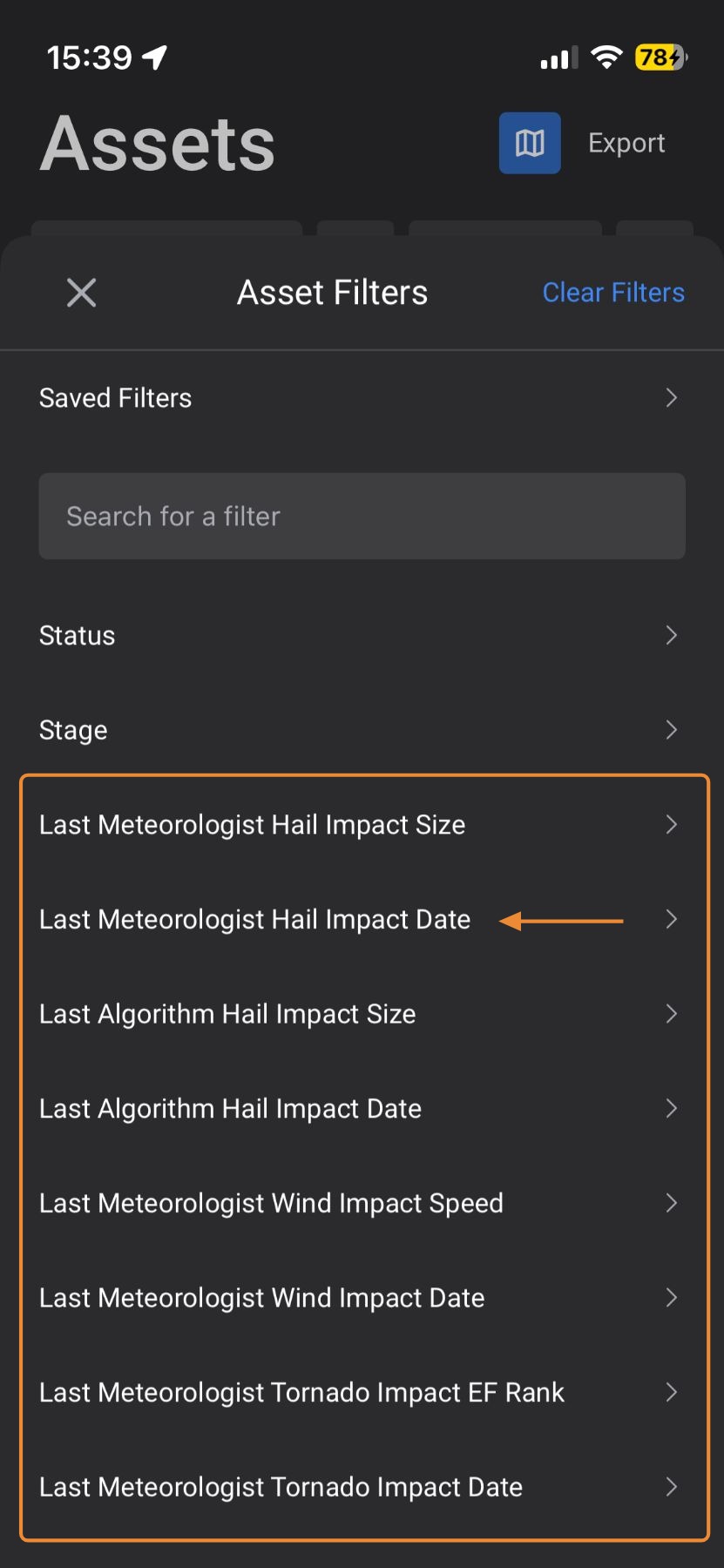
3. Utilize any number of storm impact filters.
For example, select "Last Meteorologist Impact Date" to find clients impacted by hail over a selected timeframe
4. Select a date range
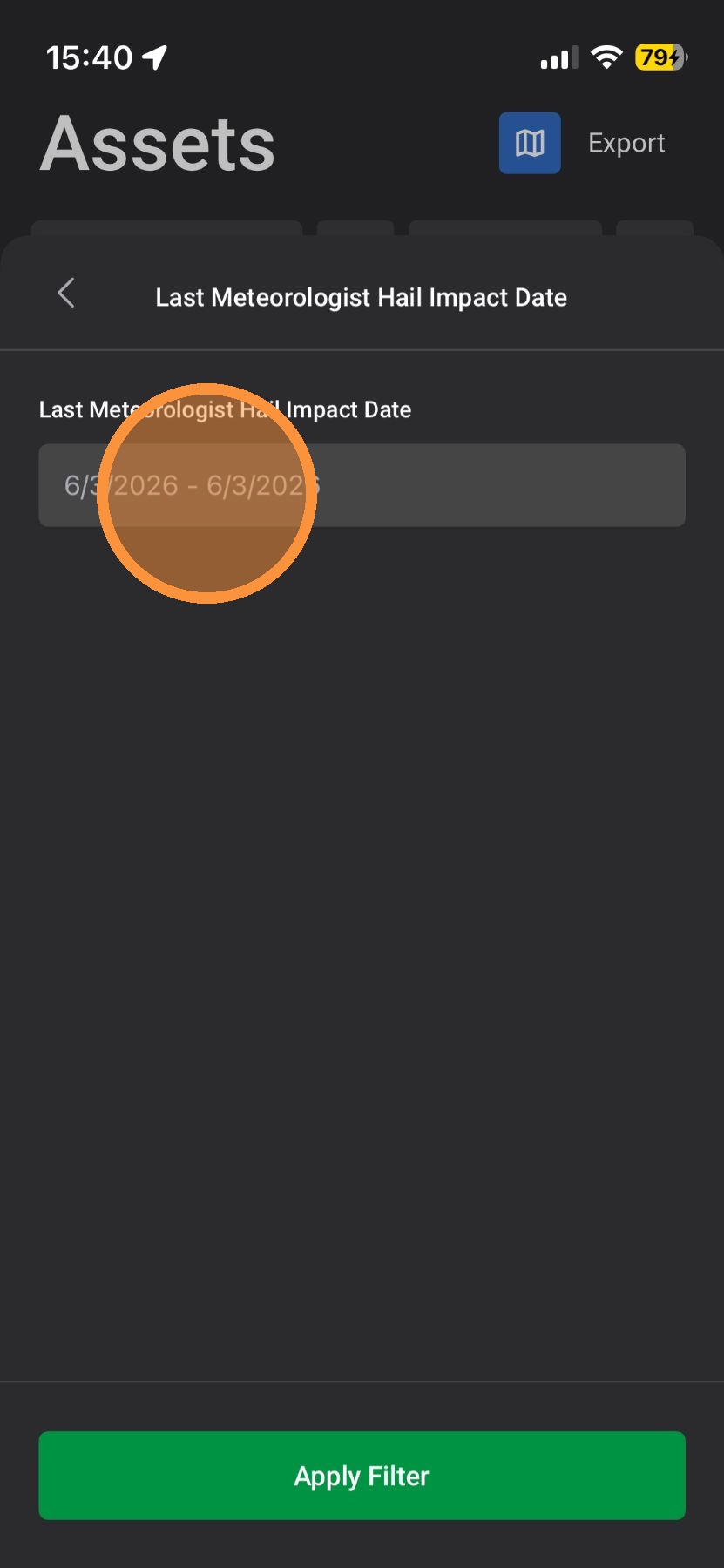
5. Set a date range, such as this week, this month, or a custom date range
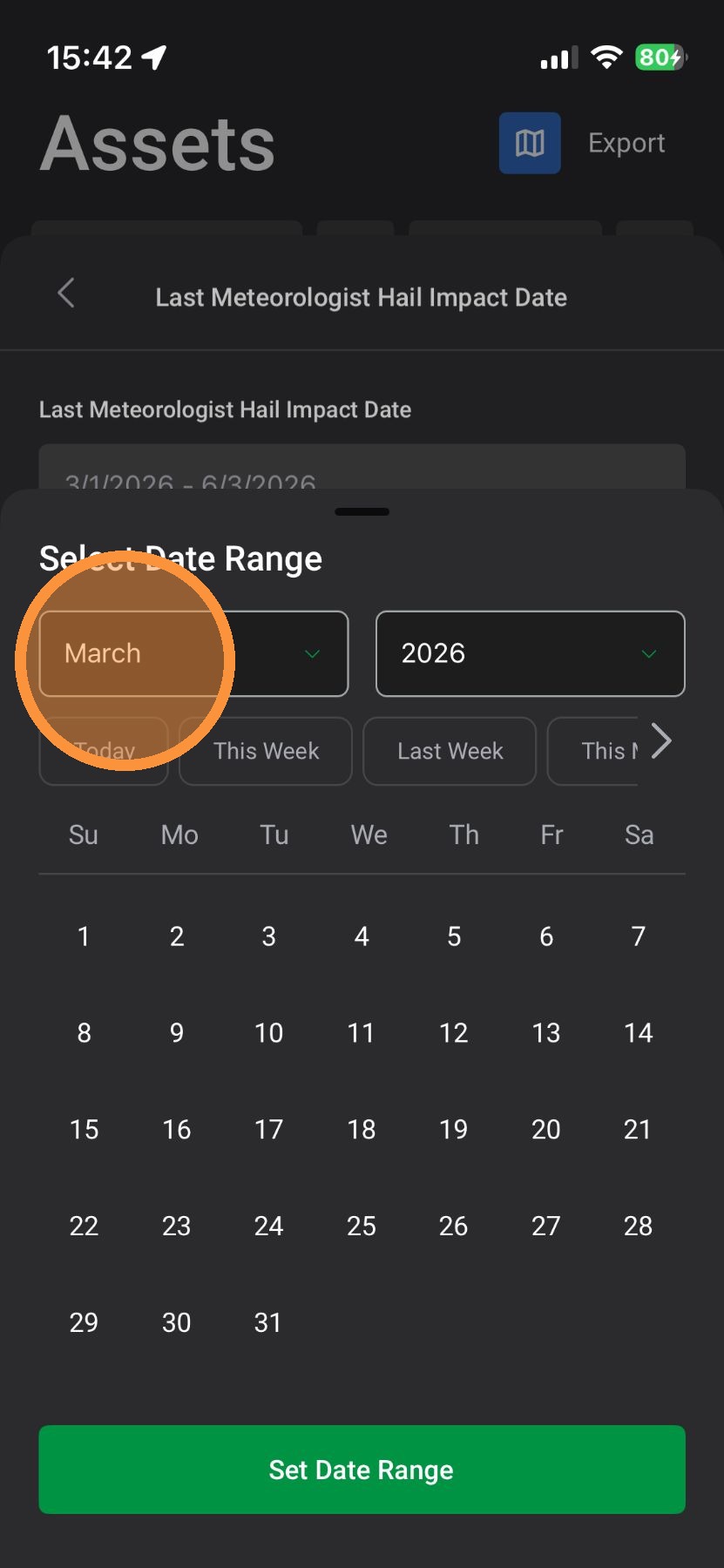
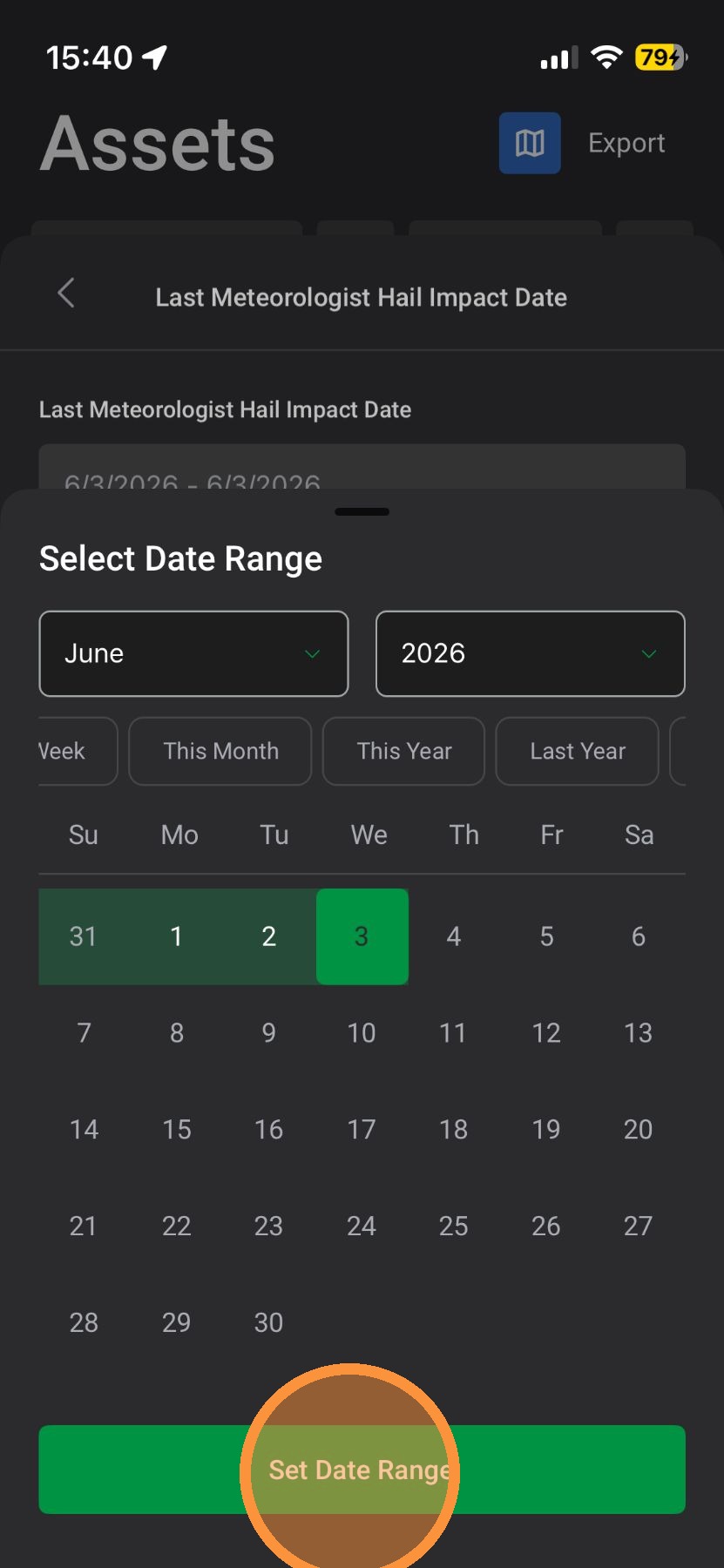
6. Tap "Select Date Range"
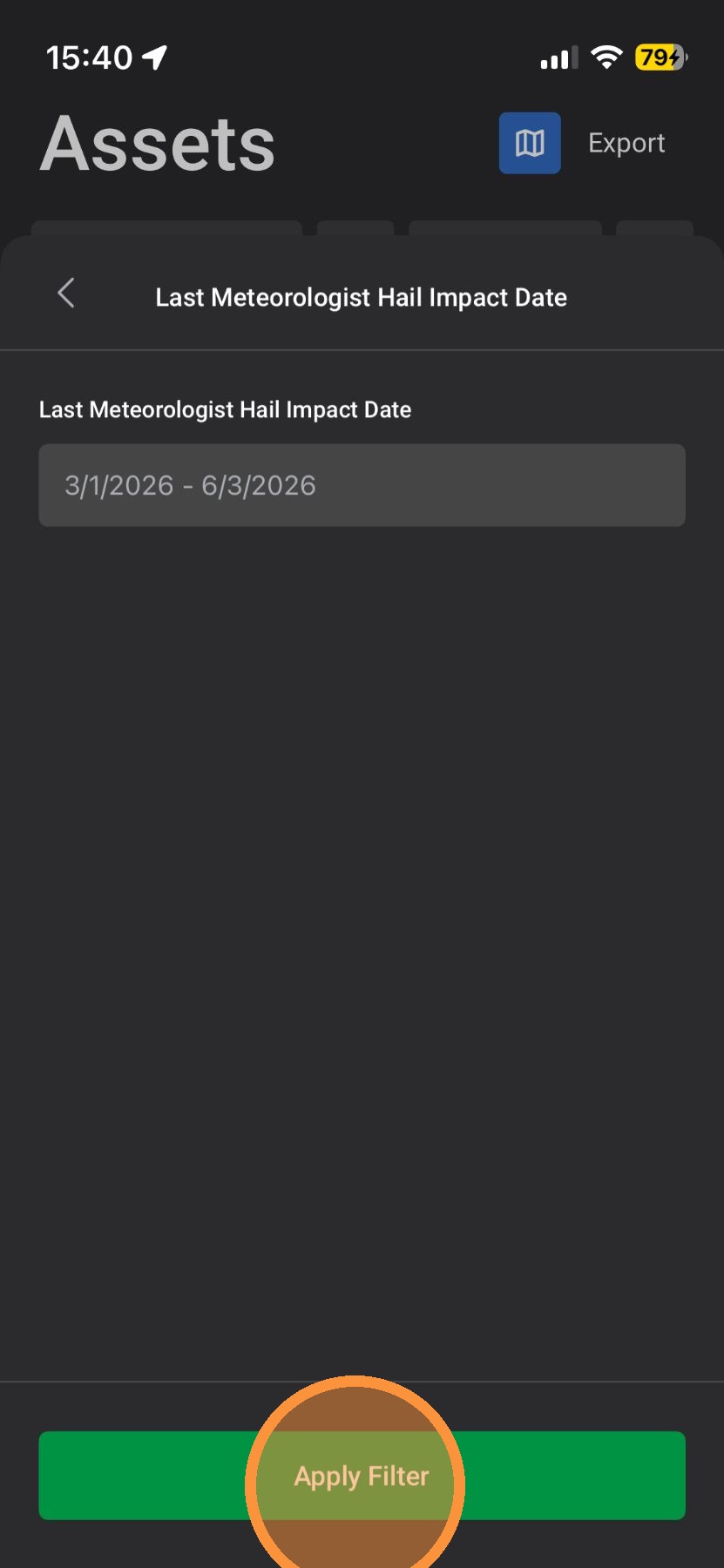
7. Tap "Apply Filter"
8. Tap "X" to close Asset Filters
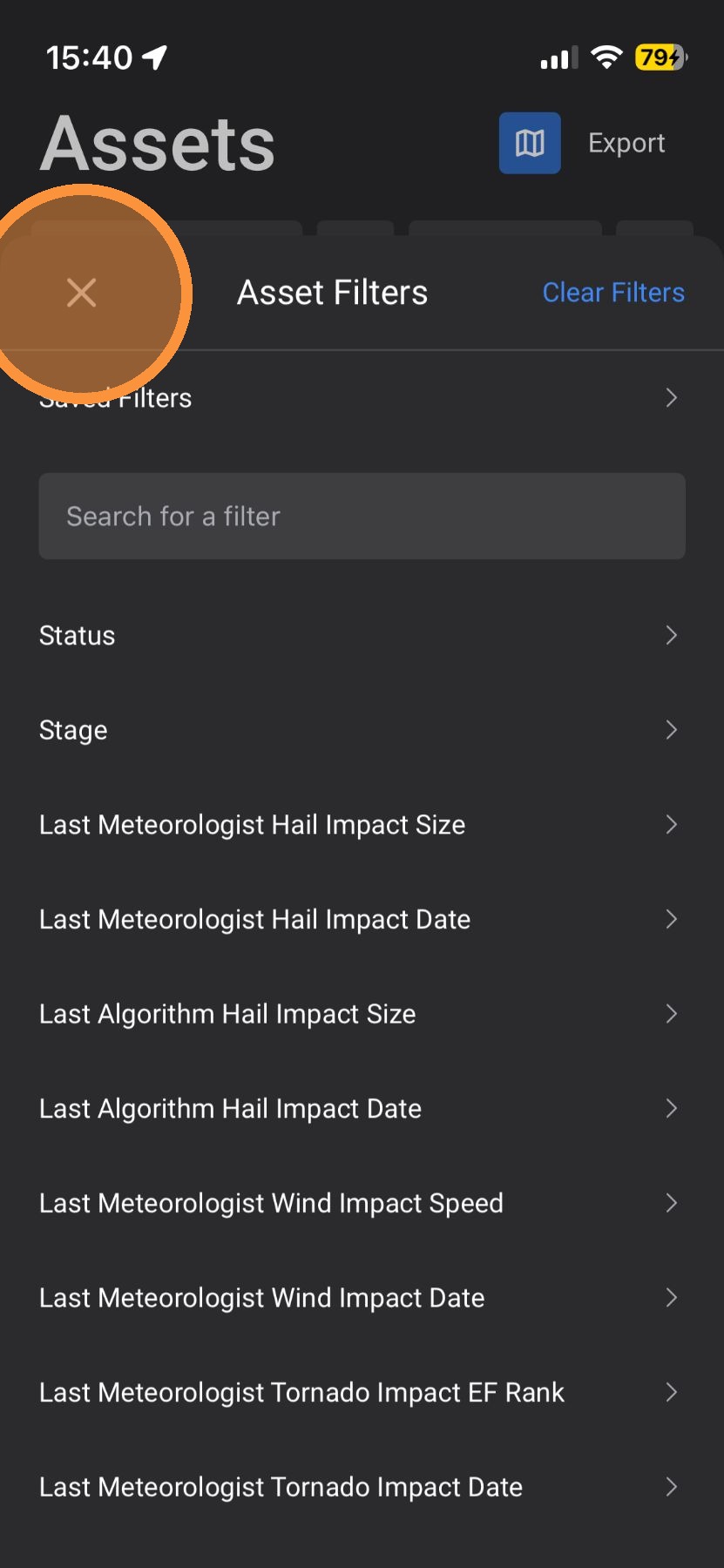
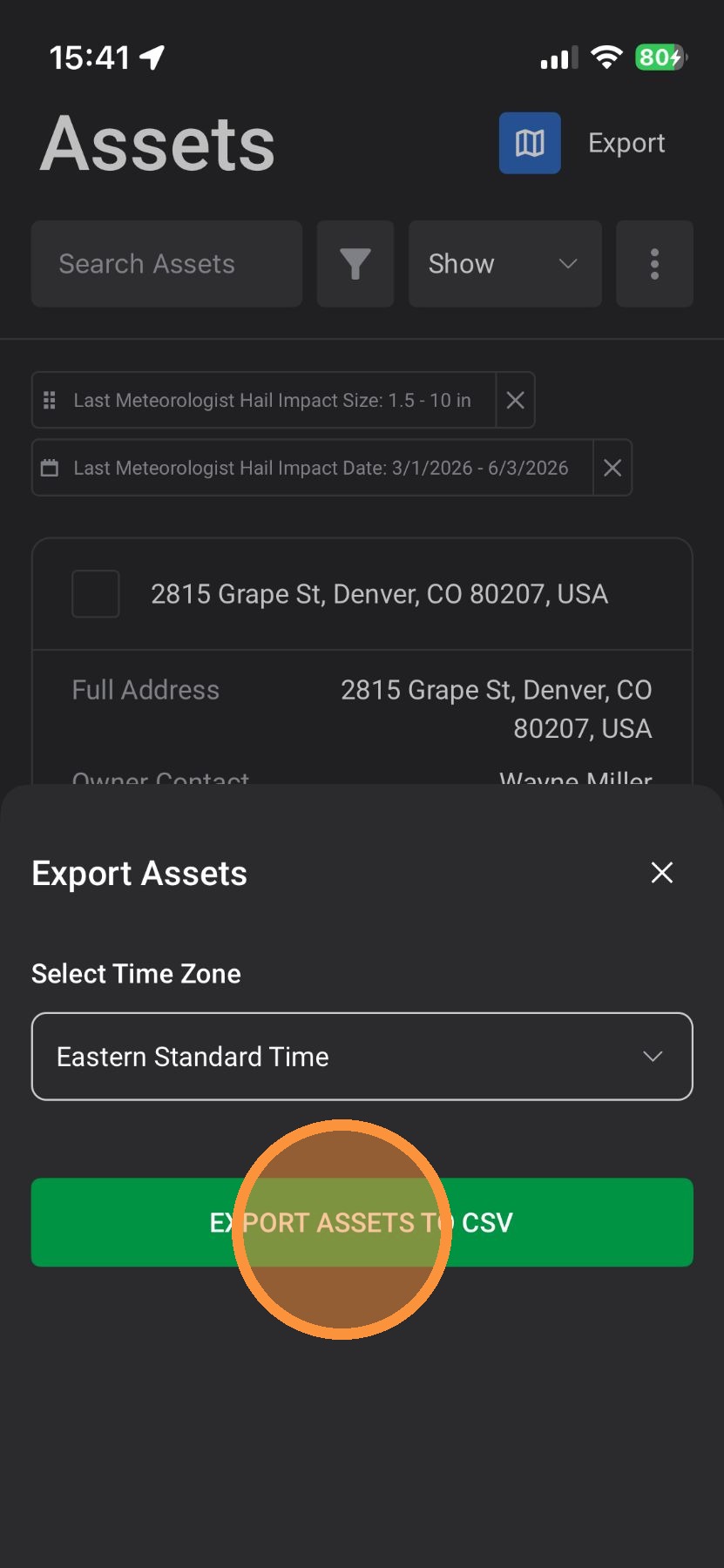
9. From here, start reaching out to owners impacted by a storm. Additionally, you can export your filtered assets to utilize outside of HailTrace, such as sending blast email.
NOTE: You must have an "Asset Admin" role to export Assets
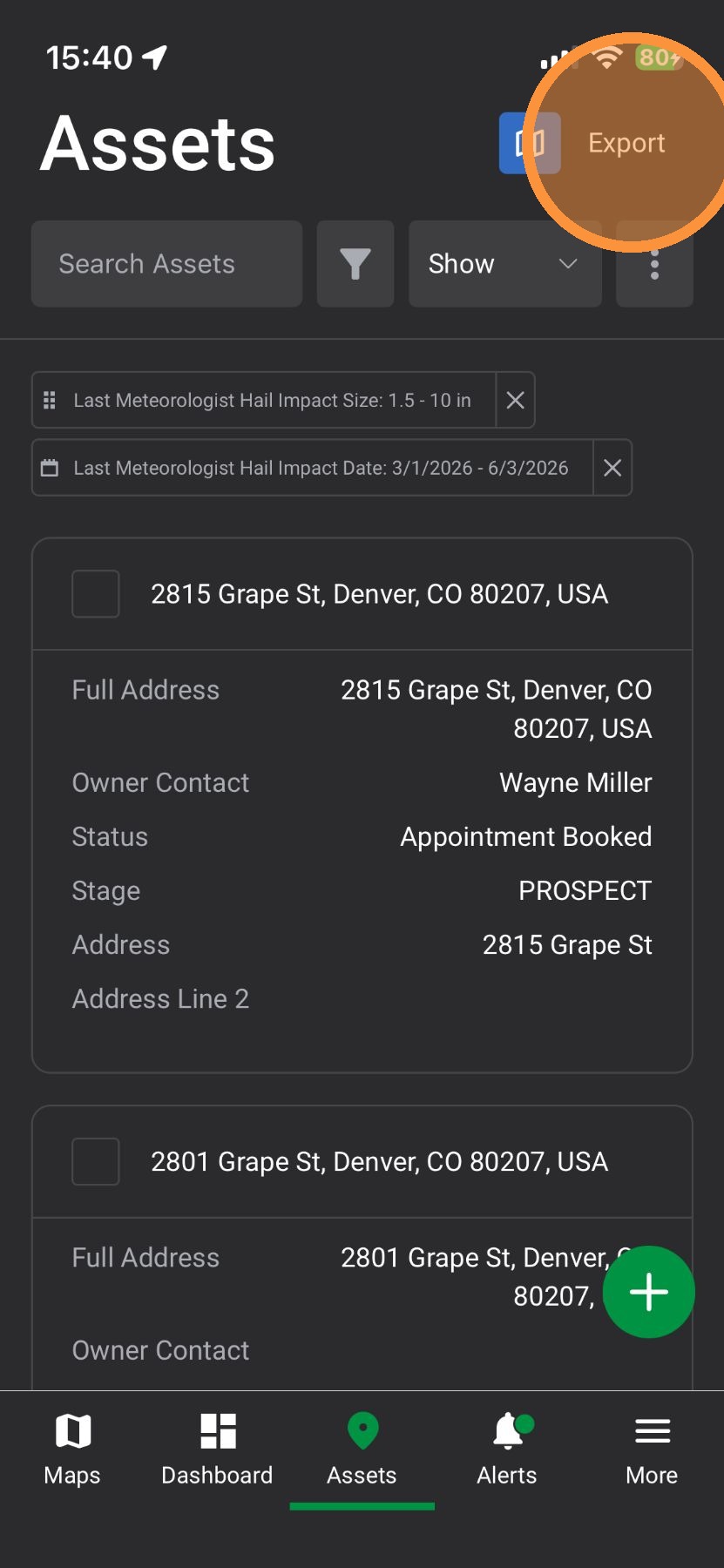
10. Tap "export Assets to CSV" and download the list from your email