[5.0] Impacted Assets: List from a Specific Area of a Storm
Identify assets impacted within a specific area of a storm, helping you target the right leads and customers for faster, more focused outreach.

Mobile App
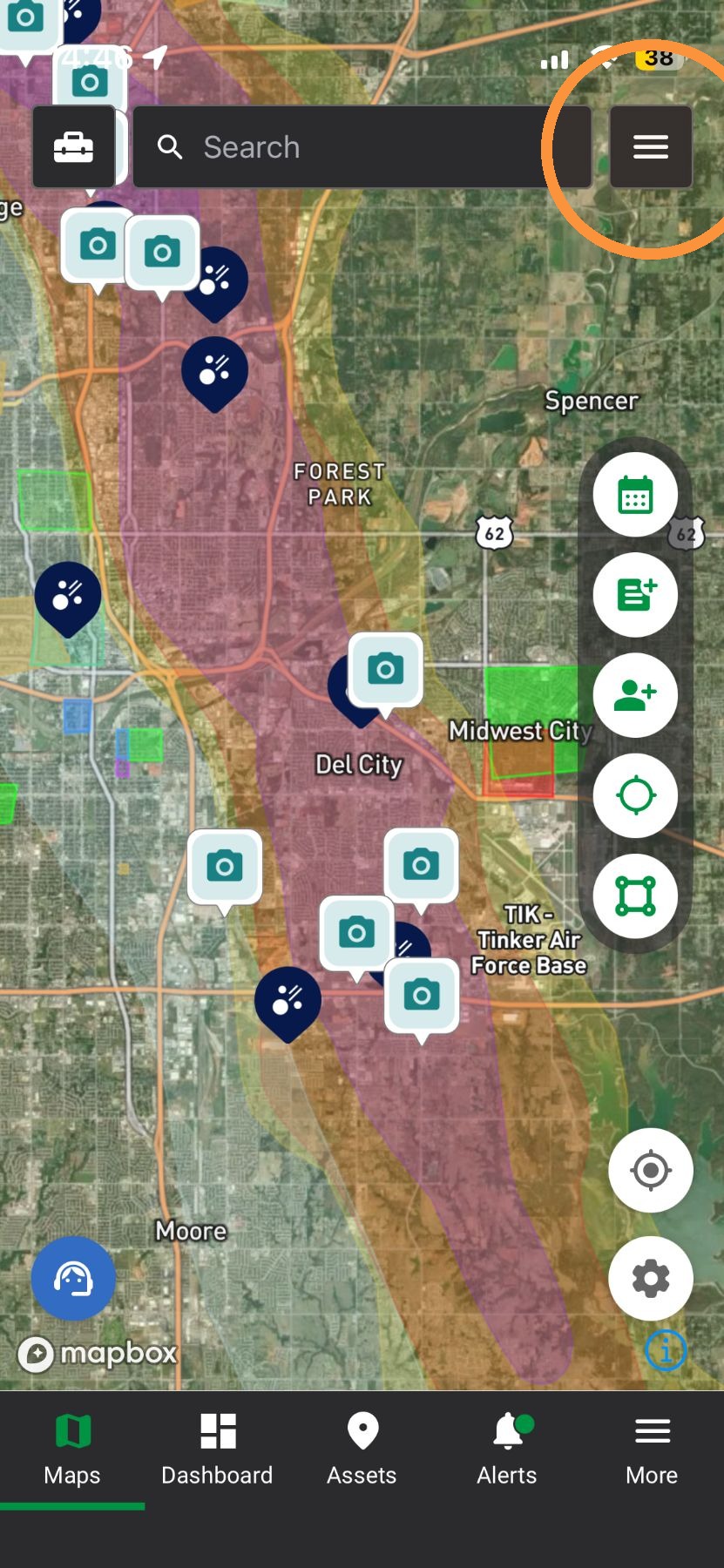
2. Tap "Lead List" panel
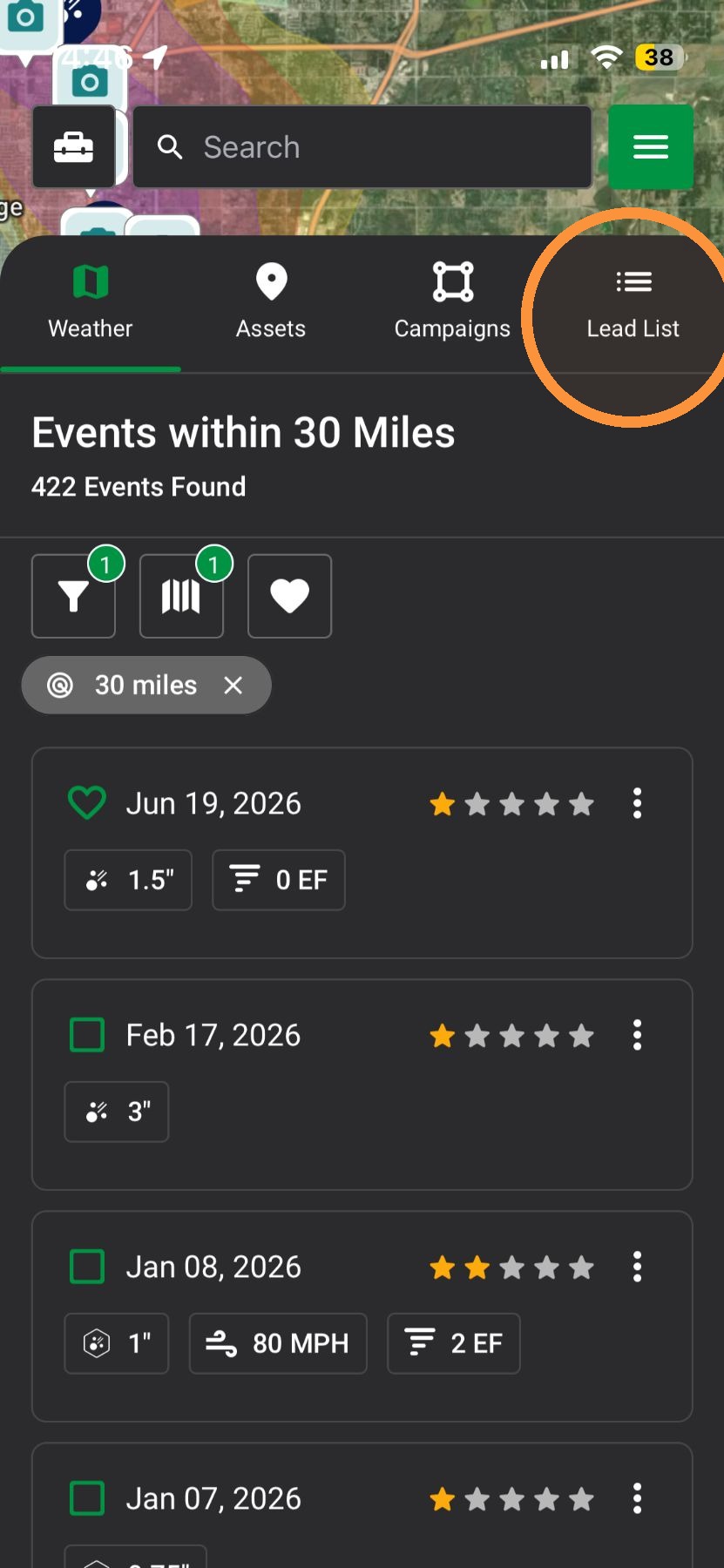
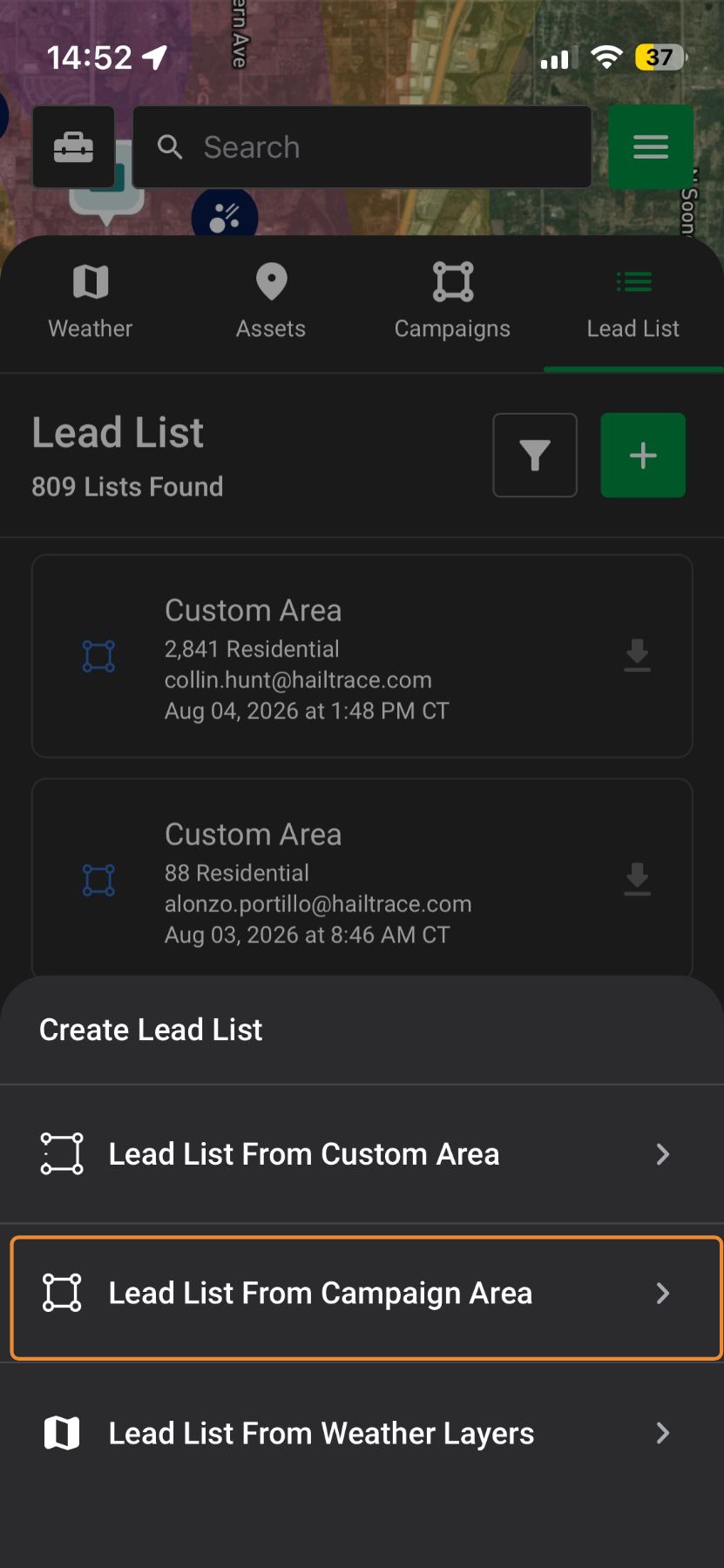
3. Tap "Create Lead List" button
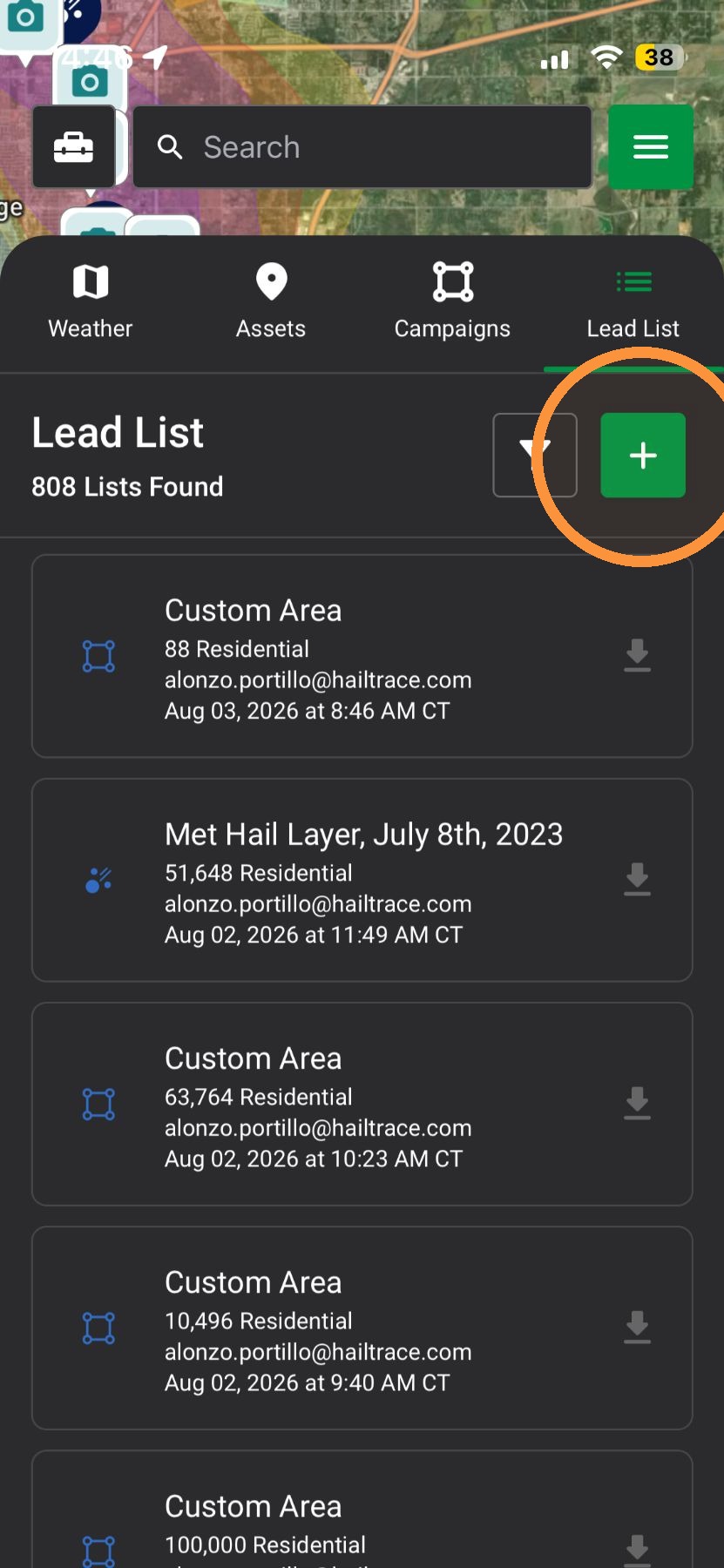
4. From here, you can select three options to pull an impacted asset list
A. From Custom Area
B. From Campaign Area
C. From Weather layers
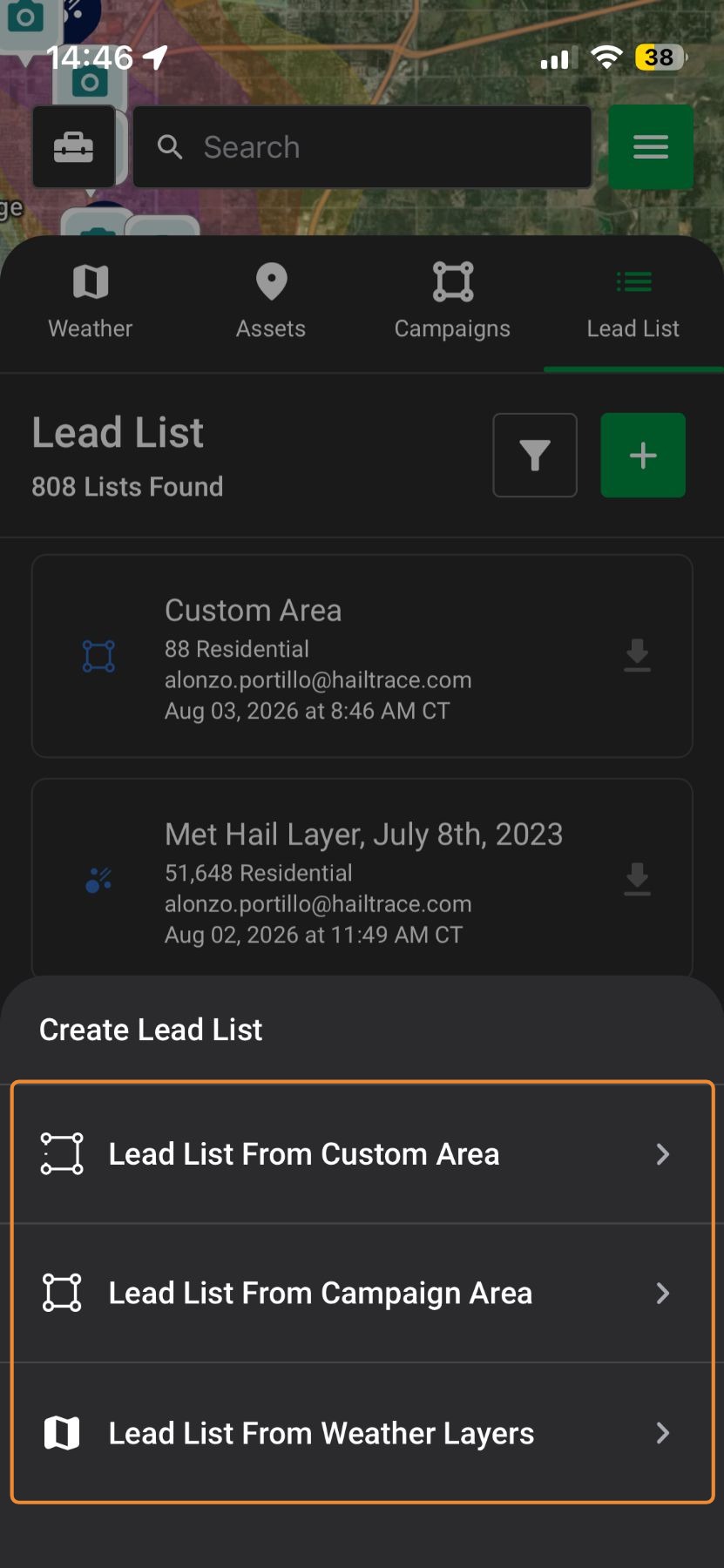
From a Custom Area
5. Tap "Lead List from Custom Area"
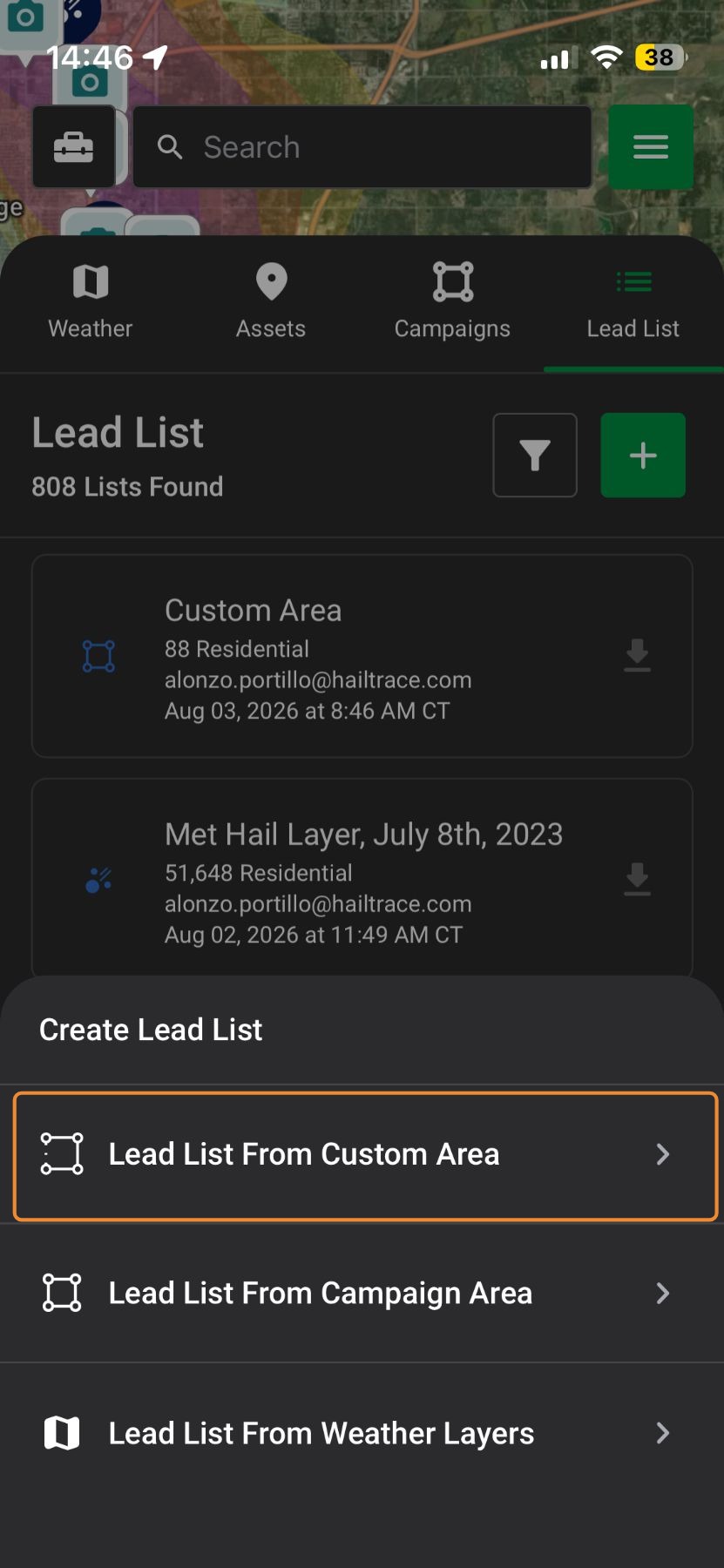
6. Tap at least three points to draw a lead list
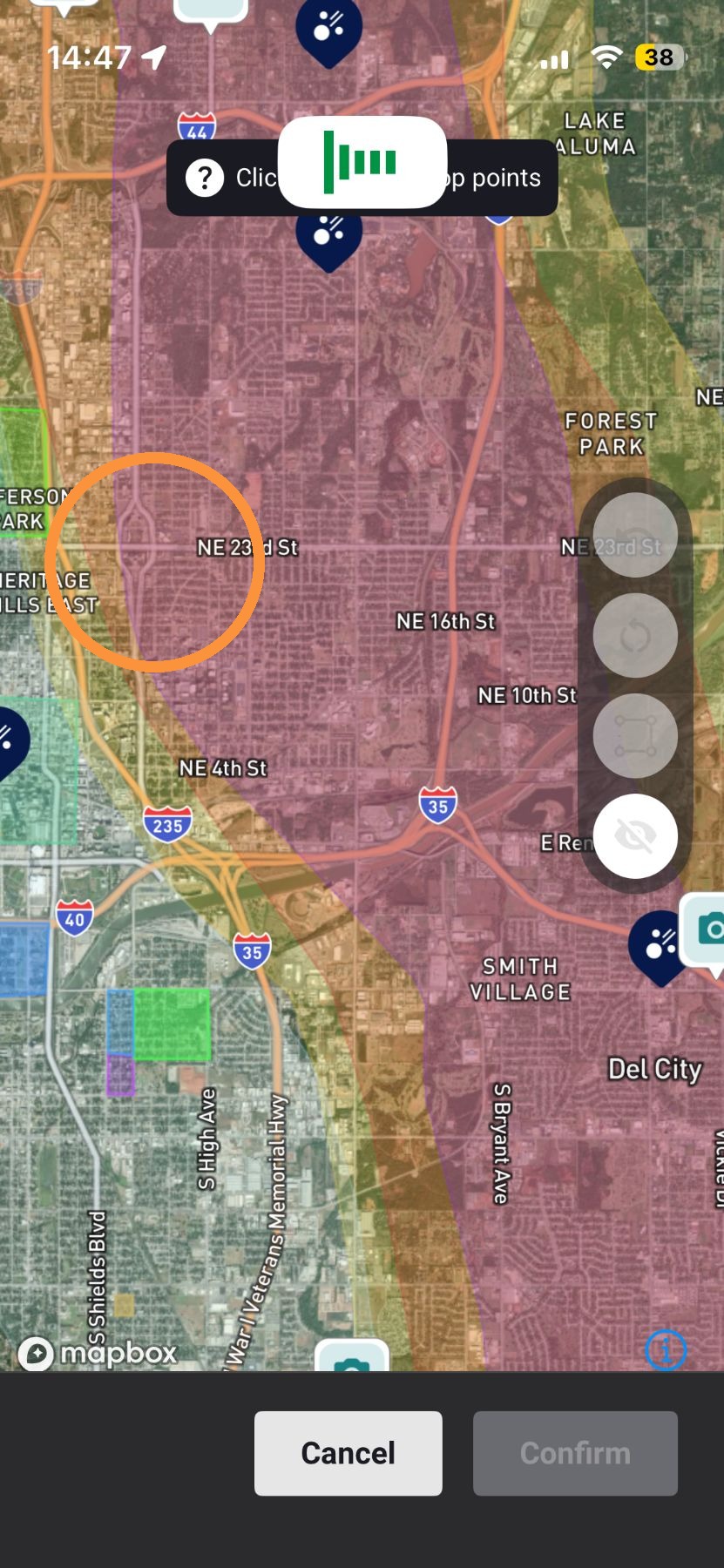
7. Tap the first point to complete the area
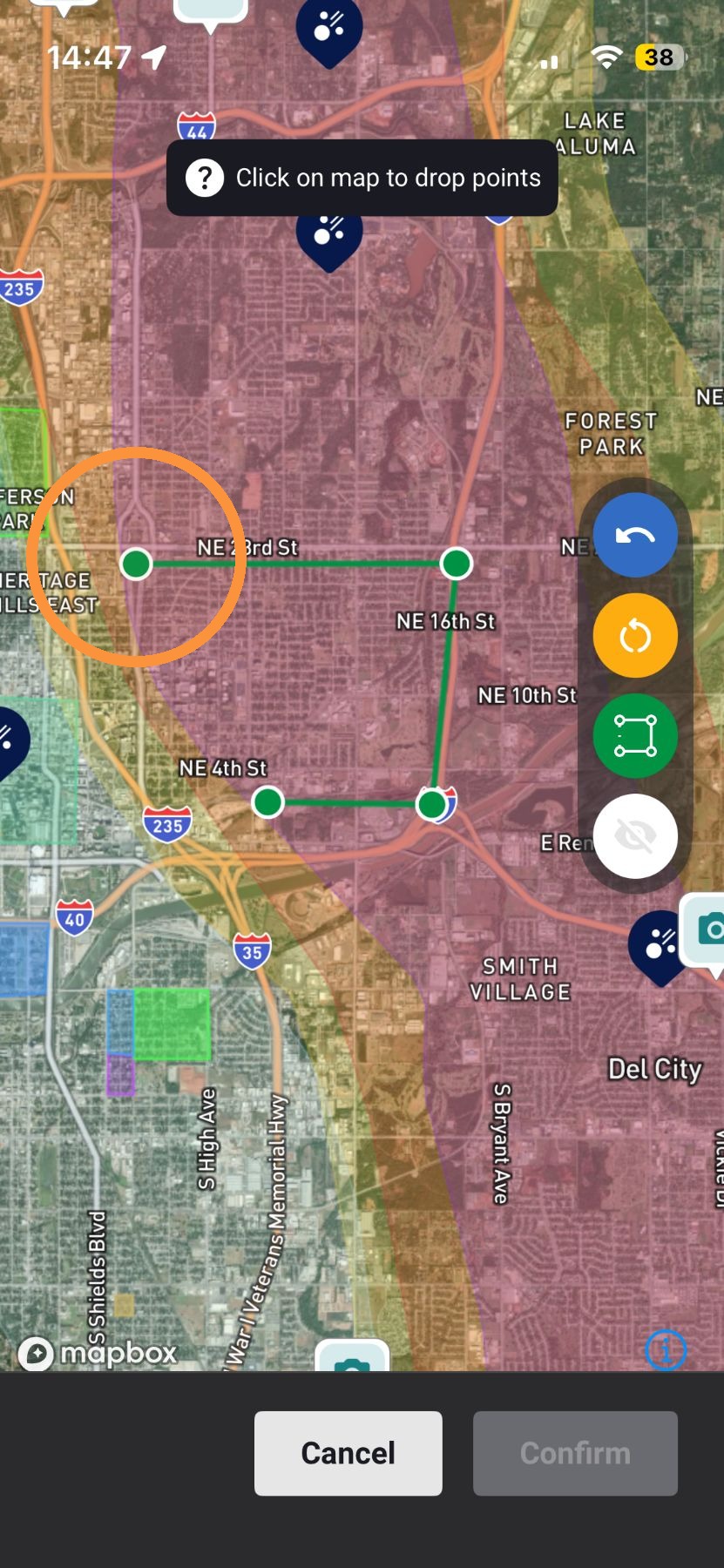
8. Undo, start over, or hide the weather layer here
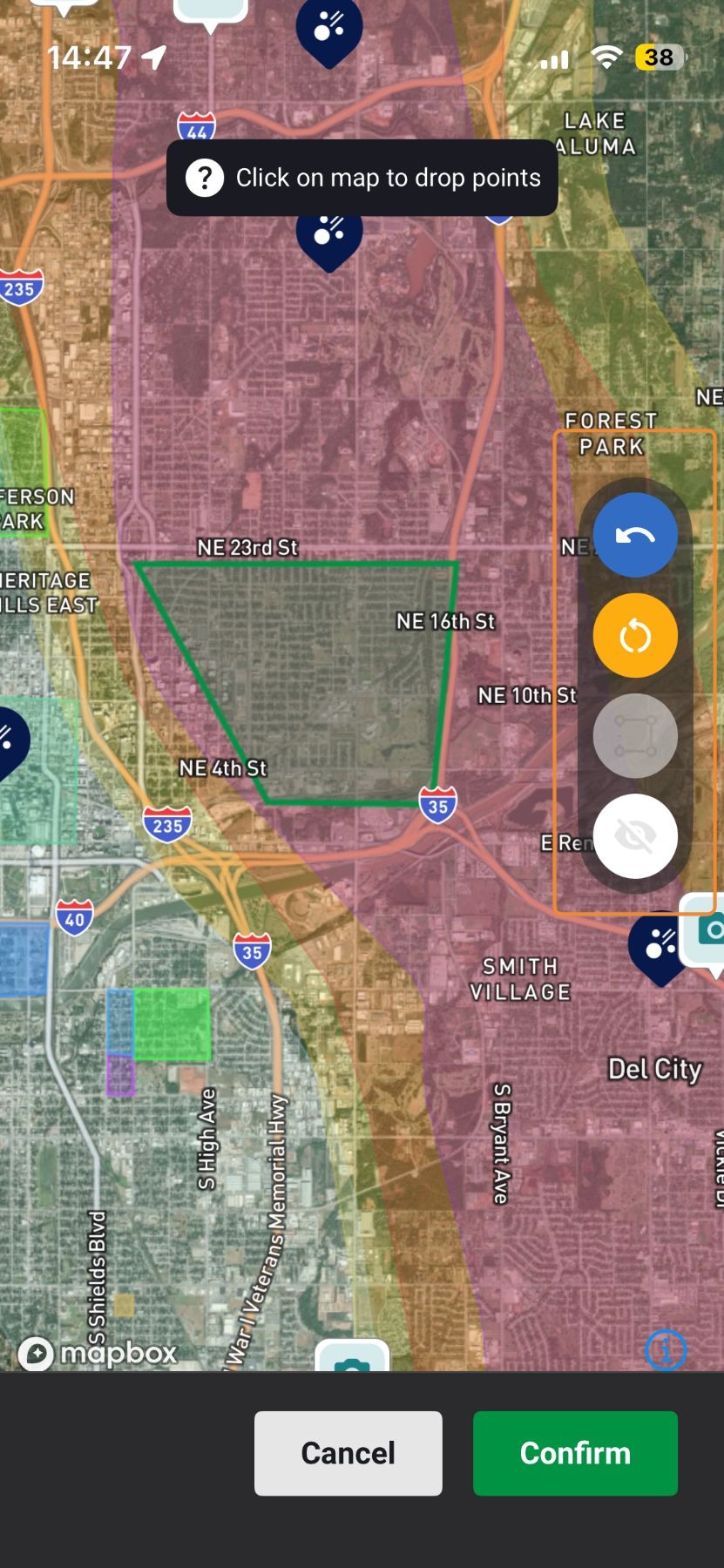
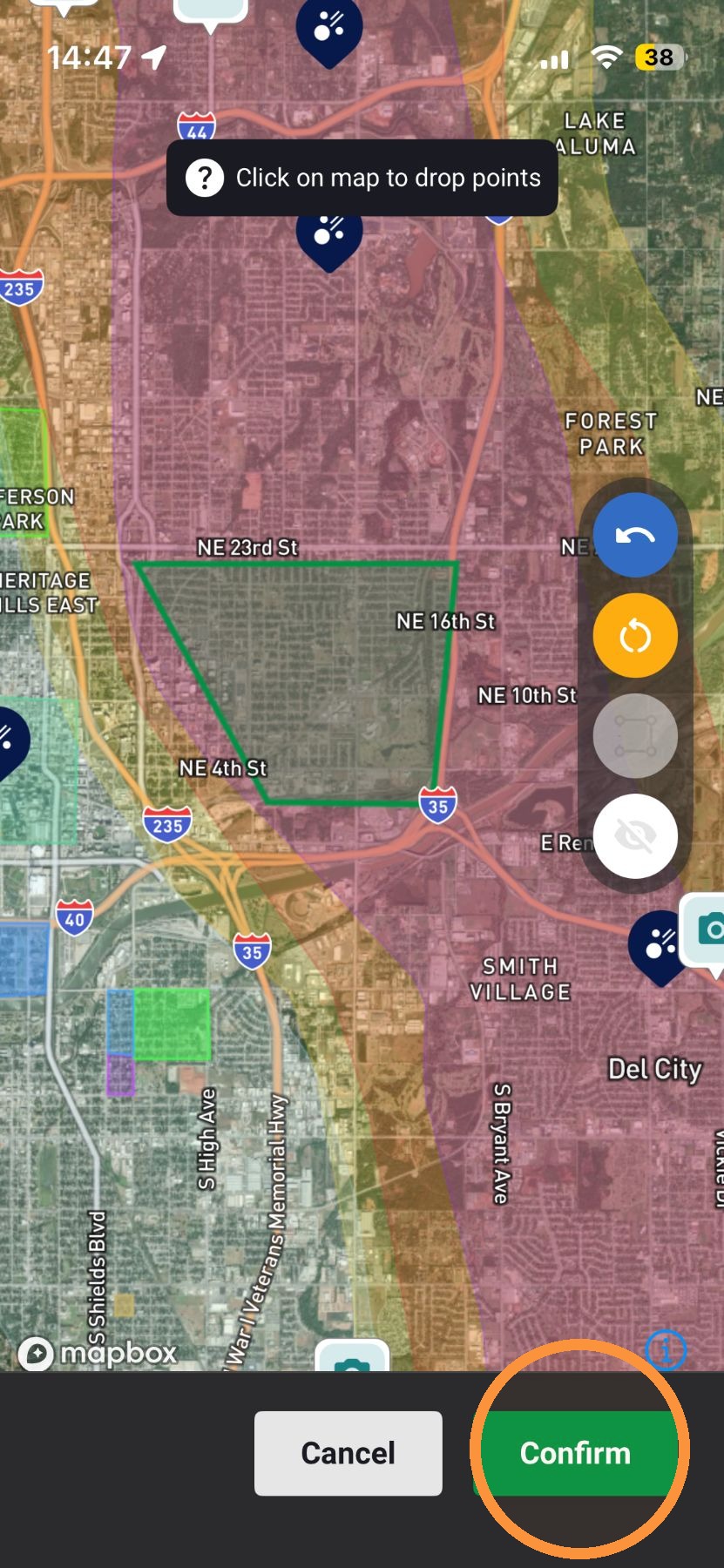
9. Tap Confirm
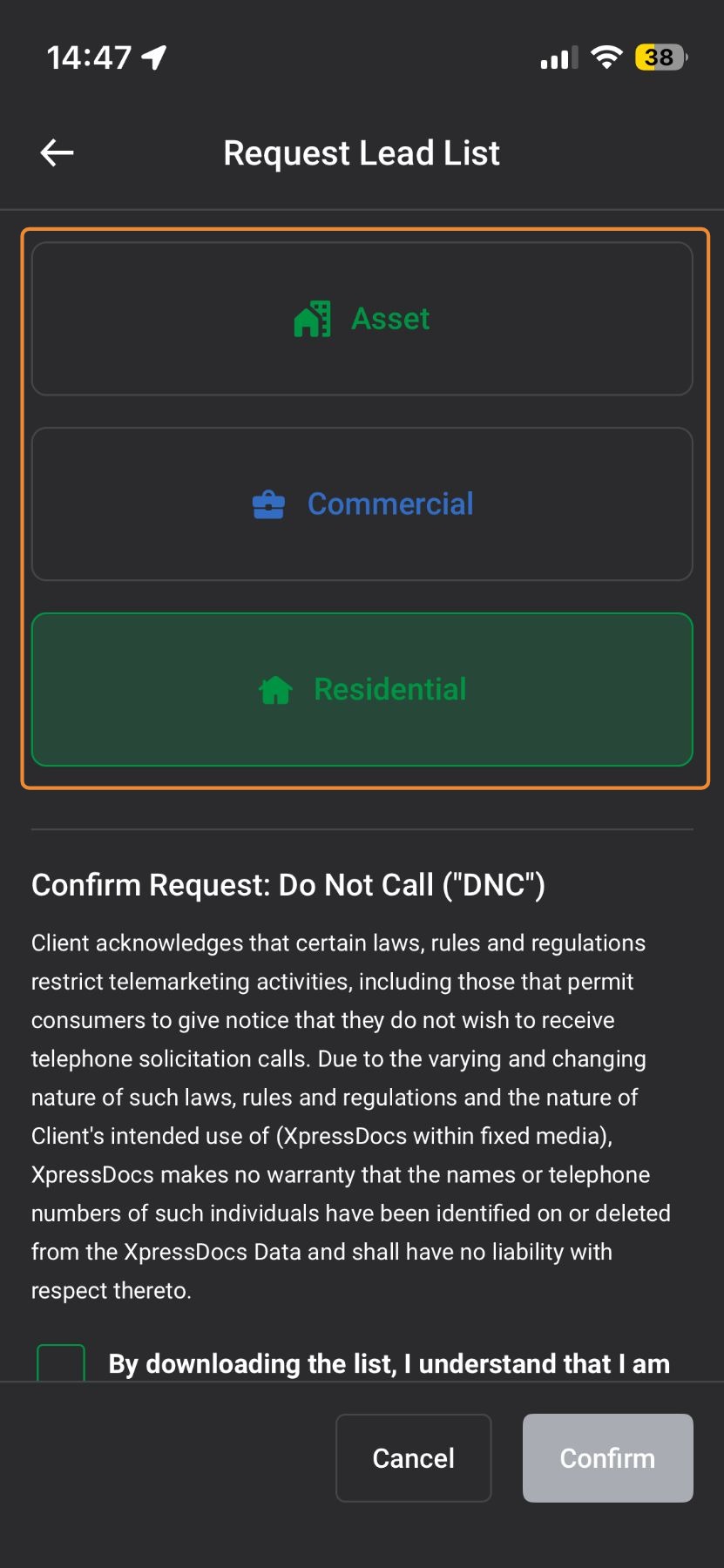
10. Select assets
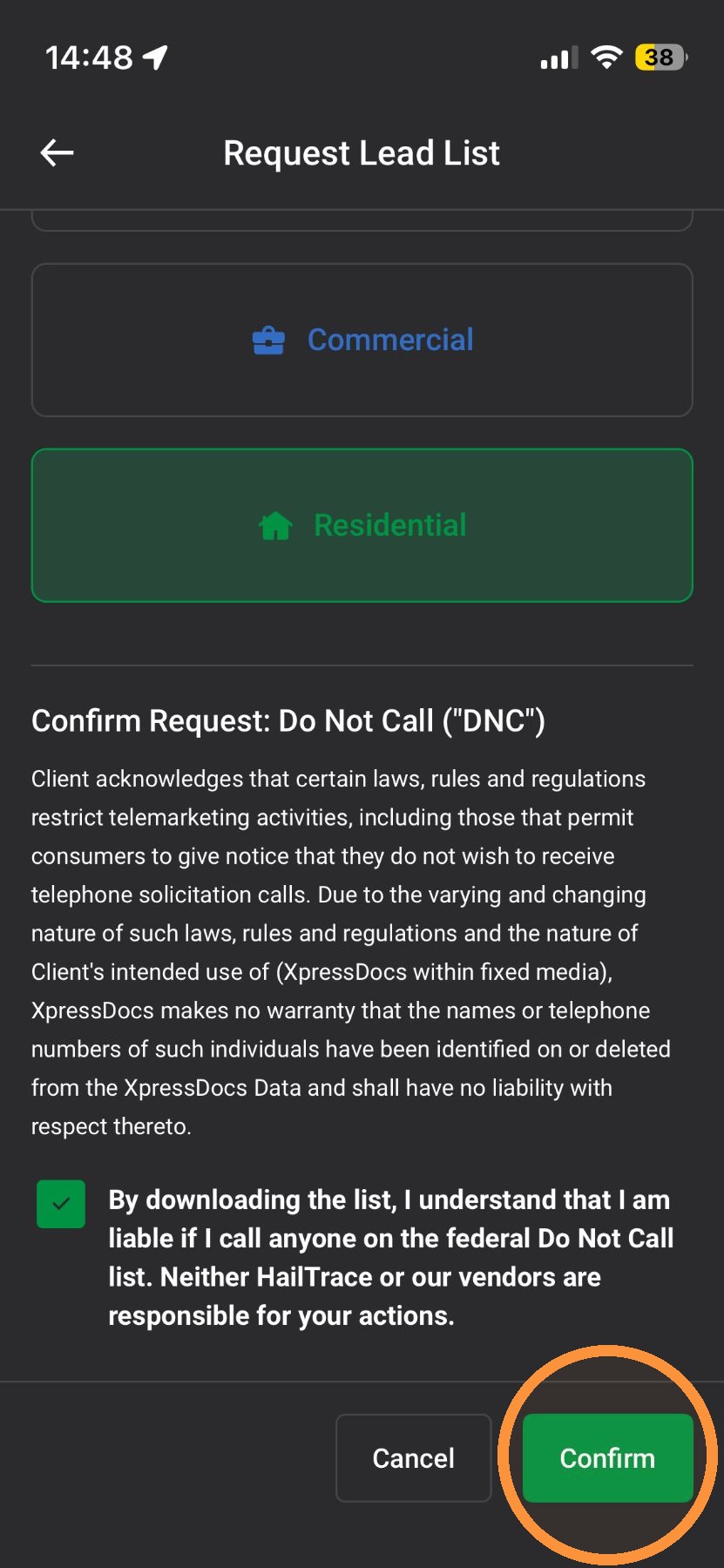
11. Confirm you understand that you are liable if you call anyone on the federal Do Not Call list
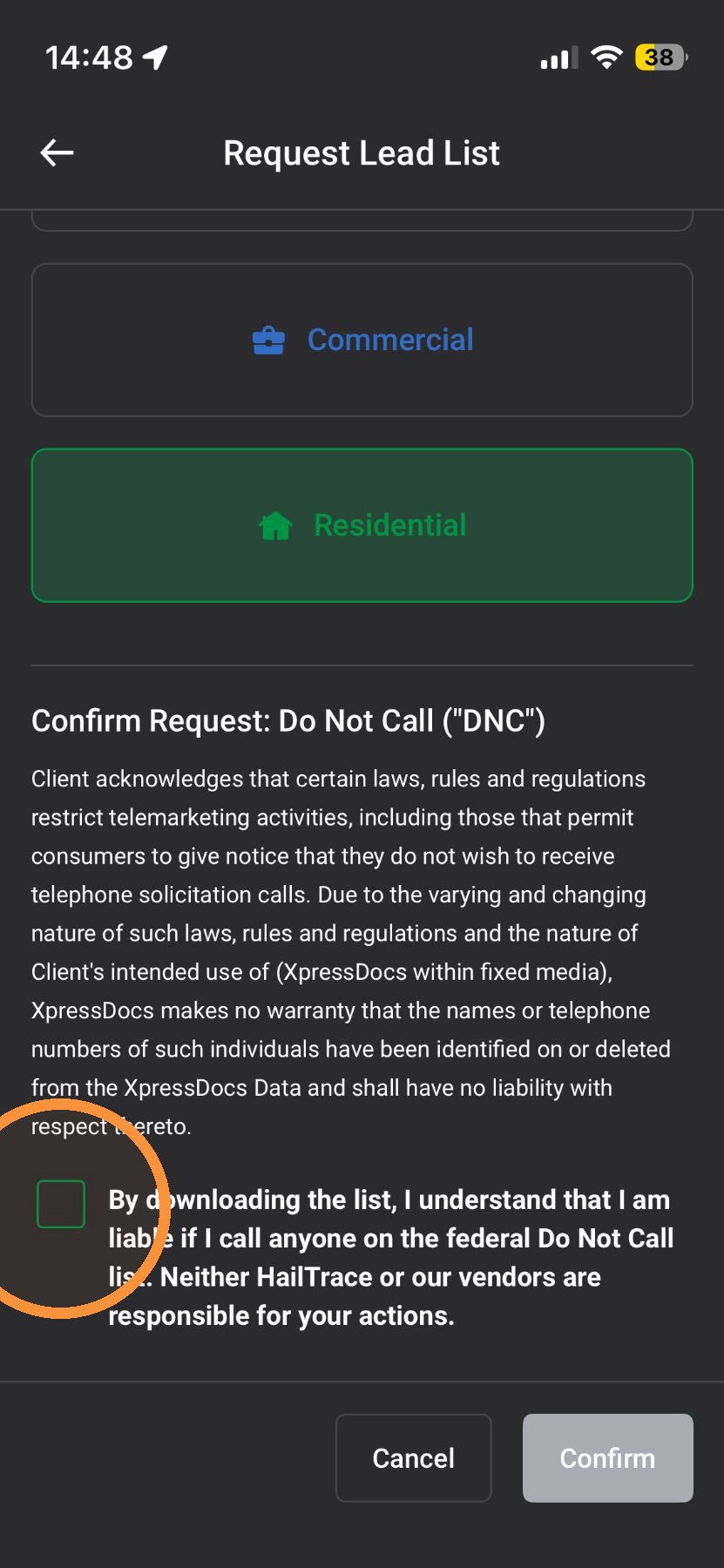
12. Tap Confirm
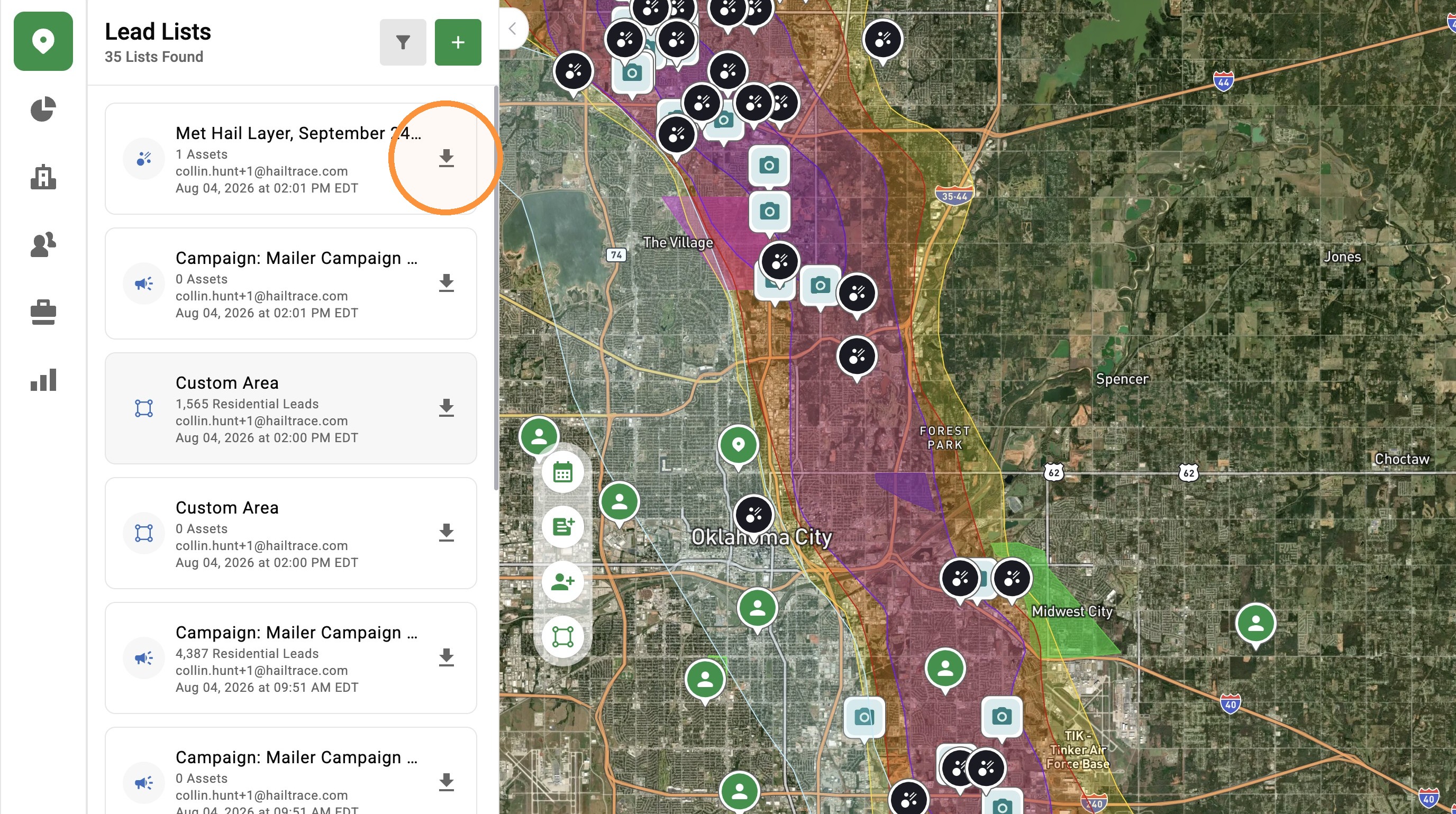
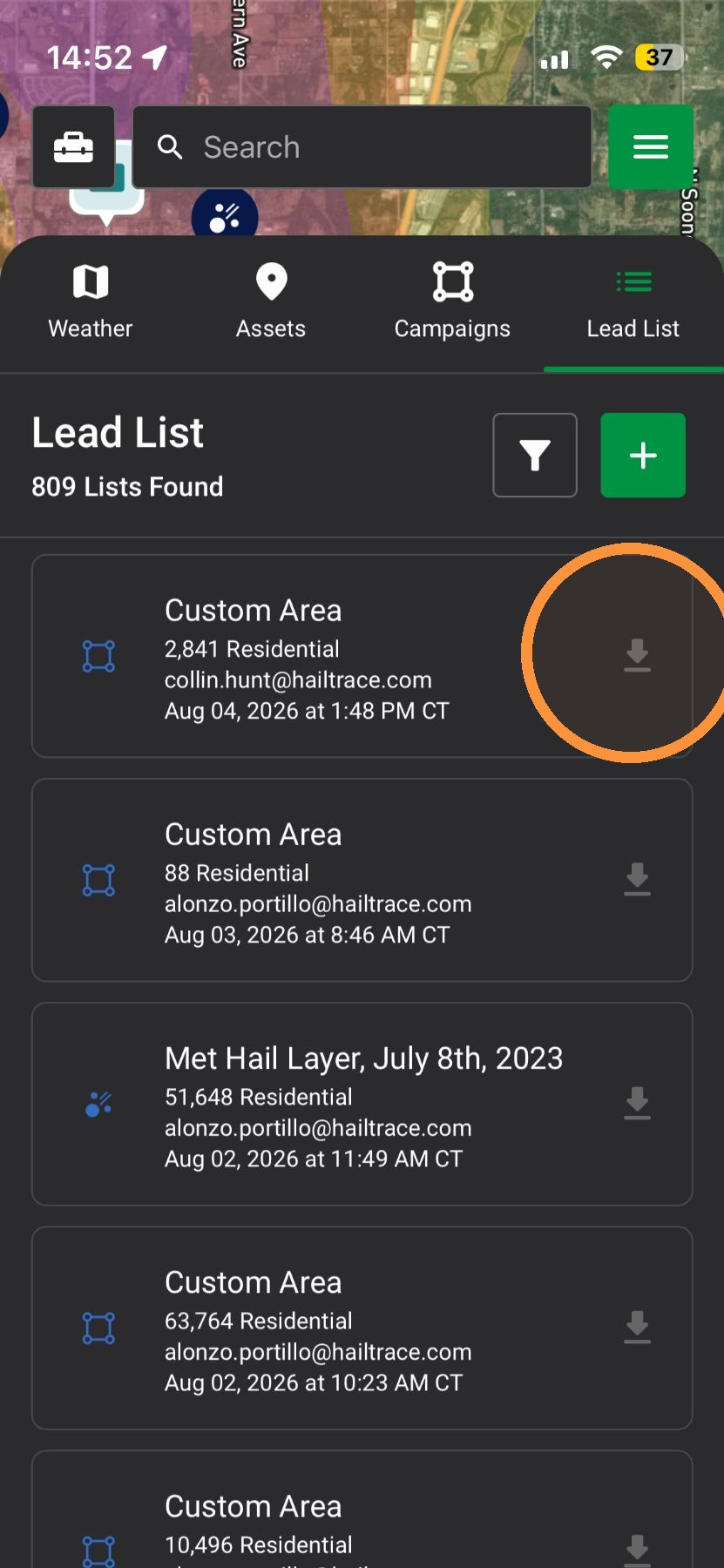
13. Once your list is ready, tap download to start reaching out to owners impacted by a storm
From a Campaign Area
5. Tap "Lead List from Campaign Area"
6. Tap "Select Campaign"
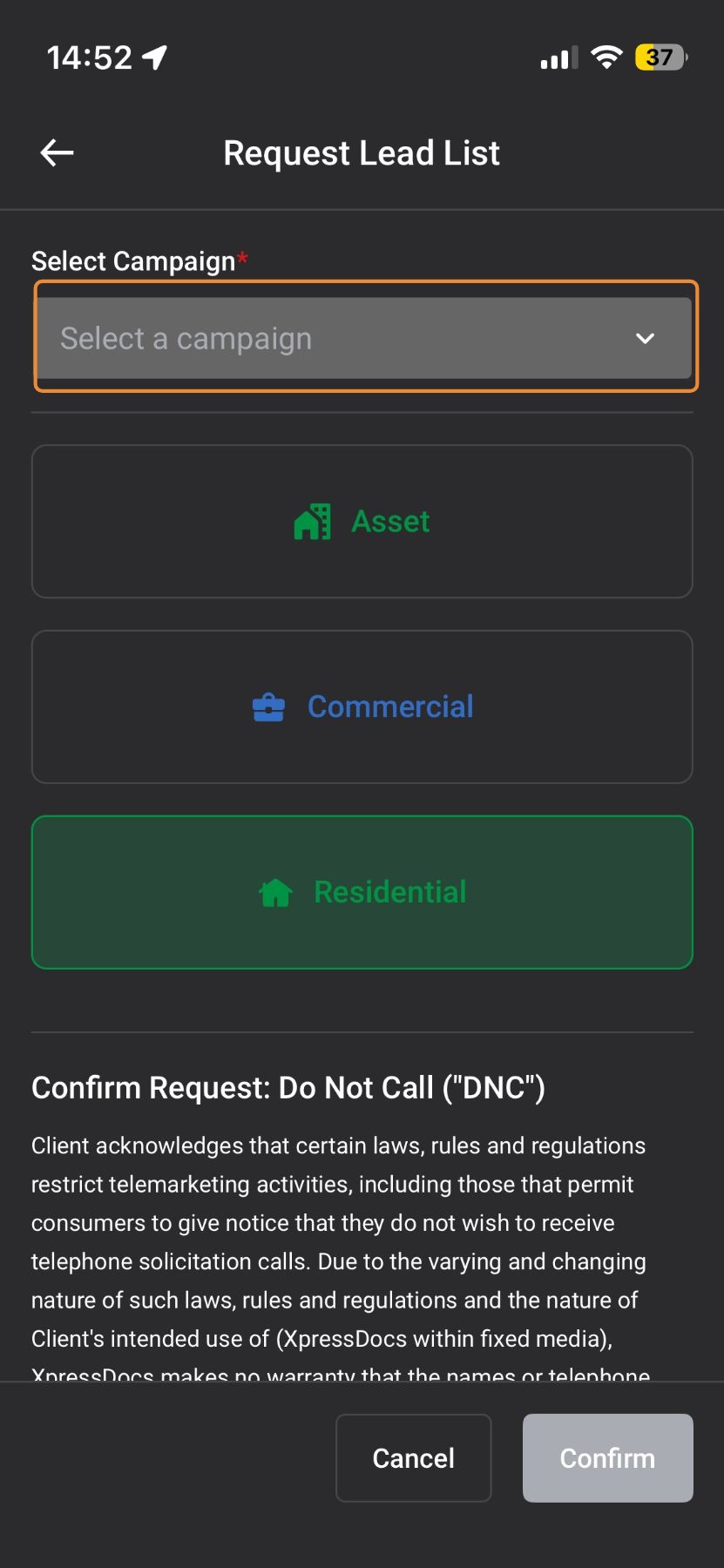
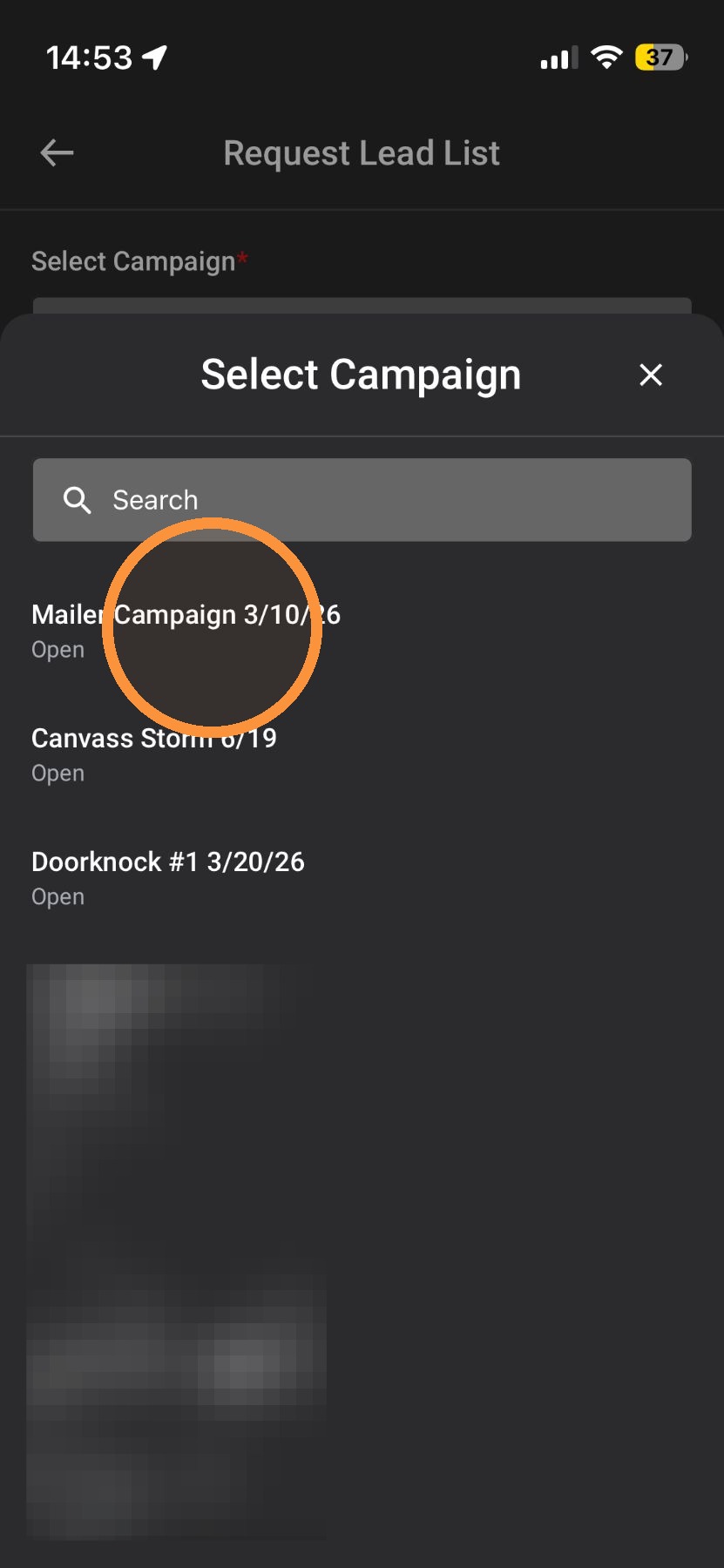
8. Select assets
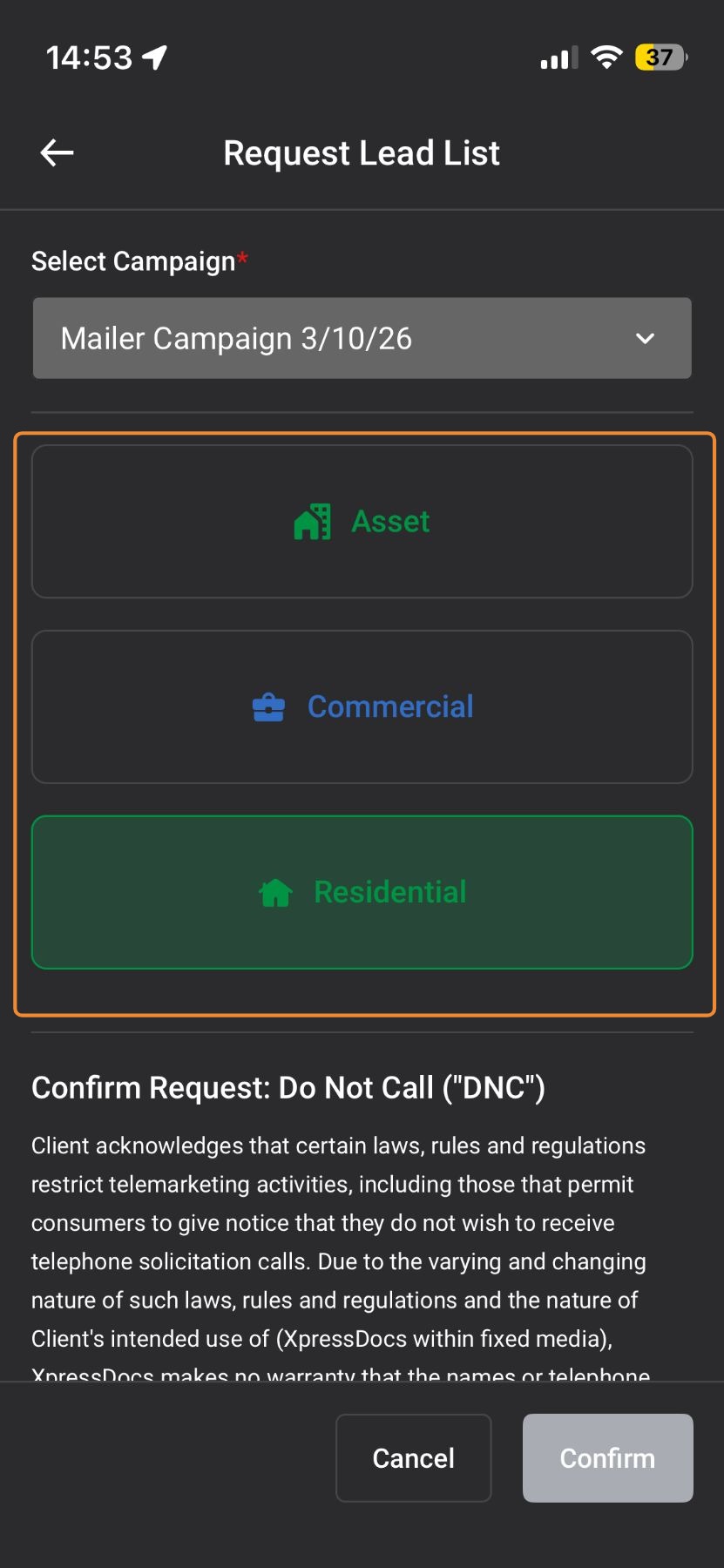
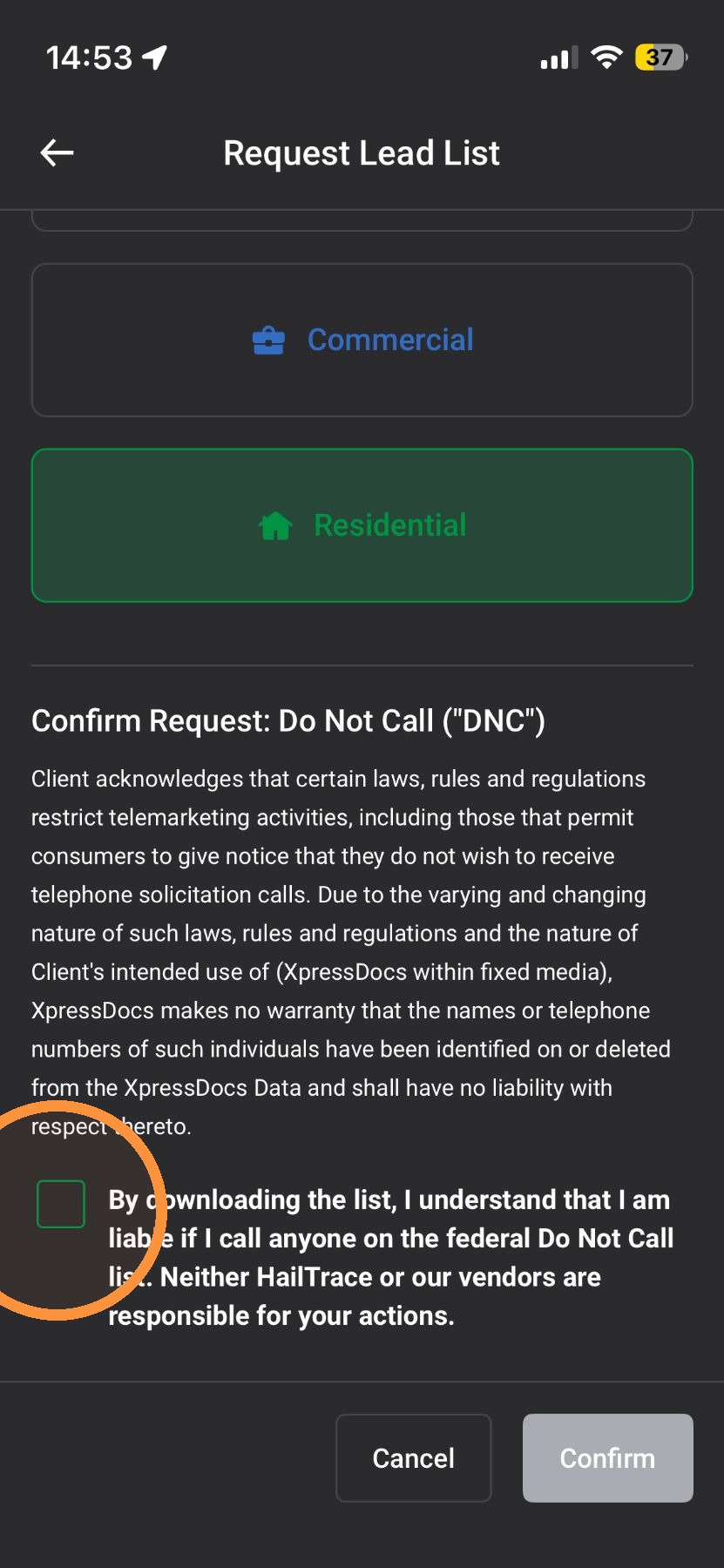
9. Confirm you understand that you are liable if you call anyone on the federal Do Not Call list
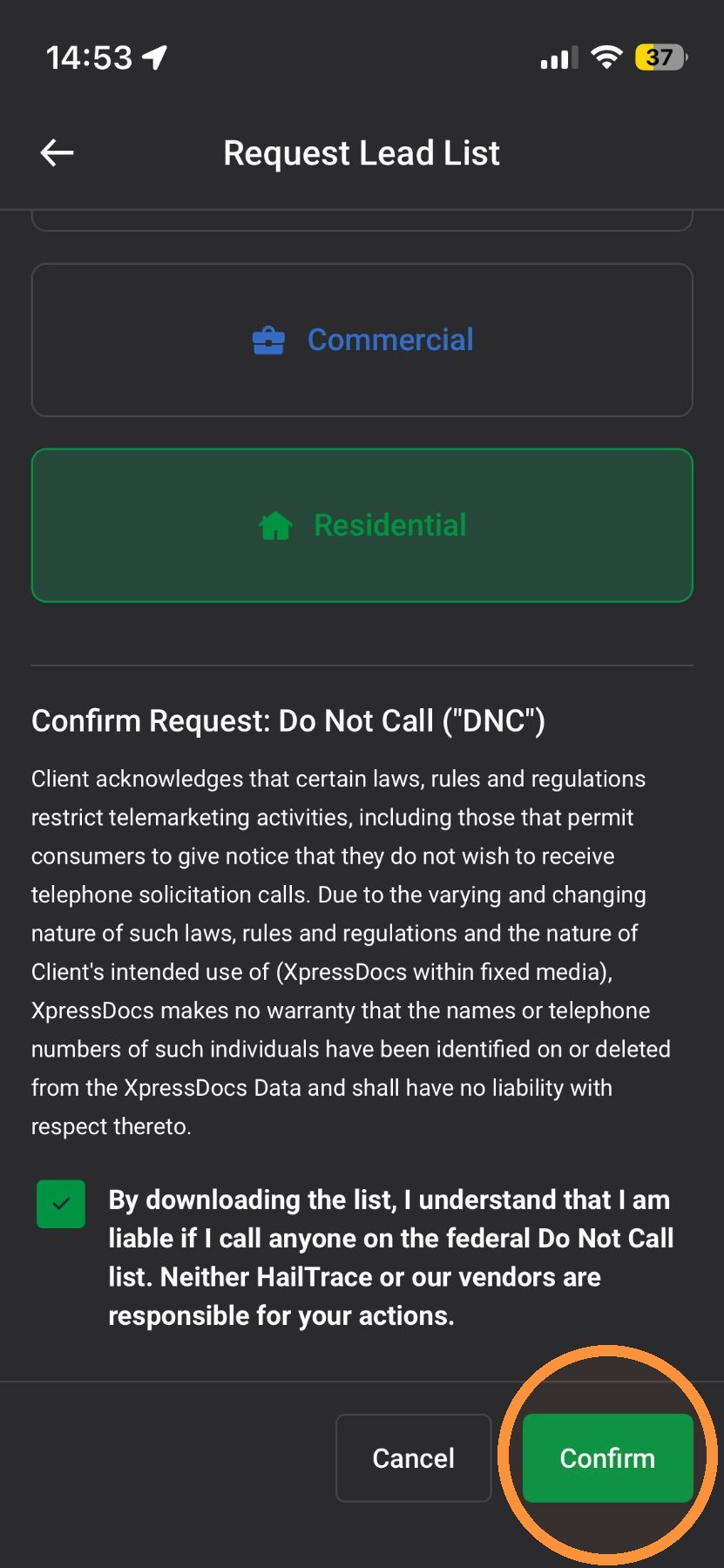
10. Tap Confirm
11. Once your list is ready, tap download to start reaching out to owners impacted by a storm
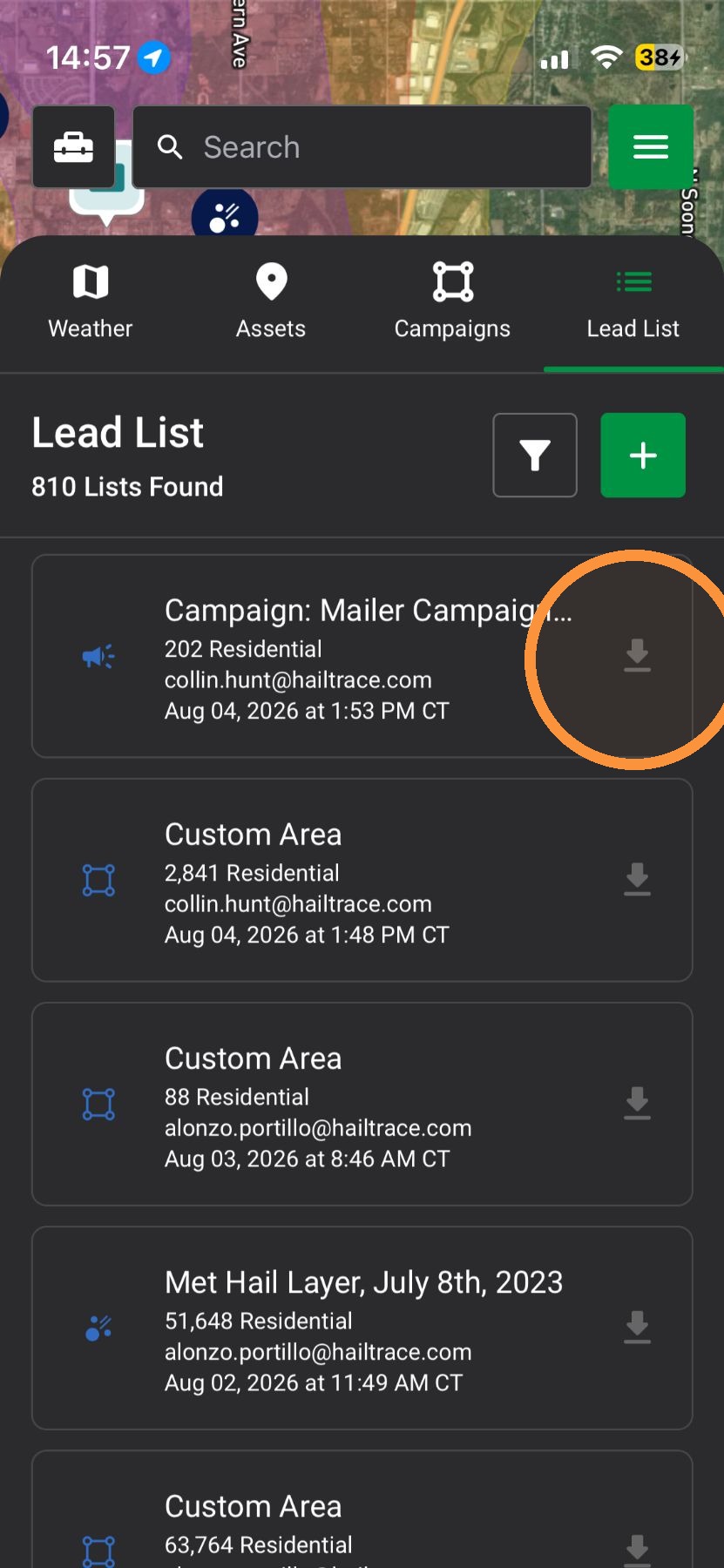
From Weather Layers
5. Tap "Lead List From Weather Layers"
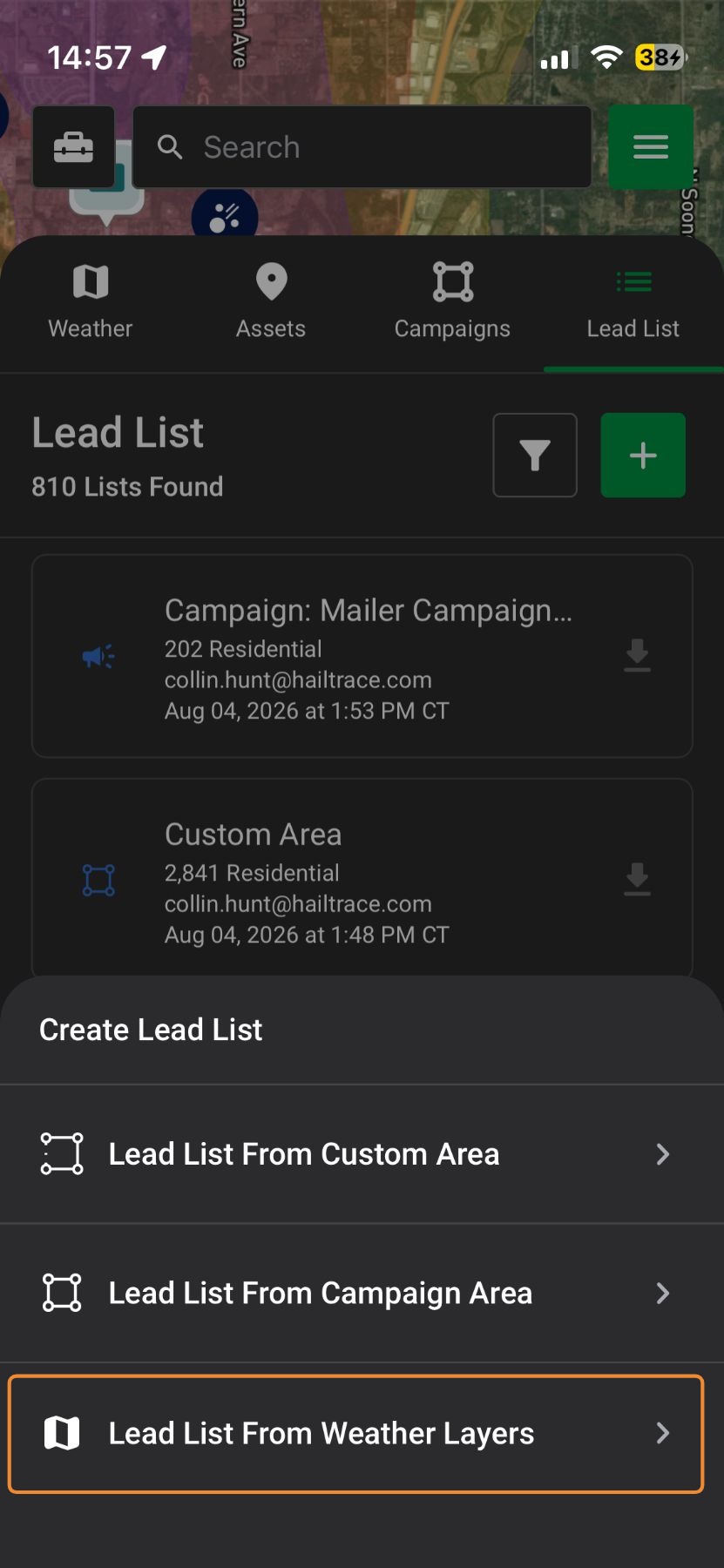
6. Tap on a map layer
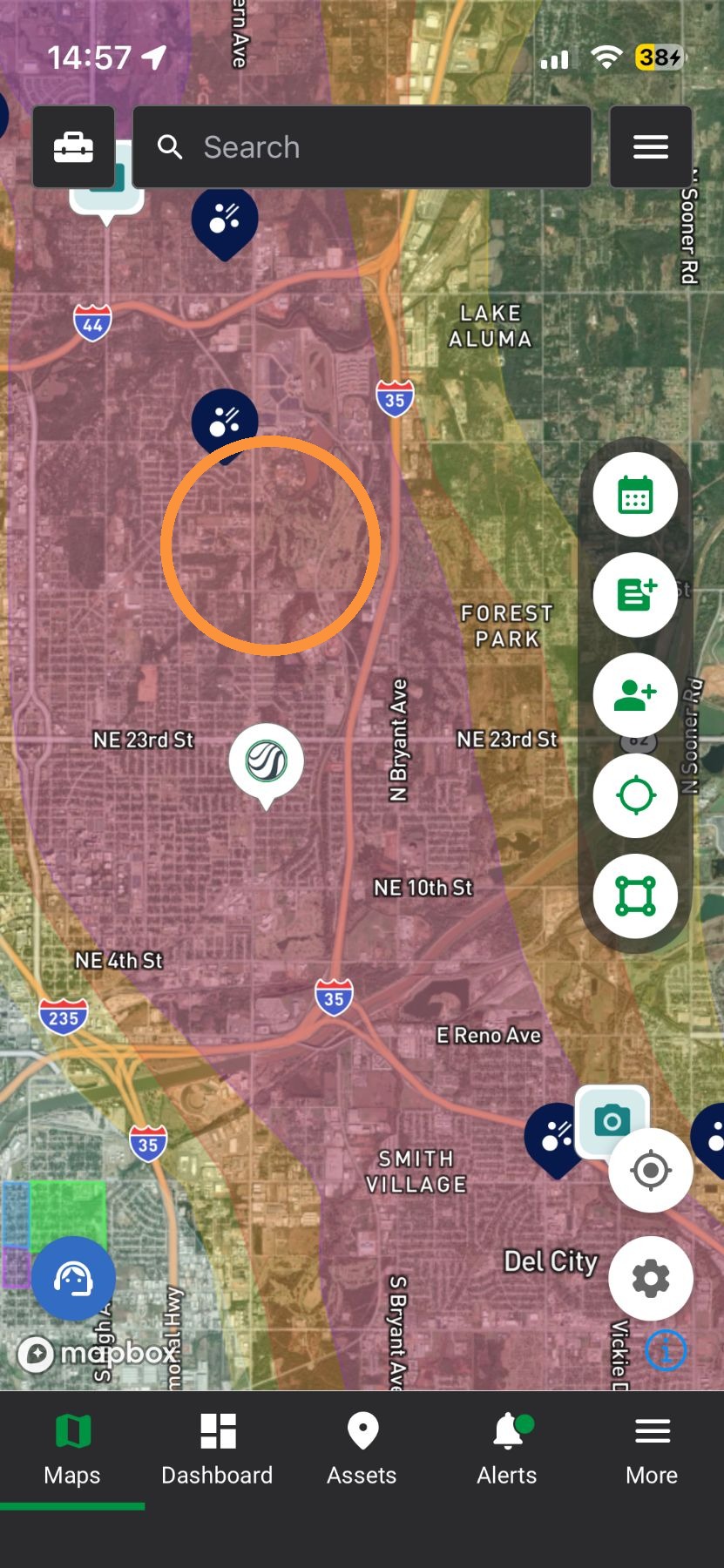
7. Tap "Request List"
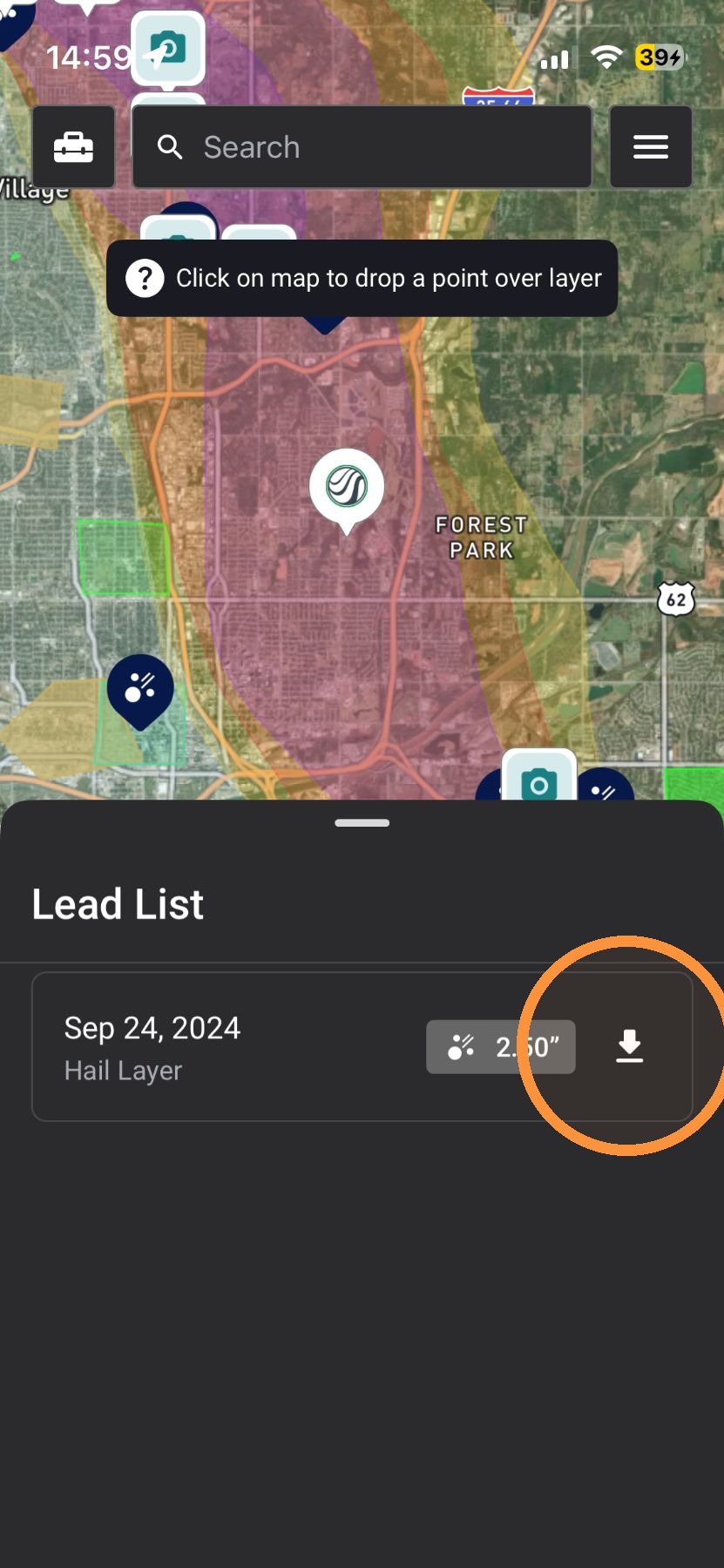
8. Select assets
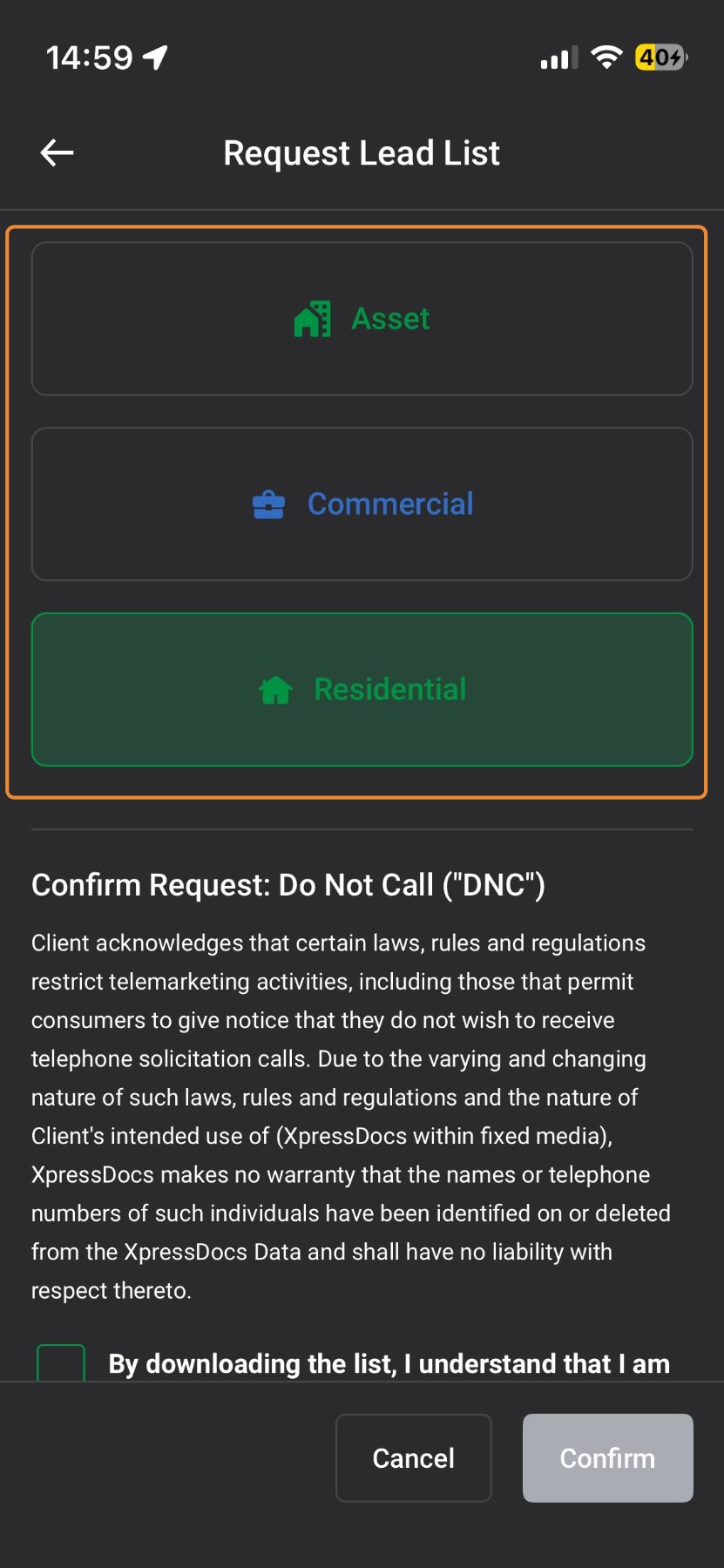
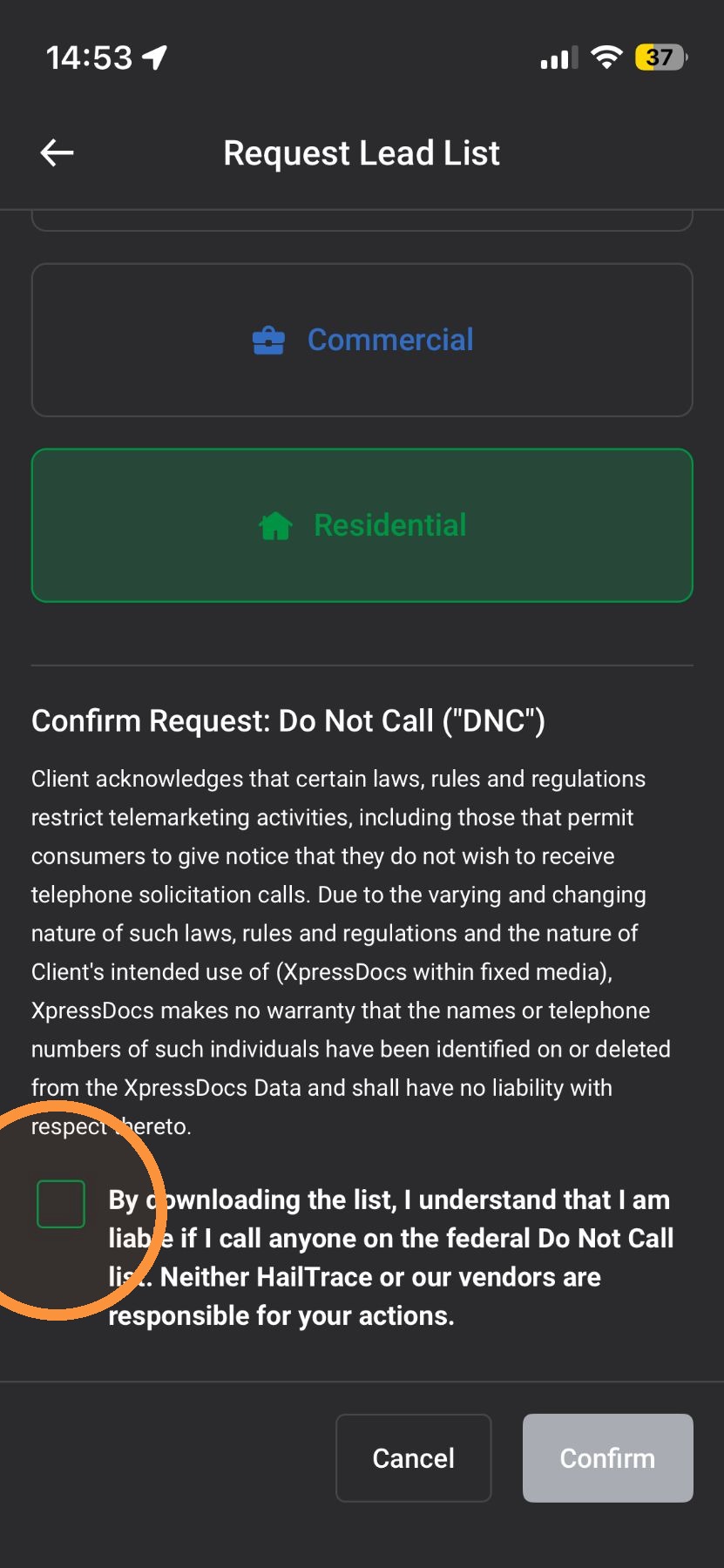
9. Confirm you understand that you are liable if you call anyone on the federal Do Not Call list
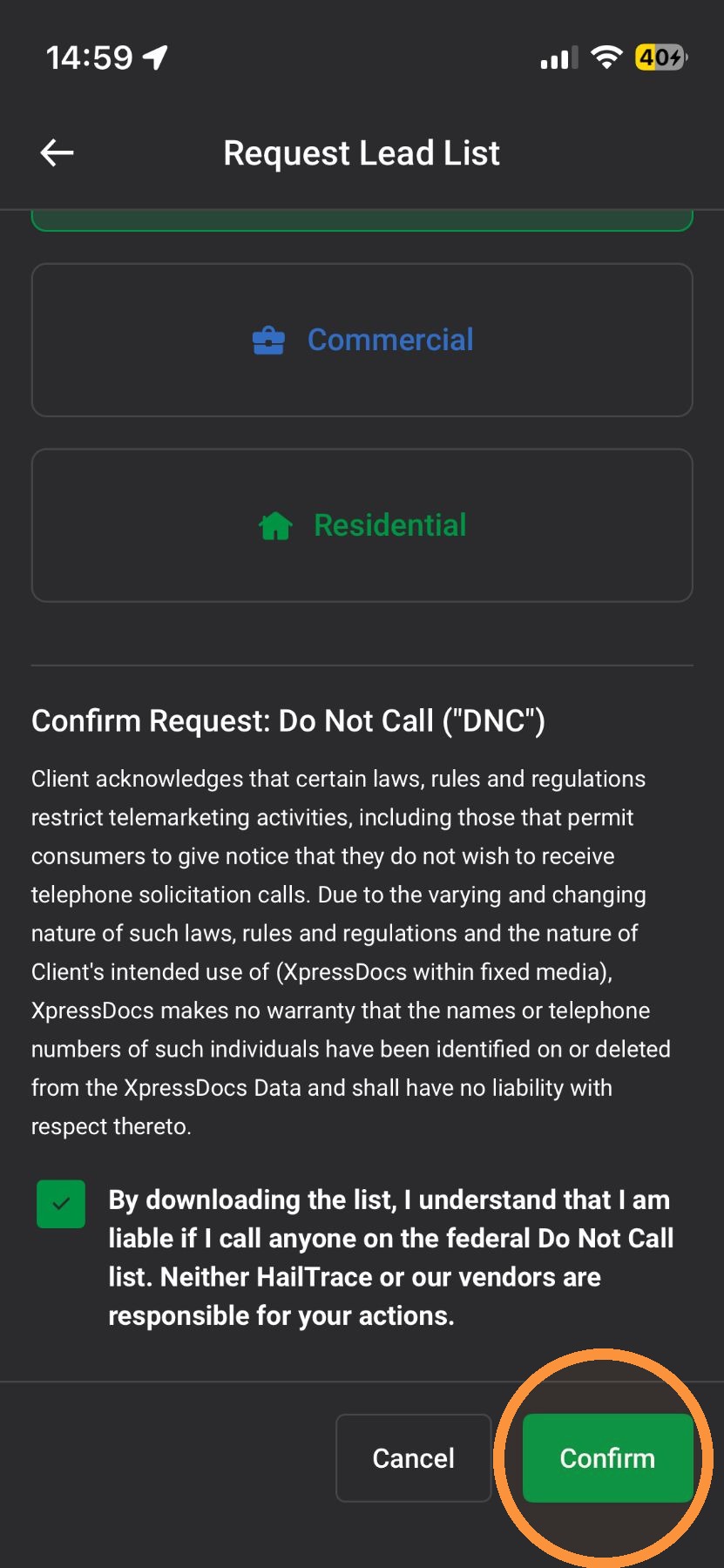
10. Tap Confirm
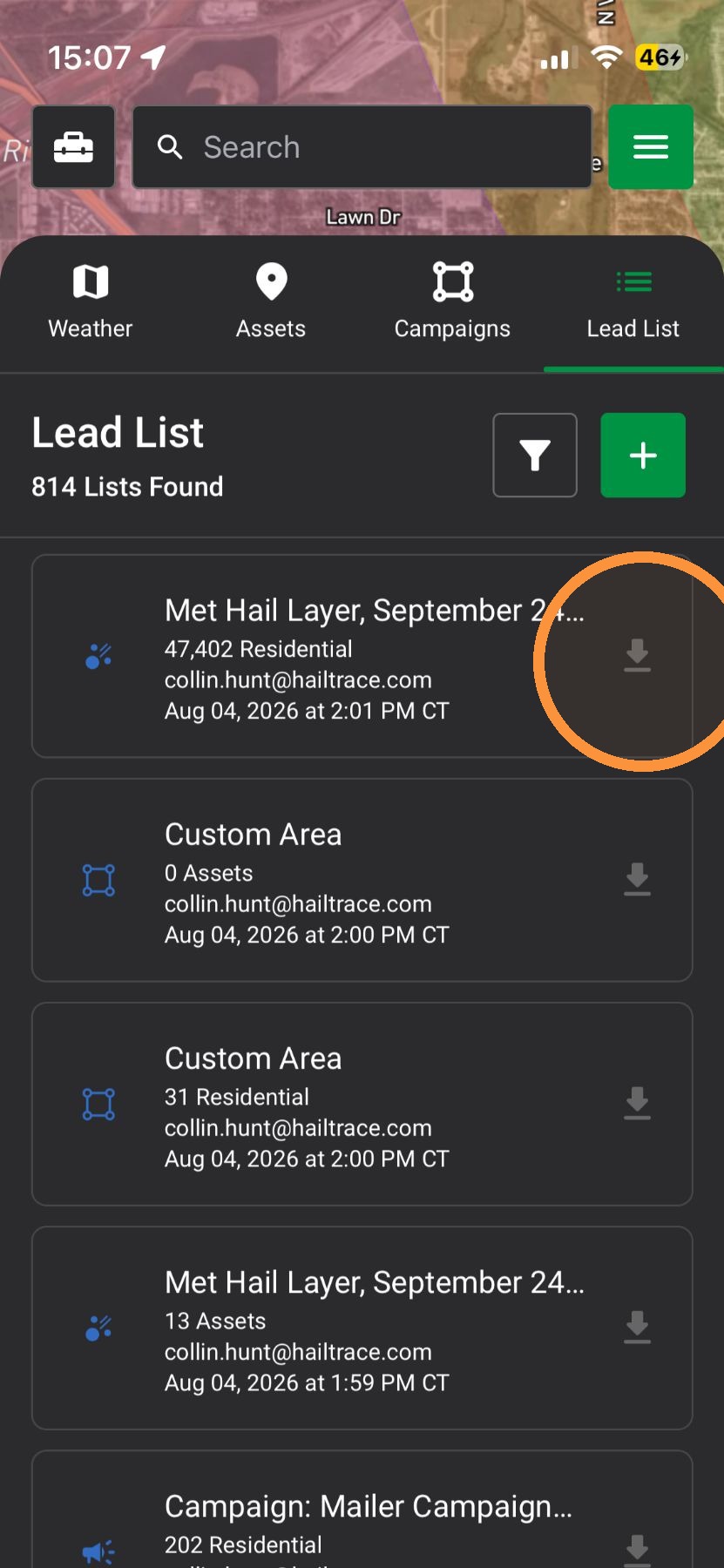
11. Once your list is ready, tap download to start reaching out to owners impacted by a storm
Browser App
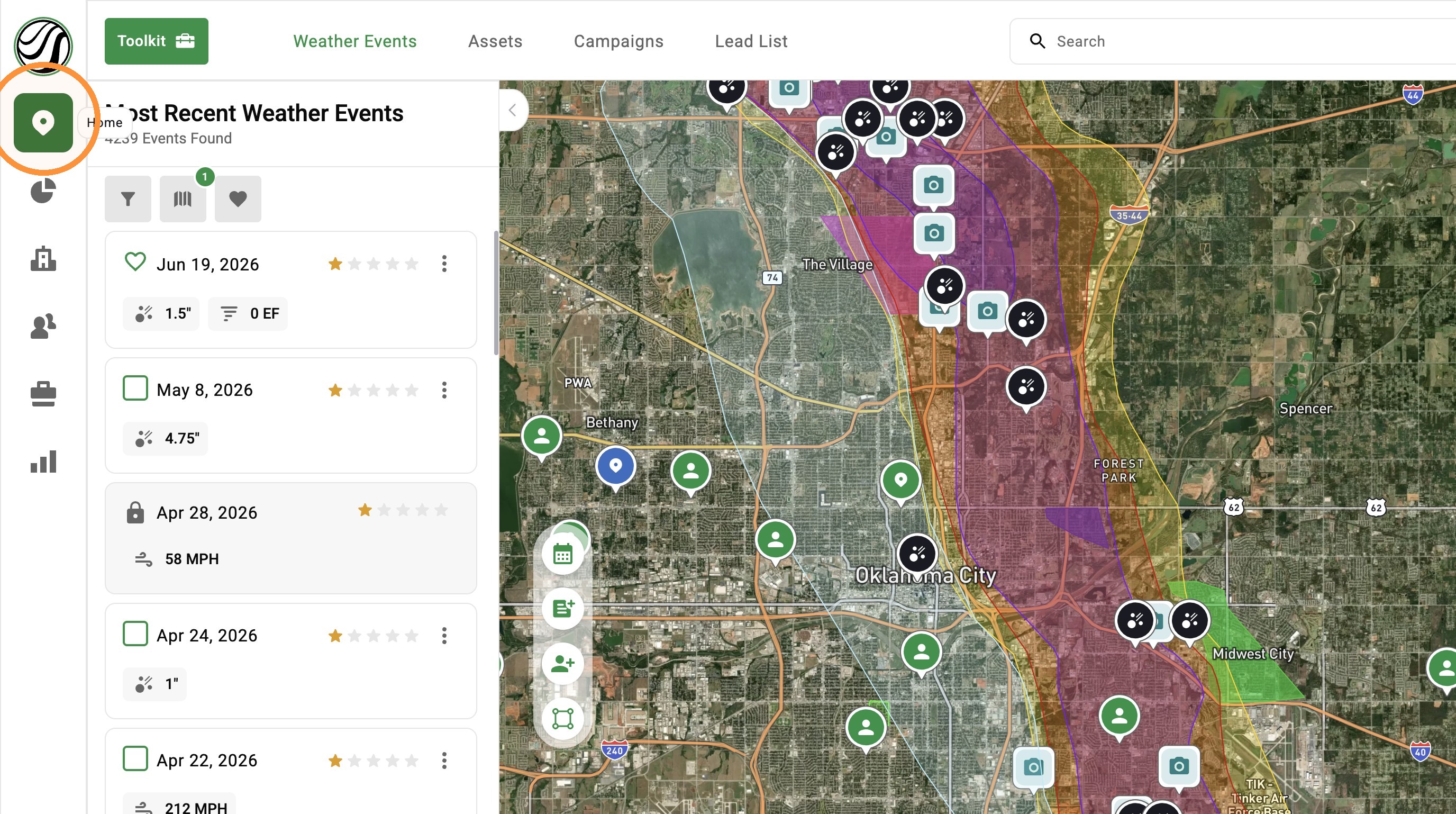
2. Click "Lead List" panel
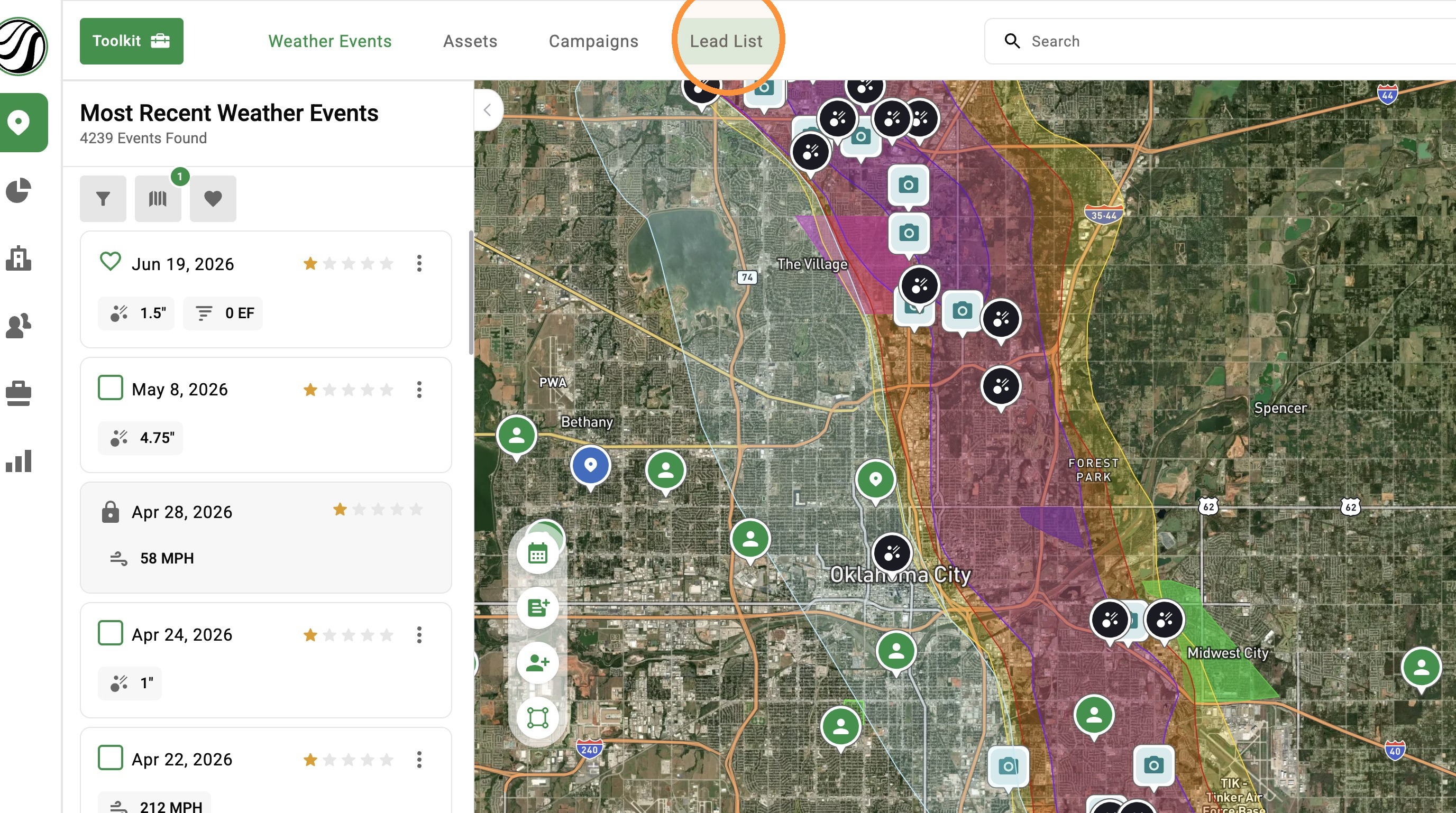
3. Click "Create Lead List" button
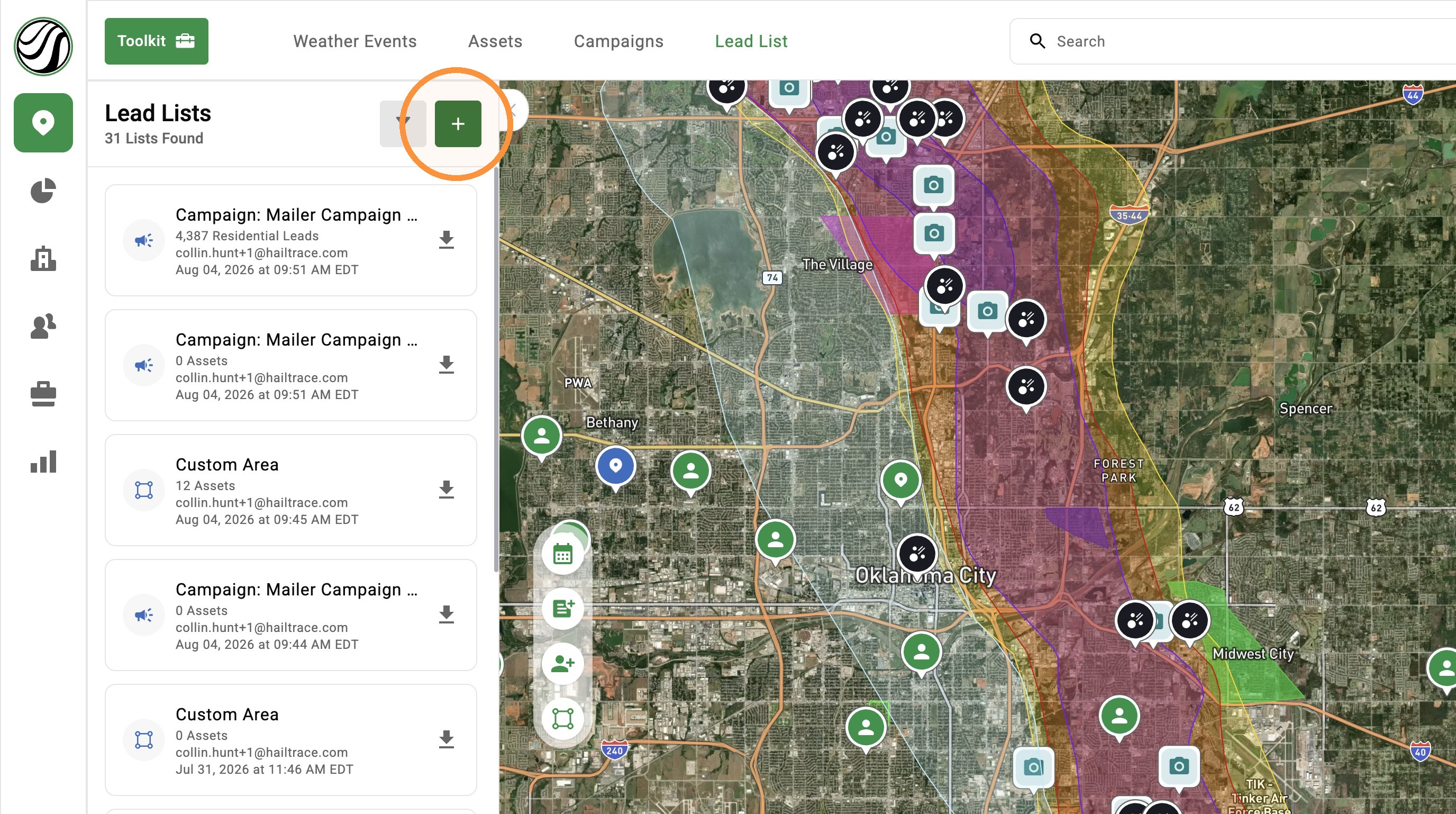
4. From here, you can select three options to pull an impacted asset
A. From Custom Area
B. From Campaign Area
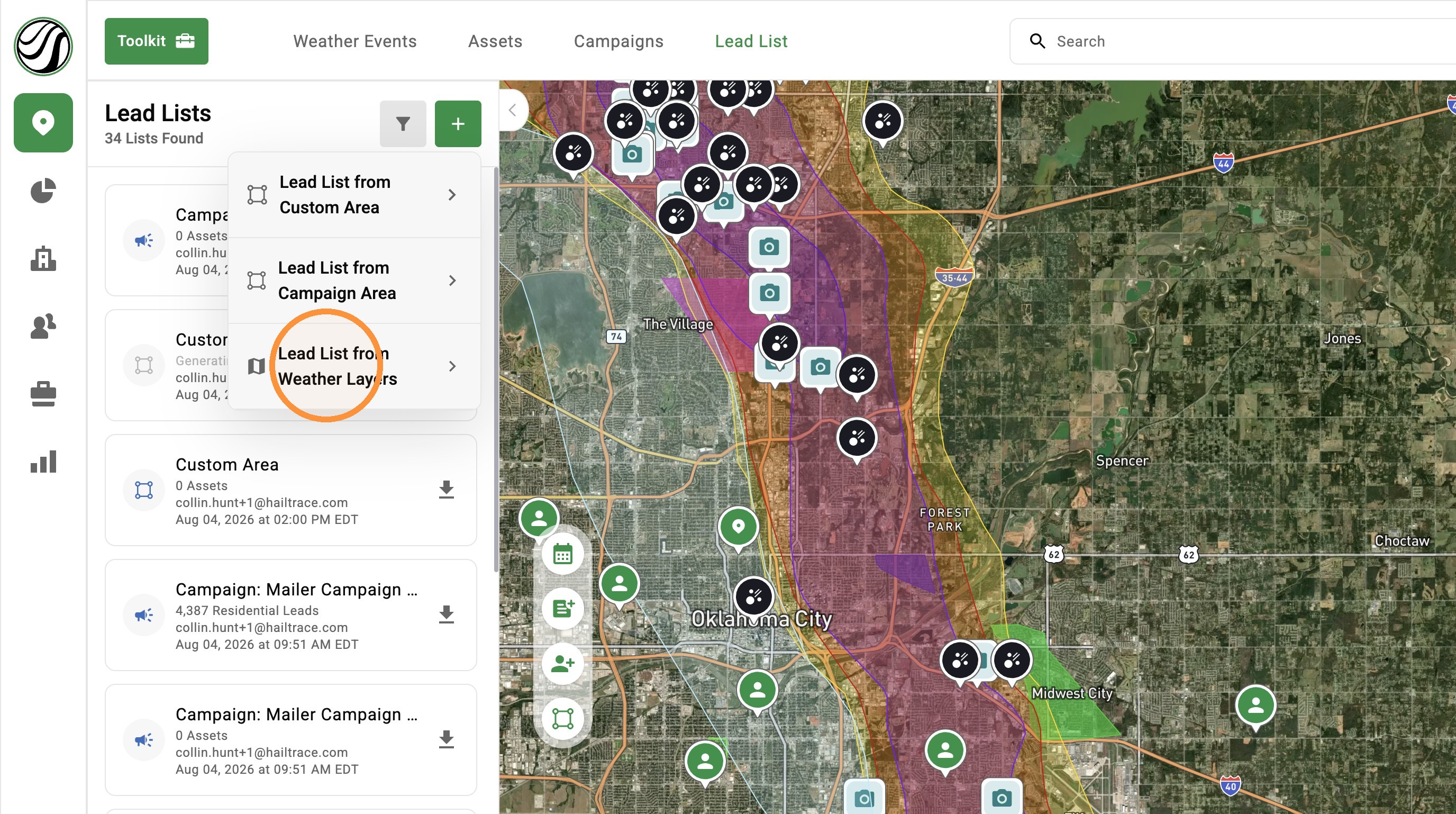
C. From Weather layers
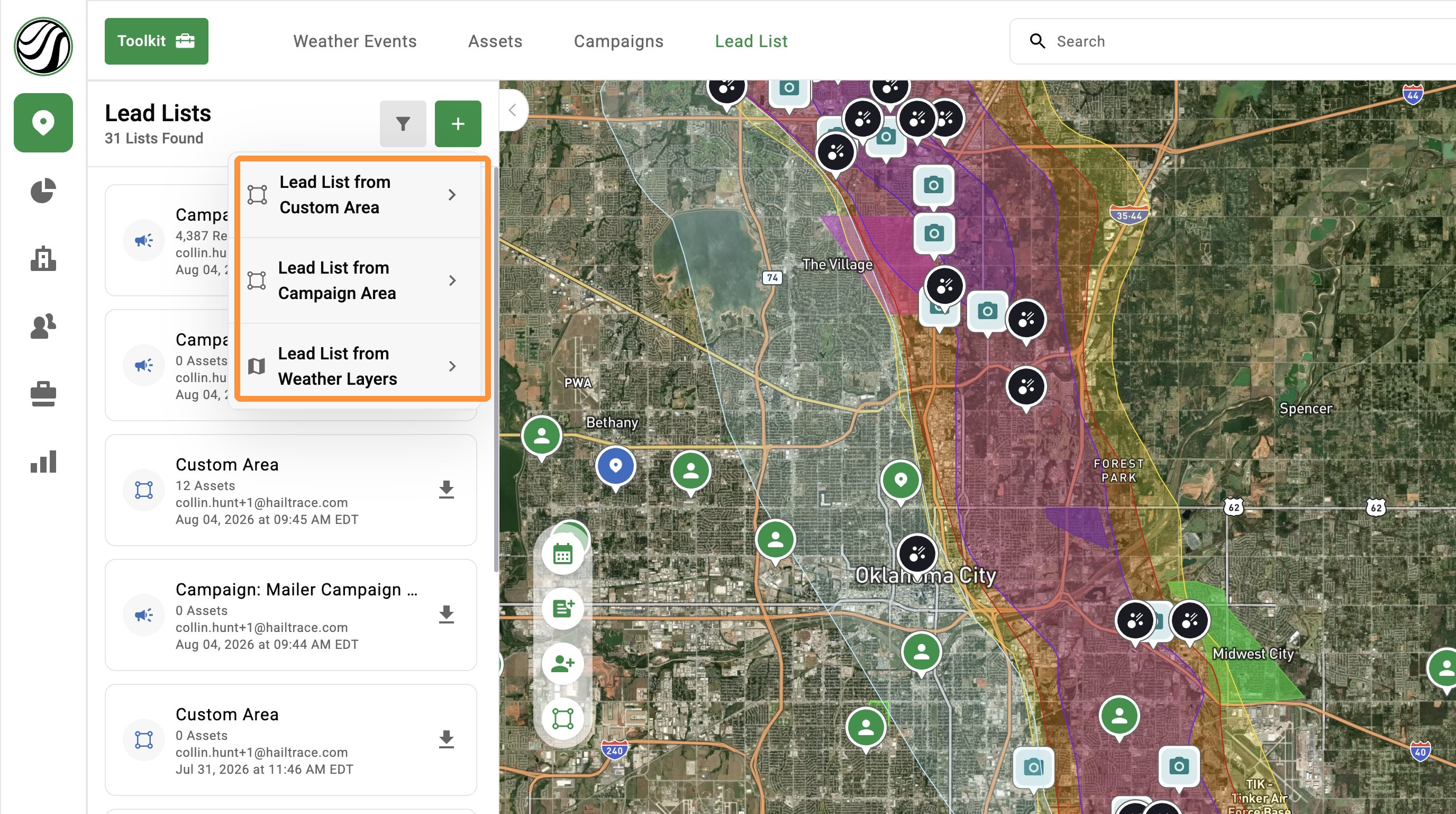
From Custom Area
5. Click "Lead List from Custom Area"
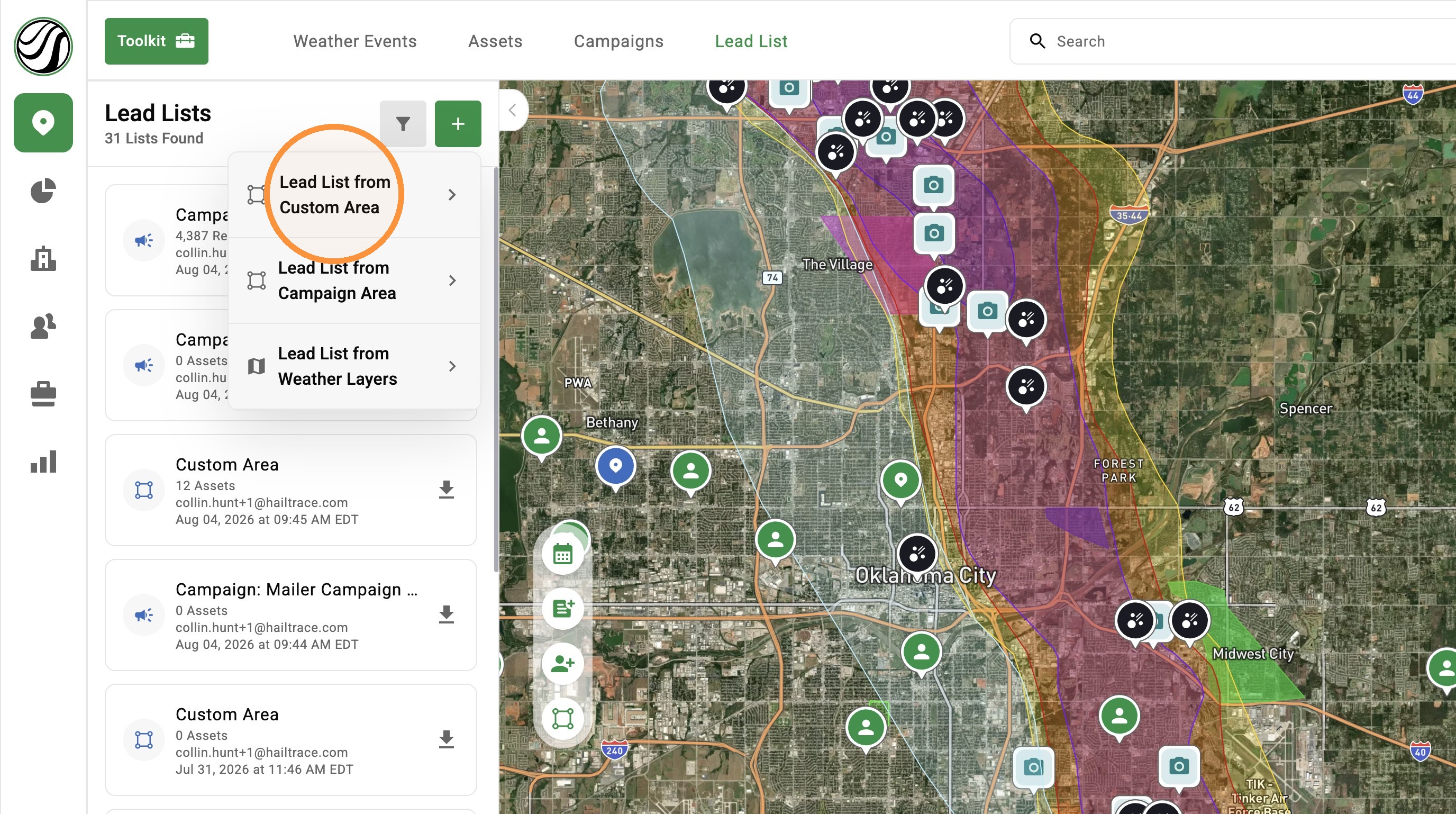
6. Click at least three points to draw a lead list
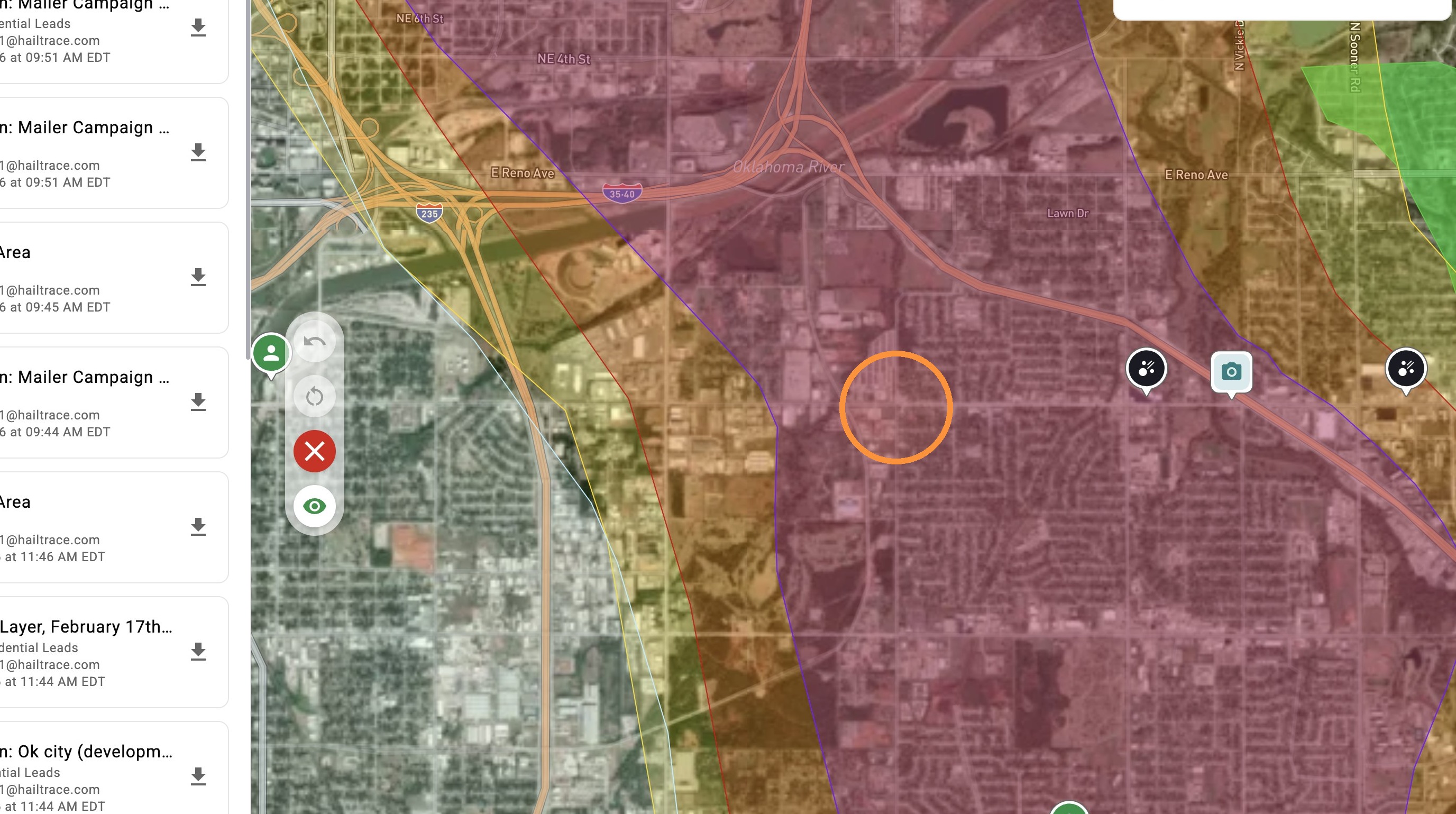
7. Double click to complete the area
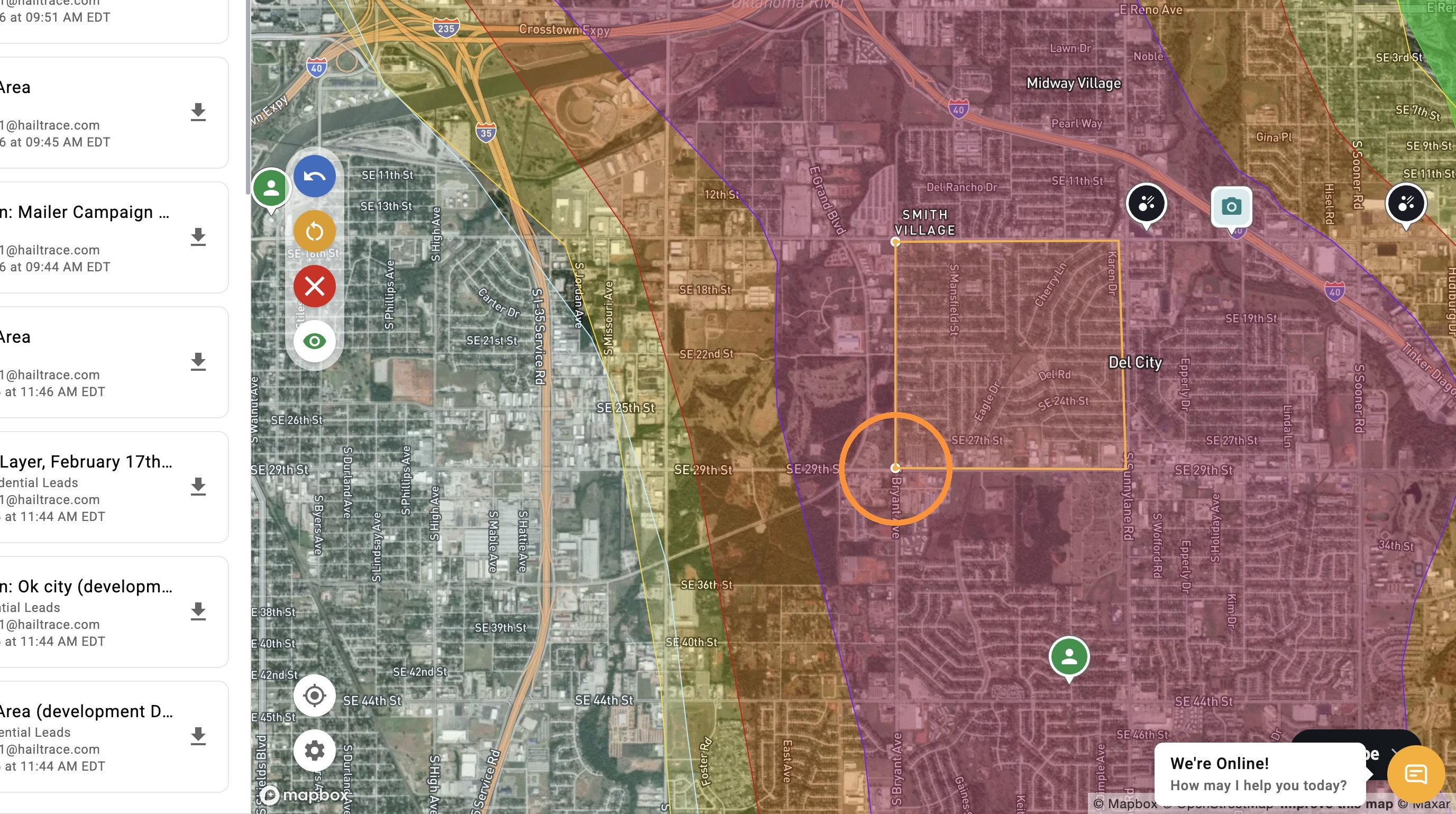
8. Select assets
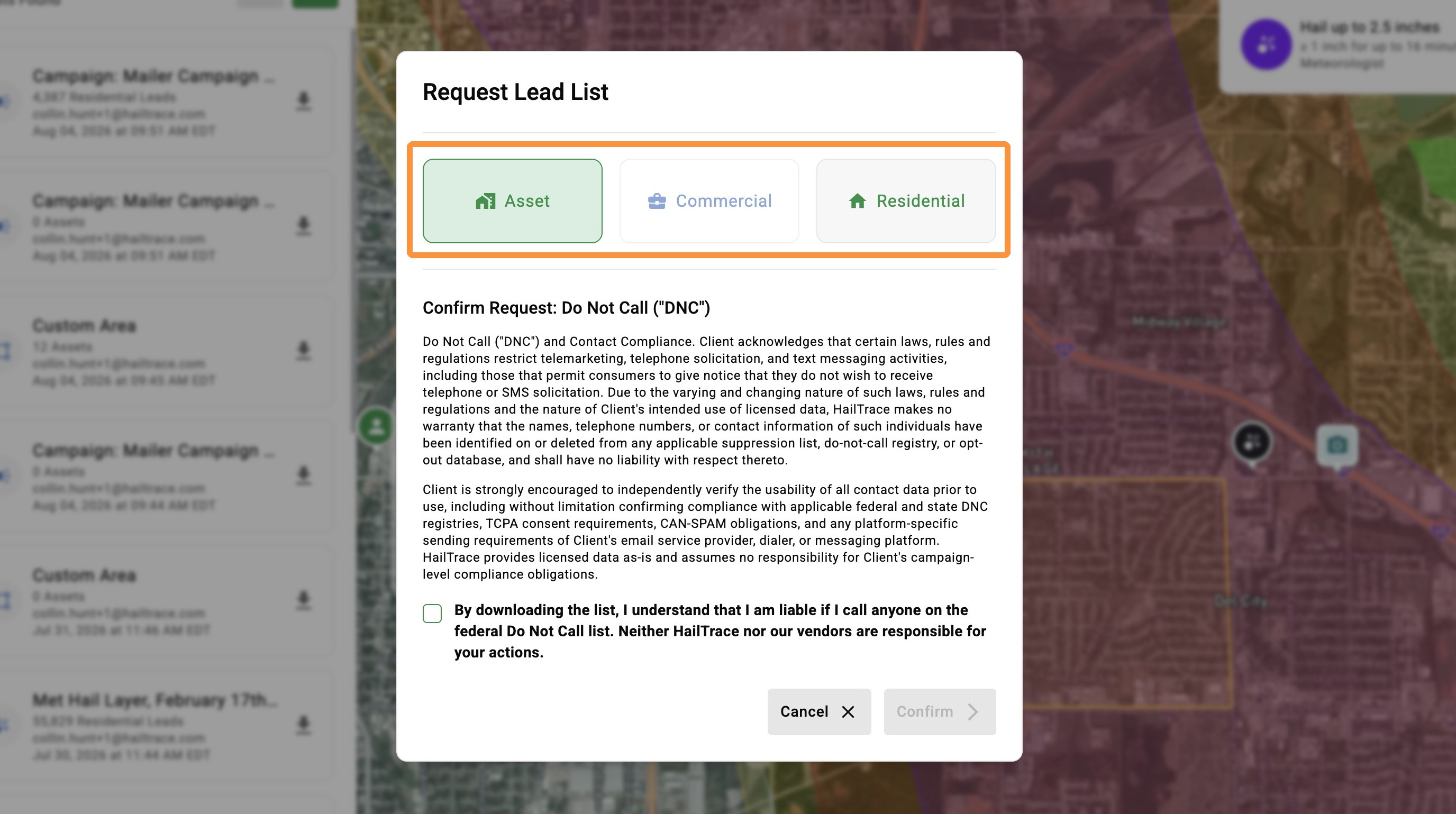
9. Confirm you understand that you are liable if you call anyone on the federal Do Not Call list
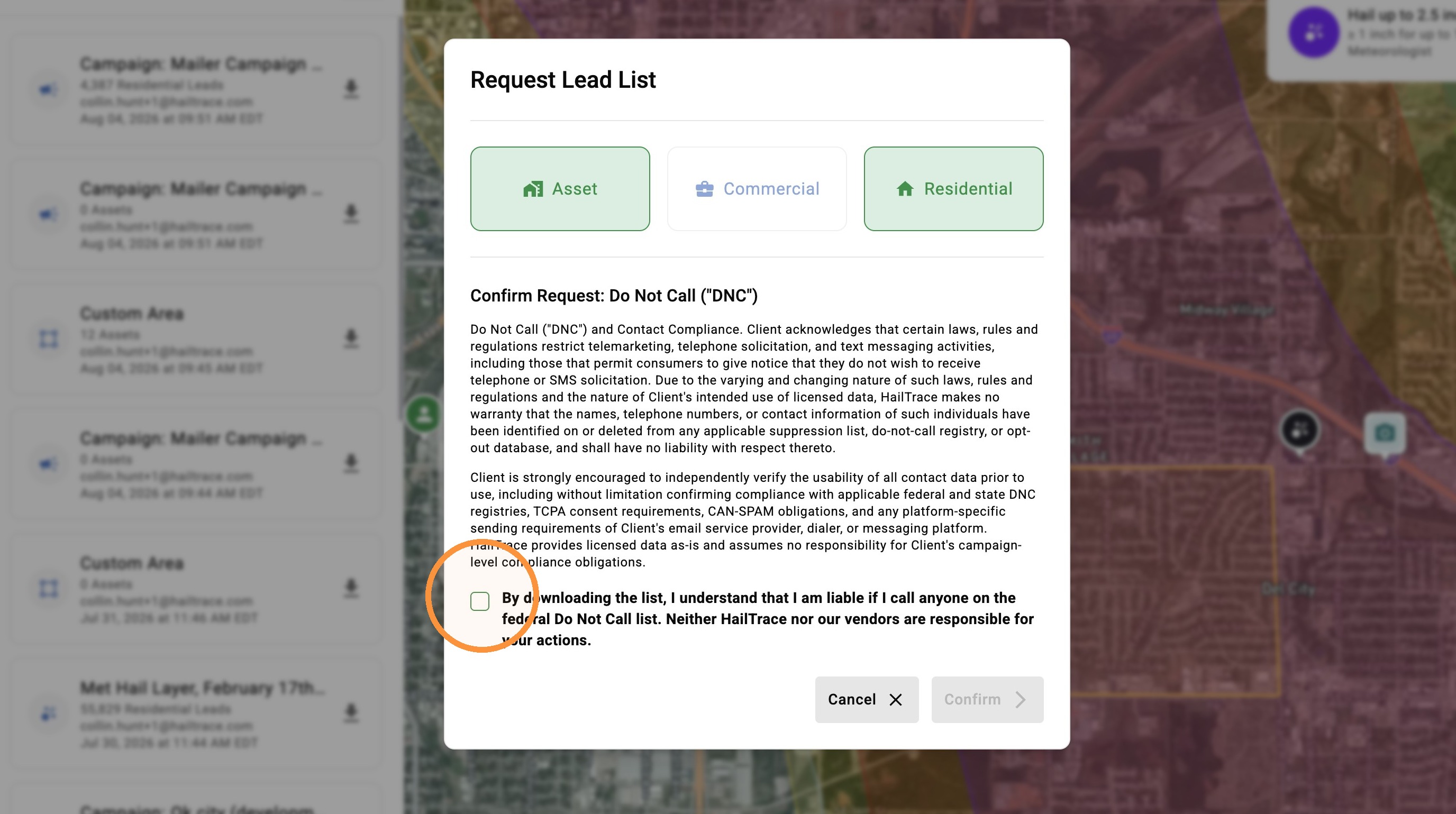
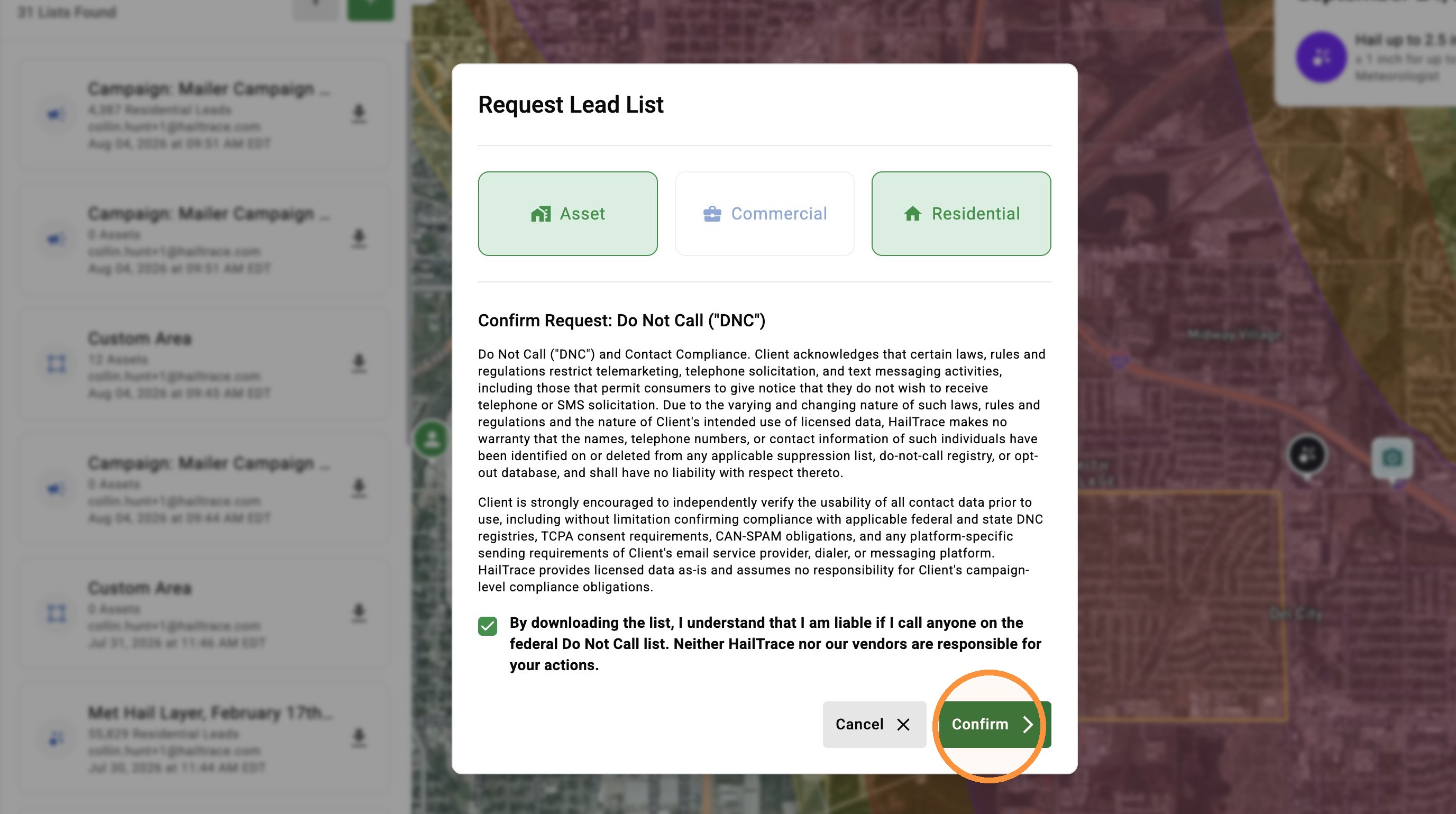
10. Click "Confirm"
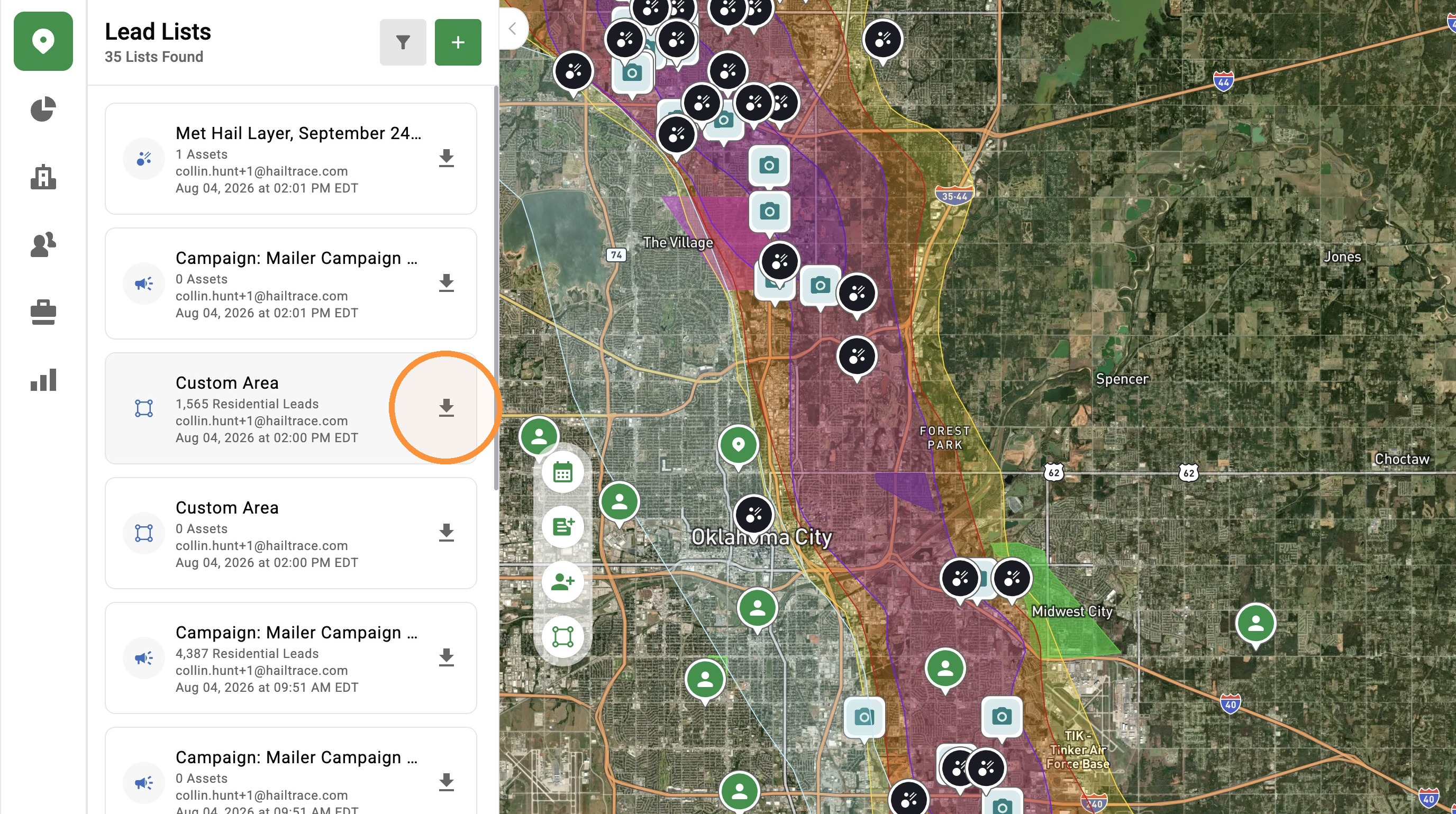
11. Once your list is ready, click download to start reaching out to owners impacted by a storm
From Campaign Area
5. Click "Lead List from Campaign Area"
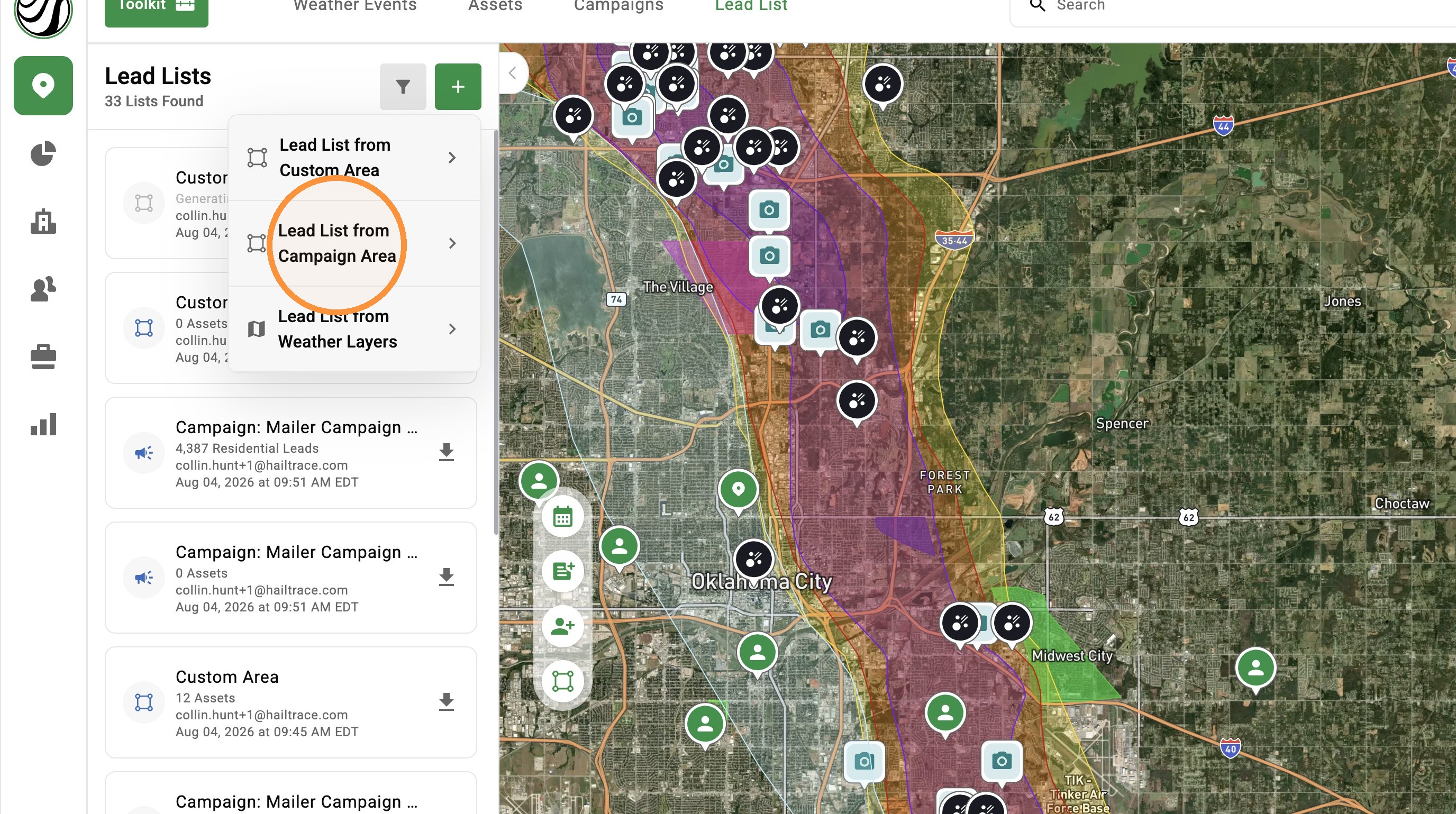
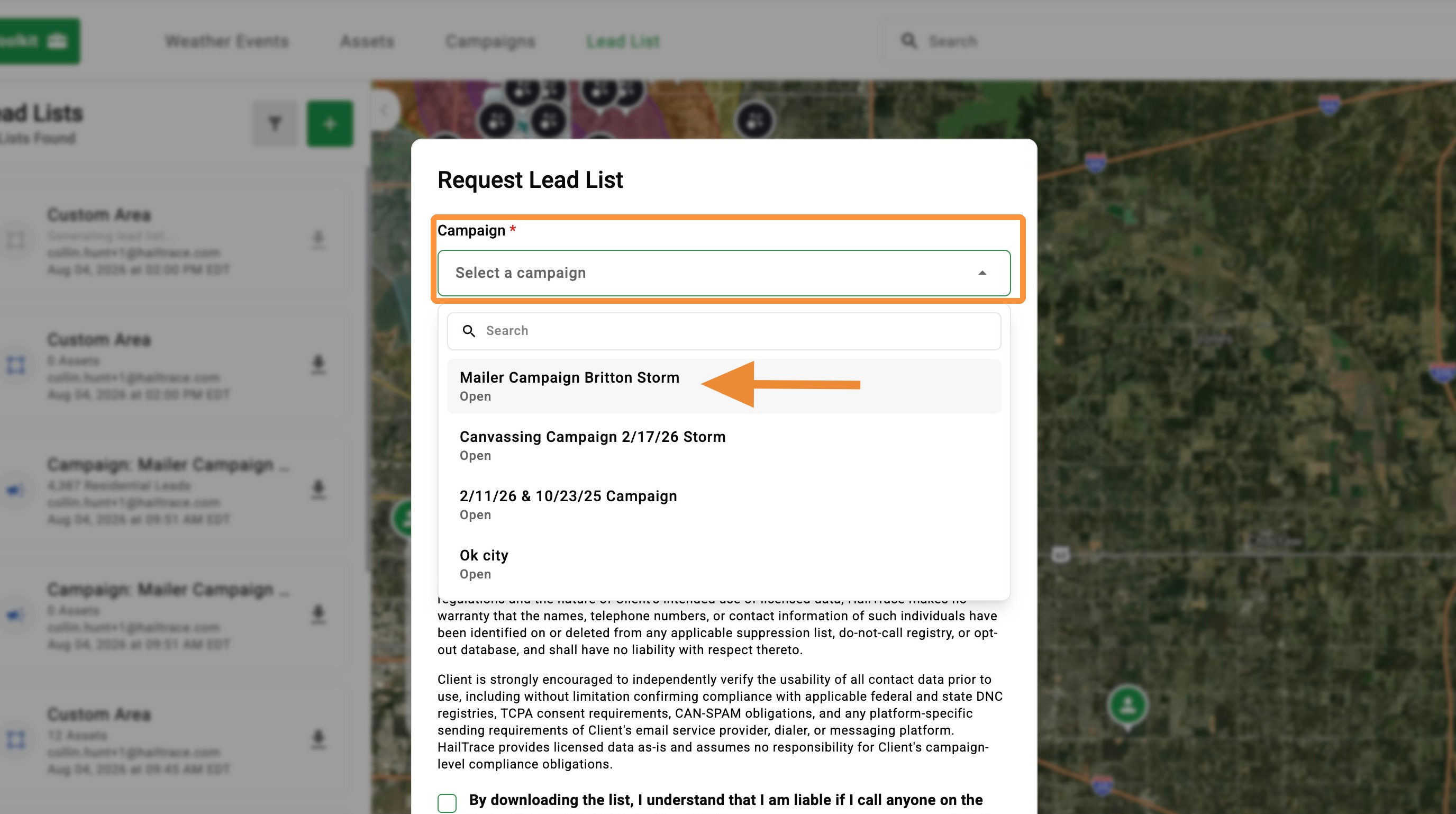
6. Select your Campaign

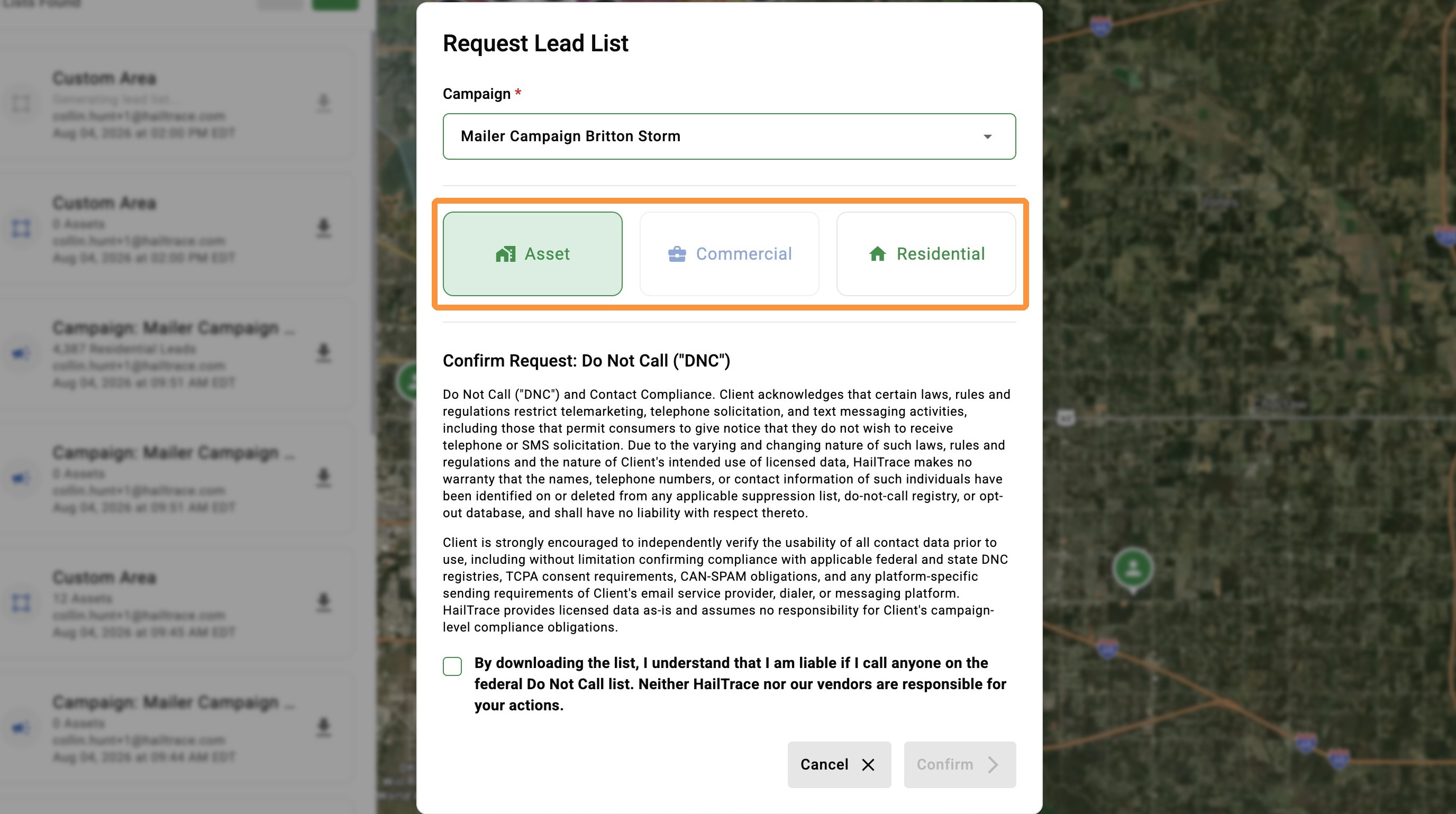
7. Select assets
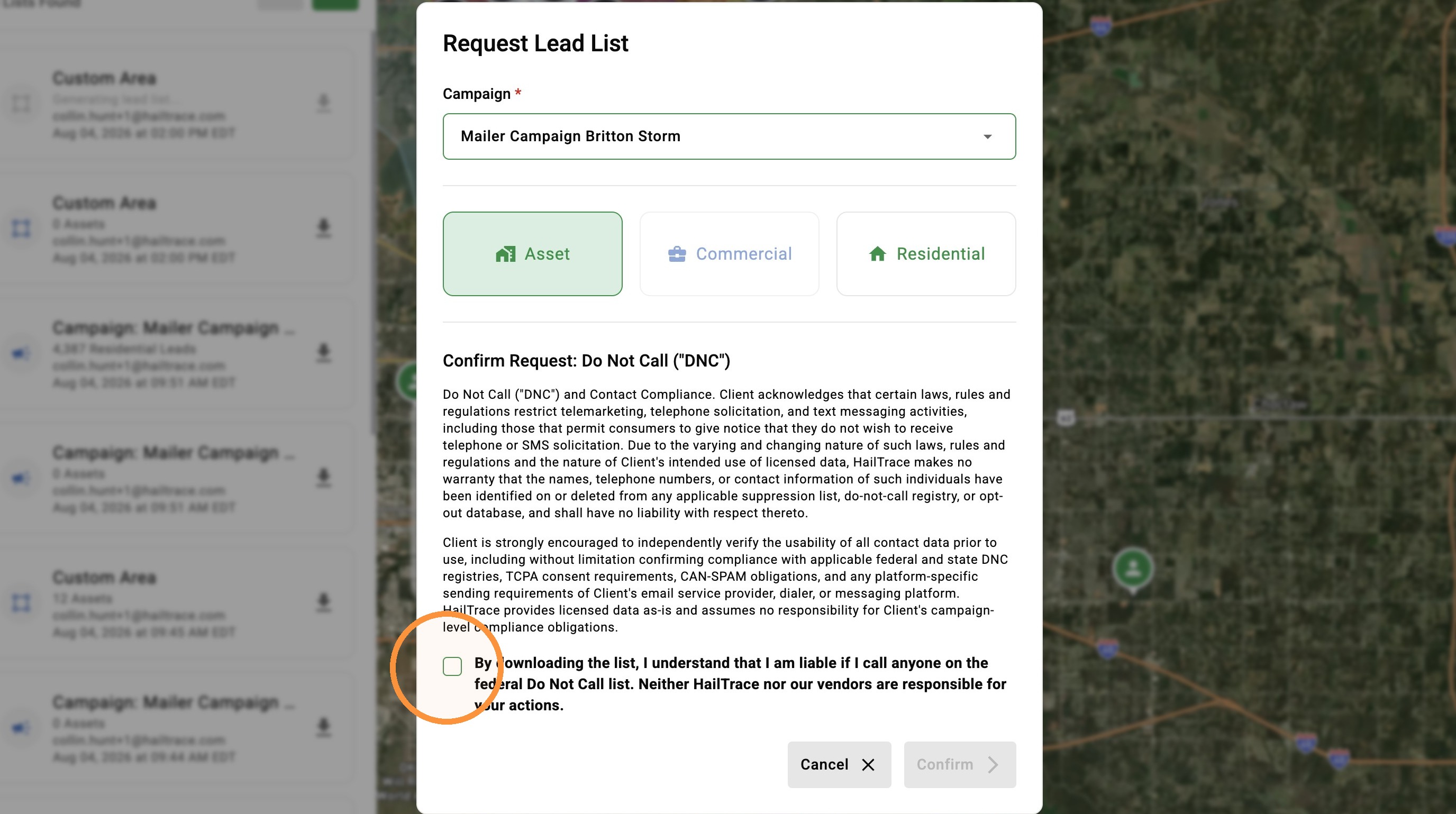
8. Confirm you understand that you are liable if you call anyone on the federal Do Not Call list
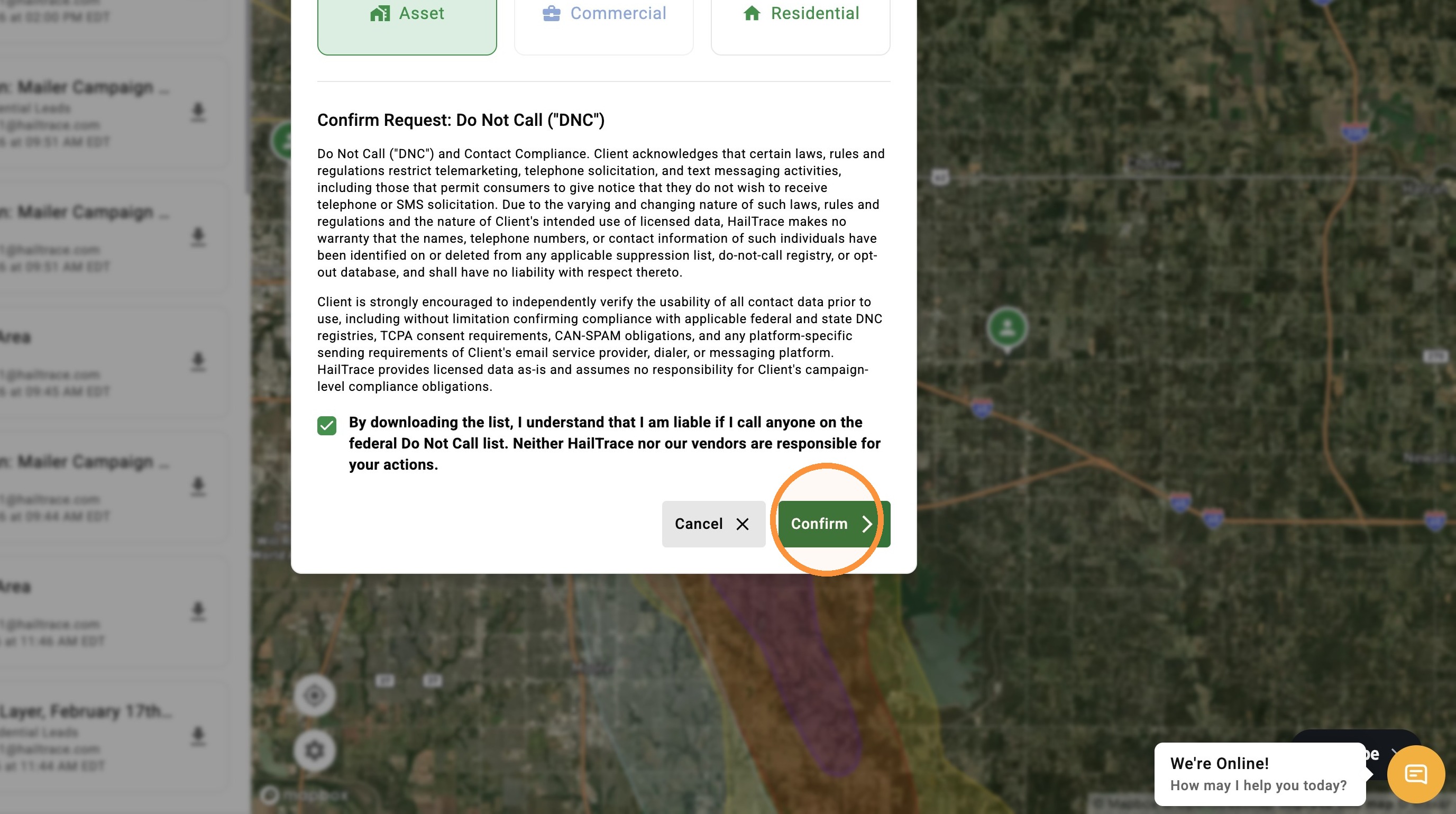
9. Click "Confirm"
10. Once your list is ready, click download to start reaching out to owners impacted by a storm
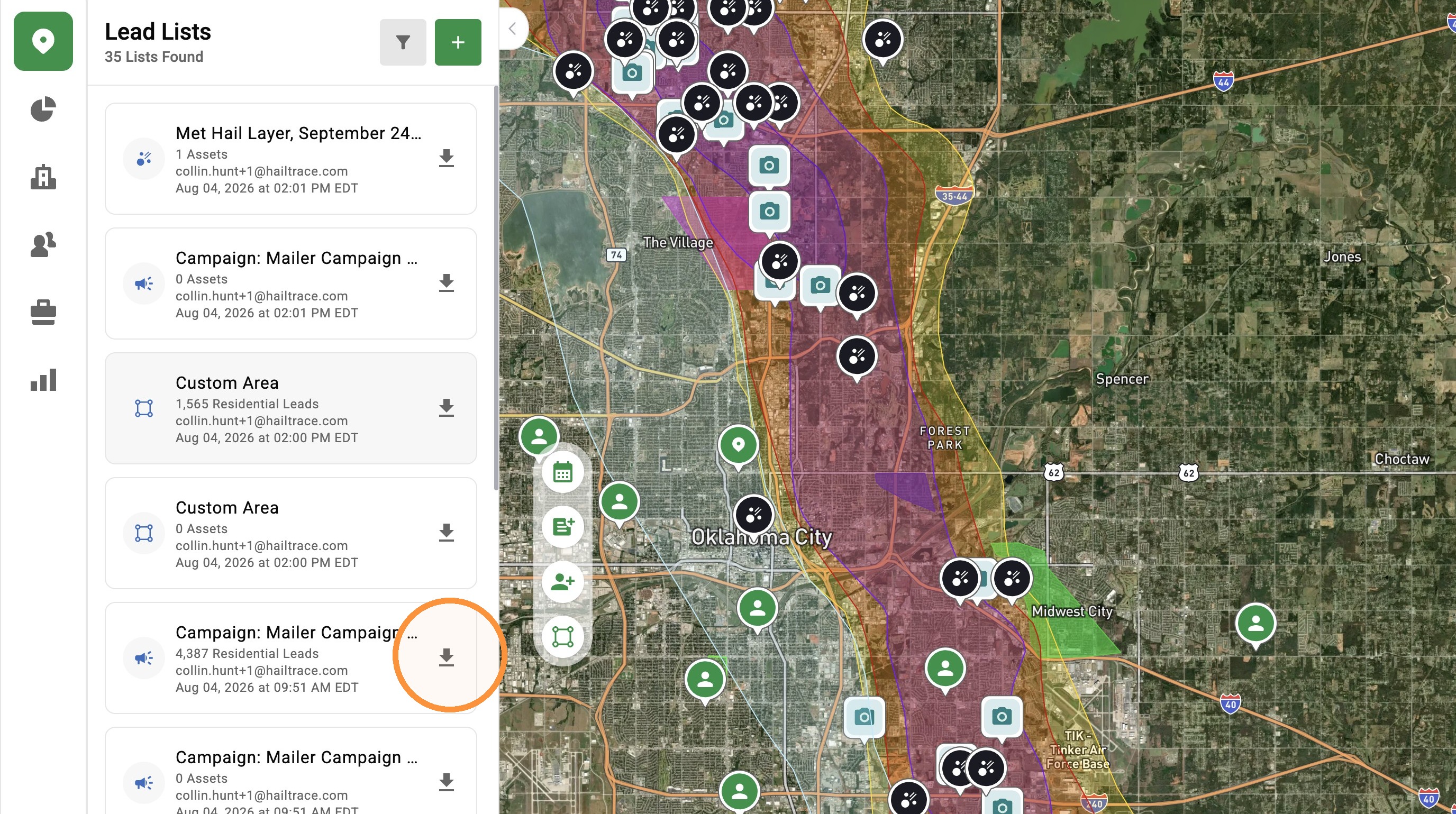
From Weather Layer
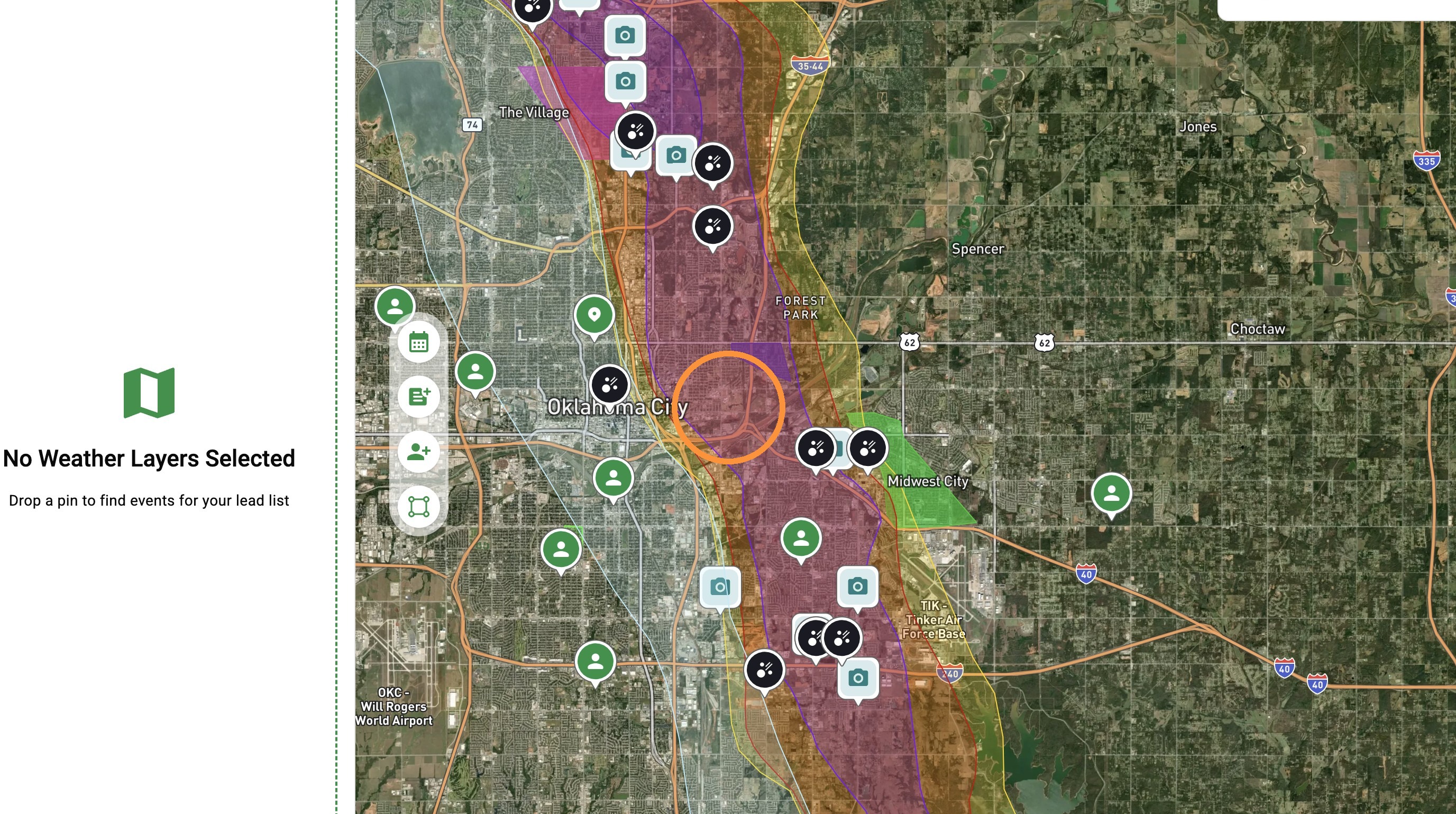
6. Click a map layer
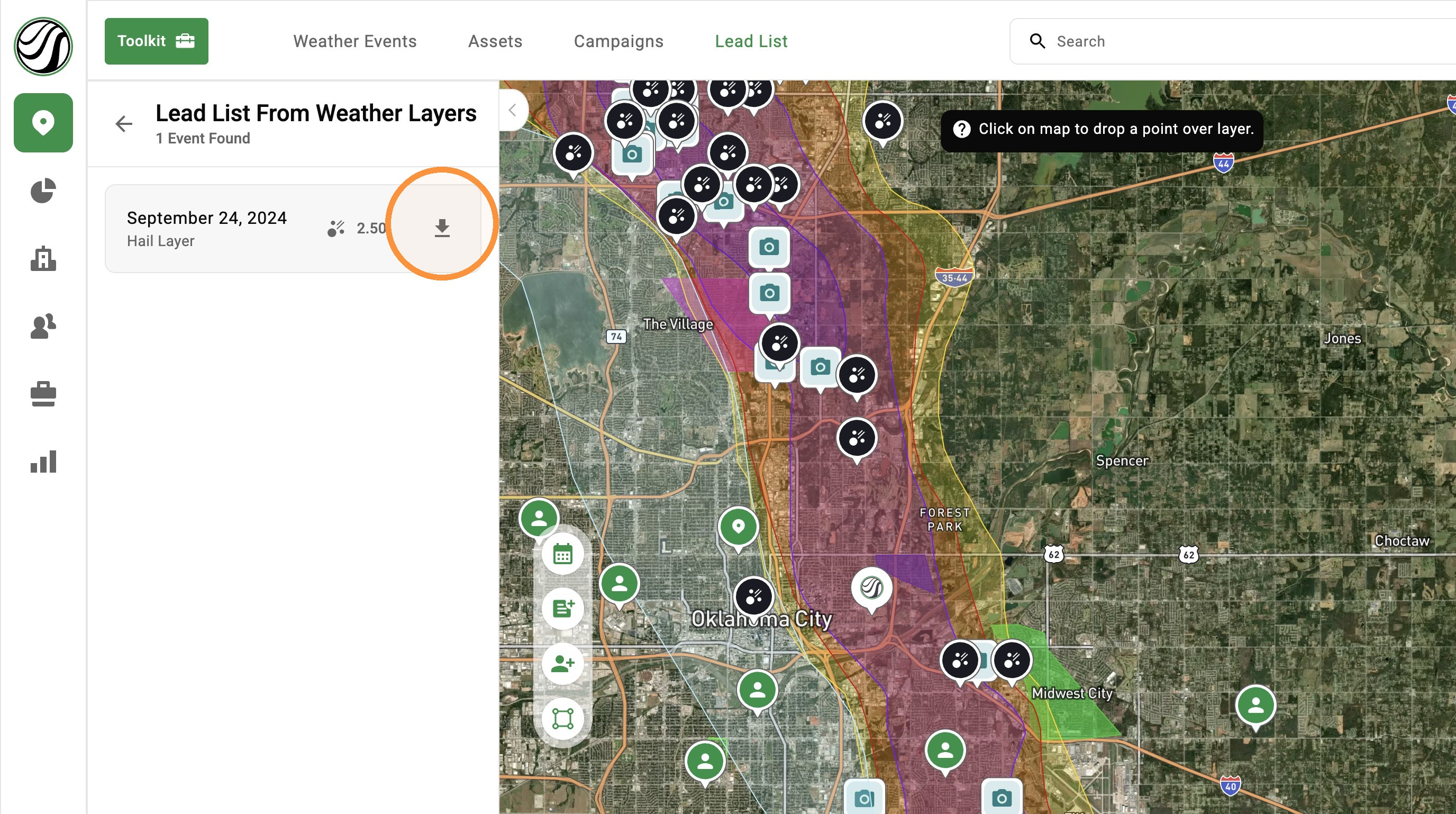
7. Click Request List
8. Select Asset
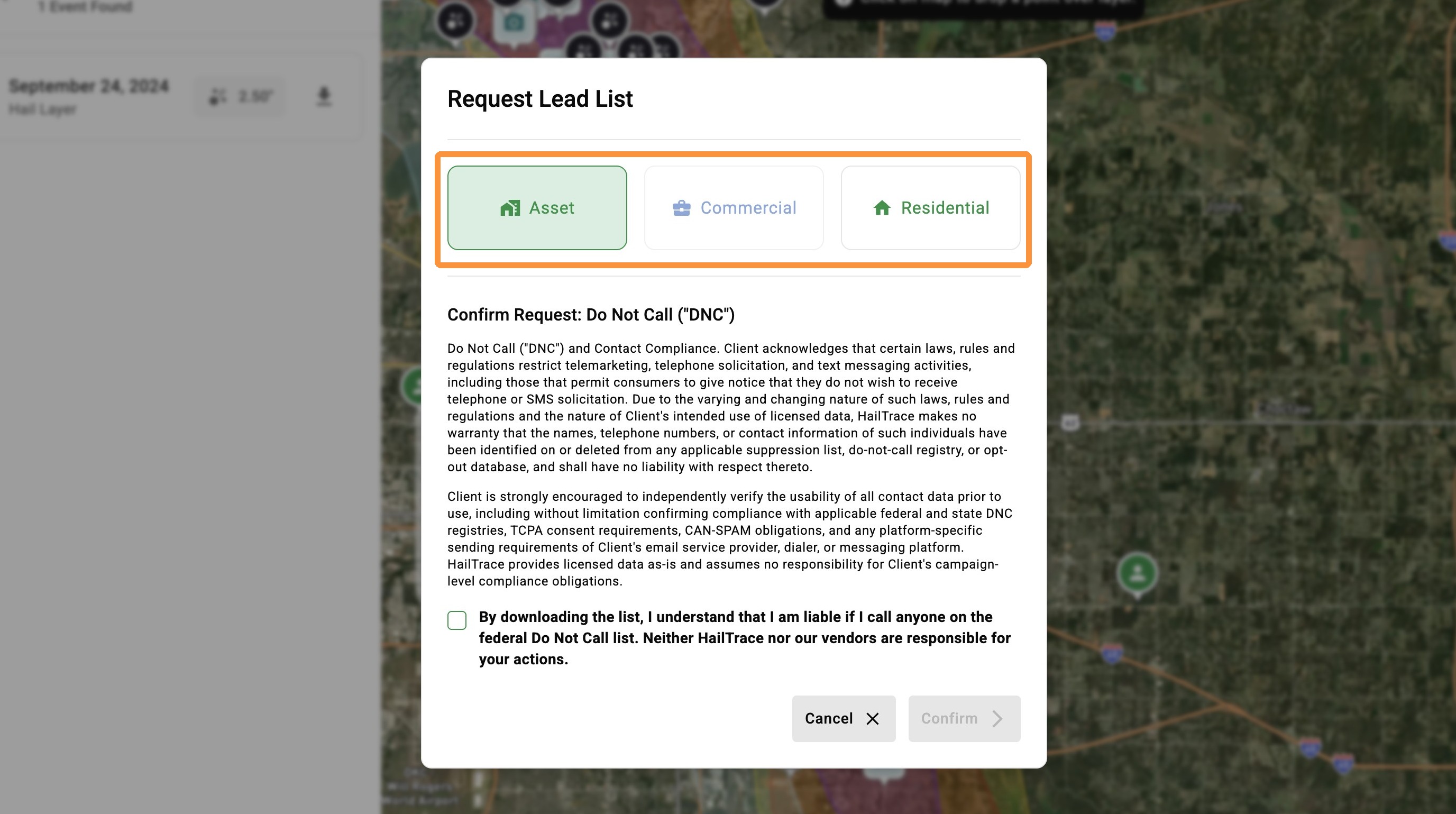
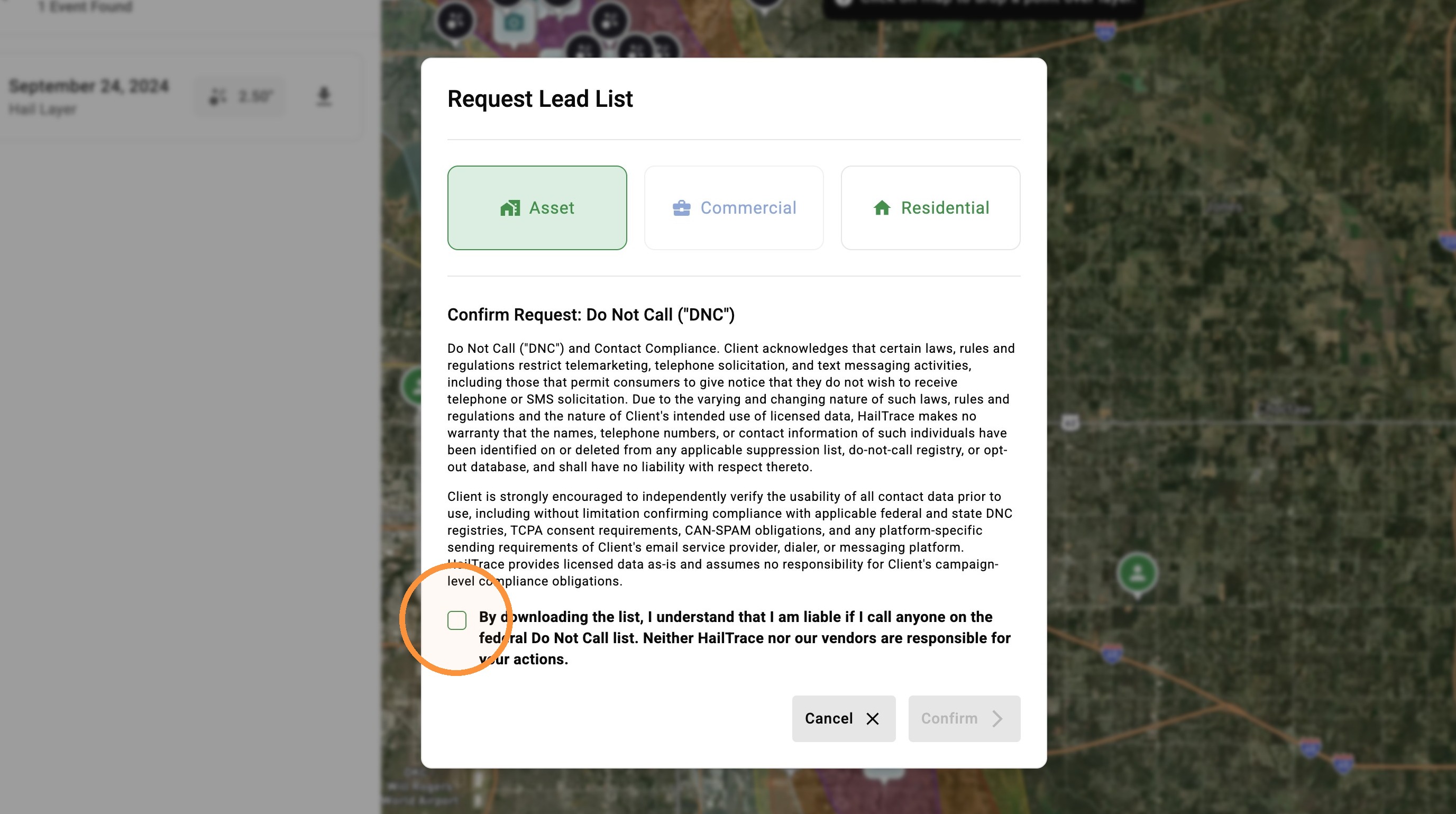
9. Confirm you understand that you are liable if you call anyone on the federal Do Not Call list
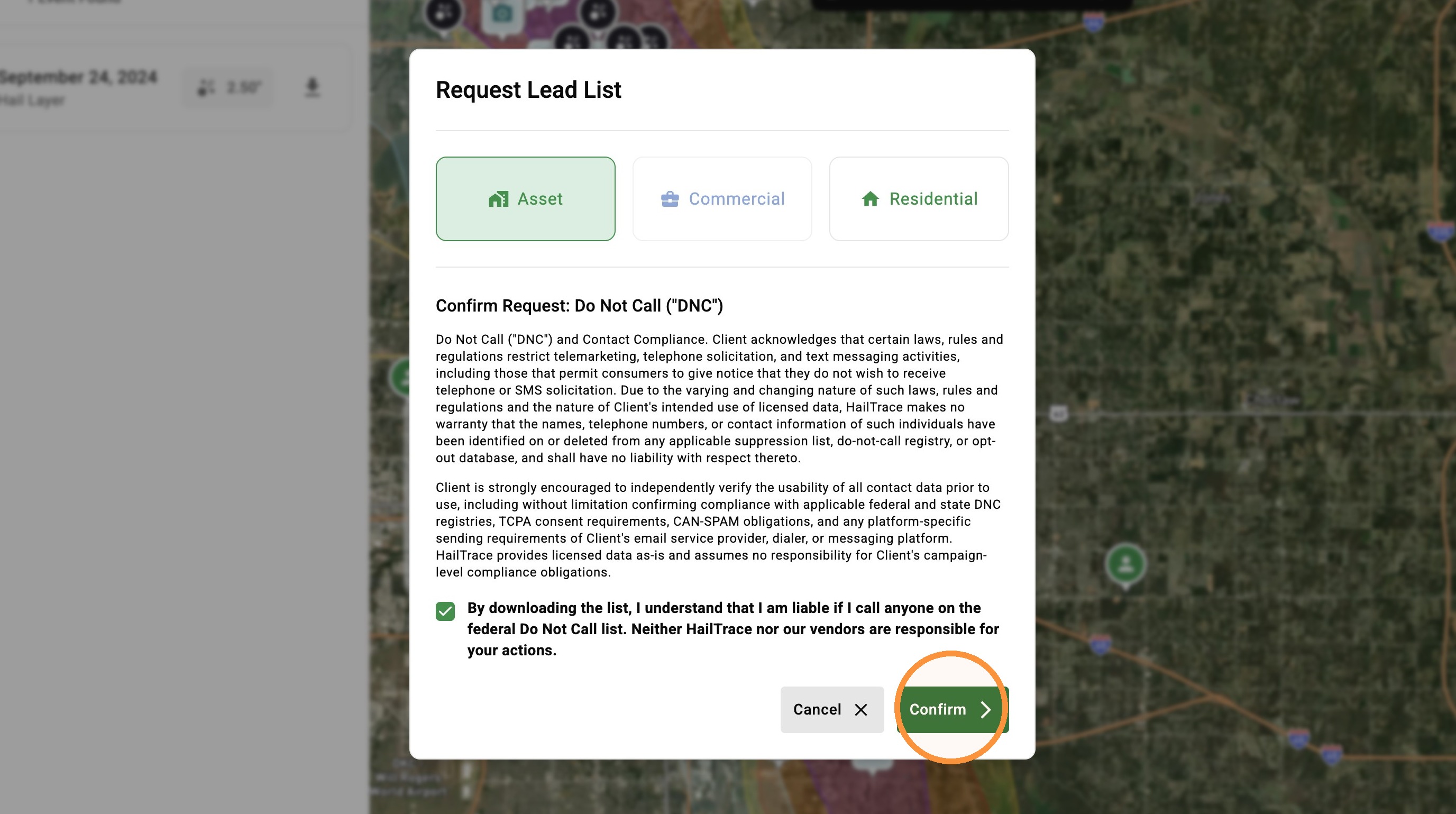
10. Click "Confirm"
11. Navigate back to the full list
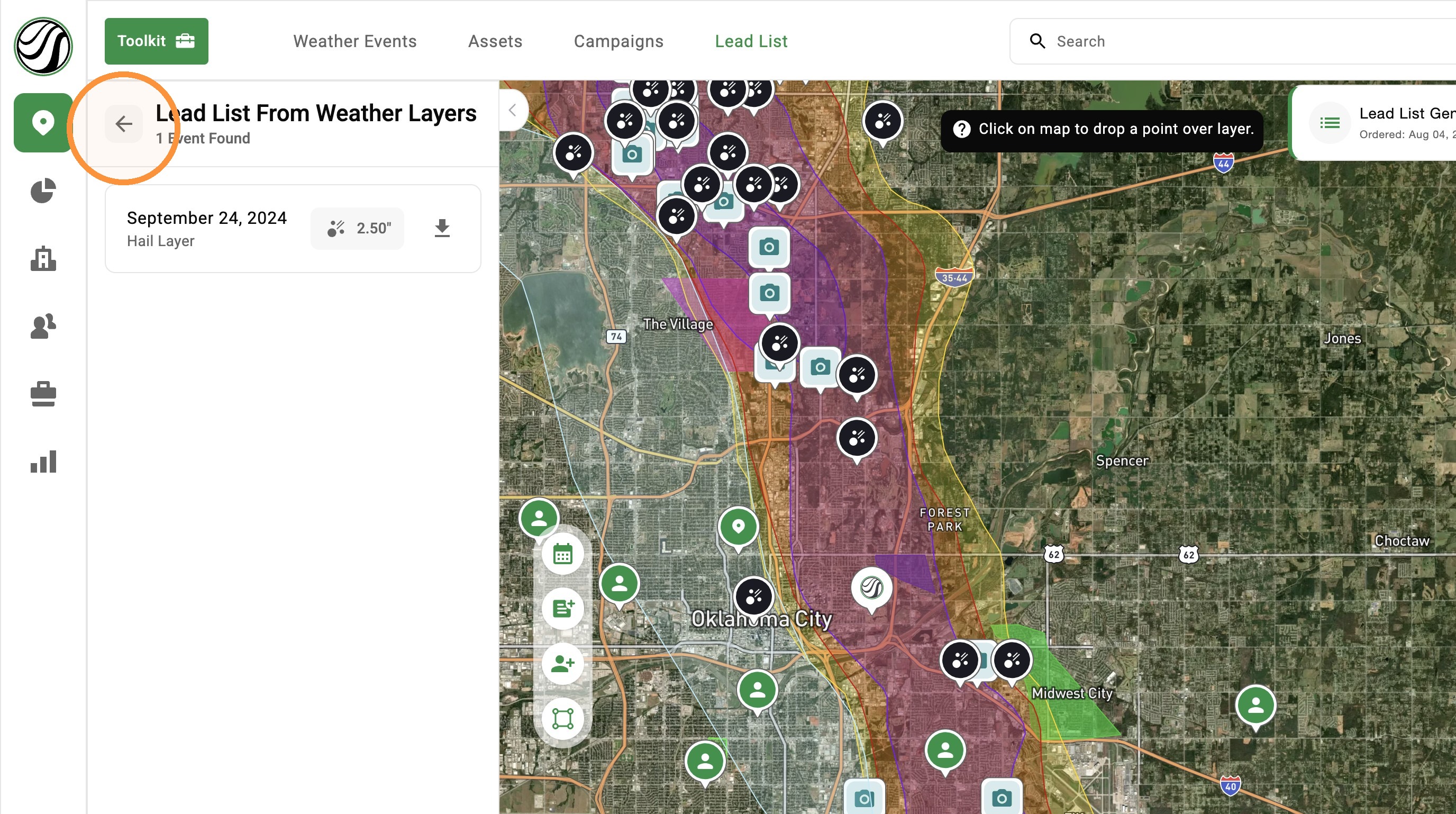
12. Once your list is ready, click download to start reaching out to owners impacted by a storm