[5.0] Create A Campaign To Coordinate Teams
Campaigns help you eliminate the confusion by organizing your team’s efforts around specific neighborhoods. You can create a campaign, assign areas to yourself or your team, and make sure everyone is working together to create multiple touch points with owners — boosting your chances of closing more deals.
 Only Account Owners, DealTrace Manager, or DealTrace Admin role can create, edit, or assign campaigns. The DealTrace User role can view the campaigns assigned to them.
Mobile App
1. Tap Navigation panel
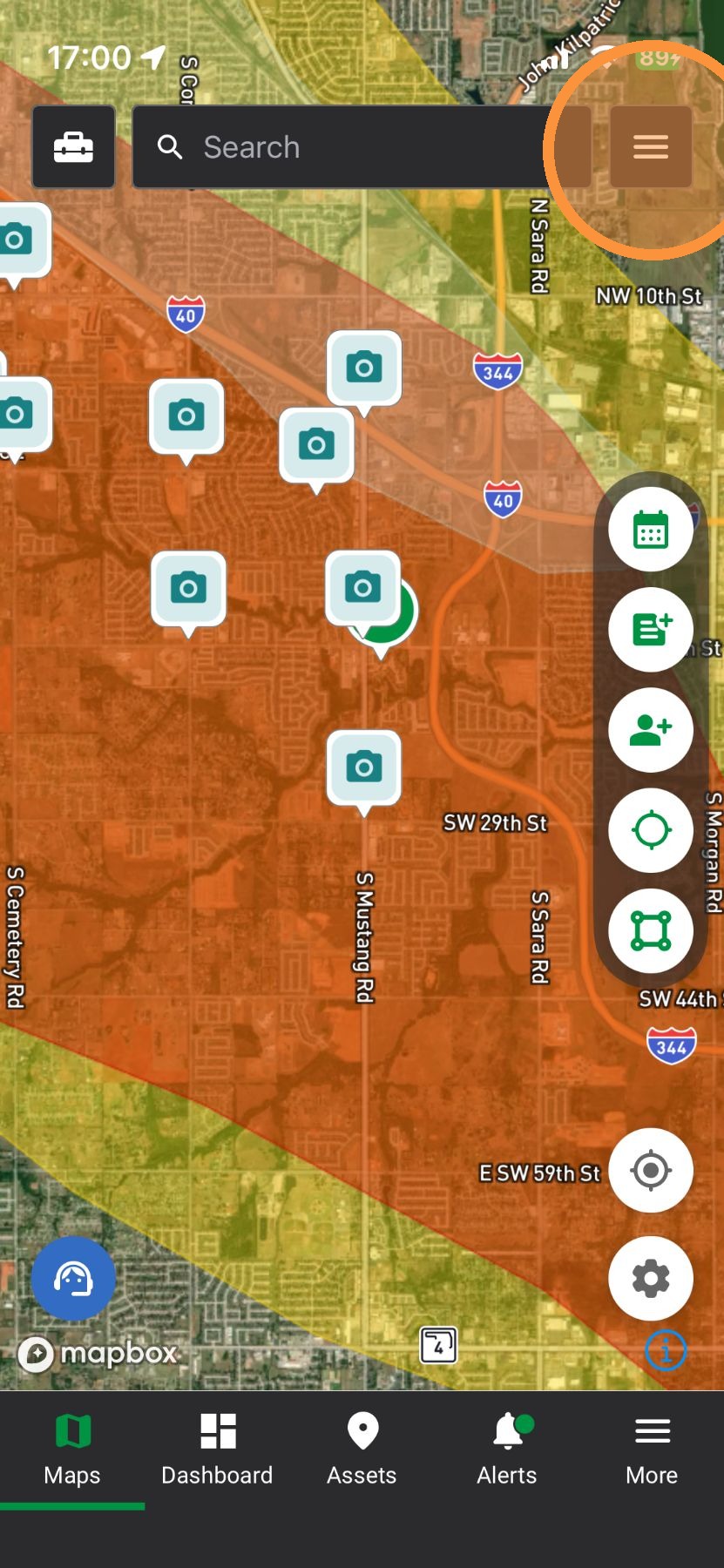
2. Tap "Campaigns"
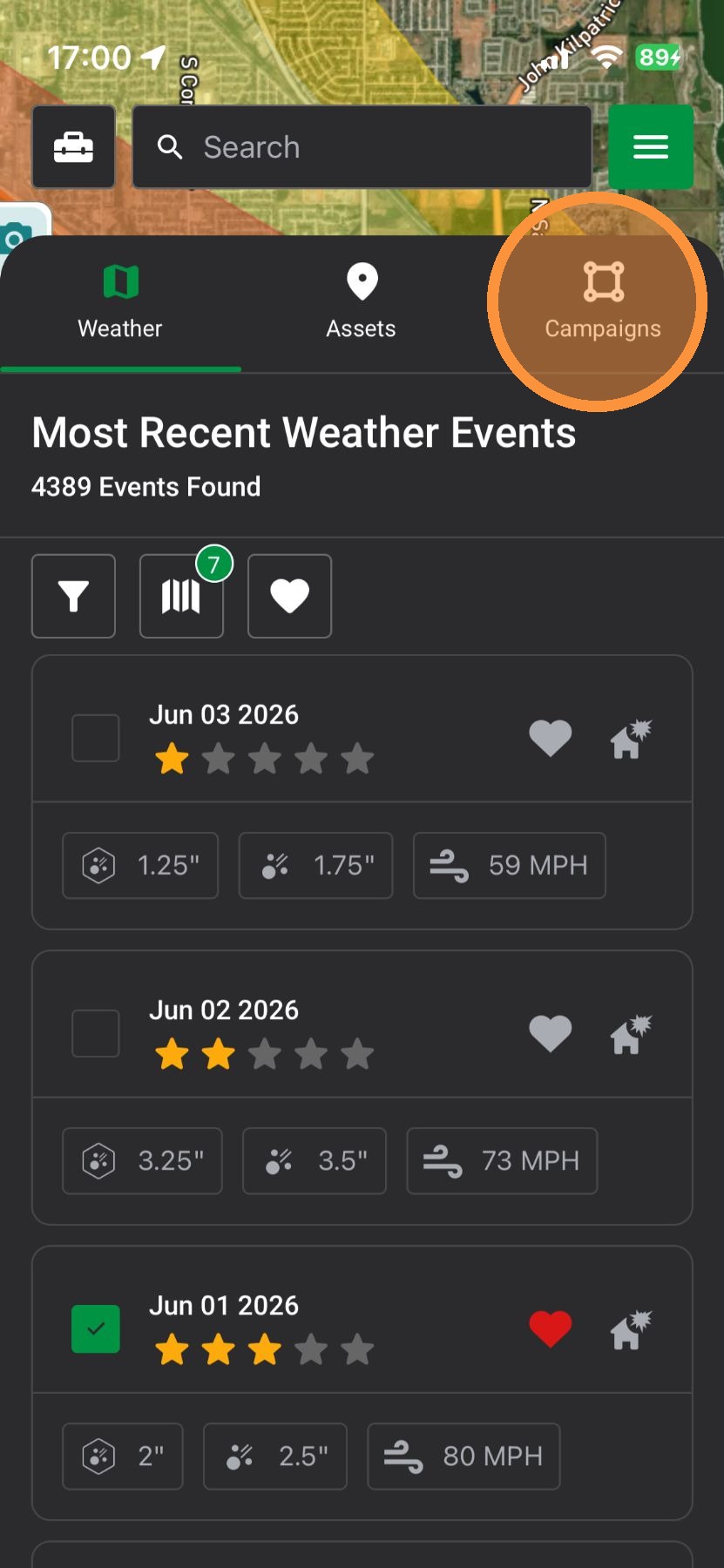
3. Tap "Create New Campaigns"
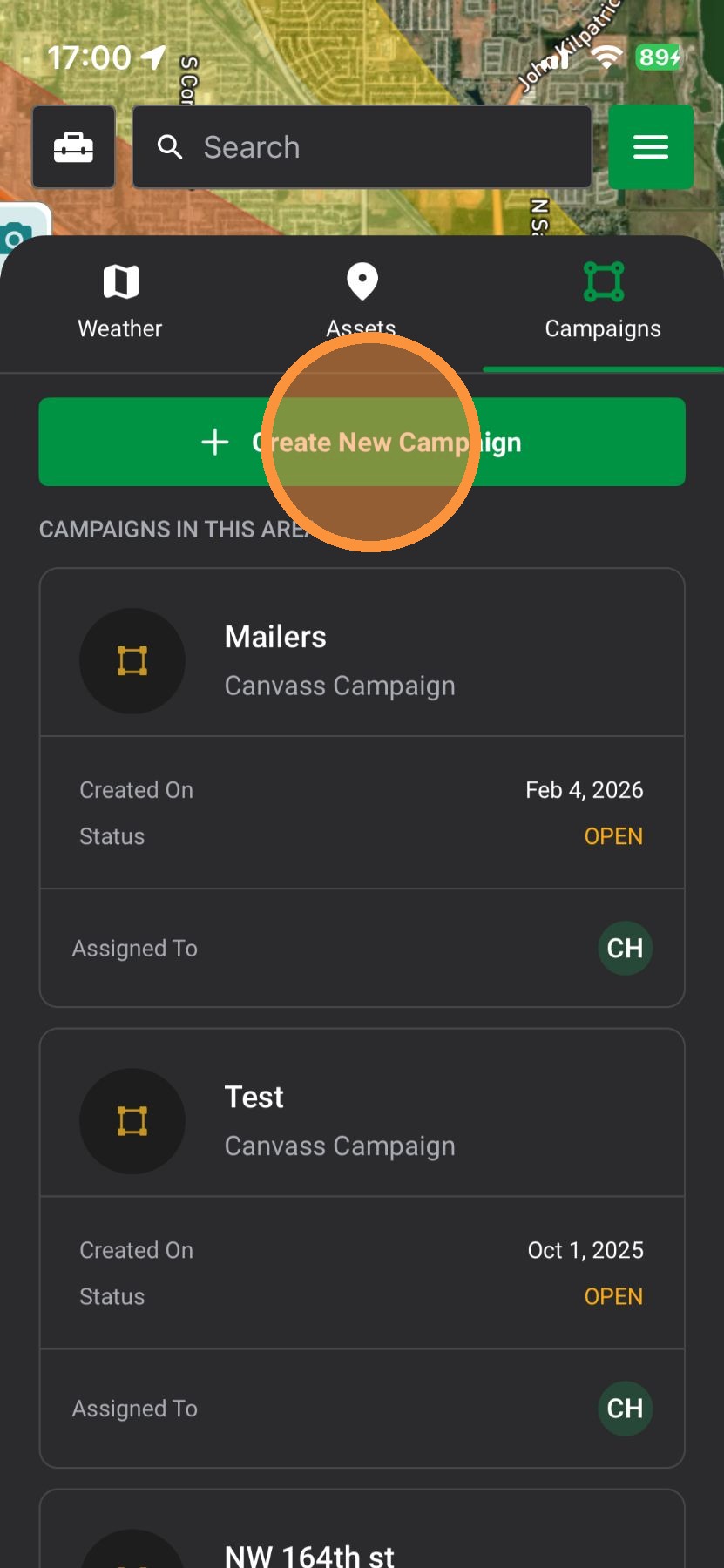
4. Tap on the map to draw your campaign (select at least 3 points)
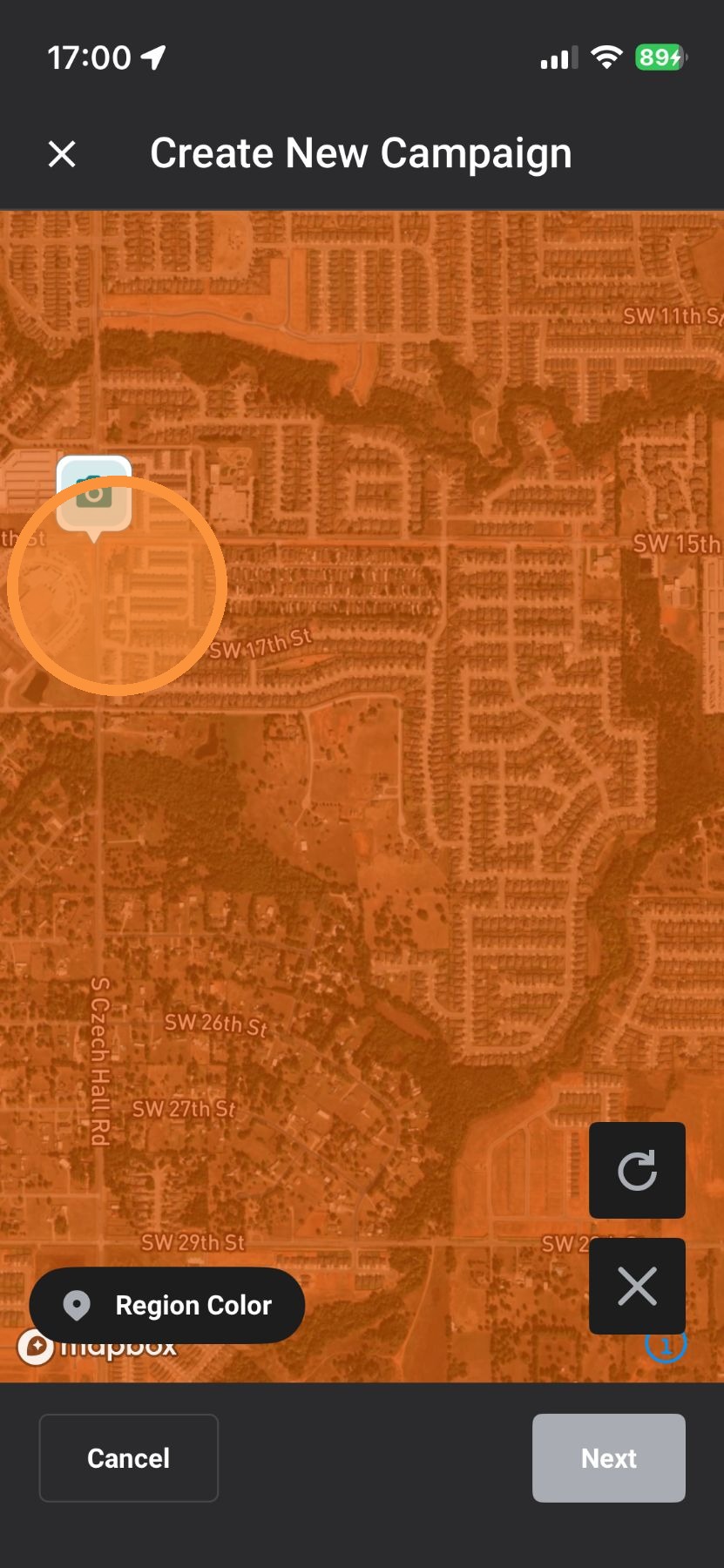
5. Tap "region Color" to adjust the campaign color and opacity
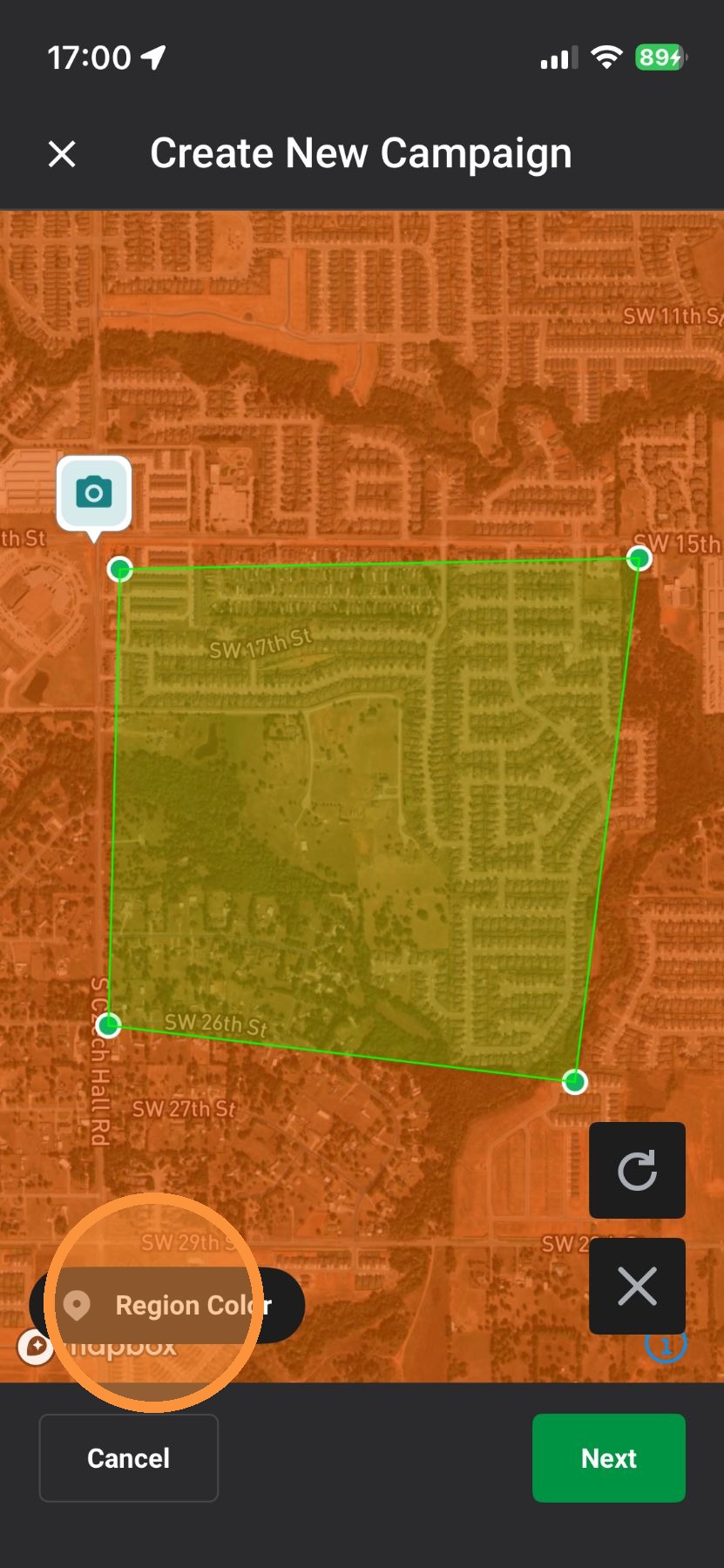
6. Tap "Next"
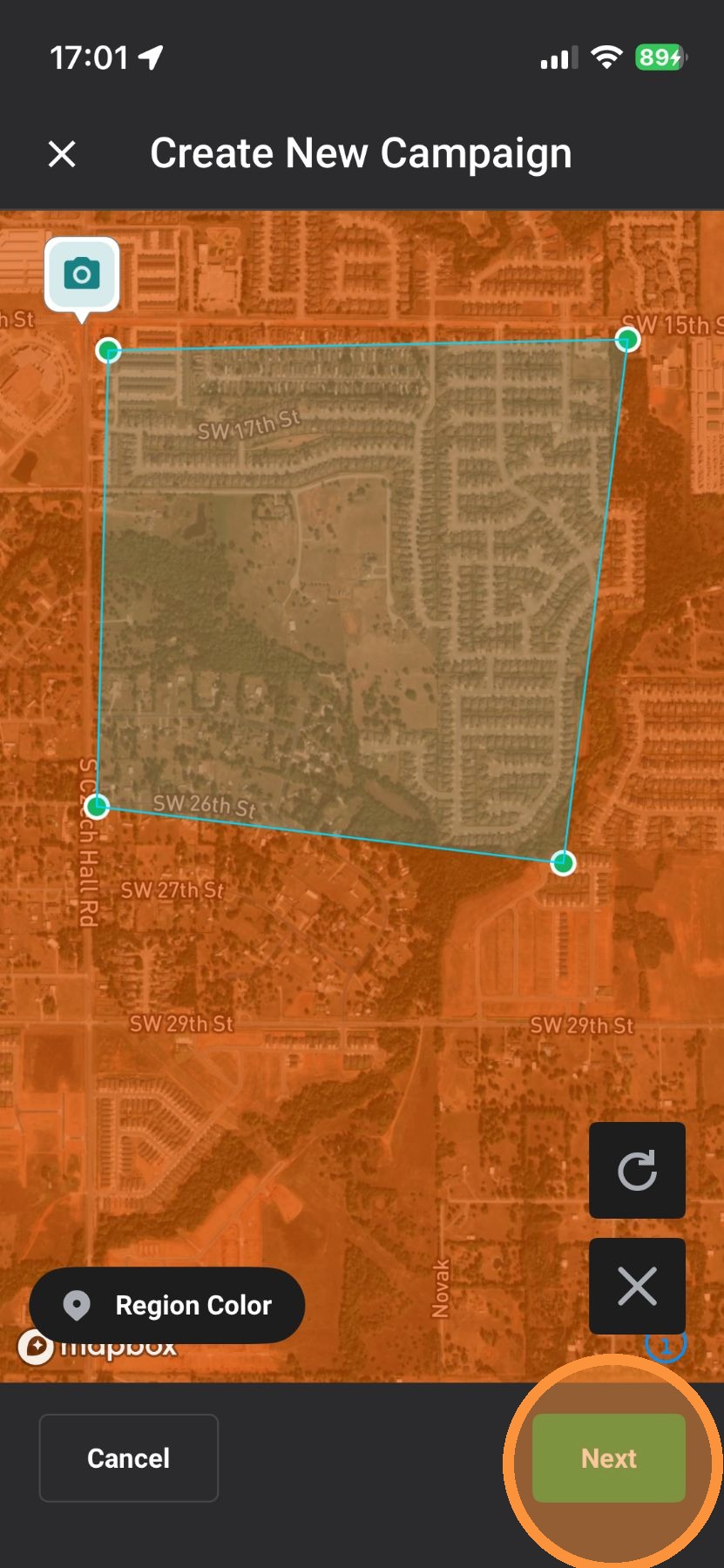
7. Name your campaign
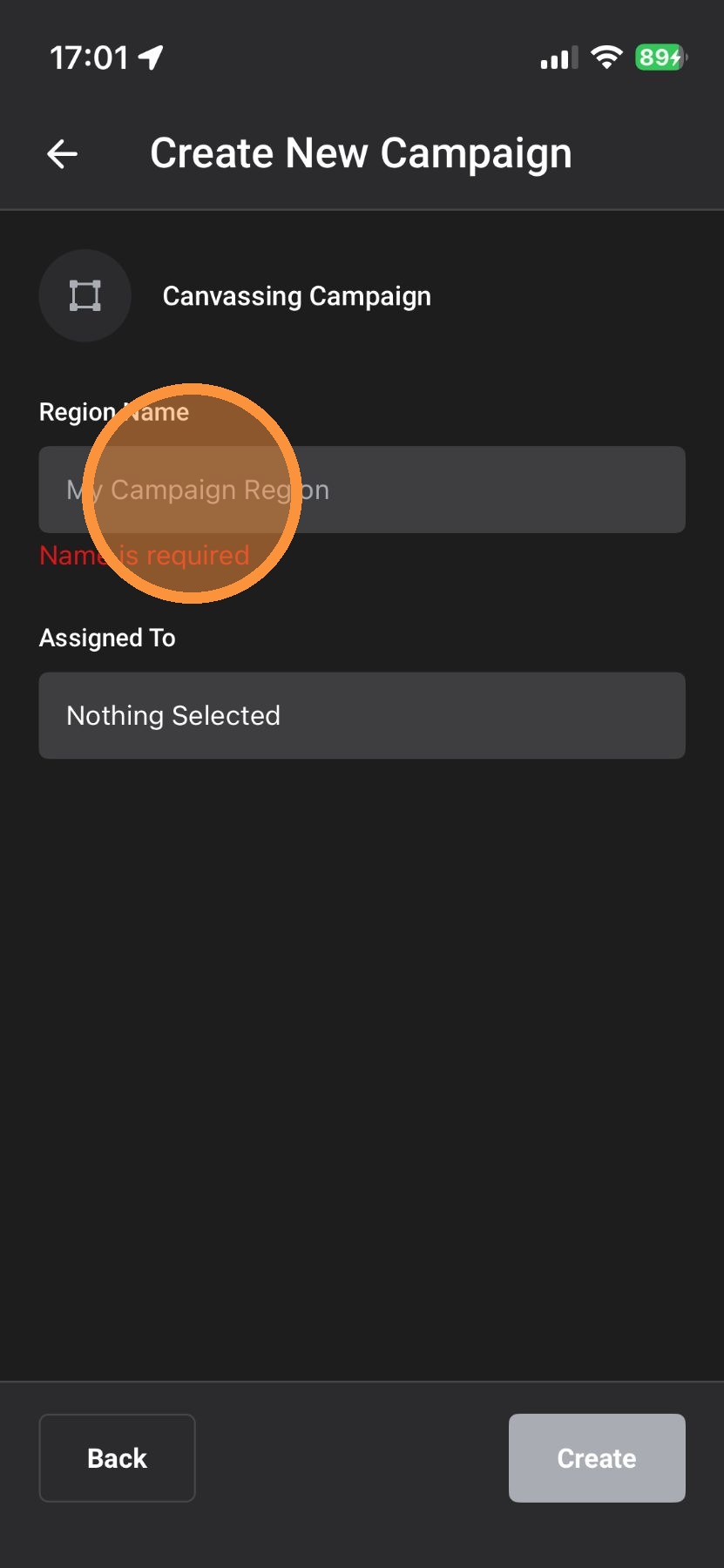
8. Select "Assigned To"
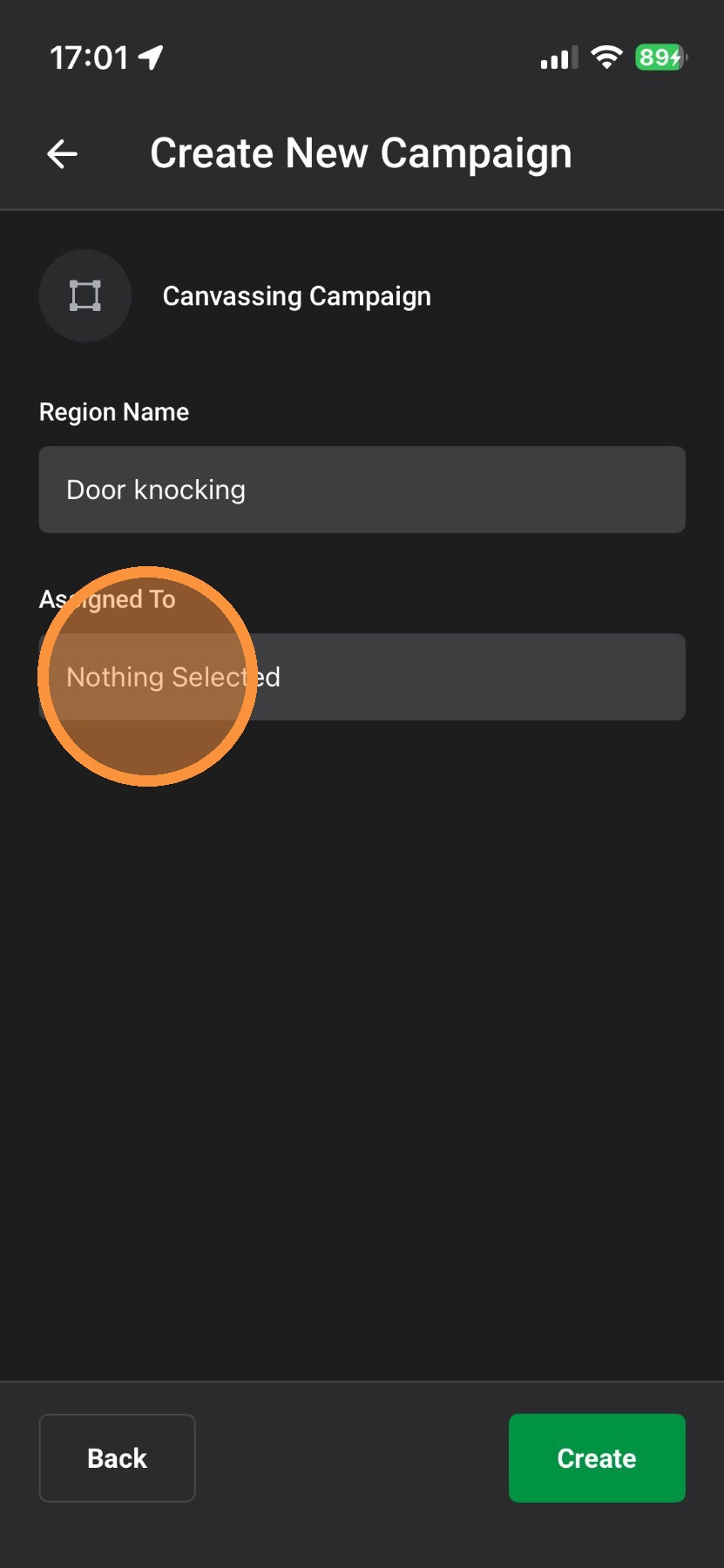
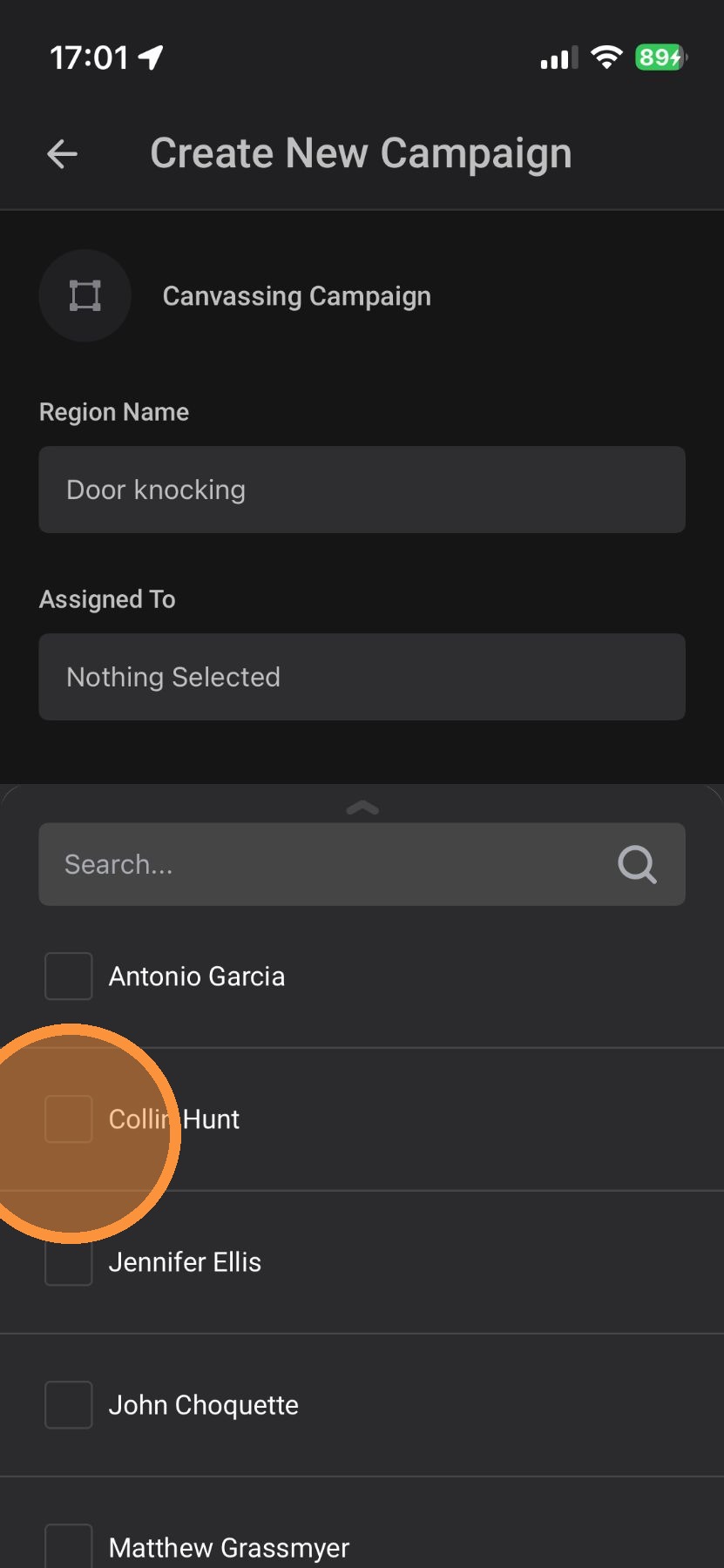
9. Assign the campaign to someone in your account
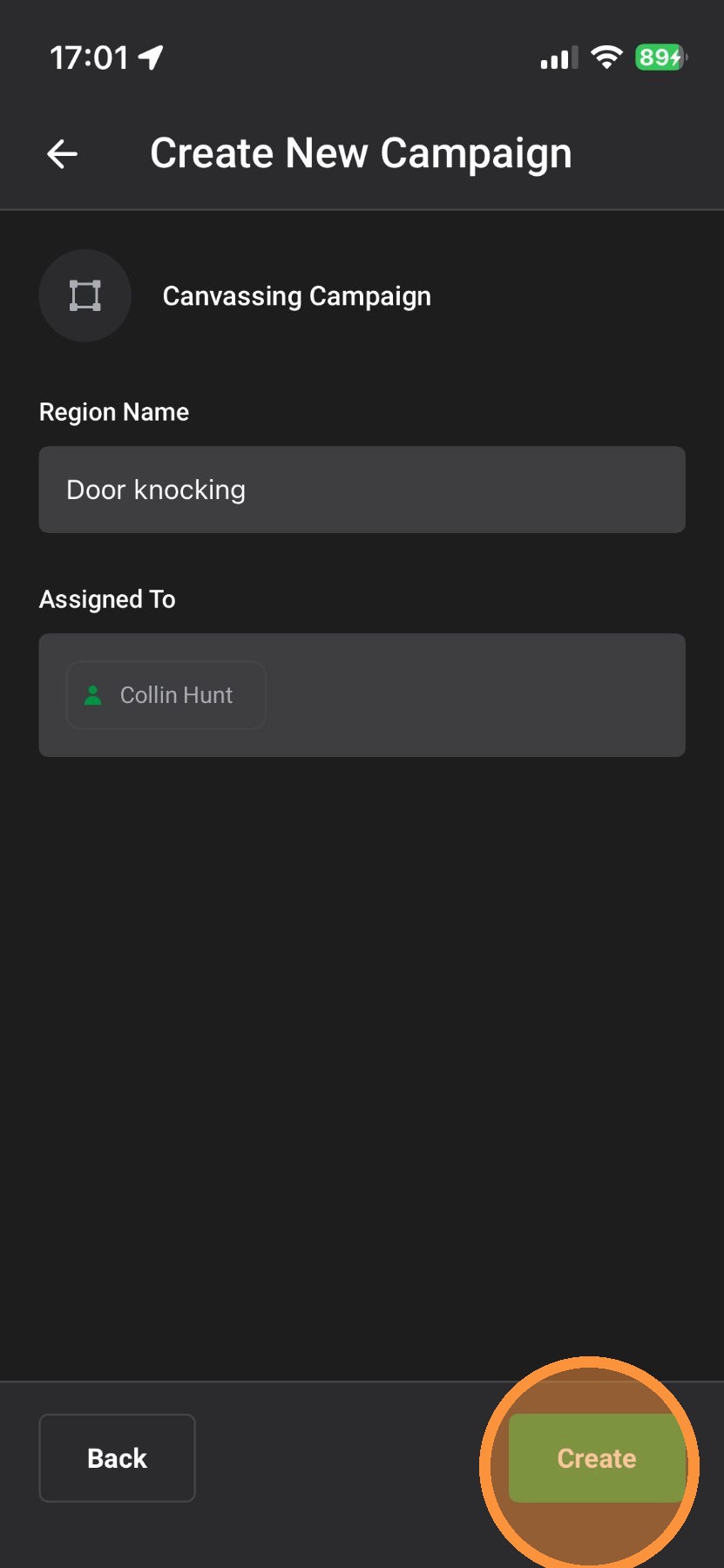
10. Tap "Create" and you are done! The assigned person will receive a notification about the new campaign
Desktop App
1. Click "Maps" page
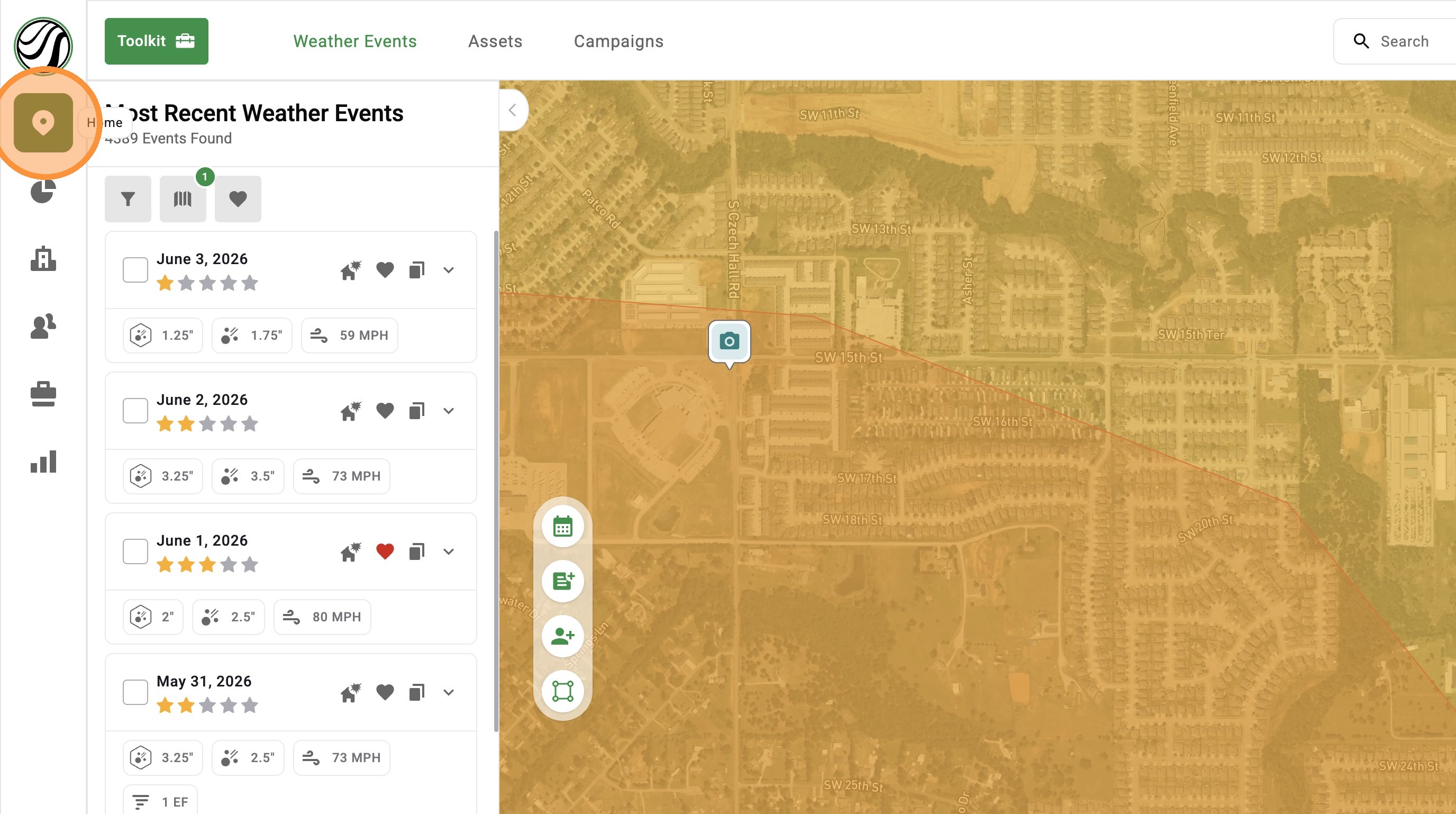
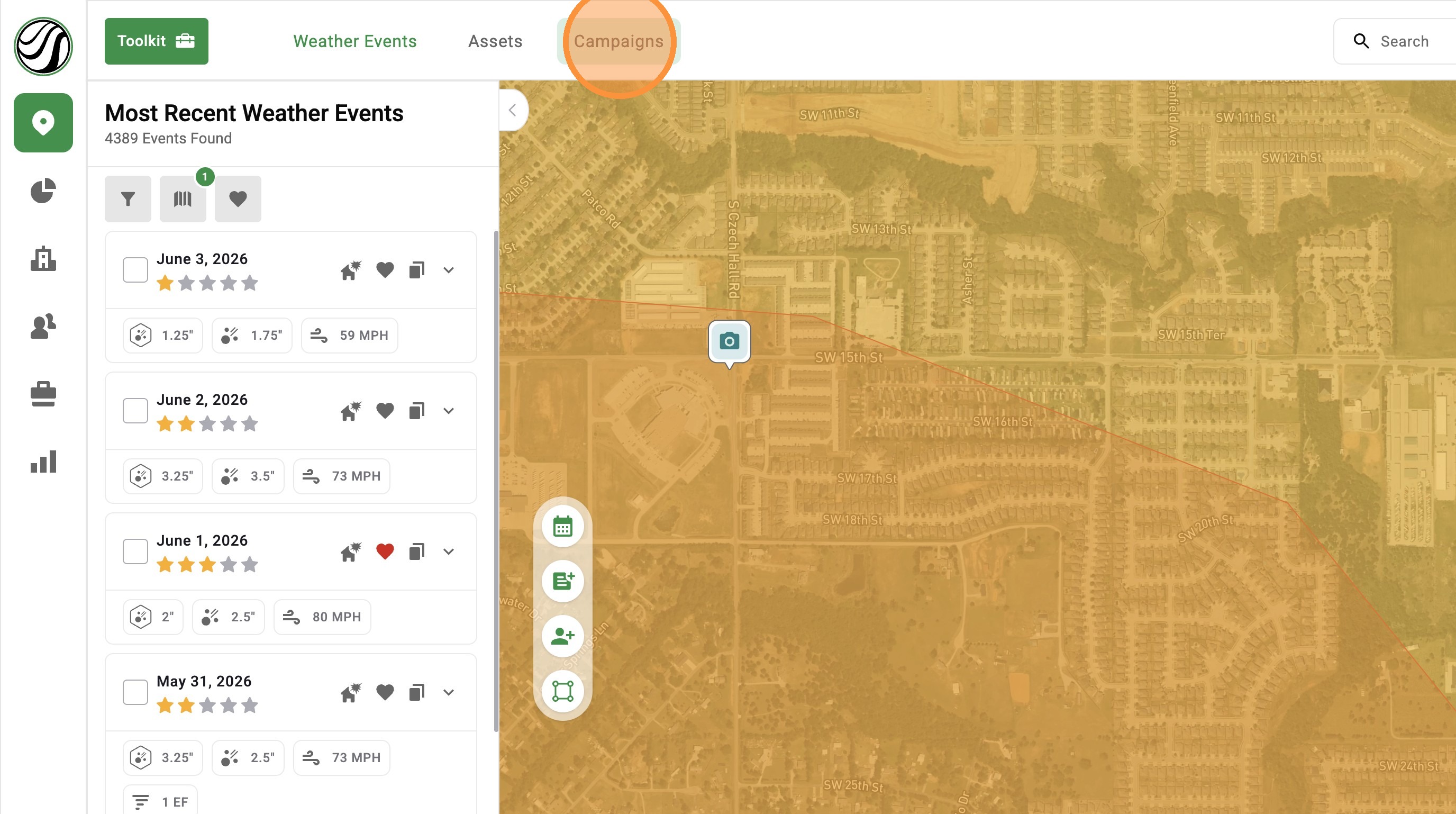
2. Click "Campaigns" panel
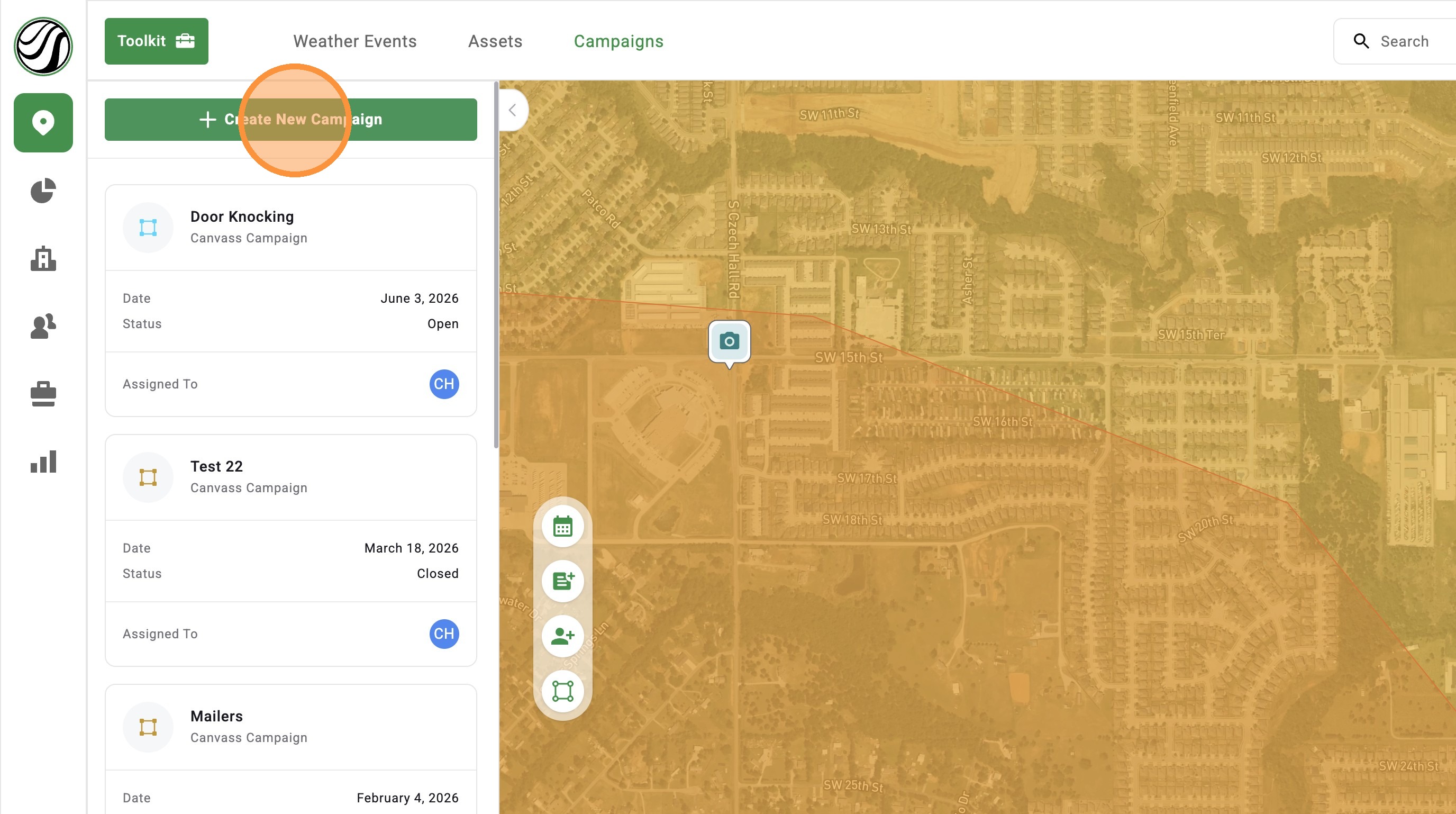
3. Click "Create New Campaign"
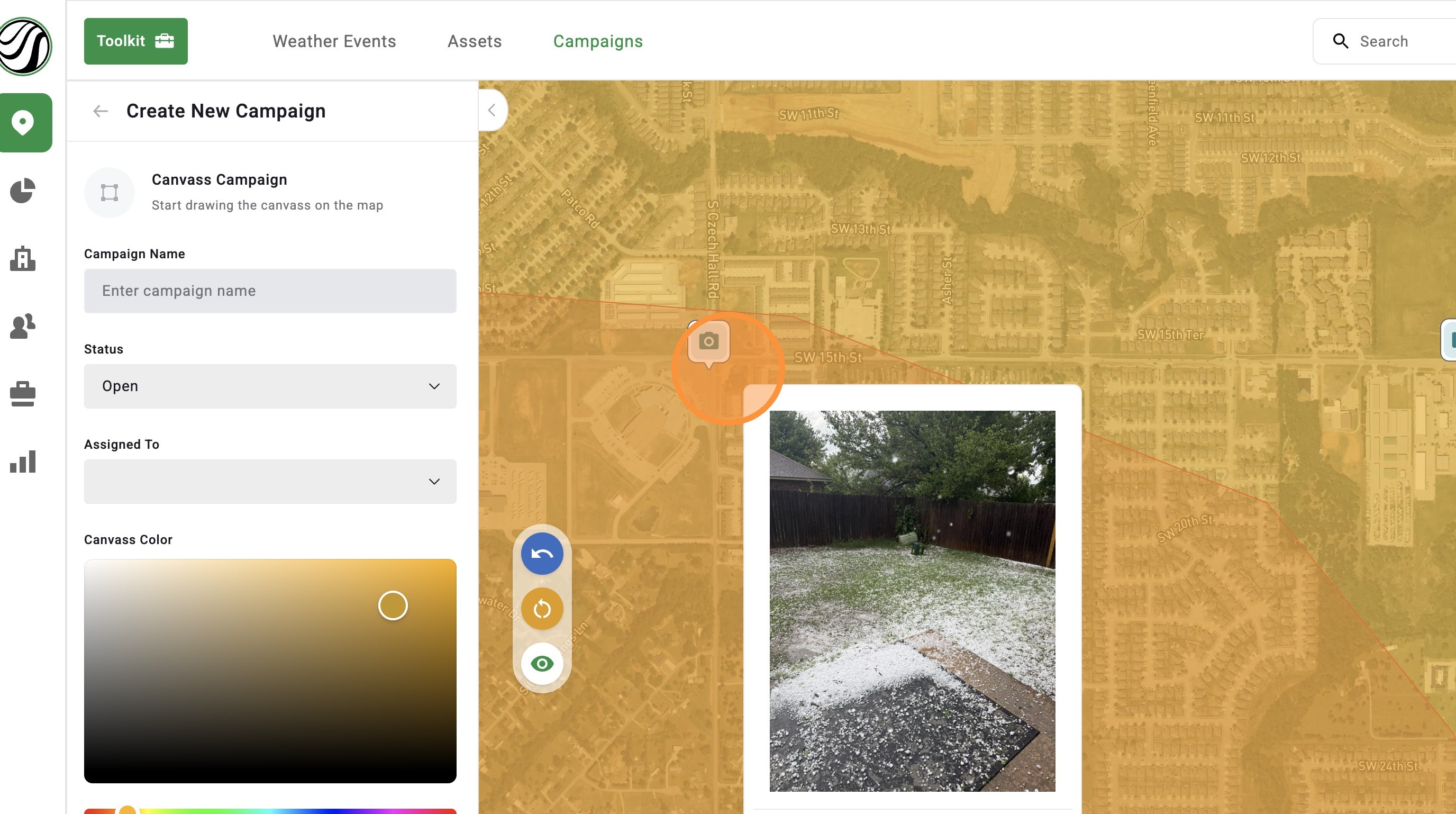
4. Draw the canvass area by clicking points on the map (select at least 3 points)
5. Double click to complete the campaign
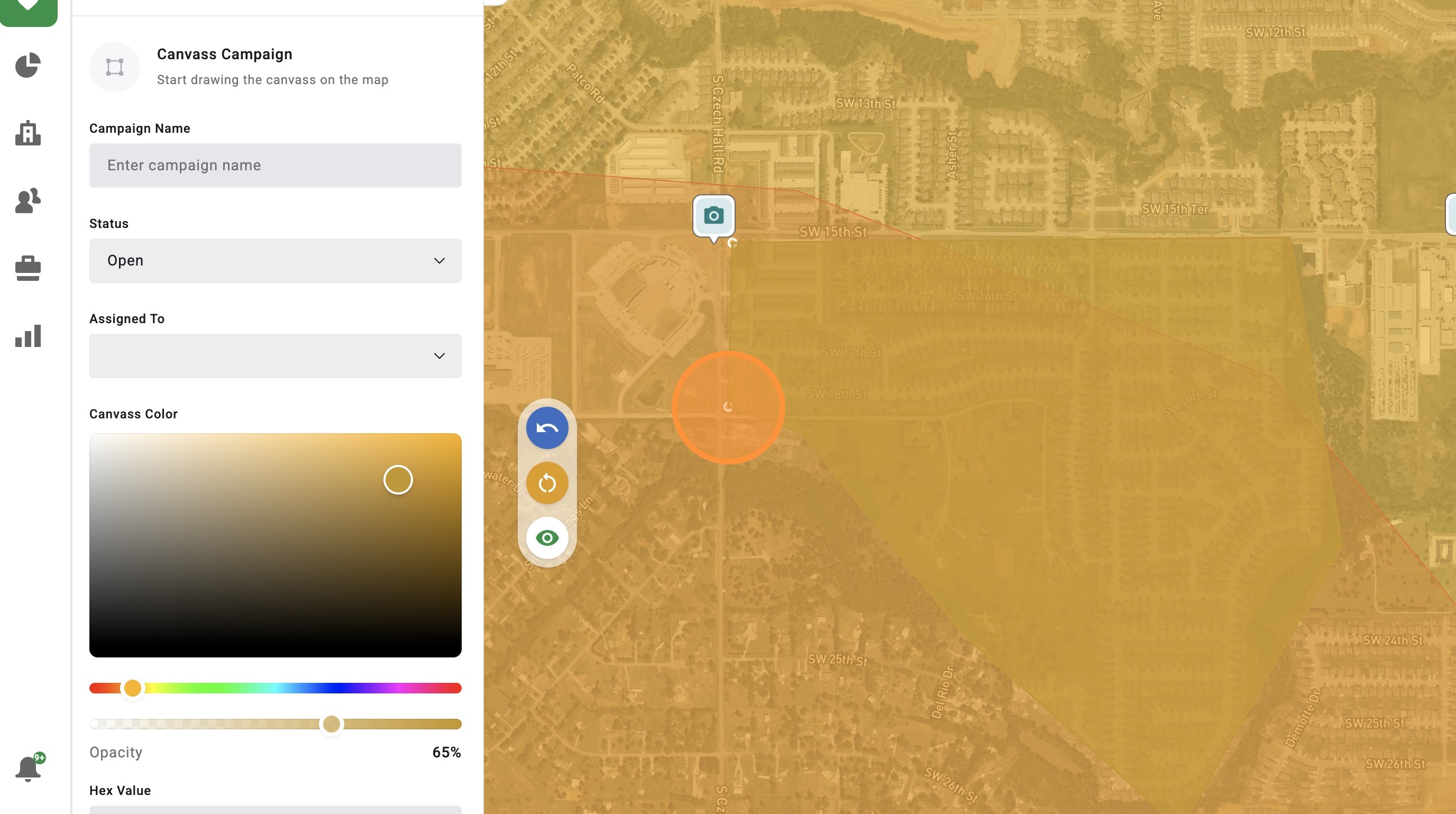
6. Enter a campaign name
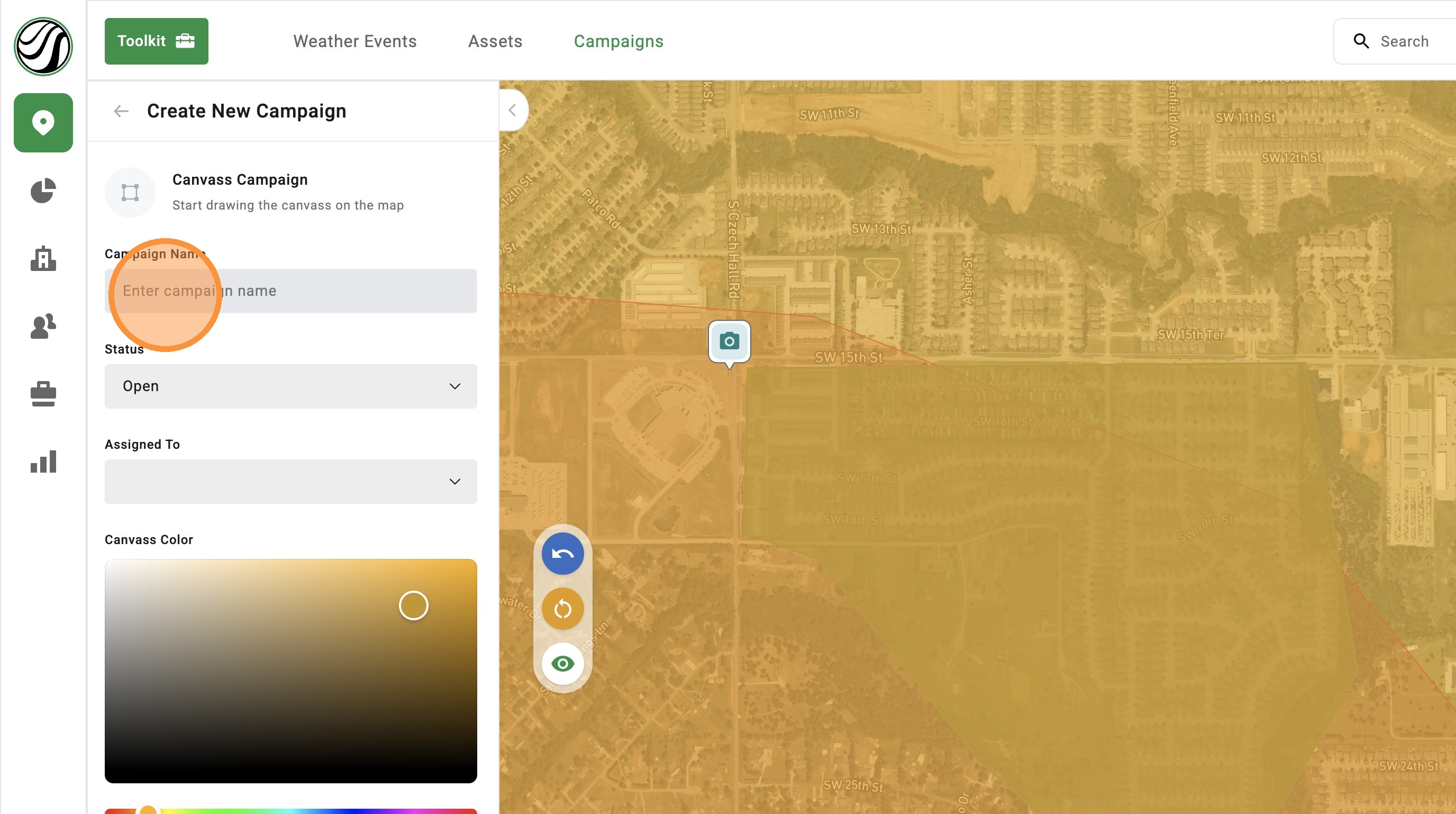
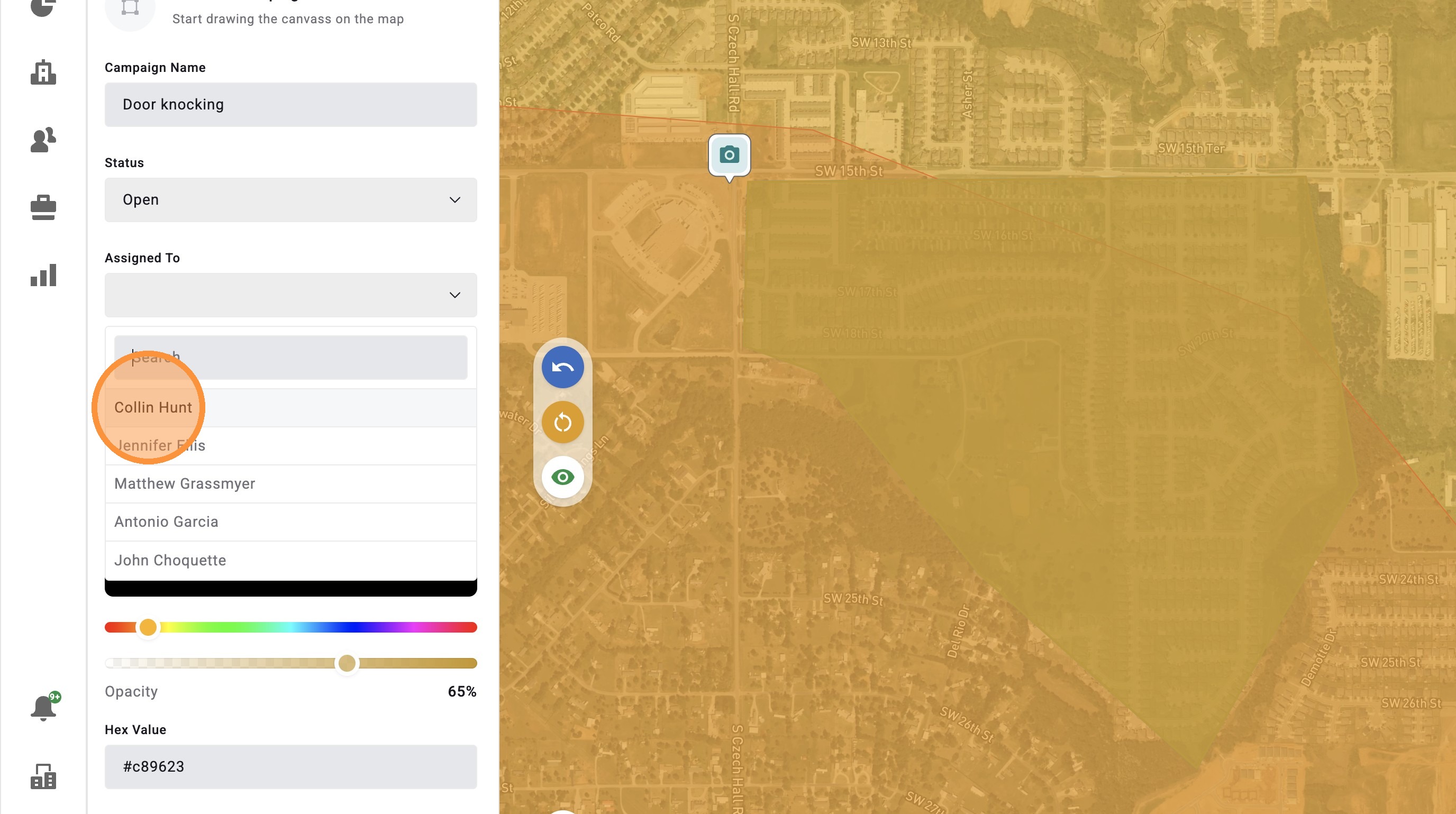
7. Select "Assigned To" and assign the campaign to someone in your company
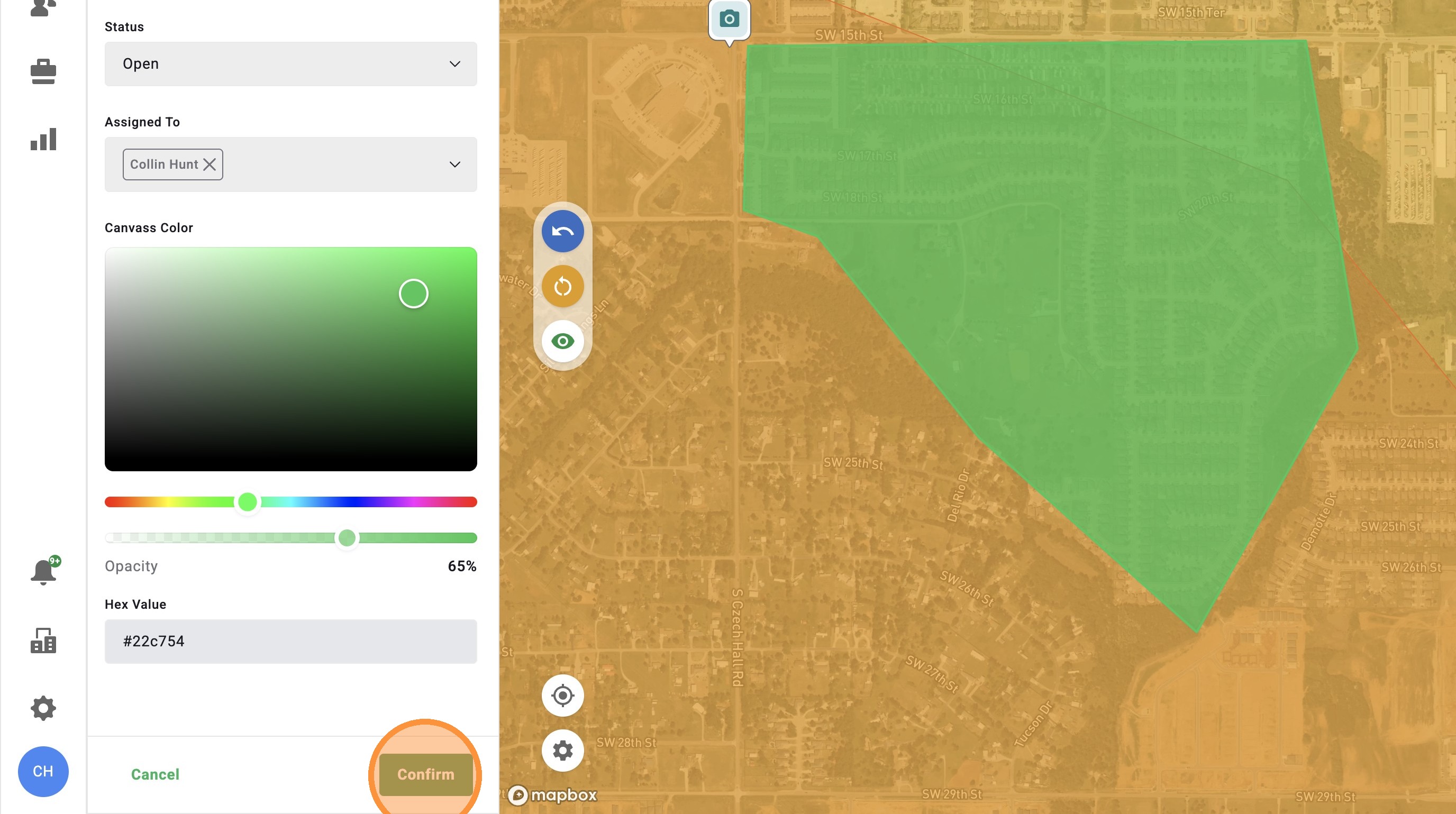
8. Adjust the color of the campaign
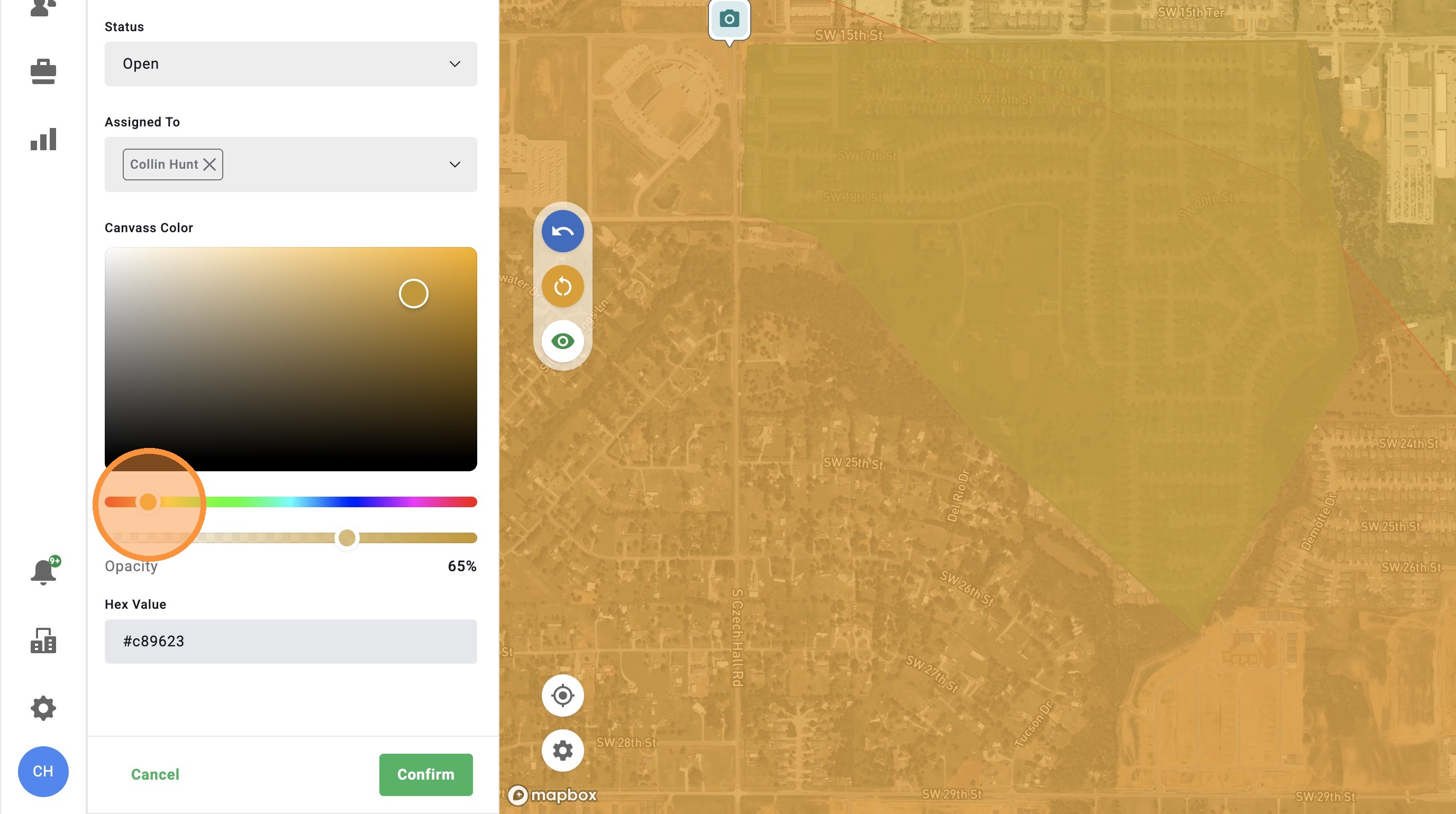
9. Click "Confirm" and you are done! The assigned person will receive a notification about the new campaign