[5.0] Utilize the Inspector Tool to View Storm Data & Generate Lead Lists

[5.0] Utilize the Inspector Tool to View Storm Data & Generate Lead Lists

The Inspector Tool lets you quickly analyze storm data right in the mobile app. With a single tap, you can enter inspection mode, review hail and wind details, and request new lead lists — all without leaving the map.

Whether you’re tracking a fresh storm or analyzing an older one, the Inspector Tool makes it easy to gather the insights you need and take action immediately.

View Storm Data

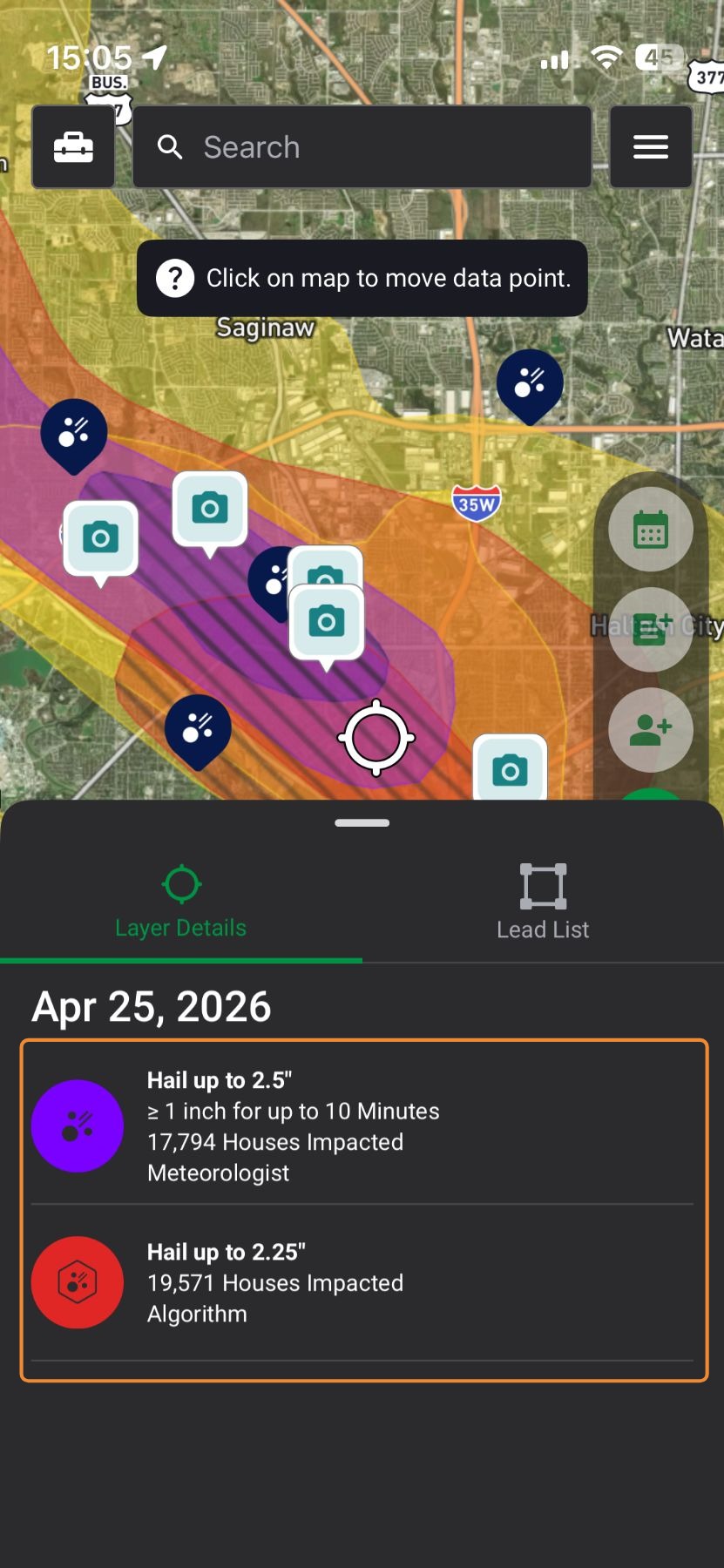
The Inspector Tool gives you instant access to key storm insights directly on the map. By selecting any point within a storm path, you can view estimated hail size, wind speed and direction, the date and time of the storm, and even historical storm paths or overlapping events — all in real time as you move across the map.


1. Activate a Weather Event

Before generating leads, make sure to download a weather event so storm map is visible. This ensures the Inspector Tool can identify properties affected by that event.
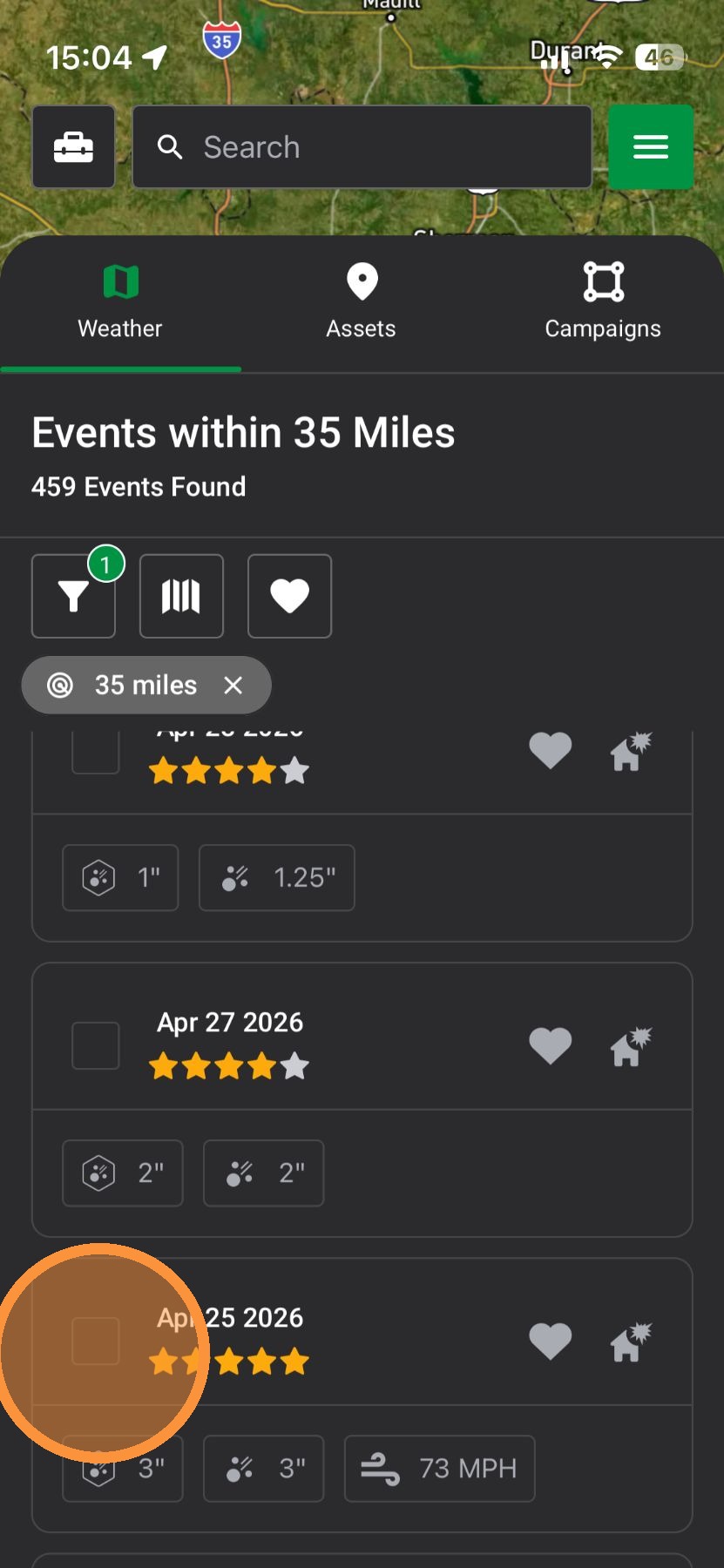

2. Tap the Inspector Tool on the right-hand side of the map
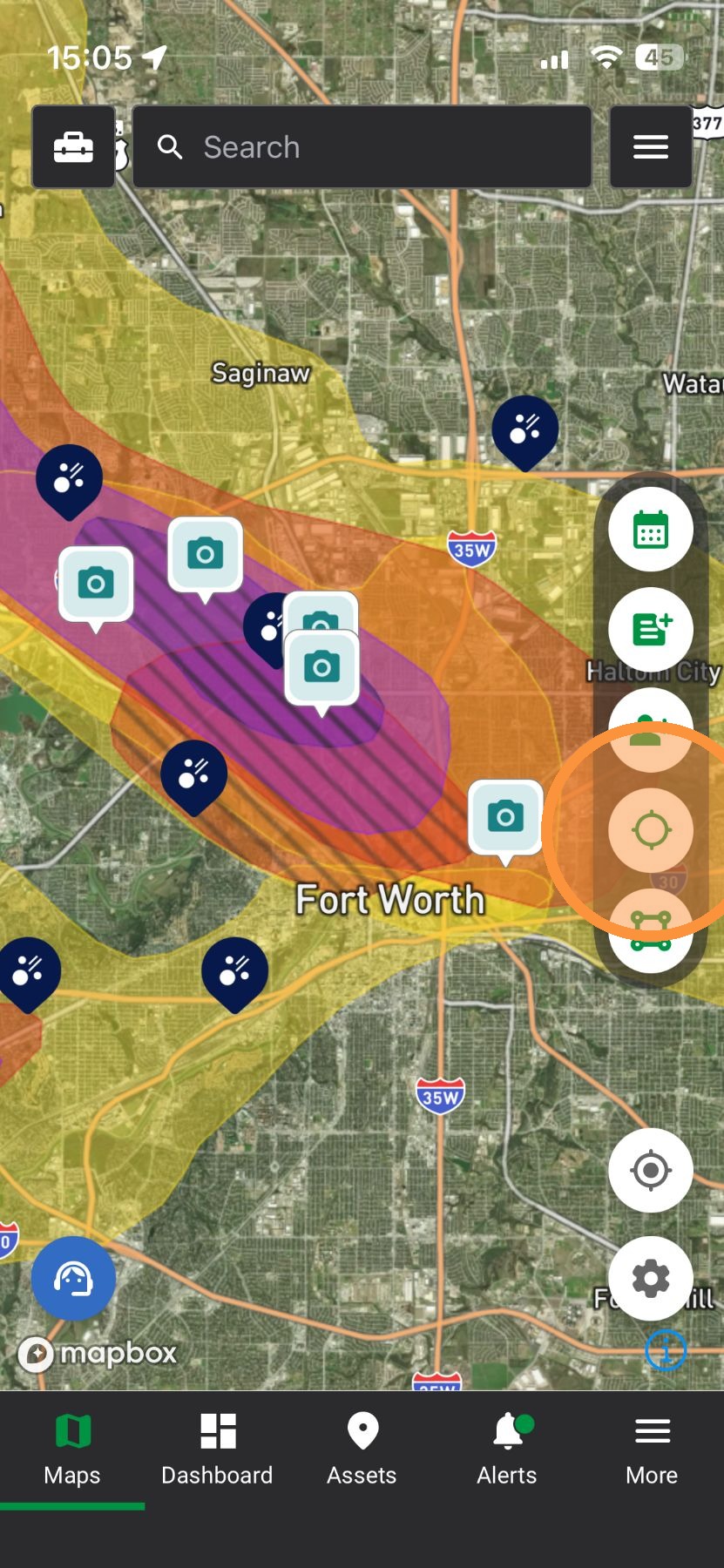

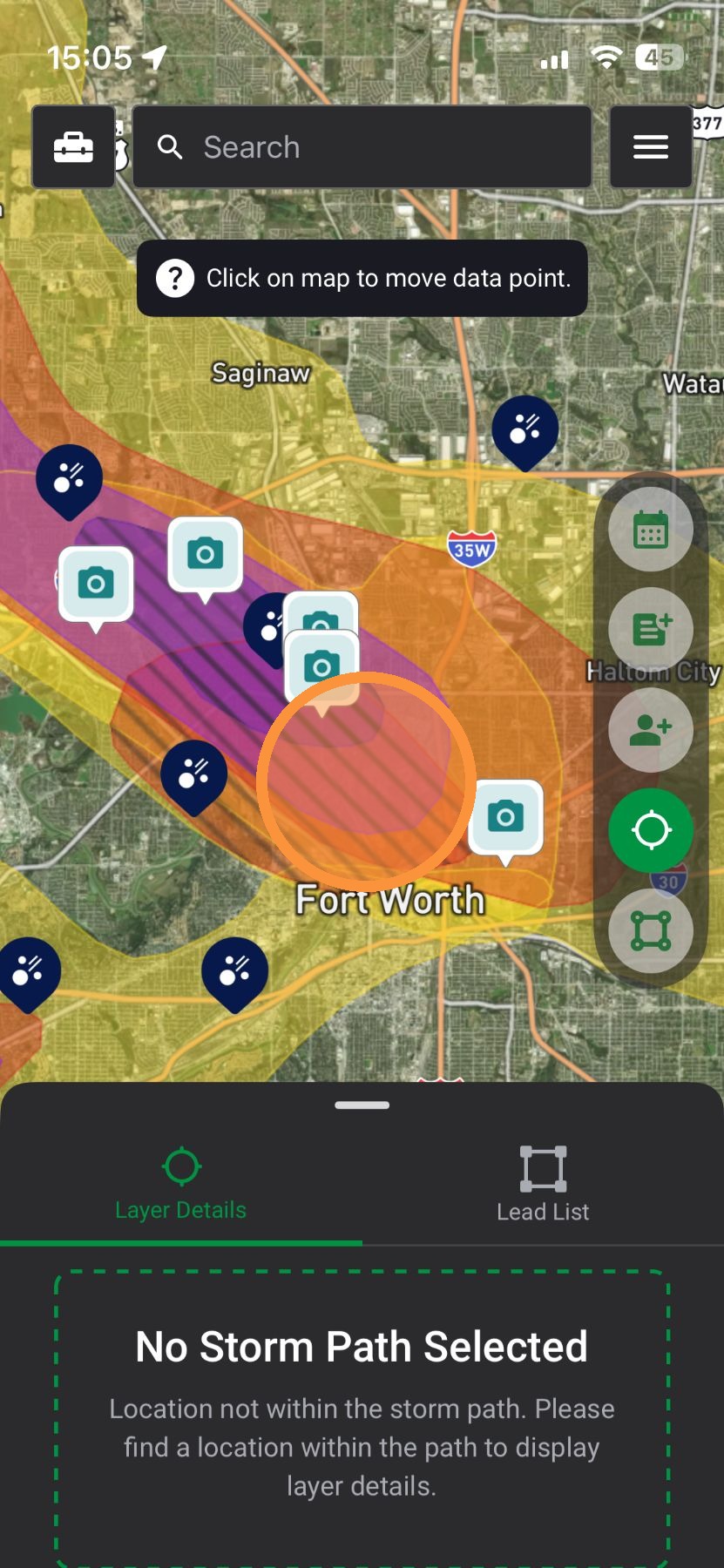
3. Tap anywhere within the storm path to place the target marker

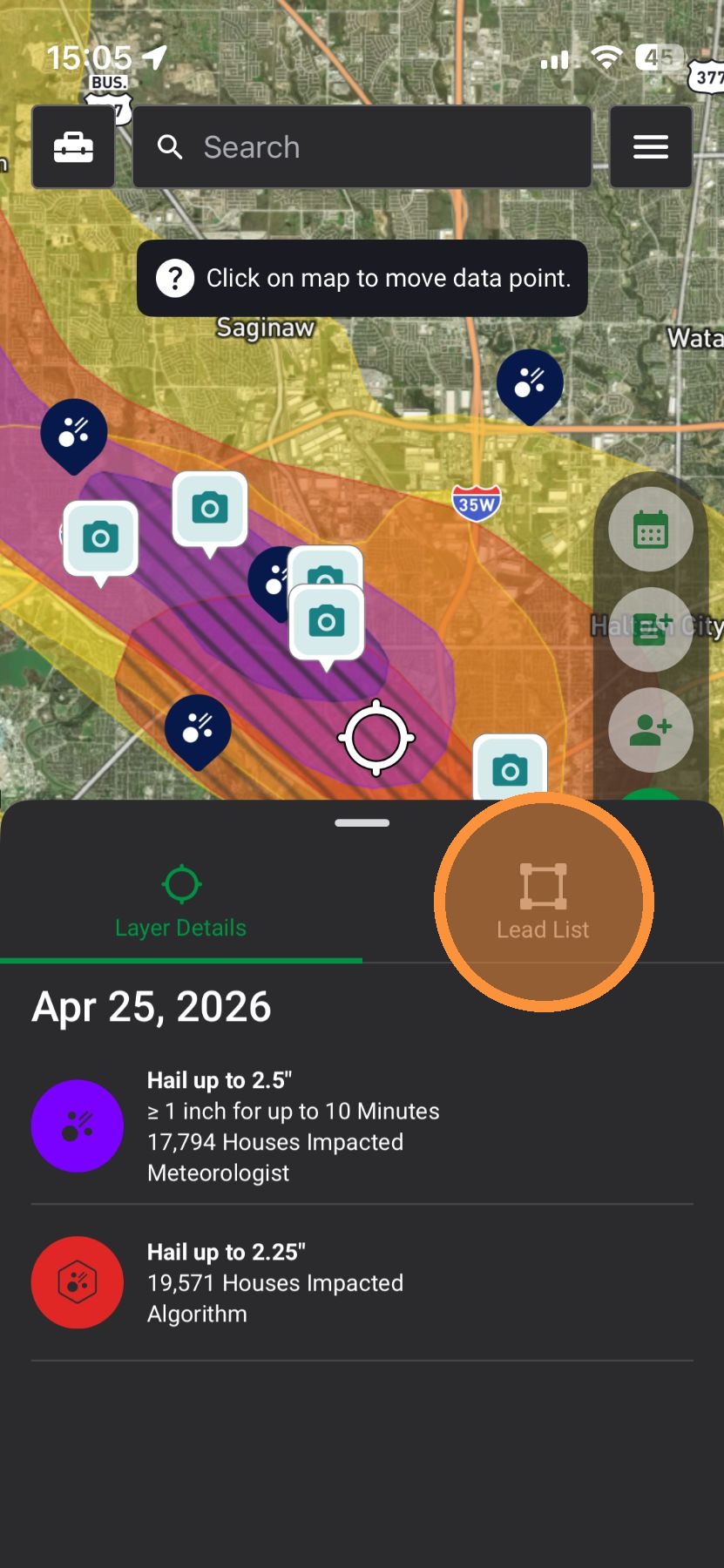
4. View storm details, such as hail size, duration, and number of impacted properties

5. Select "Lead List" to download a Residential or Commercial Lead List

6. Tap Download
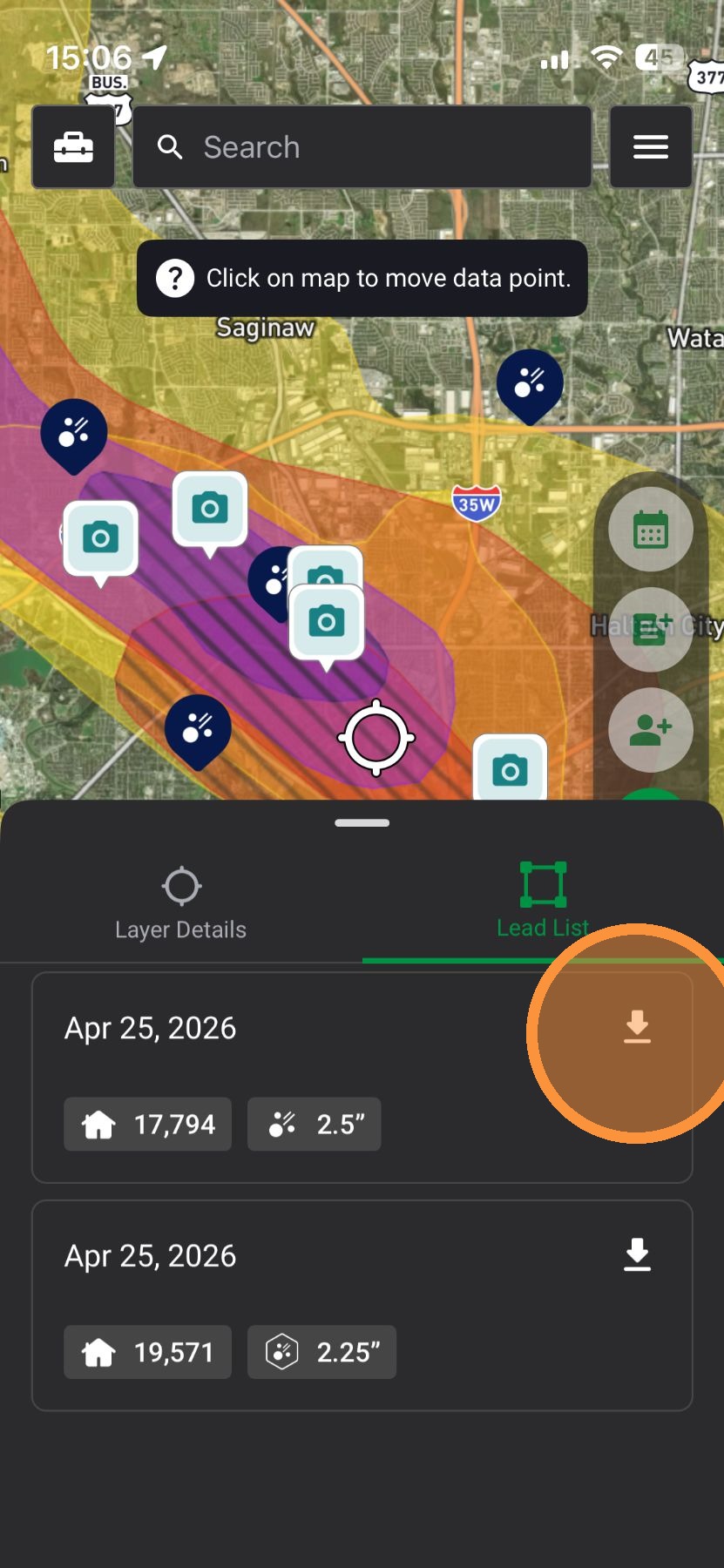

7. Tap Residential or Commercial

A.  Residential: Download Lead List of all homes in the select area

B.  Commercial: Download Lead List of all businesses in the select area

C.  Asset: Download list of Assets (clients) in the selected area


8. Tap "Request"


    • Related Articles

    • [5.0] Generate a Lead List With Residential, Commercial, or Asset Data

      Lead Lists give you the owner’s contact info, so you can follow up in more ways and close more sales after a storm. Generating a Lead List will give you an Assets, Commercial, and/or Residential's information in a selected area. The generated report ...
    • [5.0] Use Impacted Assets to Find Clients Hit by a Storm

      While generating new leads through canvassing, mailers, and other methods is important, the quickest and easiest opportunities often come from your existing leads and clients who have been impacted by a new storm. The Impacted Assets feature provides ...
    • [5.0] Control Your App with Map Settings

      Map Settings puts all your controls in one place. You can change how the map looks and what data you see without searching through menus. Switch views, turn layers on or off, and adjust settings to fit how you work. This helps you see better, stay ...
    • [5.0] Use Asset Filters to Find the Right Properties Faster

      Assets are the properties tied to your clients, contacts, and opportunities in HailTrace. Asset Filters help you quickly find the properties you need, whether you are working from the Asset page or viewing them on the Map. You can filter by details ...
    • [5.0] Improved Map Search Using the Radius Filter

      We’ve updated how the radius filter behaves when searching for weather events to give you more control and reduce confusion while working on the map. The radius can now either move with your screen or stay locked to a selected location, depending on ...