[5.0] View and Edit a Campaign
Campaigns help you eliminate confusion by organizing your team’s efforts around specific neighborhoods.

Only Account Owners, DealTrace Manager, or DealTrace Admin role can create, edit, or assign campaigns. The DealTrace User role can view the campaigns assigned to them.
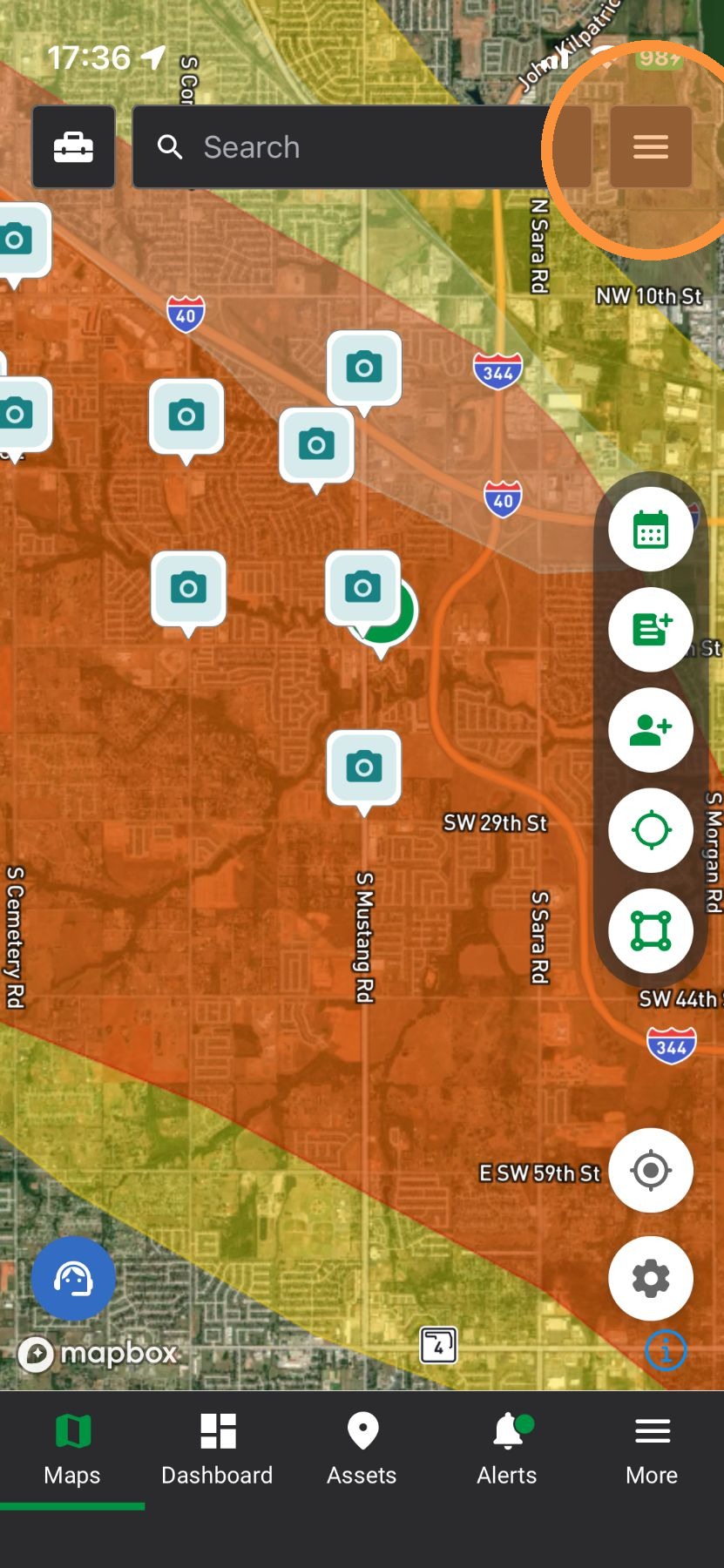
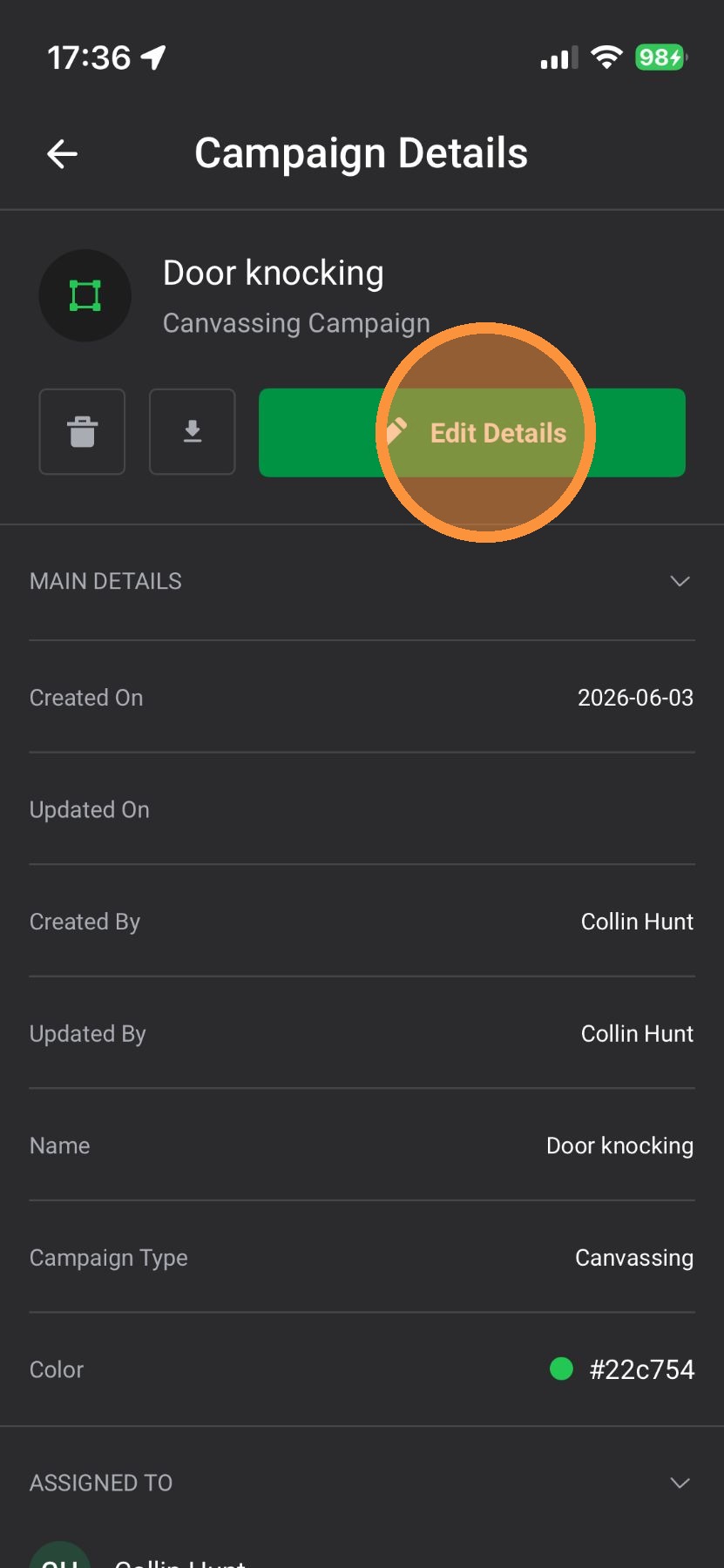
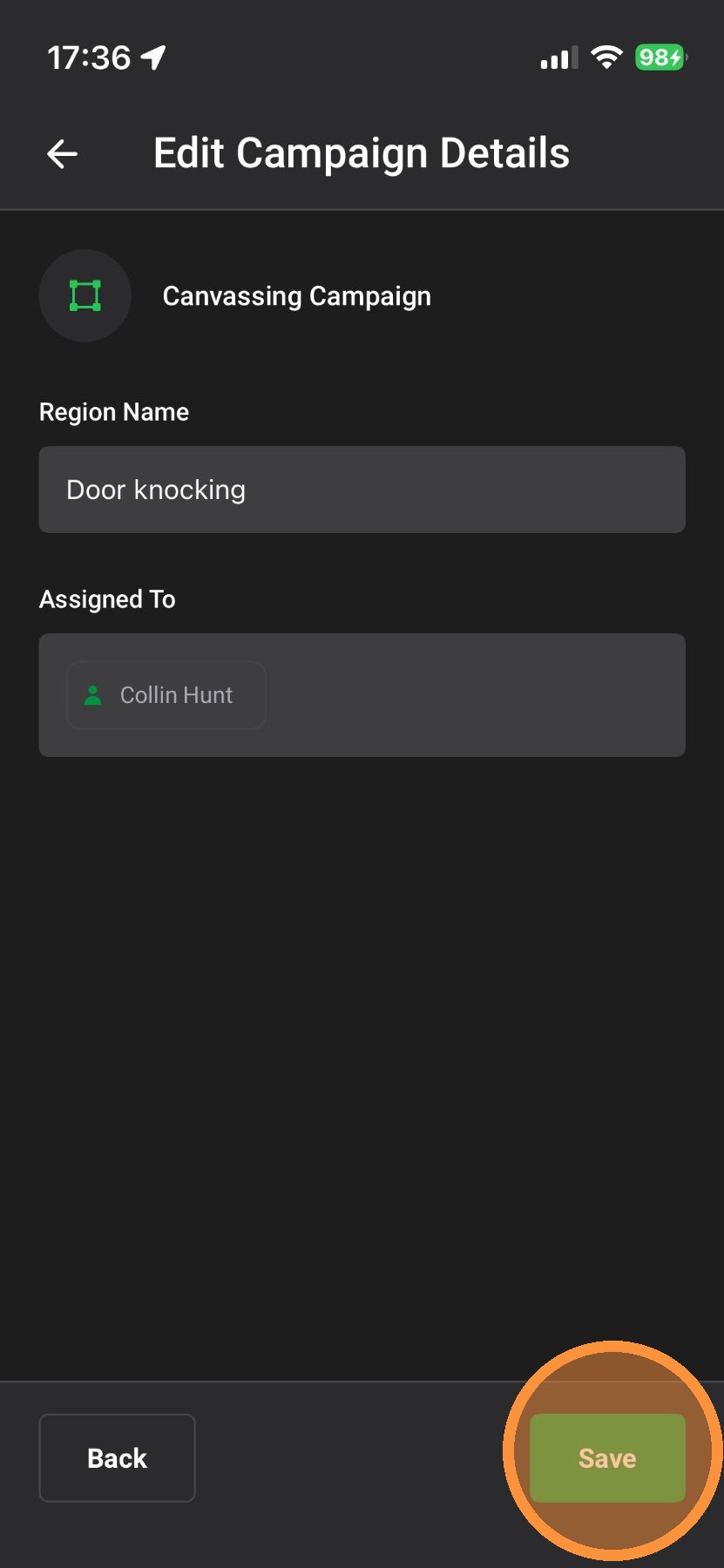
Mobile App


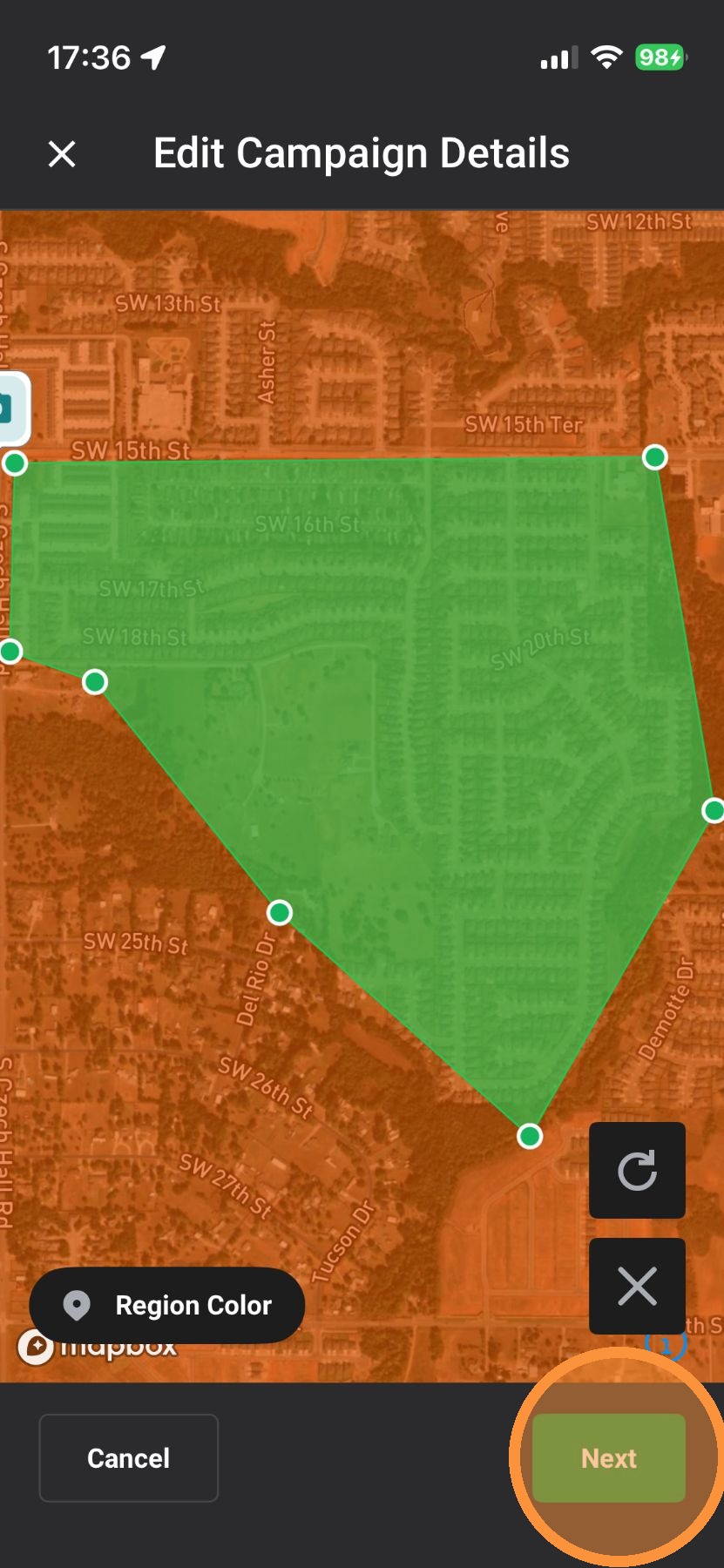
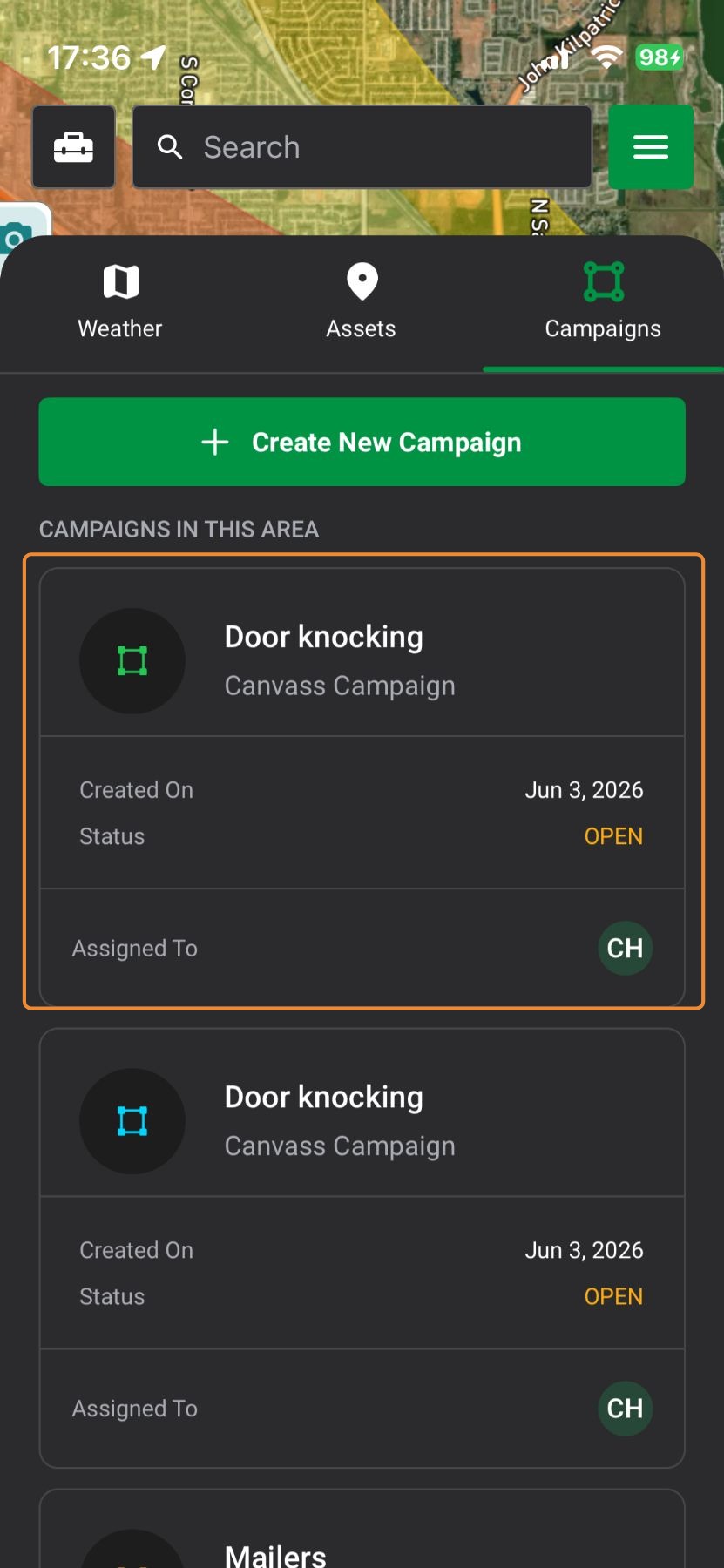
5. Adjust the campaign and tap "Next"


Desktop App

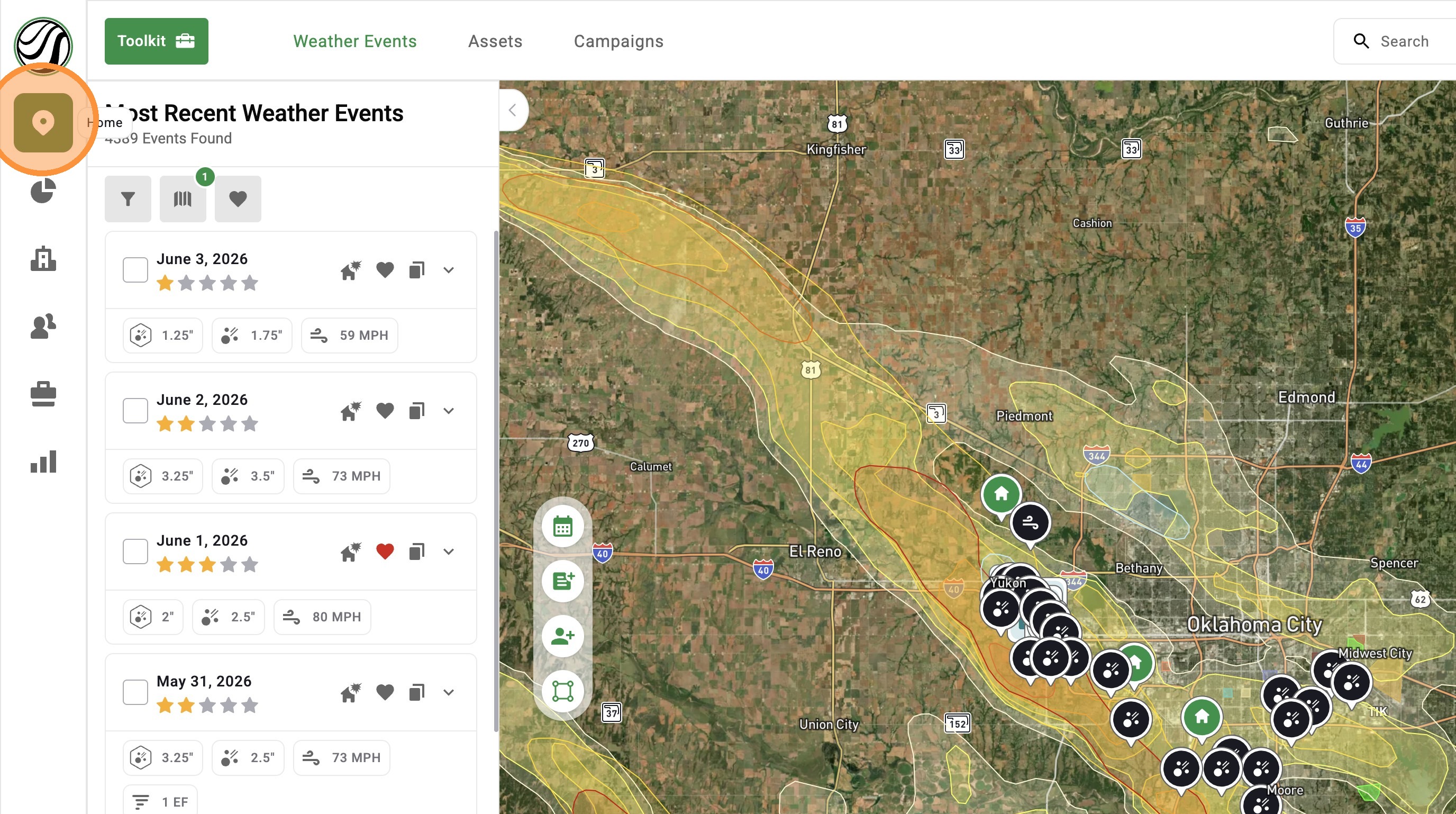
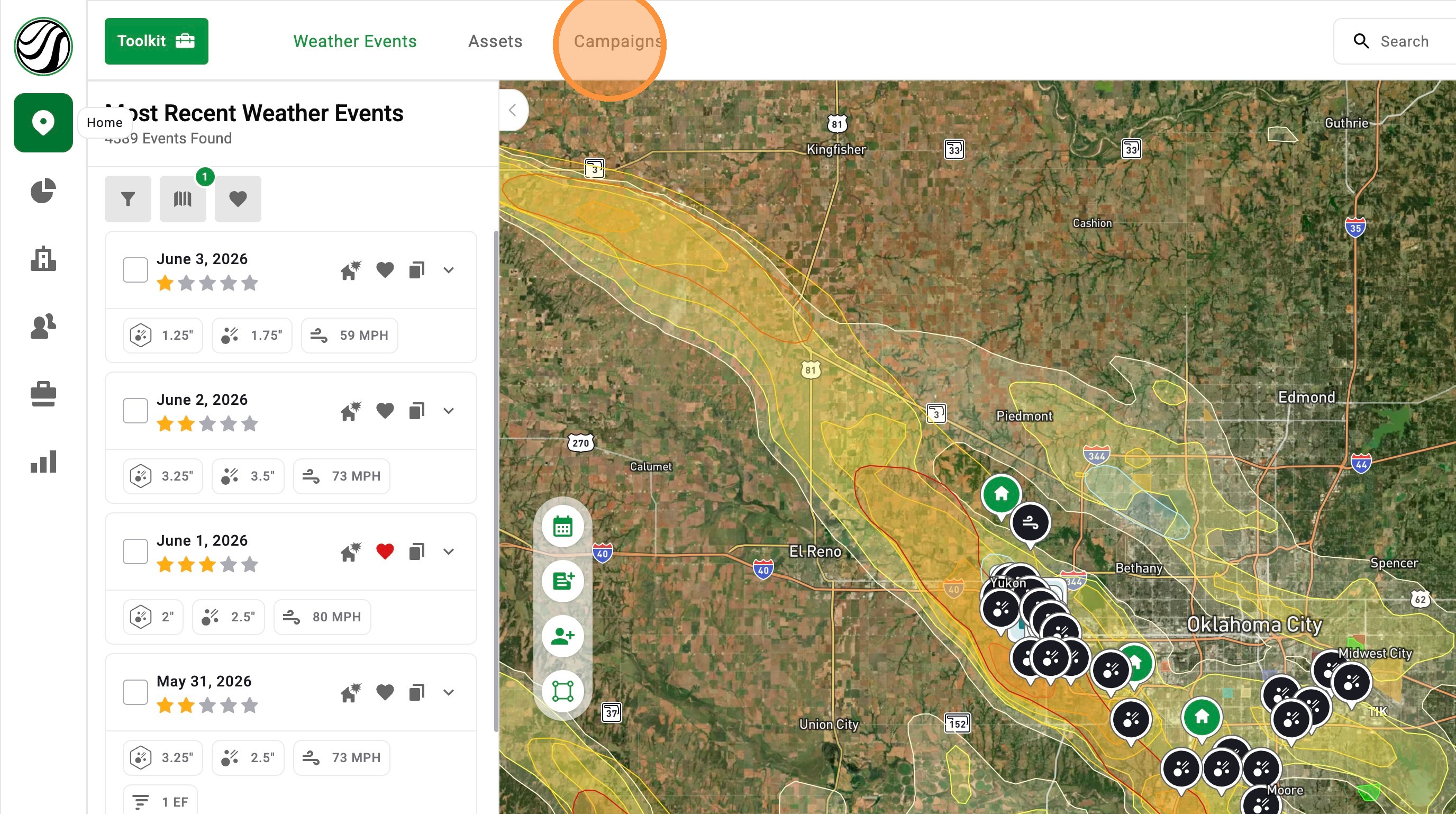
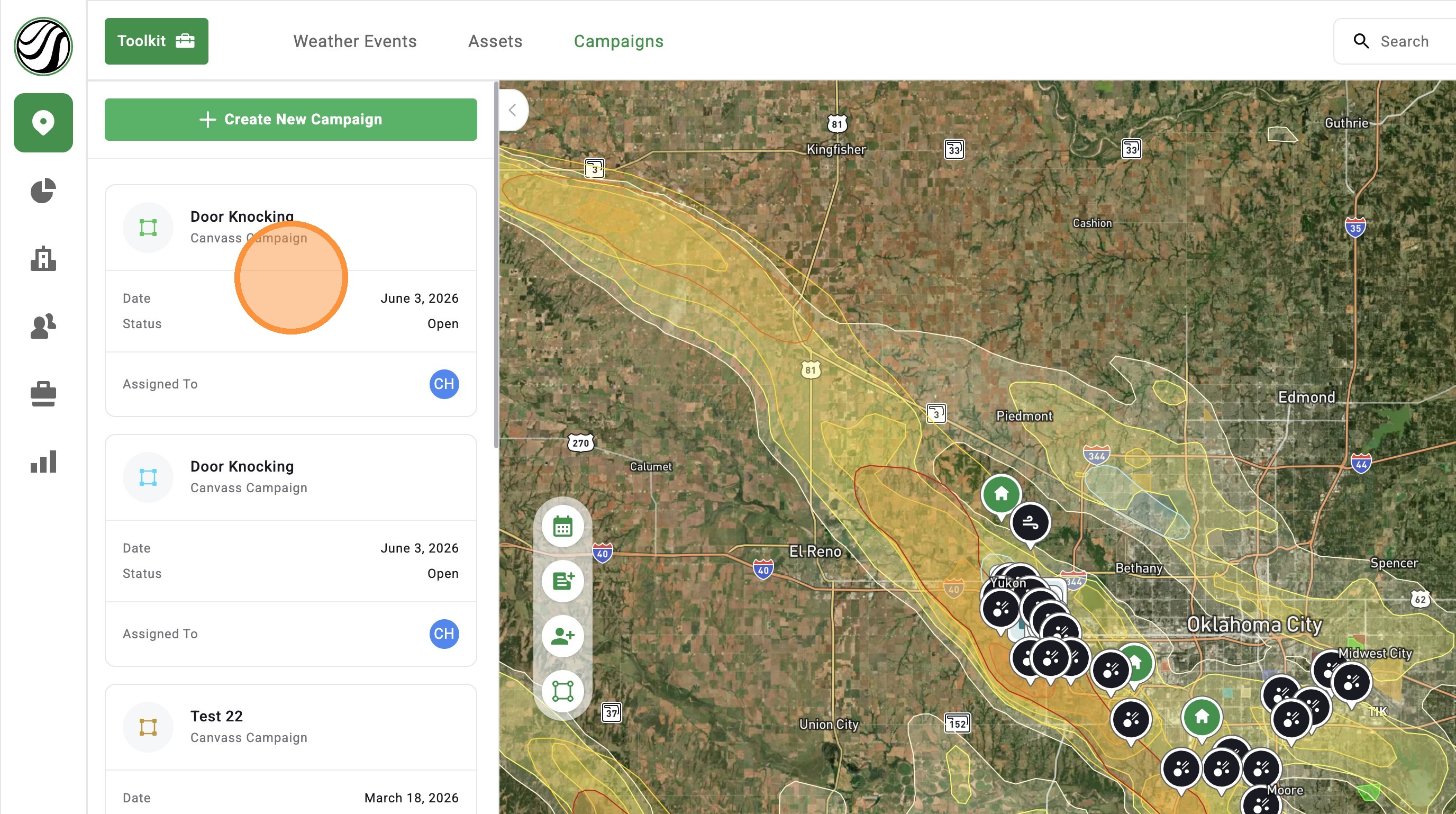
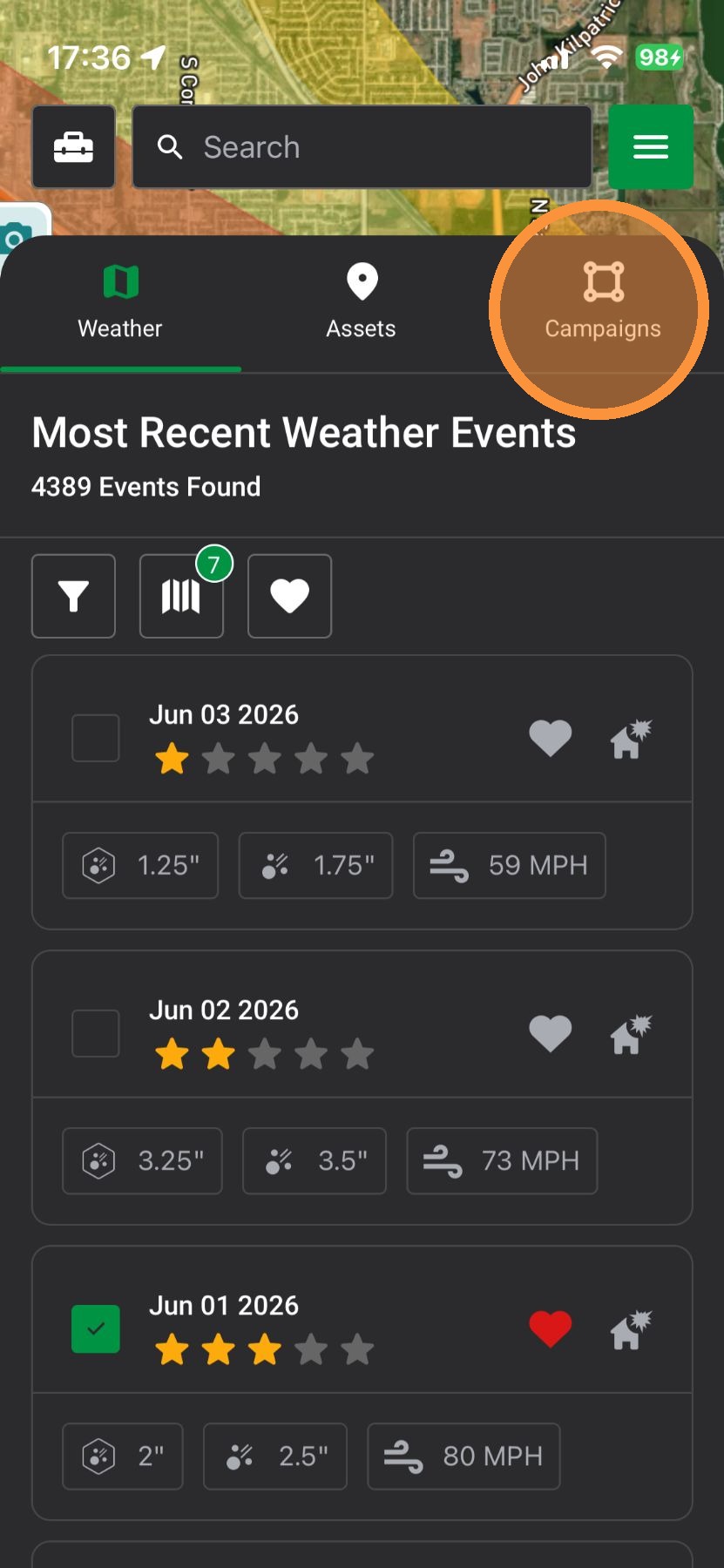
2. Click "Campaign" panel


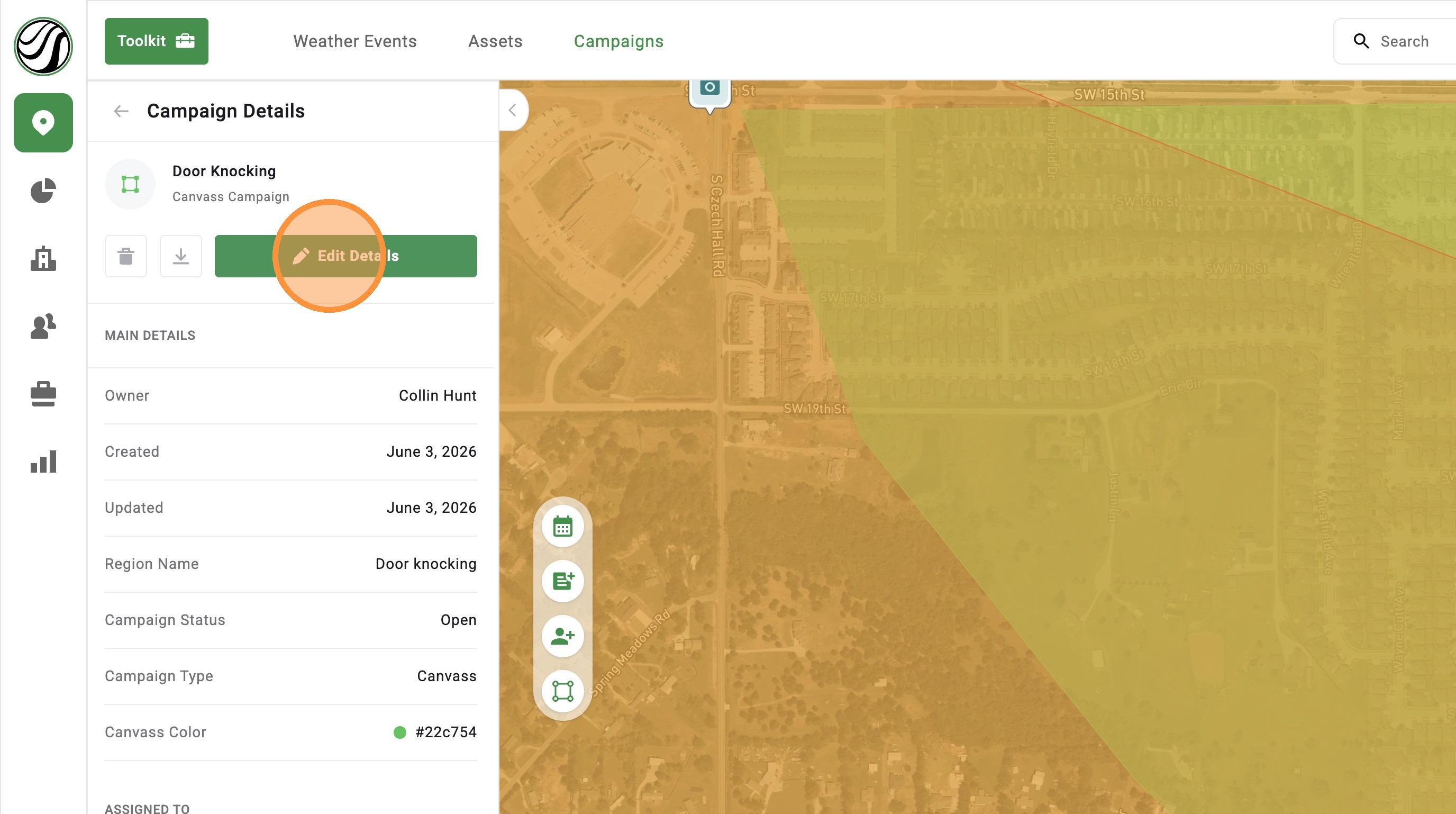
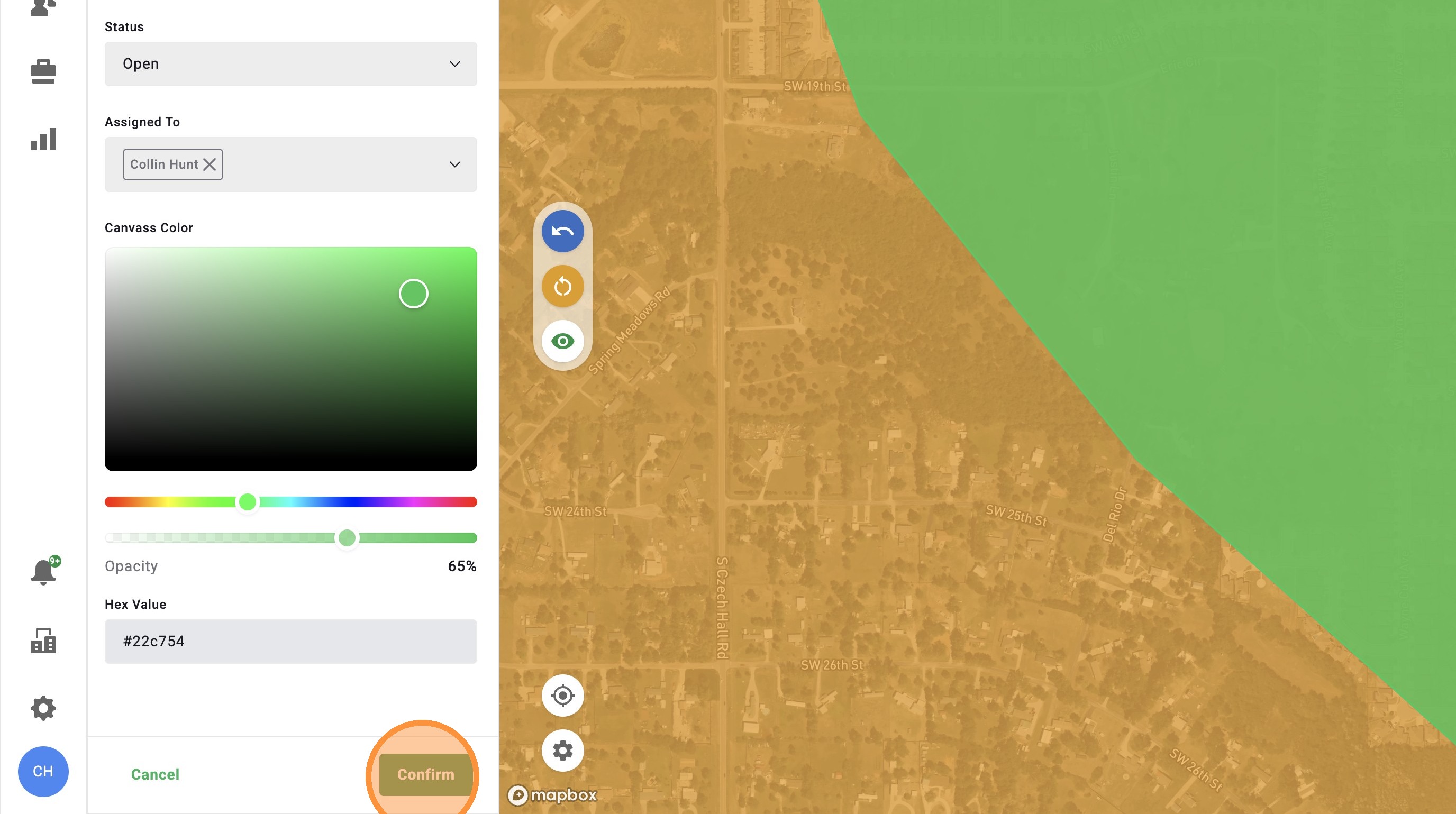
5. Make edits and click "Confirm"

Related Articles
[5.0] Create A Campaign To Coordinate Teams
After a storm, it’s easy for sales, marketing, and canvassing teams to step on each other’s toes — or miss key opportunities altogether. Campaigns help you eliminate the confusion by organizing your team’s efforts around specific neighborhoods. You ...
[5.0] Delete a Campaign
Campaigns help you eliminate confusion by organizing your team’s efforts around specific neighborhoods. Only Account owners and DealTrace Admin role and delete campaign Mobile App 1. Tap Navigation panel 2. Tap "Campaigns" panel 3. Select a campaign ...
[5.0] Setup or Edit Your Company's Opportunity Pipeline
Tracking every door you knock on and every lead you create is key to closing more deals. In the HailTrace app, you and your team can use a sales funnel called the Opportunity Pipeline to organize, track, and prioritize your leads. In this article, ...
[5.0] How To Edit Roof Squares and Predominant Pitch in RoofTrace™
RoofTrace™ automatically calculates roof squares, predominant pitch, and replacement value. Most of the time, those numbers are accurate enough for fast estimates and sales conversations. But if you see something that looks off, you can manually edit ...
[5.0] Edit Sub-users' Personal Info, Access, and Roles
Account Owners and users with an Admin role can update sub-user accounts as needed. This includes changing a user’s personal information, app access, roles, and permissions. Use this when a team member changes positions, needs access to more tools, ...