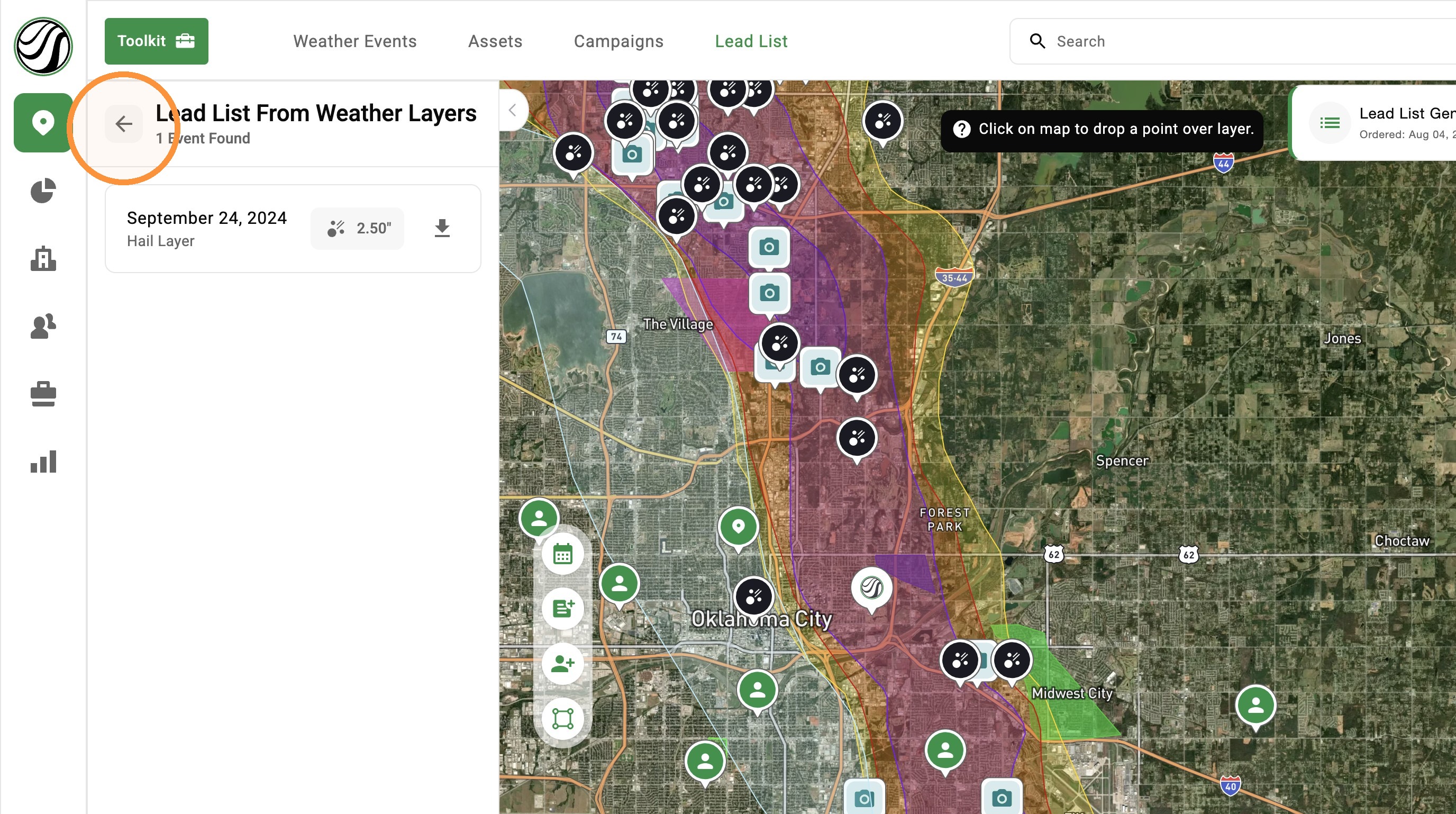
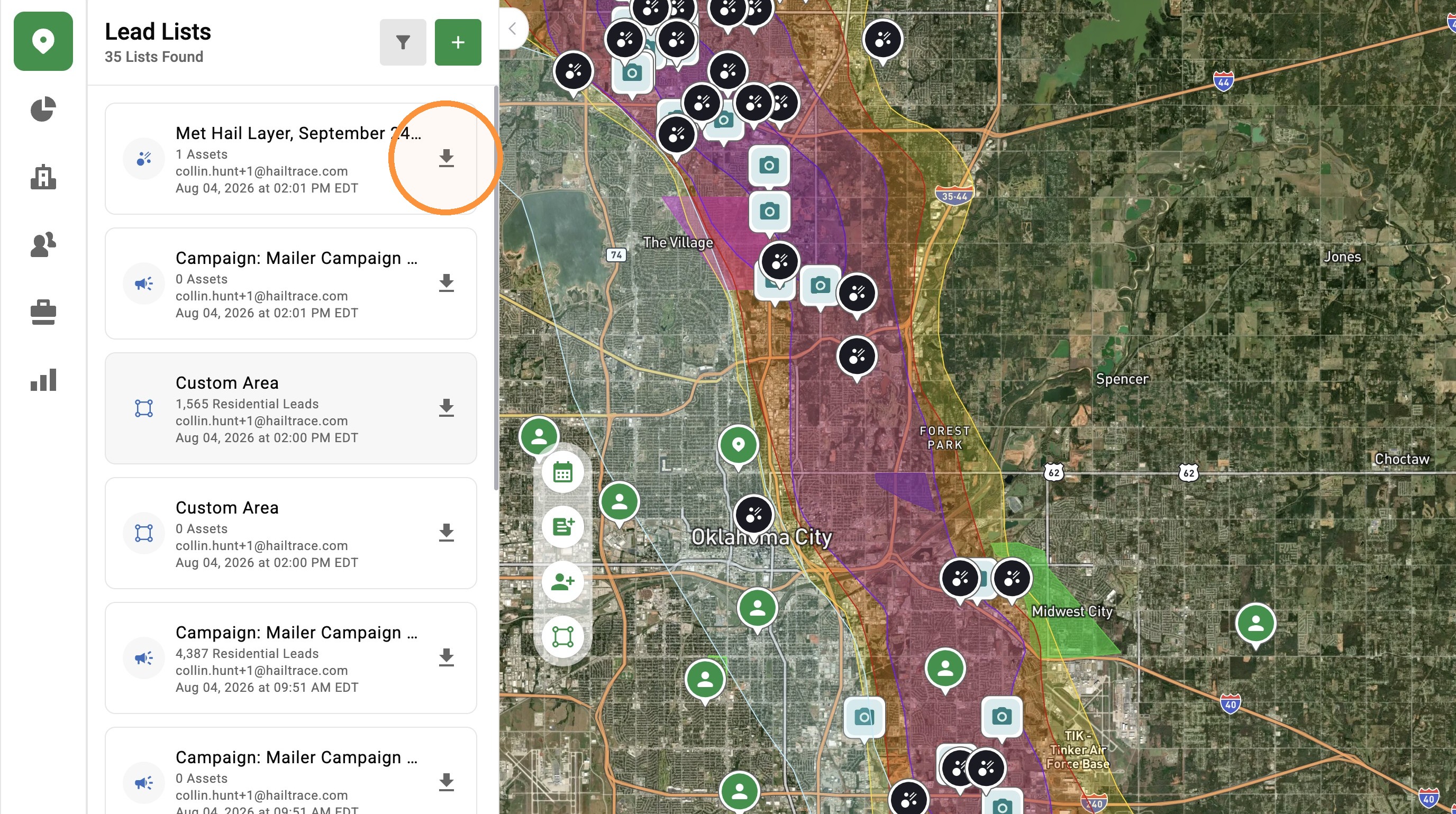
[5.0] Generate a Lead List With Residential, Commercial, or Asset Data

[5.0] Generate a Lead List With Residential, Commercial, or Asset Data

Lead Lists give you the owner’s contact info, so you can follow up in more ways and close more sales after a storm.

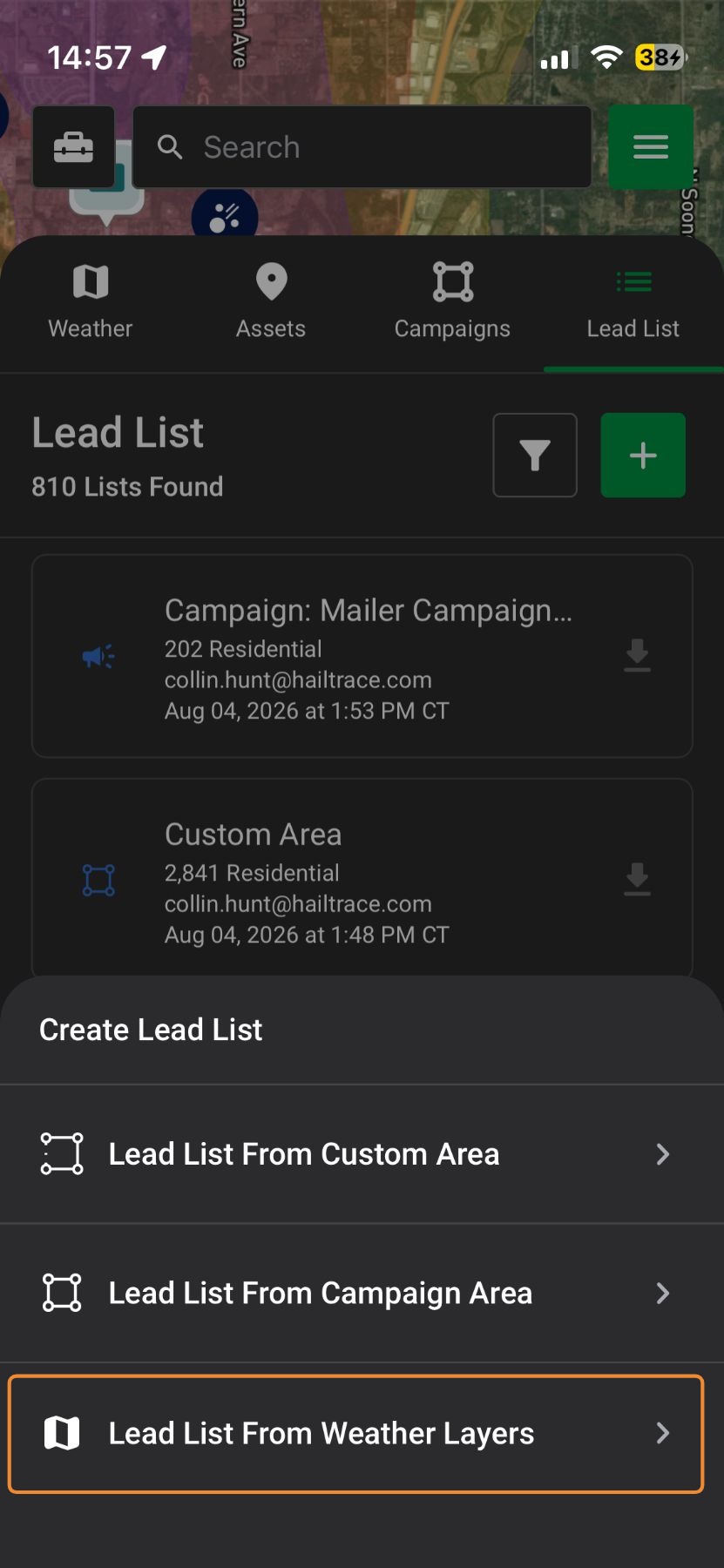
Generating a Lead List will give you an Assets, Commercial, and/or Residential's information in a selected area.
The generated report will include info such as address, email, phone number, contact name, etc. 

Ways to pull a Lead List

  • From the Entire Storm Swath: Pull all properties across the full storm area.
  • From a Section of the Storm: Pull properties from a custom-drawn area.
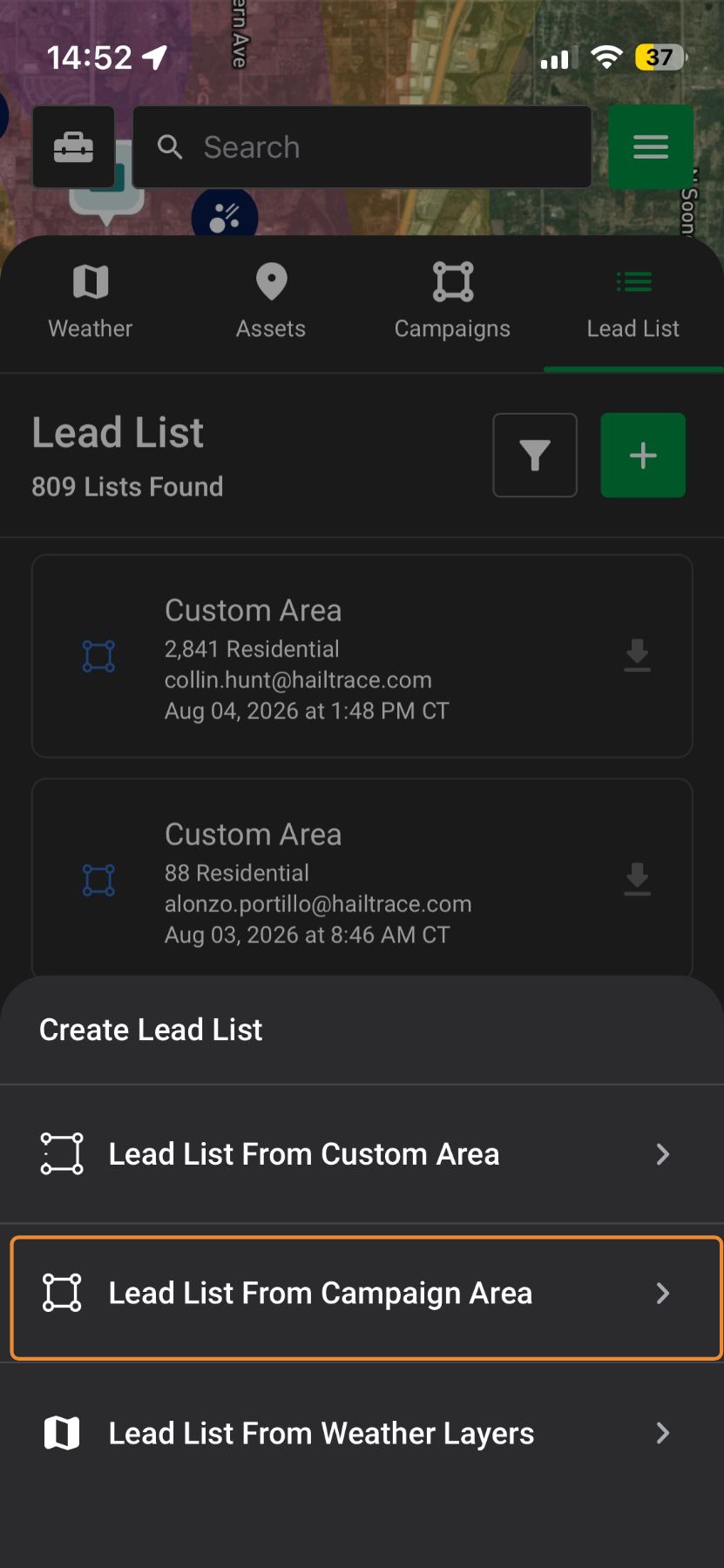
  • From a Campaign: Pull properties from a saved campaign area within a storm.


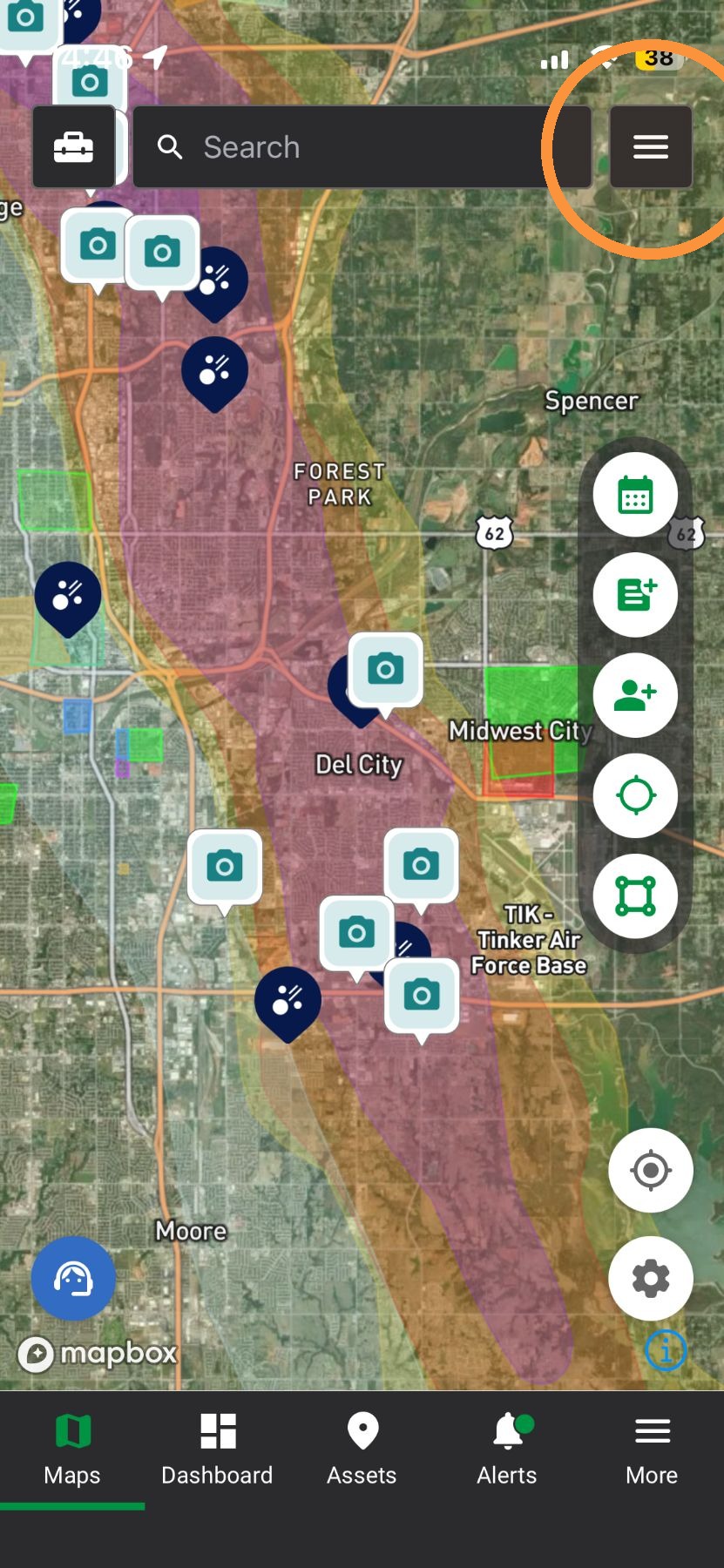
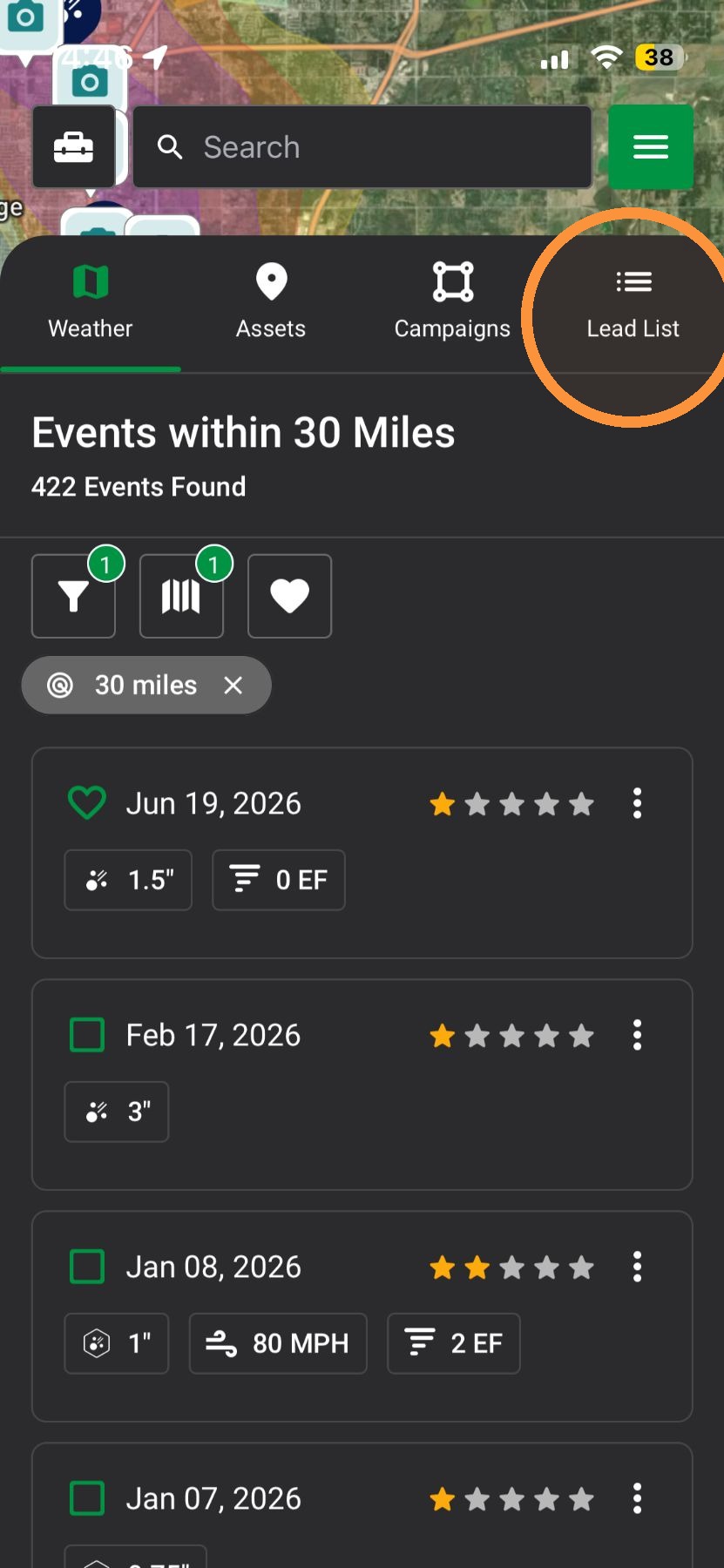
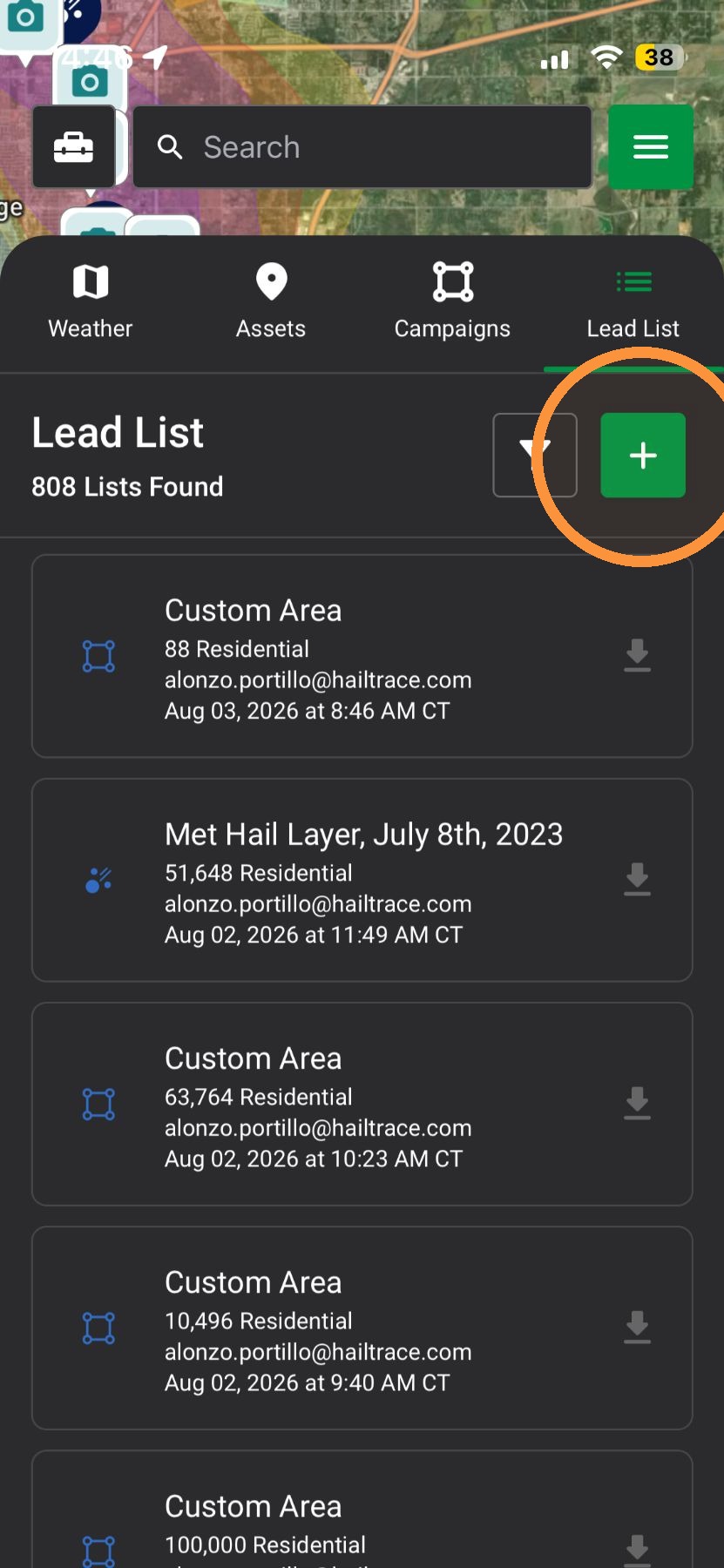
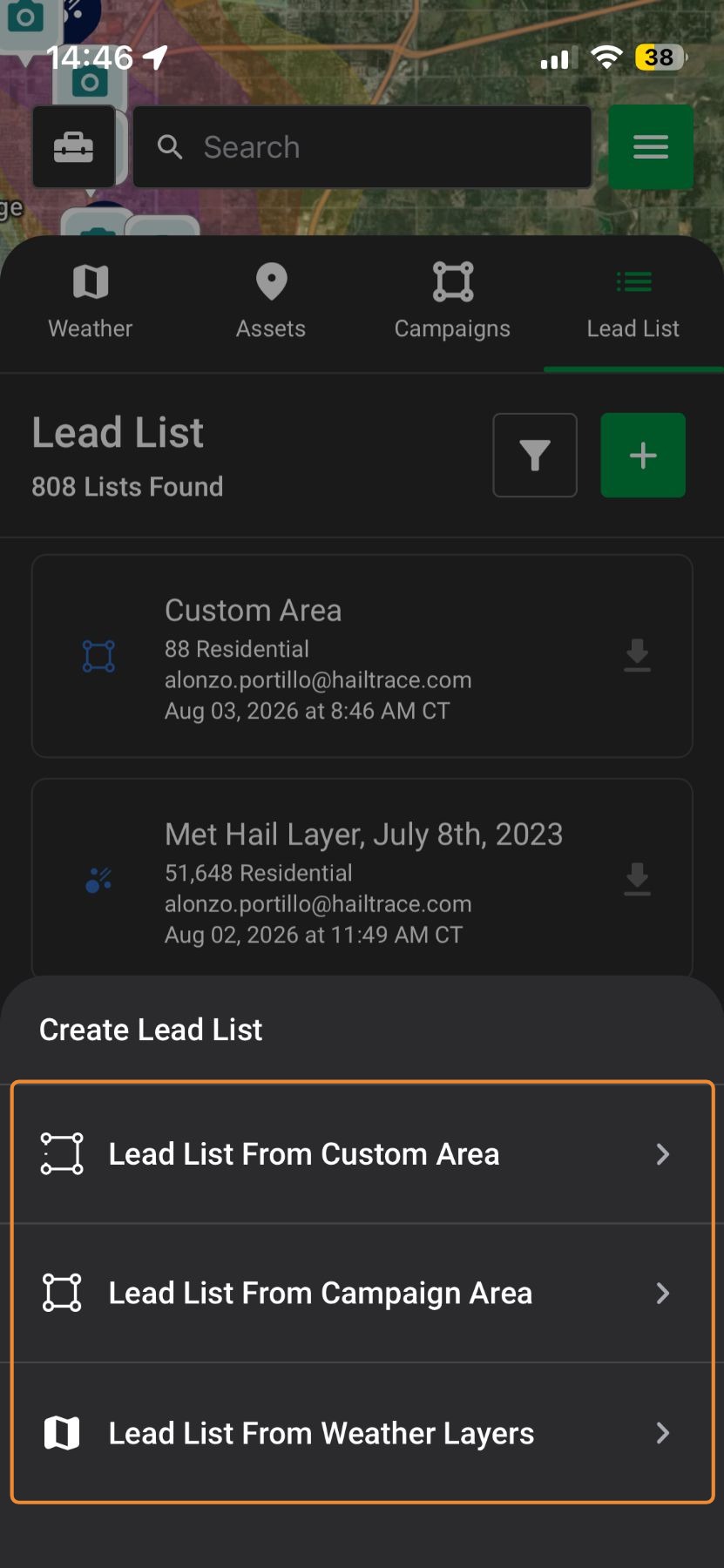
  • Mobile App

    Lead List From the Entire Storm Swath

    Generate a complete list of properties across the full storm-affected area to maximize outreach.

    1. Select "Maps" page


    2. Activate a Weather Event


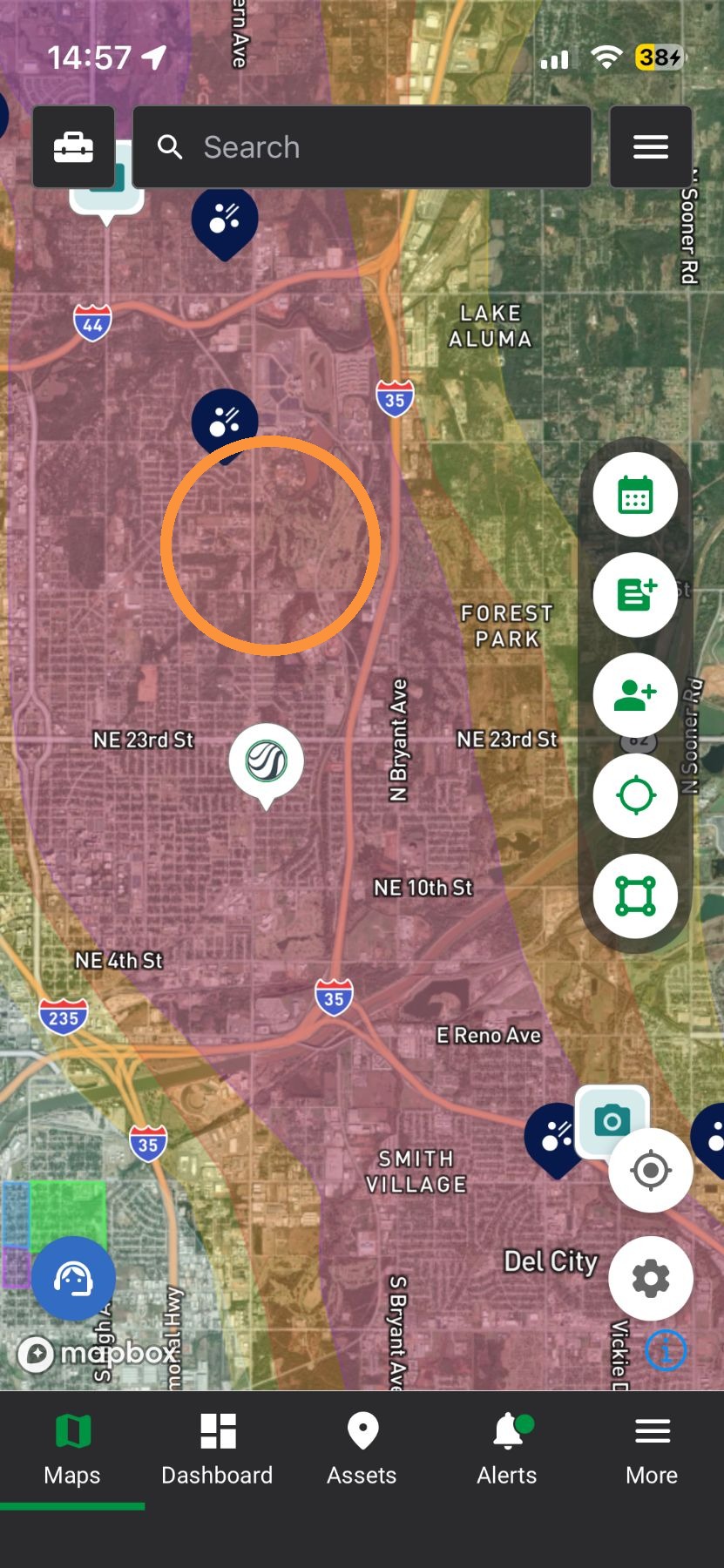
    3. Tap "Inspector Tool"


    4. Tap inside the storm where you want a Lead List


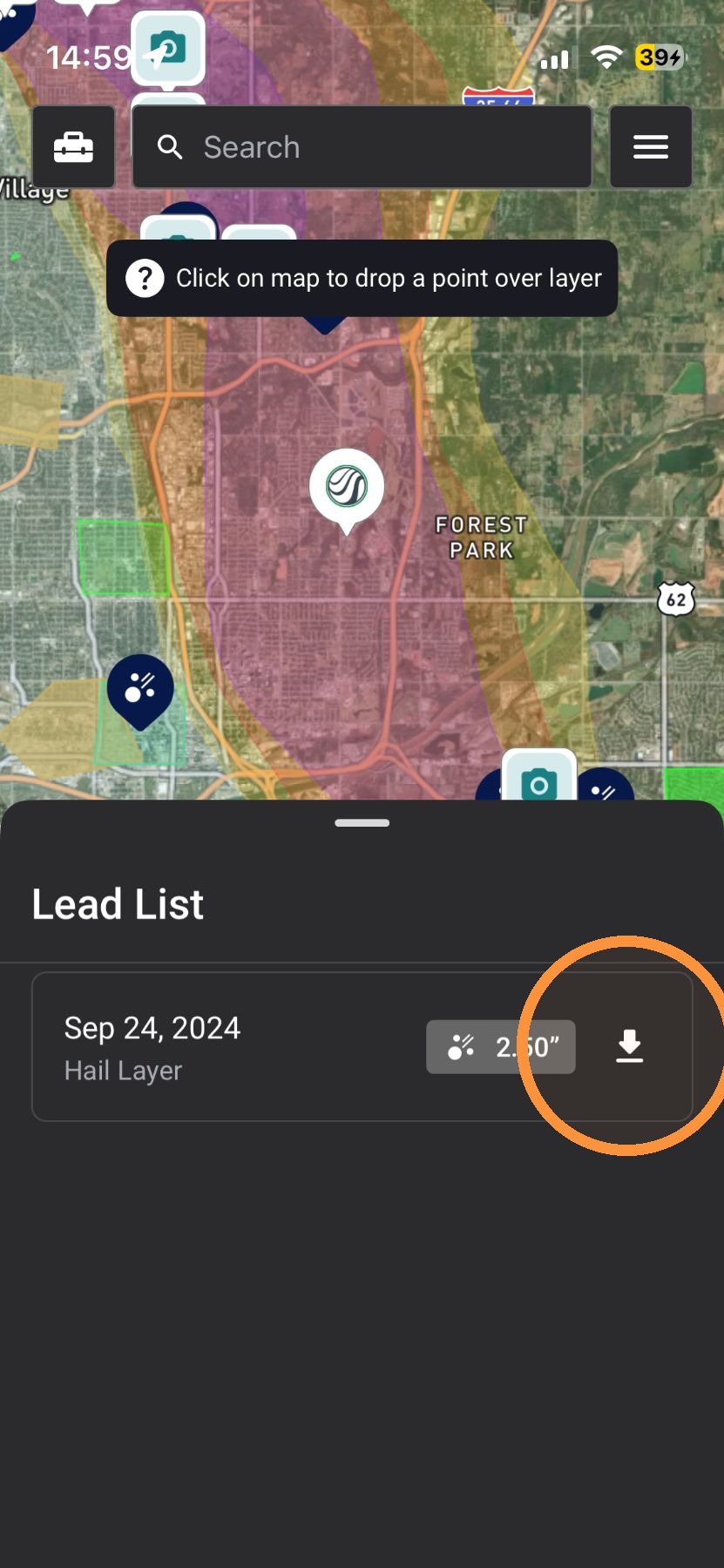
    5. Tap "Lead List"


    6. Select "Generate" next to the Lead List you want


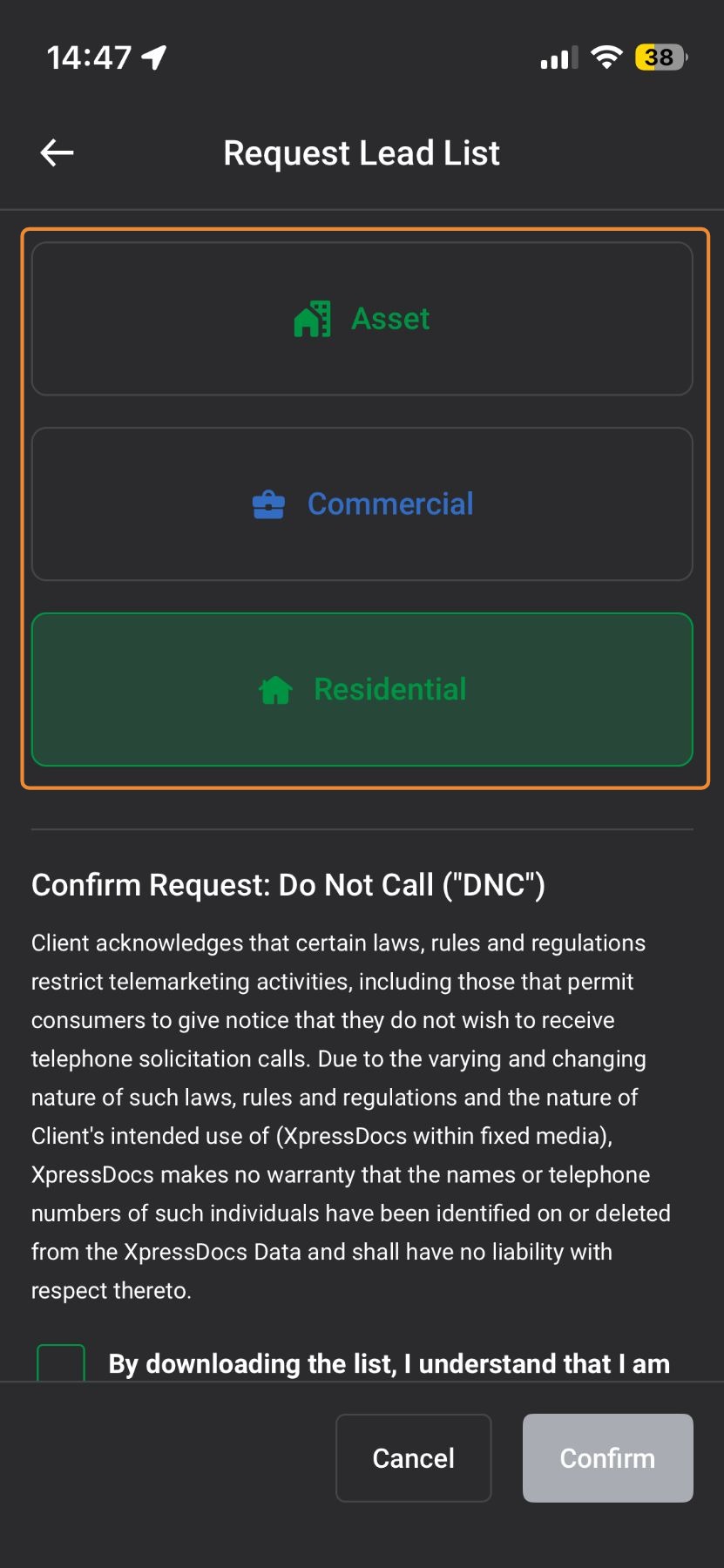
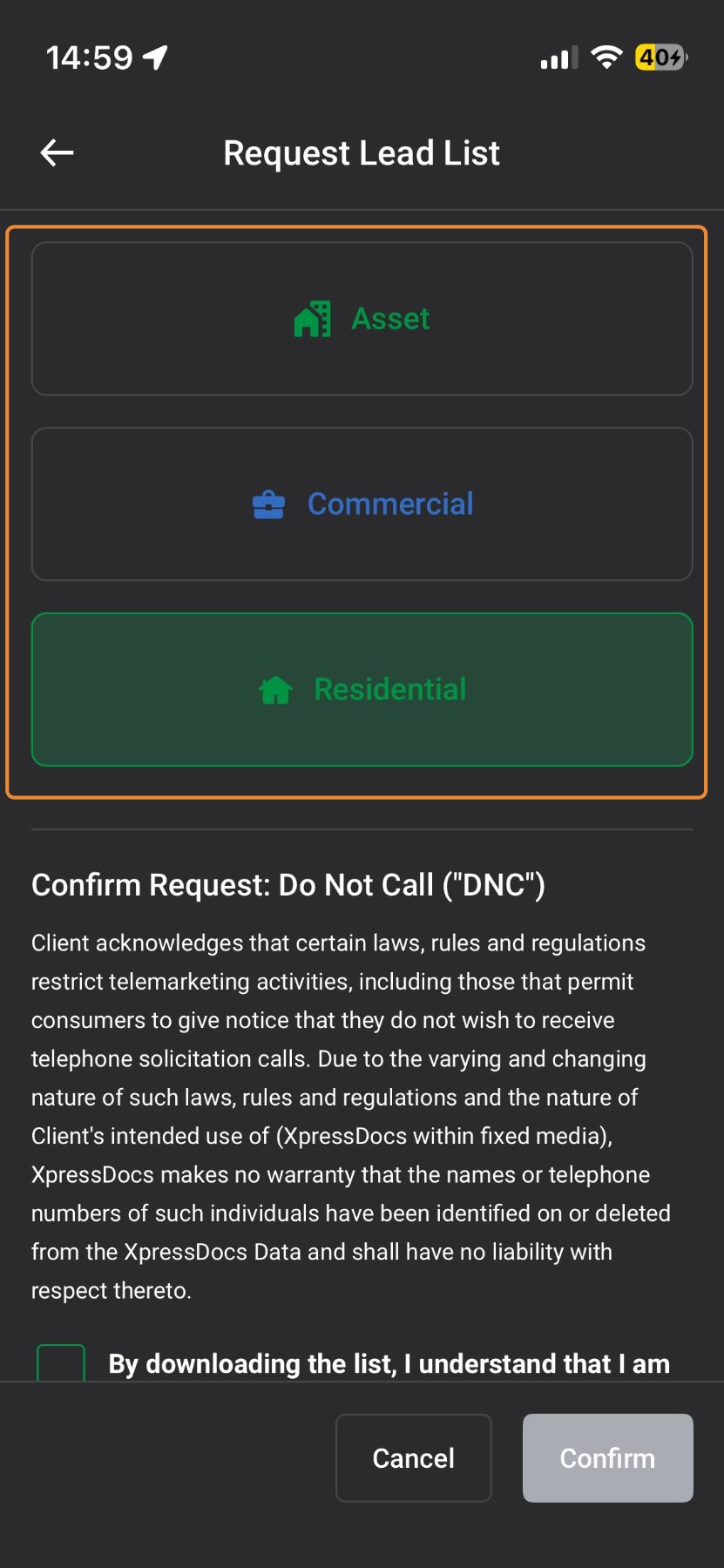
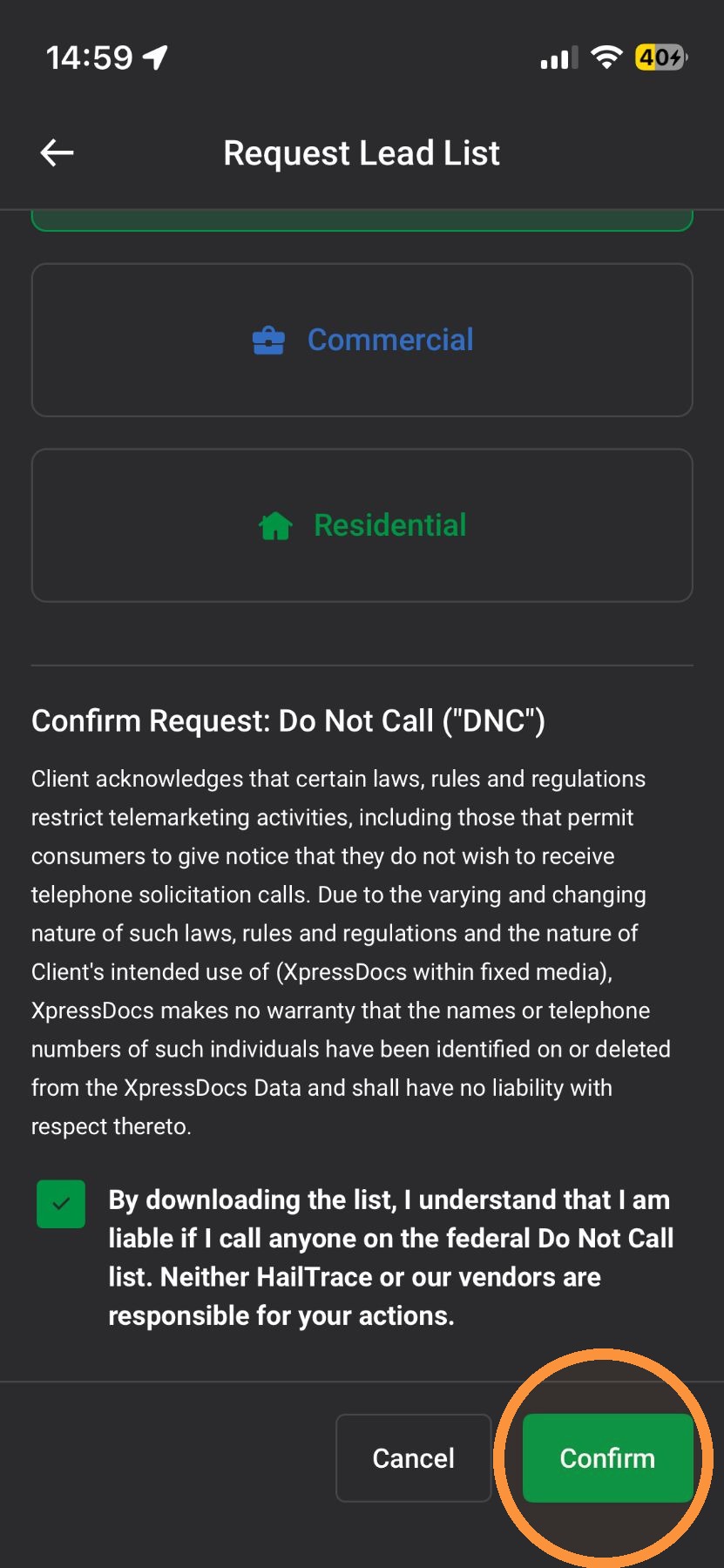
    7. Select the type of download you need:

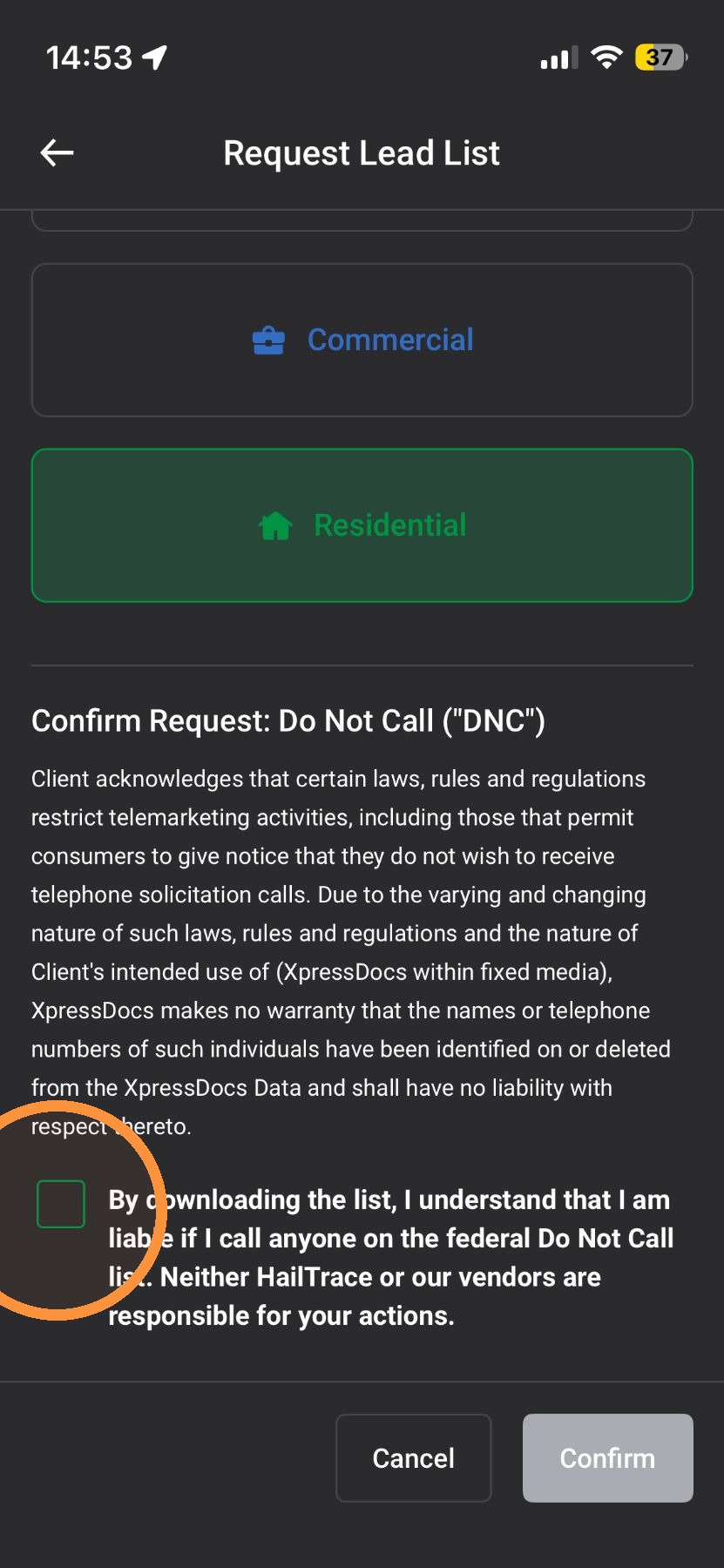
    A.  Residential: Download Lead List of all homes in the select area

    B.  Commercial: Download Lead List of all businesses in the select area

    C.  Asset: Download list of Assets (clients) in the selected area


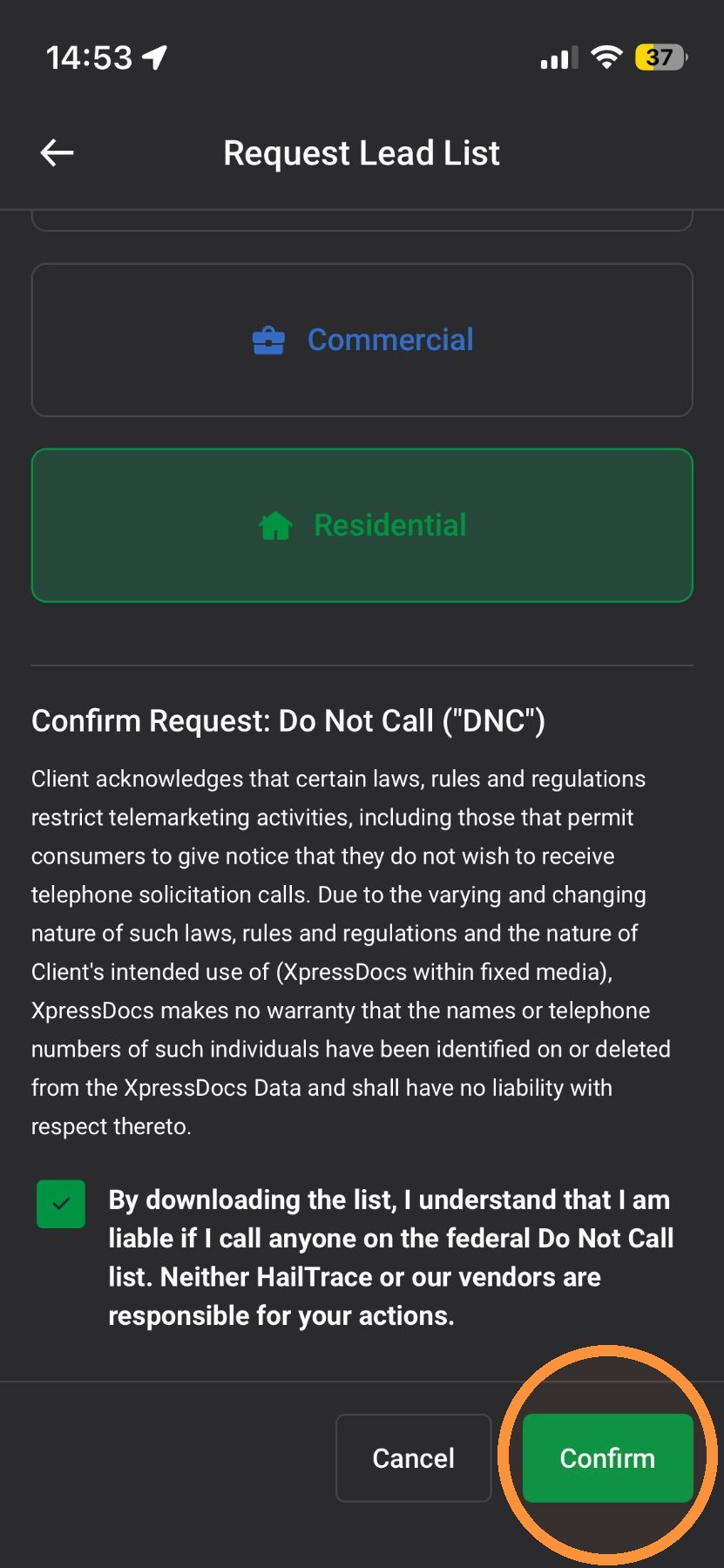
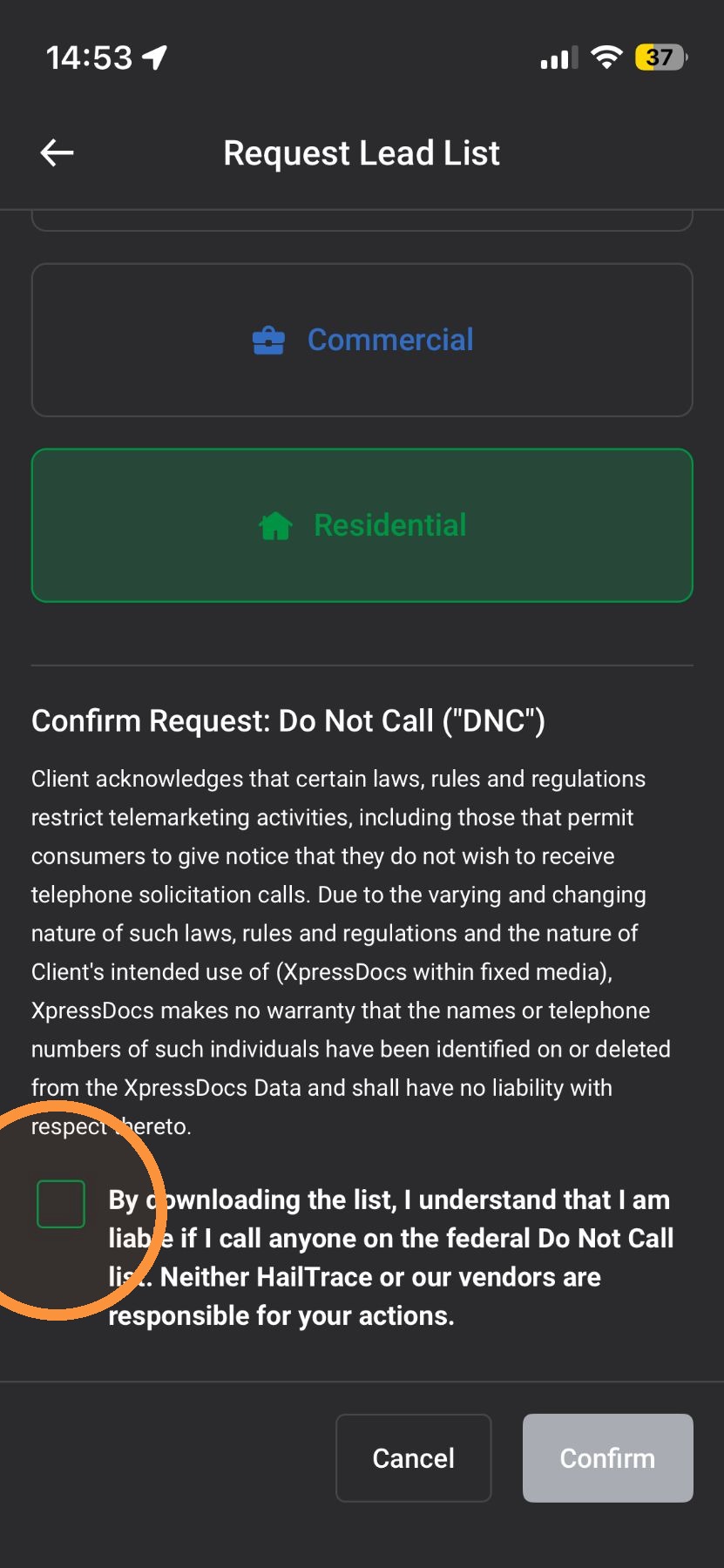
    8. Tap "Request"


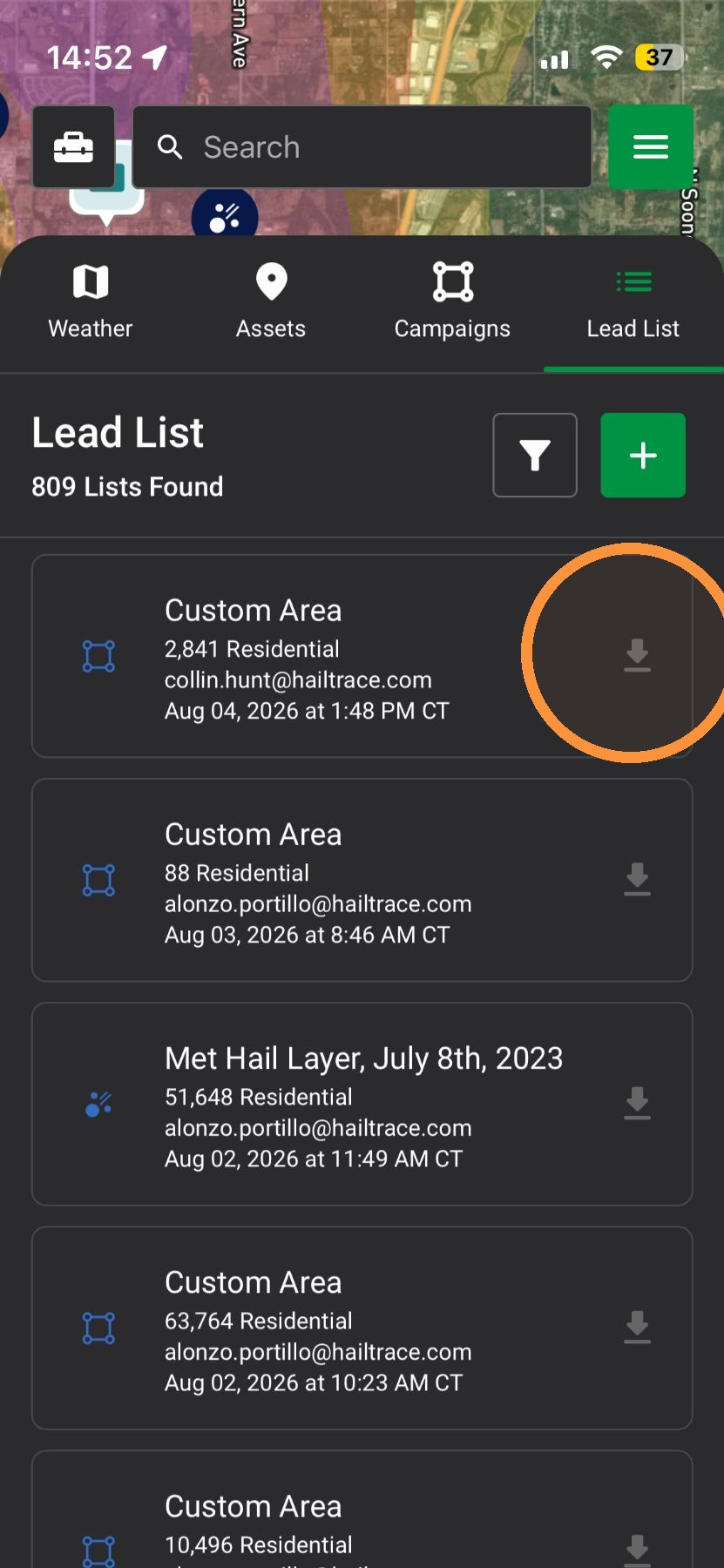
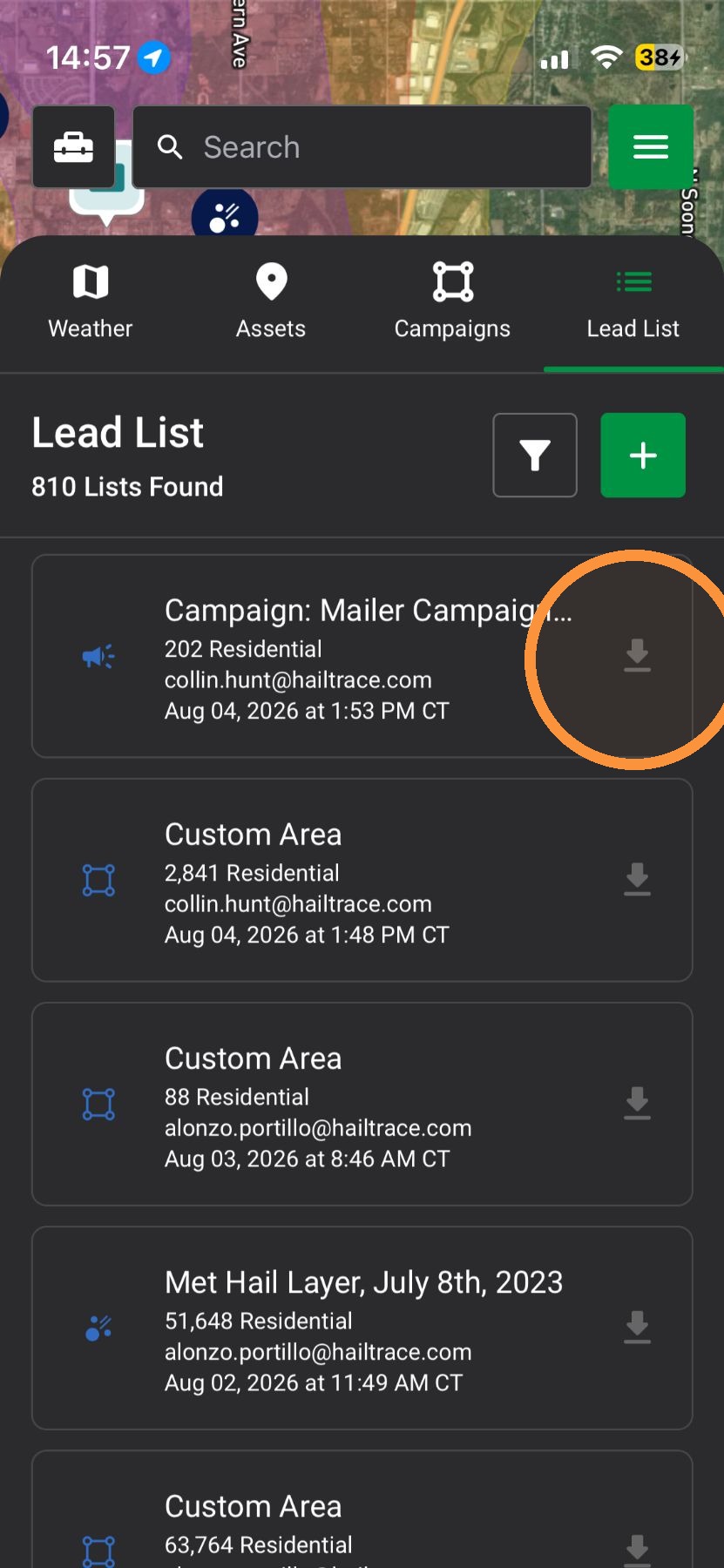
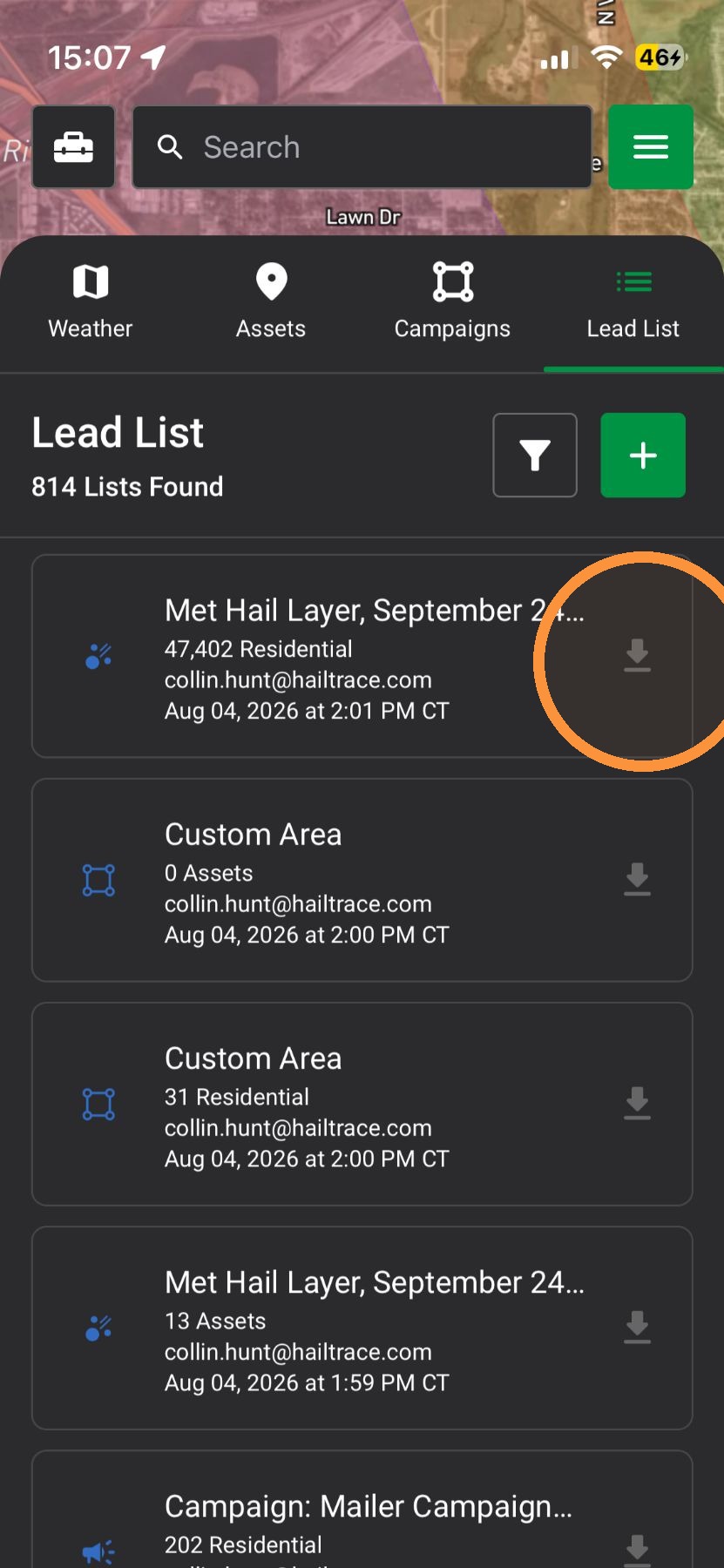
    9. Tap the “Notifications” page or check your email to download your Lead List


    Lead List From a Section of the Storm

    Create a targeted list by drawing a custom area within the storm zone to focus on specific neighborhoods.

    1. Select "Maps" page


    2. Activate a Weather Event


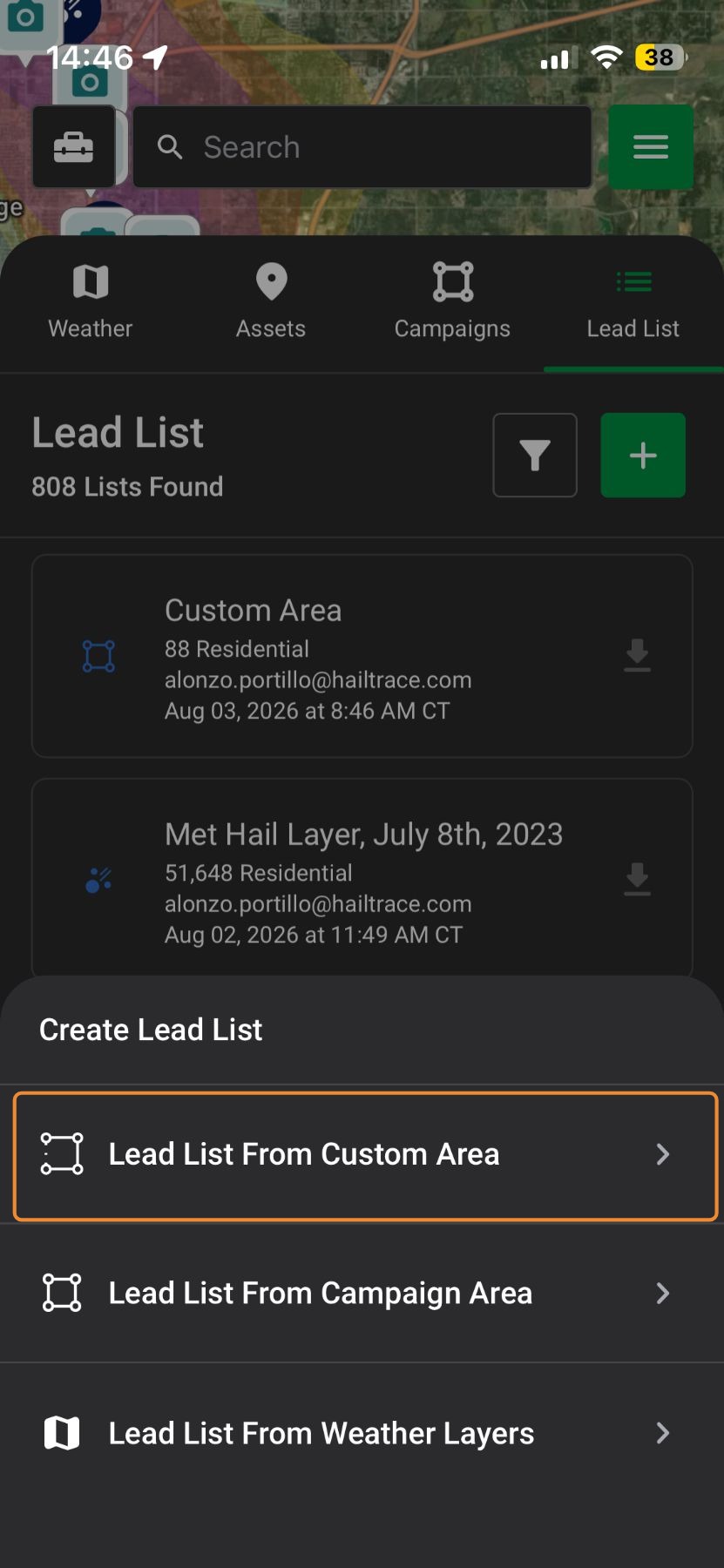
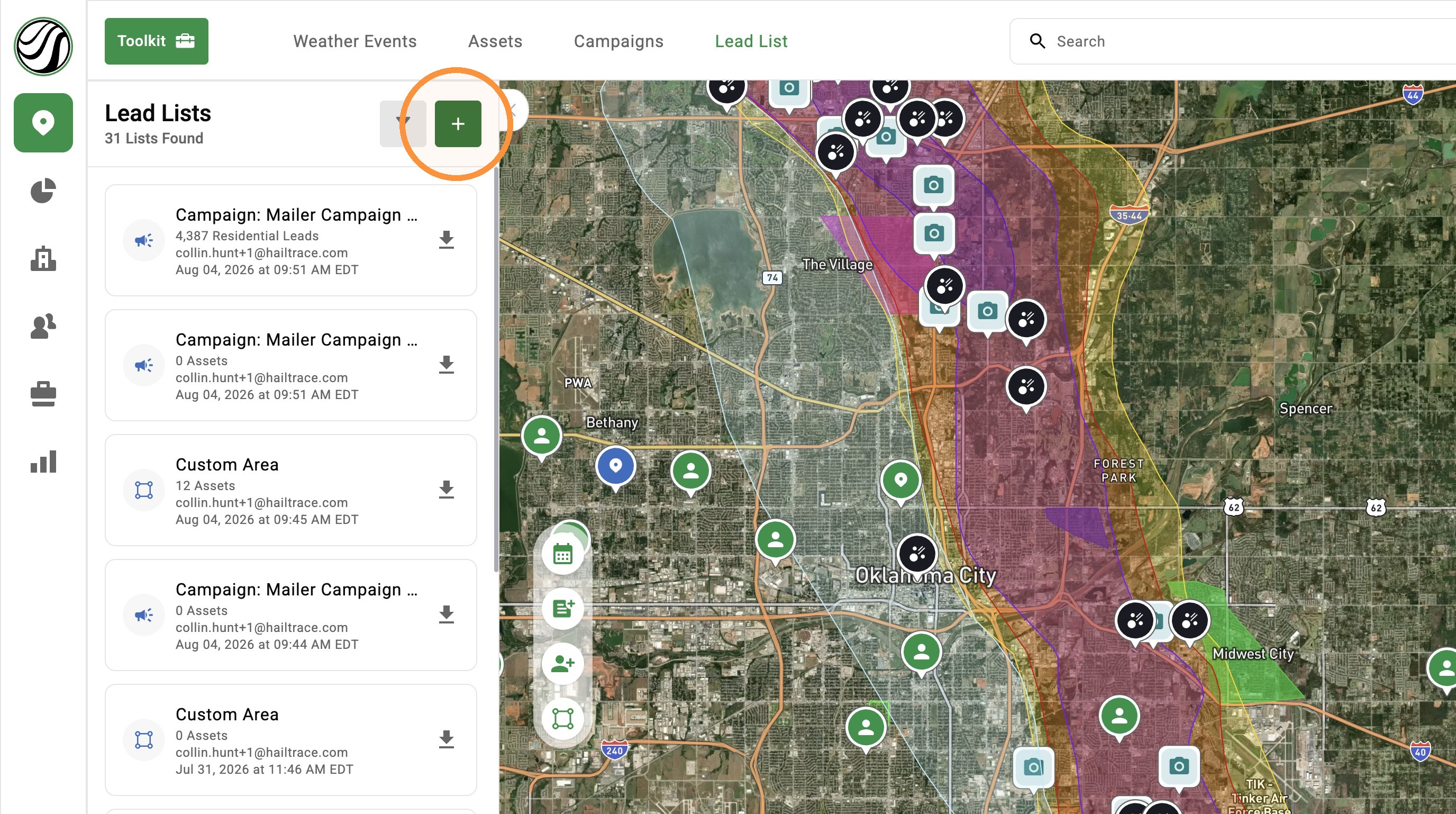
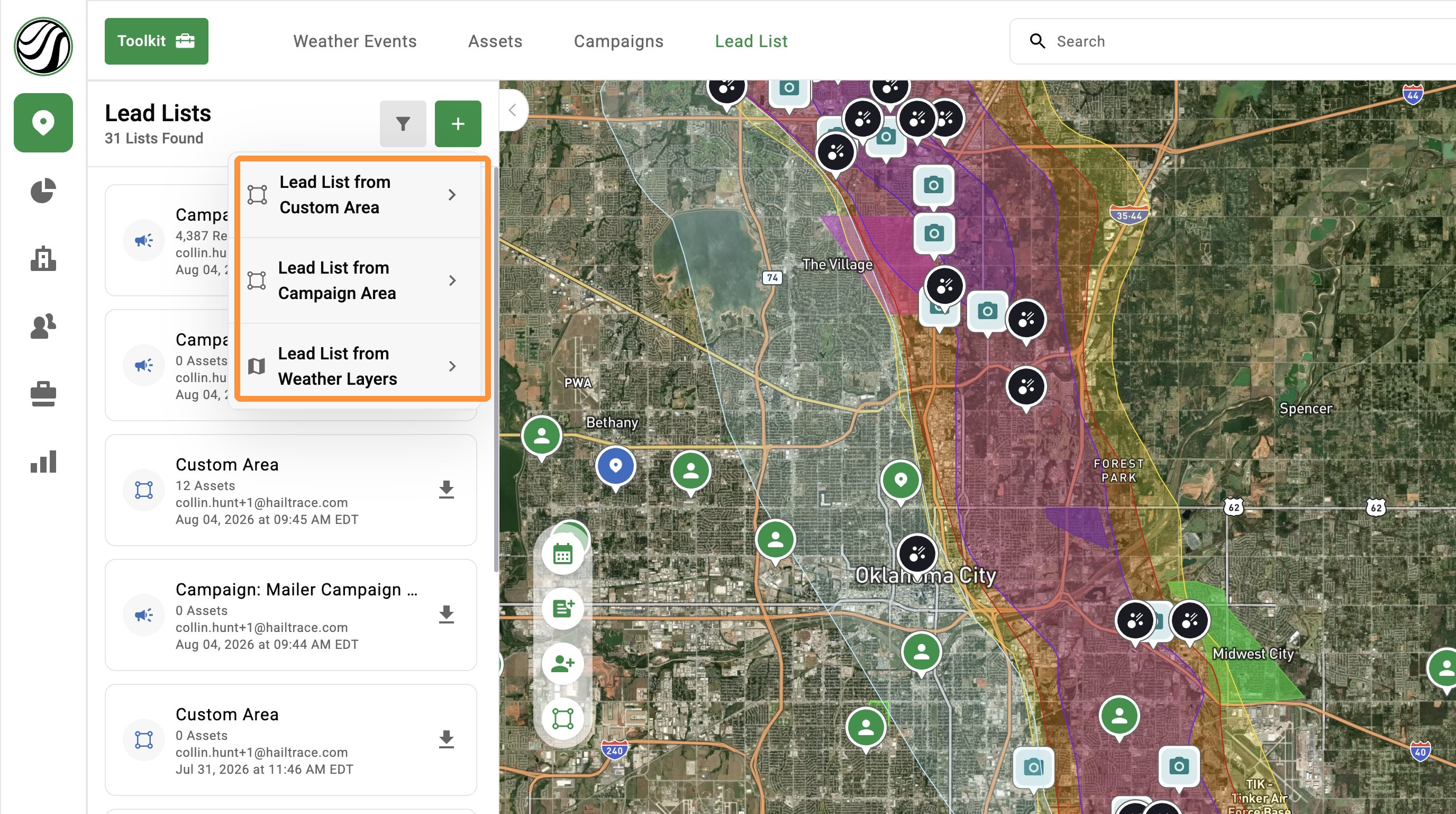
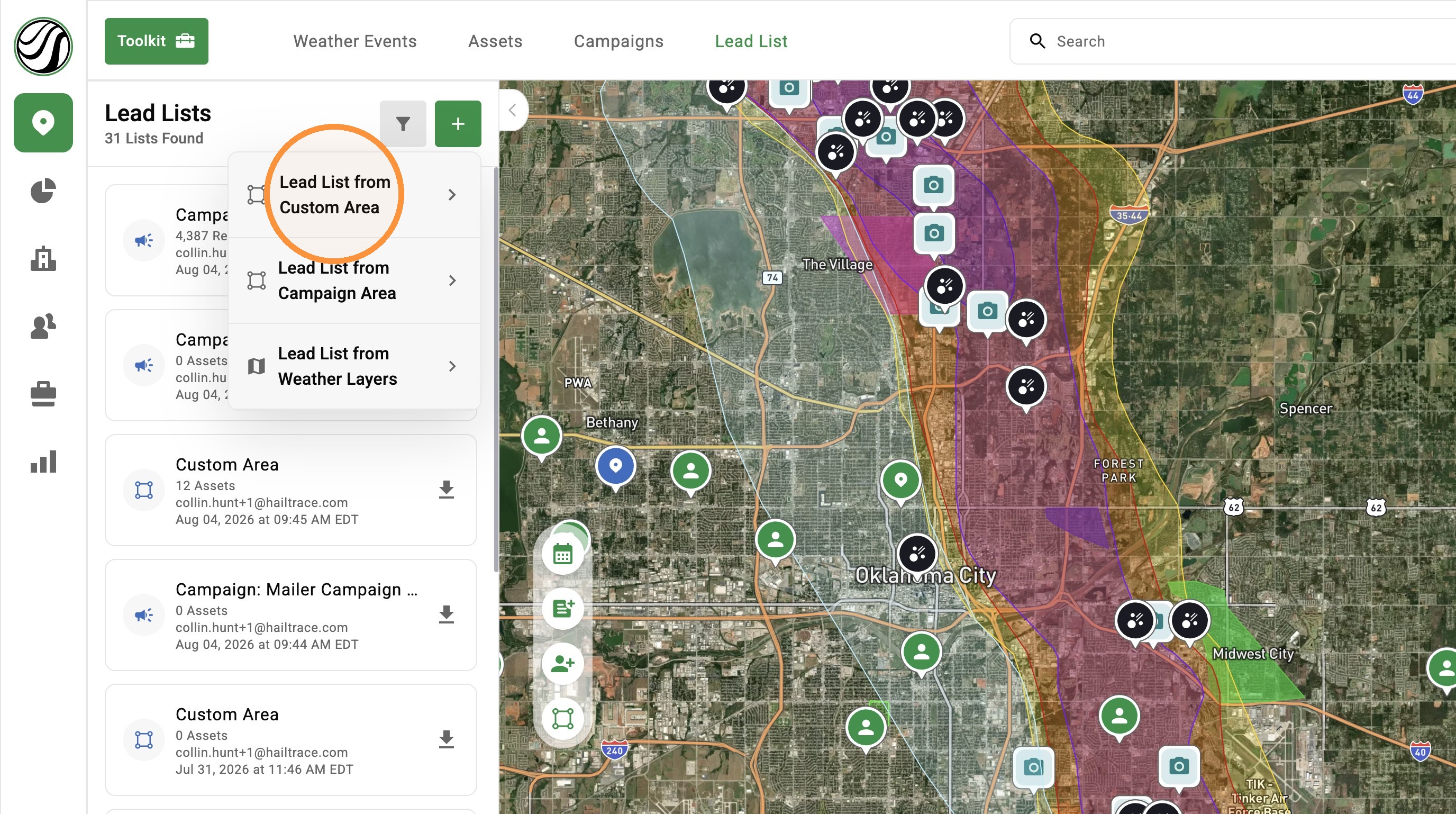
    3. Tap "Lead List" button


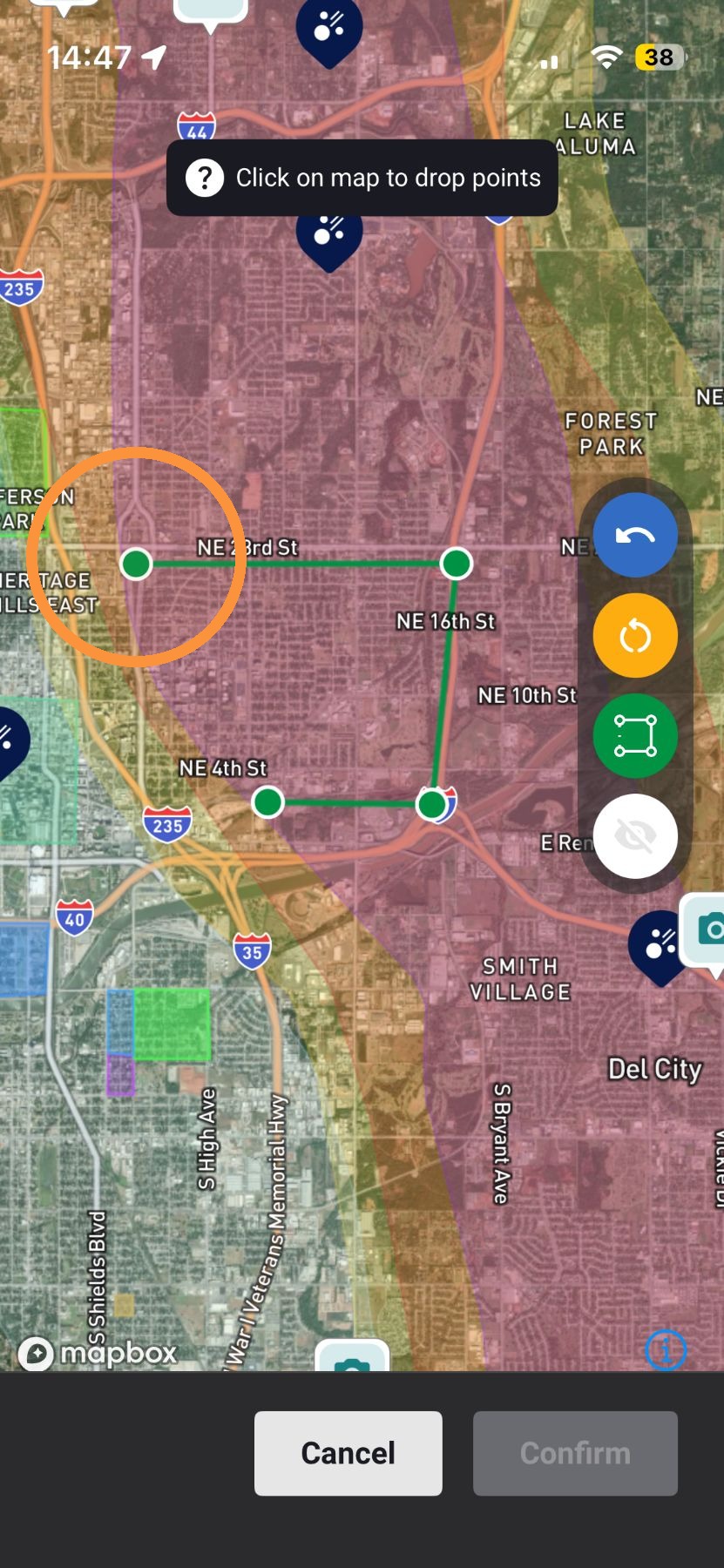
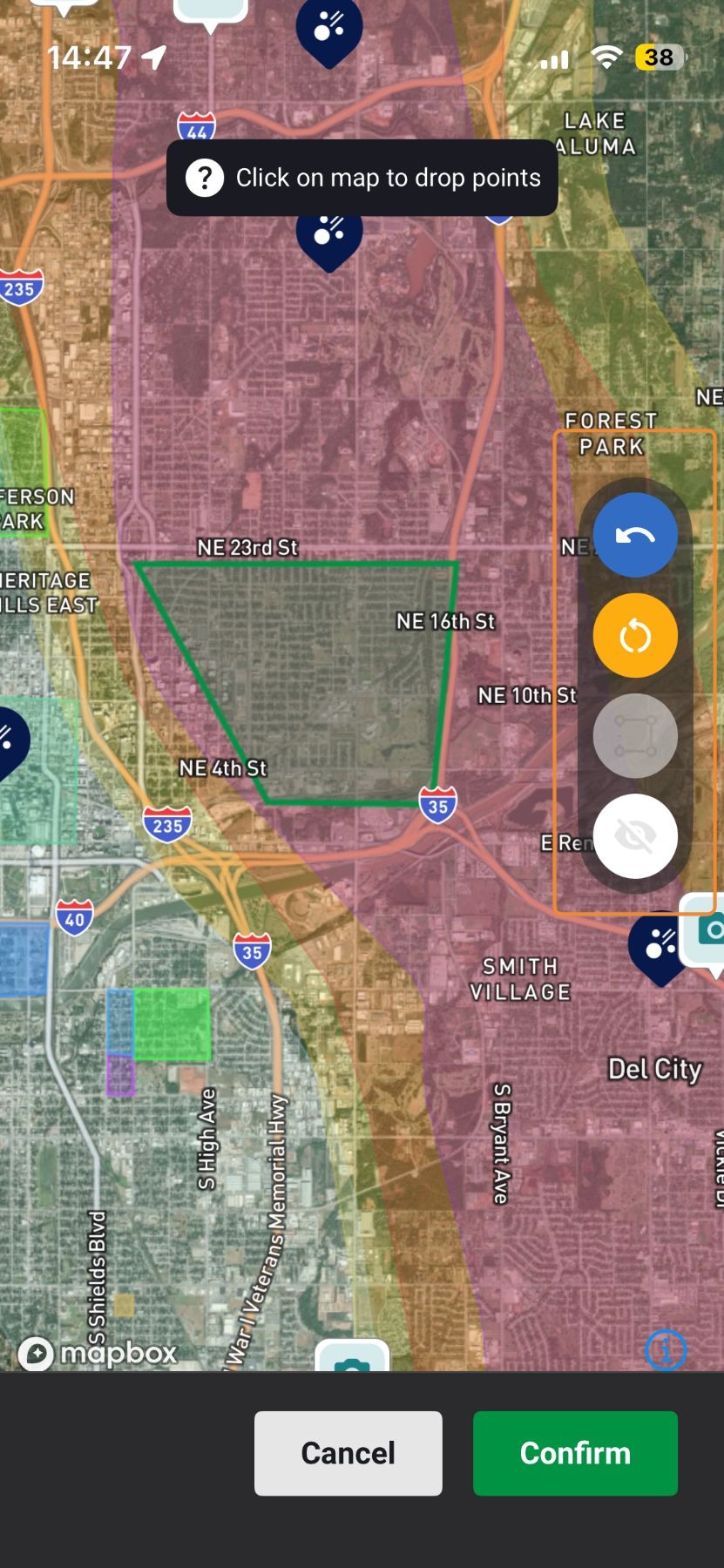
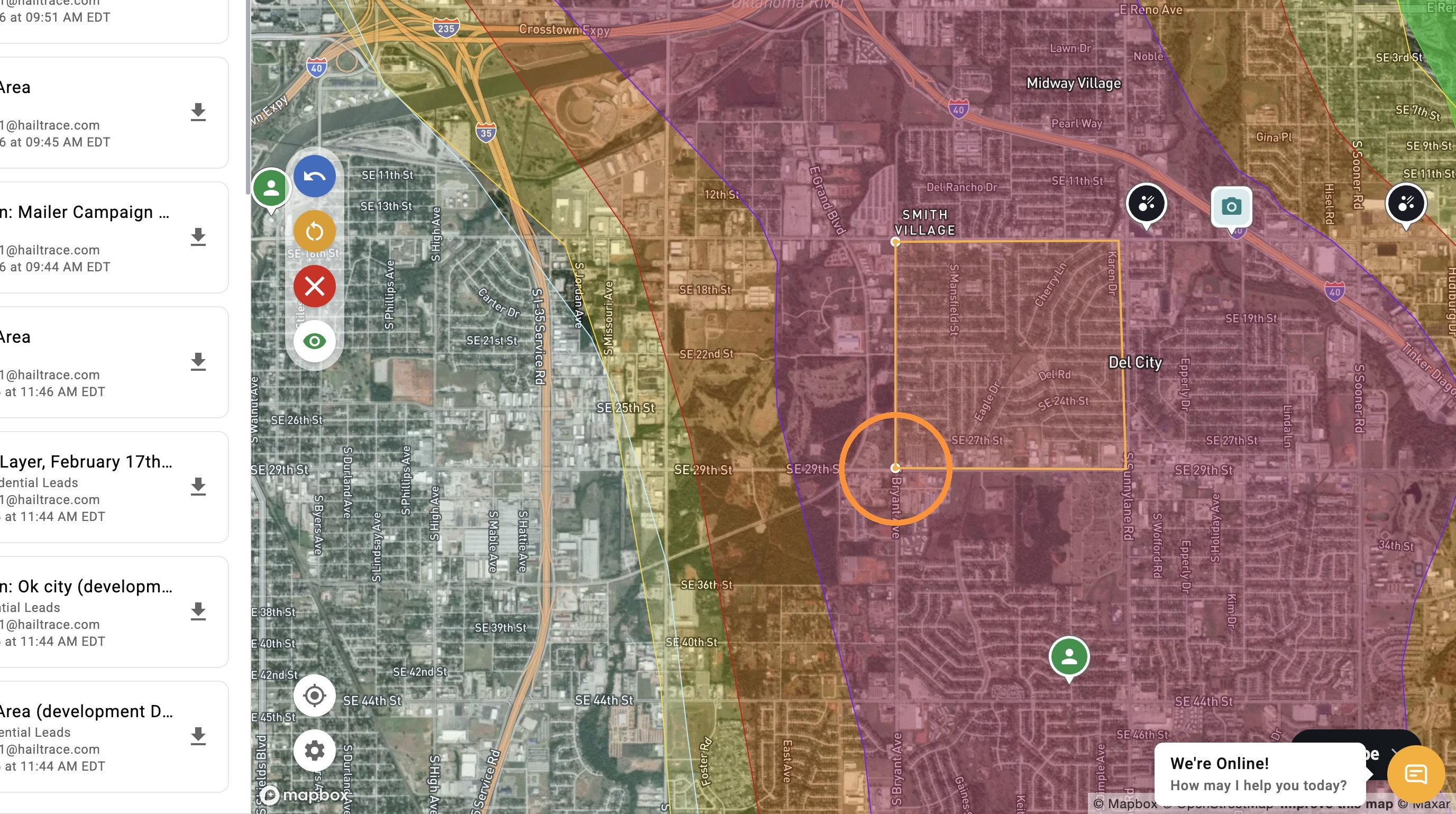
    4. Tap at least three points to draw a lead list
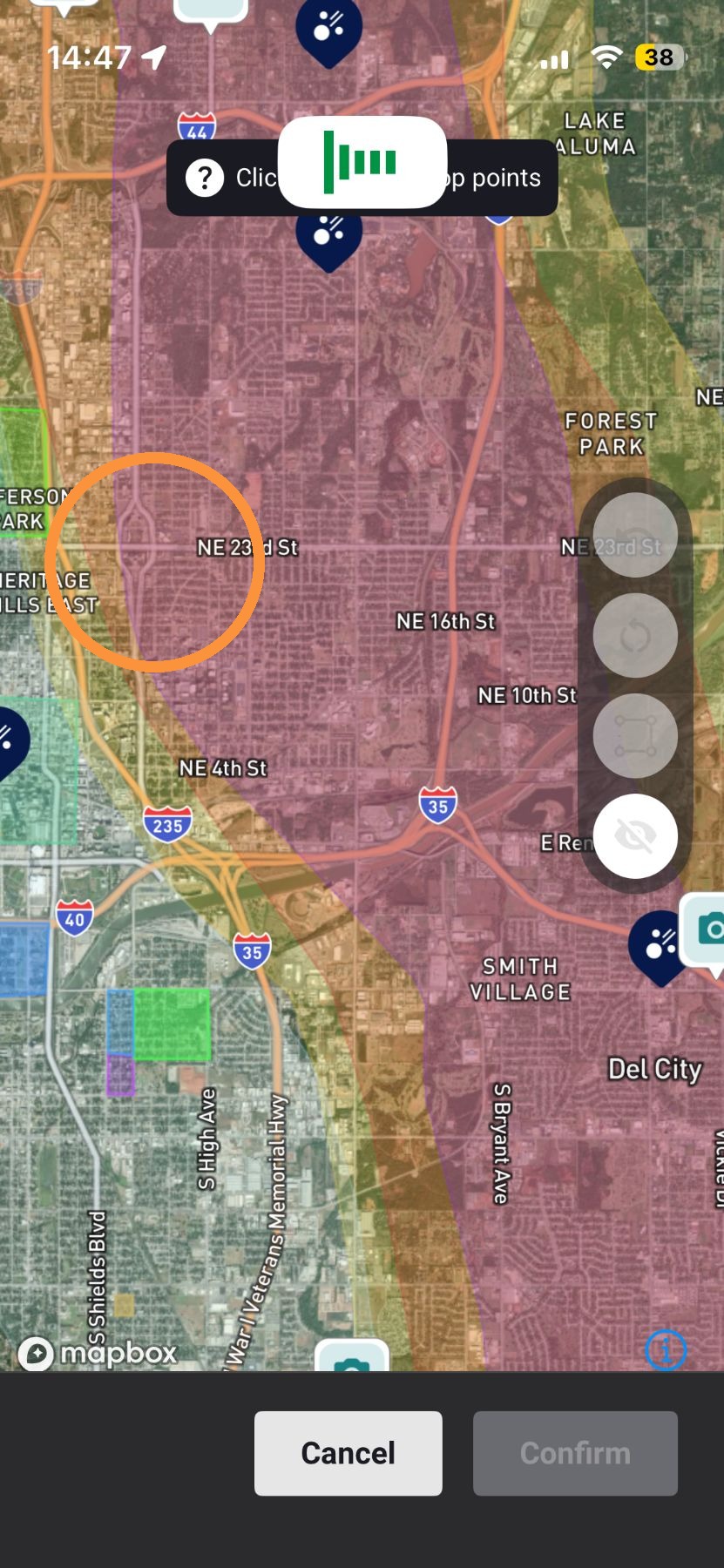

    5. Tap "Continue"


    6. Select the type of download you need:

    A.  Asset: Download list of Assets (clients) in the selected area

    B.  Residential: Download Lead List of all homes in the select area

    C.  Commercial: Download Lead List of all businesses in the select area


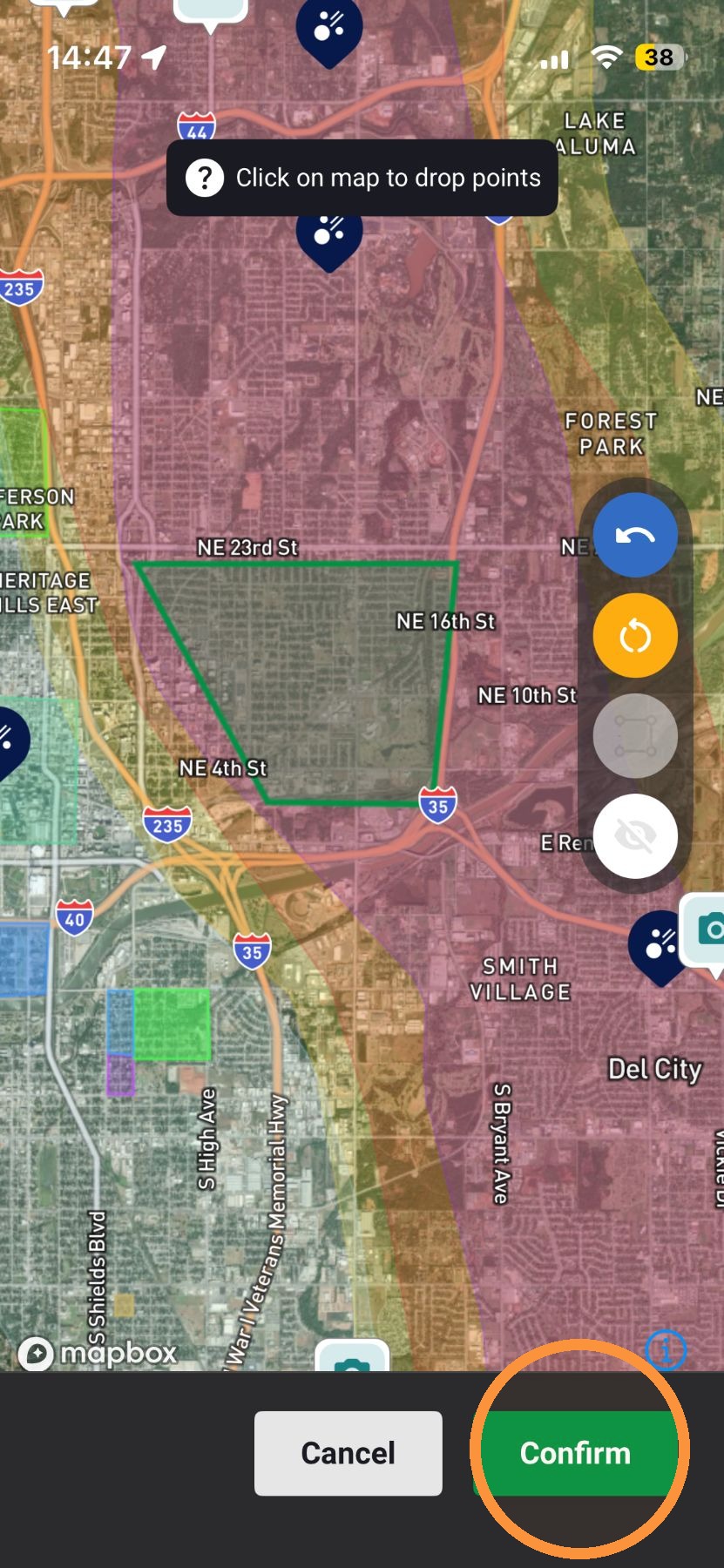
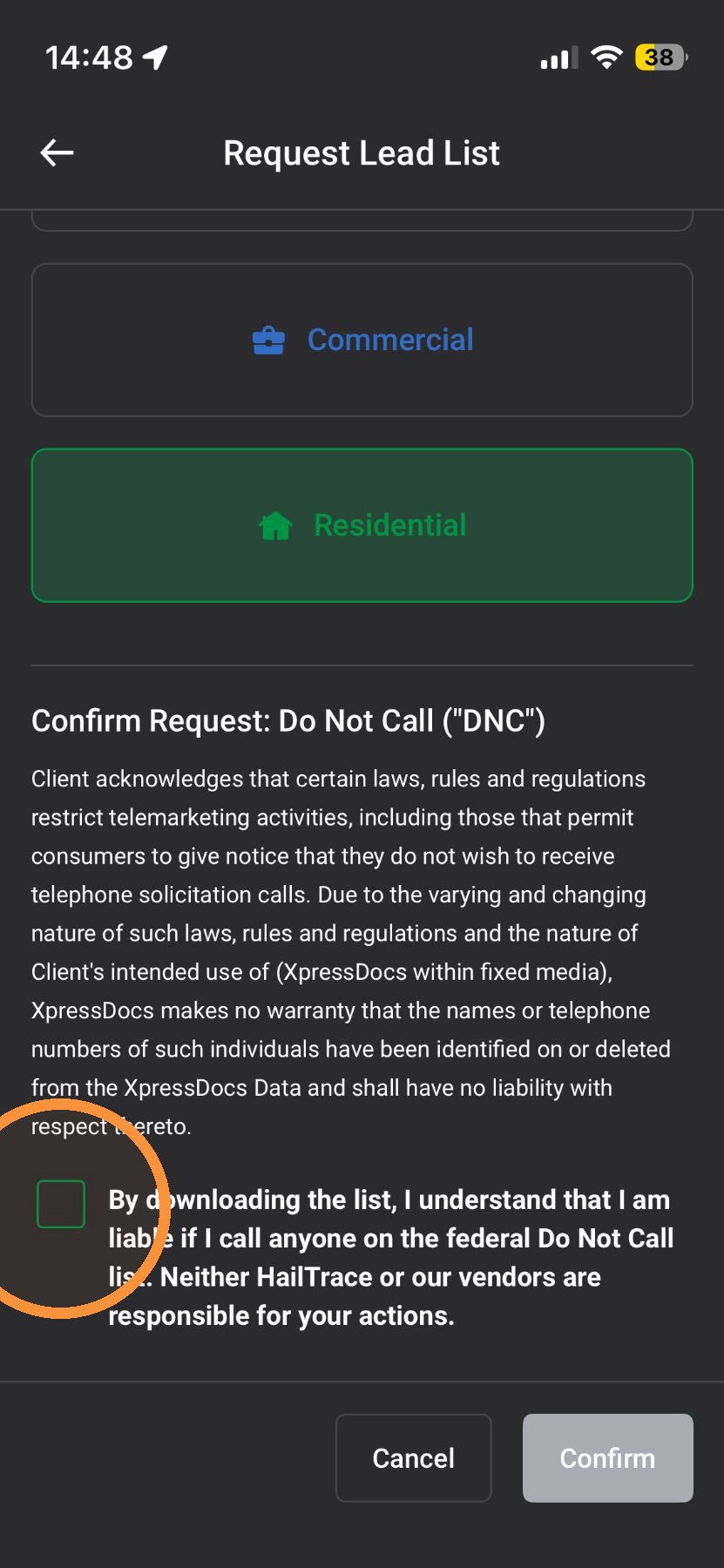
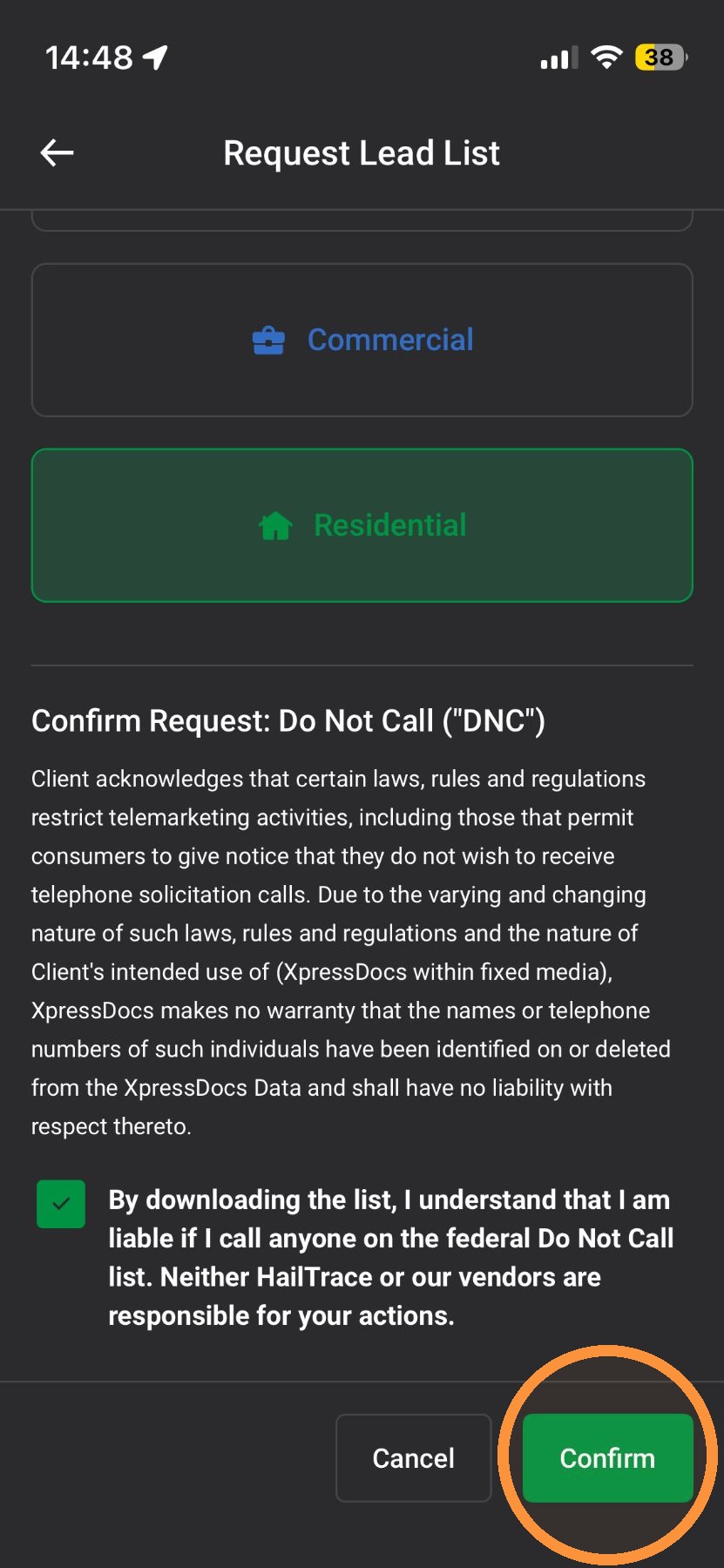
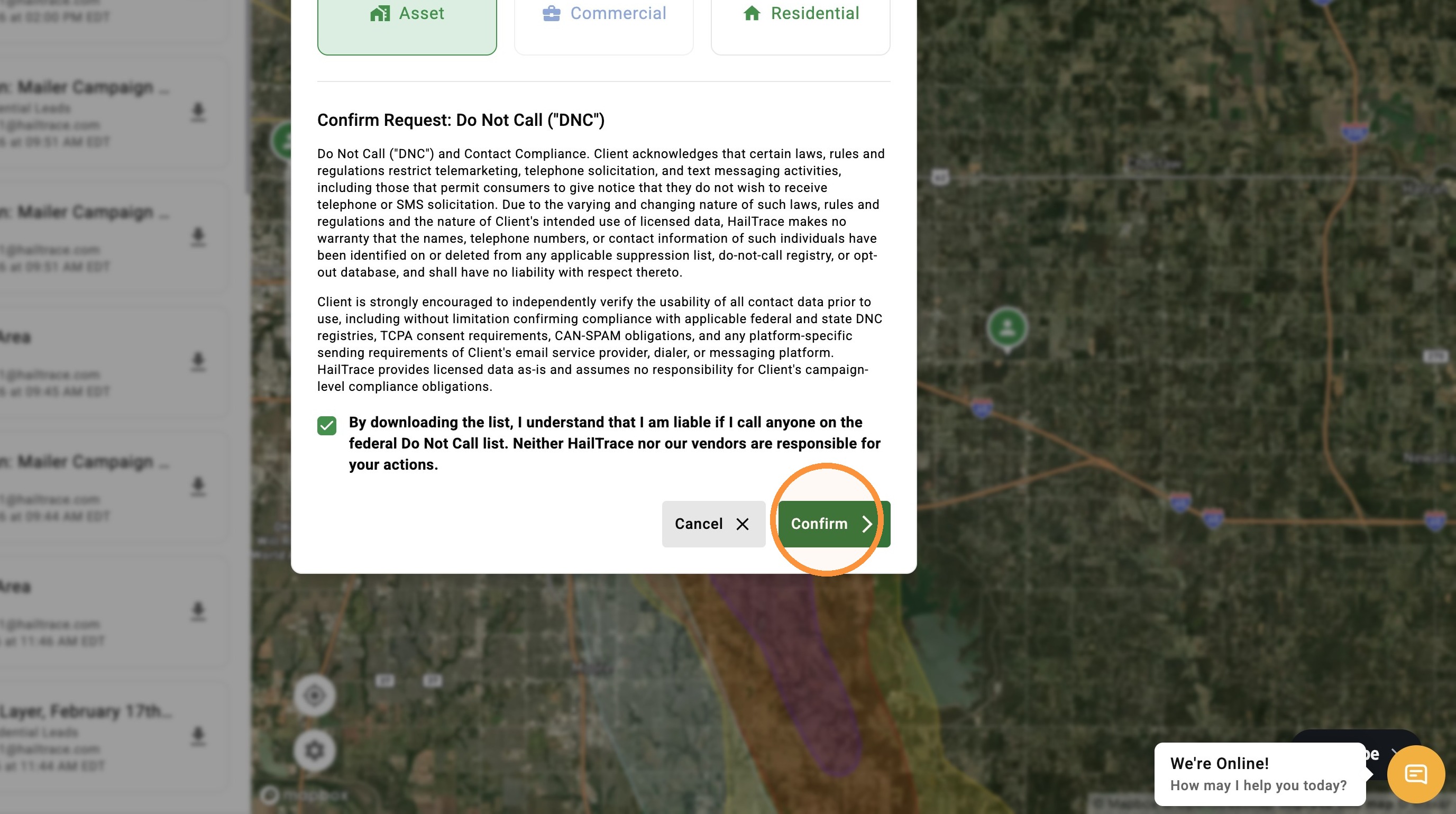
    7. Tap "Confirm"


    8. Tap the “Notifications” page or check your email to download your Lead List


    Lead List From a Campaign

    Pull a list from a pre-defined campaign area you’ve already saved within a storm for quick, repeatable targeting.

    1. Tap "Maps" page


    2. Tap "Navigation" panel


    3. Tap "Campaigns" panel


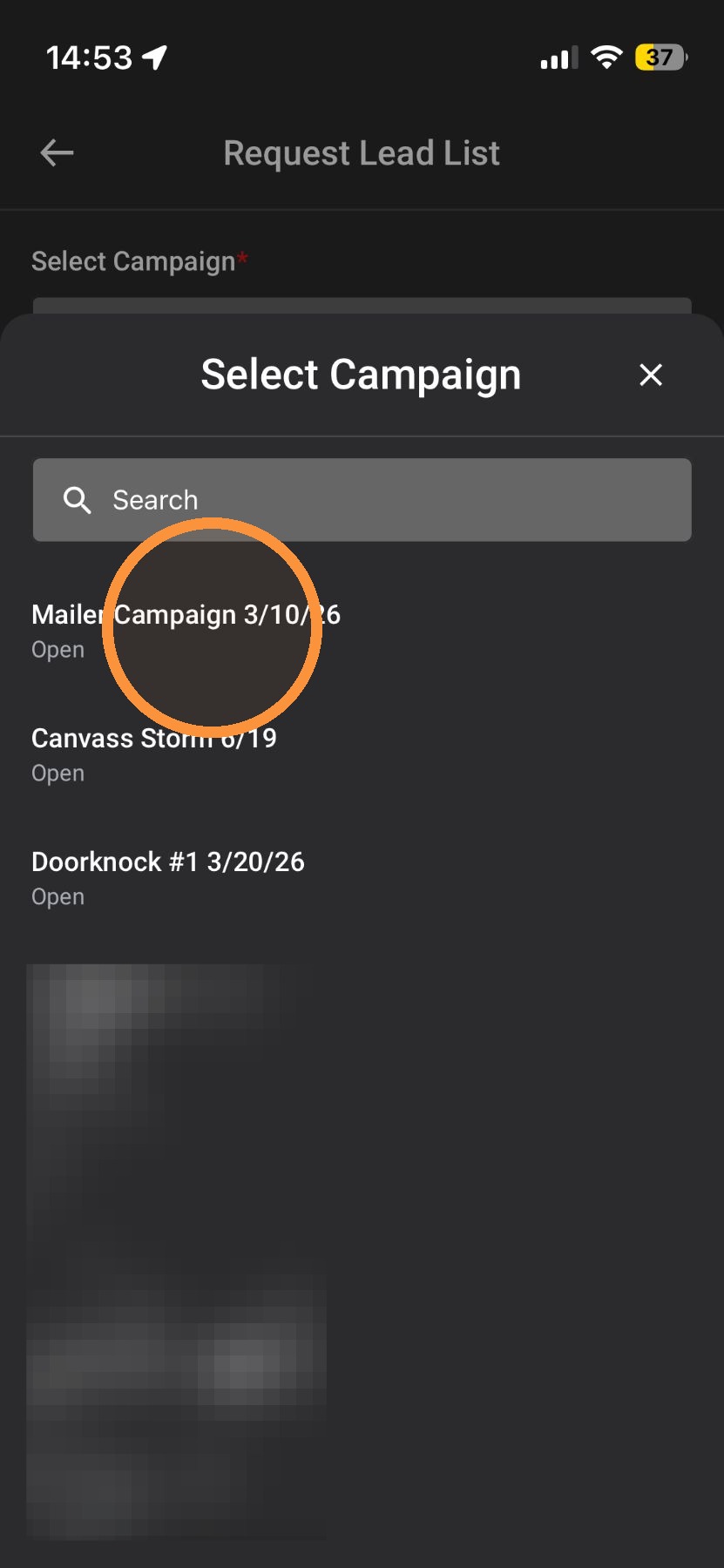
    4. Select a Campaign you want a Lead List from

    *Campaigns are part of the DealTrace product. If you have DealTrace but can't see campaigns or create a new campaign, please have your company admin update your role


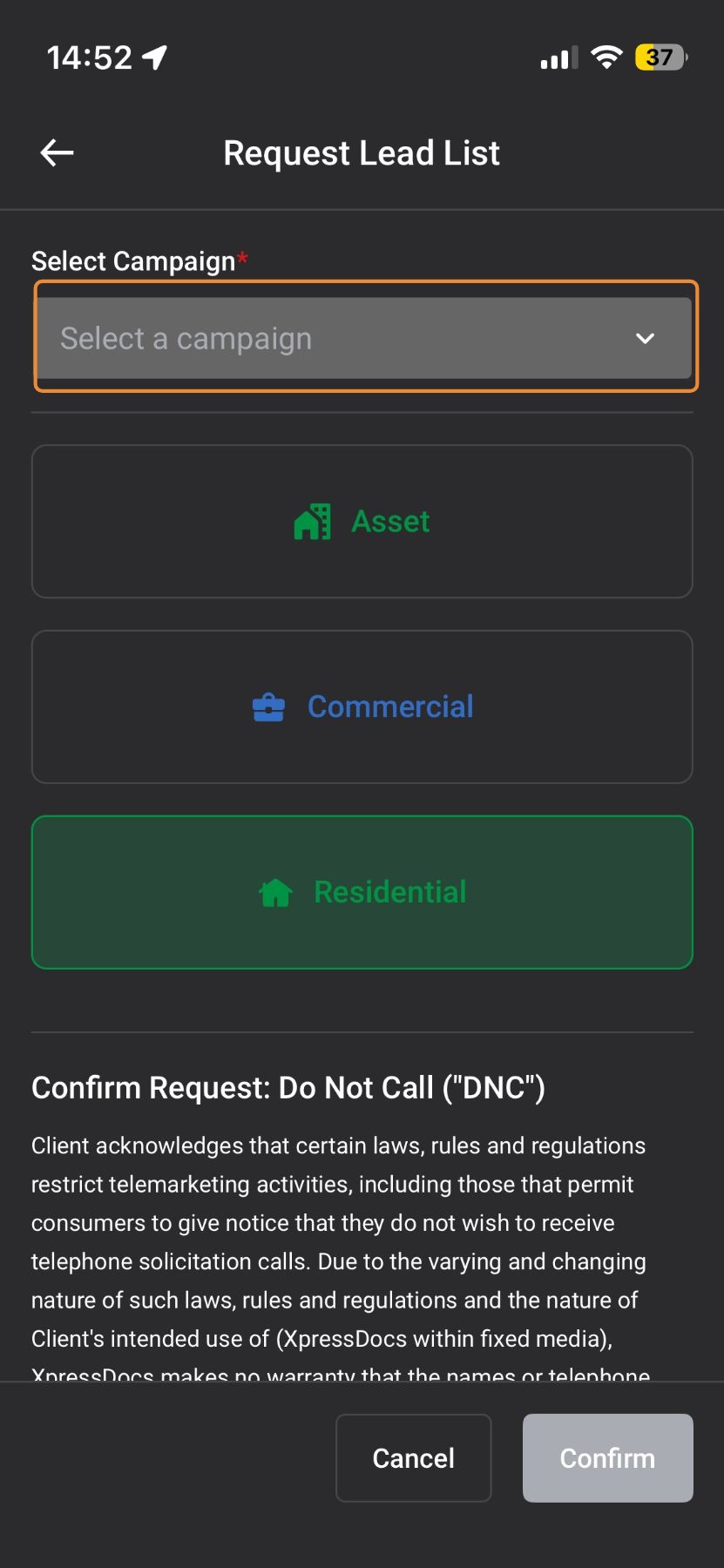
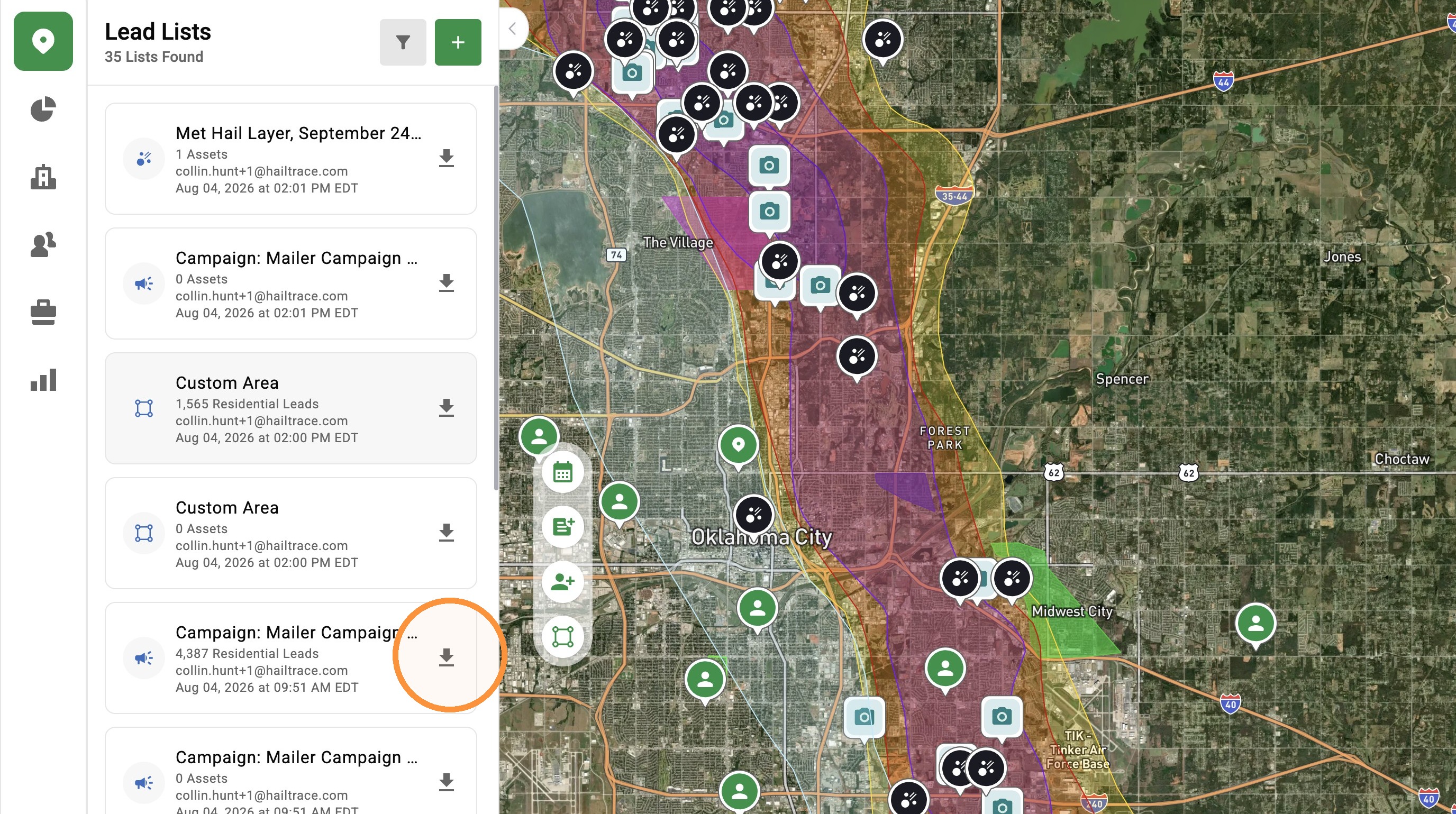
    5. Tap "Generate" to create a Lead List


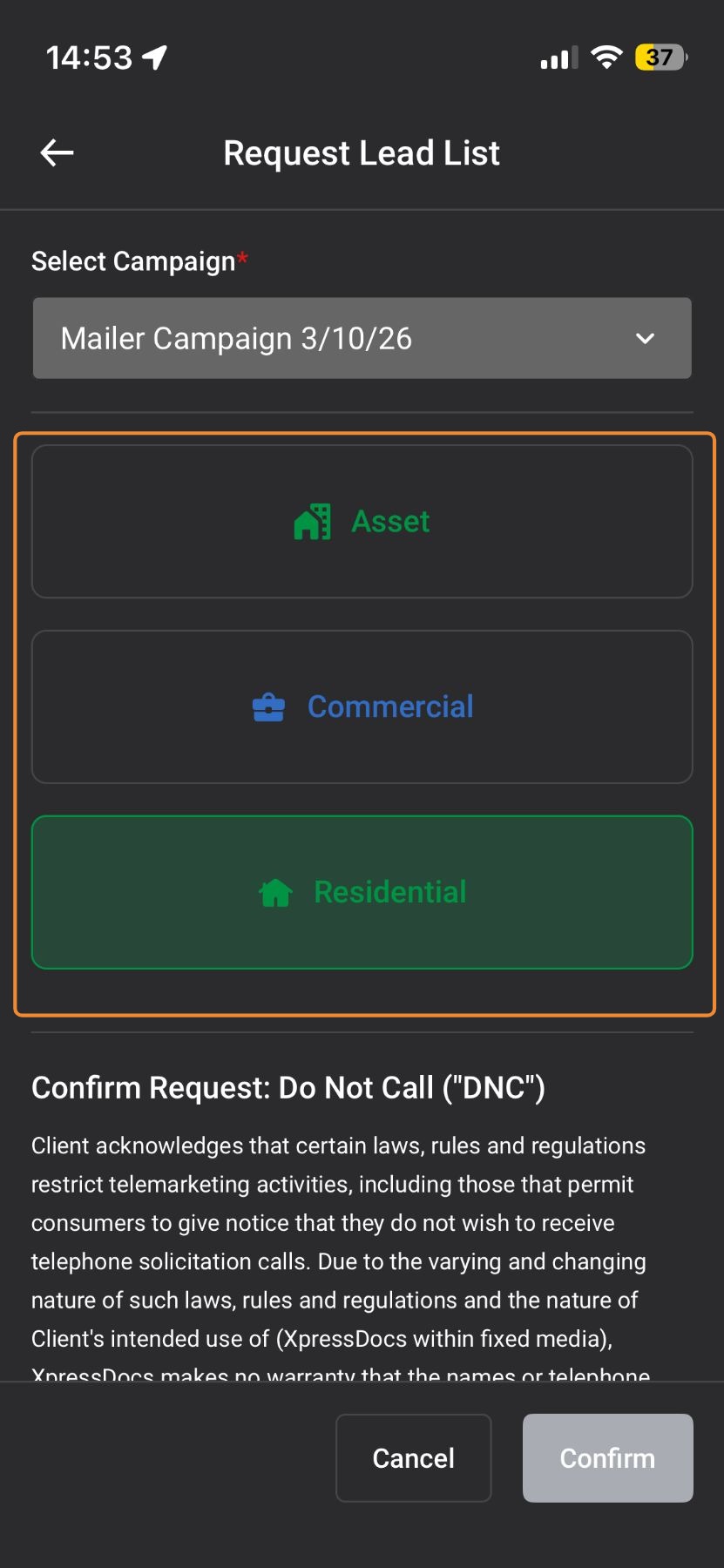
    6. Select the type of download you need:

    A.  Residential: Download Lead List of all homes in the select area

    B.  Commercial: Download Lead List of all businesses in the select area

    C.  Asset: Download list of Assets (clients) in the selected area


    7. Tap "Request"


    8. Tap the “Notifications” page or check your email to download your Lead List


    Browser App

    Lead List From the Entire Storm Swath

    Generate a complete list of properties across the full storm-affected area to maximize outreach.

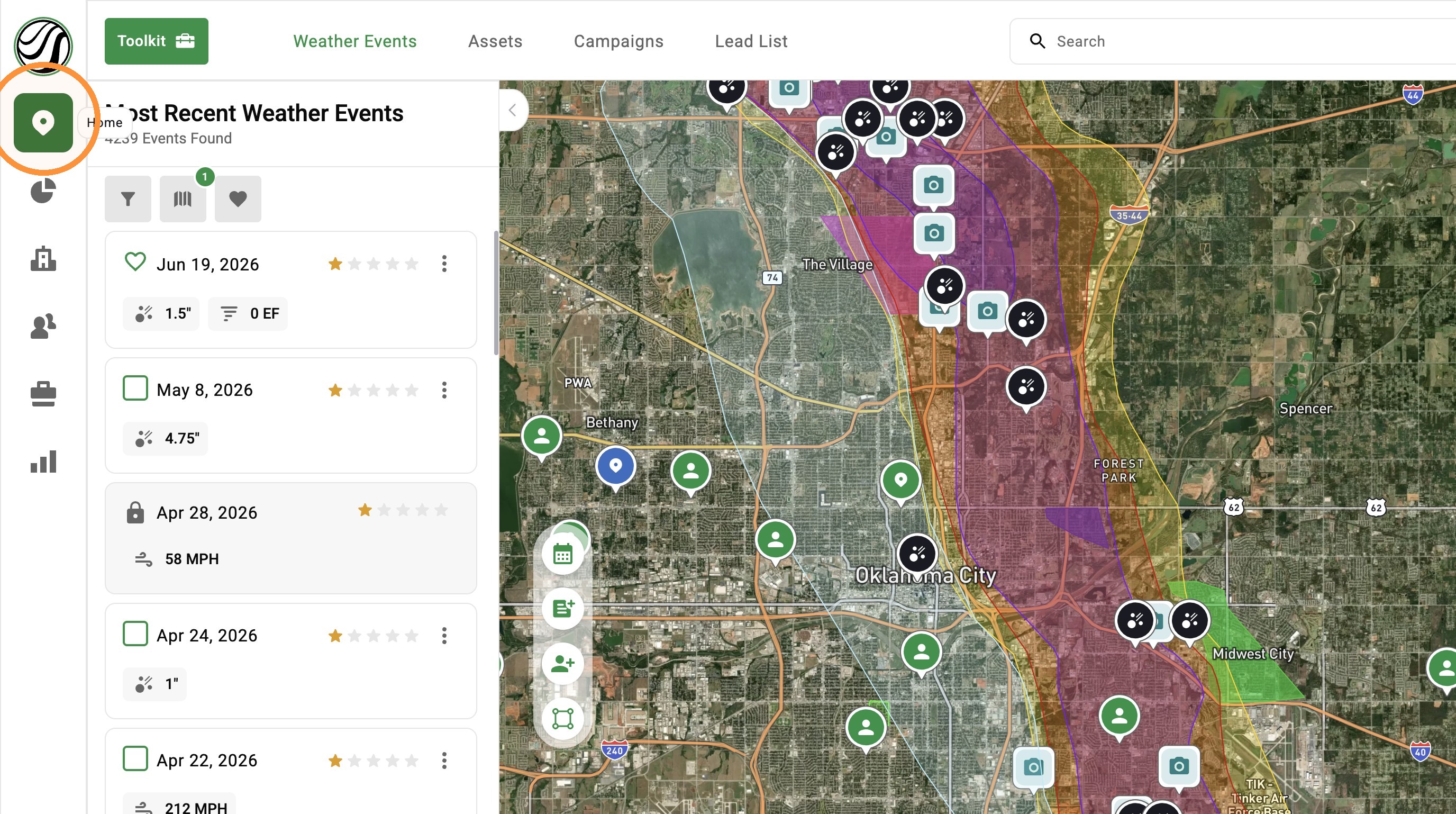
    1. Select "Map" page


    2. Activate a Weather Event


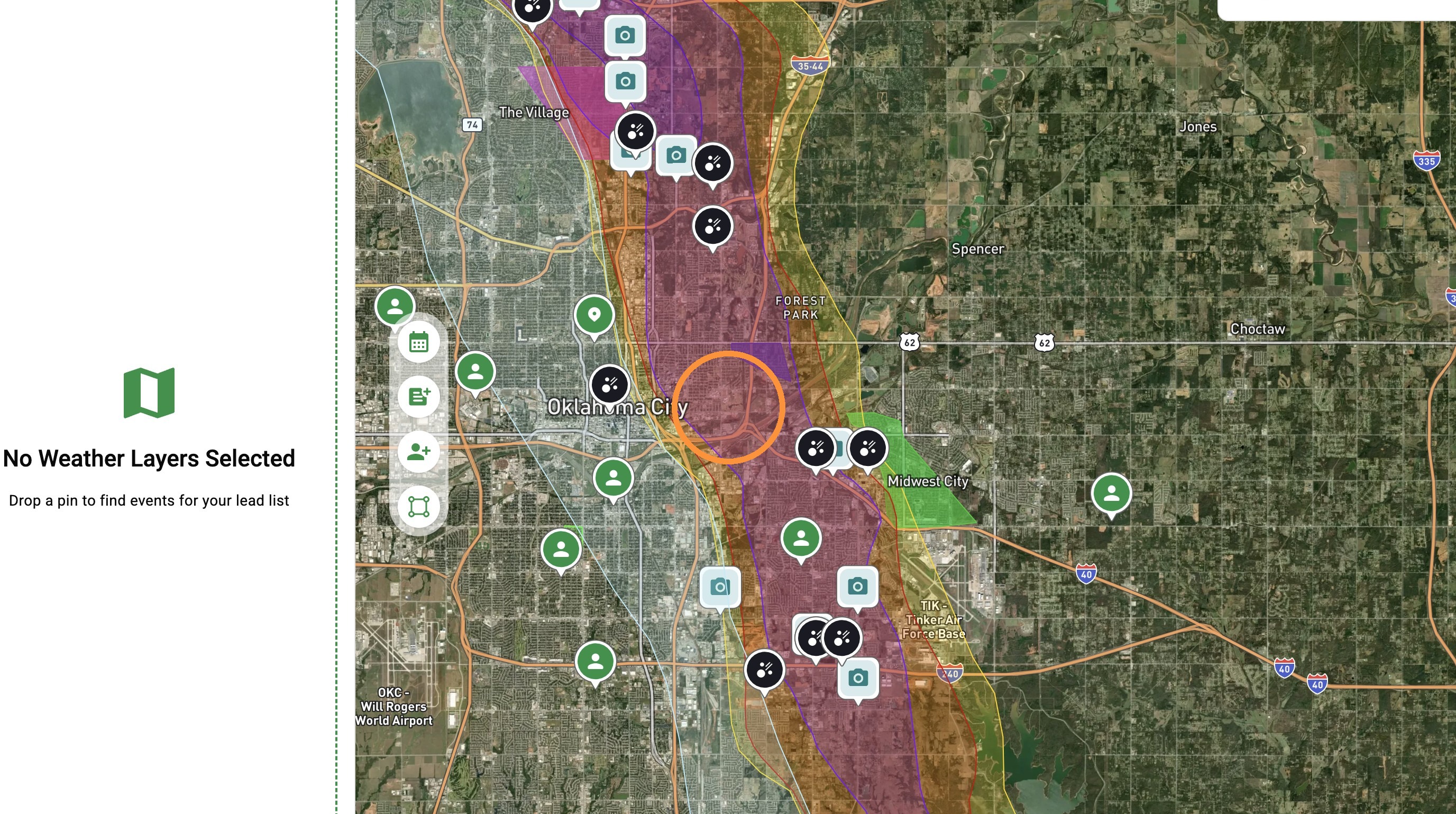
    3. Click inside the map


    4. Click the address


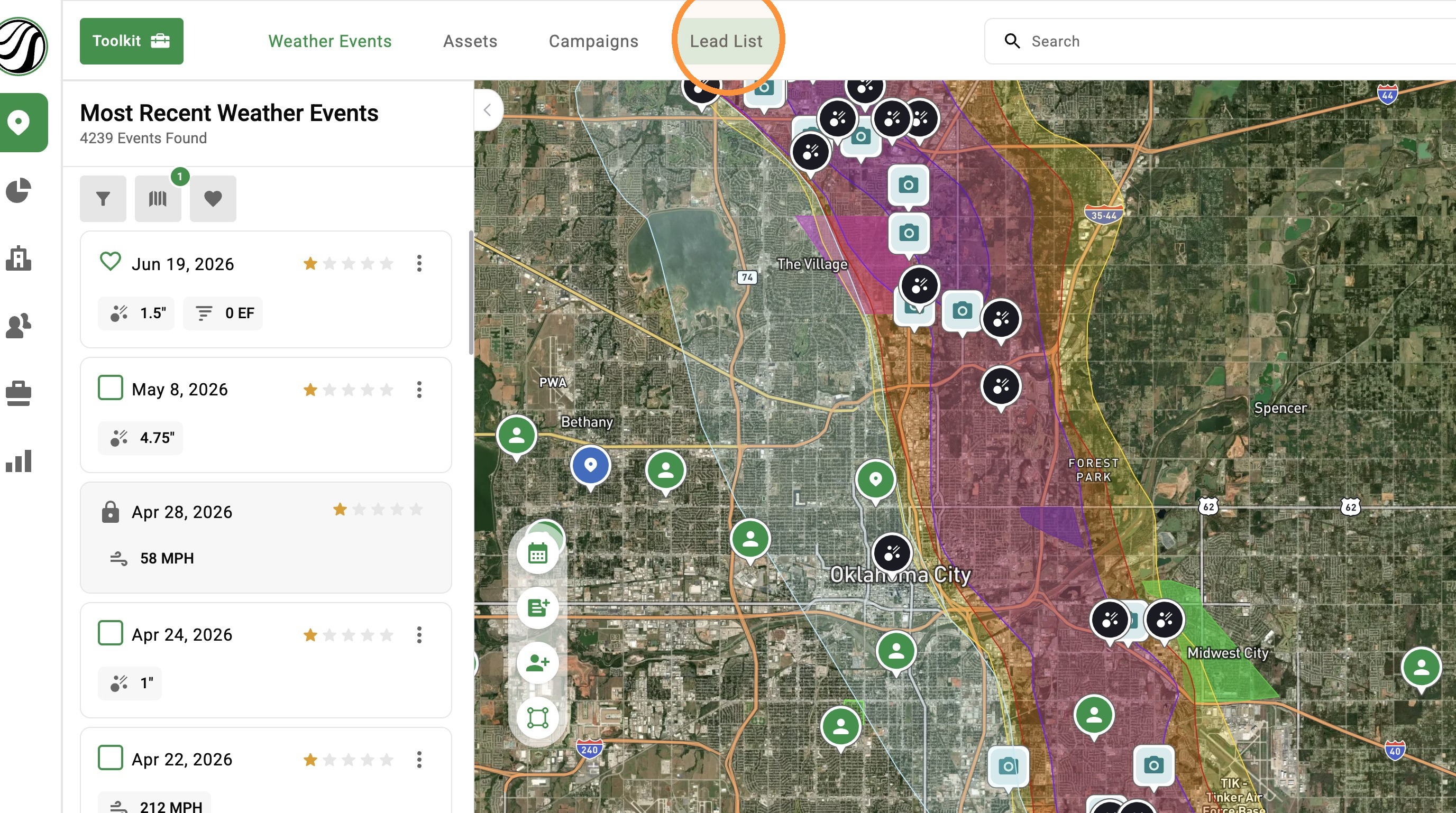
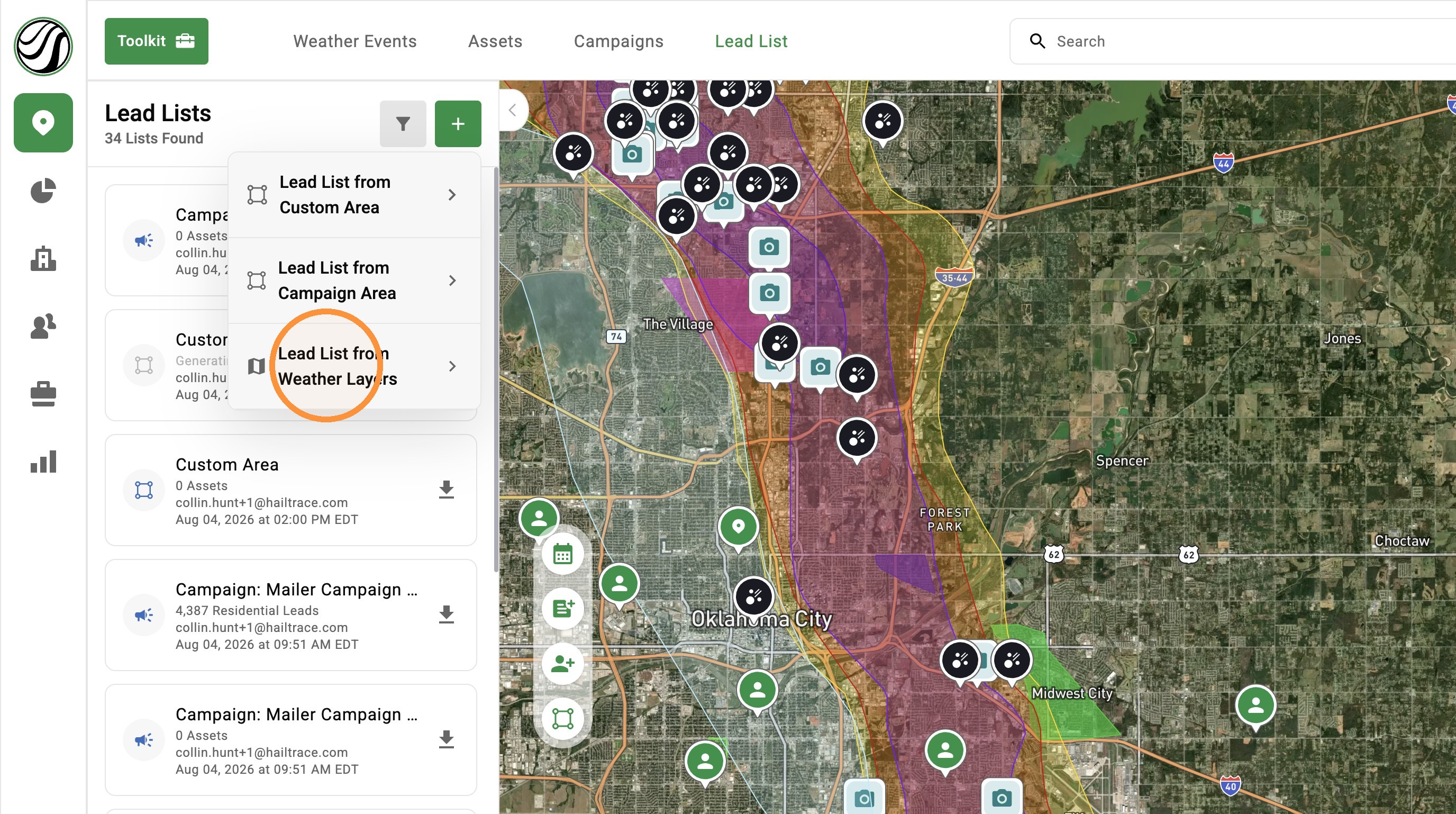
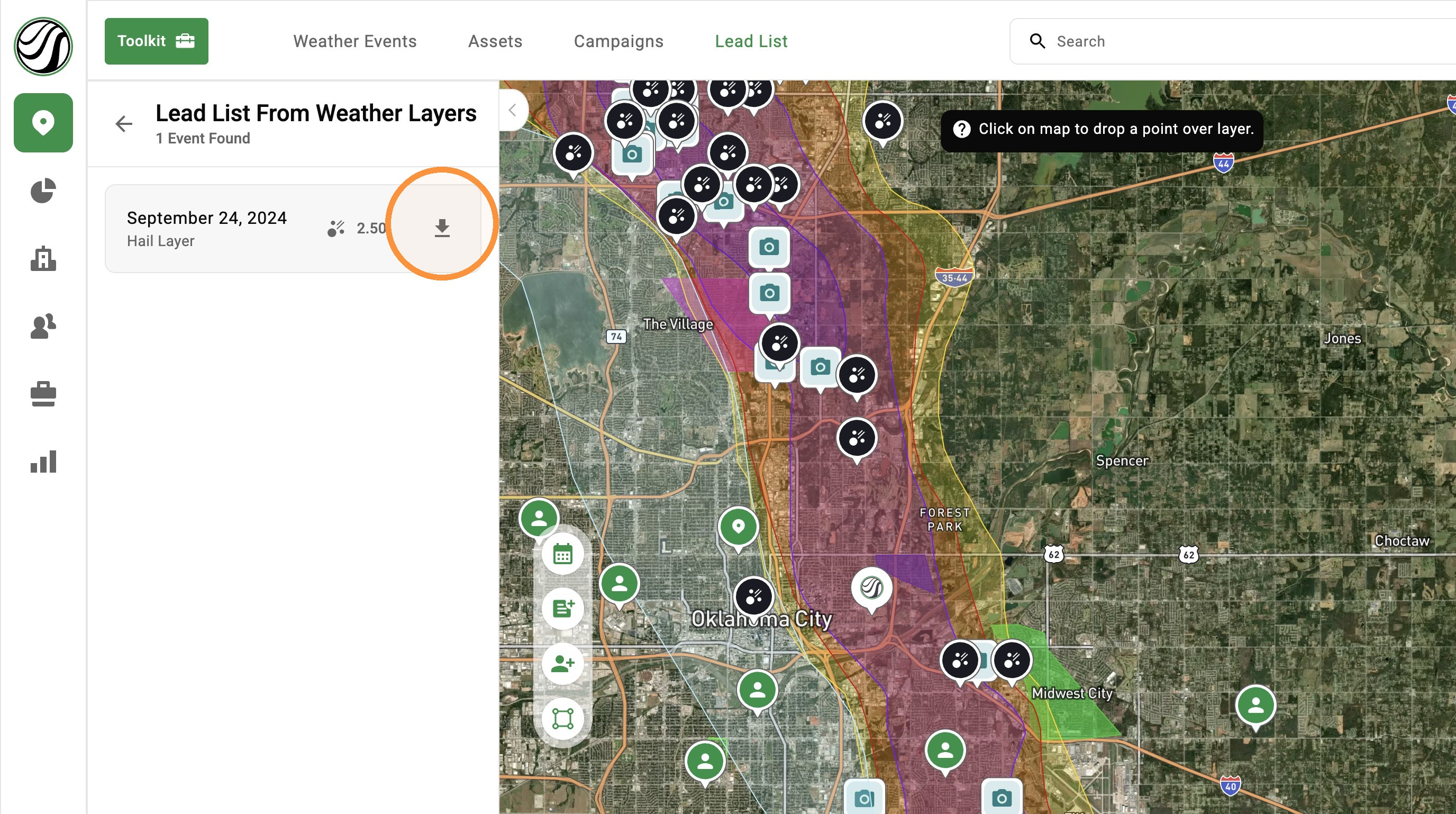
    5. Click "Lead List" tab


    6. Click "Download Lead List"


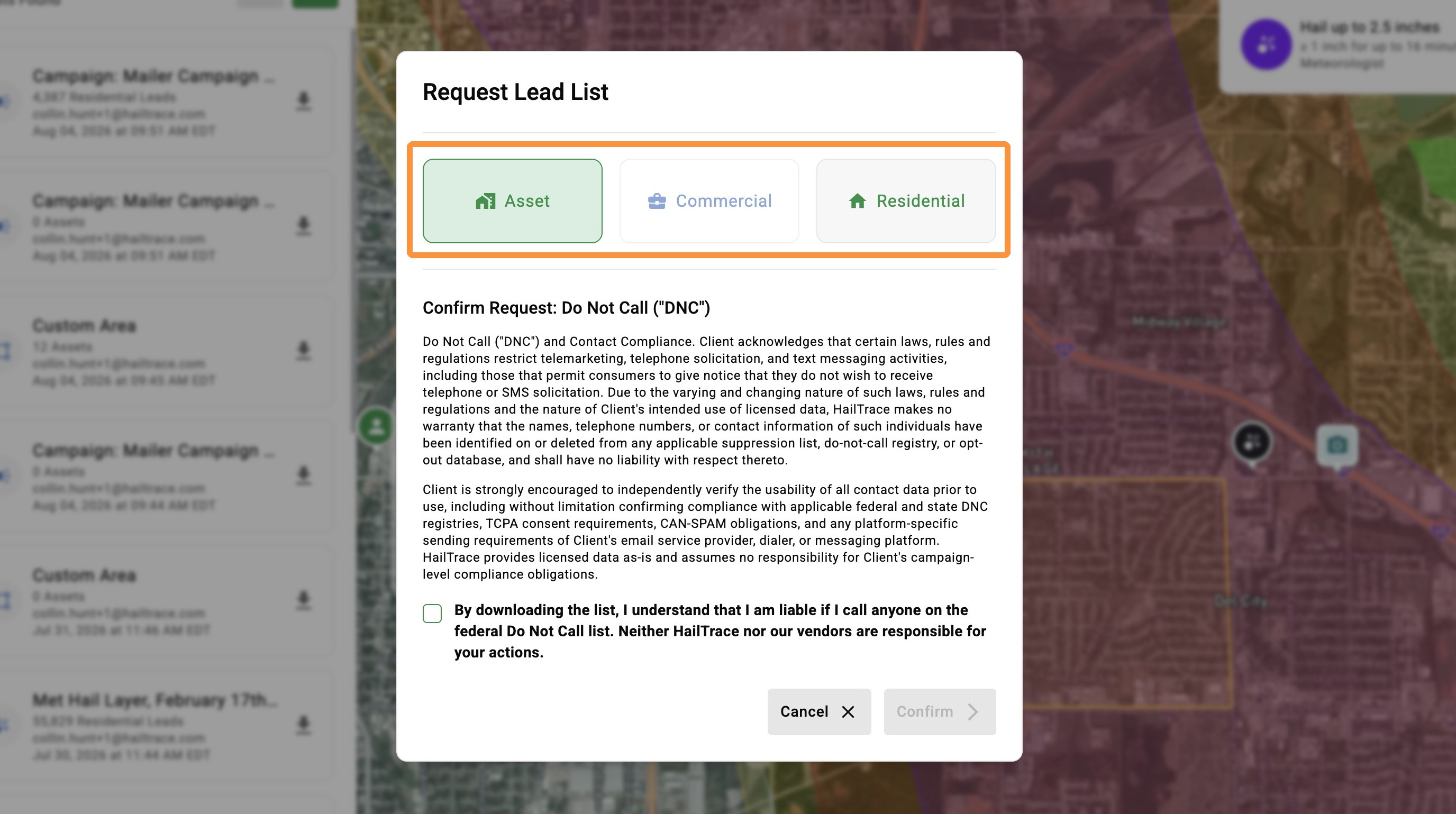
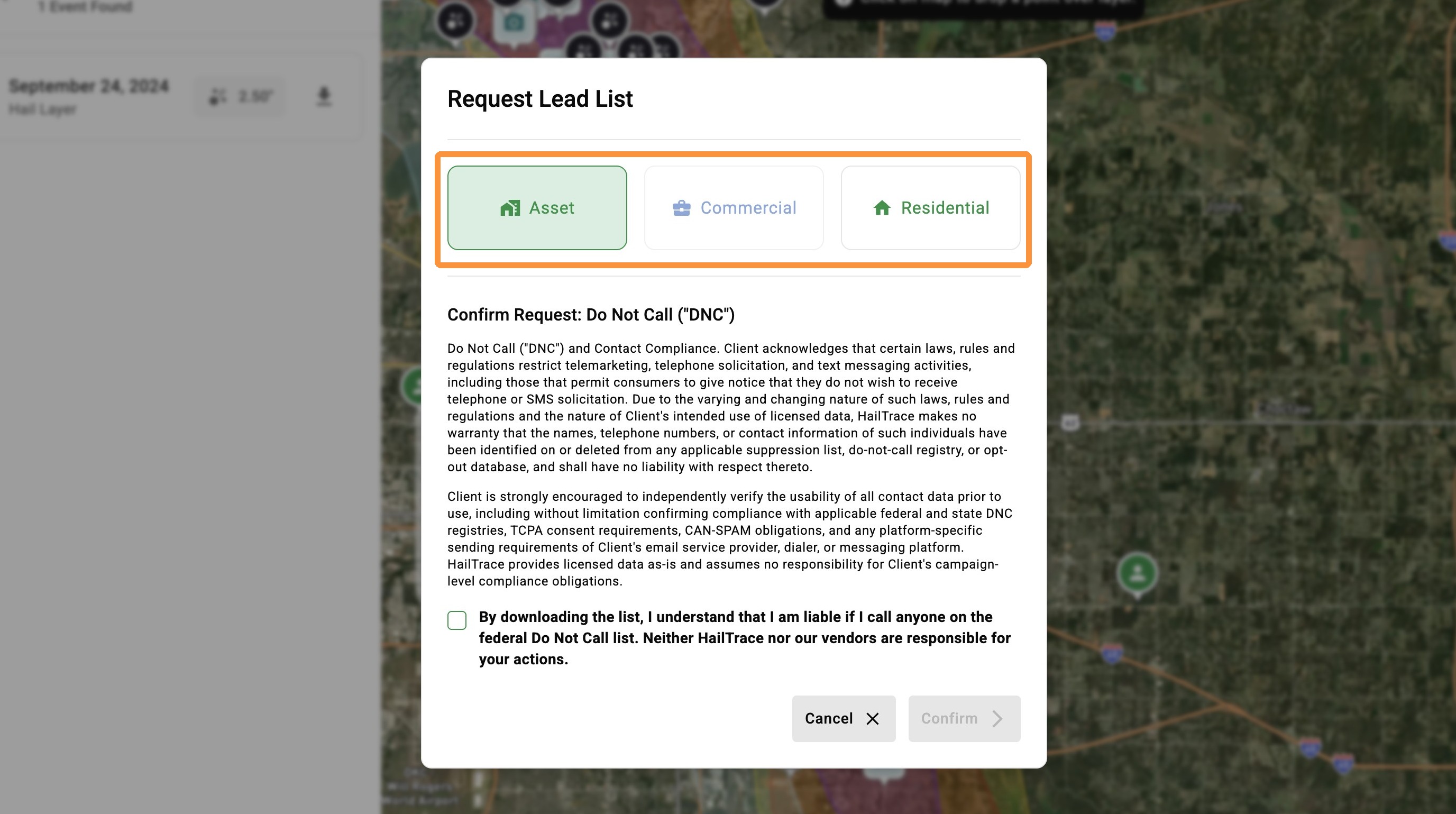
    7. Select the type of download you need:

    A.  Asset: Download list of clients(Assets) in the selected area

    B.  Residential: Download Lead List of all homes in the select area

    C.  Commercial: Download Lead List of all businesses in the select area


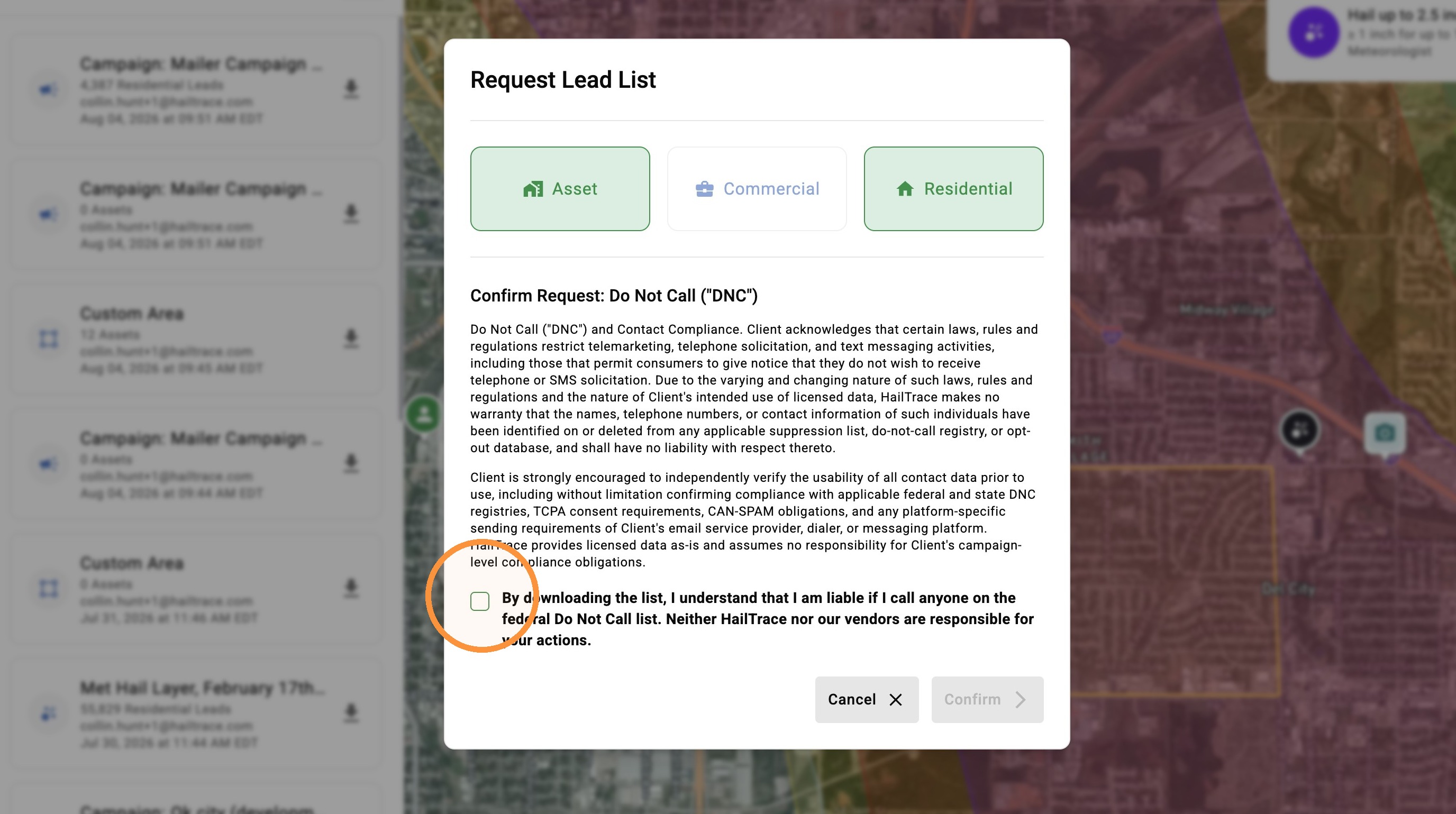
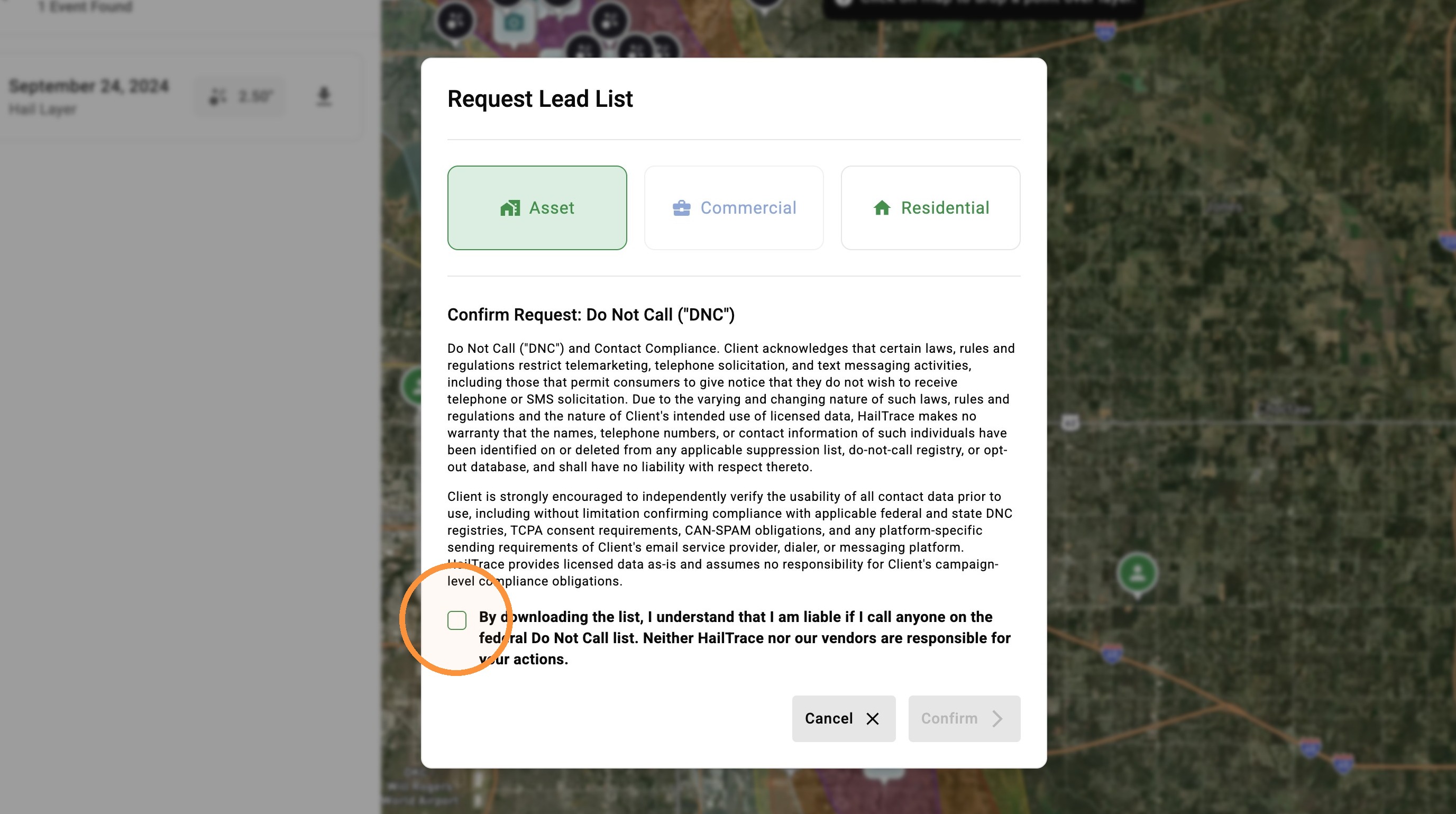
    8. Click "Request List"


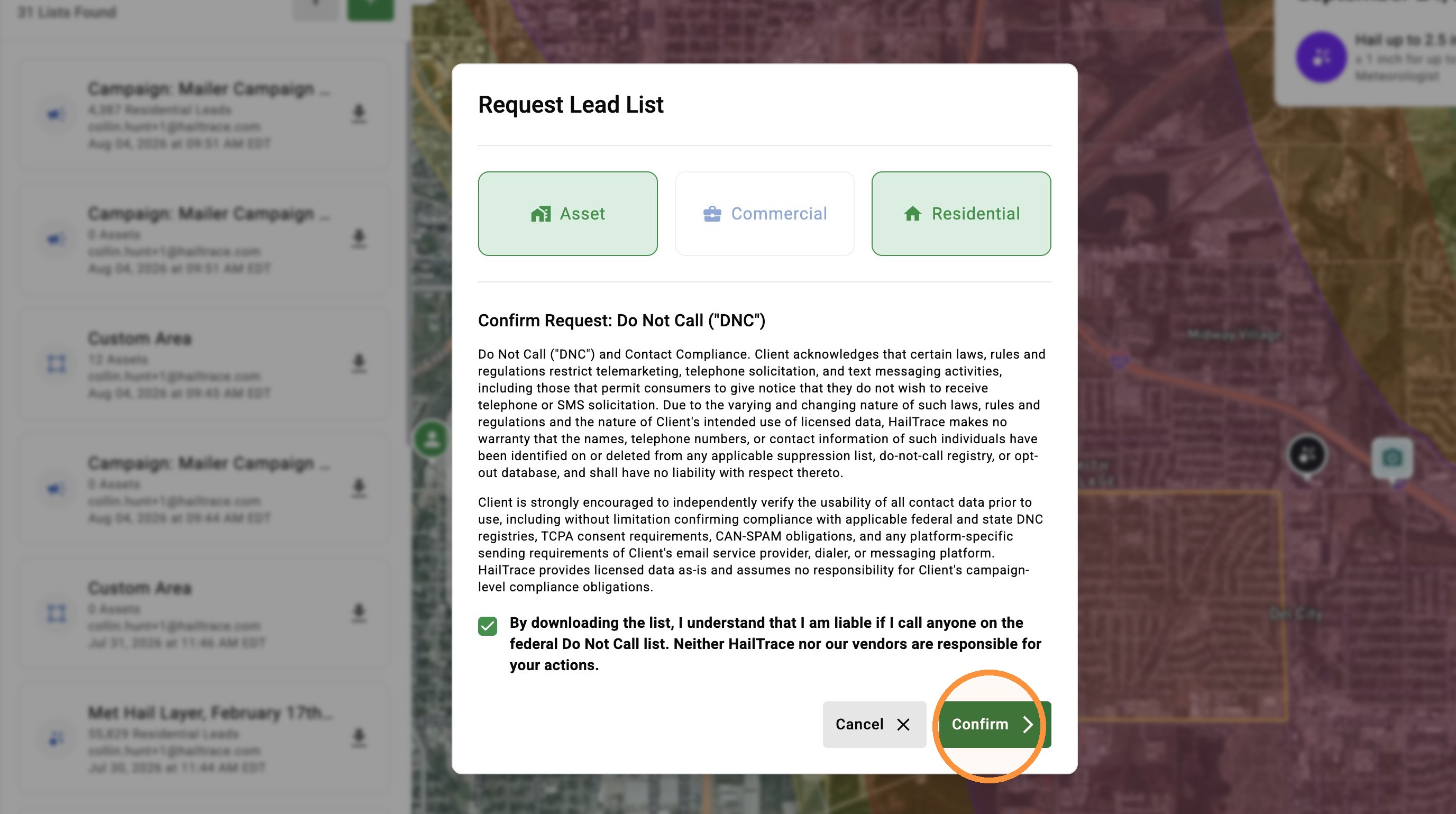
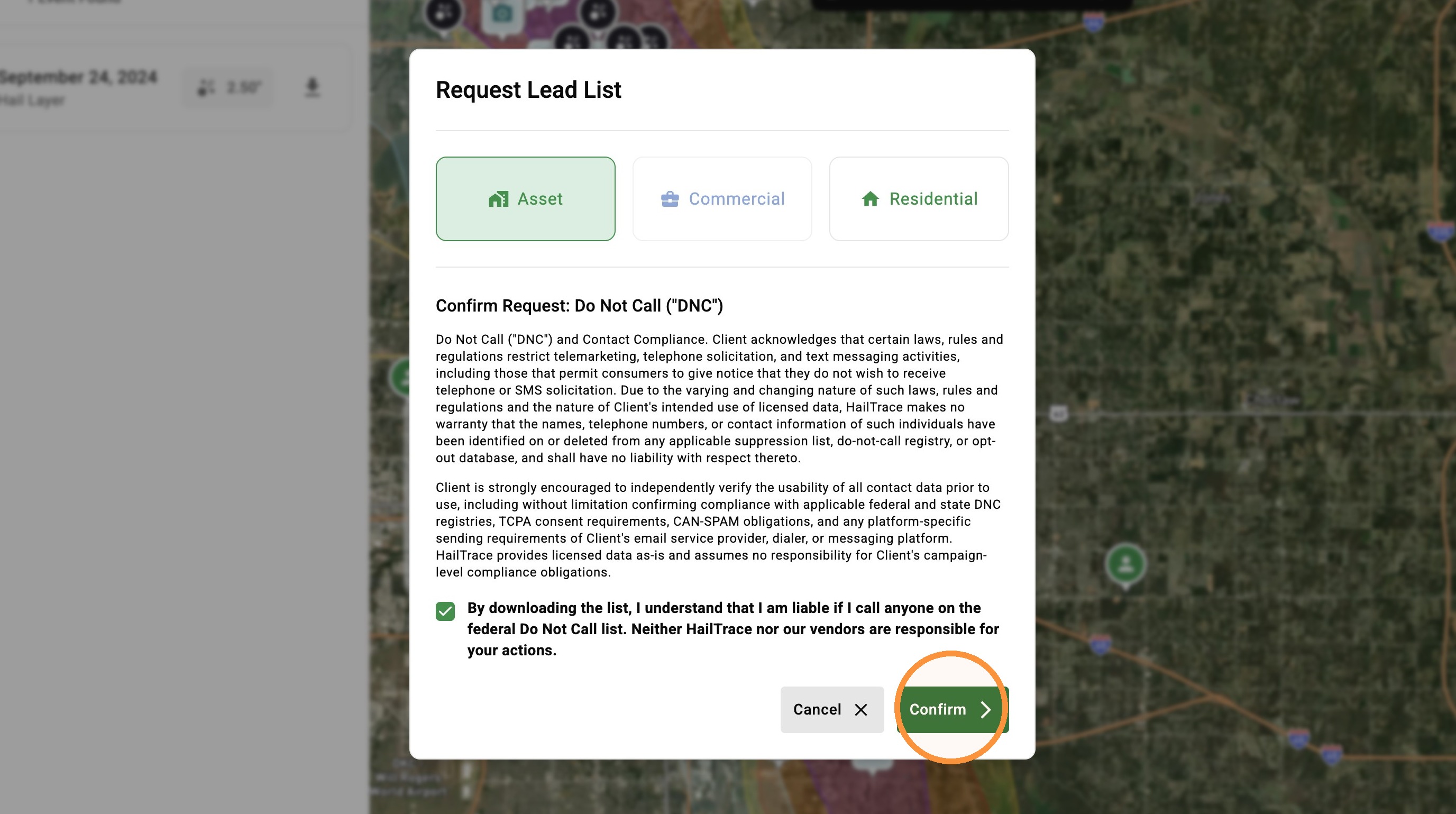
    9. Click "Confirm"


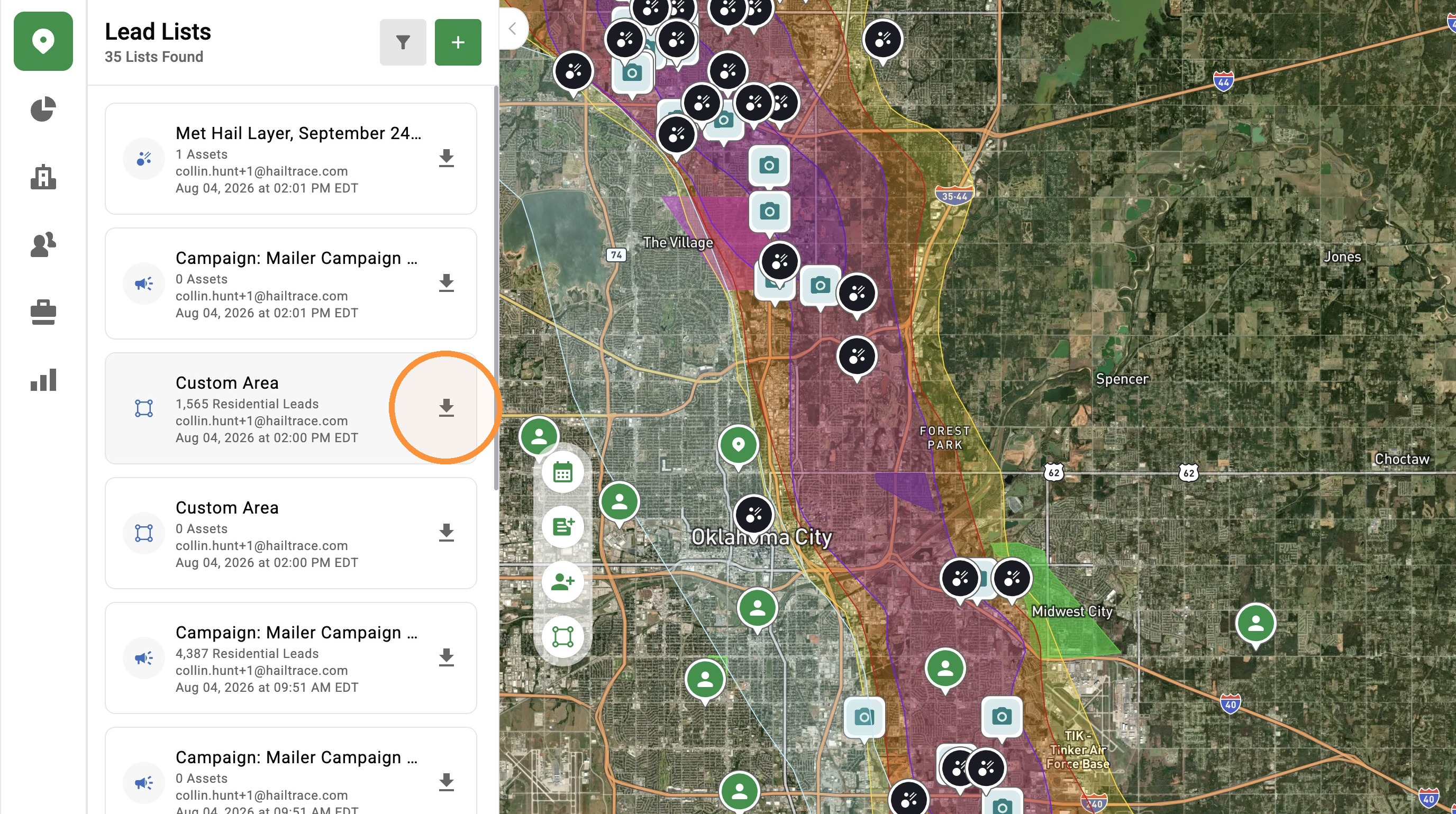
    10. Click the “Notifications” page or check your email to download your Lead List


    Lead List From a Section of the Storm

    Create a targeted list by drawing a custom area within the storm zone to focus on specific neighborhoods.

    1. Select "Maps" page


    2. Activate a Weather Event


    3. Select "Lead List" button


    4. Click at least three points to draw a lead list
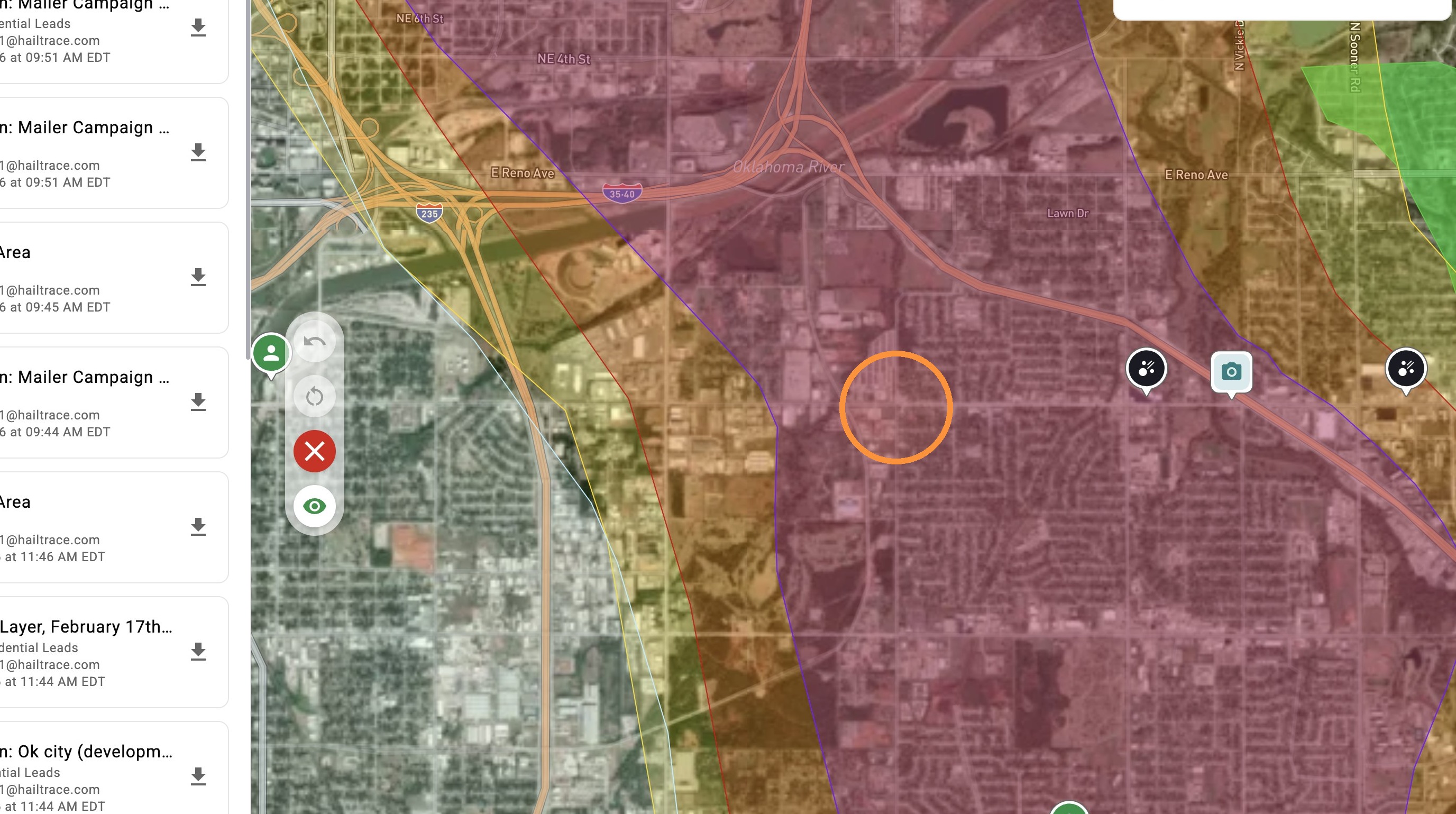

    5. Double click to complete the area


    6. Select the type of download you need:

    A.  Asset: Download list of Assets (clients) in the selected area

    B.  Residential: Download Lead List of all homes in the select area

    C.  Commercial: Download Lead List of all businesses in the select area


    7. Click "Request List"


    8. Click "Confirm"


    9. Click the “Notifications” page or check your email to download your Lead List


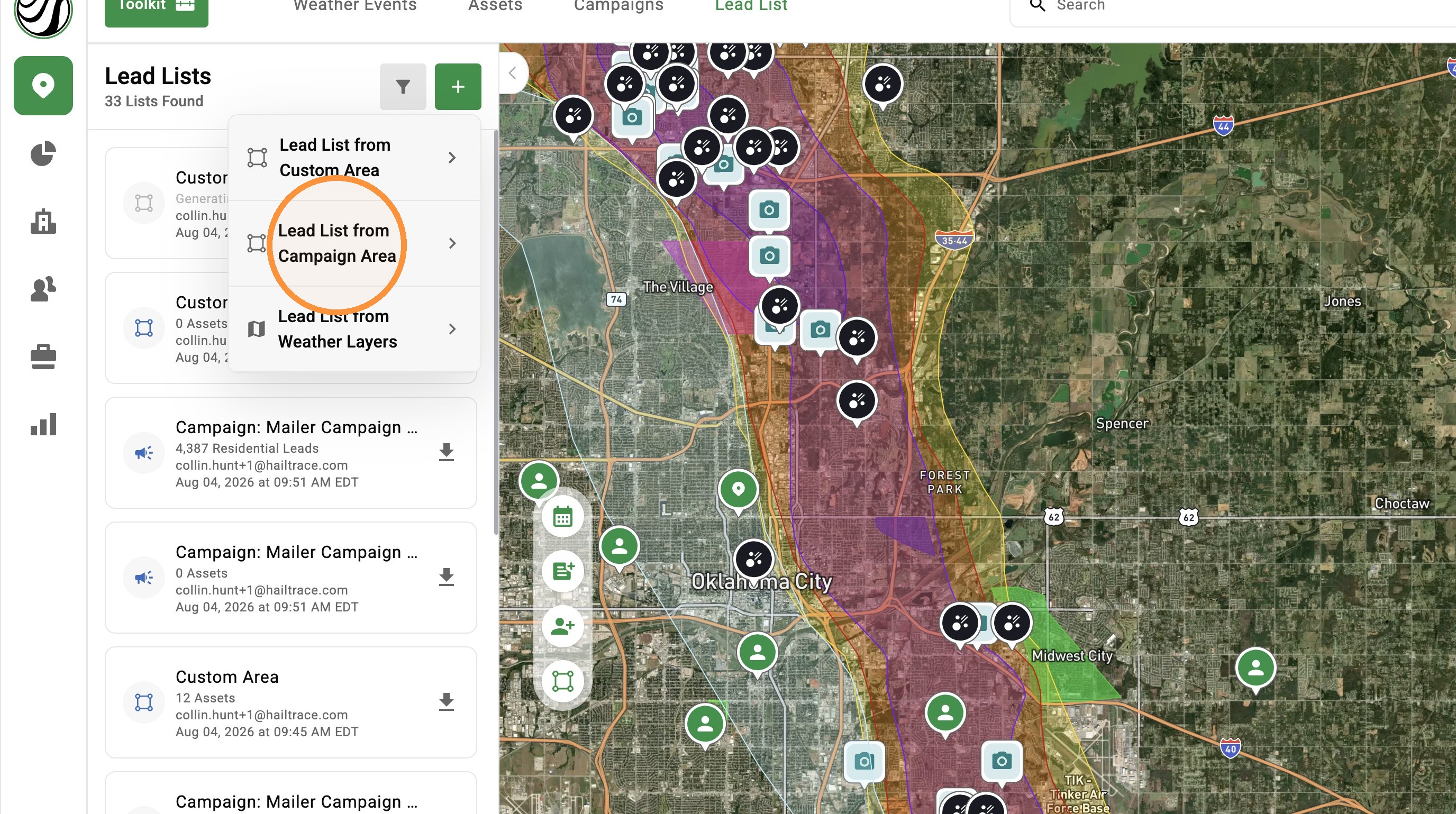
    Lead List From a Campaign

    Pull a list from a pre-defined campaign area you’ve already saved within a storm for quick, repeatable targeting.

    1. Select "Maps" page


    2. Click "Campaigns" panel


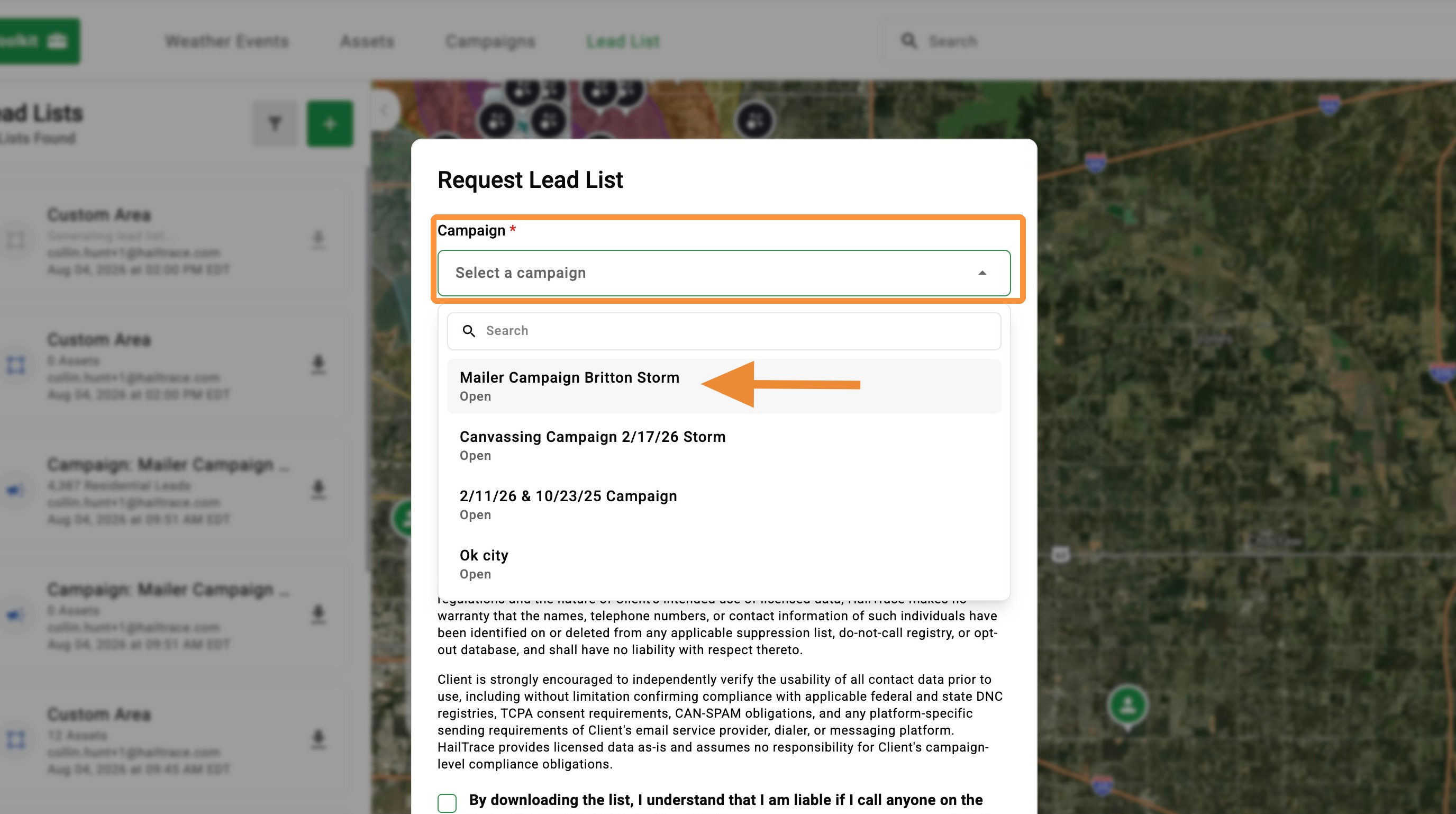
    3. Select a "Campaign"

    *Campaigns are part of the DealTrace product. If you have DealTrace but can't see campaigns or create a new campaign, please have your company admin update your role


    4. Click "Generate Lead List"


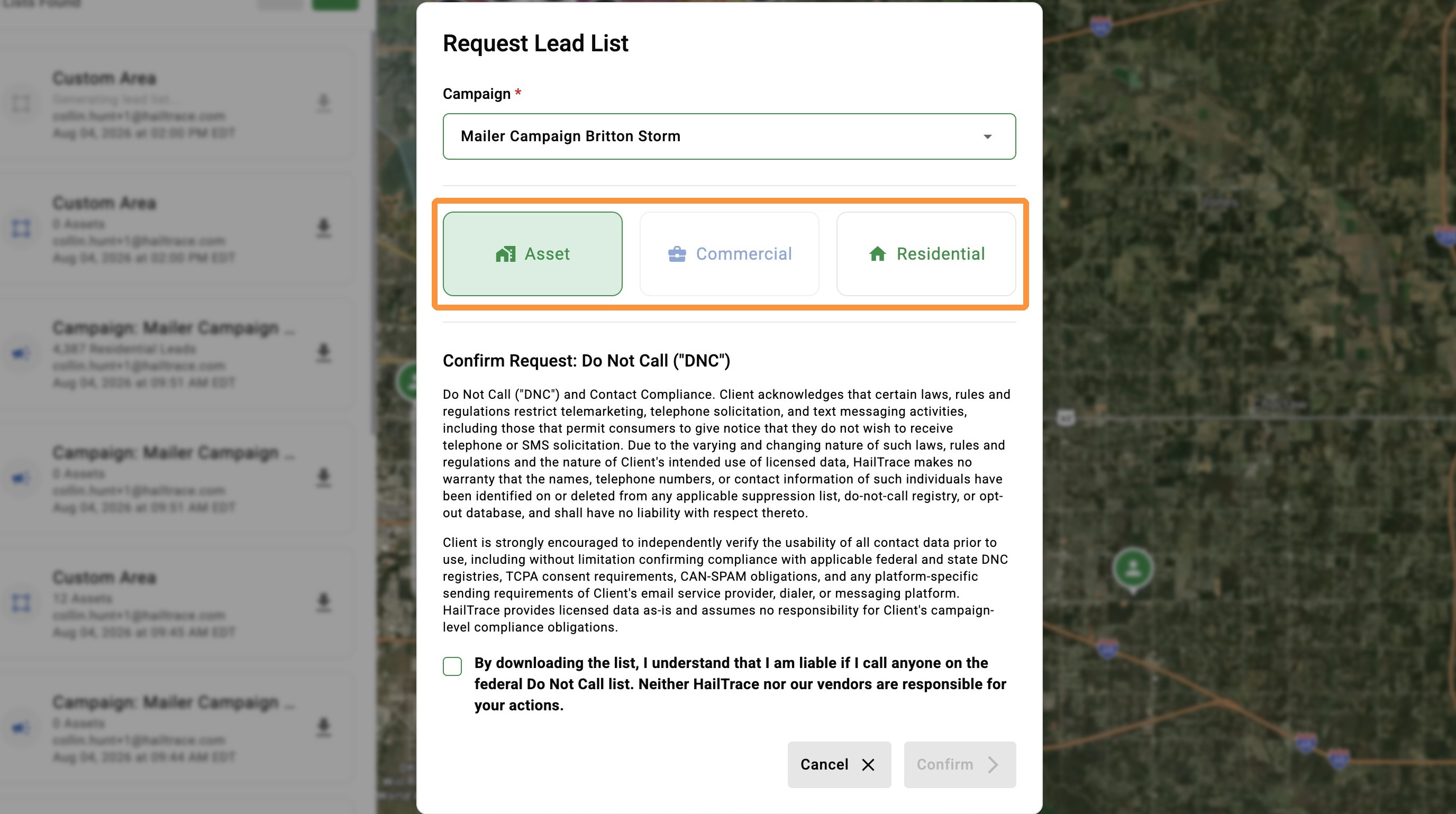
    5. Select the type of download you need:

    A.  Asset: Download list of clients(Assets) in the selected area

    B.  Residential: Download Lead List of all homes in the select area

    C.  Commercial: Download Lead List of all businesses in the select area


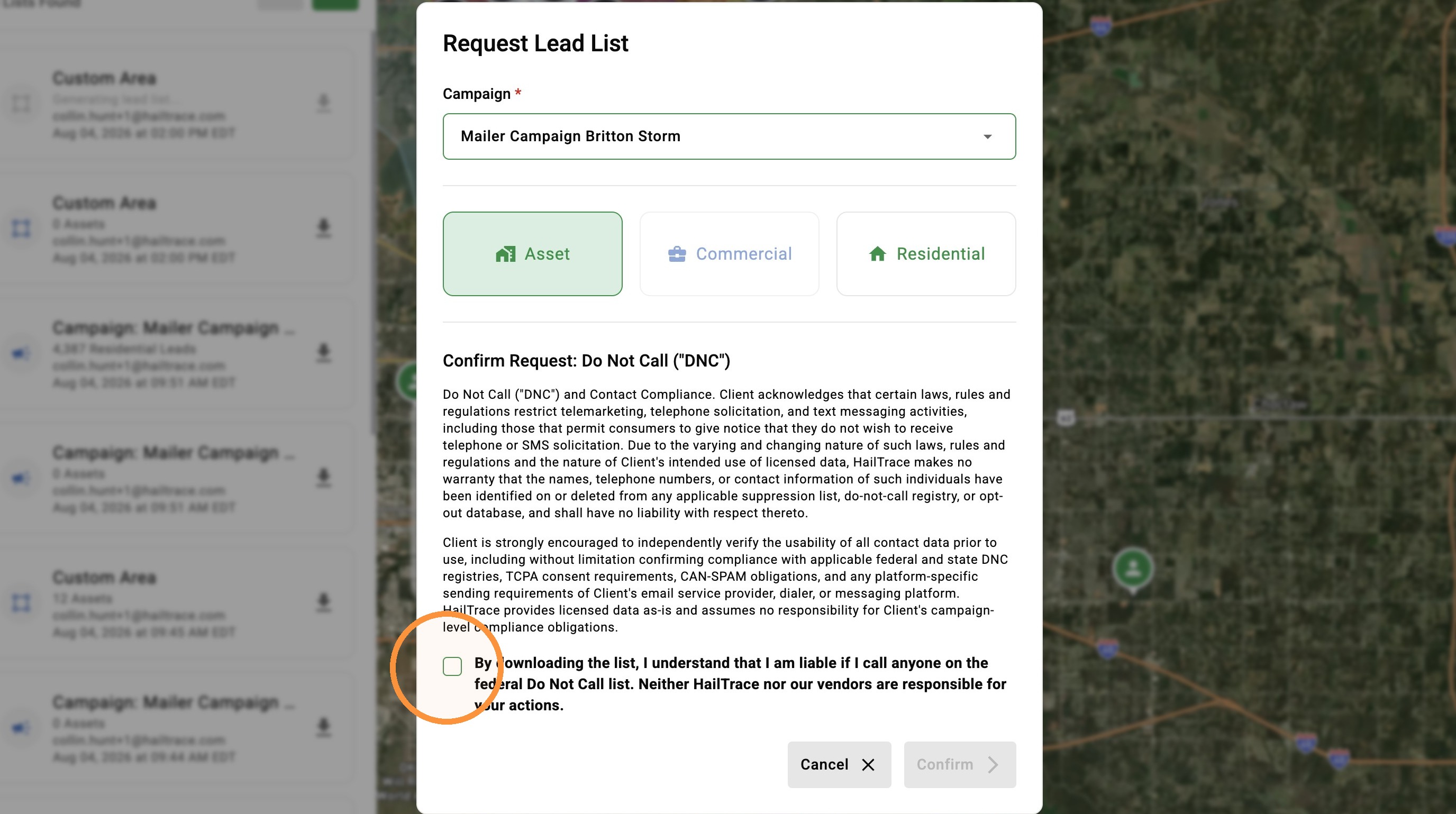
    6. Click "Request List"


    7. Click "Confirm"


    8. Click the “Notifications” page or check your email to download your Lead List


      • Related Articles

      • [5.0] Utilize the Inspector Tool to View Storm Data & Generate Lead Lists

        The Inspector Tool lets you quickly analyze storm data right in the mobile app. With a single tap, you can enter inspection mode, review hail and wind details, and request new lead lists — all without leaving the map. Whether you’re tracking a fresh ...
      • [5.0] Use Impacted Assets to Find Clients Hit by a Storm

        While generating new leads through canvassing, mailers, and other methods is important, the quickest and easiest opportunities often come from your existing leads and clients who have been impacted by a new storm. The Impacted Assets feature provides ...
      • [5.0] How to Create Custom Roles

        The app comes with several pre-set roles that work well for most companies. But every company runs a little differently, and you may need a role that is not already built into the app. A Custom Role lets you choose the exact permissions a user needs ...
      • [5.0] How To Find Roof Value, Roof Squares, and Pitch With RoofTrace™

        RoofTrace™ gives your team fast, ballpark roof size and replacement costs for residential and commercial properties inside the HailTrace app. Instead of waiting on costly reports or guessing at the door, you’ll have instant answers that: Help reps ...
      • [5.0] How to Create a Company Custom Price List For RoofTrace™

        The Custom Price List feature in RoofTrace™ gives admins control over how roof values are calculated. By setting company-wide prices per square and adding a waste factor, you provide reps with transparent, accurate estimates they can confidently use ...